SOLIDWORKS Assembly Mirroring for In-Context Parts

Do you work with in-context or virtual parts? Have you ever run into the issue of mirror misalignment? Has your part ever seemed unable to rotate into the correct orientation, regardless of what option you chose inside the Mirror Components command?
How can I mirror the part…
- without creating an opposite-hand version?
- without impacting the Bill of Materials?
If this sounds familiar or you answered yes to any of these questions, look no further.
Mirroring inside SOLIDWORKS assembly files includes capabilities that save time positioning parts and even create opposite-hand versions as new parts or driven configurations. This blog explores the mechanics of the assembly Mirror Components command and how part creation can affect the command.
This tutorial explains how to correct situations where the assembly Mirror Components command does not produce the desired orientation of a symmetrical part that was created using in-context relations.
In order to understand how to diagnose the problem, we need to understand the assembly mirror tool. Mirroring within an assembly grants you different options than you’d find in a part file. These options are linked to the X, Y, Z coordinate system of the part. (Below is a comparison of the mirror tool within part and assembly files.)

The key settings here are the 5 options found in the Orient Components property field.
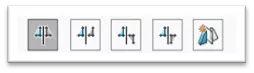
(Given a symmetric part, one of these options should be identical to the opposite-hand version. See the images below for a preview of each setting.)
 X Mirrored, Y Mirrored

 X Mirrored and Flipped, Y Mirrored
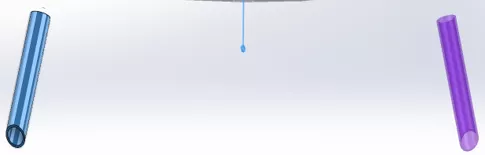
 X Mirrored, Y Mirrored and Flipped
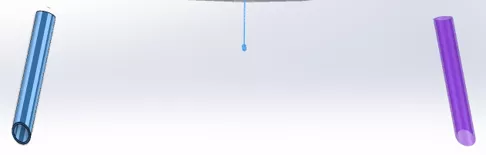
 X Mirrored and Flipped, Y Mirrored and Flipped
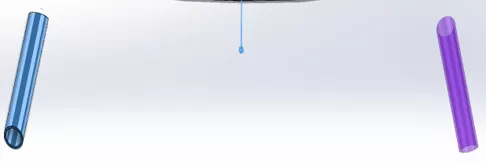
 Create Opposite Hand Version
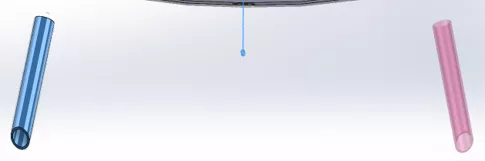
In the case above, the Opposite Hand Version is identical to the X Mirror and Flipped, Y Mirrored option. These options utilize part model reference planes to translate and rotate. If you create a virtual or in-context part, the default reference planes of the part model are the same as the assembly. So, if you create a part at an angle to those references, these mirror options will produce variations that differ from what one might expect from a symmetrical part mirror. Let's walk through an example and how to remedy that issue below.
Example Problem
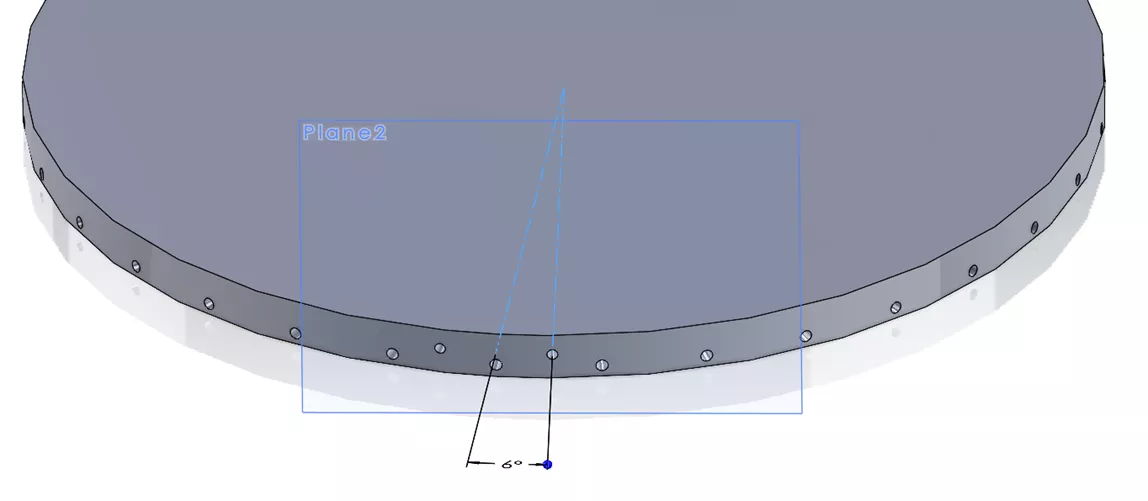
I’ve created a “base part” that has hole features patterned along the outside. The top row of holes is set at an angle of 6 degrees from center, or another way to think of it… counterclockwise from the right plane. To do this, I sketched on a plane tangent to the angle and cut into the base. This plane is the reference from which my virtual part will be created.
I need to create a pin using that geometry. To do this, I'll add a virtual part to the assembly and use the geometry from the hole. This will create in-context relations linked to the “base part” denoted by {->} next to the feature.
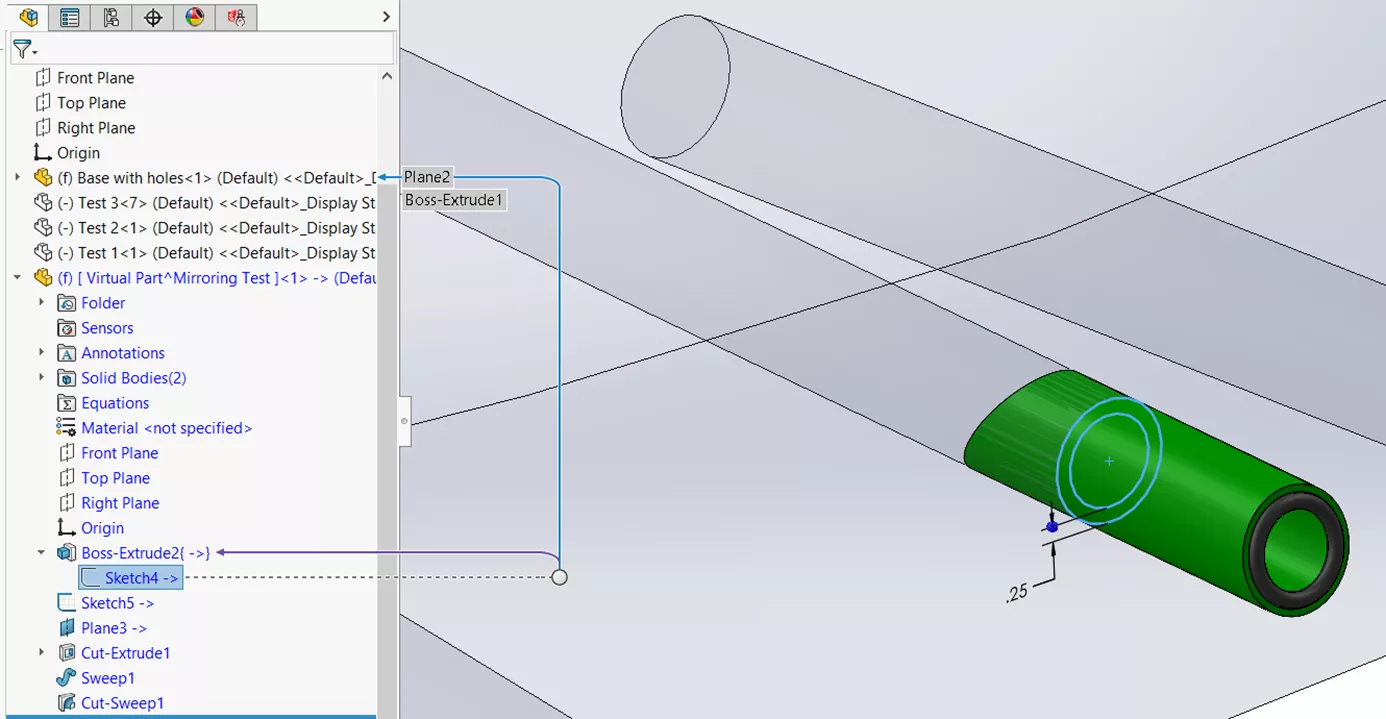
I know from the circular geometry that this part has a plane of symmetry running vertically down the center. I can verify this by running the Symmetry Check command while editing the part. The results show it being symmetrical and, as we saw earlier, if we have symmetry, one of the 4 choices inside the Mirror command should produce an identical result to the Opposite Hand Version.
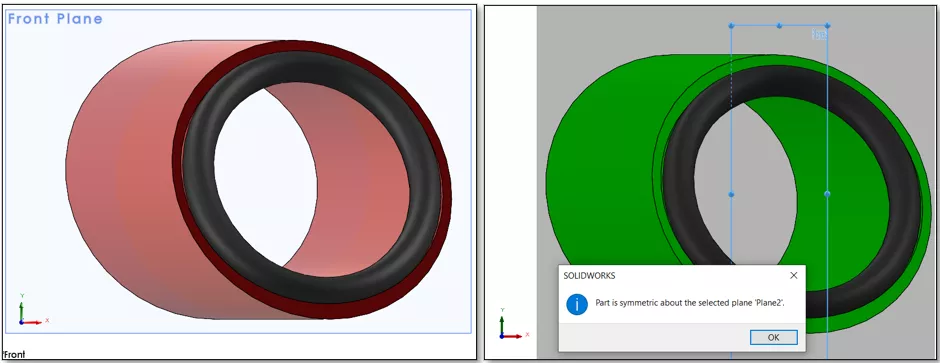
Moving over to the assembly, if we mirror the “in-context” part about the same plane the hole was mirrored from, we expect to see the pin rotated into position. Instead, none of these options match the desired outcome except the Opposite Hand Version. Using the Opposite Hand part would lead to an additional part, changes in the BOM, and extra editing later. (See results below.)
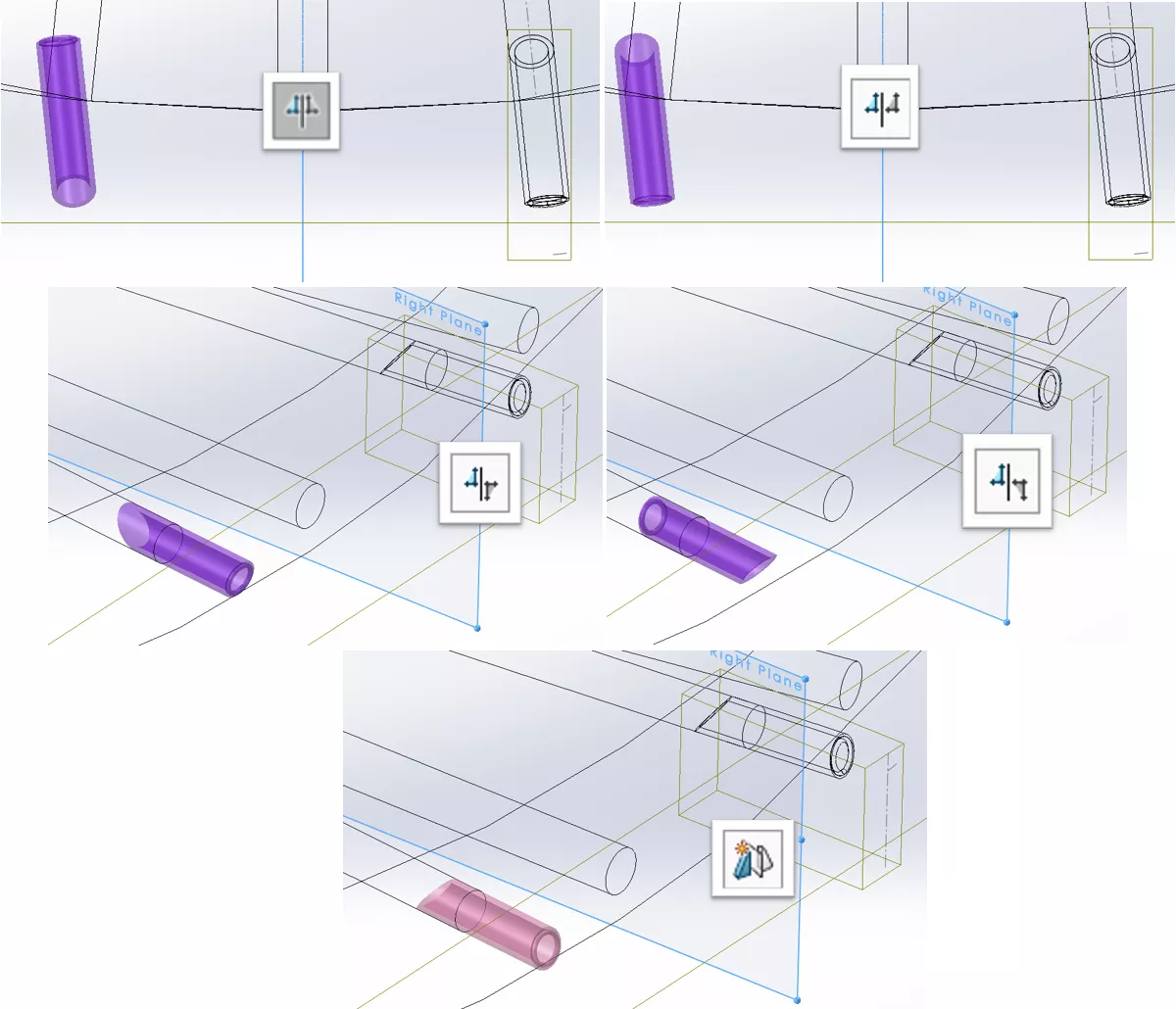
These results are due to the in-context relationship that sets the location of the part in space; the relationship references the plane 6 degrees off center and tangent to the base. The virtual part was created at an angle to the reference planes used by the Mirror command.
Modifying the Part
Let’s look at how to solve this problem while keeping the in-context relations driving the part.
To achieve the desired mirror, we will need to rotate the part back to normal with a reference plane. Knowing the relationship between the assemblies’ reference planes and the plane at which the part was created will help here. In order to achieve the correct mirror inside the assembly, insert a derived part and use it to drive the mirror and any additional patterning operations. The derived part will be mated into location, and when you need to make changes, you can unhide the original part and edit it for changes to be propagated to the derived and mirrored parts.
- Open the virtual or in-context part.
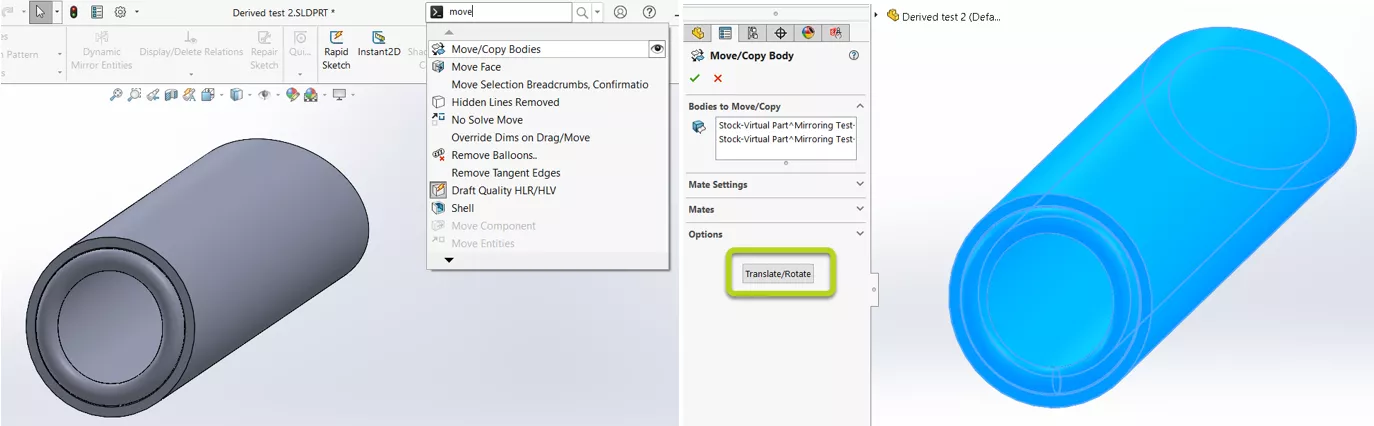
- Open the Solid Bodies folder found in the FeatureManager Design Tree. Right-click and use the command Insert into New Part before rotation.
- This will be a derived part and will maintain any changes made to the original in-context body.
- Use the command Body-Move/Copy and select Rotation in the PropertyManager.
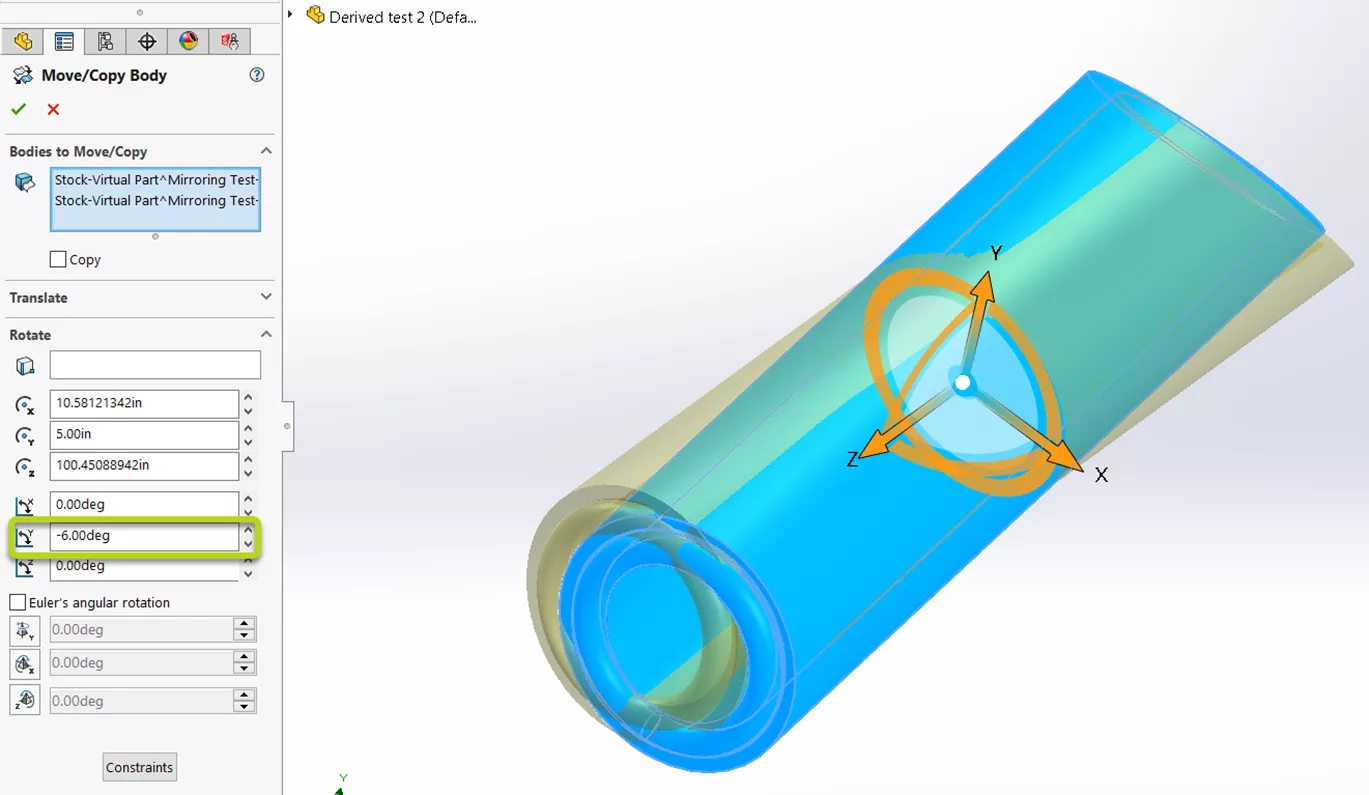
- Using the same angle as the plane (6 degrees of rotation around the Y-axis), enter the value under the associated Y-axis box inside the PropertyManager (the yellow preview in the graphics area represents the new location in space).
- Moving back to the assembly, insert the derived part and mate it to the same hole used to create the virtual part.
- You may be tempted to just add another part and mate it in the other hole. While that might work in this particular example, it's not the most flexible option. Using a derived part for mirroring and patterning allows us to efficiently build mirrors for as many holes as needed, and then a pattern. This way, changes made to the original part will propagate to the rest automatically, saving time.

- You may be tempted to just add another part and mate it in the other hole. While that might work in this particular example, it's not the most flexible option. Using a derived part for mirroring and patterning allows us to efficiently build mirrors for as many holes as needed, and then a pattern. This way, changes made to the original part will propagate to the rest automatically, saving time.
- From here, we can hide the original part and unhide it when changes to the geometry need to be made.
- Now, we can mirror the part without needing an Opposite Hand Version.
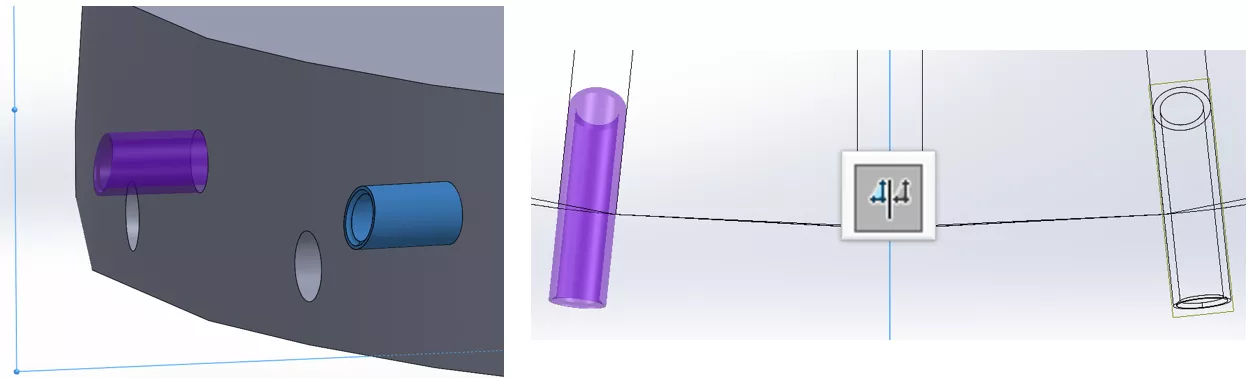
- Lastly, we can use these to drive the patterning on both sides.
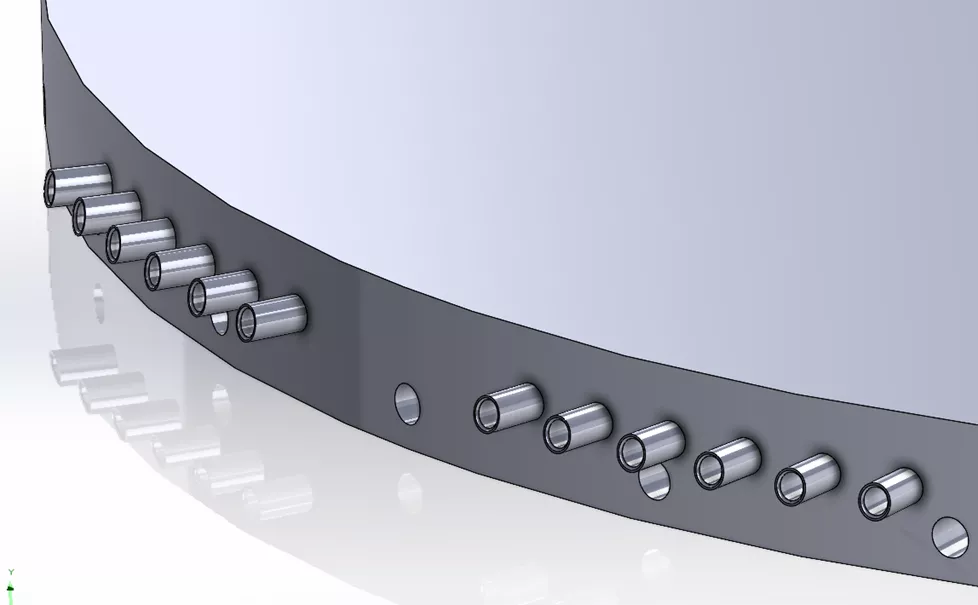
Add this technique to your back pocket and expand your toolbox of solutions within SOLIDWORKS.
Want to learn more? Check out more tutorials below. Additionally, check out the GoEngineer Community, where you can create forum posts, enter design contests, and answer questions from other SOLIDWORKS users.
SOLIDWORKS CAD Cheat Sheet
SHORTCUTS ⋅ MOUSE GESTURES ⋅ HOT KEYS
Our SOLIDWORKS CAD Cheat Sheet, featuring over 90 tips and tricks, will help speed up your process.

Related Articles
Being Flexible with the SOLIDWORKS Flex Feature
Using SOLIDWORKS Sensors to Monitor Surface Area
Why Are My Centerlines Solid in SOLIDWORKS?
AI in SOLIDWORKS: What It Is (and What It Isn’t)
Change Slot Orientation Using SOLIDWORKS Hole Wizard Feature

About Will Cashen
Will Cashen is a SOLIDWORKS Applications Engineer at GoEngineer.
Get our wide array of technical resources delivered right to your inbox.
Unsubscribe at any time.