SOLIDWORKS to Abaqus Material Plug-In

Abaqus is a powerful solver for both linear and nonlinear analysis. When it comes to advanced material behavior, Abaqus offers a much broader selection of material models than SOLIDWORKS Simulation. (Learn more about when you should upgrade.)
One significant inconvenience, however, is that you must manually enter your material data or copy it from an existing model or material library. This process can be tedious and may lead to mistakes. For SOLIDWORKS Simulation users who are new to Abaqus, this can come as a surprise, especially when they realize how detailed material definitions must be for accurate results.
Wouldn’t it be convenient if you could bring your existing SOLIDWORKS material library directly into Abaqus? Well, now you can!
SOLIDWORKS Material to Abaqus Plug-in
GoEngineer's Simulation Team has developed an Abaqus plug-in that allows material data to be imported directly from SOLIDWORKS into Abaqus/CAE, eliminating manual entry and streamlining your analysis workflow.
Using the Translator in Abaqus
The process is not difficult to use within Abaqus/CAE. First, download and install the SOLIDWORKS Material plug-in. Follow the instructions from the PDF supplied with the installation file set.
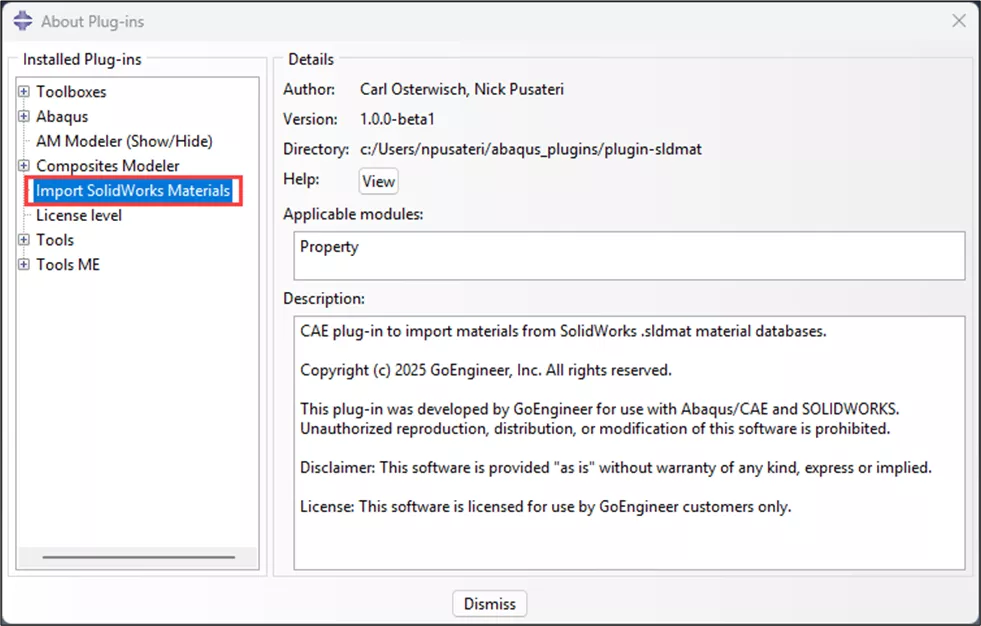
Figure 1: Abaqus plug-in information
After you have installed the SOLIDWORKS Material plug-in, open Abaqus/CAE and switch to the Property module. The SW Material tab should be showing.
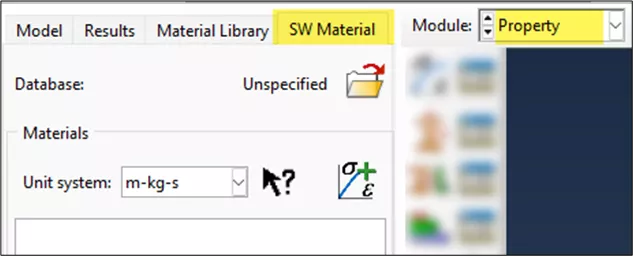
Figure 2: SW Material tab
Next, choose a unit system that will be used when importing the material info into Abaqus/CAE.
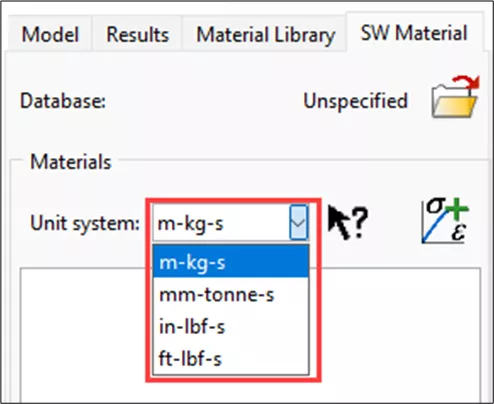
Figure 3: Units to choose from
The  button next to the units will link to a web page describing the selected system of units. This is another powerful tool created by Carl Osterwisch on the GoEngineer Abaqus support team to help with unit conversion within Abaqus.
Choose the folder icon named Unspecified. From here, select a SOLIDWORKS material database file to import material information from.
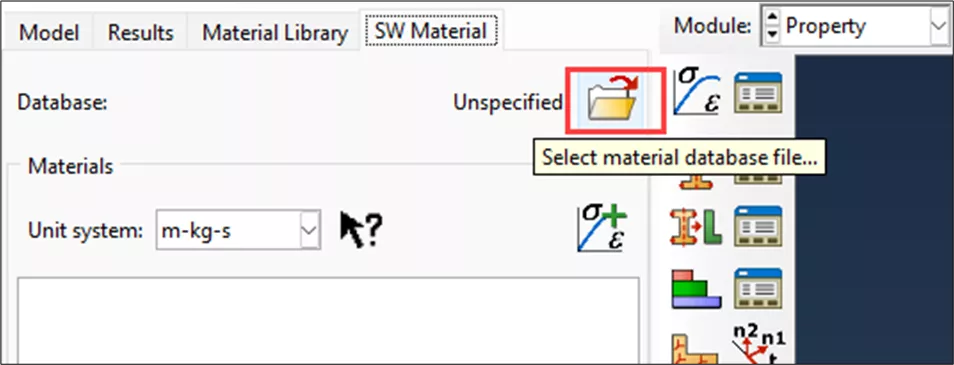
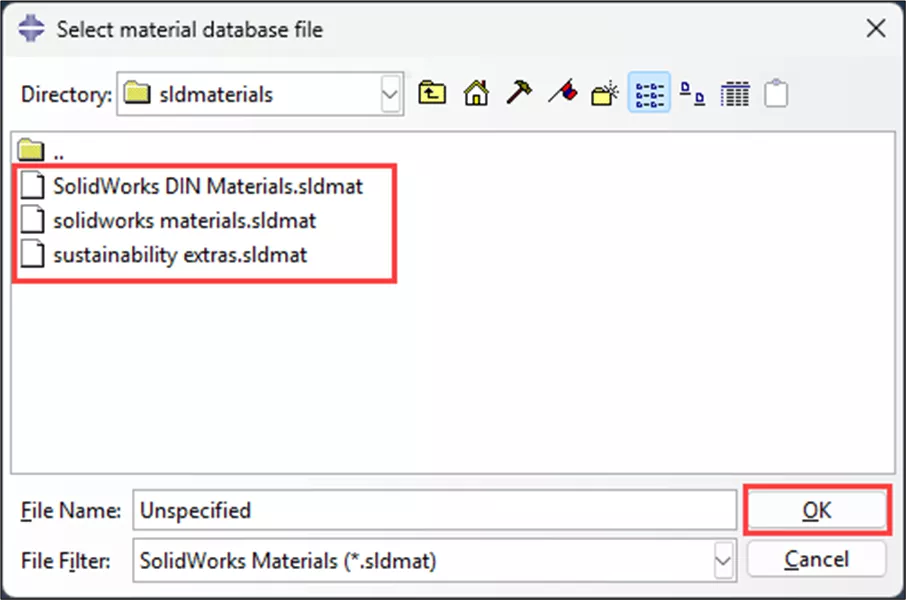
Figure 4: These files are included when you install SOLIDWORKS
As an example, let's choose the “solidworks materials.sldmat” file. Click OK, and a list of materials will populate to select from.
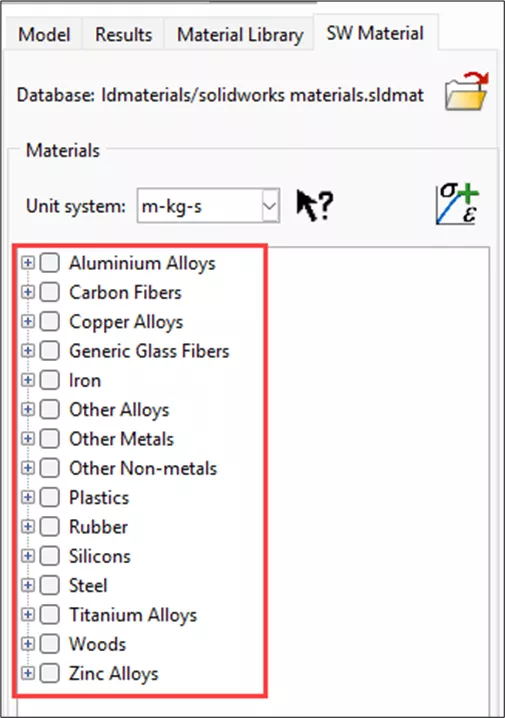
Figure 5: List of materials available within the selected database
From here, select the Plain Carbon Steel material under the listing of steels, or another material of your choosing.
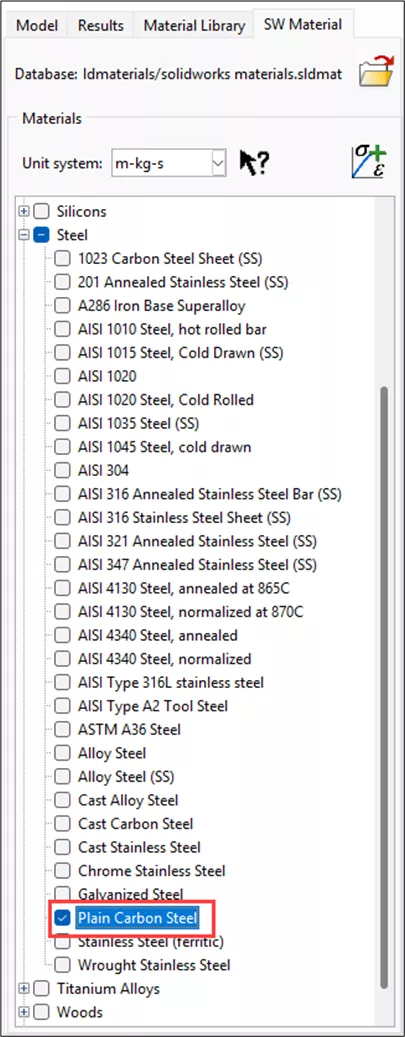
Figure 6: Selecting a material in the listing
Select the  button to add the selected material to your model in the Abaqus Model/Results Tree.
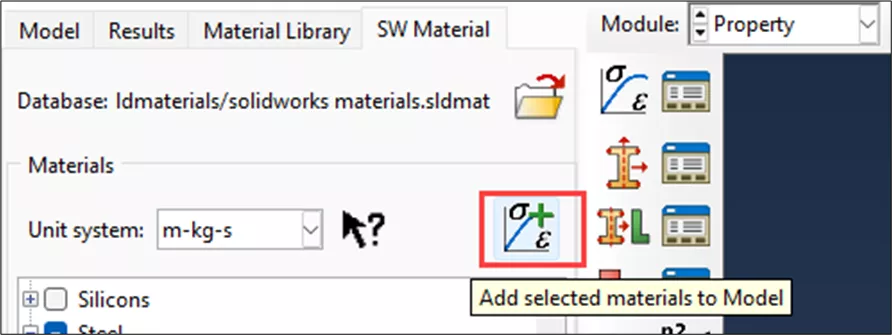
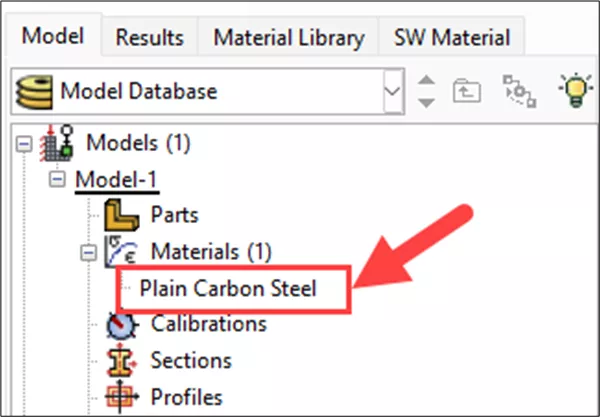
Figure 7: Newly added material to model result tree
Continuing with the example, editing the Plain Carbon Steel material in Abaqus, you will see that all the material information has been automatically filled in.
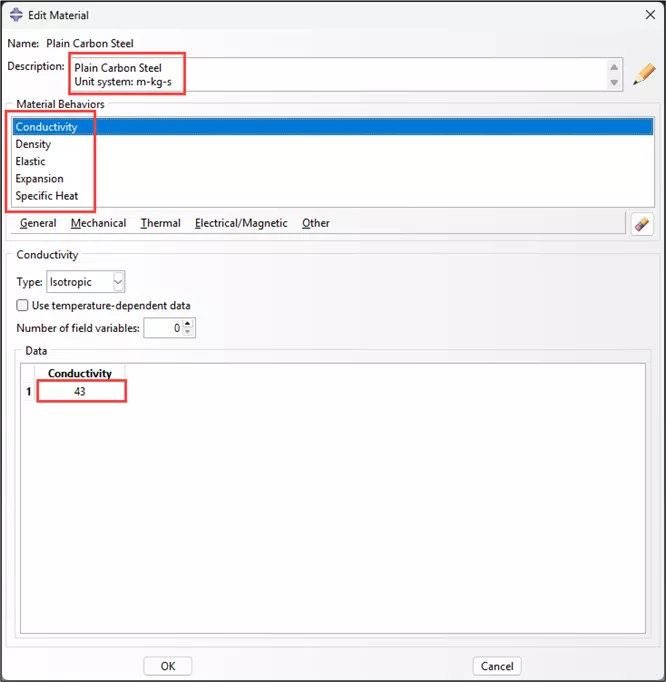
Figure 8: Conductivity information
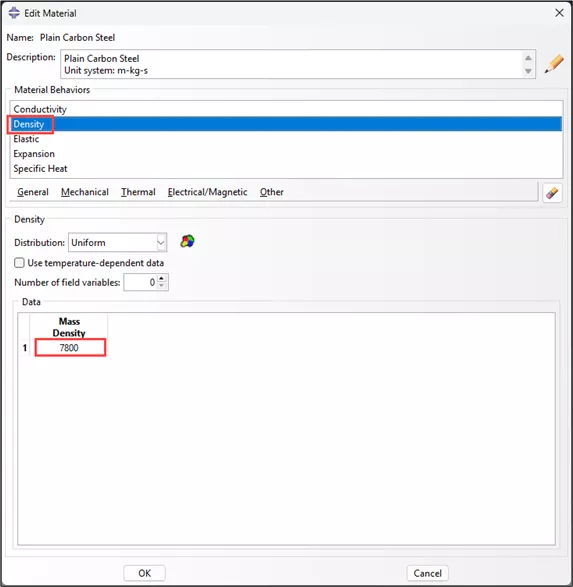
Figure 9: Density information
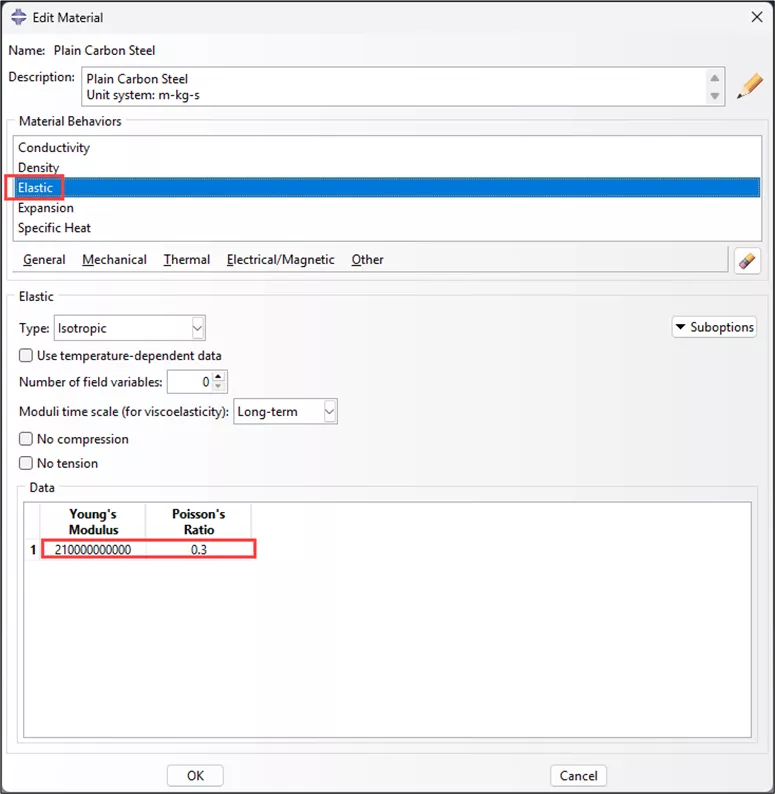
Figure 10: Elastic information
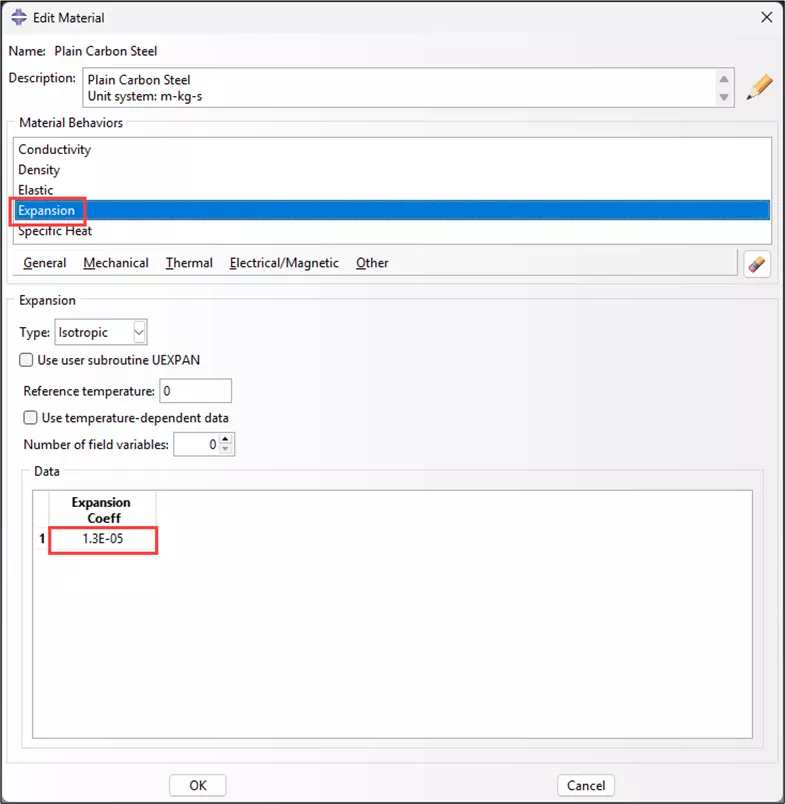
Figure 11: Expansion information
This SOLIDWORKS to Abaqus material plug-in enables you to take full advantage of both the built‑in SOLIDWORKS material library and any custom materials you’ve created, making them seamlessly available within Abaqus/CAE.
Ready to get started?
Request your free download of this powerful and easy-to-use translator by clicking the button below.
Frequently Asked Questions
Yes! If the SOLIDWORKS data includes nonlinear stress-strain data, then it is properly converted to plastic behavior for Abaqus (true yield strength vs log plastic strain).
No, Abaqus itself does not perform high-cycle fatigue analysis, so it has no use for this data. Instead, fatigue analysis should be performed using fe-safe, which already has its own extensive material database and is included with the Abaqus license.
Almost everything - except S/N data.
Yes. If nonlinear hyperelastic test data is available, then it is imported as-is to Abaqus, and the first order Ogden strain energy potential is assigned by default.
It doesn’t take long at all; it happens almost instantly.
The translator is compatible with any modern Abaqus CAE version (tested from 2017 to 2026) and should work with any SOLIDWORKS material library.
No, this translator was developed to work within Abaqus/CAE.
Related Articles

About Nick Pusateri
Nick Pusateri is a Senior Simulation Specialist at GoEngineer. He has a Bachelor of Science degree in Mechanical Engineering from UMSL/Wash University of Missouri. Nick enjoys learning about different tools of SOLIDWORKS Simulation, Abaqus, and 3DEXPERIENCE SIMULIA.
Get our wide array of technical resources delivered right to your inbox.
Unsubscribe at any time.