How to Easily Work with Large Assemblies in 3DEXPERIENCE

The handling of large assemblies can be a huge source of frustration and slowdown for design teams. This is because many popular CAD and PLM tools simply choke on huge or complex models. But you can reclaim that lost productivity (and quality of life) by using the 3DEXPERIENCE platform for cloud-based PLM and CAD management. Though based on high-performance CATIA and ENOVIA technology, these benefits are available to users of desktop SOLIDWORKS, CATIA, Inventor, Creo, NX, and more, through CAD program extensions that save your CAD to the cloud.
Once your assembly is on the 3DEXPERIENCE platform, multi-layered visualization and built-in filtering tools let you define a precise work context (for example, “show only components touching my tubing”) with a single click, so you can author or review just the parts you need, exactly when you need them. Learn how to set up filtering in Product Finder below.
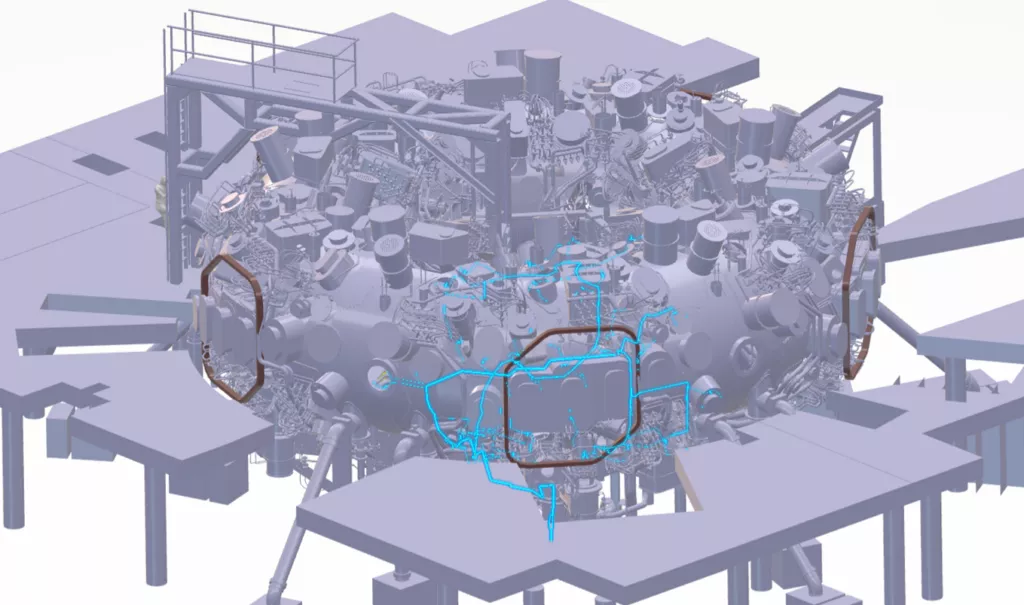
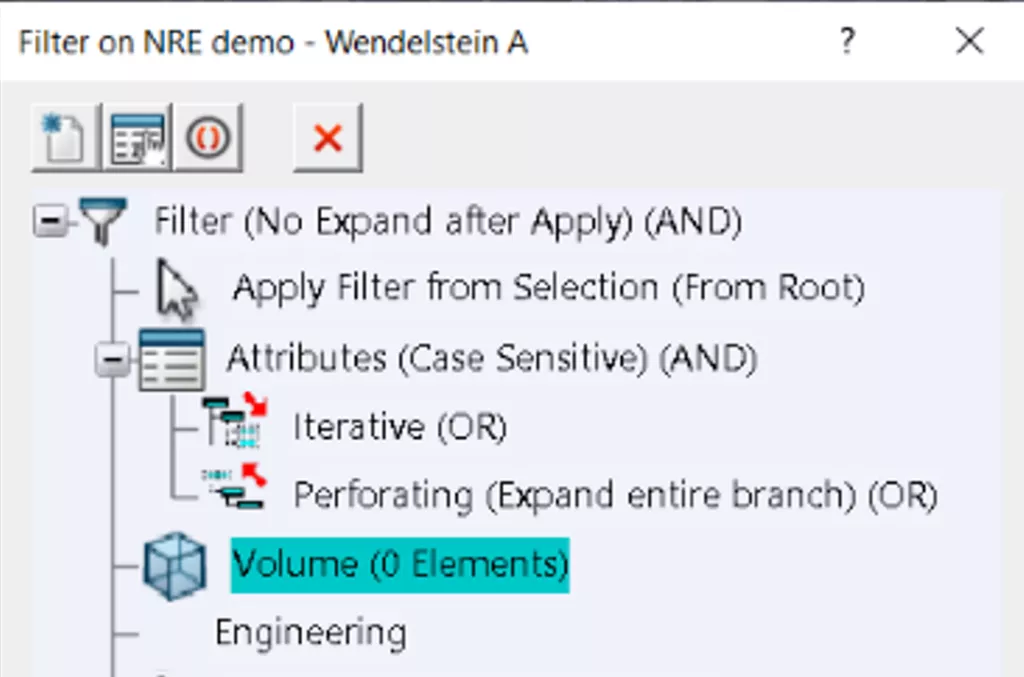
The Filter command, found under the Navigation tab of the Product Finder app (Explore mode), provides various options to filter a product structure:

- From Selection
- Create a Filter based on manually picking which components of the assembly structure should be kept or removed.
- By Attributes
- Create a Filter based on attributes of the assembly structure components (e.g., Description, Title, etc.).
- Volume Filter
- Create a Filter based on the location and shape of geometry in 3D. The locations are defined by geometrical shapes such as Cubes, Spheres, or Proximity around components.
- Engineering Filter
- Create a Filter based on predefined configurations created in other 3DEXPERIENCE applications.
Once a Filter is defined, a filter symbol indicates that a Filter is applied. A Filter can be stored and used to open the filtered structure directly for authoring or create a filtered view in a drawing..
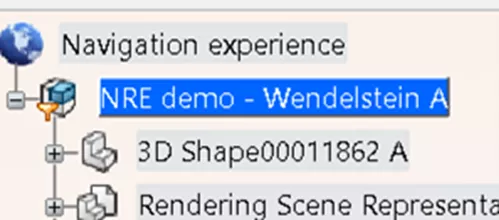
How to Define a Volume Filter for a Large Assembly
In the Filter command, double-click on Volume to define a Volume Filter.
In the Volume Filter Definition dialog box, various shapes are available for defining the volume. Select the Tube System and click on Offset type. A volume offset from the selected tube system is created:
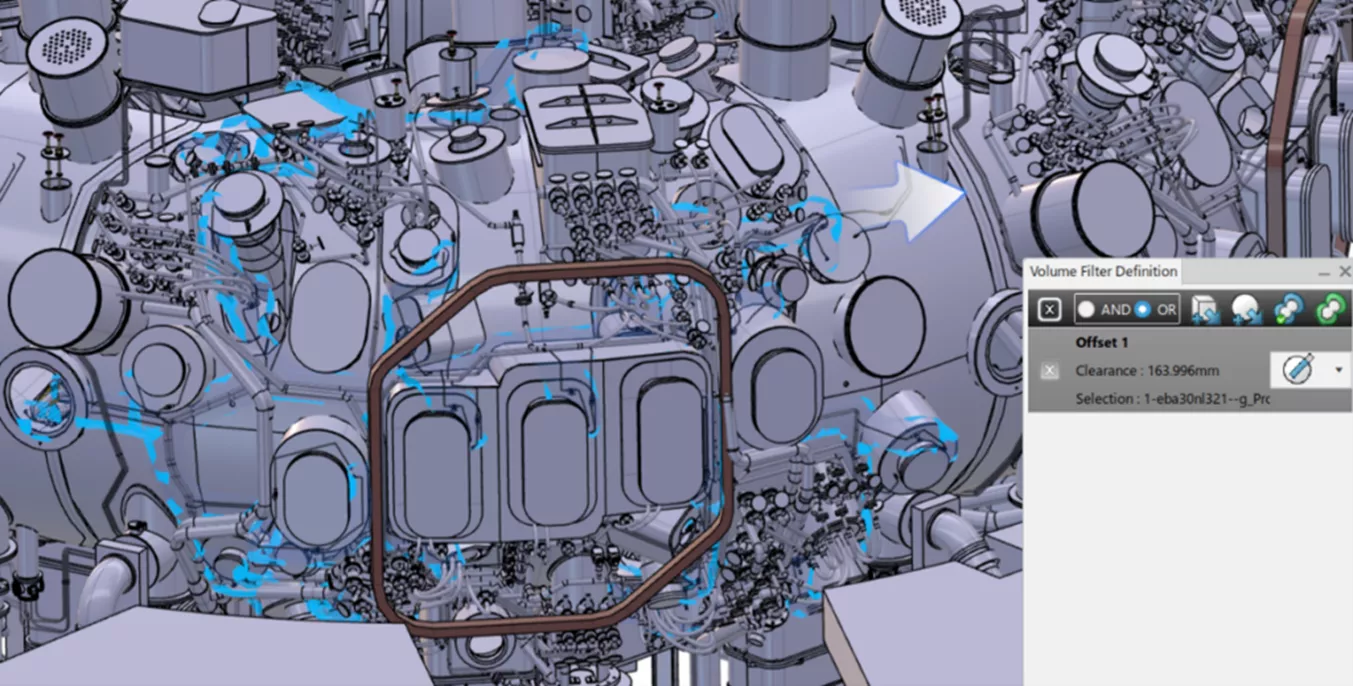
Use the cursor to resize the volume:
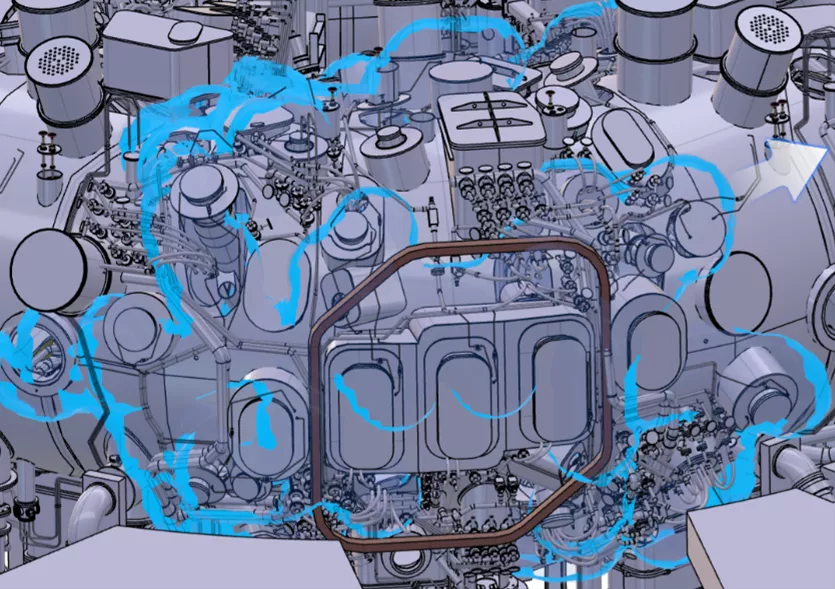
Validate the volume to confirm the creation of the volume filter.
Once the volume filter is applied, the assembly is filtered, removing any parts that are not touching the defined volume.
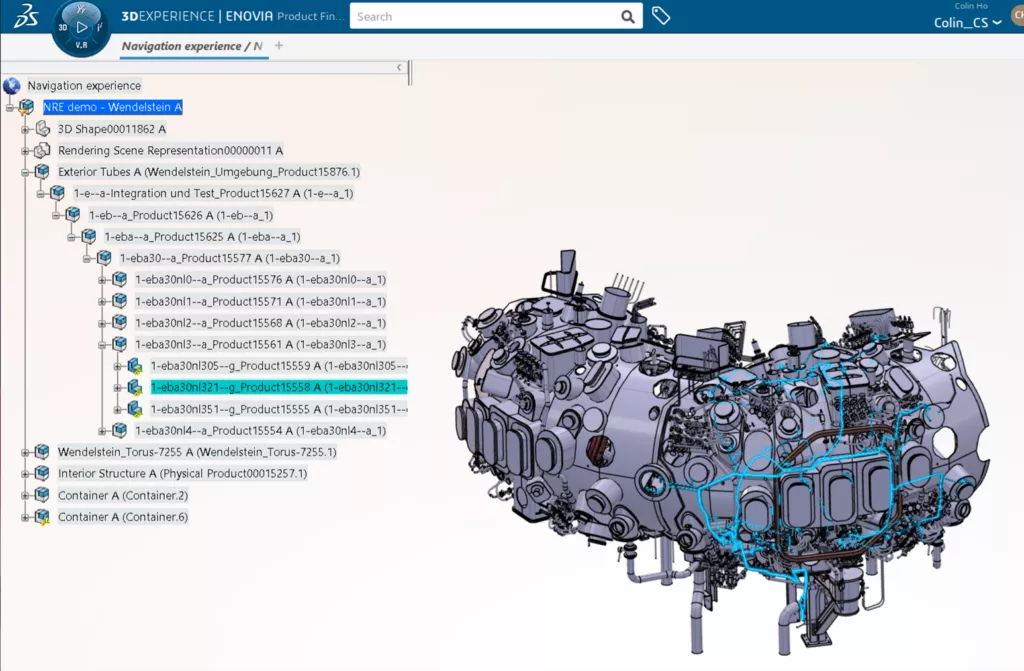
Et voilà! With the filtering capability in 3DEXPERIENCE, a task that would have taken hours in conventional CAD software can now be performed in only a few clicks.
Questions?
If you have any questions or would like to learn more about how to work with large assemblies in 3DEXPERIENCE, please contact us.
Want to learn more? Check out more tips and tutorials listed below or on our 3DEXPERIENCE YouTube Channel. Join the GoEngineer Community to create forum posts, join design contests, and answer questions from other 3DEXPERIENCE platform users.
Related Articles
SOLIDWORKS 2026 & 3DEXPERIENCE Collaboration - What's New
Managing Non-CAD Documents on the 3DEXPERIENCE Platform
Customize Drawings to Use 3DEXPERIENCE Platform Attributes
How to Create a 3DEXPERIENCE Dashboard with Analytics

Get our wide array of technical resources delivered right to your inbox.
Unsubscribe at any time.