SOLIDWORKS 2026 & 3DEXPERIENCE Collaboration - What's New

Table of Contents
Here is a rundown of some of the SOLIDWORKS 2026 enhancements in the area of collaboration and the 3DEXPERIENCE platform.
Selective Loading
Working with large assemblies can be challenging. Oftentimes, the only way to have the total context of a design is to open all the parts you don’t need to work on, just the parts you do need.
With the new Selective Loading, you start in a lightweight web browser app and graphically select only the parts and sub-assemblies you need to work on, with no concern for the underlying CAD structure. Then, in SOLIDWORKS Design, instead of waiting for every component, mate, and reference to load, you can open just the parts you selected and begin designing. This reduces open times and allows you to start designing faster with a quick and responsive workflow.
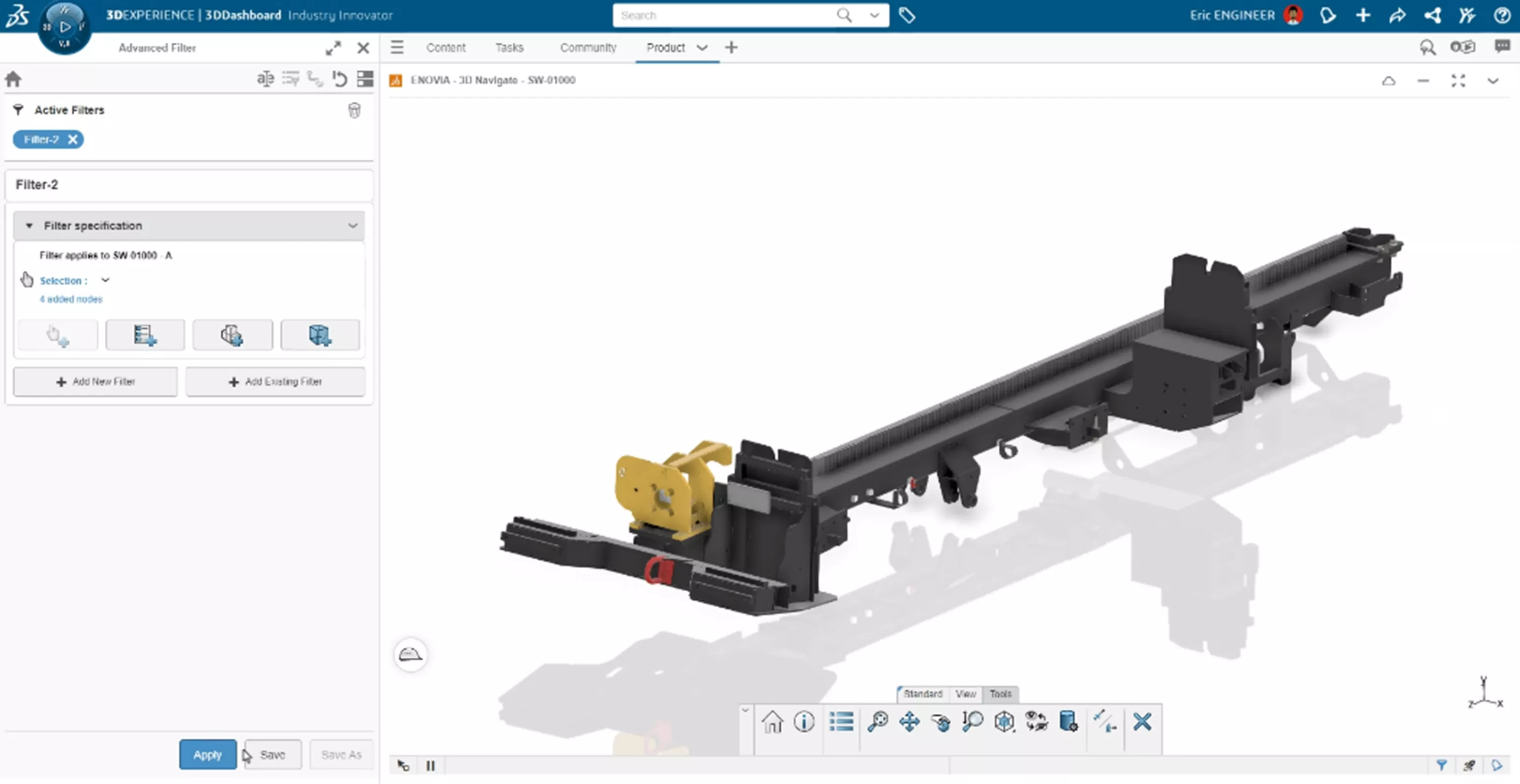
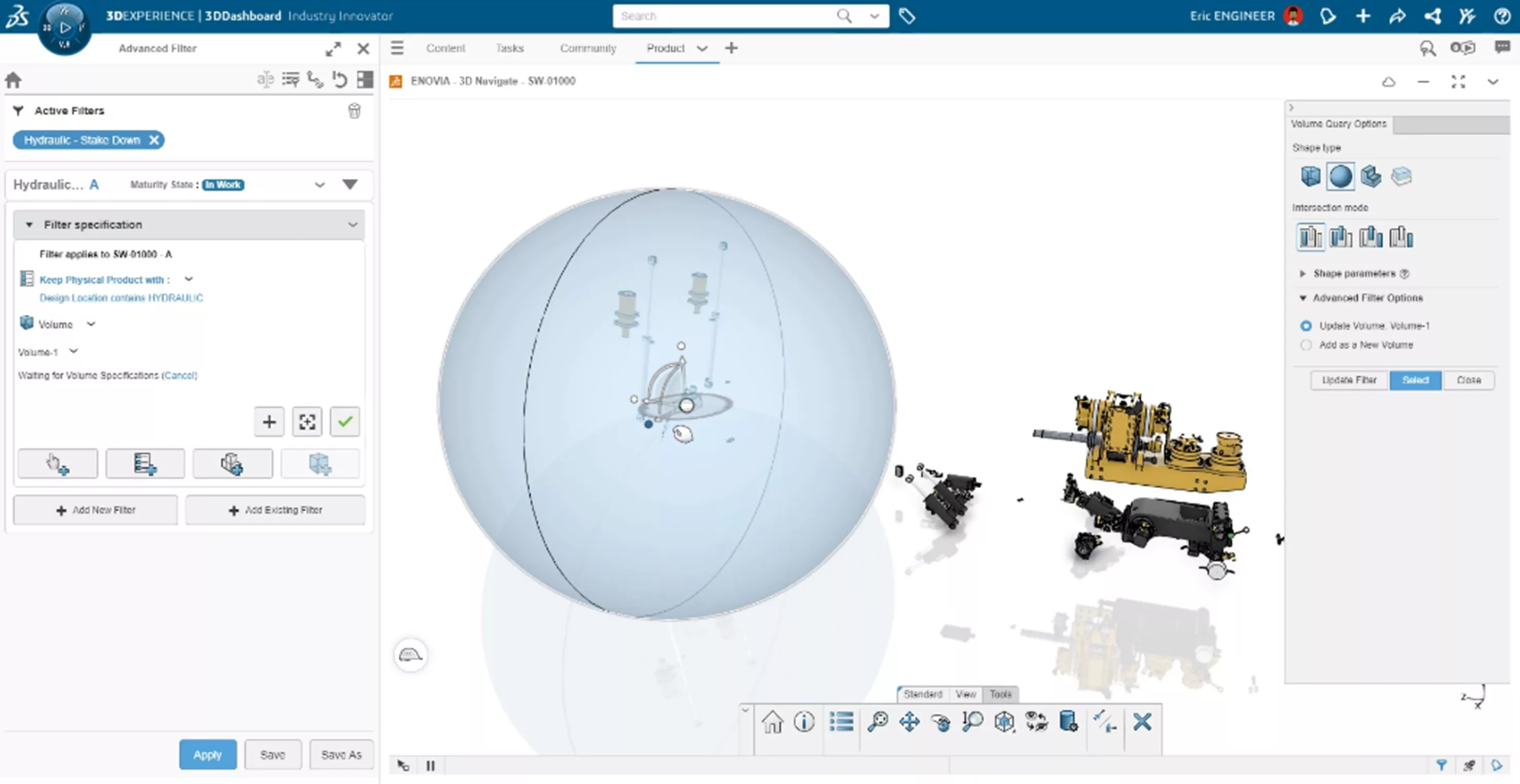
Selective Loading will also let you isolate to a specific system within your design by filtering on custom properties, maturity states, or even physical volumes/areas. This allows you to quickly zero in on relevant components. This targeted approach eliminates all the noise, so you can work with precision.
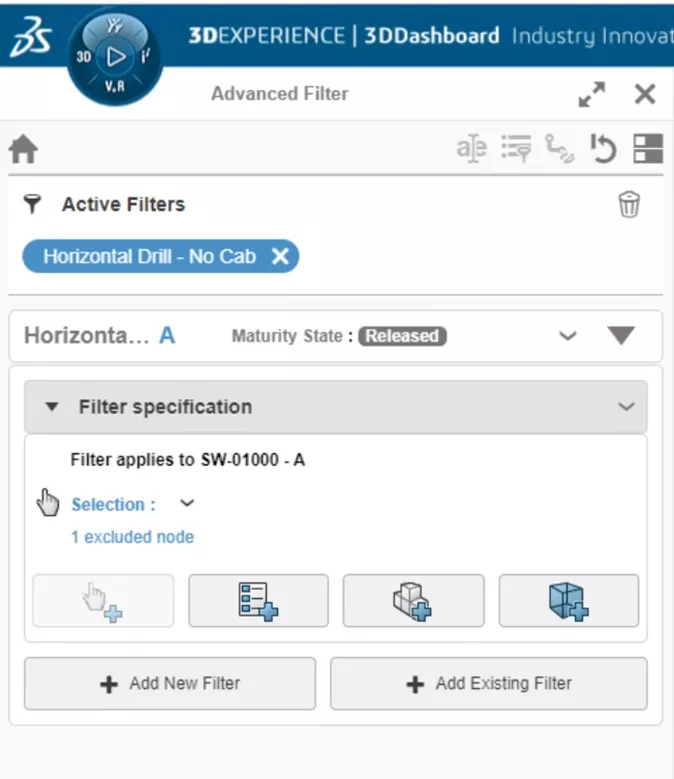
Finally, Selective Loading supports the creation of filters that can represent different variations of your design. These can be saved, reused, and even released as part of your design documentation. These filters act as a saved version/view of your assembly and can be referenced directly by drawings. This means your documentation stays accurate and aligned with the exact representation you intended.
Aura
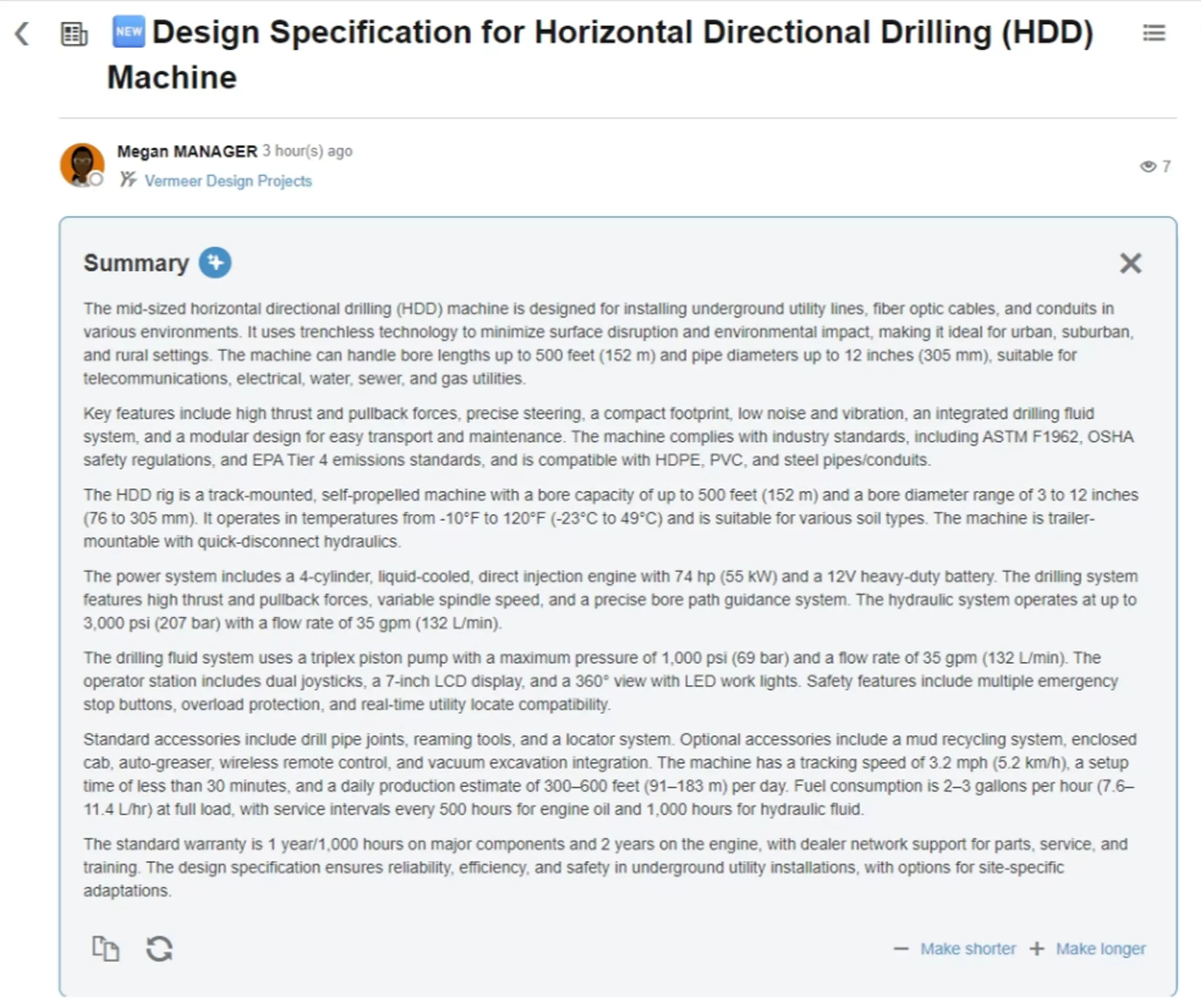
Introduced in 2025 FD03, Aura is your AI companion. In the 3DEXPERIENCE platform, you can use Aura to quickly summarize community posts, wikis, questions, and ideas to capture key takeaways.
Inside SOLIDWORKS Design, Aura lets you start natural language conversations that pull from posts, wikis, ideas, help files, and even What’s New documentation.

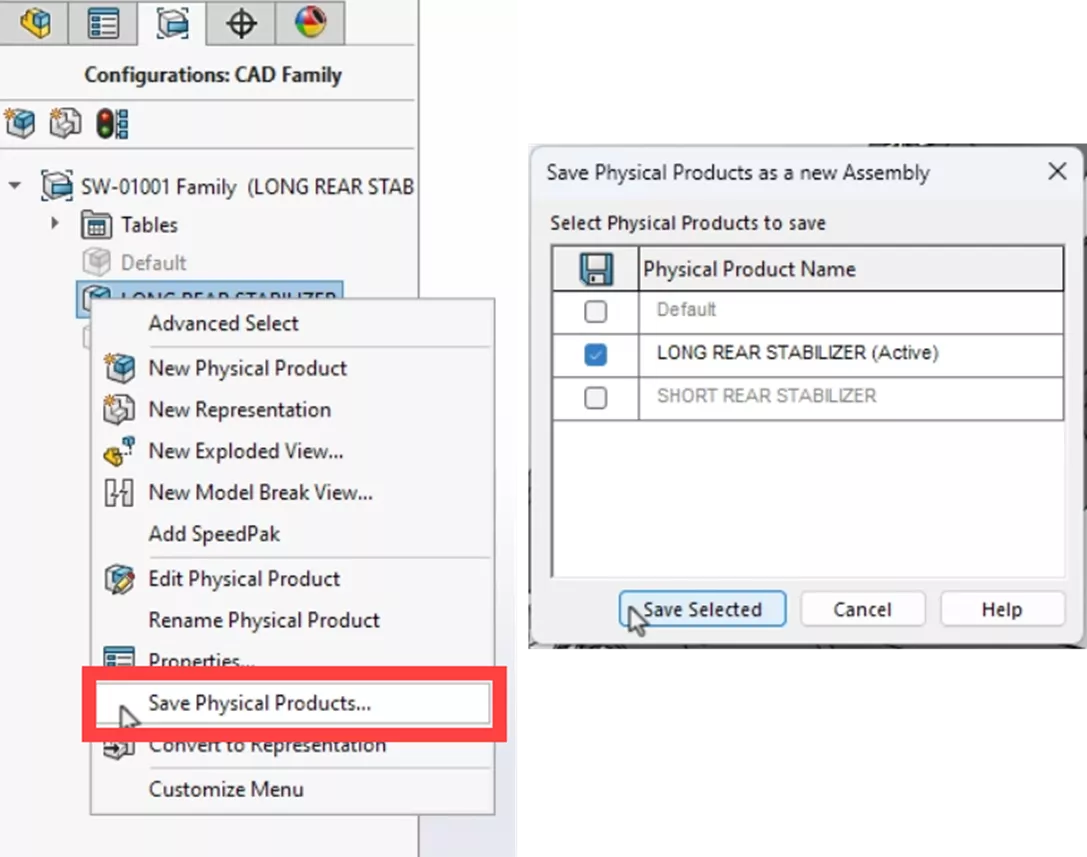
Save Configuration as New Physical Product
With SOLIDWORKS Design 2026, you can save configurations as a new, individual physical product. This allows for greater flexibility in how you structure your designs and provides full control over managing the associated references on the platform when saved.
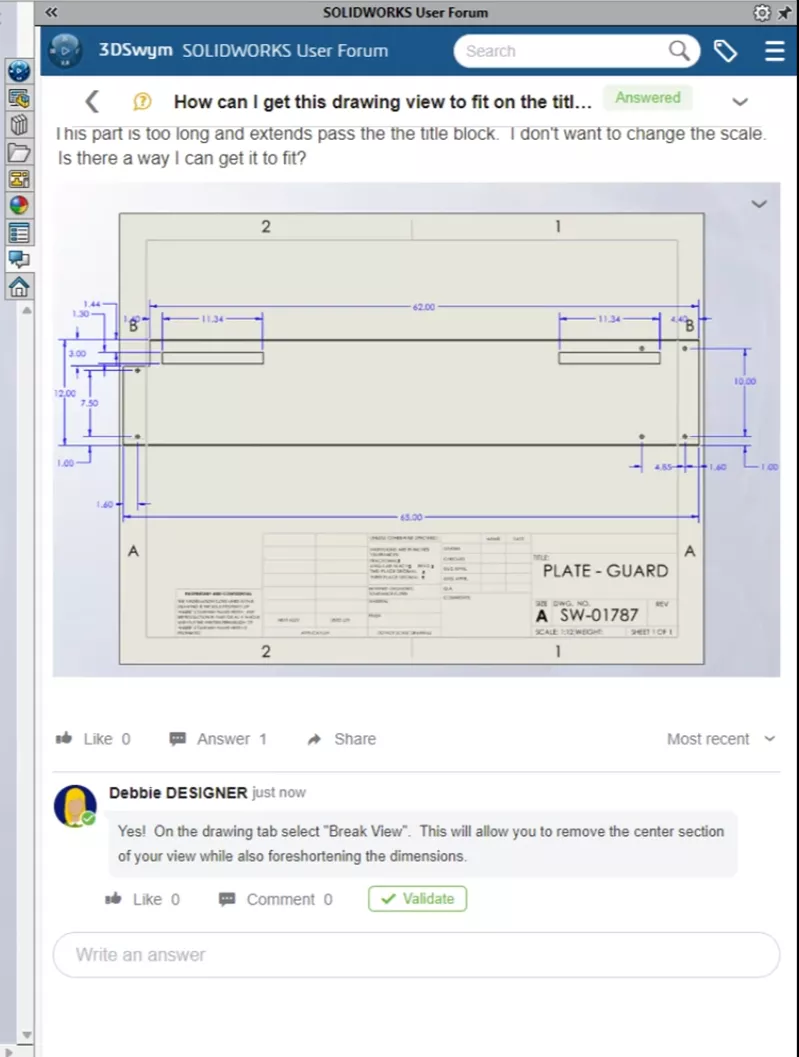
Connect With Peers Inside SOLIDWORKS Task Pane
You can now access the SOLIDWORKS forums directly from the SOLIDWORKS Design task pane – making it easier than ever to access the knowledge of the user community. Get valuable feedback on your questions, learn from others, and participate by sharing your own knowledge and insights.
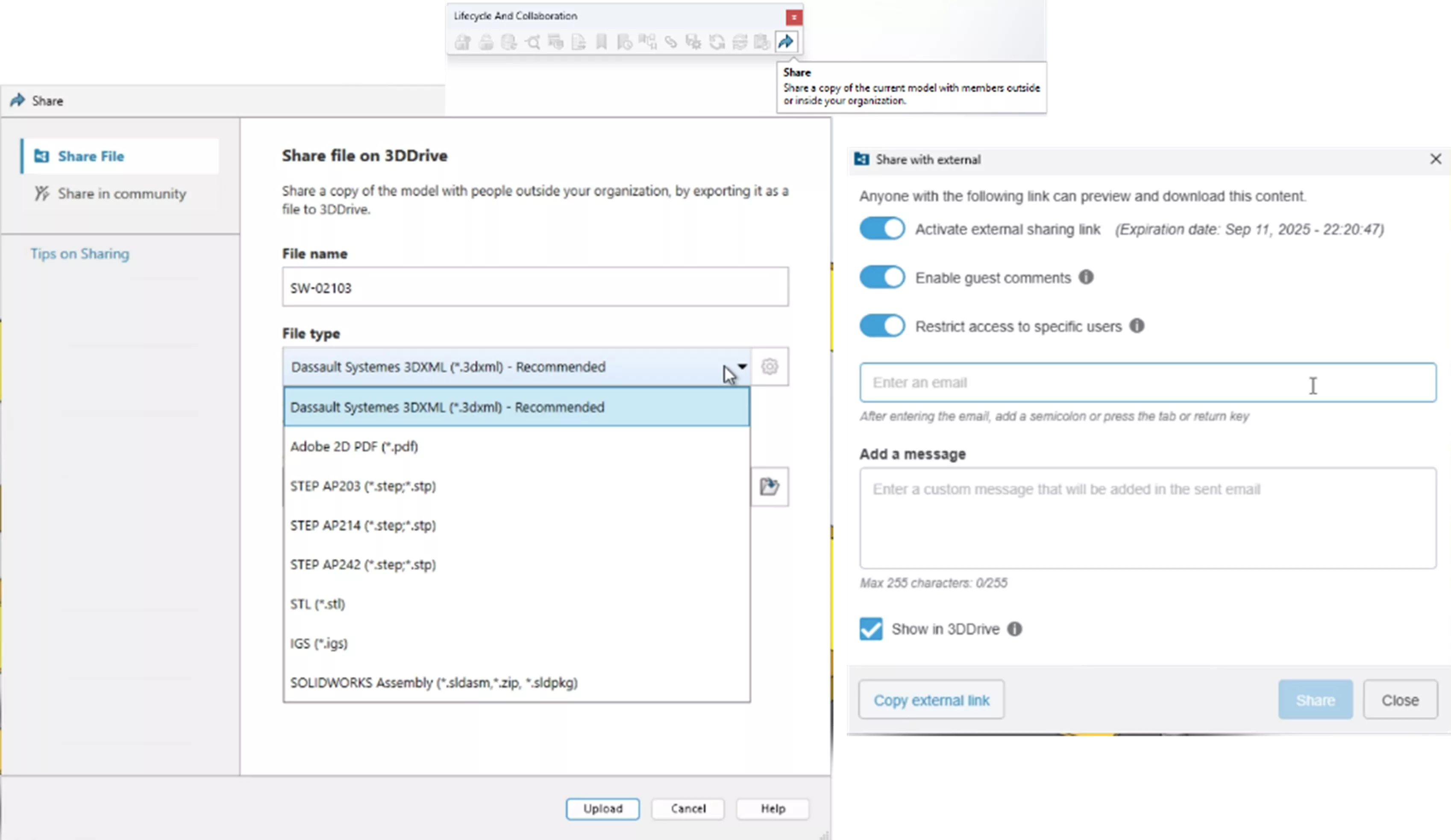
Share Command
SOLIDWORKS Design makes it easy to share your models right from the File menu. Introduced in 2025 and enhanced in 2026, you can choose from an extensive list of standard formats, such as PDF, STEP, STL, and IGES, and ensure security by controlling who can access your shared designs. On the receiving end, no software needs to be loaded, nor does anything need to be purchased to view the files and participate in design reviews through on-screen markups and comments.
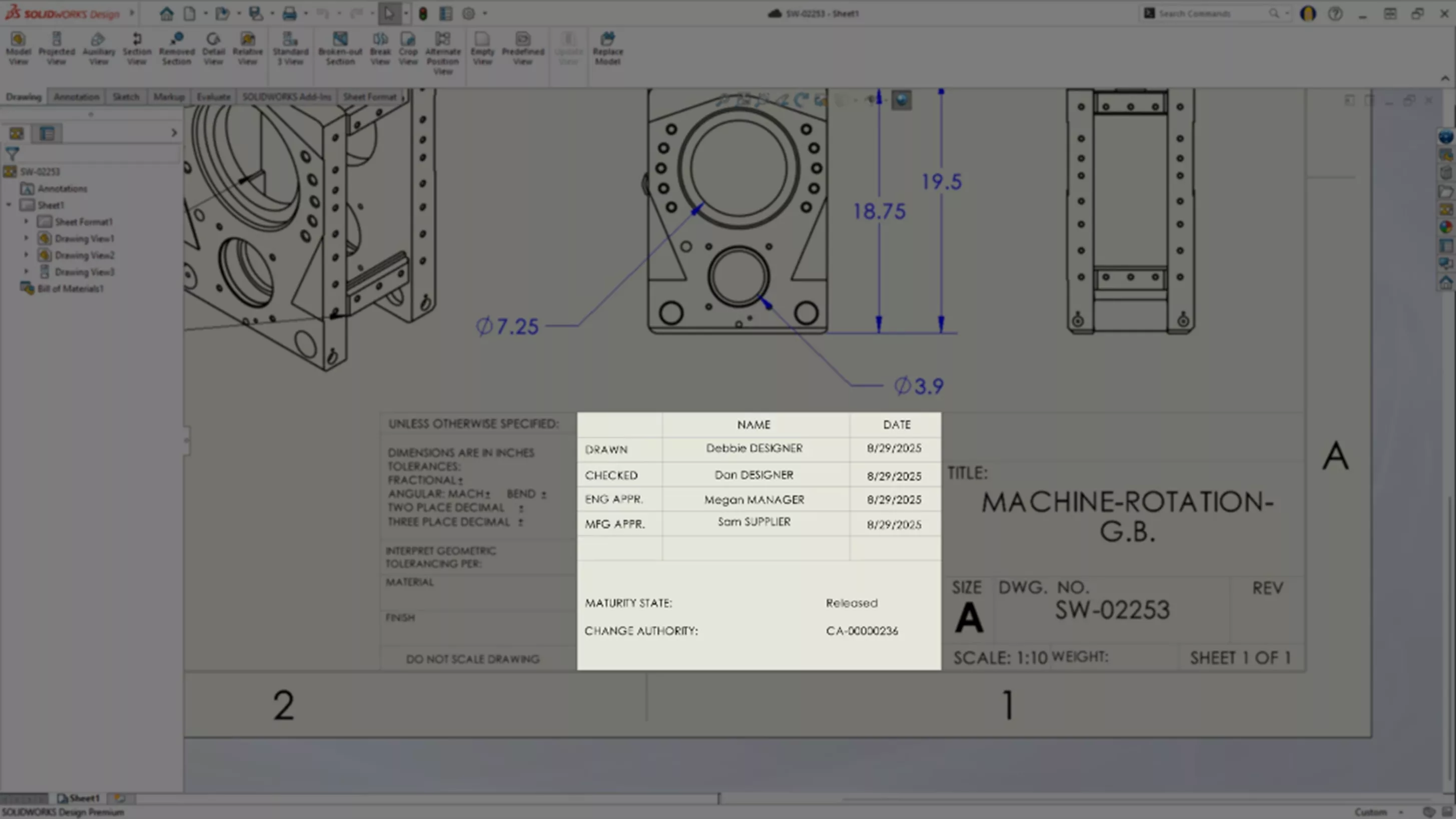
Drawing Stamping
User names, approval dates, and maturity status are all important parts of the change process. With SOLIDWORKS Design, drawing stamping now happens automatically as each change action task is completed, providing a final drawing that’s complete and accurate.
Weldment Cut Lists
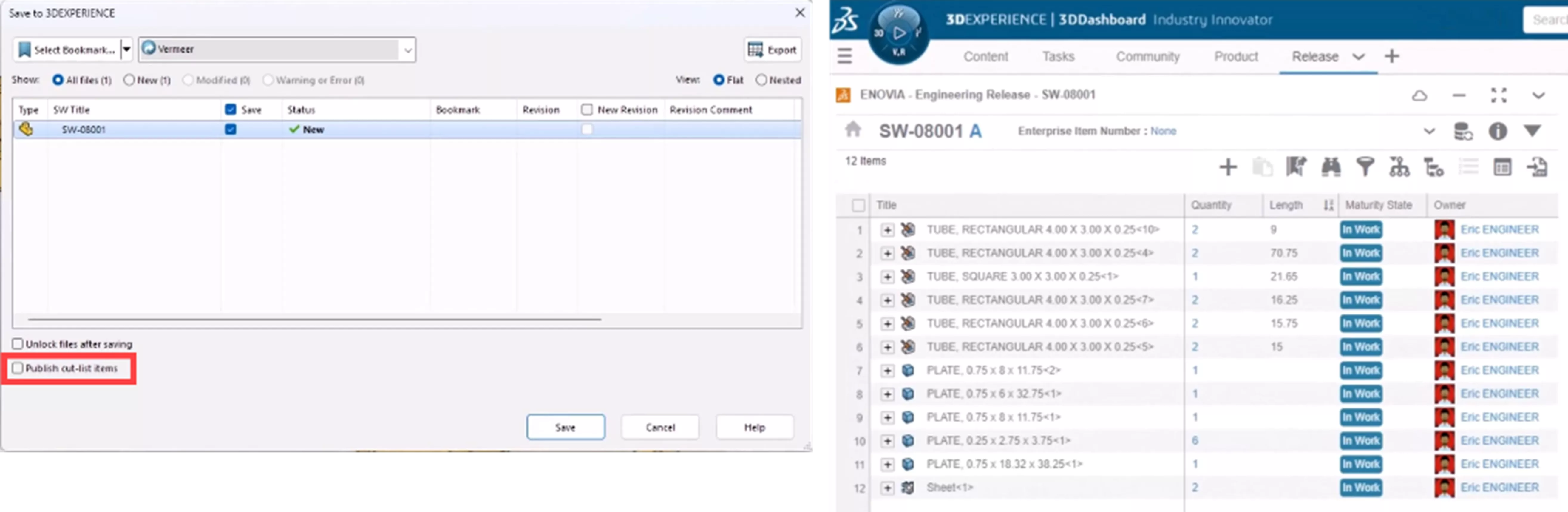
SOLIDWORKS Design now provides support for saving weldment cut lists to the 3DEXPERIENCE platform. As you save your design, use the checkbox on the Save As menu to indicate that you want the cut list items published. Weldments that contain structural, sheet metal, and plates are all supported. Once saved, the cut list items will be reflected in the task pane and accessible on the 3DEXPERIENCE platform, allowing you to build a more accurate engineering bill of materials.
External Design Table Support
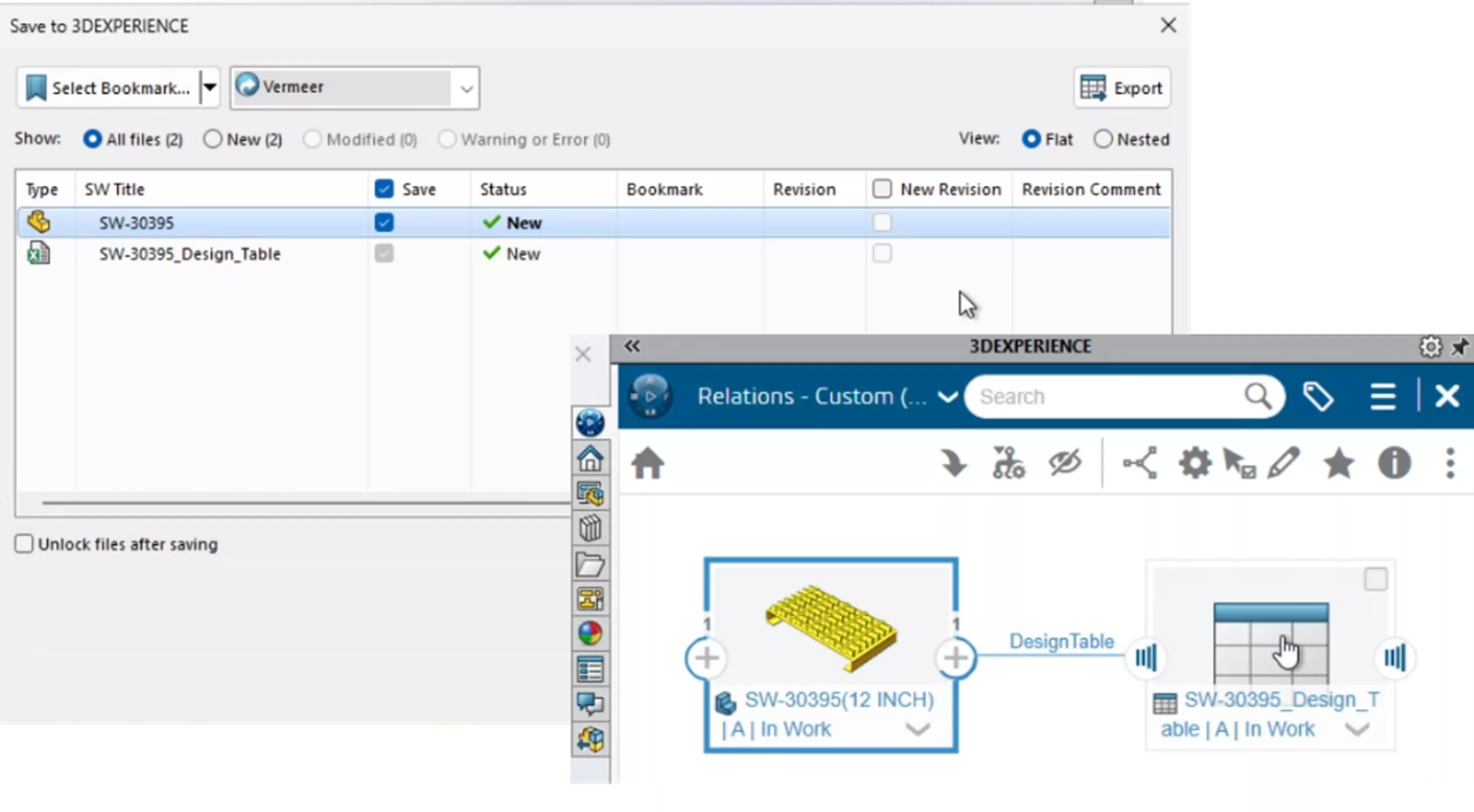
Now, when you save your components to the 3DEXPERIENCE platform, any links to external design tables are recognized. The external table file will be stored with the part in the platform, and you will see the reference relationship between the two items.
Deformable Components
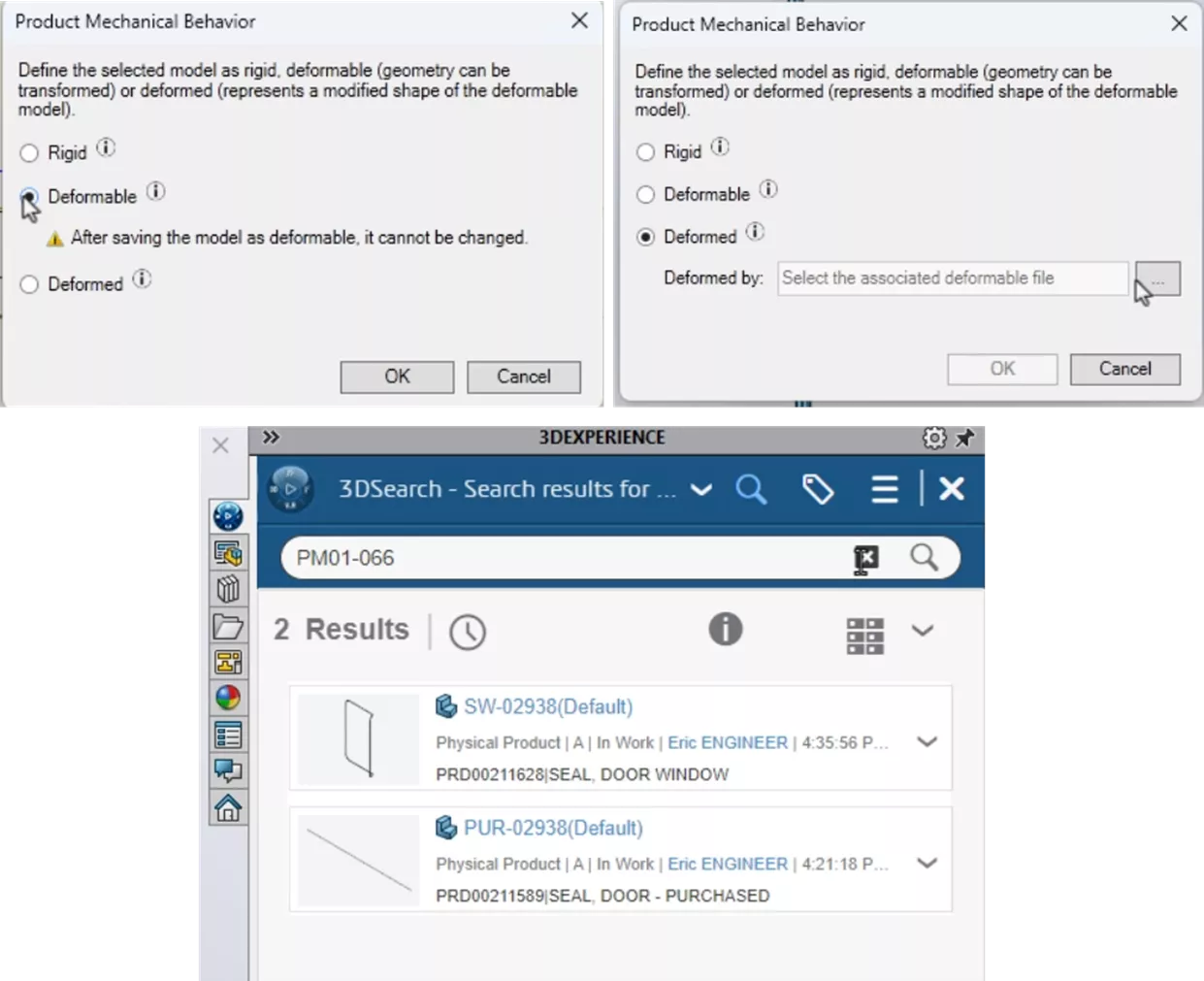
Many purchased components, such as gasket seals, are bought in bulk, assigned a part number, and then can be “deformed” into their installed state. In SOLIDWORKS Design, you can now identify a component as “deformable”. You can then associate the installed state component with the purchase component by searching for the part number and selecting from a list of deformable components matching your search. Once associated, the two parts will share a single part number (even though they are 2 separate physical products), ensuring they are both easy to find when searched for.
System Options – File Locations – Bookmark Update
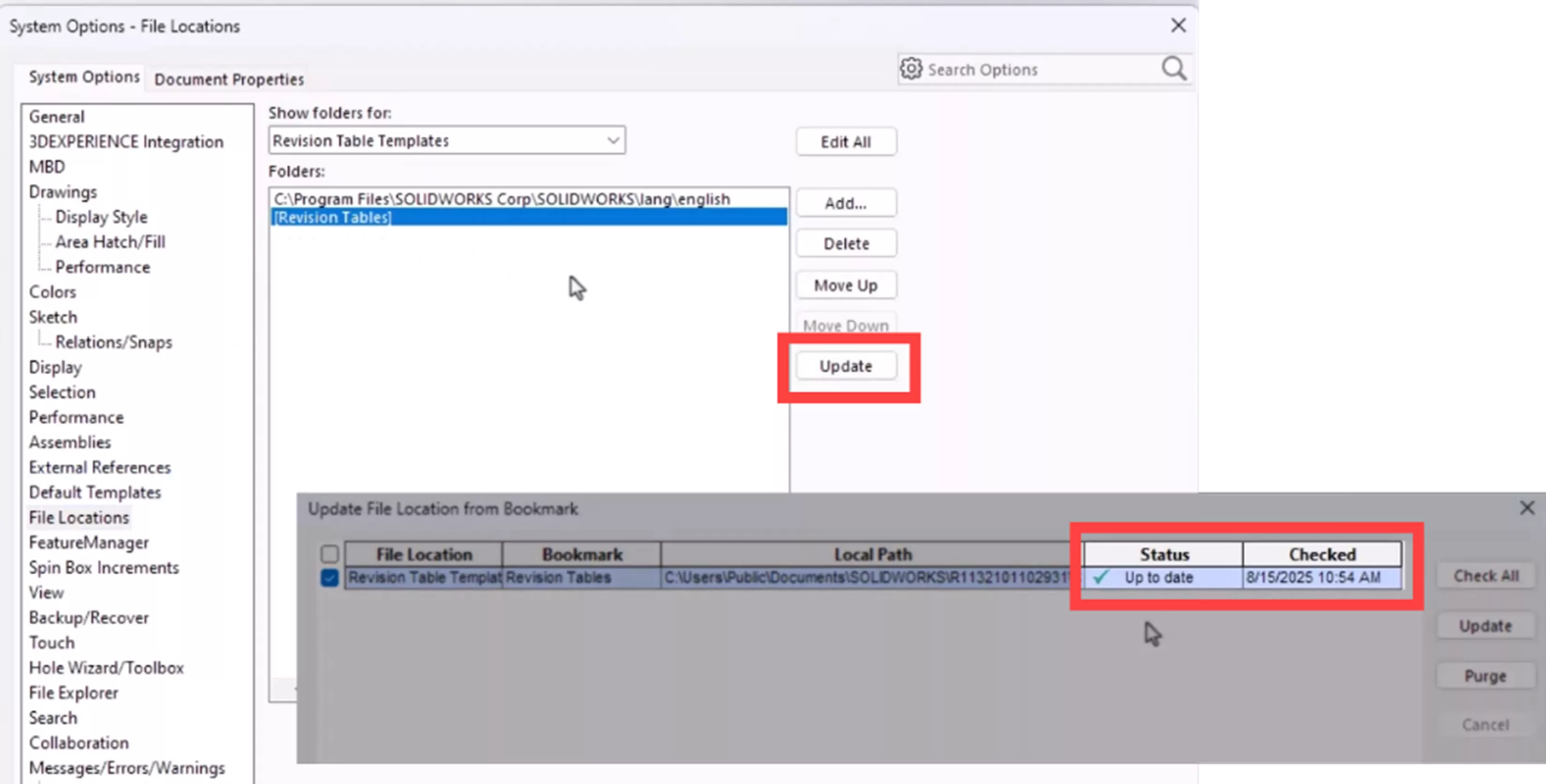
SOLIDWORKS Design now provides the ability for System Options – File Locations that reference a 3DEXPERIENCE platform bookmark to update automatically, ensuring you always have access to the latest content.
Iterations
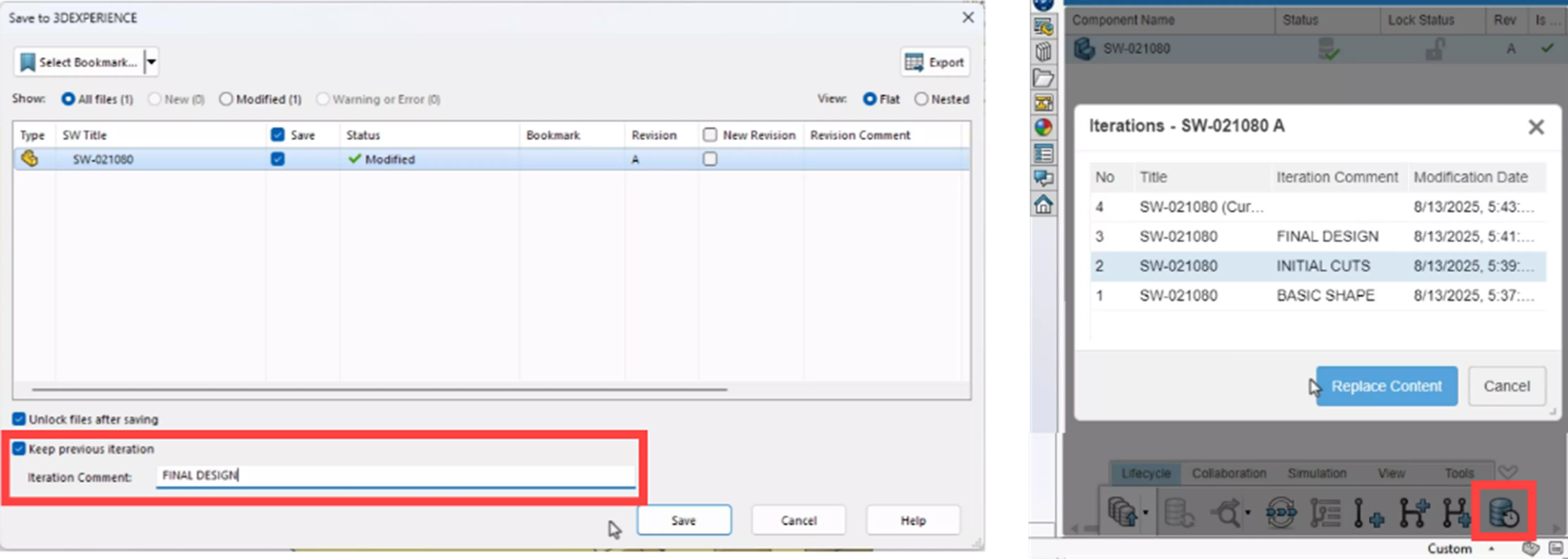
In SOLIDWORKS Design 2026, you can create iterations and provide comments describing what changed. Simply indicate that you want to create a new iteration during the save of your design in the Save As window and add a comment to provide additional clarity to the iteration. The allowed number of iterations and period of time that they exist can be set by the platform administrator. These iterations can be accessed at any time, providing you with a convenient way to get back to an earlier state of your design.
Smart Components
In SOLIDWORKS Design 2026, smart components can be fully stored on the 3DEXPERIENCE platform, making them accessible to your whole team. Associated features are added, saving you time and ensuring consistent accuracy every time the component is used.

That's a wrap for what's new in SOLIDWORKS 2026 & 3DEXPERIENCE Collaboration. Check out the rest of our SOLIDWORKS 2026 What’s New series for more updates across the SOLIDWORKS platform.
The Next Evolution of SOLIDWORKS
Our What's New event celebrates 30 years of design innovation. Discover what’s new in the 2026 release, packed with hundreds of user-driven enhancements, performance boosts, and cutting-edge AI-powered features designed to accelerate your product development. We’ll also share an exclusive look at the future roadmap, where SOLIDWORKS is headed and how it will continue to support your innovation for decades to come.
Related Articles
Customize Drawings to Use 3DEXPERIENCE Platform Attributes
Managing Non-CAD Documents on the 3DEXPERIENCE Platform
Using SOLIDWORKS Sensors to Monitor Surface Area
How to Create a 3DEXPERIENCE Dashboard with Analytics

About Randy Simmons
Randy Simmons in a Sr. 3DEXPERIENCE Specialist at GoEngineer.
Get our wide array of technical resources delivered right to your inbox.
Unsubscribe at any time.