SOLIDWORKS Electrical 2026 - What's New

Table of Contents
SOLIDWORKS Electrical 2026 introduces a wave of new features designed to make electrical design faster, cleaner, and more intelligent. From smarter connector tools to smoother 3D routing and improved collaboration, these updates focus on helping you get high-quality results with less effort.
Whether creating harnesses, managing large connector assemblies, or building complete schematics, the SOLIDWORKS Electrical 2026 release offers practical enhancements that save time and eliminate bottlenecks.
Dynamic Connector Insertion Window
Working with high-pin-count connectors just got a lot easier.
The new Dynamic Connector Insertion enhancement breaks selected circuits into a dedicated window, allowing you to filter, reorder, and toggle items before placing them in your design. This makes it effortless to manage large 64 or 128-pin connectors that are often used in defense or industrial applications.
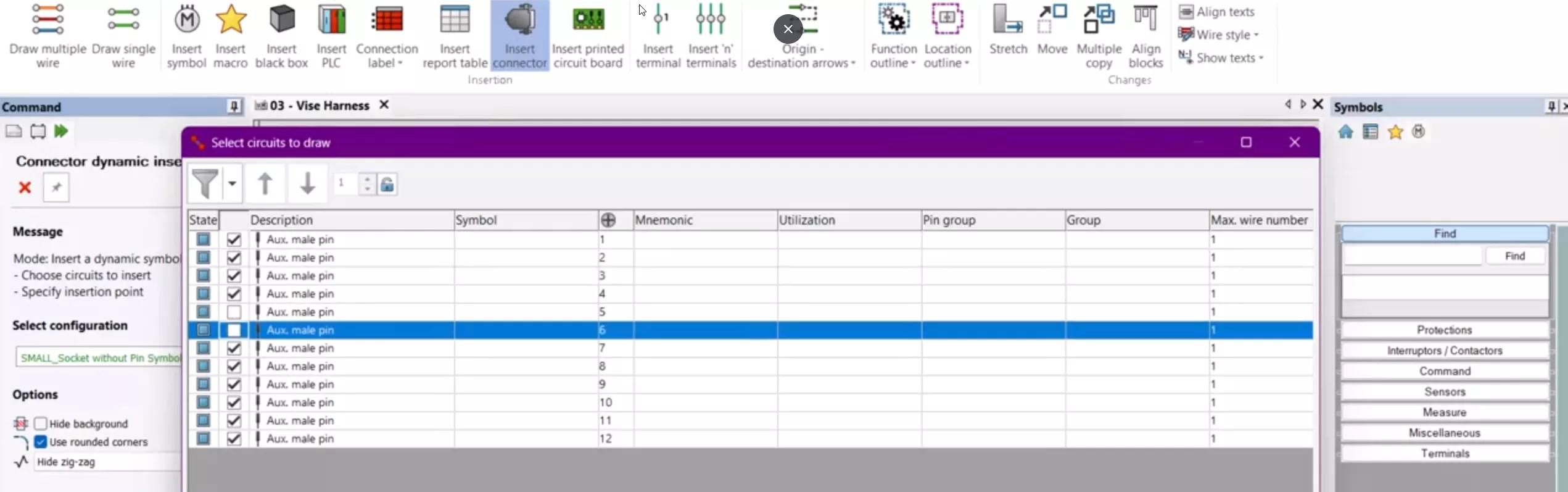
Instead of scrolling endlessly through a massive connector, you can now focus confidently on what you need.
Assigning Accessory Parts to Circuits
You can now assign accessory parts such as crimps, strain reliefs, lugs, or coding keys directly to circuits or connectors. These associations can be saved within assemblies and reused in future projects. The additions are automatically reflected in connection labels and reports.
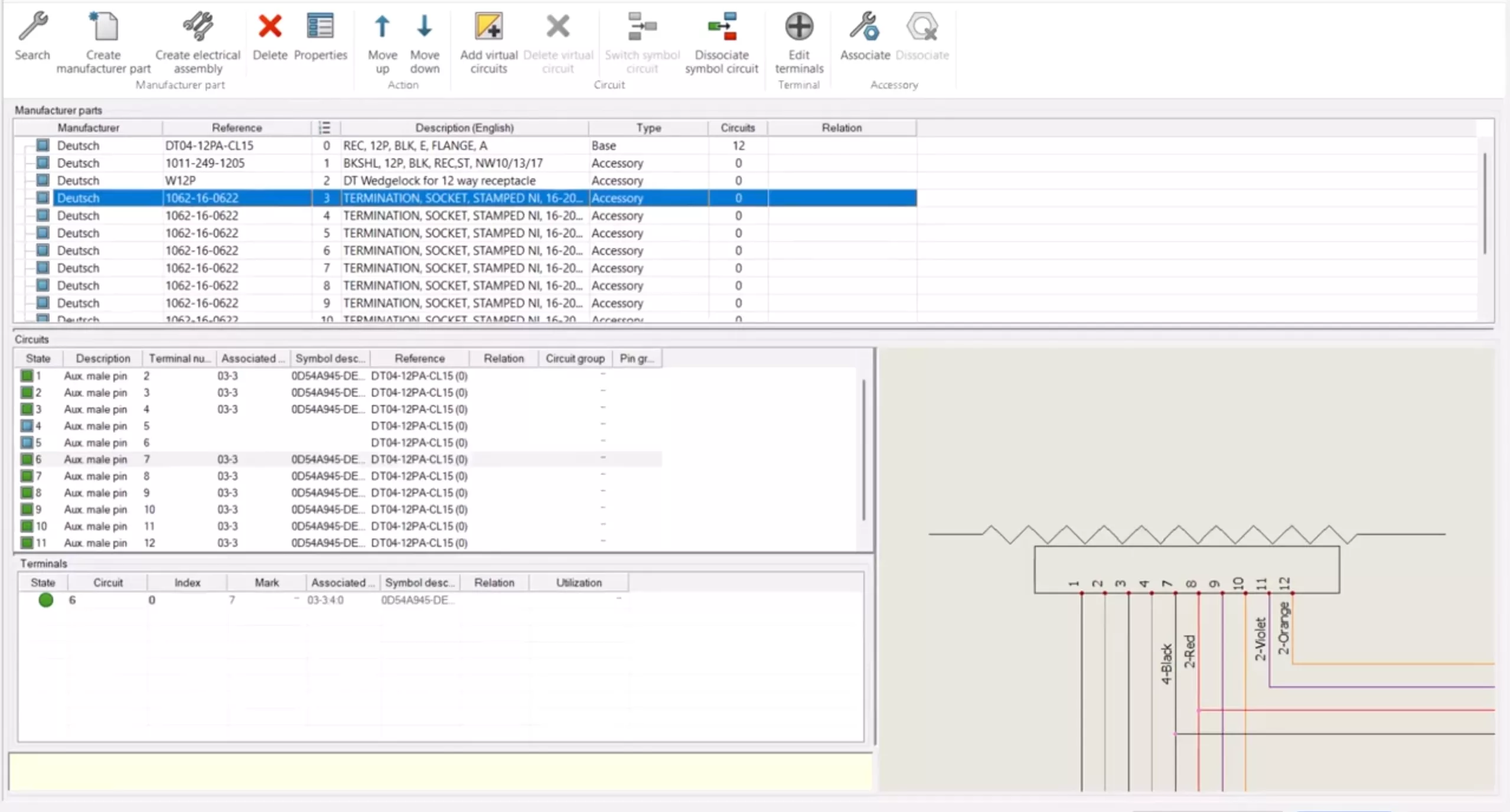
This means your Bill of Materials is always complete and your harness documentation accurately reflects the real-world assembly. No more missing accessories or manual cross-checking.
3D Enhancements: Route Points and Stub Length Editing
On the 3D side, SOLIDWORKS Electrical 2026 adds a connection point parameters window that displays all route points in one place. You can now batch-edit stub lengths across multiple points, saving a huge amount of time compared to editing them individually.
This small but powerful feature eliminates one of the more tedious parts of 3D routing, allowing you to refine designs quickly and focus on what matters.
3D Routing: Route Only the Wires You Need
Another major win for efficiency, you can now choose exactly which wires to route instead of processing entire harnesses. This is perfect for fit checks and confirming wires pass through tight clearances. It’s also useful when testing specific wire paths before committing to a full route.
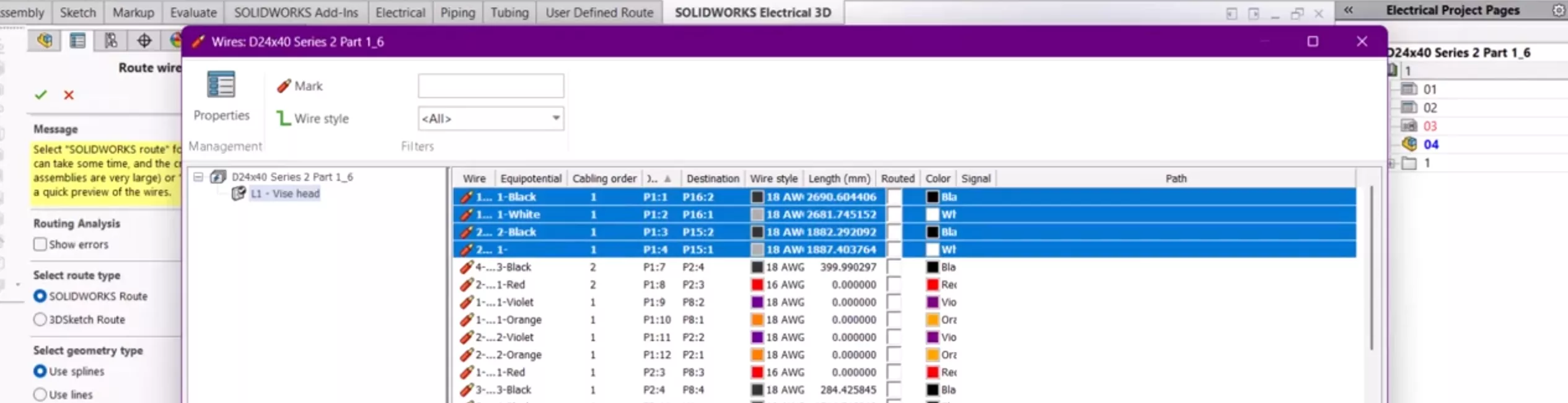
Each wire style automatically falls into the correct assembly, keeping your project structure tidy and manageable.
Enhanced Harness Visualization
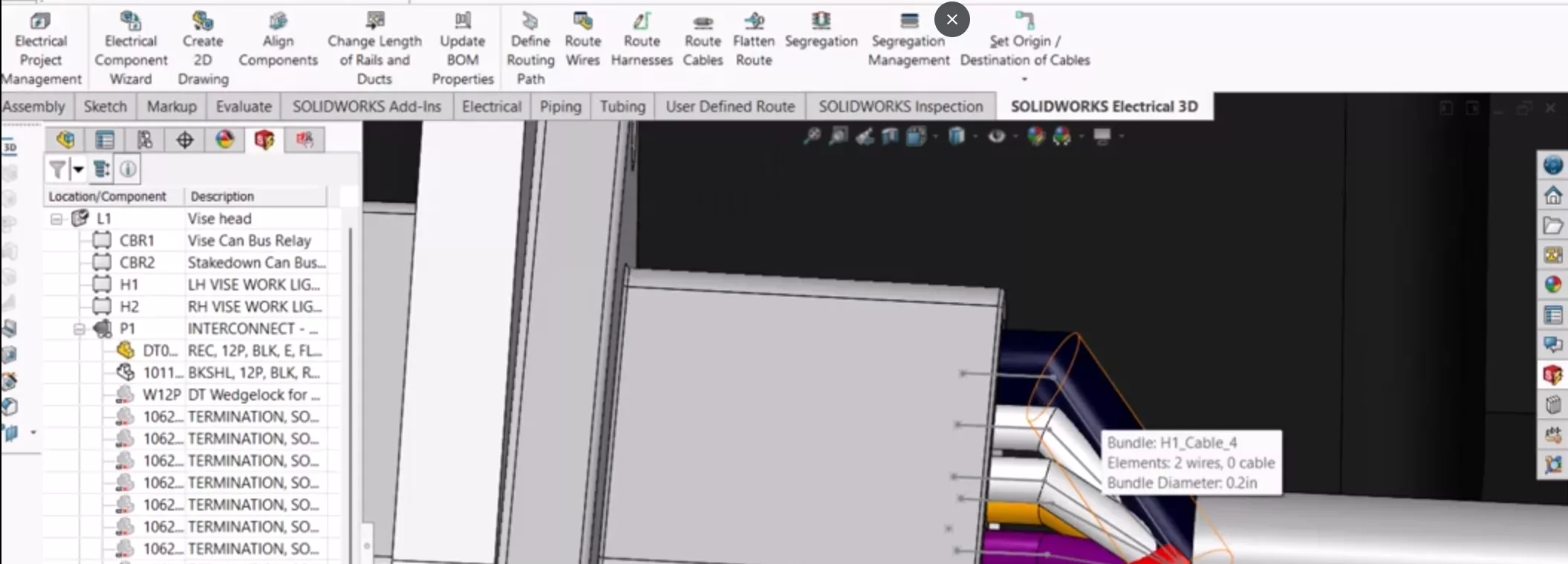
Harness visualization now provides instant feedback with improved tooltips.
Hovering over a bundle shows its diameter and the number of wires inside. Hovering over an individual wire reveals its mark, from-terminal, and to-terminal. It’s a fast, visual way to verify designs and catch potential issues early.
Just be sure to enable Dynamic Highlight in your display settings in order to use this feature.
Manufacturer Part Import
Another standout improvement is the upgraded feature from 2024 SP03, which allows you to import Manufacturer’s Part References alongside circuit information using the Import Excel file functionality.
Found in the Manufacturer’s Part Manager under the Library tab, go to the Import dropdown menu and select “Import Excel file.” There is also the option to create a base file to get started.
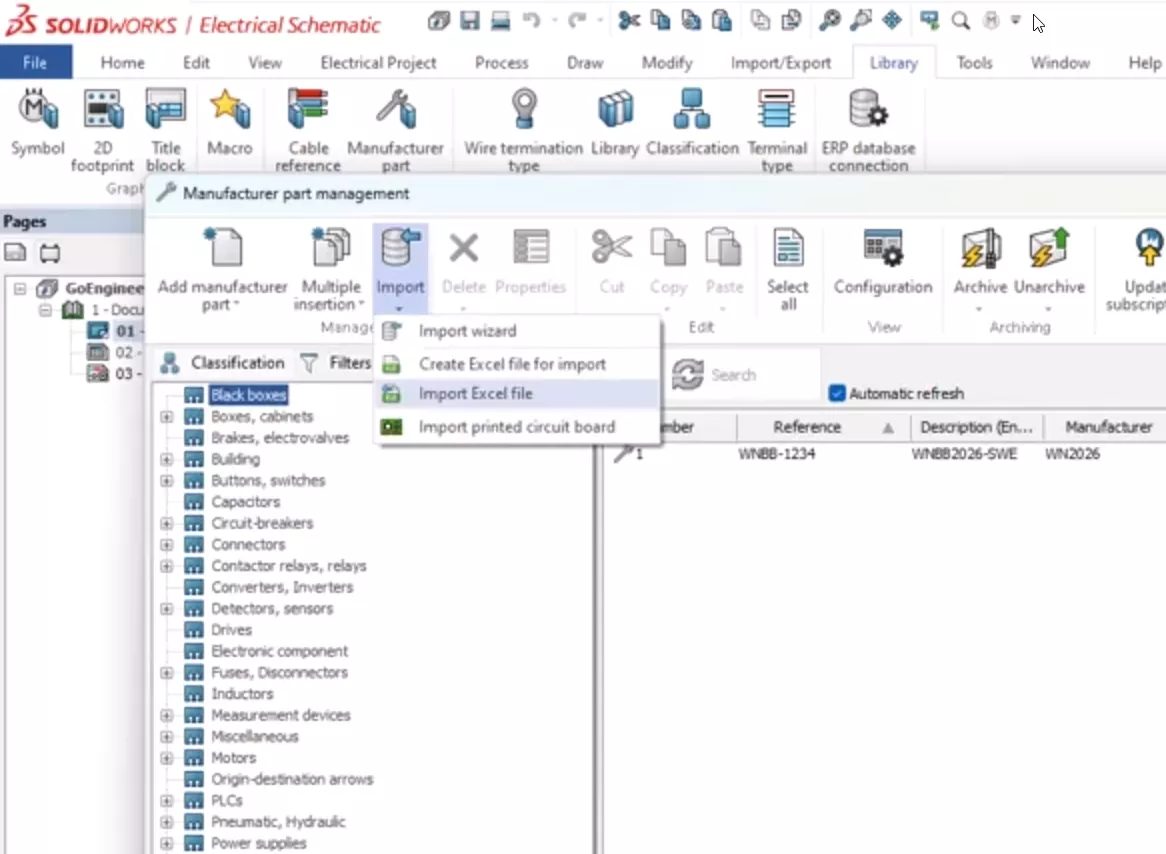
The initial release required users to enter the value for each terminal of every circuit separately, delineated in the Excel document.
This year, the ability to truncate necessary entries has been introduced. You can apply a singular value to data that you desire to be common across the circuit, such as the maximum number of wires and the minimum/maximum size.
One entry per line is all you need.
Next, Simulate ensures accuracy, verifying the import.
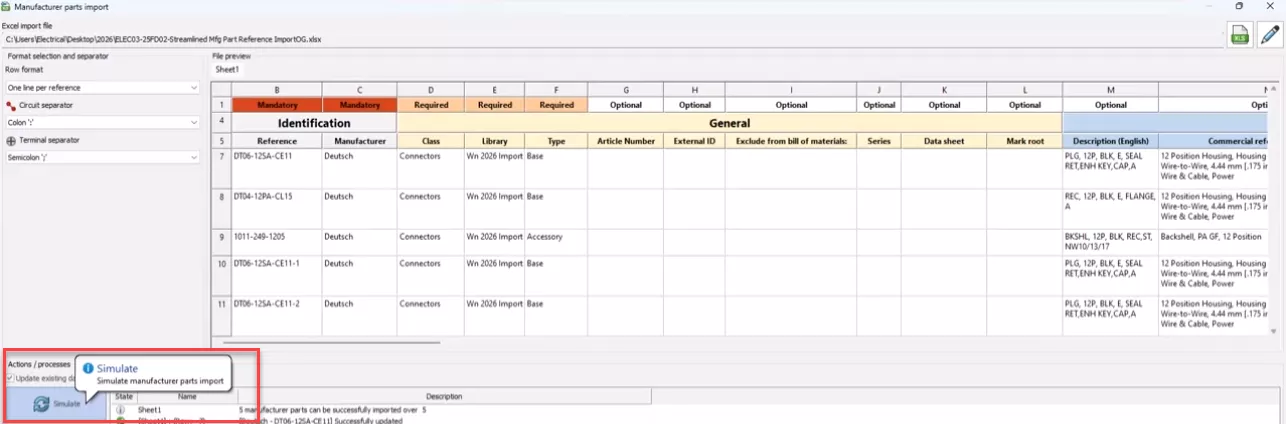
If everything looks good to go, select Import.
Note the Schematic Notification of the successful Import @ the bottom right. Hit Close.
To check out the new imported part, activate the Filters tab and filter results down.
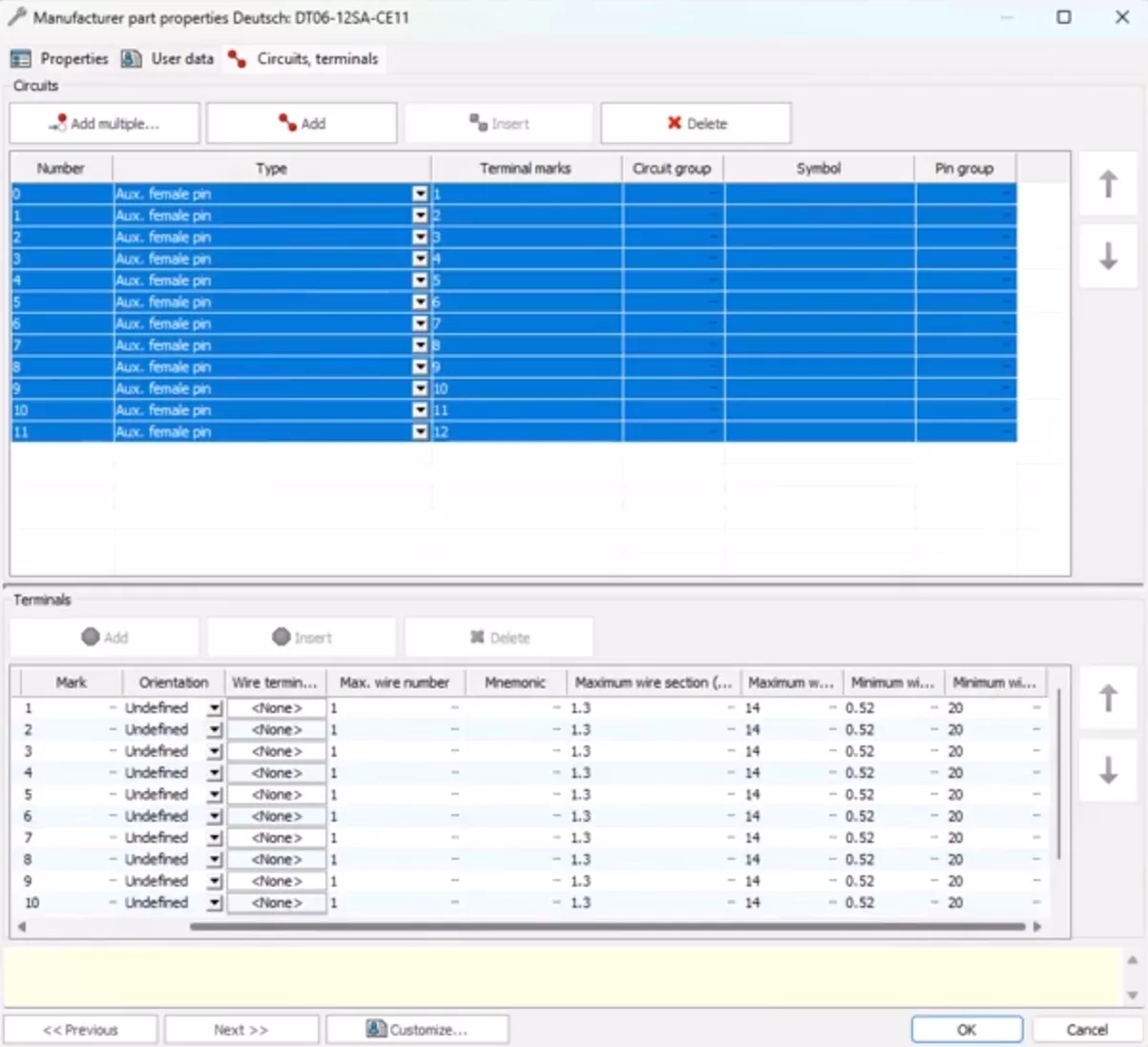
Jumping into the Properties of this part, from the Circuits and Terminals tab, you can see that the Max Wire No + Min/Max Wire Size data has been successfully added to this part.
Hiding System Classes
Let’s head over to the Library tab and explore the Symbol or Manufacturer Part Manager! There are some fantastic enhancements in Classification Management.
Now, you can hide any unused or default system classes, making the Classification Design Tree much cleaner and easier to navigate when using the Symbol or Manufacturer Part Library Manager. This makes finding relevant components and symbols more streamlined, allowing for easier filtering of results.
To hide system classes from symbol and manufacturer:
In the ribbon, click Library > Classification Management. 
In the Classification Management dialog box, click Classes Visibility. 
In the Classes Visibility dialog box, select the classes to hide:
- Select all/none
- Components

- Cable references

- Macros

- Title blocks

When using this visibility feature, hidden classes remain visible in the Classification Management dialog box but are removed from library and selection interfaces.
Custom subclasses under system classes remain visible to maintain the hierarchy.
Cable Management
Next, let’s talk about another exciting Electrical Enhancement: improved functionality in the Cable and Core dialog.
With the release of SOLIDWORKS 2026, managing your cables and cores has never been easier. Take advantage of advanced filtering options and the new Switch Cable Cores command  for a more efficient experience.
Additionally, while managing the cables and cores, you can directly navigate to the schematics and the component browser, allowing for quicker and more effective project navigation.
To access the commands, click Electrical Project > Cables.
Filter cables and cores using the advanced filtering options in the Filters panel. 
In the Cable Management dialog box, filter cables and cores by accessing the Filters panel.
The panel includes new filters:
- Reference
- Function
- Harness
- Separate 3D route assembly
- Routed
- Pre-reserved cables
- Associated with wire
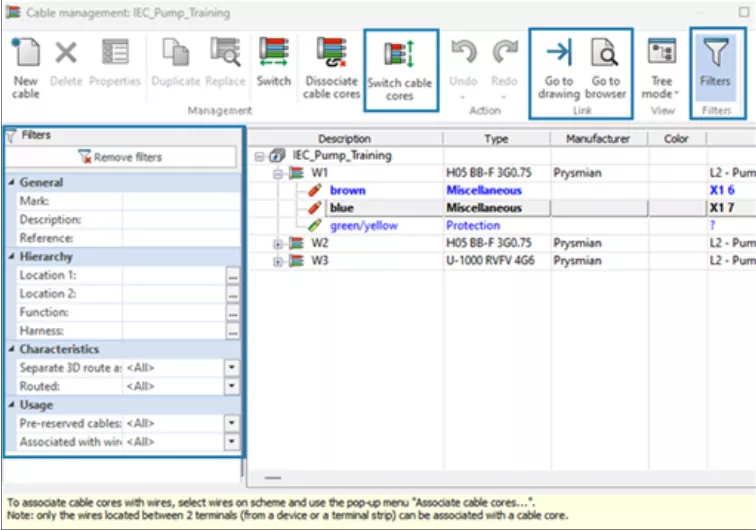
Additional Capabilities for Cable Management Productivity:
Improve productivity when managing cables using additional commands in the Cable Management dialogue box and several functions new in 2026.
Switch Cable Cores
Swaps two selected cable cores. During the switch, the app directly dissociates the wires for the two cores and reassociates them after the switch. Switch cable cores within the same cable or between different cables.
Go to Drawing 
Navigates to the schematic where the cable or core is placed.
Go to Browser 
Opens the component browser and highlights the cable's origin component.
Wire Mark
Displays the wire mark text, which is either the equipotential number or the wire mark. This provides clearer wire information and improves navigation in the schematic.
Update & Replace Data
There are also enhancements to the Update and Replace Project Data capabilities within the Schematic software.
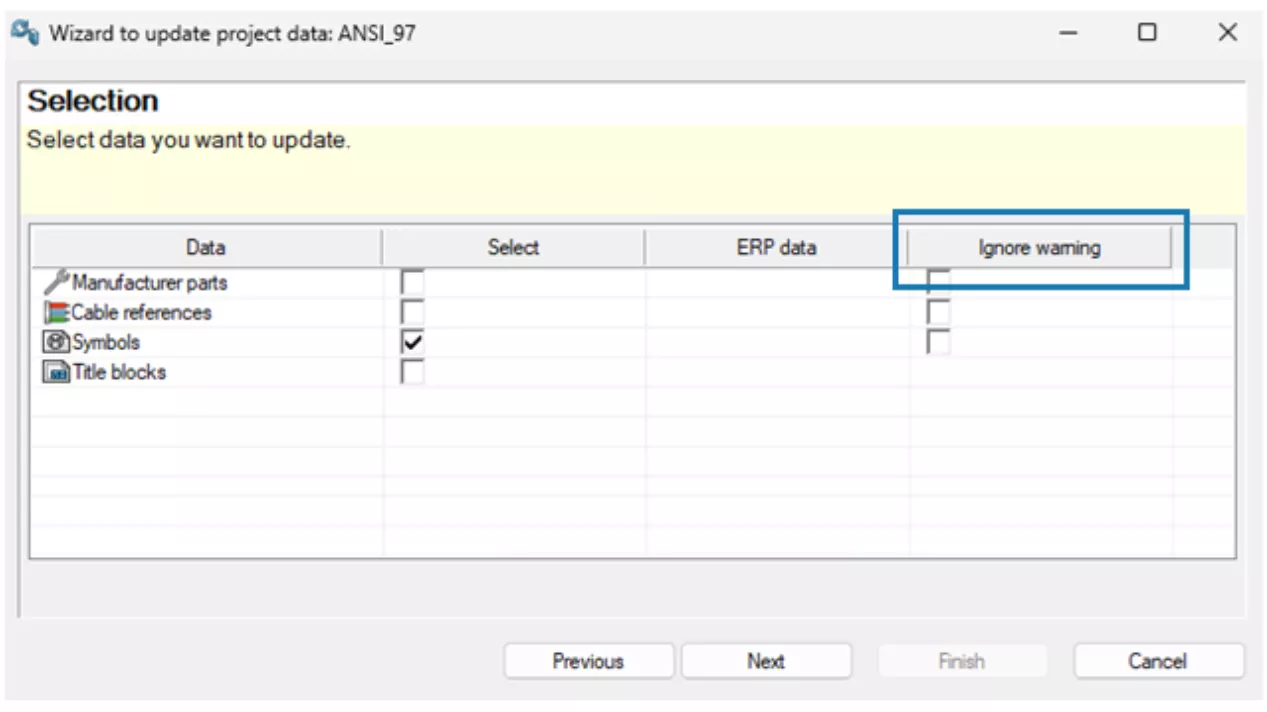
When you update symbols, manufacturer parts, or cable references that have discrepancies, the system can display a warning message instead of an error message – controlled by new radio buttons on the first screen of the dialogue.
The option Ignore warning is added to the Wizards to update or replace project data.
This allows you to apply updates and replacements even when the new data is not fully compatible with the existing one, simplifying project data updates or replacements and improving project management during design.
Common Discrepancies Include:
- The number of circuits/terminals in the manufacturer part is higher in the Library compared to the Project.
- The symbol has more connection points.
- The number of cable cores in the cable reference is higher.
Again, these errors and the ability to “ignore” them occur both in the Data Update and Replace Data commands.
PDF Export
Another great enhancement is the ability to export PDF documentation for your Schematic project more efficiently. (This feature was originally introduced in the 2025 FDO2 update.)
To start, navigate to the Import/Export Tab > Select Export PDF Files. The dialog opens and is ready for your input.
Within Export Structure, we have PDF by project, by book, or by file.
Additionally, new defined document naming options are available, including editable formulas with options for folder name and file naming convention.
Lastly, there is an automatic option to auto-rotate for landscape and portrait drawings in projects for you.
Collaborative Server Enhancement
Finally, this last enhancement for SOLIDWORKS Electrical 2026 is the new Collaborative Server 4.0.
Enhancements have been made to increase compatibility with modern IT environments through improved client-to-server connection functionality, ensuring smoother, more reliable collaboration in SOLIDWORKS Electrical desktop.
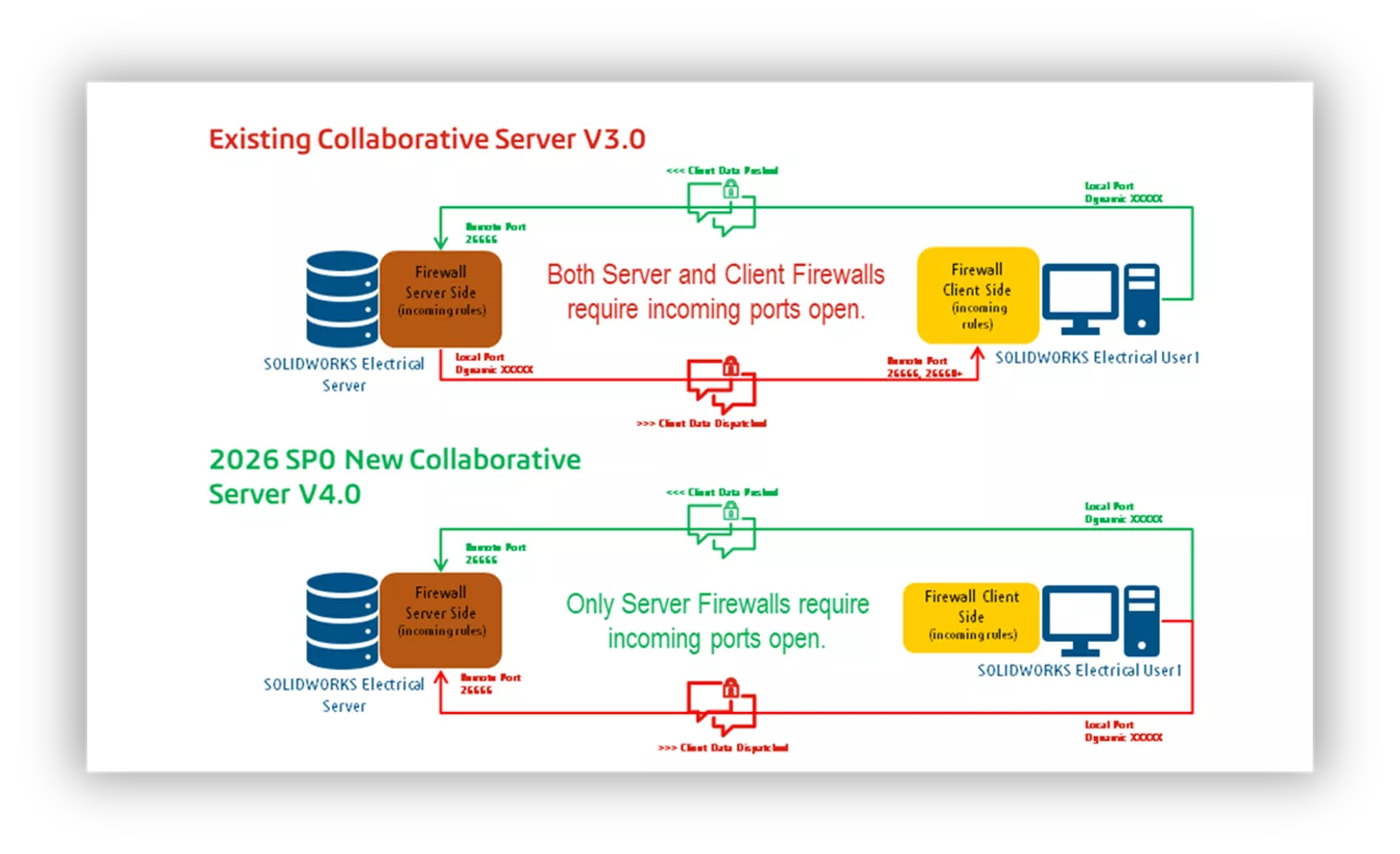
Remember that the Collaborative Server serves as the “traffic cop” for SQL data, effectively organizing traffic back to the database.
Prior to the 2026 release, the Collaborative Server required firewall/port opening rules to allow for incoming traffic on both the Client and Server sides. Now, only Server Firewalls require incoming ports open. Additionally, enhanced error messages are presented when dealing with a Collaborative Server communication issue. This simplifies connection setup and troubleshooting!
That's a wrap for what's new in SOLIDWORKS Electrical 2026. Check out the rest of our SOLIDWORKS 2026 What’s New series for more updates across the SOLIDWORKS platform.
The Next Evolution of SOLIDWORKS
Our What's New event celebrates 30 years of design innovation. Discover what’s new in the 2026 release, packed with hundreds of user-driven enhancements, performance boosts, and cutting-edge AI-powered features designed to accelerate your product development. We’ll also share an exclusive look at the future roadmap, where SOLIDWORKS is headed and how it will continue to support your innovation for decades to come.
More What's New
SOLIDWORKS 2026 & 3DEXPERIENCE Collaboration - What's New
SOLIDWORKS 2026 Routing - What's New
SOLIDWORKS 2026 Drawings - What's New
SOLIDWORKS 2026 Assemblies - What's New

About GoEngineer
GoEngineer delivers software, technology, and expertise that enable companies to unlock design innovation and deliver better products faster. With more than 40 years of experience and tens of thousands of customers in high tech, medical, machine design, energy and other industries, GoEngineer provides best-in-class design solutions from SOLIDWORKS CAD, Stratasys 3D printing, Creaform & Artec 3D scanning, CAMWorks, PLM, and more
Get our wide array of technical resources delivered right to your inbox.
Unsubscribe at any time.