Clearing CAMWorks Temp Files

Over time, CAMWorks temp files can build up, hampering its functionality. (And it's not just CAMWorks that creates temp files, SOLIDWORKS can too). Fortunately, there are ways to improve the impact on performance.
Note: Make sure SOLIDWORKS is closed during these operations.
Starting in 2026, the ability to schedule future temp folder clean-outs has been removed.
Using the Rx Tool
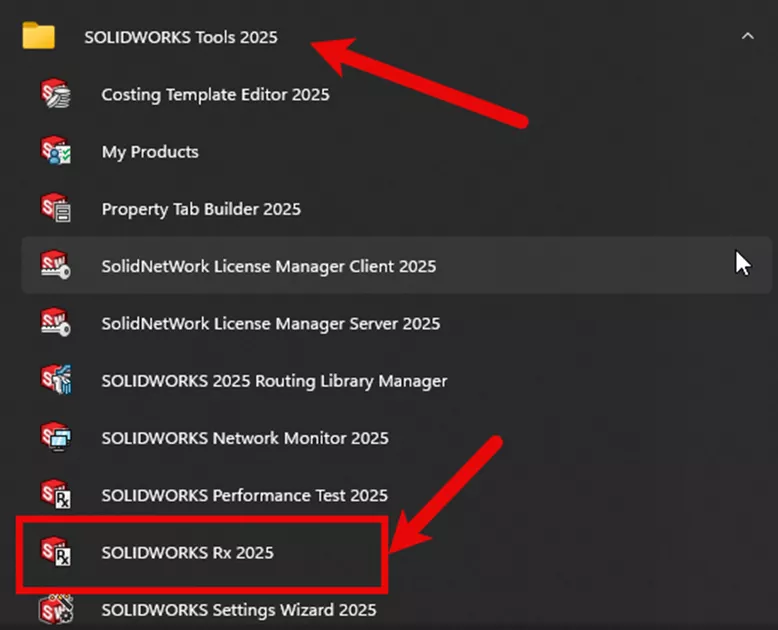
SOLIDWORKS has a built-in aid called the Rx tool for clearing out temp files. To use the Rx tool, go to the Windows icon and type Rx in the search. You should find it under SOLIDWORKS Tools 20##.
Open the Rx tool and go to the System Maintenance tab (in 2026, this is called the Troubleshooting tab). This will offer multiple clean options. It's recommended that this be done weekly to prevent potential issues from having a large Temp file.
The two options we want to focus on are the SOLIDWORKS Temporary Directory and the Windows Temp directory.
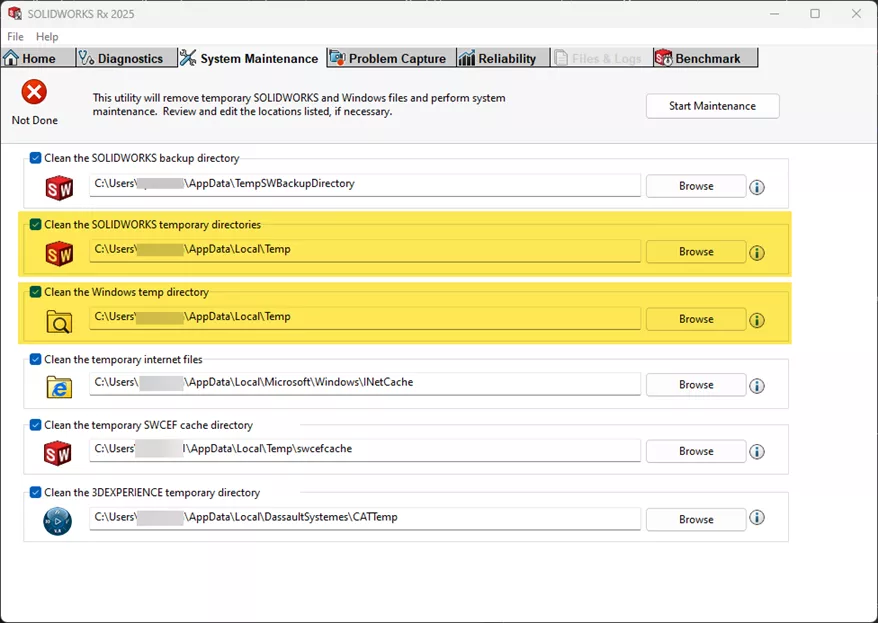
(2025 and older)
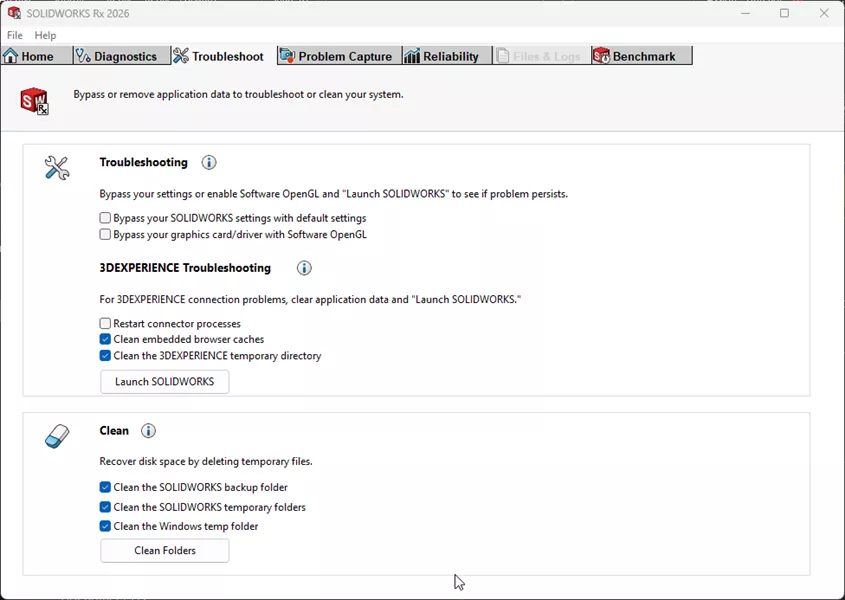
(2026 and newer)
You can leave the others checked. This process can take a few moments. Again, make sure SOLIDWORKS is closed during this process.
Going Straight to the Source
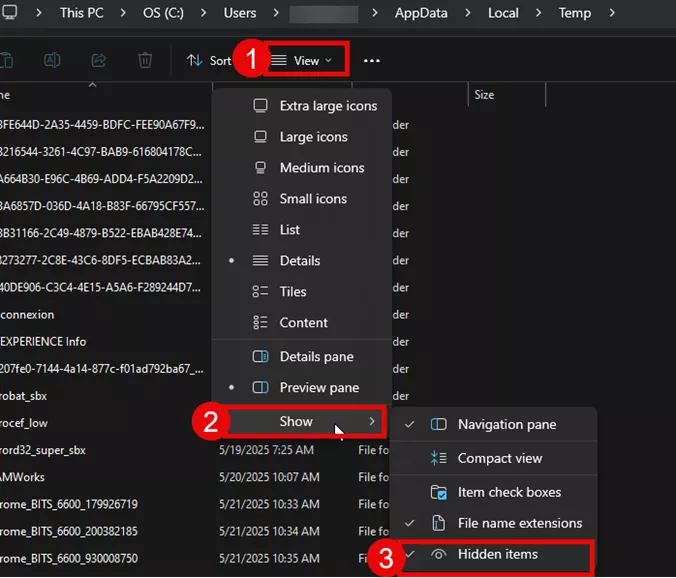
To go directly to the location of the temp files, navigate in your File Explorer to C:\Users\Username\AppData\Local\Temp. The username will be the name assigned to your profile on the computer. The AppData folder may be hidden. To ensure this folder can be found, go to View > Show > Hidden Items. Select everything in the folder using CTRL+ A, then hit the delete key. You will be prompted that some files are in use; select ignore and let it complete.
I hope you found these instructions for clearing CAMWorks temp files helpful. Want to learn more? Check out additional tutorials and tips below, or check out the GoEngineer Community, where you can create forum posts, enter design contests, and answer questions from other CAMWorks users.
Related Articles
When to Use an Open Pocket Without Sketches in CAMWorks
What's New in CAM 2026: SOLIDWORKS, CAMWorks, & More
How to Machine Large Hole Chamfers in CAMWorks

About Krystal Petersen
Krystal Petersen is a SOLIDWORKS Technical Support Engineer based out of Auburn Hills, Michigan. Krystal studied Product Engineering at Oakland Community College and has earned her CSWA and CSWP Certifications. She joined the VAR channel in 2015 with DASI (now GoEngineer). Krystal is a huge fan of Star Wars and likes to spend her off time fishing and camping.
Get our wide array of technical resources delivered right to your inbox.
Unsubscribe at any time.