Gaining Insight Into the Little ”Tells” of SOLIDWORKS Electrical Schematic

Tells are little signals that give hints as to the nature of various situations. Much like a poker player reading their opponent, or a performer "reading" a person's mind. Tells let these people know more information than is readily given. SOLIDWORKS Electrical also has little tells to share more information than is plainly stated.
SOLIDWORKS Electrical's Tells
One of the first “tells” SOLIDWORKS has is in the Electrical Project Manager. When working in a collaborative environment, Electrical uses colors to let users know if Projects are opened by other users, if it is currently open in this session of Electrical, and if a project is the Active project.
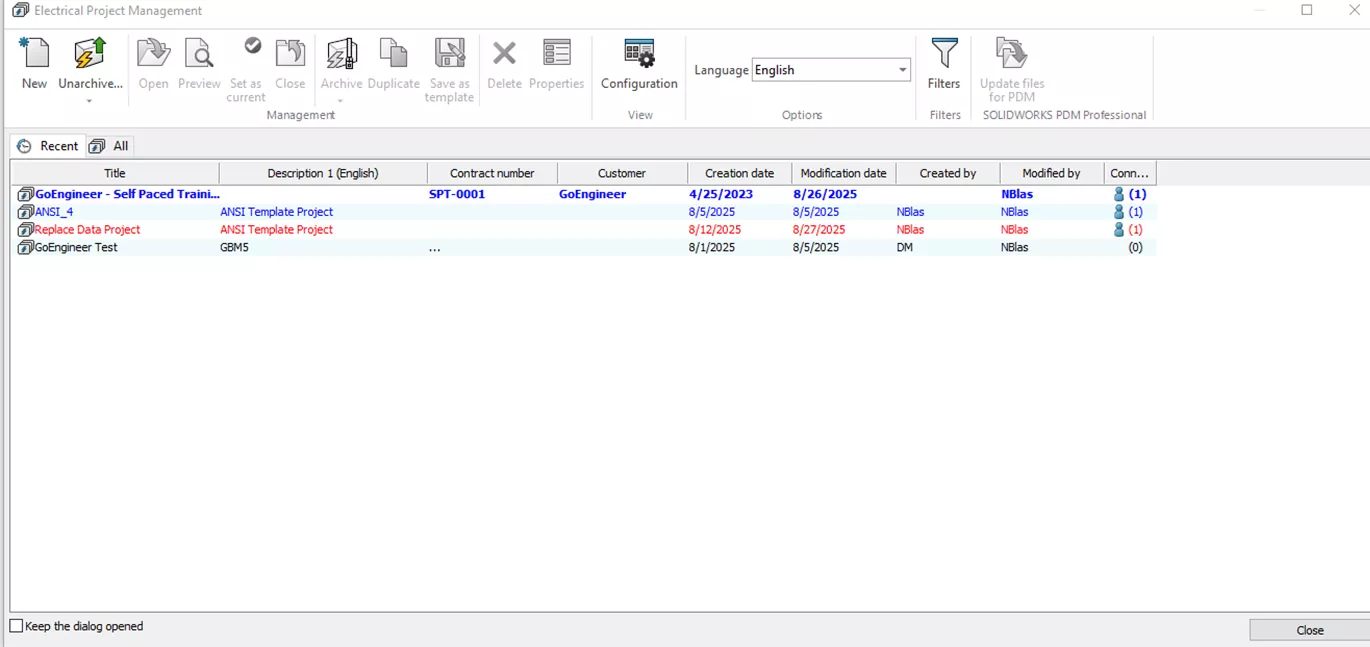
Figure 1: Electrical Project Manager
In the example shown in Figure 1, the Replace Data Project is highlighted in red. This tells us that another user has this project open. It is helpful to know what projects are being actively worked on and which ones users can collaborate on.
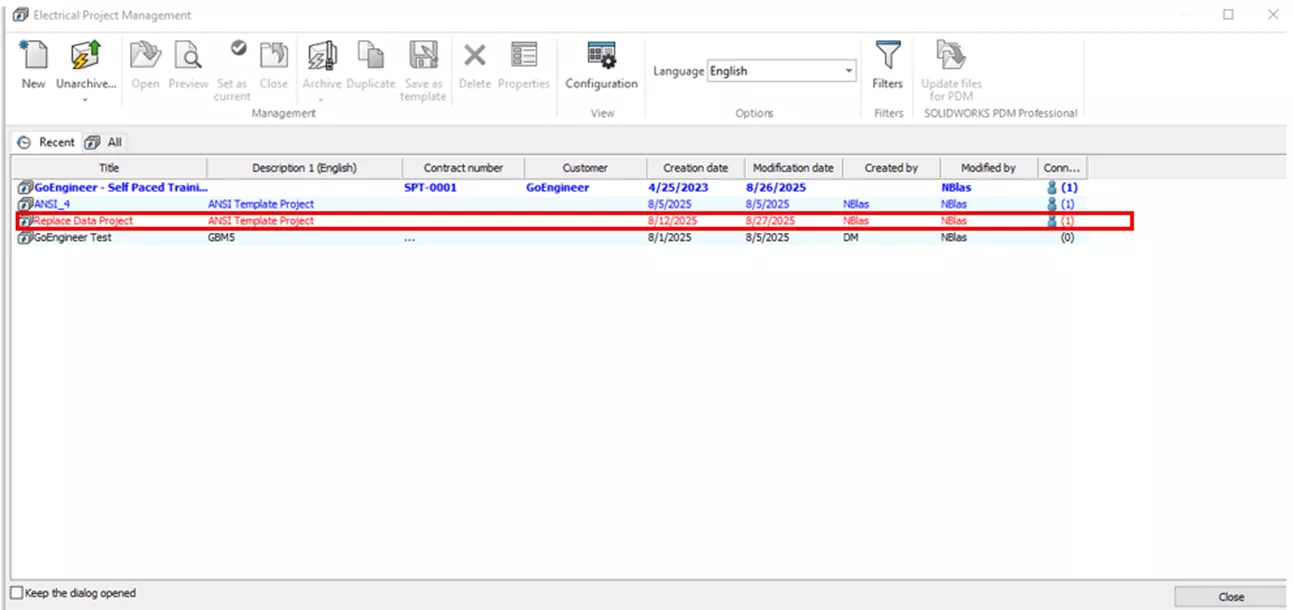 Figure 2: Opened by another user
We can also see two projects that are blue, which means the projects are open by us on our system. However, one project is blue with bold text, and the other is blue in the standard font.
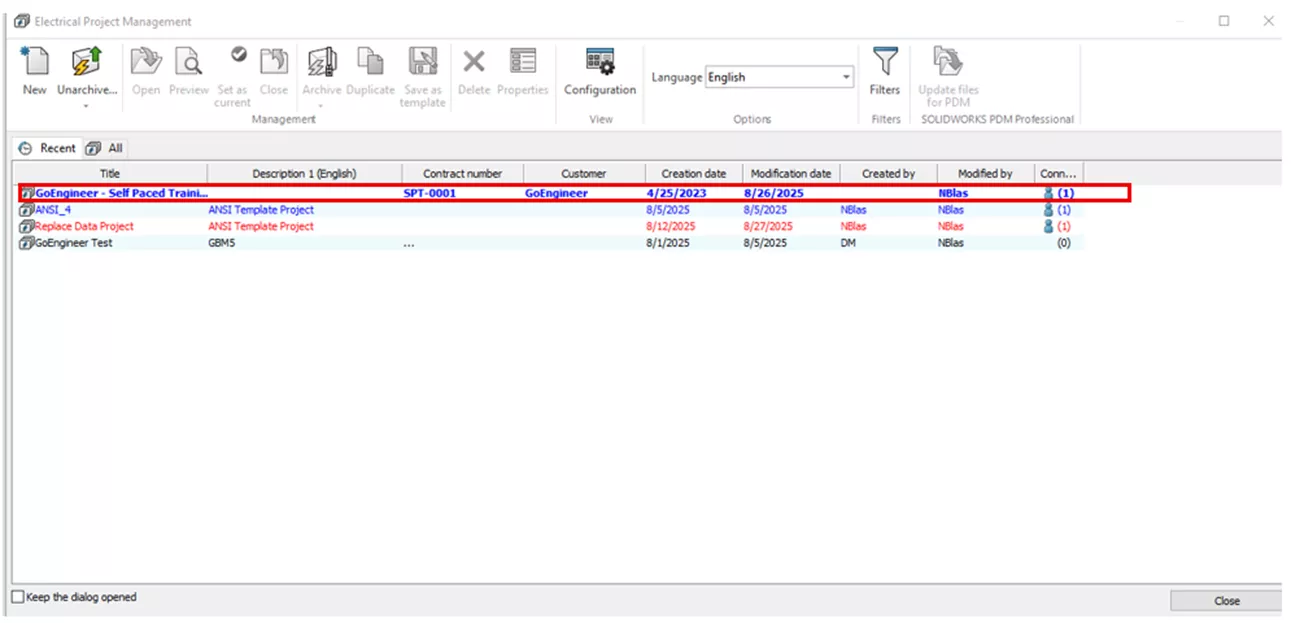 Figure 3: Bold blue projects
The project in bold text is the currently active project, while the standard font is a project open, though not the current project.
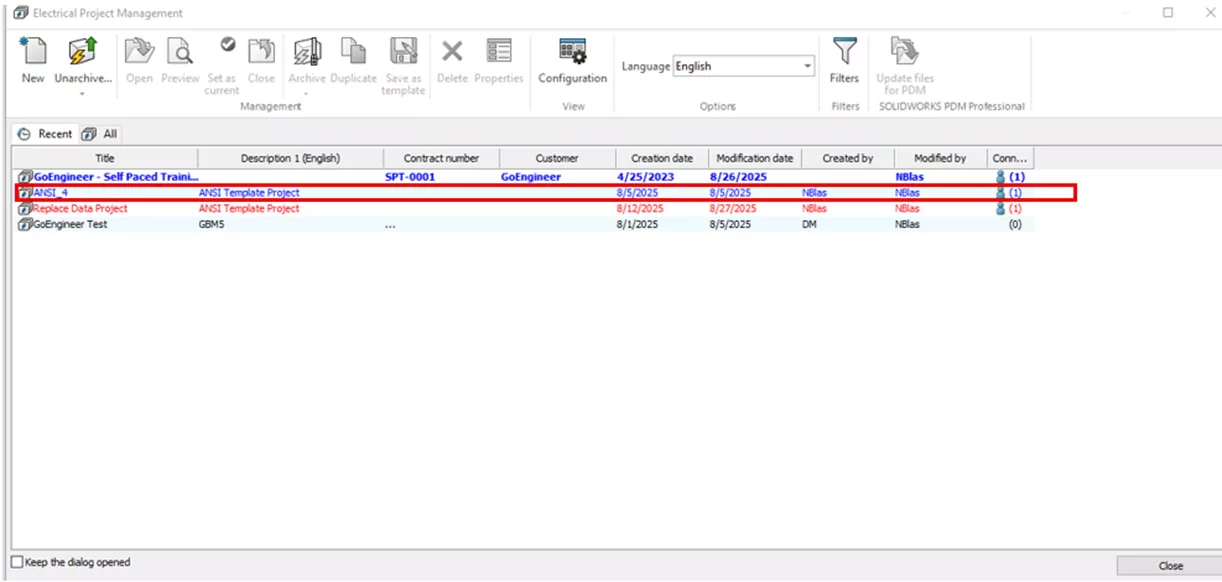 Figure 4: Standard blue font projects
While this is helpful to know, what exactly does Currently Active mean? In SOLIDWORKS Electrical, there are numerous functions, such as a BOM Report or Wire numbering, that, when applied, run on the project that is the focus or the currently active project. Along with the Project Manager, we can see in the Pages tab which Project is active.
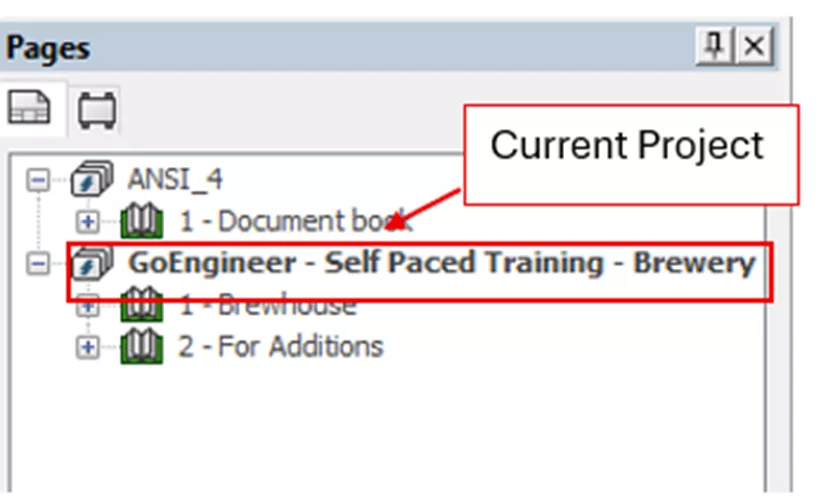
Figure 5: Pages tab
In this example, the GoEngineer – Self Paced Training - Brewery project is in bold text (so, the project is active). Now, what if we want to make a different project, the Current Project? This can be done by right-clicking a non-active project and selecting the Set as Current option.
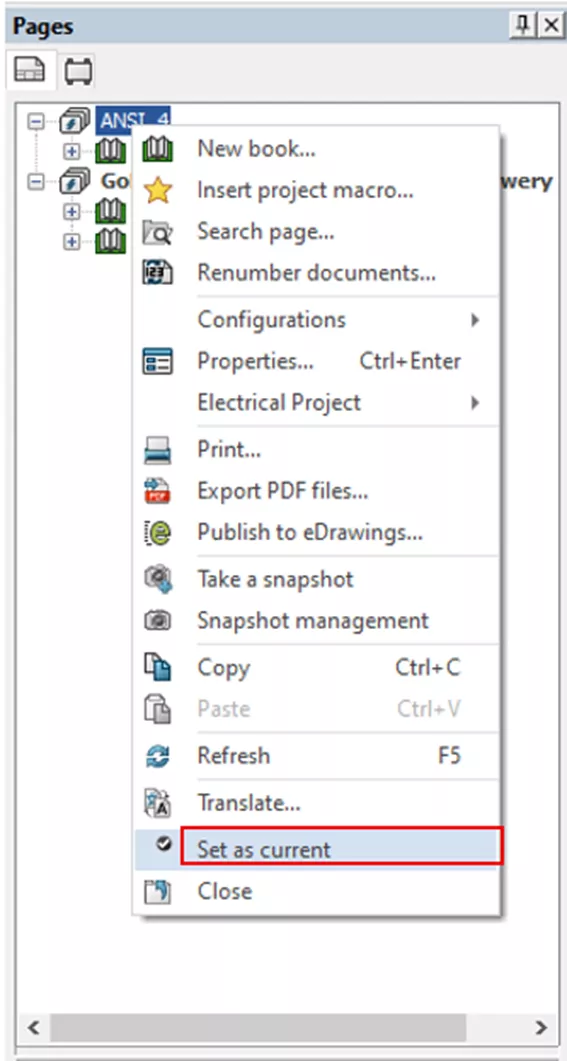
Figure 6: Set as current
These are some of the tells that Electrical has to help provide information that is not explicitly stated.
Want to learn more about SOLIDWORKS Electrical? Check out the articles listed below. Additionally, join the GoEngineer Community to create forum posts, enter design contests, and answer questions from other SOLIDWORKS users.
Editor's Note: This article was originally published in December 2019 and has been updated for accuracy and comprehensiveness.
Related Articles
SOLIDWORKS Electrical Schematic: Importing Manufacturer Parts from Local Source
SOLIDWORKS Electrical Drawing Styles Setup
Replace Data within a SOLIDWORKS Electrical Project
SOLIDWORKS Electrical Custom Library Design Rule Check
SOLIDWORKS Electrical Schematic: Displaying Alpha Numeric Rows & Columns

About Nathen Blas
Nathen Blas is a SOLIDWORKS Technical Support Engineer based out of our Headquarters in Salt Lake City, Utah. He earned his Bachelor’s degree in Mechanical Engineering at the University of Utah in 2018 and joined the GoEngineer family that same year.
Get our wide array of technical resources delivered right to your inbox.
Unsubscribe at any time.