Reusing Tab and Slot Parts in SOLIDWORKS Assemblies

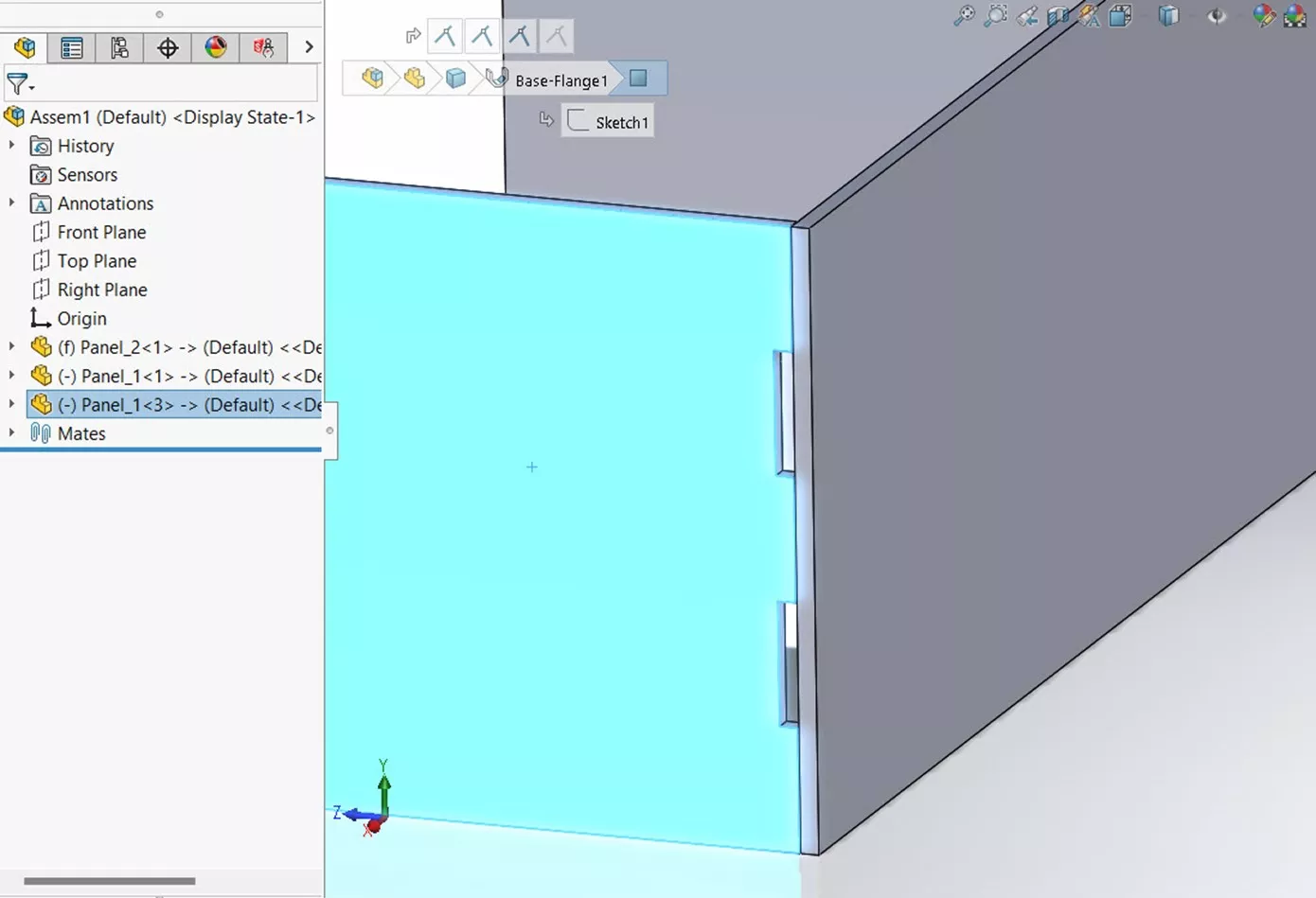
While the SOLIDWORKS Tab and Slot feature is primarily intended to be used when creating multibody sheet metal parts, design requirements sometimes involve adding Tab and Slot features within an assembly. This is simple enough when a part is only used once, or the feature is added after all instances of the part are inserted, but sometimes a part needs to be reused. This creates a problem with the second instance of the part: it has tabs, but there aren’t any slots for them to fit into. This is because the Tab and Slot feature creates both tabs and slots at the same time, and because the feature already exists, it won’t make extra slots.
Leveraging Feature Propagation
SOLIDWORKS propagates the Tab and Slot feature to each respective part file - and that matters. Remember, it’s designed to work in the context of a multibody part. This is why you can’t just edit the feature in the assembly and suddenly have extra slots. Once the tabs and slots are created, each part retains the feature separately, even if the feature is suppressed in the other part. This is the magic ingredient here.
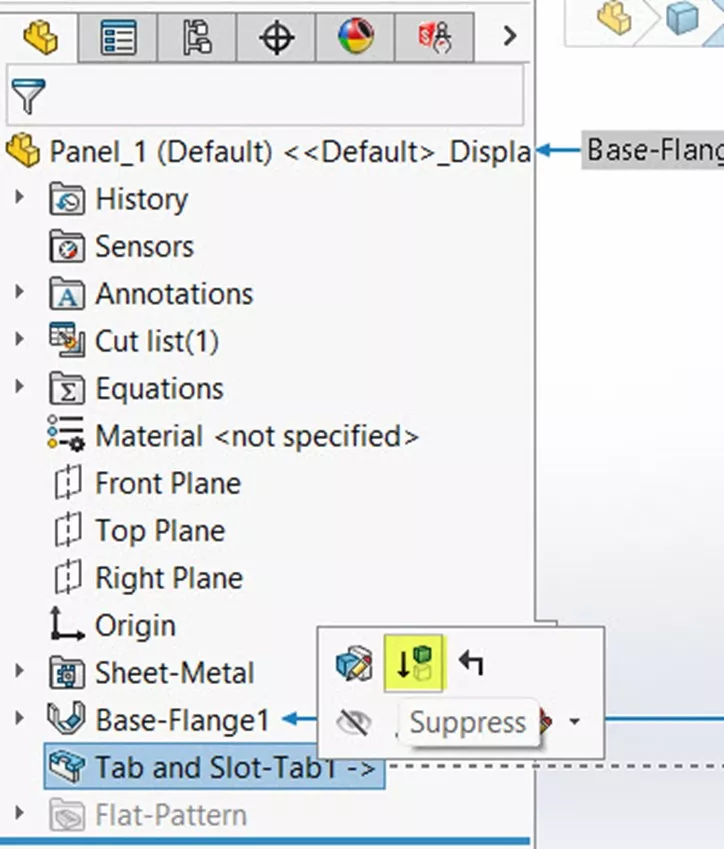
If you open the part file that will have multiple instances in the assembly and suppress the Tab and Slot feature within that part file, it loses the tabs, but the other part retains its slots.
Add the Second Instance of the Part
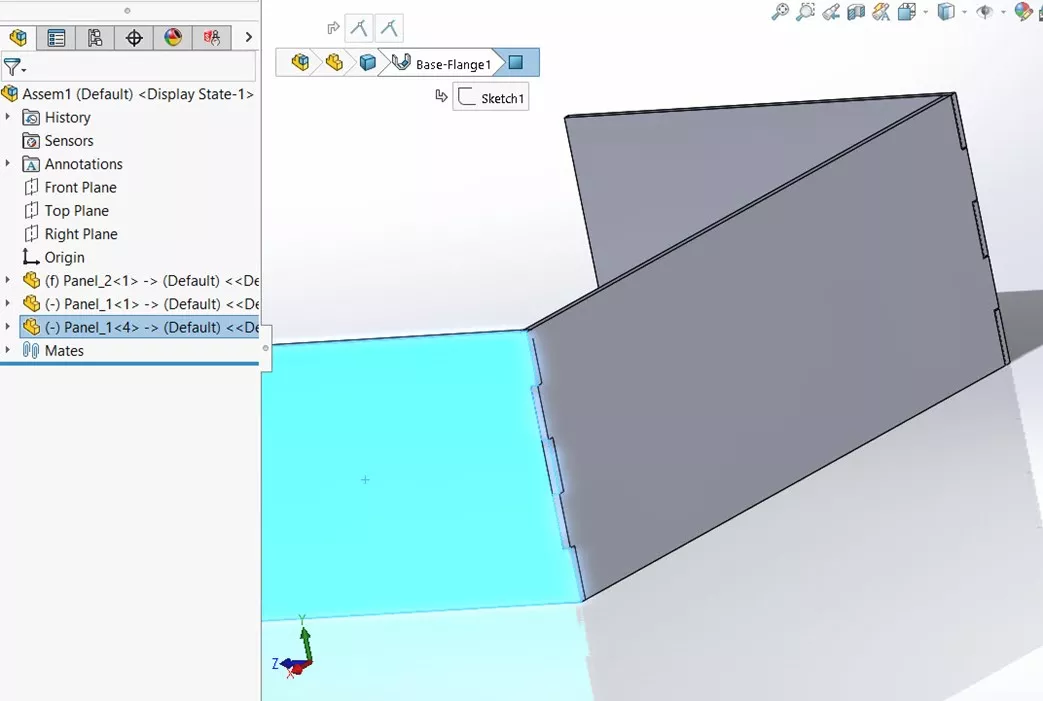
Add the second instance of the part and position it where it will need to be after the Tab and Slot feature is created. The tabs will be poking through the part where the slots will be.
Adding a Second Tab and Slot Feature
After you suppress the first Tab and Slot feature in the part file, you need to add a second Tab and Slot feature to it. Edit the second instance of the part in the assembly exactly how you created the first Tab and Slot feature.

When you add the Tab and Slot feature to the second instance of the part, the tabs propagate to both instances of that part. This is because both instances are technically the same part, and any changes to the part file are reflected in all instances of that part in the assembly.
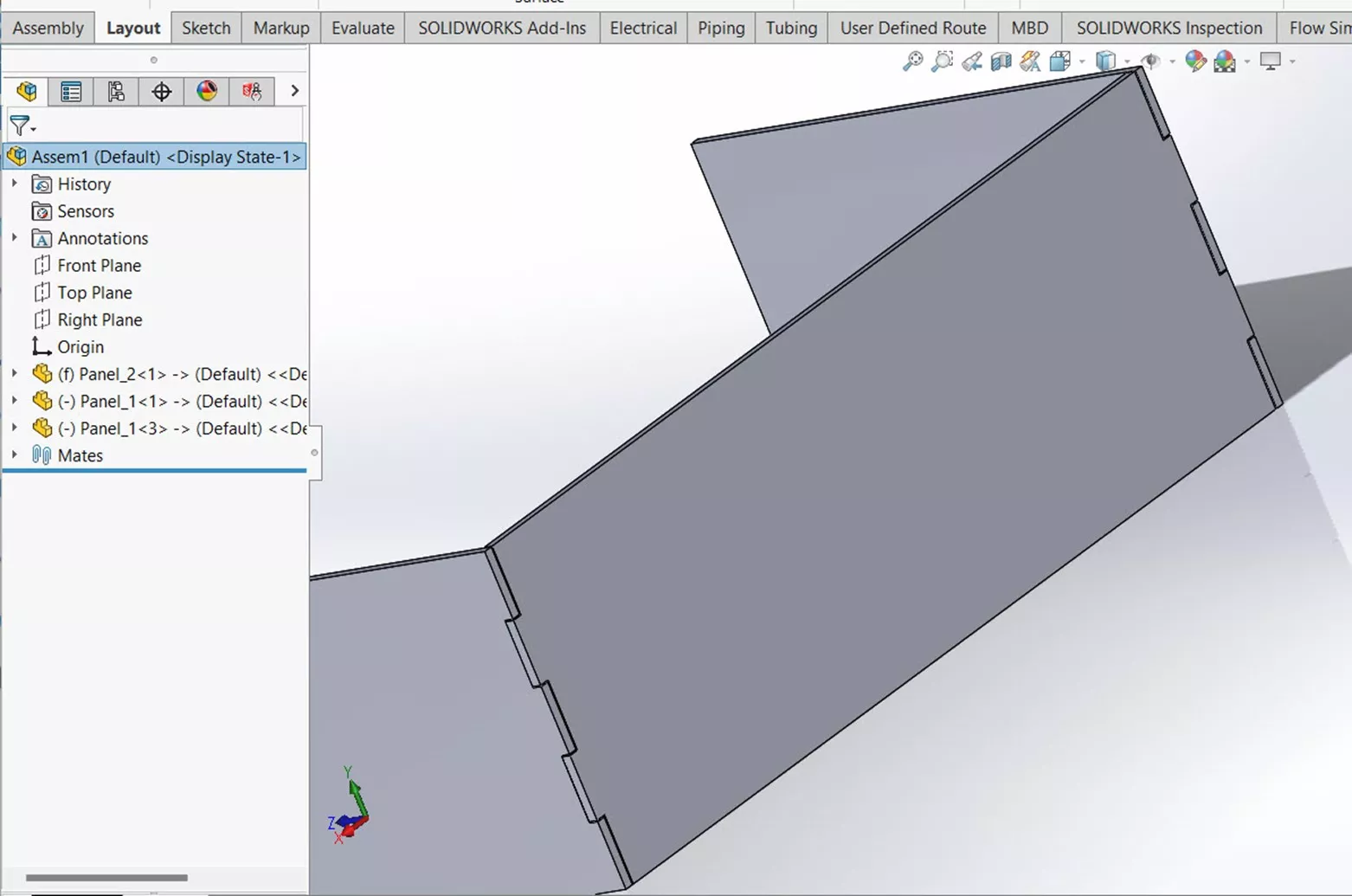
The new Tab and Slot feature will cut relevant slots into anything it touches for both instances, so keeping the feature the same is a good idea. If you change the number of tabs, for example, it will create extra slots where the first instance is located. You will need to use different configurations for the two instances of the reused part if you want them to have different sizes of tabs and slots. For the same configuration, the tabs and slots will be identical anywhere the part is used.
Fixing Broken Mates
Depending on how you position the second part, you might have some broken mates. This is because the second Tab and Slot feature made changes to the edges or faces that you selected. The solution here is to edit those mates to reference the new edges/faces, or create new ones.

I hope you found this tip for working with tab and slot parts in SOLIDWORKS assemblies helpful. Check out more tutorials below. Additionally, check out the GoEngineer Community, where you can create forum posts, enter design contests, and answer questions from other SOLIDWORKS users.
SOLIDWORKS CAD Cheat Sheet
SHORTCUTS ⋅ MOUSE GESTURES ⋅ HOT KEYS
Our SOLIDWORKS CAD Cheat Sheet, featuring over 90 tips and tricks, will help speed up your process.

Related Articles
Finding the Centerline Between Two Complex Curves in SOLIDWORKS
SOLIDWORKS Custom Property for Monitoring Surface Area
SOLIDWORKS Assembly Mirroring for In-Context Parts
Being Flexible with the SOLIDWORKS Flex Feature

About Gary Ballentine
Gary Ballentine is a Mechanical Engineer based out of our Headquarters in Salt Lake City, Utah. He earned a Bachelor’s degree from the University of California, Davis, a certification in Technical Writing from San Francisco State University, and a Bachelor’s degree in Mechanical Engineering from the University of Utah. Gary has been part of the GoEngineer family since April 2019 as a Support Engineer and Certified SOLIDWORKS Instructor.
Get our wide array of technical resources delivered right to your inbox.
Unsubscribe at any time.