Add the Released Version to the Face of the Drawing in SOLIDWORKS PDM

Table of Contents
In SOLIDWORKS PDM, when a file is released, the version that is released is stamped with the revision. If desired, this version that is linked to the latest revision can be shown on the face of the drawing. Note that if both the drawing and the model the drawing references are released, then they'll each have their own released version. This article explains how to show both of these values on the face of the released drawing.
Steps
- Create a variable to contain the released version
- Set up the variable
- Link the variable to a property in the file
- Add the variable to the model’s data card
- Add the variable to the drawing’s data card
- Add the variable to a part’s properties
- Add the file property to the drawing properties in your drawing template or in the sheet format
- Add the part in step 4 to the drawing template in step 5
- Add text to the face of the drawing that links to the drawing property
- Add text to the face of the drawing links directly to the model’s property
- Delete the part in the drawing template
- Save the drawing template to be used for future drawings and check it in
- Add workflow actions to update the variable in the transition to the released state
- Test
Step 1: Create a Variable
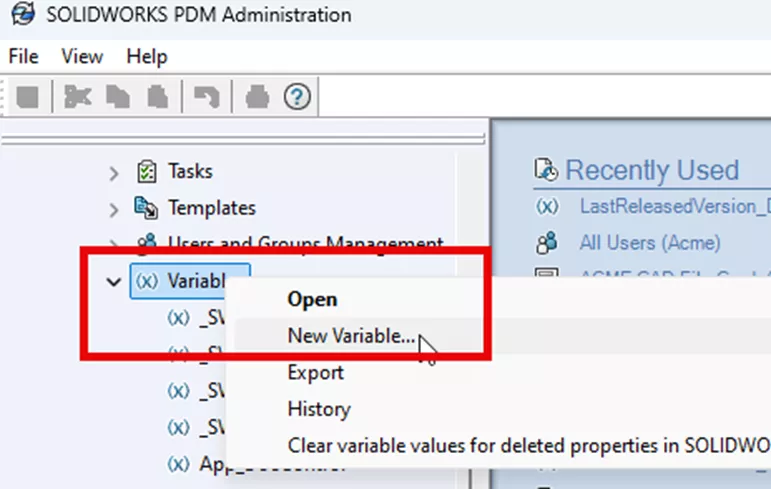
In the PDM admin tool, right-click Variables and choose New Variable.
In the Edit Variable dialog box, give the variable a name. In this example, I'll use “LastReleasedVersion”.
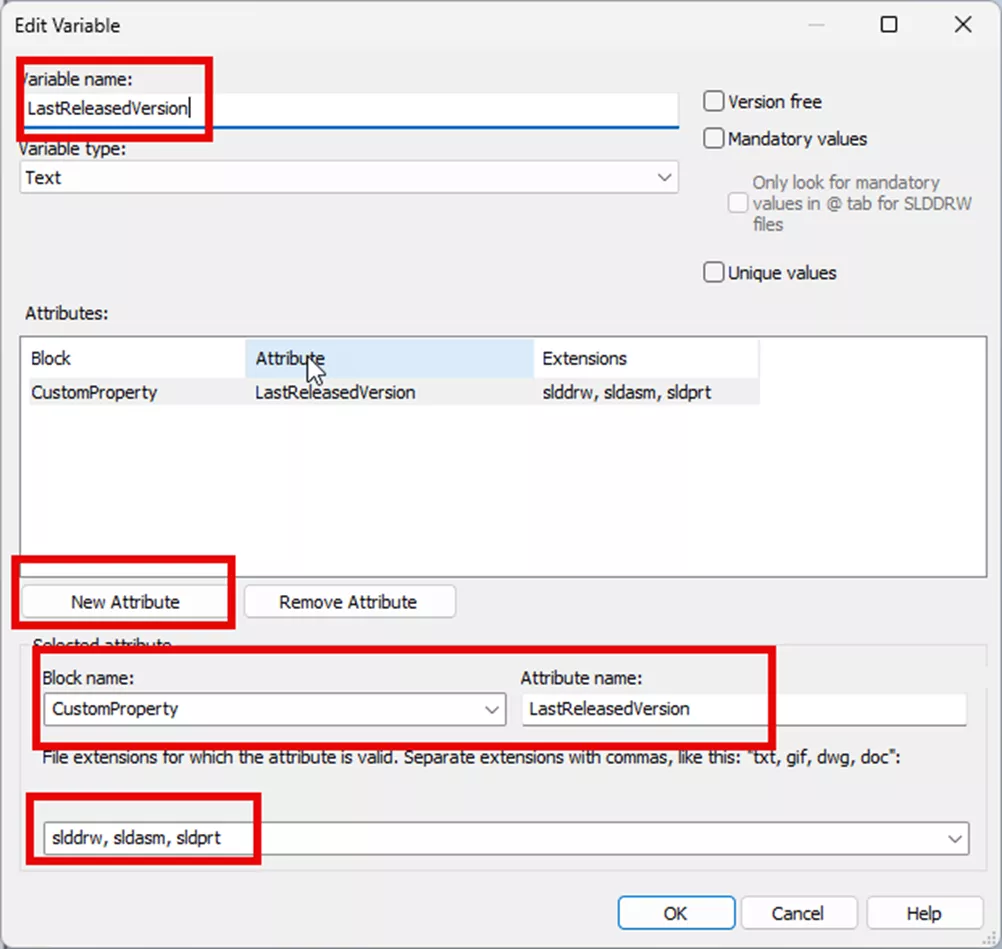
Select New Attribute. Use the Block name “CustomProperty” and give it an Attribute name. The attribute name is the file property that will be added to the file’s property list on the Custom tab. It is recommended to use the same name as the variable name. This reduces confusion.
Lastly, add the extensions of the files this will apply to. In this case, this applies to drawings, assemblies, and parts.
Step 2: Add the Variable to the Model’s Data Card
Log in to the local vault view (PDM in File Explorer) as someone who can edit data cards. This is typically the PDM admin or someone with admin access. If this step is neglected, changes to the data card won’t be saved.
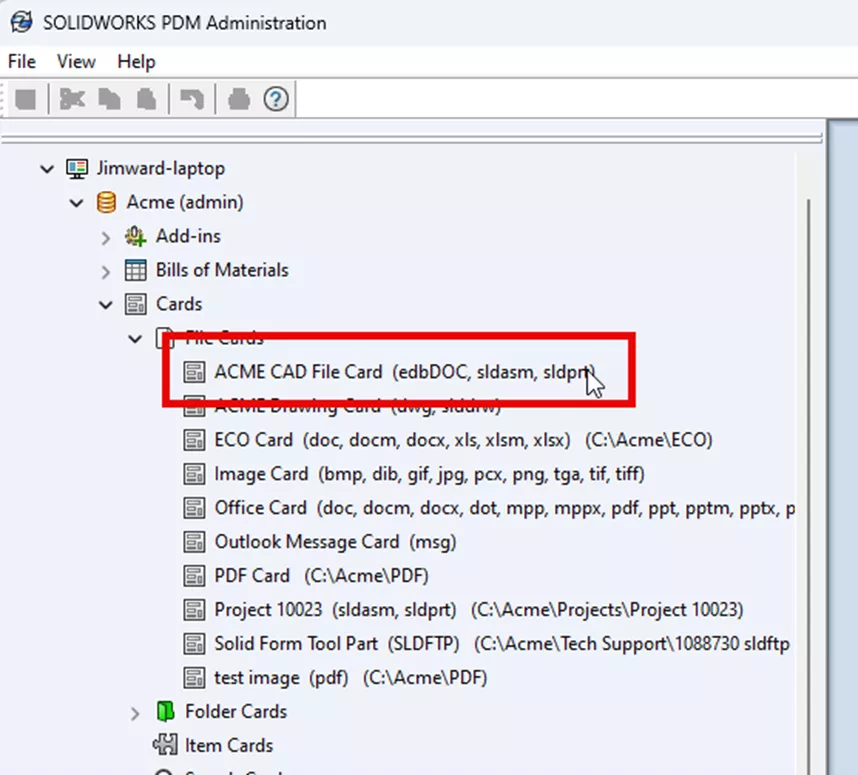
In the PDM admin tool, select Cards: File Cards. Then, locate the card that is used for the models. This can be seen by the extensions after the card’s name. In the highlighted card, “sldasm, sldprt” are after the card name.
Open this in the card editor by double-clicking it, or right-click and choose Open.
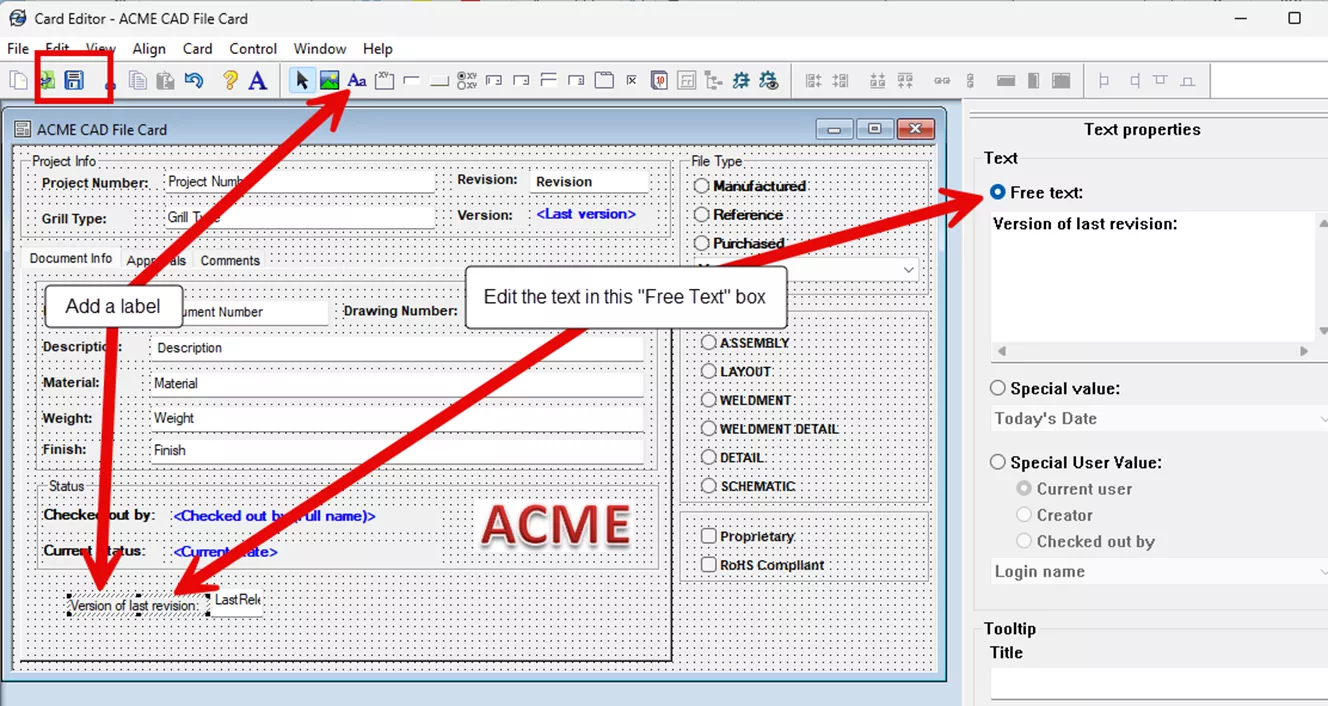
In the card editor:
- Add a text box control by clicking on the icon the top arrow points to and dragging it to the desired location.
- Link it to the variable “LastReleasedVersion”.
- With the control selected, check the box so it updates all configurations.
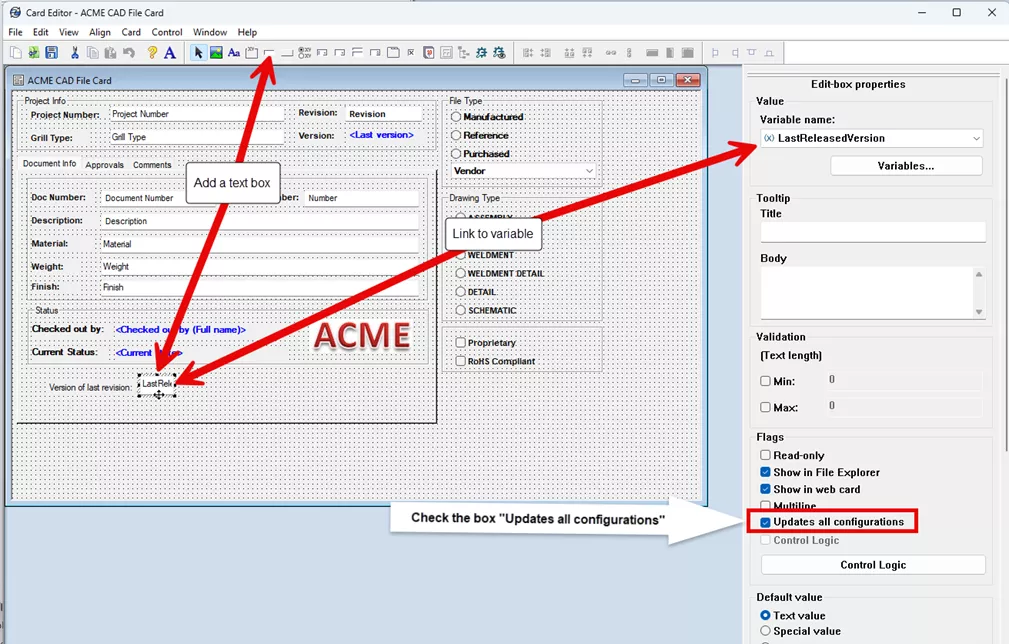
- Label the field by dragging the “Aa” at the top arrow and dragging it to the desired location.
- Edit the label in the text box in the Free text area in the top right (not shown here).
- Save your changes (in the top left, select the Save diskette).
Step 3: Add the Variable to the Drawing Data Card
In the PDM admin tool, select Cards: File Cards. Find the card that is used for drawings. This can be seen by the extensions after the card’s name. In the highlighted card, “slddrw” is after the card name.
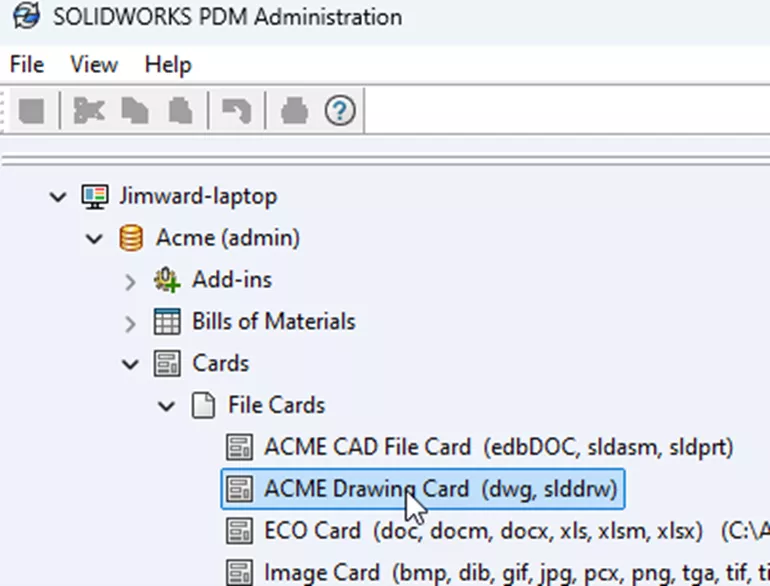
Open this in the card editor by double-clicking it, or right-click and choose Open.
In the card editor:
- Repeat steps 1-5 that were taken to add the variable to the model’s data card.
Step 4: Add the Variable to a Part’s Properties
- If the part already exists in PDM, then check it out and open it in SOLIDWORKS.
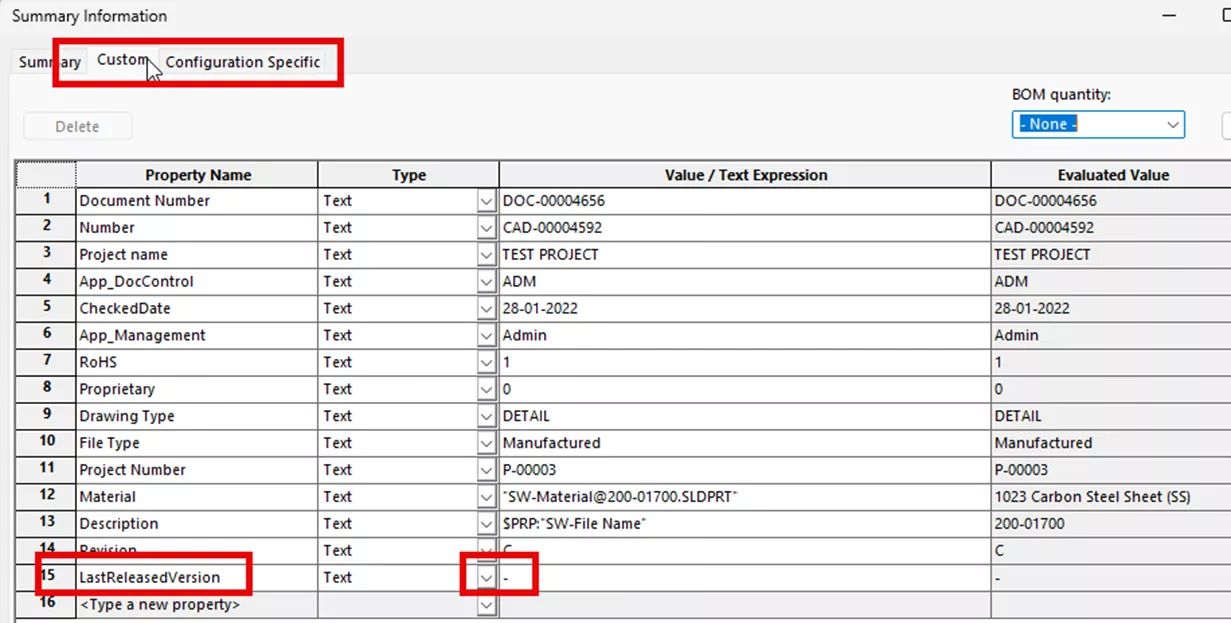
- Copy the attribute name from the variable definition and paste it into the Custom tab Propery Name.
- Place a value for the new property. A space can be used if nothing is desired.
- Sometimes, SOLIDWORKS will automatically delete properties with no values.
- Also, add this property to the Configuration Specific tab.
- Check the file back into PDM.
Step 5: Add the Property to the Drawing Template’s Properties
- Check out and open a drawing template for editing.
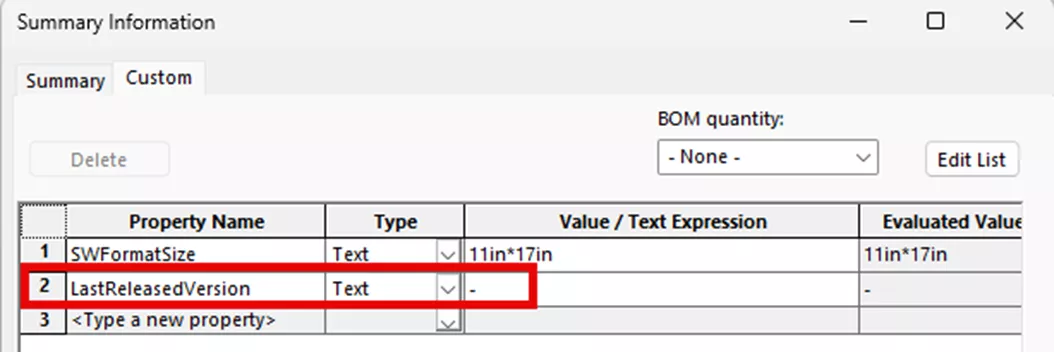
- Copy the attribute name from the variable definition in the PDM admin tool and paste it into the Property Name. Give it a value so SOLIDWORKS won’t delete the property.
Step 6: Add the Part in Step 4 to the Drawing Template in Step 5
- Add a single view of the part. This allows us to create a link to the property in the file and save it in the drawing template.
Step 7: Add Text to the Face of the Drawing that Links to the Drawing Property
- This should be placed on the sheet format, so select the template and place it in Editing sheet format mode.
- Add a note to the template in the desired location.
- Label the link. This is for the drawing. Here, I entered LAST RELEASE VERSION – DRAWING:
- Add the link to the variable in the template’s document properties.
- Select the Link to property icon.
- In the dialog box, select Current document.
- Add the property “LastReleasedVersion” from the dropdown menu.
- Select OK.
- This will add a link to the drawing’s last released version.
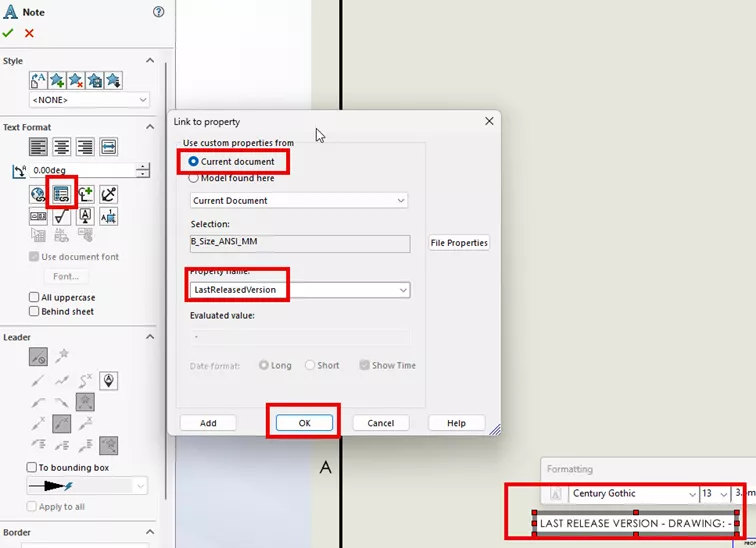
Step 8: Add Text to the Face of the Template that Links to the Model’s Property
- This should be in the same note as created in Step 7.
- Add a new line to the note.
- Label the link. This is for the model, so I entered LAST RELEASE VERSION – MODEL:
- Add the link to the variable in the model’s document properties.
- Select the Link to property icon.
- In the dialog box, select Current document.
- Add the property “LastReleasedVersion” from the dropdown menu.
- Select OK.
- This will add a link to the model’s last released version.
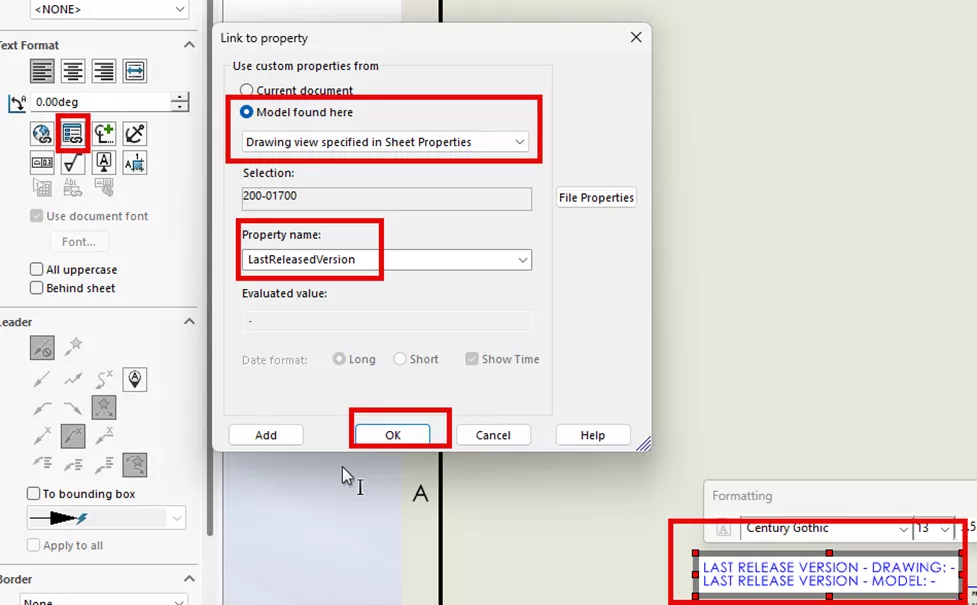
Steps 9 and 10 are standard SOLIDWORKS actions.
Step 9: Delete the Part in the Drawing Template
Step 10: Save the Drawing Template to be Used for Future Drawings and Check It In
Step 11: Add Workflow Actions to Update These Variables in the Transition to the Released State
- Edit the workflow in the PDM admin tool.
- Find the transition the file goes through as it transitions to the released state.
- Edit this transition.
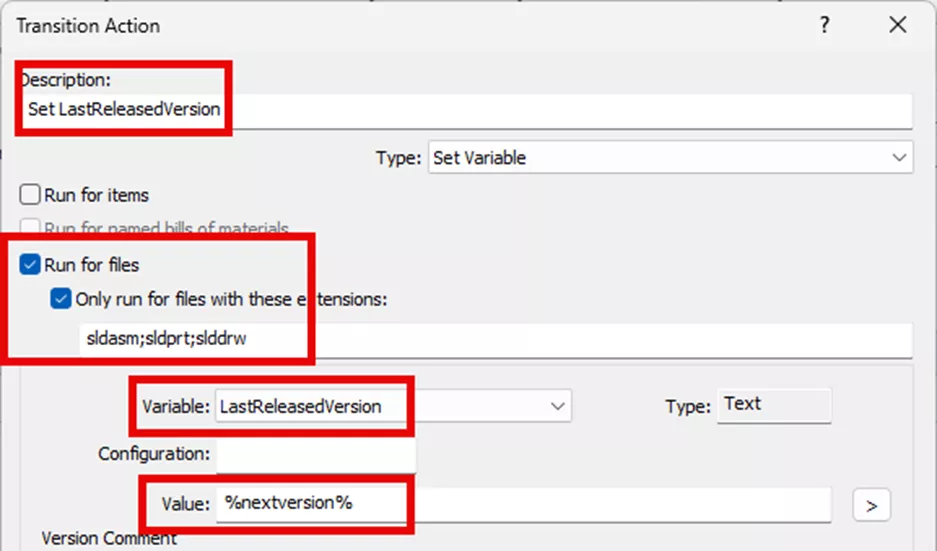
Transition action settings:
- Type "Set variable".
- Check the box Run for files, and Only run for files with these extensions.
- Add the extensions “sldasm; sldprt; slddrw”.
- Note the extensions are separated by “;”.
- Variable: LastReleasedVersion (or your variable name).
- Select the > and select Next Version. Be careful to select the correct one. “Version” not “Revision”.
- Save the transition action.
Step 12: Test
- Create a drawing using the new drawing template.
- Add a model to the drawing.
- Release both the model and the drawing through the normal steps in the workflow.
- Once released, verify that the released version in SOLIDWORKS PDM matches the released version on the face of the drawing.
I hope you found this article explaining how to add the released version to the face of the drawing in SOLIDWORKS PDM helpful. Learn more about SOLIDWORKS PDM below. Additionally, join our GoEngineer Community to participate in discussions, create forum posts, and answer questions from other SOLIDWORKS users.
24 Tips to Master SOLIDWORKS PDM
SHORTCUTS ⋅ SEARCHING ⋅ PDM ADD-IN
24 of our expert tips to help you master using SOLIDWORKS PDM. Improve performance, find files faster, and work like a pro.
Related Articles
Fix SOLIDWORKS PDM Error Opening Archive
SOLIDWORKS PDM Attach Access: A Master Guide
SOLIDWORKS PDM XML Import and Export Rules
SOLIDWORKS PDM Vault Upgrade: Standard to Professional

About Jim Ward
Jim Ward is a Sr. SOLIDWORKS Support Engineer at GoEngineer. He has a BSME from CSU, Chico and has been managing SOLIDWORKS PDM since 2008, first for a major corporation until 2015, then as a PDM Support Specialist at GoEngineer since 2016.
Get our wide array of technical resources delivered right to your inbox.
Unsubscribe at any time.