SOLIDWORKS PDM Attach Access: A Master Guide

Table of Contents
When adding a local vault view to SOLIDWORKS PDM, users may run into a security measure known as Attach Access Permission. Effectively, this is meant to make it harder for users who do not have permission to create a local vault view and gain access to potentially sensitive vault data. This permission becomes more important when users from outside of the organization are invited to interact with files through the vault. When a PDM Archive Server is created, the server is prepopulated with a user and group permissions for Administration and attach access. We’ll discuss the default settings as well as how to change them below.
How Does Attach Access Work?
When a user attempts to create their local vault view, PDM checks the Windows User Profile running the View Setup tool against a list of Windows User Profiles in the Attach Access permission list. Note that this list can be edited from the Archive Server Configuration tool, which is covered later in this article. If the user is not on the list, it will display a request that looks nearly identical to the PDM Login screen. However, the verbiage and input fields are a bit different (and it is missing the “Work Offline” prompt in the bottom left-hand corner. I’ve included an example of each below with its components labeled to better understand.
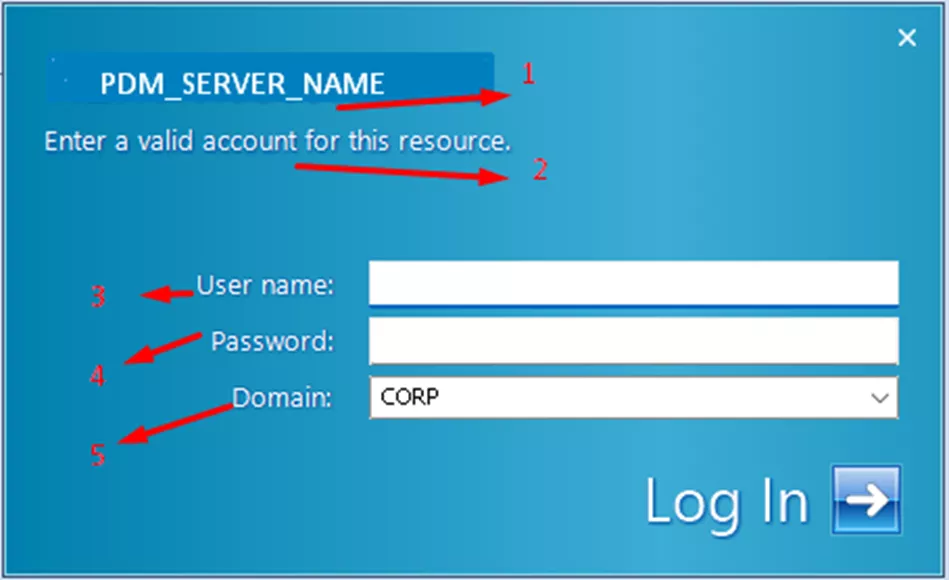
- Server Name
- It is important to note that this differs immediately from any vault login, as it is showing the server name and not the vault name.
- “Enter a valid account for this resource.”
- The text here is also an easy way to tell what it’s asking for. There is no comparable text on the vault login screen.
- User name
- This will, of course, be a Windows username like the one entered in the Archive Server Configuration tool.
- Password
- This will correspond with the password for the username above.
- Domain
- This is a dropdown and will often have the server’s name along with “local account”, as well as any other domains that have been entered in the Attach Access section of the Archive Server Configuration tool.
- For example: PDM_SERVER_NAME (local account).
- This is a dropdown and will often have the server’s name along with “local account”, as well as any other domains that have been entered in the Attach Access section of the Archive Server Configuration tool.
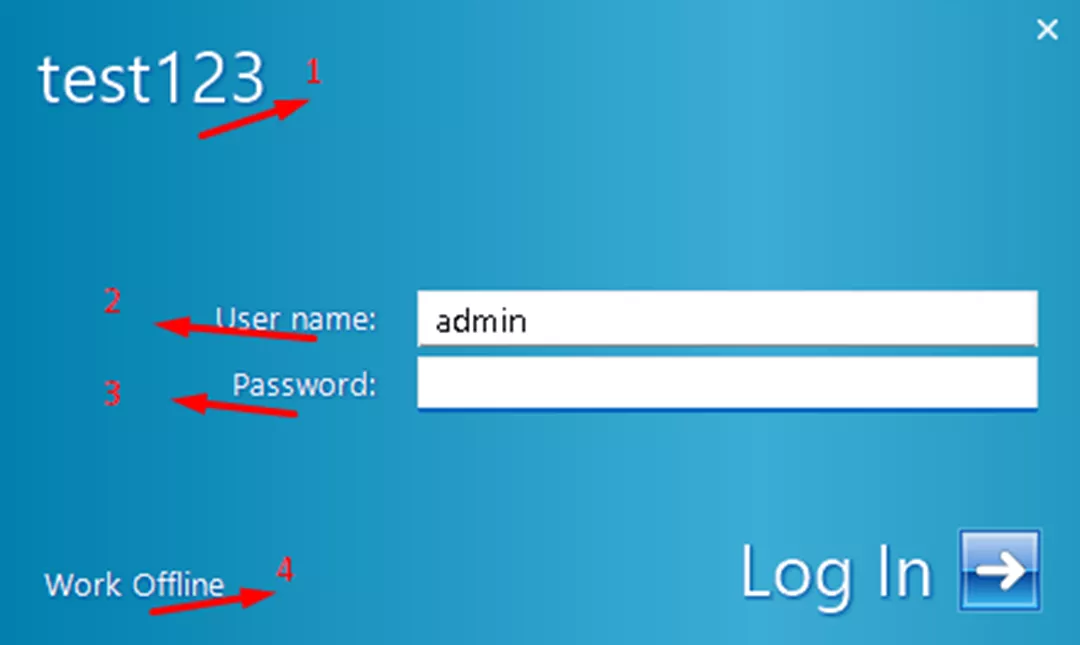
- Vault name
- Note that this is the vault name and not the server name.
- User name
- This is whatever username/user profile one uses to log into the vault. It does not have to be a Windows Profile unless the vault was set up that way.
- Password
- This will be the password for the PDM user.
- Work Offline
- This is interactive. Clicking on this will allow users to work in offline mode. This is another easy way to distinguish between the Attach Access dialog box and the PDM Login dialog box.
Given the above, how can someone know if a user needs attach access? The answer to this is straightforward: if the Attach Access dialog appears, then the permission is needed. If it does not appear, then the user does not need to enter a valid credential. This gets a bit more complicated as PDM Administrators and IT Administrators decide how they would like to structure this permission in the background, which is discussed in the next section.
Ways to Implement Attach Access
When a user receives the Attach Access Permission, it's important to first check who is already on their list. By default, three user groups are added from the list on the PDM Archive Server. These default groups are Local Administrator accounts, Local PowerUser accounts, and all Local Users. It is important to stress that these are local only to the archive server. So, if your PDM Archive Server only has a local administrator, that is the only user credential that can provide attach access until another is either added or created. Now, this is where we can ask the question: how should and how can I set up my attach access permissions? There are a few options, which we’ll elaborate on, starting with the simplest and going to the most complex.
- Use the Local Administrative Windows Profile from the archive server:
- This is as straightforward as possible and requires no further configuration on the part of the PDM Administrator.
- One of the most frequent concerns we hear is that local administrators don’t feel comfortable providing the Server Administrator credential. This is understandable. However, it overlooks a few factors:
- This is a one-time process for setting up the vault view, and the user cannot obtain the credentials from the interface.
- The user does not need to know the credentials if an administrator is present to input them.
- This is simply the most expedient credential to provide, not the best or only one.
- Create a user specifically for attach access permissions.
- This is a variation on the first option and can be implemented in one of two ways:
- Create a Local User profile on the PDM Archive Server with the most basic login permissions. There is no further setup needed.
- Create an Active Directory user profile and add that user to the list of other users.
- This is a happy medium between setting up each individual user or user group and simply using the Local Windows Administrator from the archive server.
- Note: Best practice says to log in with the user at least once to verify that the credentials will work.
- This is a variation on the first option and can be implemented in one of two ways:
- Add a few specific Windows profiles to the list and deputize those users to enter their login credentials whenever someone needs access.
- This is also straightforward with only a little setup needed to add a few existing Windows profiles.
- No other special permissions are needed for those Windows profiles; however, if those users leave or aren’t available to provide their login credentials, it may delay vault view setup or necessitate using a different profile.
- Create an active directory group with all PDM users added to it and add that group to the attach access list.
- In cases where PDM Professional with Active Directory logins is being used, this is as simple as adding one extra Active Directory Group and adding any user groups already associated with PDM users/permissions to that group before finally adding that group to the attach access list.
- If no such PDM groups are in use, this becomes a bit more work to ensure these users are added to this group specifically.
- One of the benefits of this is that the dialog box asking for user credentials to attach access becomes much rarer, as these user profiles will simply appear on the list when the system checks for attach access.
A few considerations. Security being what it is, it is not often that an IT team will add an outside user’s profile to their attach access list or create a user for them in the local or Active Directory. This is where I might suggest a hybrid approach. Maybe you’re already using Option D, but you add a contractor-specific user like in Option B. It really comes down to a choice by your PDM Administrators and your IT Administrators, but between the four options, there should be at least one that fits better than the others.
Grant Attach Access Permissions
Below are the instructions to grant Attached Access. Note that only a Windows User profile (local to the machine or from Active Directory) or group can be granted attach access. This will not work with PDM login profiles.
- On the archive server, launch the Archive Server Configuration tool (under SOLIDWORKS PDM in the Start menu).
- If the Archive Server Configuration tool does not appear, it is often in the Windows System Tray in the bottom right-hand corner of the screen (near the clock). Right click > Open.
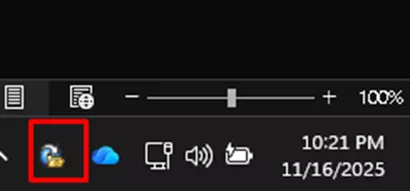
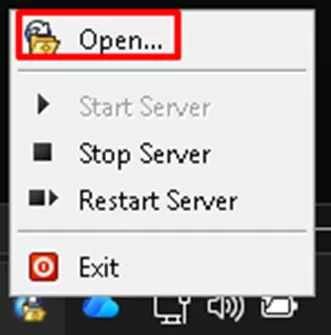
- If the Archive Server Configuration tool does not appear, it is often in the Windows System Tray in the bottom right-hand corner of the screen (near the clock). Right click > Open.
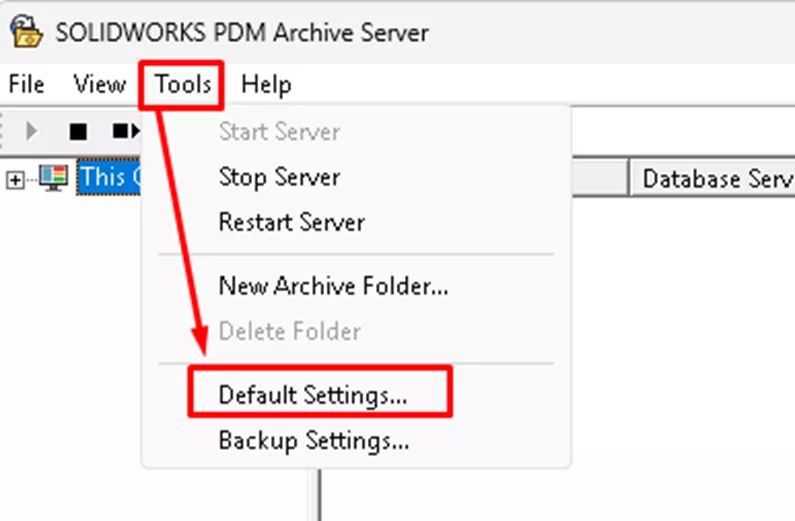
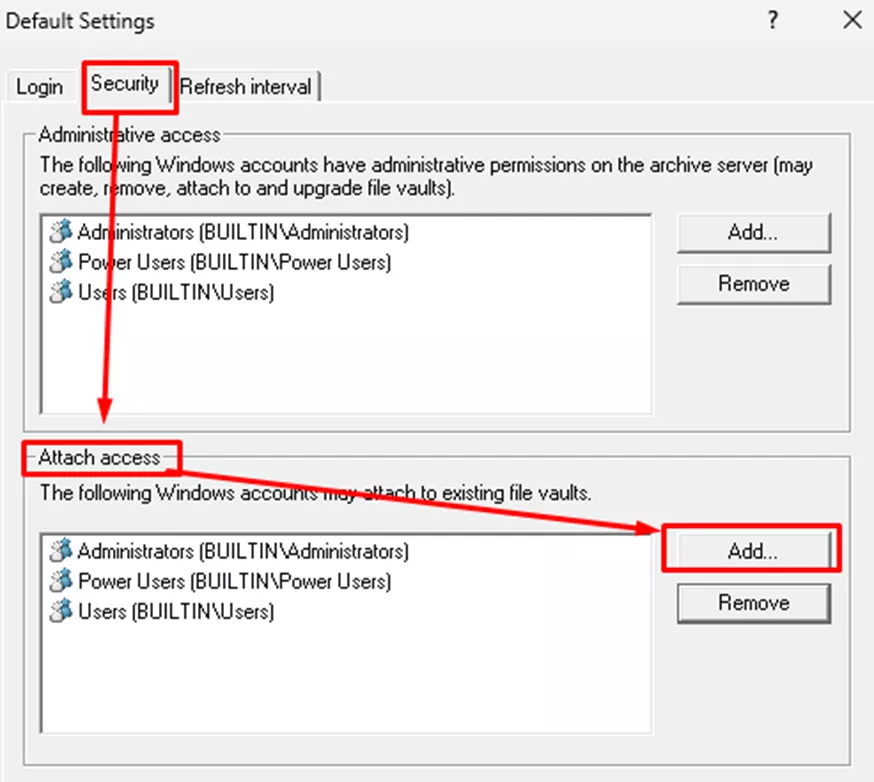
- Open Tools > Default Settings > Security tab > Add (under the Attach access section).
- Type the Active Directory username of the user or group name and select Add.
- This will include a domain name followed by a username.
- Ex: ACME\wCoyote
- ACME_corp.net\rRunner
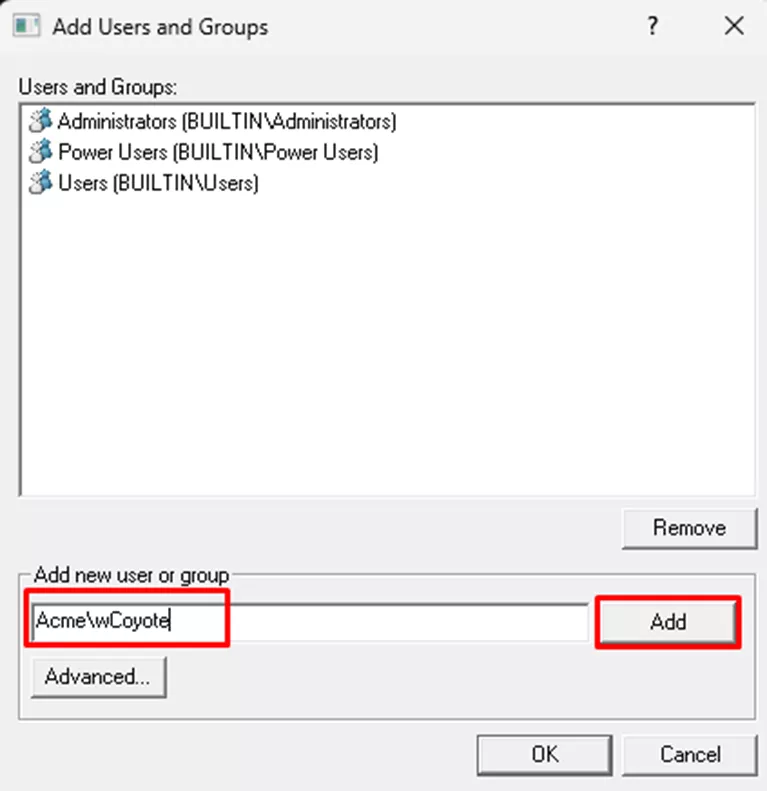
- This will include a domain name followed by a username.
- The username or group name will be added to the list. Click OK to close the dialogs.
Creating a “Dummy” User
As mentioned earlier, one valid technique to provide attach access is to create a Local User on the archive server with limited permissions for the sole purpose of providing attach access. I’ve provided the steps below.
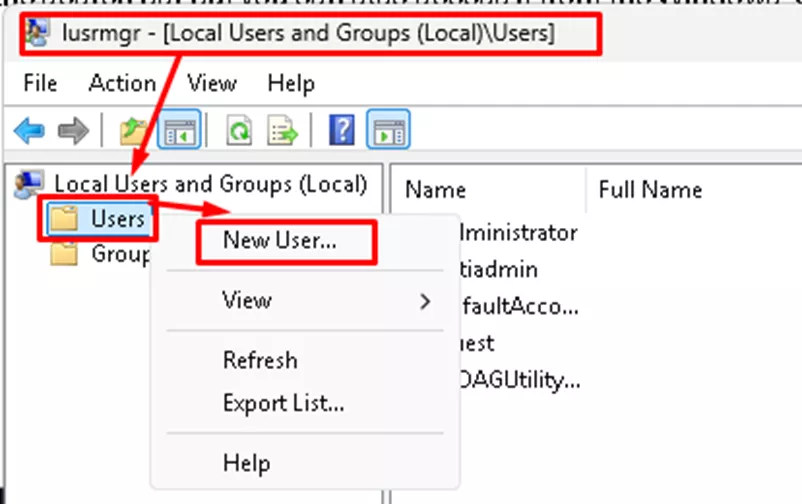
- Log in as an Administrator with the permission to create users (Local Administrators often have this) on the PDM Archive Server.
- Find the Edit Local Users and Groups.
- You can use the search bar, or you can access this from the Windows Control Panel.
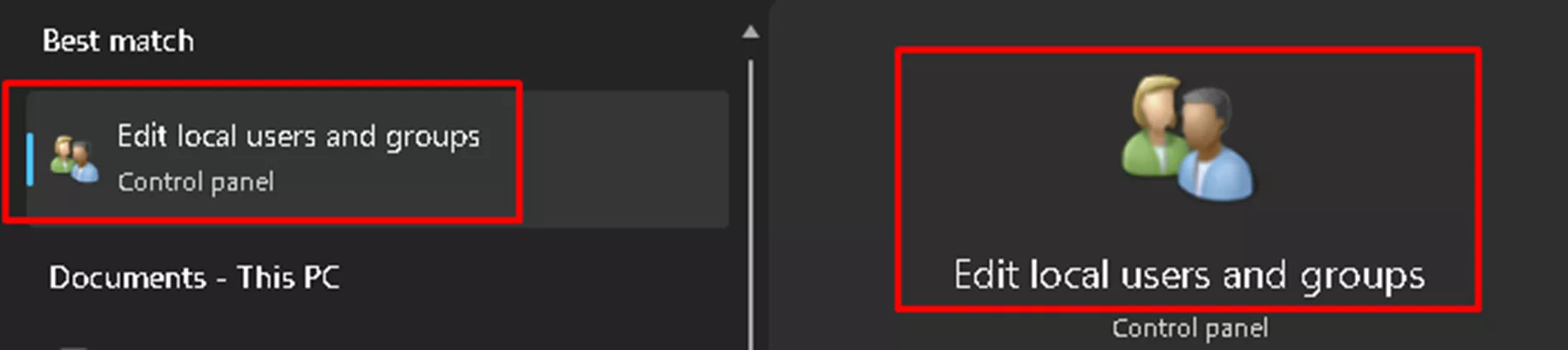
- You can use the search bar, or you can access this from the Windows Control Panel.
- Right-click Users > New User.
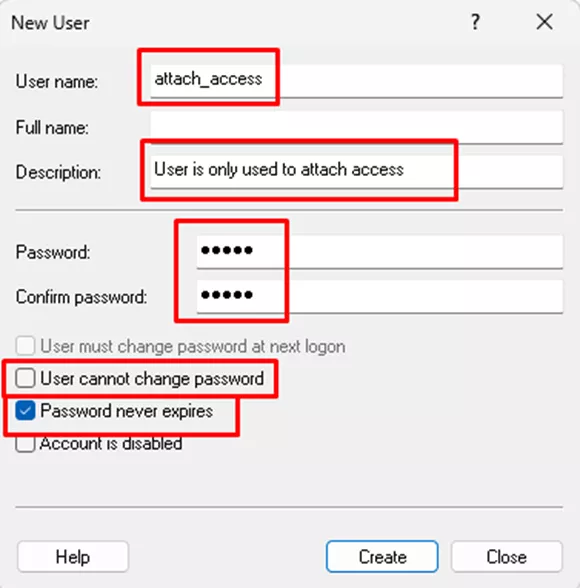
- Fill out the information for the new user and record your entries somewhere (like in Notepad).
- Username - it is suggested to keep this simple.
- Full Name- it is possible to skip this.
- Description - for documentation purposes, a brief description can be helpful, but is not necessary.
- Password - provide a password.
- Check boxes:
- User must change password at next login.
- It is suggested to uncheck this, as this isn’t an actual user so that step is unnecessary.
- User cannot change password.
- This means the user cannot log in and change their password. This may be something you want to check as a safety measure, so someone doesn’t lock you (and possibly other users utilizing these credentials for attach access) out.
- This is still optional.
- Password never expires.
- Again, you don’t necessarily want to have to change this password, so best practice suggests checking this box.
- Account is disabled.
- If you suspect any misuse of the account, this is a way to lock out the account. Leave it unchecked.
- If you suspect any misuse of the account, this is a way to lock out the account. Leave it unchecked.
- User must change password at next login.
- Create the user.
- Once the user is added, try logging in to the Server machine with that account.
- From there, you can begin using the user for attach access.
Other Considerations
Users often overlook the Domain box when entering information.
- If you’re using a Local profile on the server, then the server name will be the domain followed by the words “local account.”
- If you’re using a non-local Active Directory profile, you may need to enter that domain. If we look back to the example above, that may be something like “ACME” or “ACME_CORP.net.”
- If you’re lucky, the Domain you’re looking for may even be in the dropdown already.
Attach access dialog boxes are often followed shortly after (with maybe a few additional clicks between them) by the standard PDM Login dialog box. Just be aware and ready to switch from one set of credentials to the next.
On a final note, a particular user profile, an unknown network setting, security software, or any number of other factors may conspire to make the simple act of providing attach access permissions impossible. No matter which credentials you add to the list and try to use, none will work to provide attach access. When this happens, there is still a fallback. It is not the recommended method, but it is available when other methods fail. That method, creating a .CVS file (note: it is NOT a .CSV file), is discussed in the linked article (here) in case you’re running into this issue. As always, if you’re having issues with either method (and GoEngineer is your VAR), please contact our support team for assistance.
24 Tips to Master SOLIDWORKS PDM
SHORTCUTS ⋅ SEARCHING ⋅ PDM ADD-IN
24 of our expert tips to help you master using SOLIDWORKS PDM. Improve performance, find files faster, and work like a pro.
Related Articles
SOLIDWORKS PDM XML Import and Export Rules
SOLIDWORKS PDM Vault Upgrade: Standard to Professional
Resolve SOLIDWORKS PDM Add-In Error
SOLIDWORKS PDM Notifications in the Vault
Permissions to Move Files and Folders in the SOLIDWORKS PDM Vault

About Joe McWhorter
Joseph McWhorter is a SOLIDWORKS PDM Support Engineer based out of Chicago, Illinois. He joined GoEngineer in 2022 and holds a Bachelor's Degree from Augustana College. In his free time, he enjoys reading and cooking with his children, while collecting hobbies like they're trading cards.
Get our wide array of technical resources delivered right to your inbox.
Unsubscribe at any time.