Create Custom Wire Numbers in SOLIDWORKS Electrical 2D

Table of Contents
SOLIDWORKS Electrical 2D comes with a basic set of wire styles intended as a starting point. Though with any starting point, we can do a lot more. To that end, we will need to customize an existing style or create a new one using the Wire Management tool. This is the central location for wire style information throughout the project. Here we will explore some options for creating customized wire numbers.
Accessing the Wire Management Interface
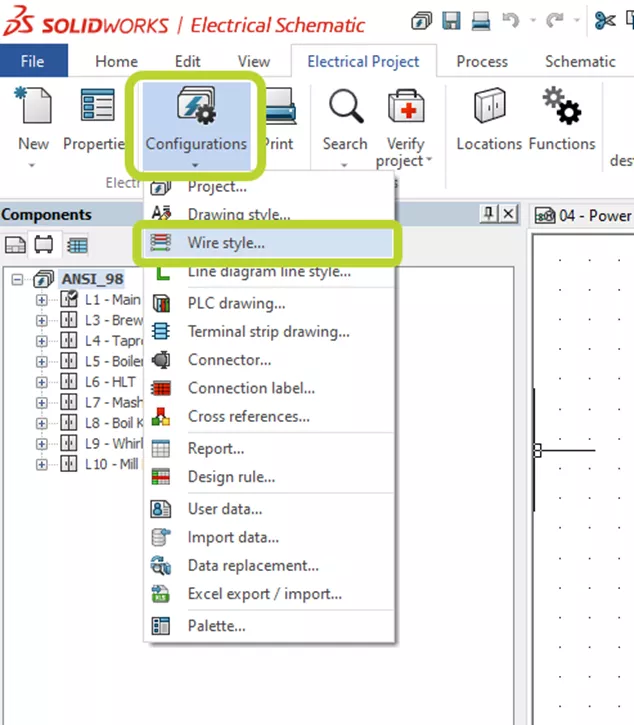
To access the wire management interface, select the Wire Style option in the project Configuration pulldown of the ribbon. This is the primary interface.
It can also be accessed when adding a new single or multiple wires, or while replacing an existing wire in a schematic.
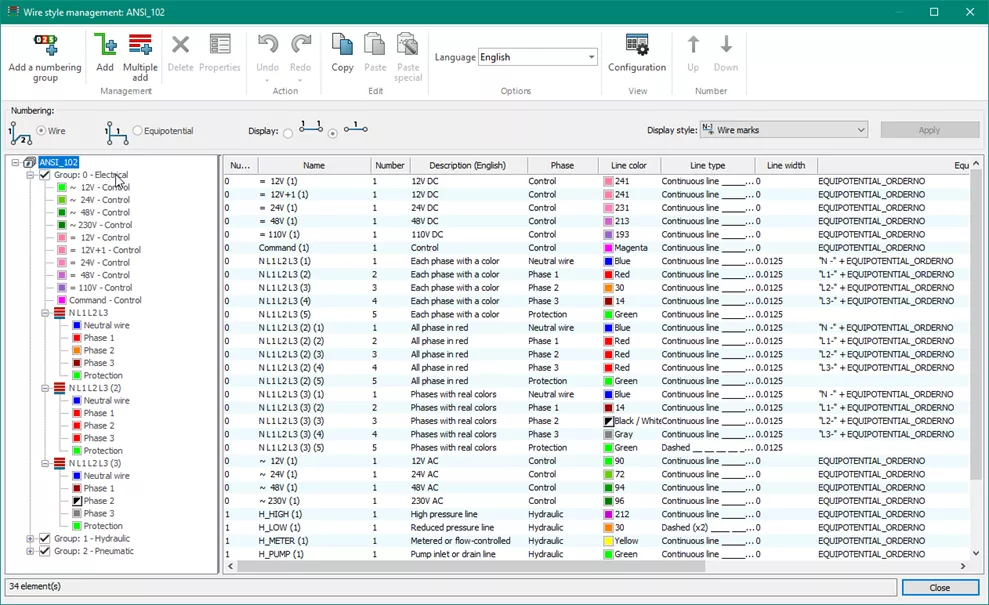
Wire Style Manager from Draw Wire
When drawing a single or multiple wires, access to the wire style management interface is through the wire style selector. Use the ellipsis button next to the wire name, then select the Management... button.
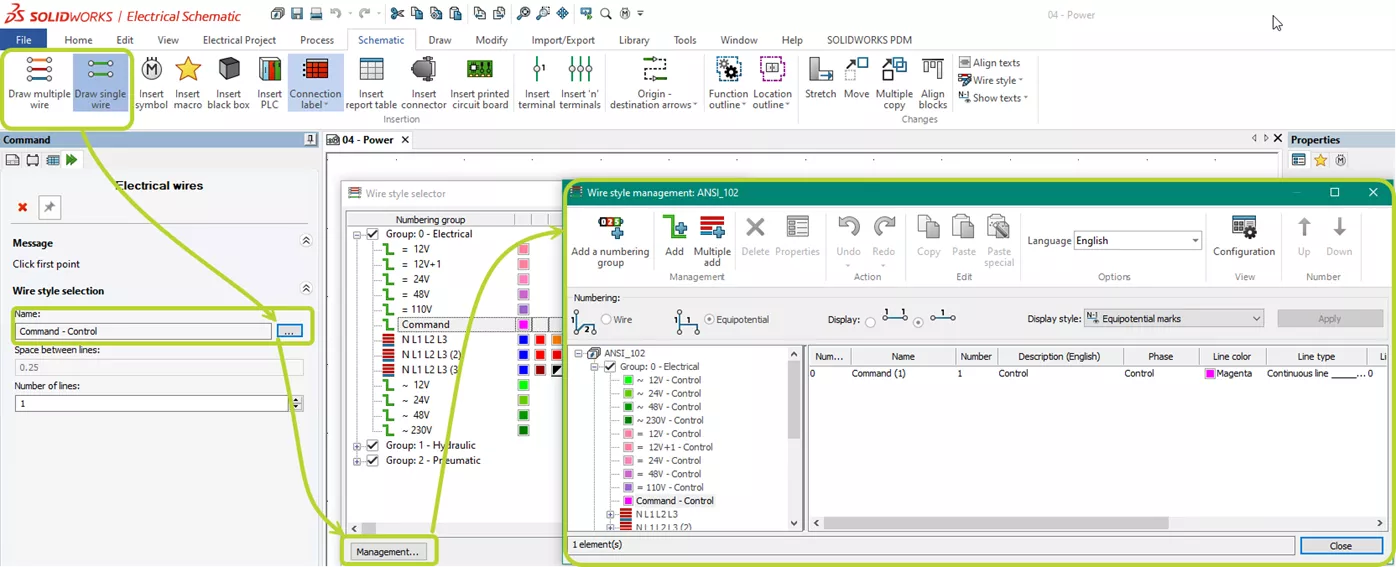
Wire Style Manager Through the Replace Wire Process
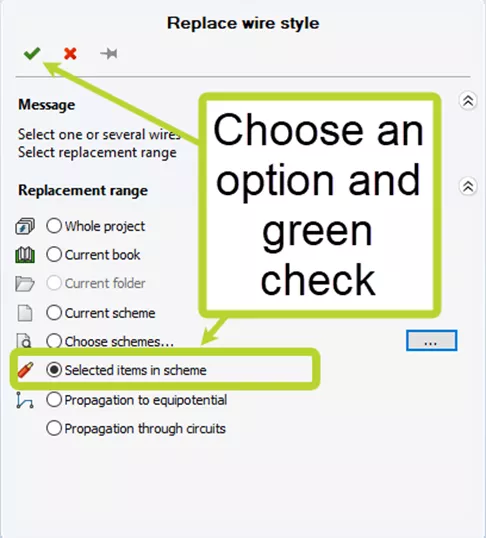
The wire style management interface is also accessible via the Replace wire style option in the wire style section of the context menu.
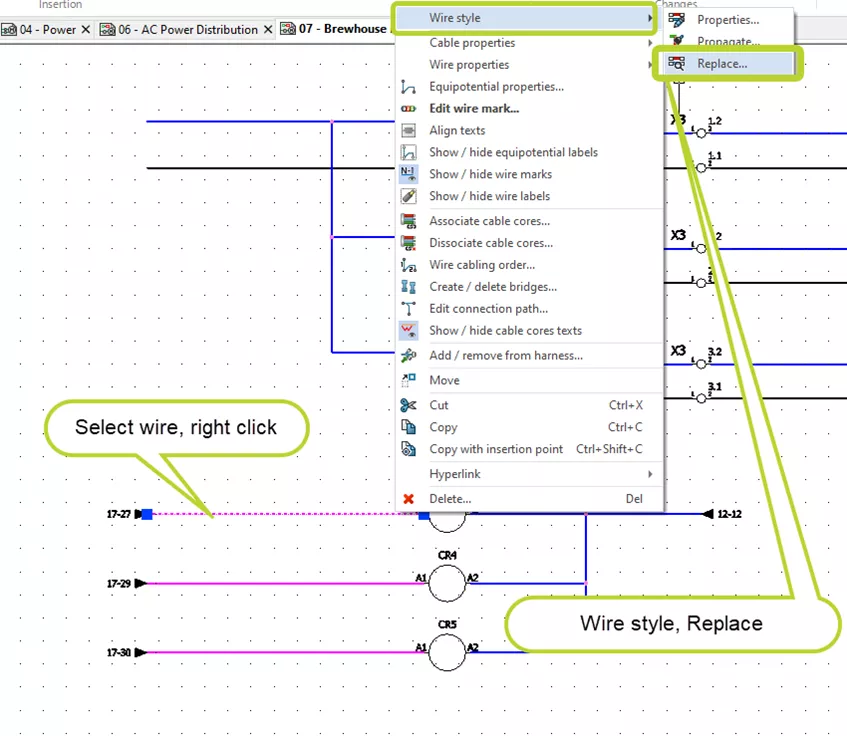
Select the scope of the replacement and click the green check mark.
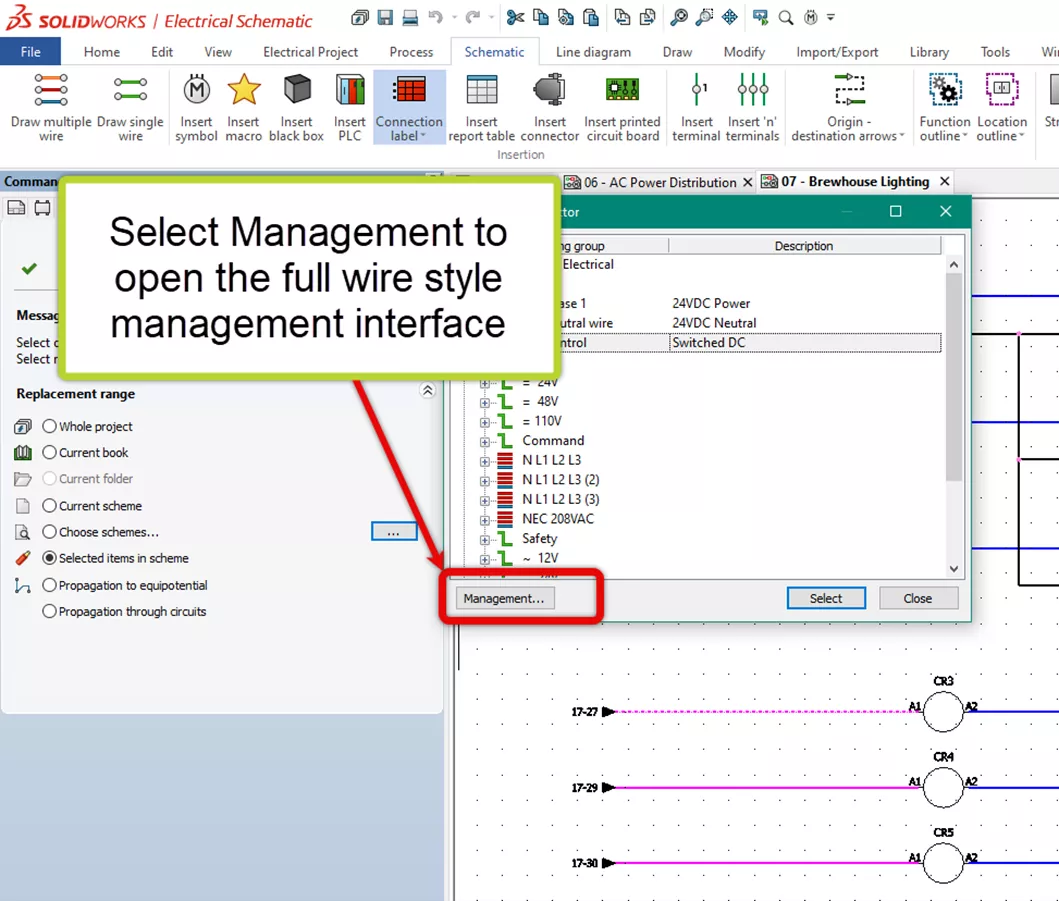
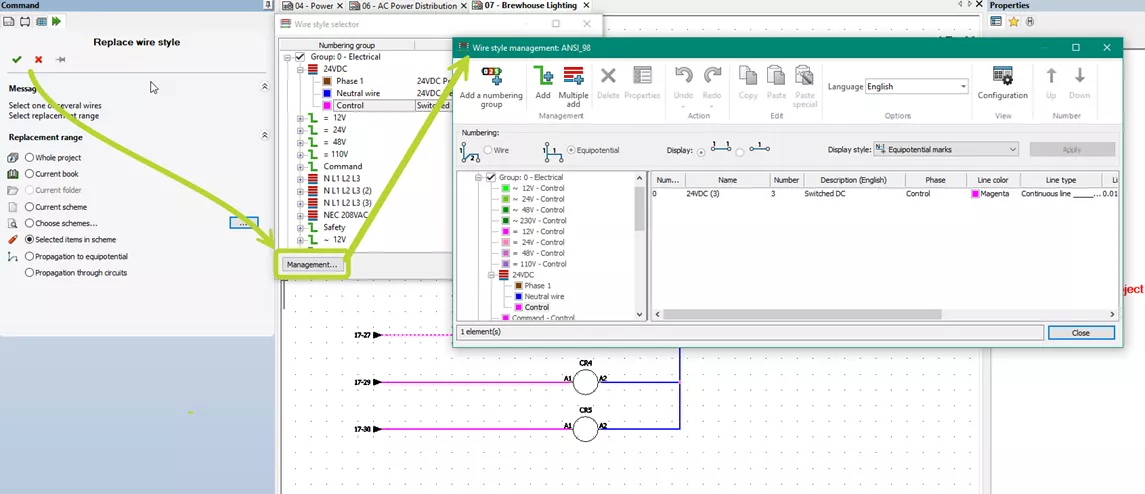
Click the Management... button in the selection dialog (this will also open a full wire management interface).
Create a New Wire Style or Copy an Existing One?
Whether you want to customize an existing wire style or create a new one, the choice is yours.
To use a new wire style, either use the Add New process or copy and paste an existing one.
Adding a Wire Style with Add
You can add a wire style to a numbering group, a multiple wire style, or a single wire style.
- Click Electrical Project > Configurations > Wire style
 .
. - In the left pane of Wire style management, select the numbering group or wire style you want to add a single wire style to.
- Click Add
 .
.
You can add a multiple wire style to a numbering group or a multiple wire style.
- Click Electrical Project > Configurations > Wire style .
- In the left pane of Wire style management, select the numbering group you want to add a multiple wire style to.
- Click Multiple add
 .
.
Copy and Paste to Add a New Wire Style
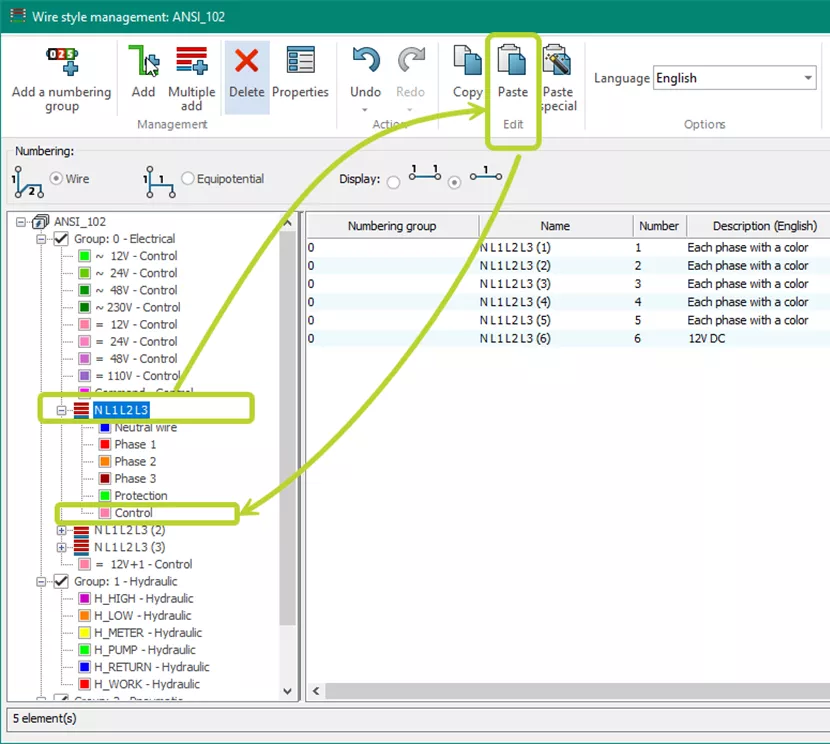
In the Wire management interface, use copy and paste to create a new wire style. Locate the wire you want to copy and either use the context menu (RMB) or the toolbar button.
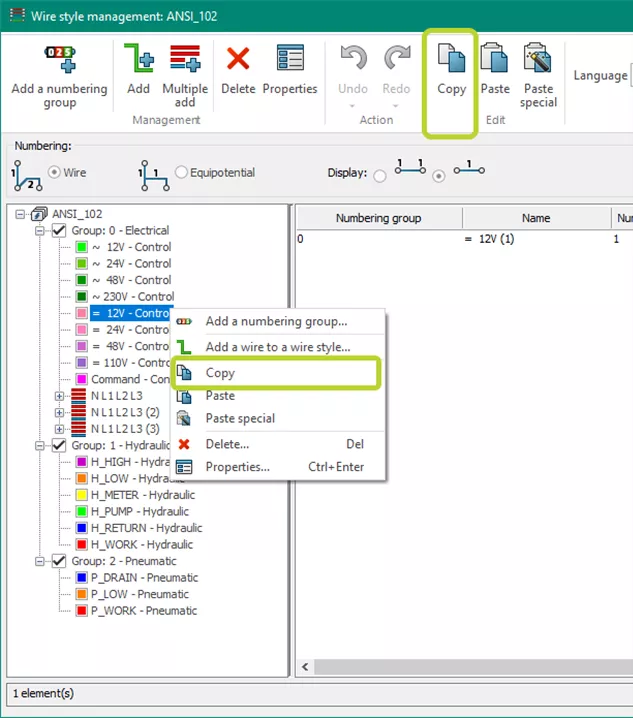
Note: There is some nuance to where you paste it.
If you paste at the top level, the new wire will appear in the tree as a new numbering group.
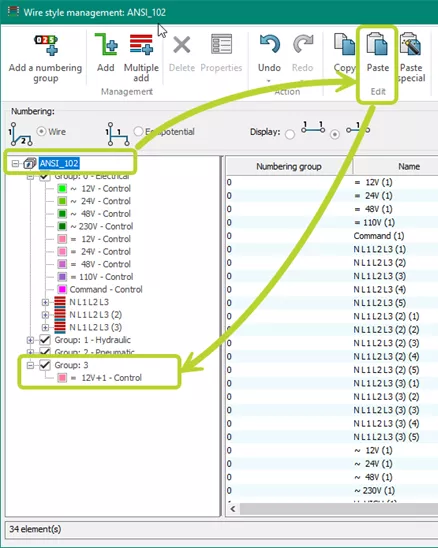
If you paste into an existing group, the wire will be added to the group.
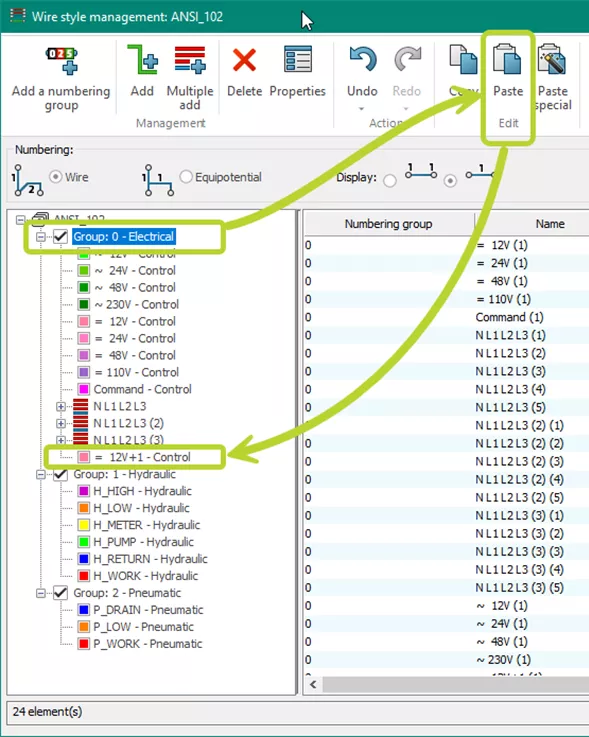
If you paste into an existing wire, a multiple wire type is created.
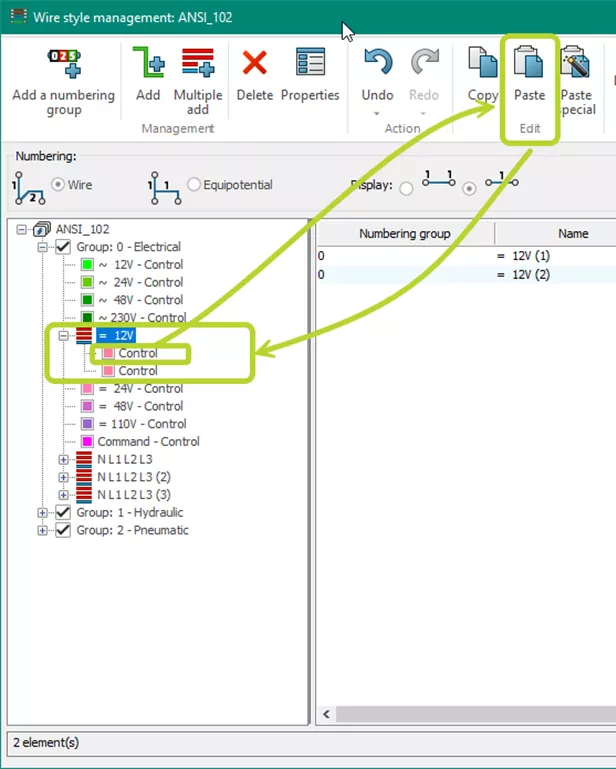
If you paste into an existing multiple wire type, the wire is added to that type.
Customize the Wire Style
Now that we have created a new wire style, we can customize it for our needs.
The basic properties area covers most of the wire information. The formulas section will address how the wires are numbered.
Editing Basic Wire Style Parameters
Select a wire style and open its properties dialog. Here, we have access to basic wire style properties grouped into several areas.
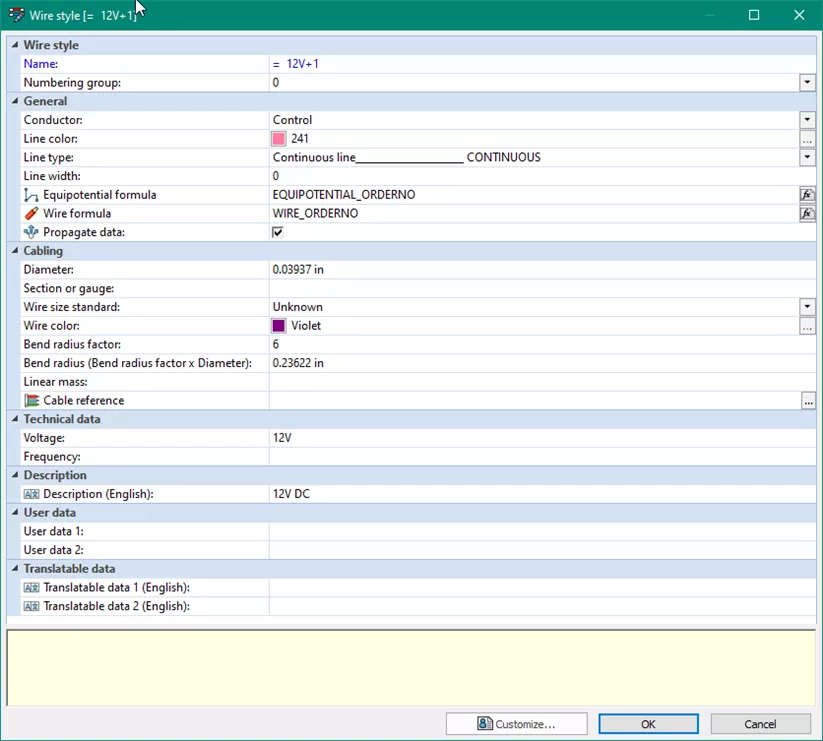
General Wire Properties
| Name | Name of the wire style |
| Numbering group | The numbering group that the wire is part of. |
| Conductor | The type of conductor. This can be a nonelectrical conductor. |
| Line color | The color used as a visual representation of the wire. You can use the color picker to select a different color. |
| Line type | The line style used as a visual representation of the wire. |
| Line width | The line width used as a visual representation of the wire. |
| Equipotential formula | The formula used for equipotential numbering. |
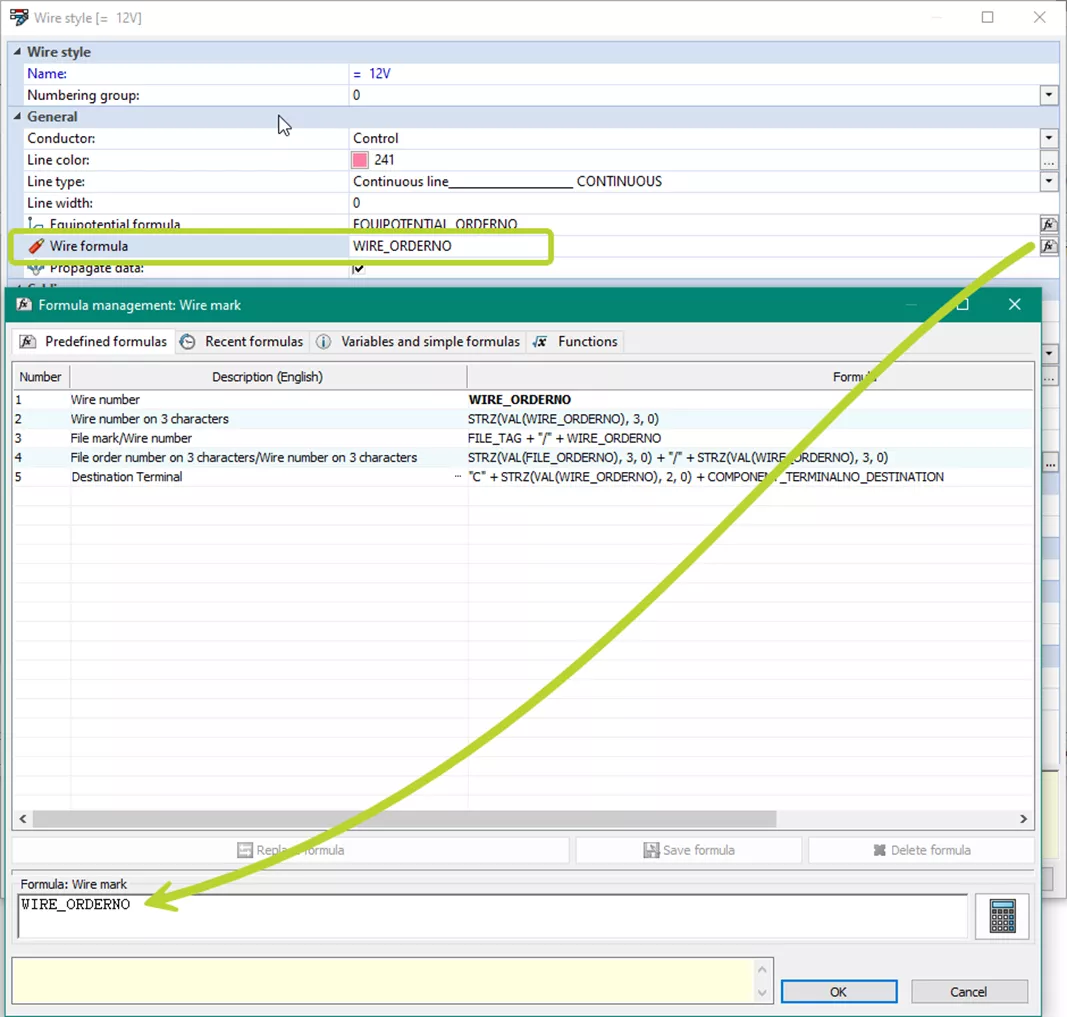
| Wire formula | The formula used for wire numbering. |
| Propagate data | When selected, the data associated with this wire style updates automatically. |
Cabling Properties
This section is for the parameters used in wire routing. If you associate a cable reference, these fields are updated automatically. These settings apply to all wires of this type drawn in the schematic drawings.
| Diameter | The diameter of the wire. |
| Section or gauge | The cross-sectional area of the wire. |
| Wire size standard | The standard used in the electrical project. |
| Wire color | The real color of the wire. You can use the color picker to select a different color. |
| Bend radius factor | The value of the bend radius factor, used to calculate the bend radius. The manufacturer usually provides this value. |
| Ben radius (Bend radous factor x Diameter) | The value automatically calculated using the bend radius factor and the diameter. You can change the value. |
| Linear mass | Lets you specify a linear weight, or density, for wires with different units such as grams per meter (g/m) to distribute the weight of wire all along its length. You can use this value to calculate the center of gravity of a 3D assembly. |
| Cable reference | Lets you associate the selected wire with a reference from an existing catalog. |
Technical Data
| Voltage | The voltage rating of the wire. |
| Frequency | The frequency of the wire. |
| Description | Lets you store a description of the wire. You can customize these fields. |
| User data | Lets you store personal data to the wire. You can customize these fields. |
| Translatable data | Lets you store specific user data that you can translate. You can customize these fields. |
Editing the Wire Numbering Formulas
A defining characteristic of wire styles comes in the formulas used for numbering. The formulas determine the content and appearance of the wire marks.
To access either the equipotential or wire formulas, select the formula editor buttons on the right of the desired formula.
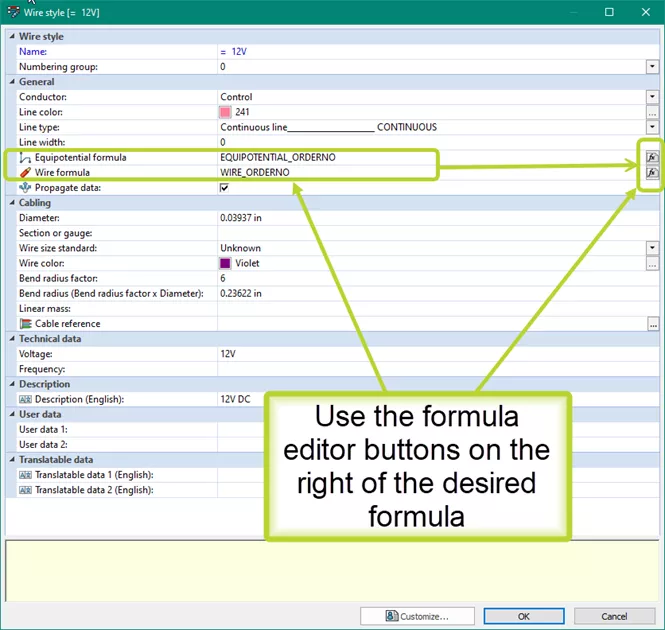
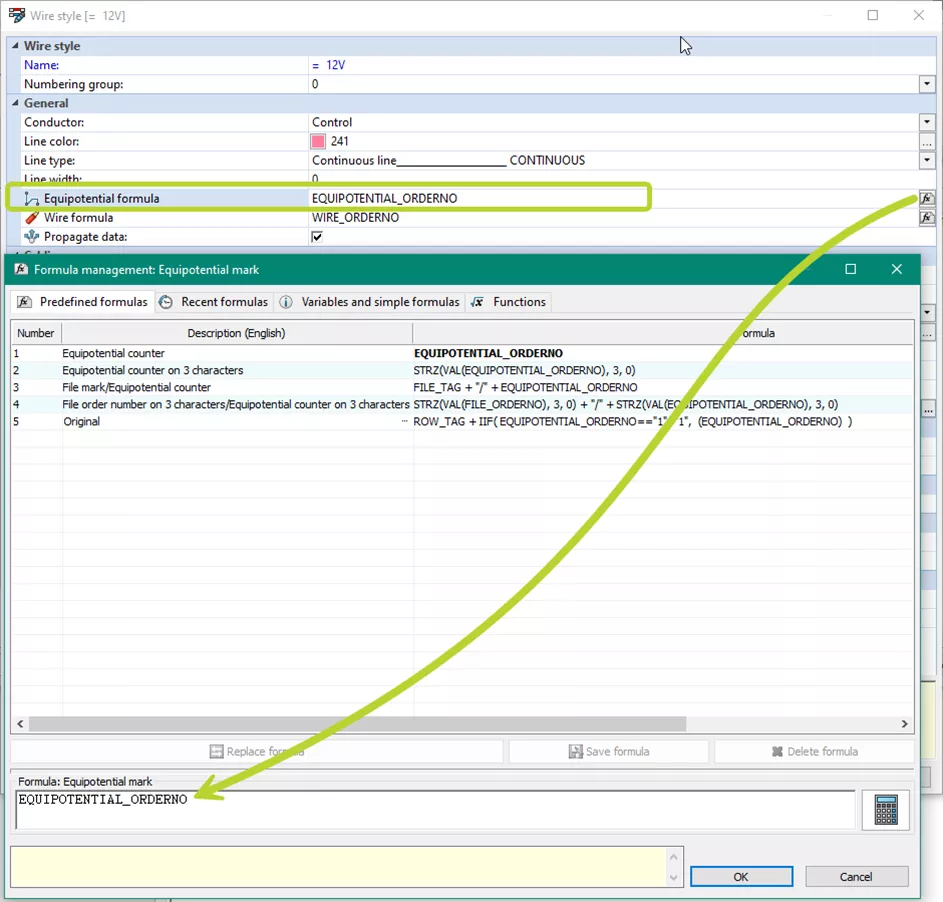
Depending on which formula you are editing, the appropriate formula management dialog will appear.
The equipotential formula management dialog.
The wire mark formula management dialog.
About Formulas
SOLIDWORKS Electrical uses variables that send information from the database (Component marks, wire numbers, etc.). You can manage this information using Formula management, allowing it to be presented according to your specific needs. For example:
Wire number coming from the database: 5
This value is stored in the variable WIRE_ORDERNO.
If you want to present this information on your drawing as 005 (displayed with three characters), use the following formula: STRZ(VAL(WIRE_ORDERNO), 3, 0)
Using Formula Management
SOLIDWORKS Electrical has many predefined formulas, and we recommend using them. However, if you need to create your own formula, consider the following:
- A formula is made up of variables (available in the third tab of Formula Management) and text. Strings of text are placed within quotes, and each variable or string of text must be separated by a + sign. For example: CHAN_TYP + ":" + COM_VAL1 + "." + CHAN_ADDR
- The variables are generally of Text type, even when they have a numeric appearance (e.g., the WIRE_ORDERNO variable that sends the wire number).
- Certain functions are often used to work on a variable.
- STRZ (VAL(FIL_NO),2,0) sends the drawing number represented by two characters. The missing character here is replaced by a 0 (example: 01, 02, ...).
- VAL: Converts a chain of characters into a number. As WIRE_ORDERNO is a string of characters, it needs to be transformed into a number as the function STRZ handles only numeric values.
- STRZ: Converts a numeric value by imposing a certain number of digits (2 in this example) and the number of decimals (0 in this example).
- You can use mathematical functions (+ - * /) to modify the result of the variables.
- STRZ(VAL(WIRE_ORDERNO)*2,3,0) sends the wire number represented as three characters, but only using even numbers.
- STRZ((VAL(WIRE_ORDERNO)*2)-1,3,0) sends the equivalent of the result of the previous formula, but only using odd numbers.
If you enter an invalid formula, a message appears at the bottom of the dialog box with information on the error.
Formula Configuration
In the Formula Management dialog box, you can edit existing formulas or create your own. This is the same tool used in other areas of SOLIDWORKS Electrical 2D.
Use the following four tabs in the Formula management dialog box to help you create your formula:

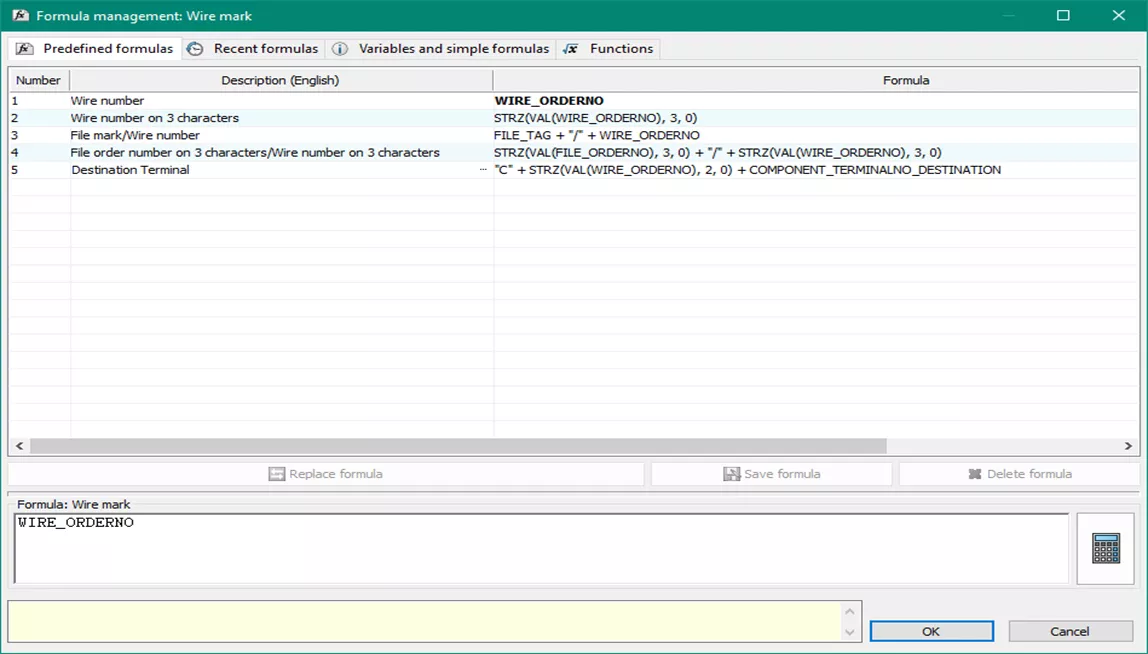
Predefined formulas
Groups all predefined formulas according to the element you want to associate with a formula. To replace the existing formula, select the formula and click Replace formula. You can also modify this formula manually. A message will notify you if the formula is invalid.
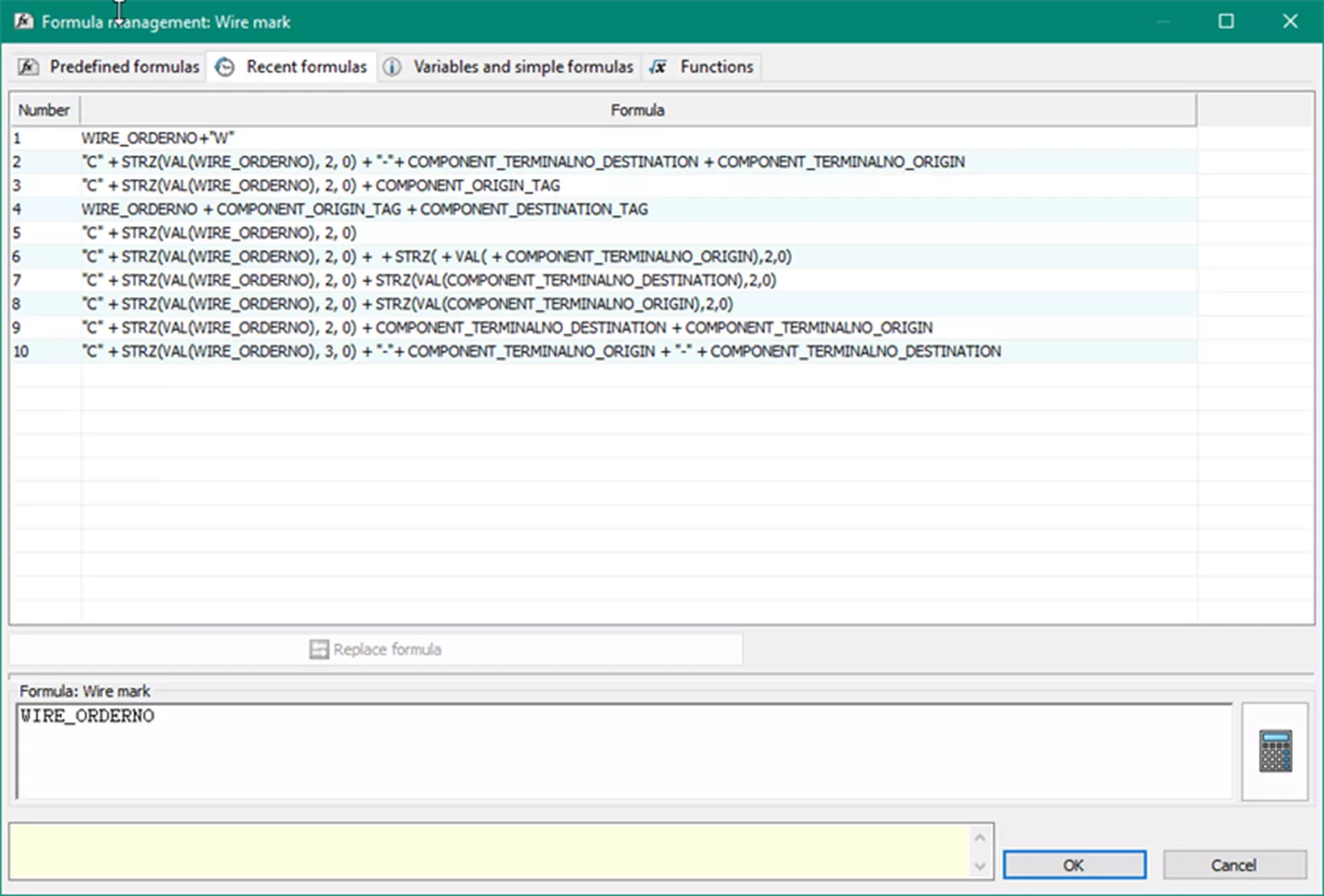
Recent formulas
Displays the formulas that you have used recently. To replace the active formula, select an existing formula and click Replace formula.
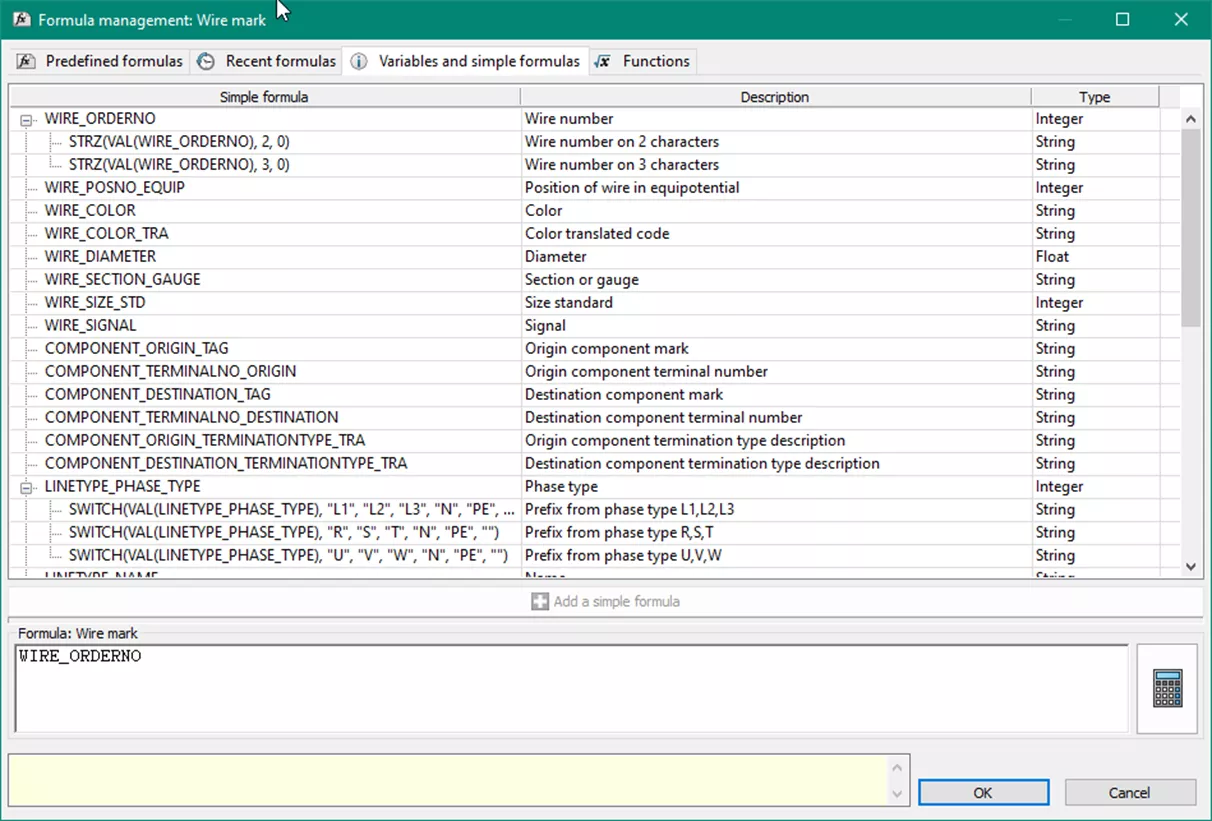
Variables and simple formulas
Allows you to add variables and simple formulas to your customized formula.
- Simple formula displays the list of variables available and simple formulas using these variables.
- Description gives you a description of the selected variable.
- Type displays the variable type to help you use specific functions such as VAL or STRZ.
- Add a simple formula to create the formula. Select the variable and click Add a simple formula.
You can add text, but it must be between quotes ("TEXT"), and each text and variable must be separated by the sign +. A message notifies you when the formula is invalid.
Functions
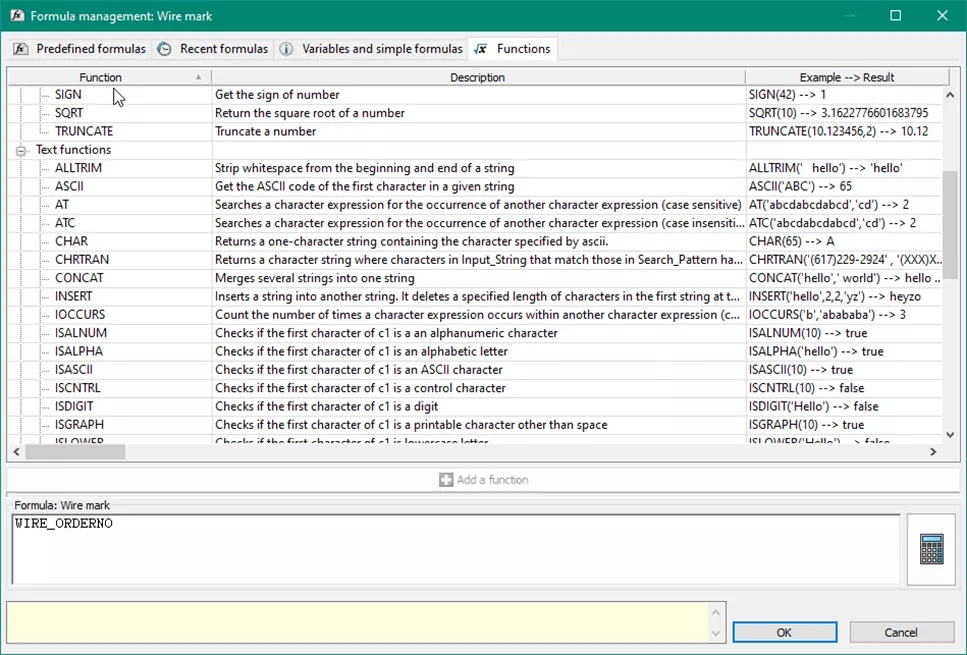
Lists all the functions and operators that can be used in the formula. There are mathematical, text, and various other functions available.
- Function displays the function name. Functions are sorted by type, mathematical, text, and various functions.
- Description displays the function description (definition).
- Example displays an example of the function use and its syntax. At the end of the example, you can find the result of the function.
Click on a function and click on Add a function to add the function to the formula.
Testing the Formula
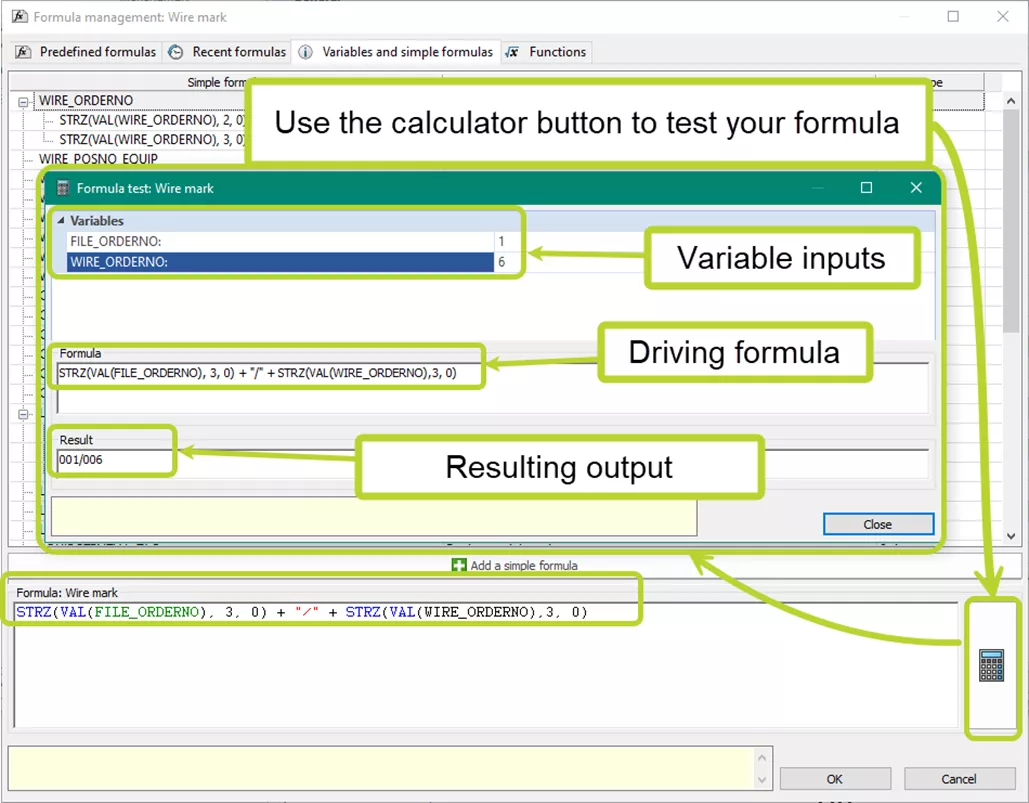
To better evaluate your formula before applying it, use the calculator feature in the Formula management tool. You can input example values for the formula inputs and see the evaluated result.
Applying the new wire style
To update the wire mark information, use the Number new wires or Renumber wires options from the process ribbon as appropriate.

Summary
With the above information, you should be able to create your own custom wire style and numbering.
Some things to remember.
- A wire style can only have one numbering style. Two different wire numbering styles cannot be created for the same wire. The choice of wire or equipotential numbering will be applied throughout the project when renumbering wires.
- Hide the wire marks on wires where the wire number does not need to be displayed. Group-select them, right-click, and select Show/hide wire marks. Display of wire marks on all wires is sometimes confusing. Only displaying the ones needed for understanding the schematic can help.
- When using cut and paste to create a new wire style, where you paste matters.
We hope you find this tutorial on creating custom wire numbers in SOLIDWORKS Electrical useful. For other tips and information, check out more articles below. Additionally, check out the GoEngineer Community, where you can create forum posts, enter design contests, and answer questions from other SOLIDWORKS users.
Editor's Note: This article was originally published in September 2013 and has been updated for accuracy and comprehensiveness.
Learn More
SOLIDWORKS Electrical 2026 - What's New
Gaining Insight Into the Little ”Tells” of SOLIDWORKS Electrical Schematic
SOLIDWORKS Electrical Schematic: Importing Manufacturer Parts from Local Source
SOLIDWORKS Electrical Drawing Styles Setup

About Martin Adams
Martin Adams is a Senior Technical Support Engineer at GoEngineer supporting SOLIDWORKS CAD and SOLIDWORKS Electrical products. In addition to a CSWE certification, he has a Bachelor's degree in Industrial Engineering and an Electrical Associate's degree. Prior to joining GoEngineer in 2019, he worked for almost twenty years on prototype automotive instrumentation. He also served as an Electrician's Mate in the US Navy. His favorite activities are fishing and spending time around a campfire with friends.
Get our wide array of technical resources delivered right to your inbox.
Unsubscribe at any time.