Finding the Centerline Between Two Complex Curves in SOLIDWORKS

Every now and then, I need to find a centerline between two complex curves or splines in SOLIDWORKS. This could be used for several reasons, but so far, the most common is for Sweep and Loft features. Let me guide you with step-by-step instructions on how to accomplish this task.
There are two simple ways of making this happen. The first is with face curves, the second is with intersection curves.
Centerline Between Two Face Curves Setup
I have two different splines on two different sketches. Both are on the Top Plane to keep things as simple as possible.
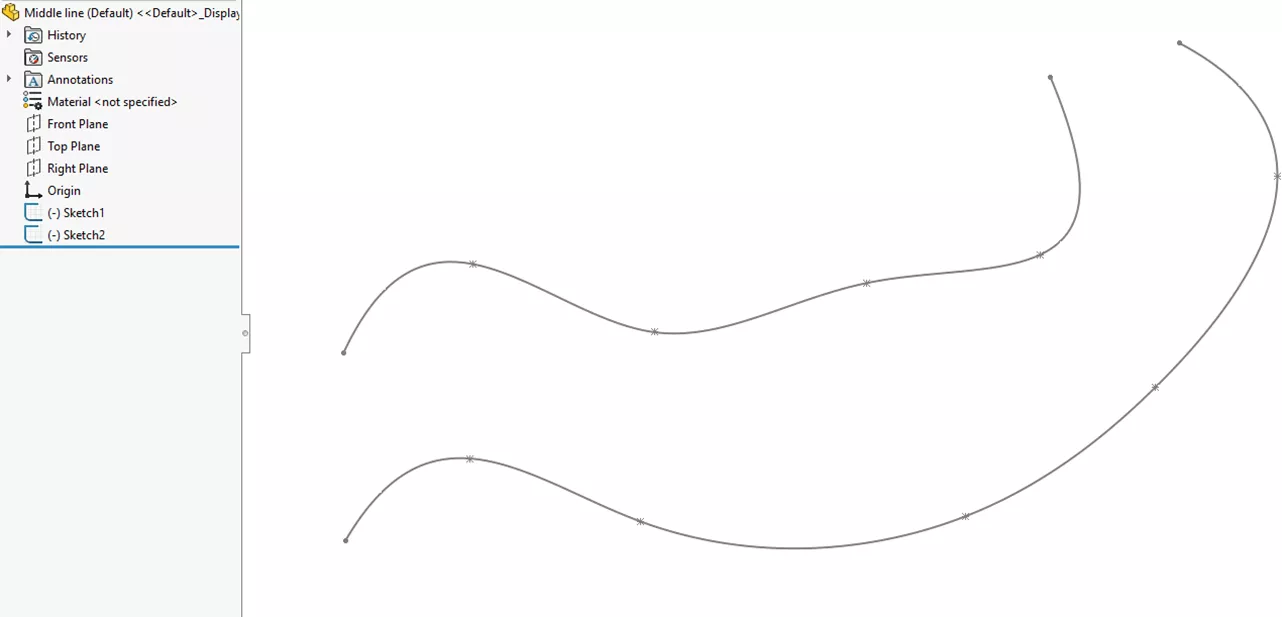
To make either option work, I need to extrude a surface off both lines perpendicular to the needed centerline. The extruded surface distance needs to be the same for each line. One surface goes “down,” the other “up.” Midplane will also work for this solution, as we need to connect the top edge to the bottom edge of the other. (I did not use a midplane in my example to keep the visualizations easier to grasp.)
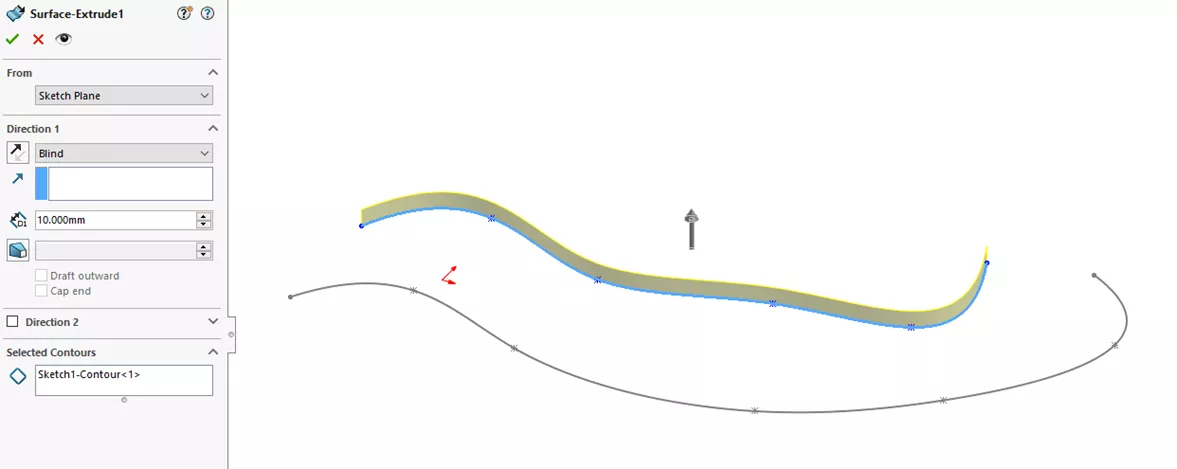
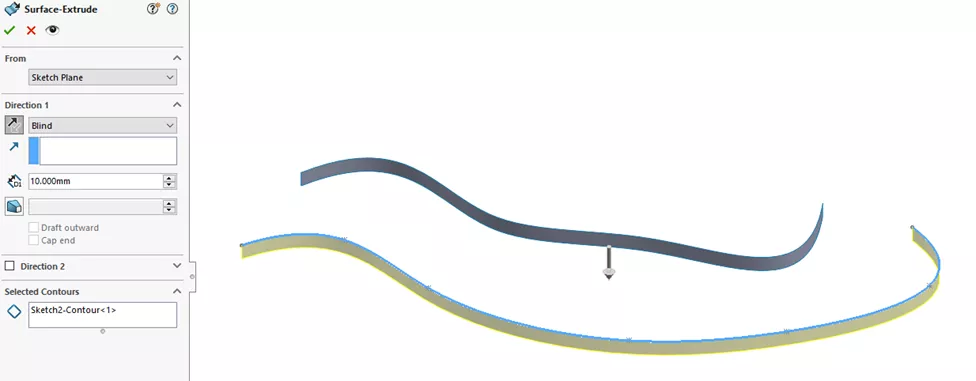
Once there are two surfaces, we can do a surface loft between the surface edge extremes. Click on the bottom edge of one side, and the top edge of the other.
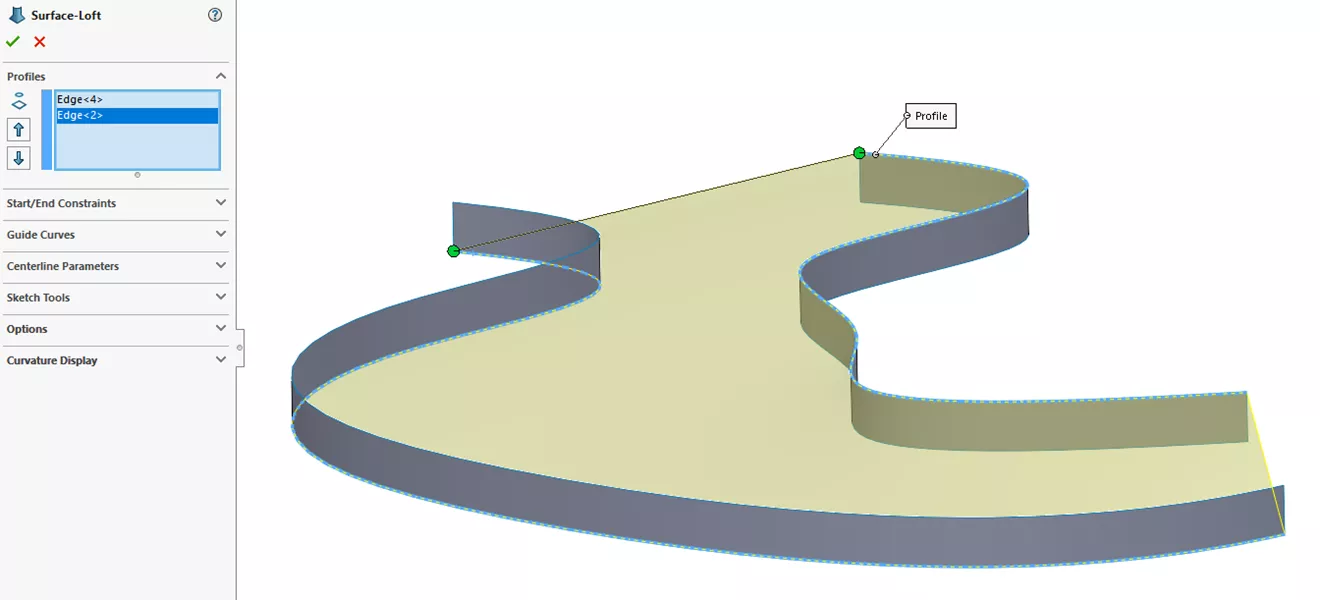
There are two ways to proceed from this point.
Centerline for Face Curves
Let's first look at the Face Curves method (Tools > Sketch Tools > Face Curves).
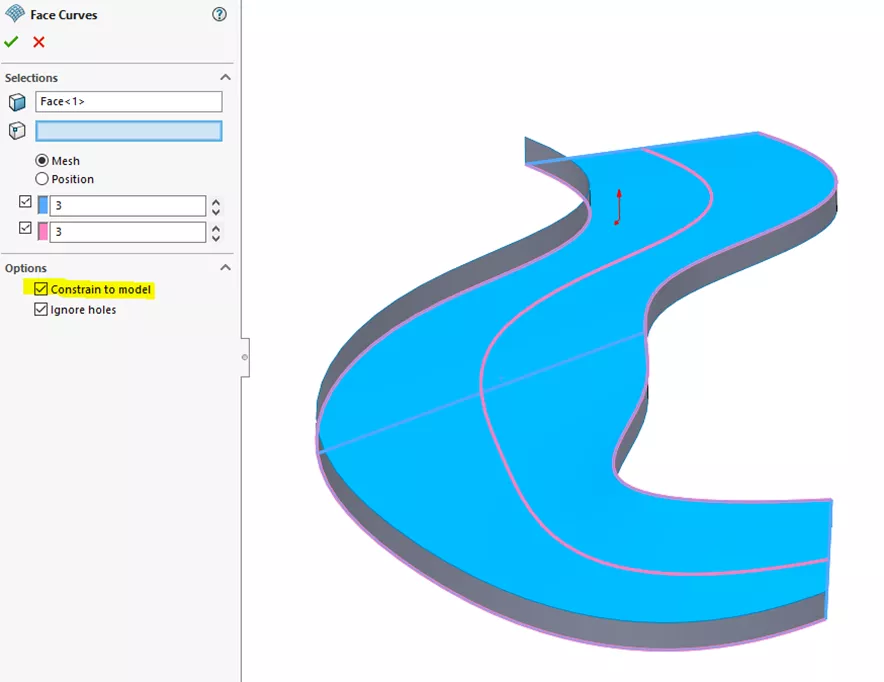
As shown below, select the face and set the blue and pink (U & V) mesh values to 3. This applies three curves in two directions; both edges, plus a centerline. Click OK to generate these curves as 3D sketches.
Note: I recommend creating a 3D sketch first, then launching the Face Curves command, as this places all of the curves in a single 3D sketch. I also recommend ticking the box Constrain to model, so that the curves update automatically as the surface changes.
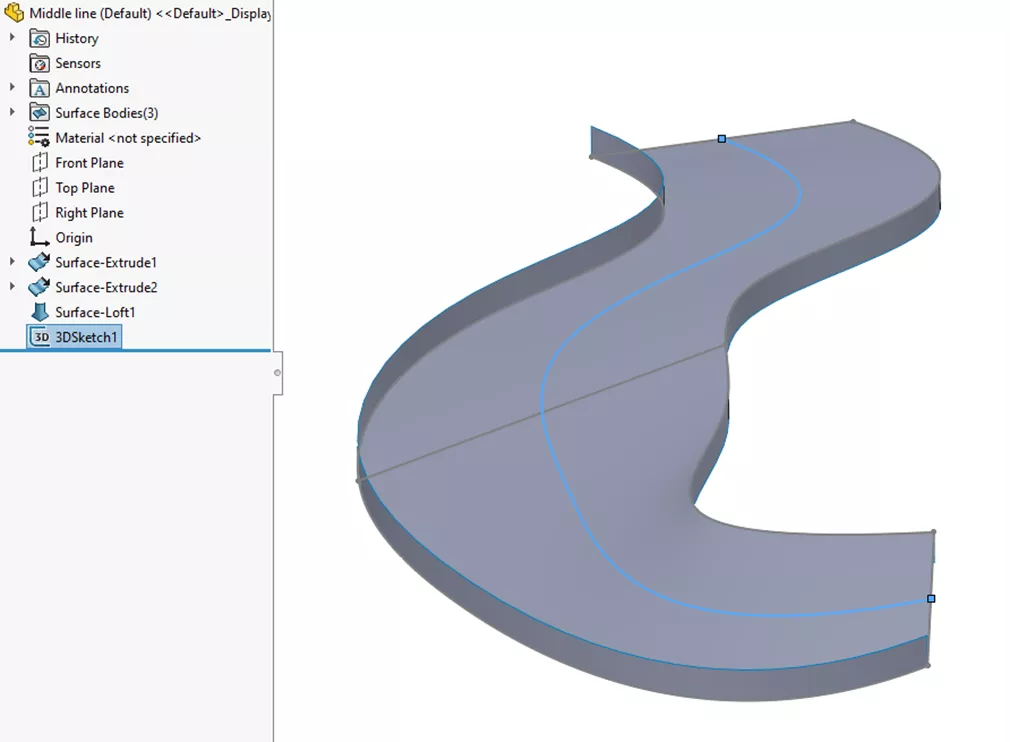
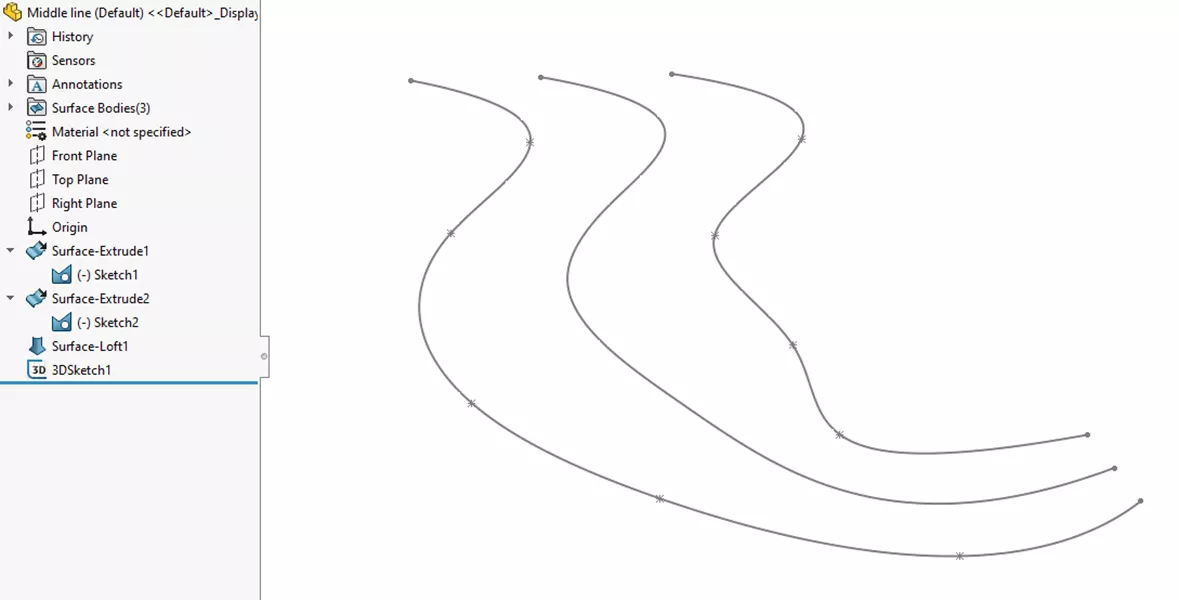
After deleting the unneeded geometry from the 3D sketch, then hiding our surfaces, we get a clean centerline we can use.
Finding the Centerline Using an Intersection Curve
This method uses an additional surface to intersect with the first lofted surface. The steps to create this new surface are the same as above, except we will select the opposite sides of our surface extrudes.
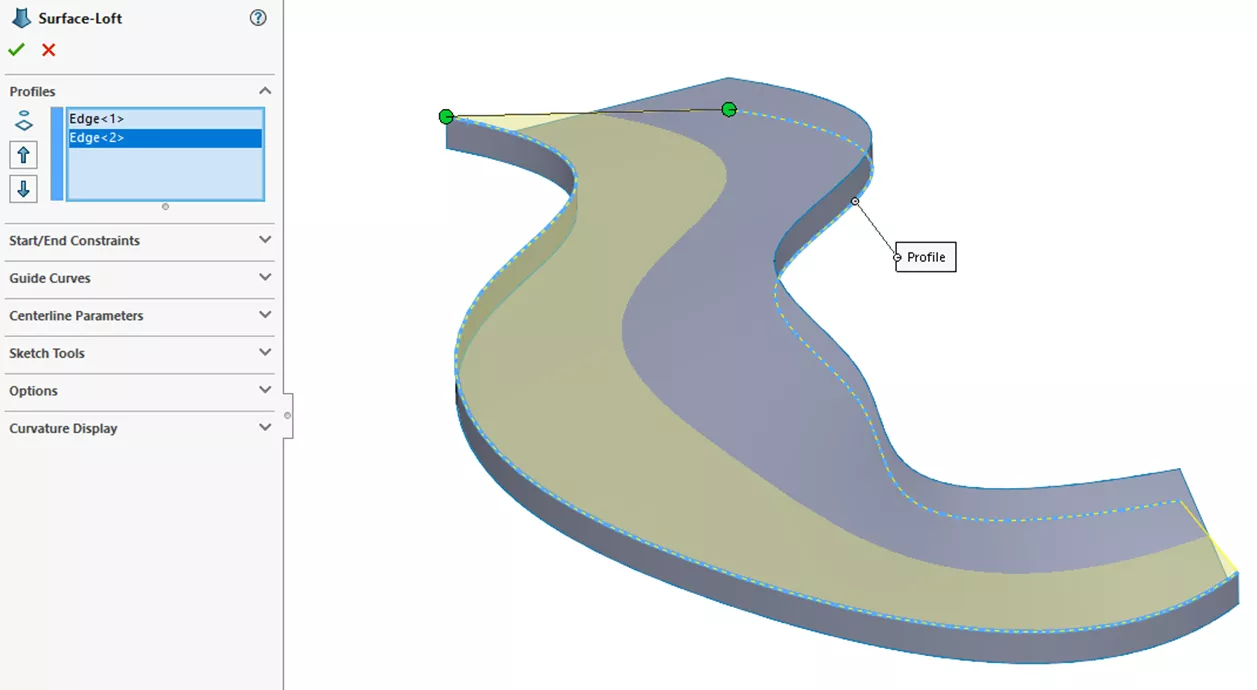
Using the Intersection Curves feature, pick both lofted surfaces:
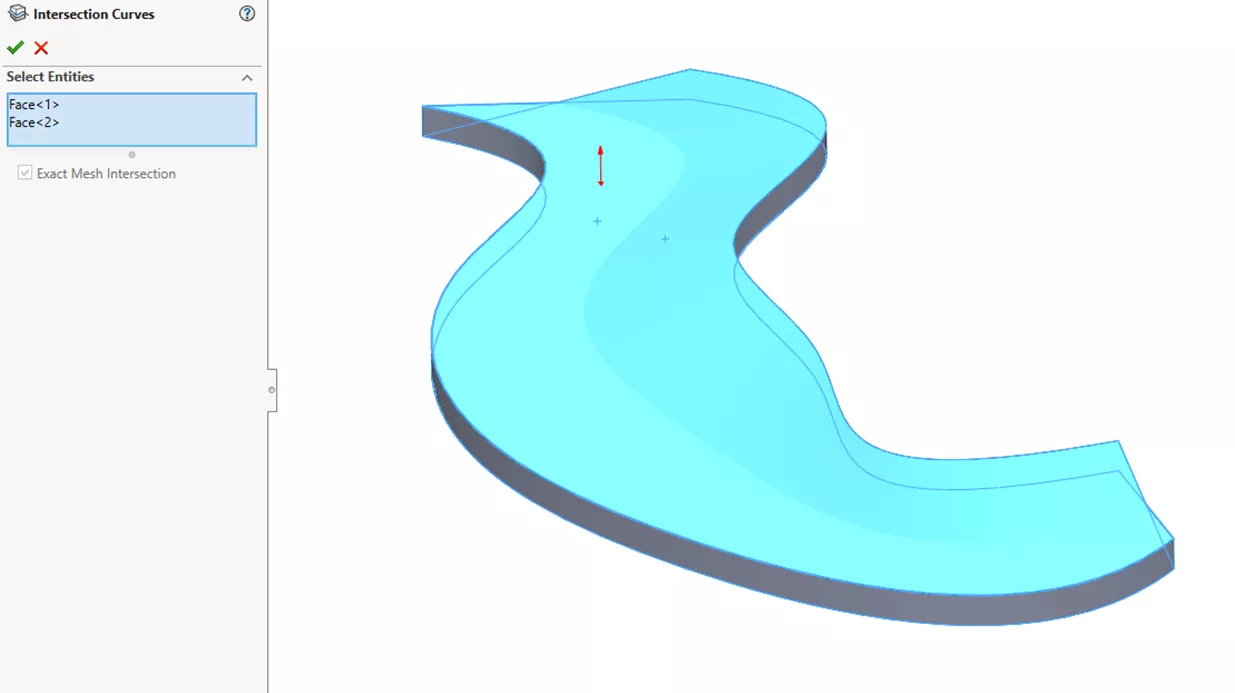
Clicking OK yields a 3D sketch curve at the intersection of those two surfaces, which is the centerline of our complex curves.
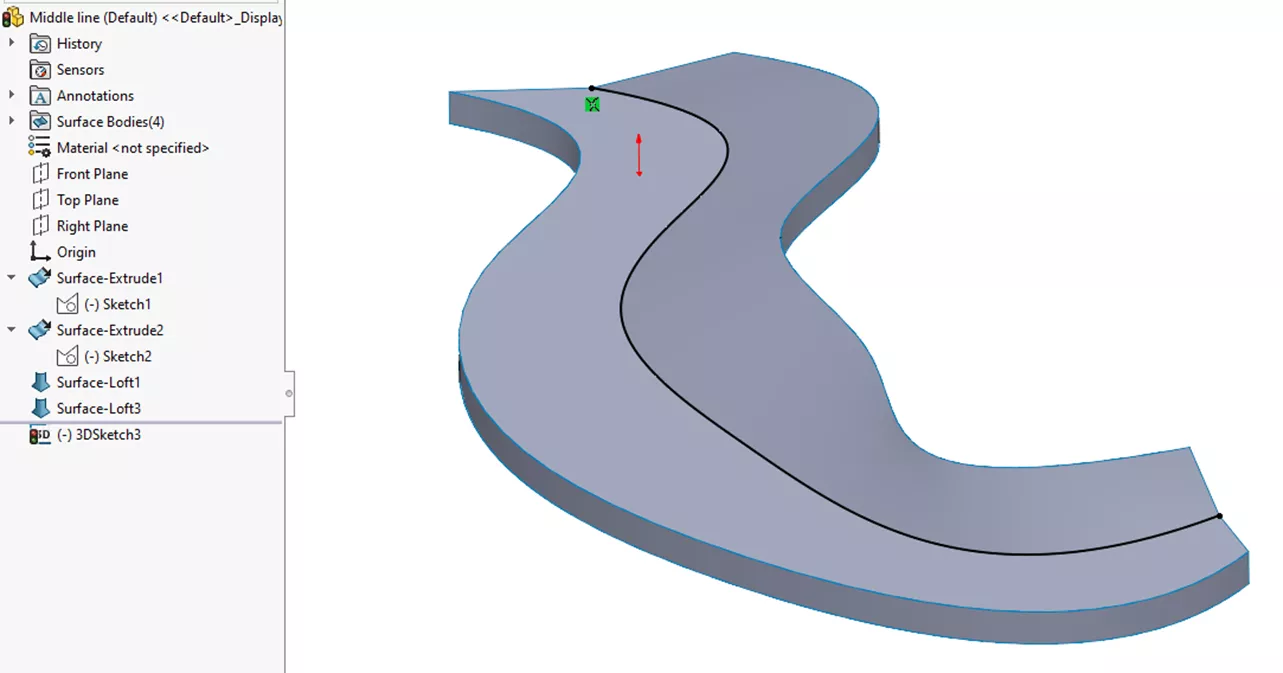
Hiding the surfaces, we get our centerline.
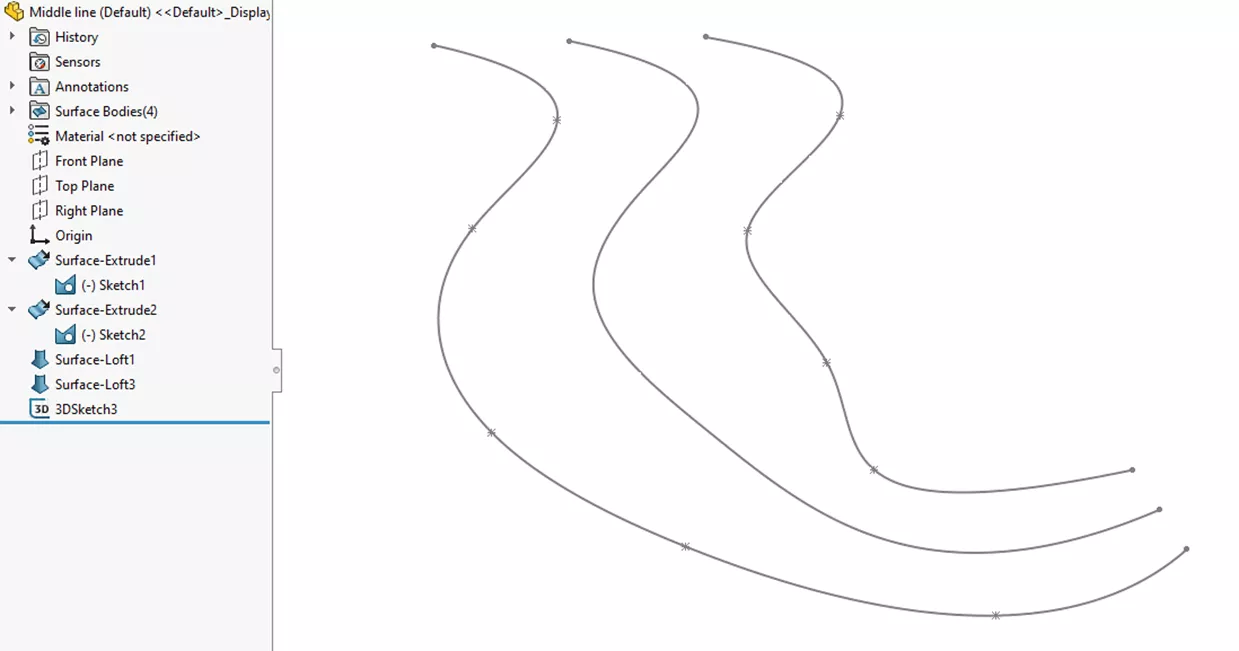
I hope this was able to give you some ideas on how to achieve this complex idea in a simple solution. This was done with 2D sketches, but can also be applied to complex 3D sketches.
Want to learn more? Check out more tutorials below. Additionally, check out the GoEngineer Community, where you can create forum posts, enter design contests, and answer questions from other SOLIDWORKS users.
SOLIDWORKS CAD Cheat Sheet
SHORTCUTS ⋅ MOUSE GESTURES ⋅ HOT KEYS
Our SOLIDWORKS CAD Cheat Sheet, featuring over 90 tips and tricks, will help speed up your process.

More SOLIDWORKS Tutorials
SOLIDWORKS Custom Property for Monitoring Surface Area
SOLIDWORKS Assembly Mirroring for In-Context Parts
Being Flexible with the SOLIDWORKS Flex Feature
Why Are My Centerlines Solid in SOLIDWORKS?

About Craig Maurer
Craig Maurer is a Sr. SOLIDWORKS Application Engineer at GoEngineer.
Get our wide array of technical resources delivered right to your inbox.
Unsubscribe at any time.