Ballooning Subassemblies in a SOLIDWORKS Drawing

Sometimes, when working within a SOLIDWORKS drawing containing an indented BOM and an assembly with subassemblies, you need to balloon the entire subassembly and not just a component contained within it.
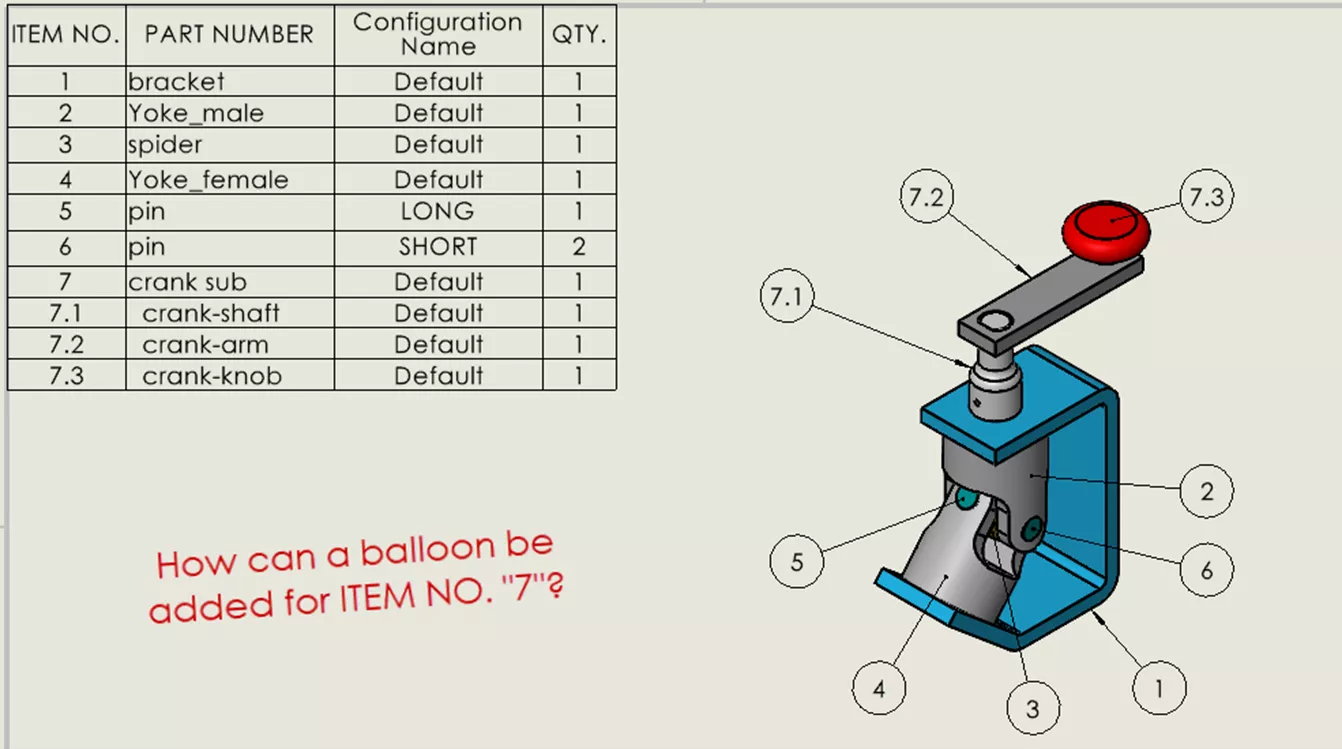
There are a few ways we can balloon the entire subassembly:
- Ballooning to the subassembly origin
- Ballooning to a sketch entity contained within the subassembly
Ballooning to the Subassembly Origin
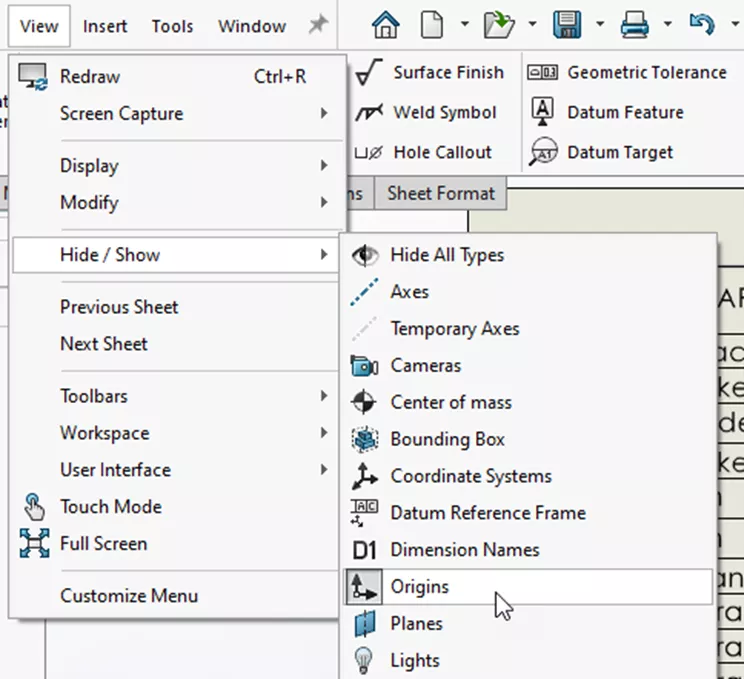
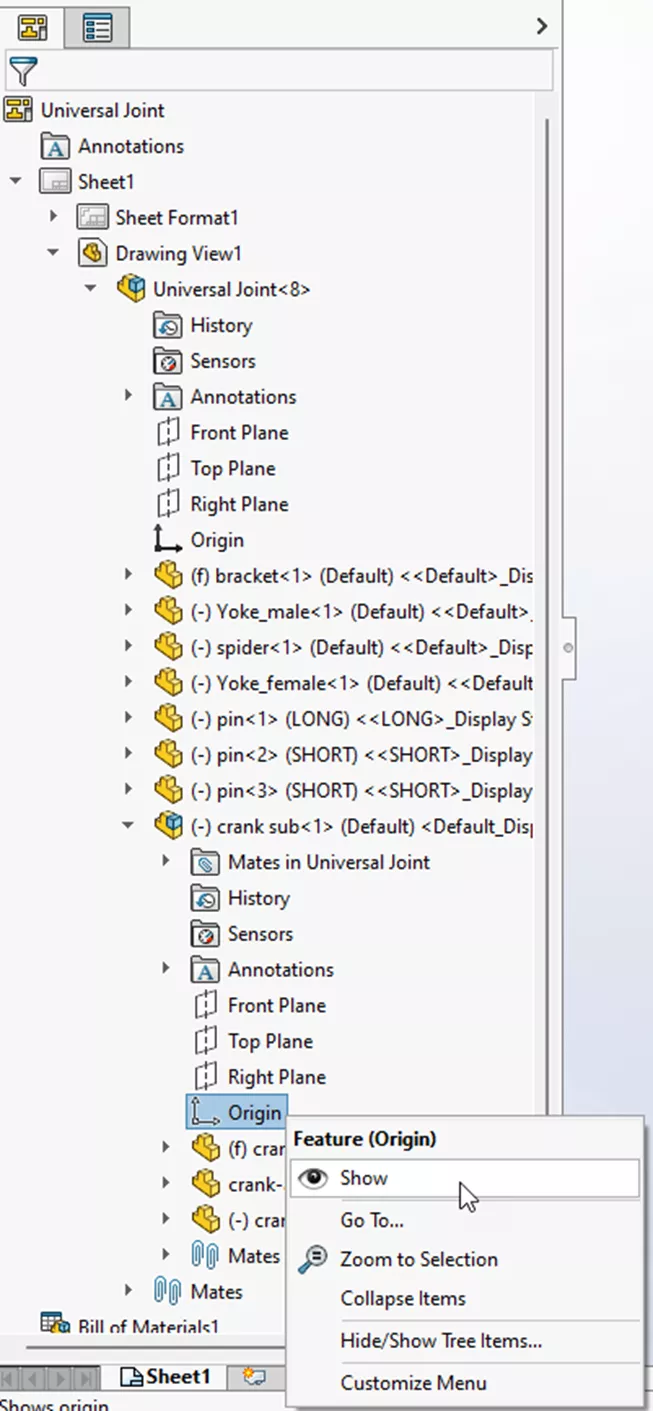
For this method, the balloon will simply attach to the origin of the subassembly. First, the origins will need to be set to Show from the Hide/Show menu (View > Hide/Show > Origins). Next, the origin itself within the FeatureManager Design Tree of the drawing will need to be set to “Show”.
Now you can insert a new balloon and attach it to the origin of the subassembly to show the subassembly Item Number.
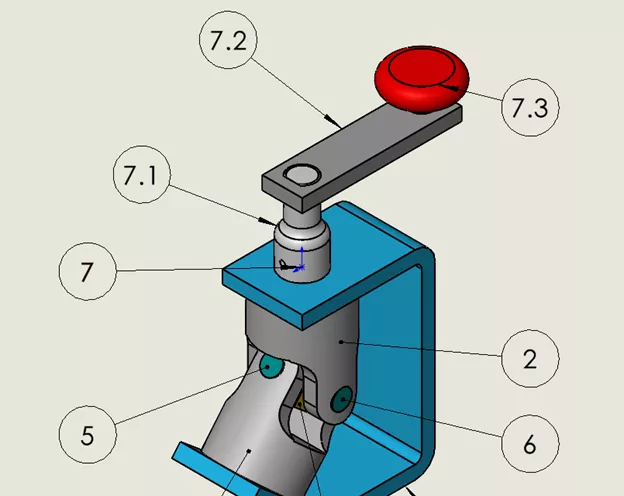
If you are having issues selecting the origin for the subassembly while placing the balloon, right-click on the origin point and choose Select Other to ensure the origin of the subassembly is what the balloon is attached to.
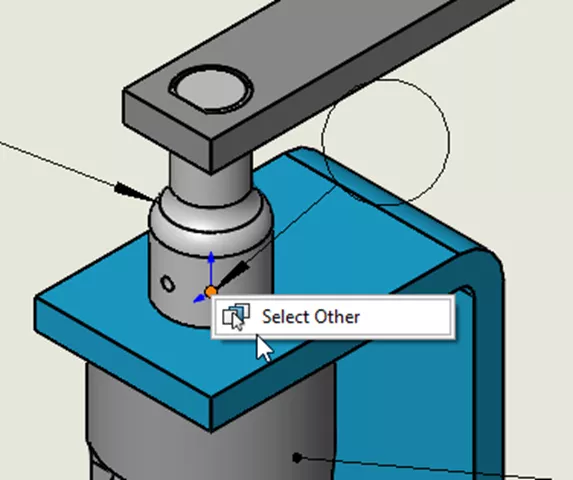
Once the balloon is inserted, feel free to change the origin visibility back to “Hide” so that the origins are no longer shown in the drawing.
Ballooning to a Sketch Entity Within the Subassembly
The other method of ballooning to the subassembly (and not a component contained within the subassembly) is to open the subassembly and start a new sketch at the assembly level. This method can be used when the subassembly origin is in an undesired location or if you prefer the balloon leader to be attached elsewhere on the subassembly.
Insert a line or a sketch point in an assembly-level sketch.
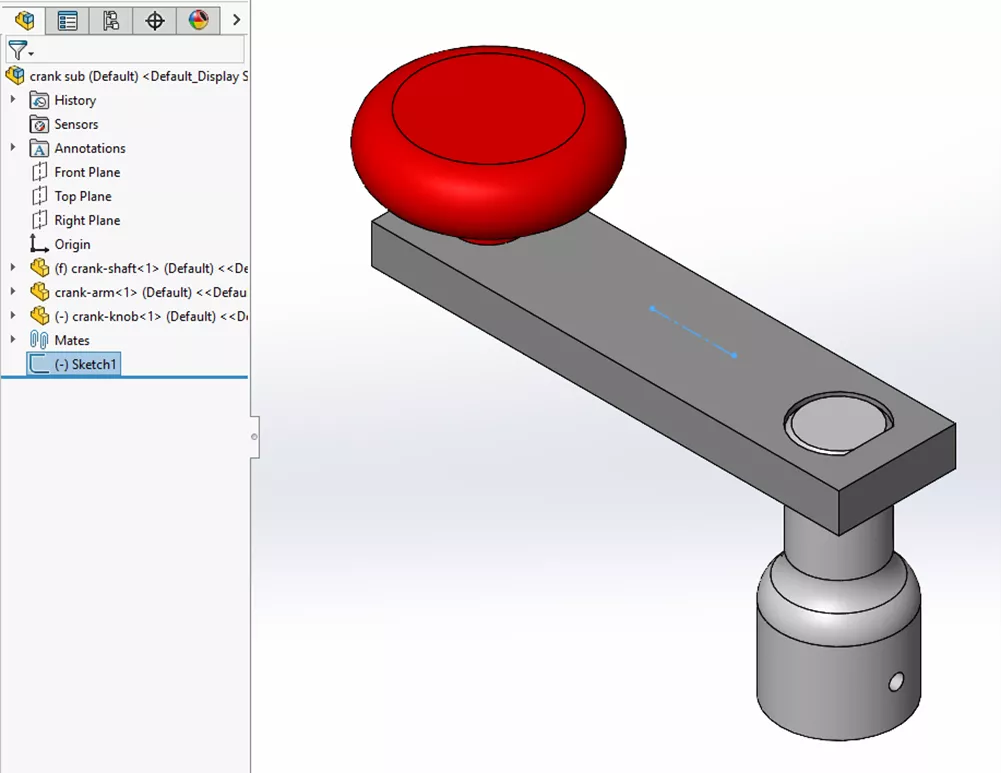
Toggle back to the drawing file and set the sketch visibility to “Show” (View > Hide/Show > Sketches). Next, scroll down in the FeatureManager Design Tree to locate the new sketch added in this subassembly, and right-click > Show.
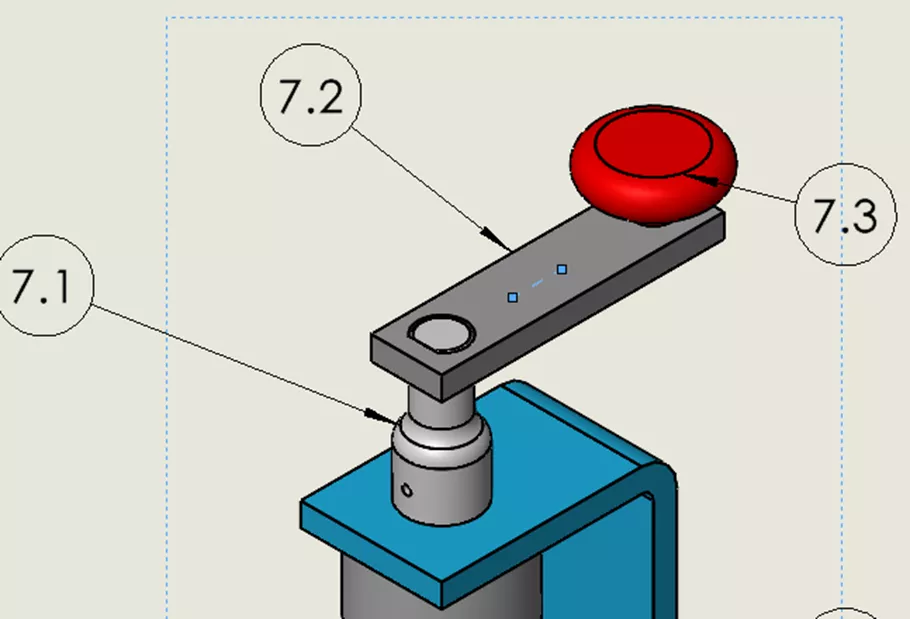
Insert a balloon and attach it to the sketch point/line. It should now show the Item Number of the subassembly and not a component contained within the subassembly.
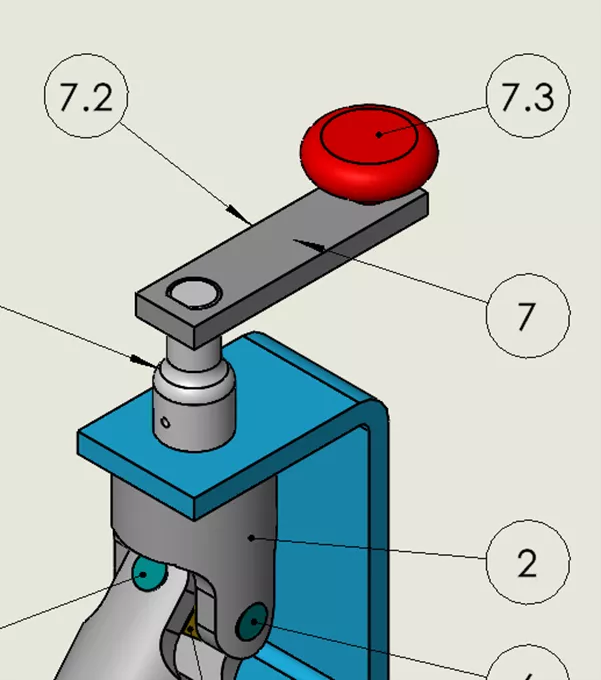
Lastly, feel free to hide the Sketch or set the Sketch Visibility to OFF from the View > Hide/Show menu.
I hope you found this tutorial for ballooning subassemblies in a SOLIDWORKS drawing helpful. Check out more tutorials below. Additionally, check out the GoEngineer Community, where you can create forum posts, enter design contests, and answer questions from other SOLIDWORKS users.
SOLIDWORKS CAD Cheat Sheet
SHORTCUTS ⋅ MOUSE GESTURES ⋅ HOT KEYS
Our SOLIDWORKS CAD Cheat Sheet, featuring over 90 tips and tricks, will help speed up your process.

Related Articles
Why Your SOLIDWORKS Drawing Balloons Have Question Marks (?) or Asterisks (*)
How the SOLIDWORKS Sketch Picture Scale Tool Can Affect Zoom to Fit
SOLIDWORKS Convert to Sheet Metal vs Insert Bends
Reusing Tab and Slot Parts in SOLIDWORKS Assemblies
Finding the Centerline Between Two Complex Curves in SOLIDWORKS

About Nathan Marsh
Nathan Marsh is a Senior SOLIDWORKS Technical Support Engineer at GoEngineer.
Get our wide array of technical resources delivered right to your inbox.
Unsubscribe at any time.