SOLIDWORKS Convert to Sheet Metal vs Insert Bends

Table of Contents
Below are two sheet metal hoppers that were created in SOLIDWORKS using a similar process/technique, but completely different features (shown in the FeatureManager Design Tree). Now, although there was one very slight difference, which you will see a little later, the two sheet metal hoppers are basically identical.
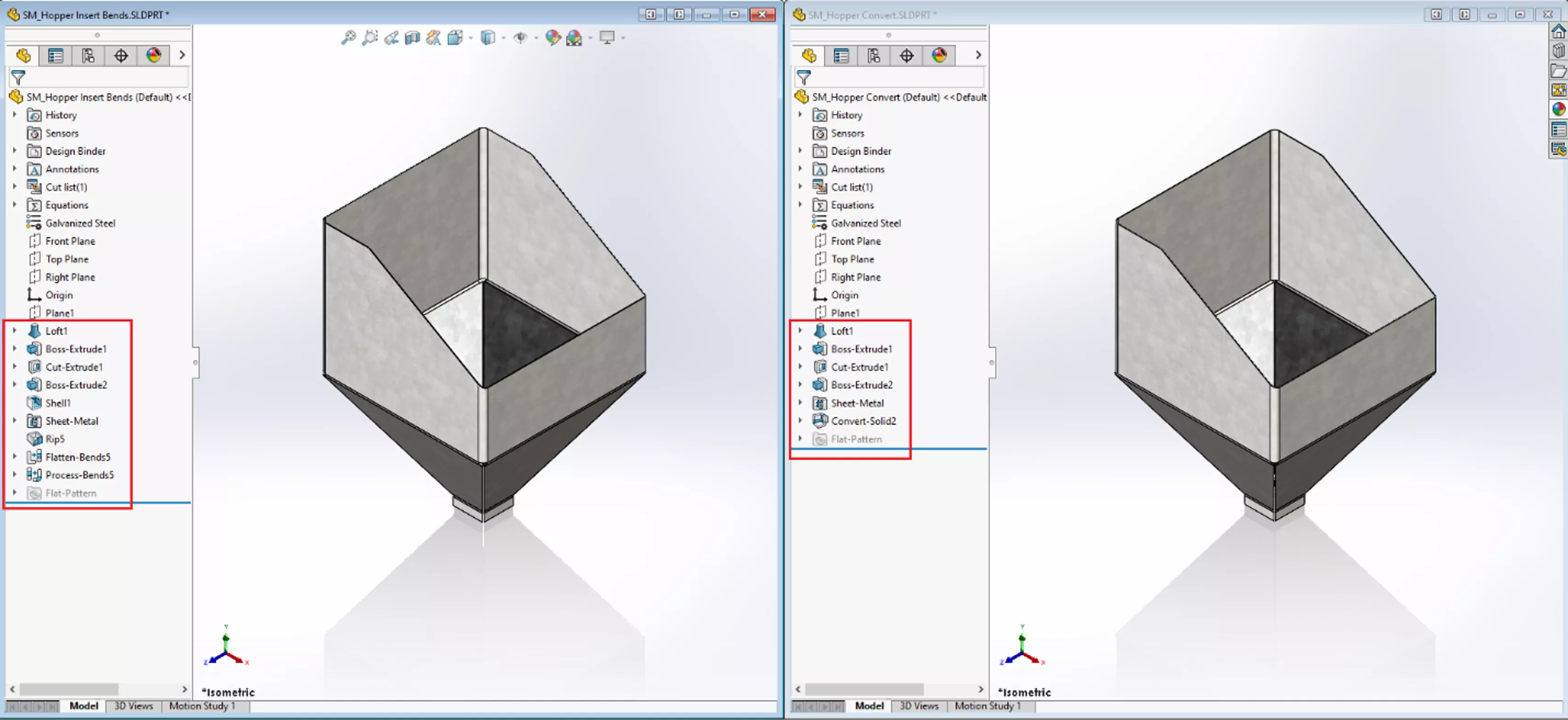
What are these different features that produce these similar results, and how do the two techniques differ? Which one comes out on top? Read on to find out.
Sheet Metal Design Space
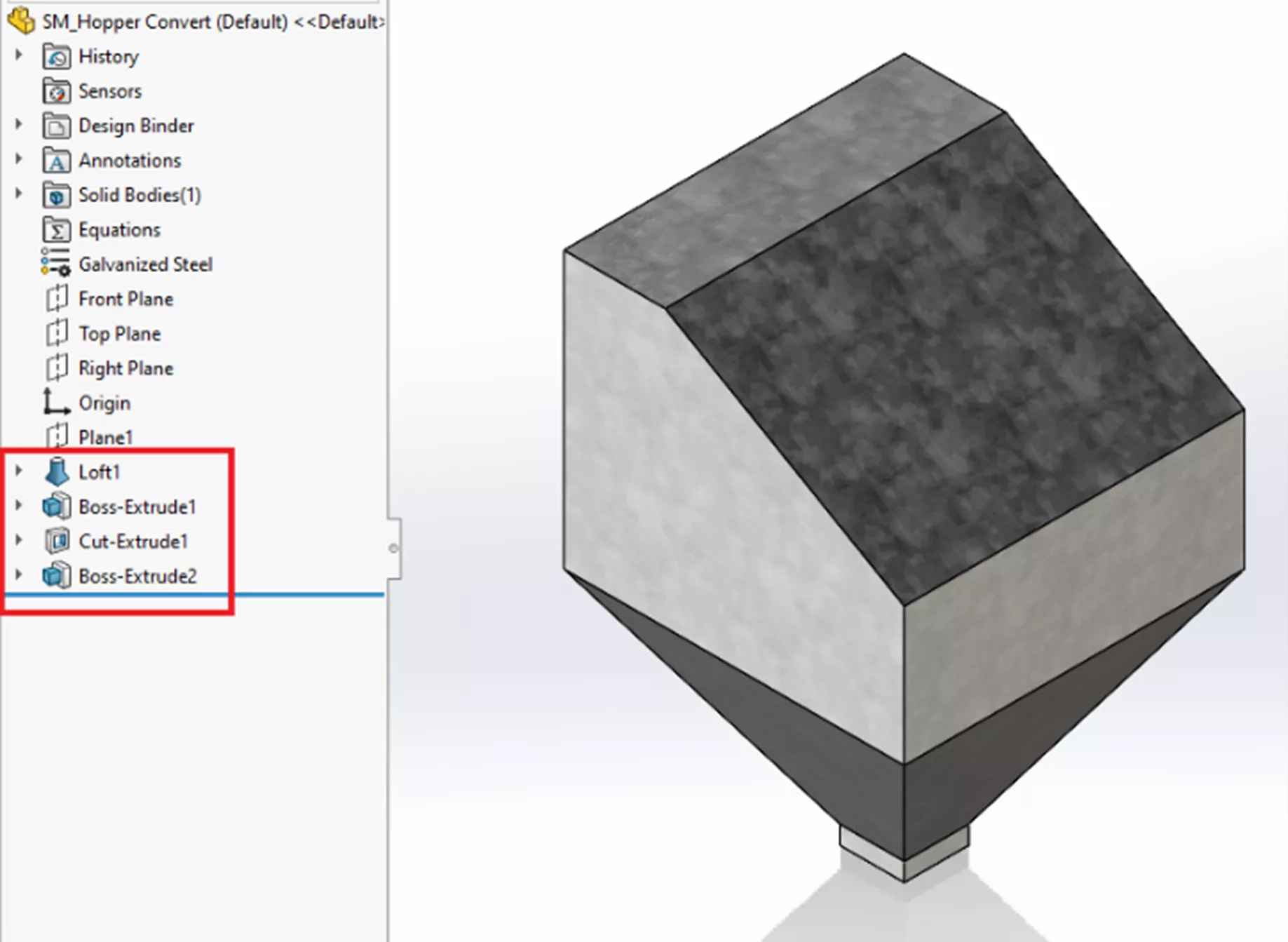
I'll start by demonstrating the two techniques I used to create this sheet metal hopper. First and foremost, both sheet metal parts begin with a regular solid body, which represents the design space for the sheet metal part that I’m trying to create. This differs from conventional sheet metal design techniques that start with a Base Flange to which edge flanges, miter flanges, relief cuts, and other sheet metal features are added. While these techniques/features will produce a similar result, it will be a bit more challenging and time-consuming to capture the same design intent. Instead, I suggest creating the solid body (shown below) using the standard solid modeling features that you're used to.
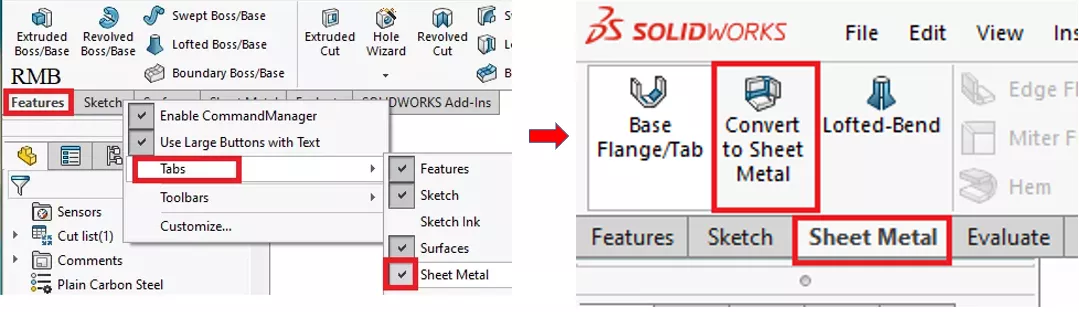
To better understand how these techniques differ, I'll refer to one as Convert to Sheet Metal and the other as Insert Bends (the commands used to create each sheet metal part). Both of these commands are found on the Sheet Metal tab within the SOLIDWORKS CommandManager.
Convert to Sheet Metal
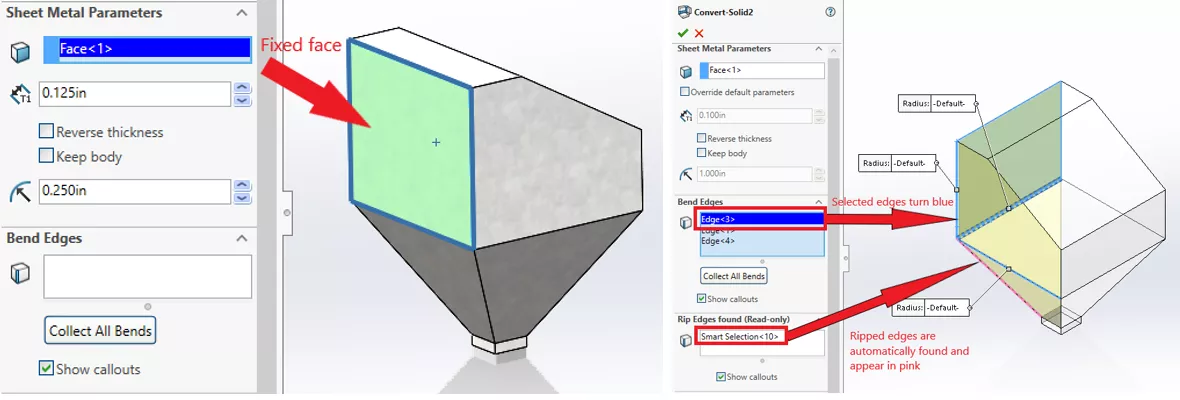
The Convert to Sheet Metal PropertyManager is pretty straightforward. Set your parameters (using either a gauge table or by filling in the thickness and bend radius manually) and, optionally, set the default corner type, bend allowance, and auto relief options.
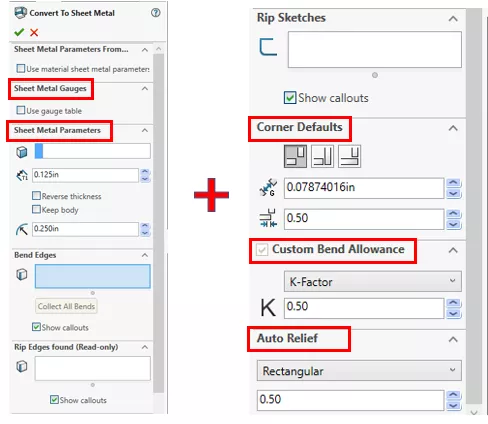
Next, select the fixed face and which edges should become bends. The fixed face is the face that every other face bends about, and the bend edges are where you want the bends to happen in your sheet metal design.
If a combination of edges is selected that requires an adjacent edge to rip, SOLIDWORKS will create that rip automatically. What's great about this technique is that if you make a mistake and select the wrong edges for your bends (e.g., due to a change in manufacturing methods), simply edit the feature and select different bend edges.
Insert Bends
The Insert Bends technique takes the solid body one step further by shelling it to create a uniform wall thickness.
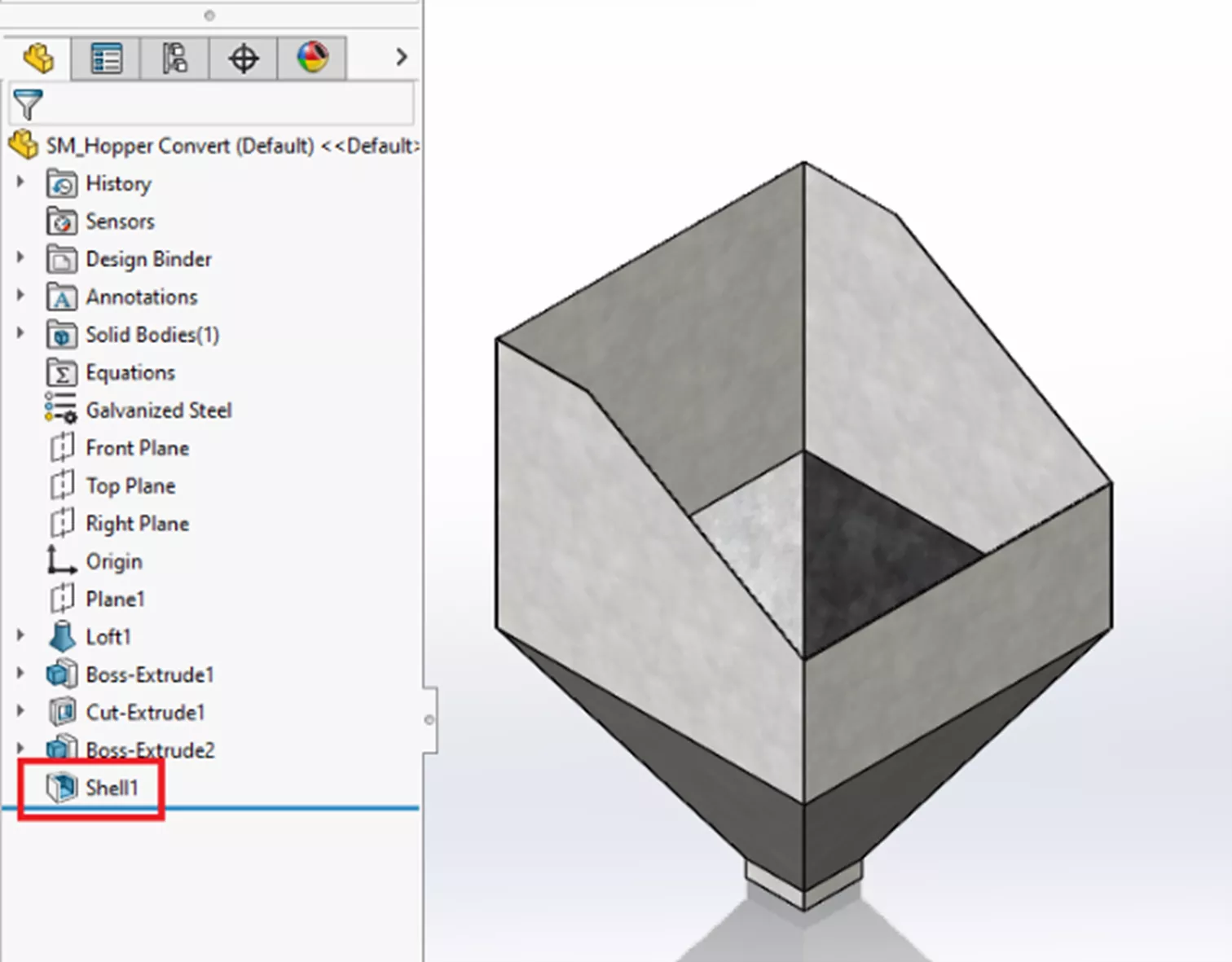
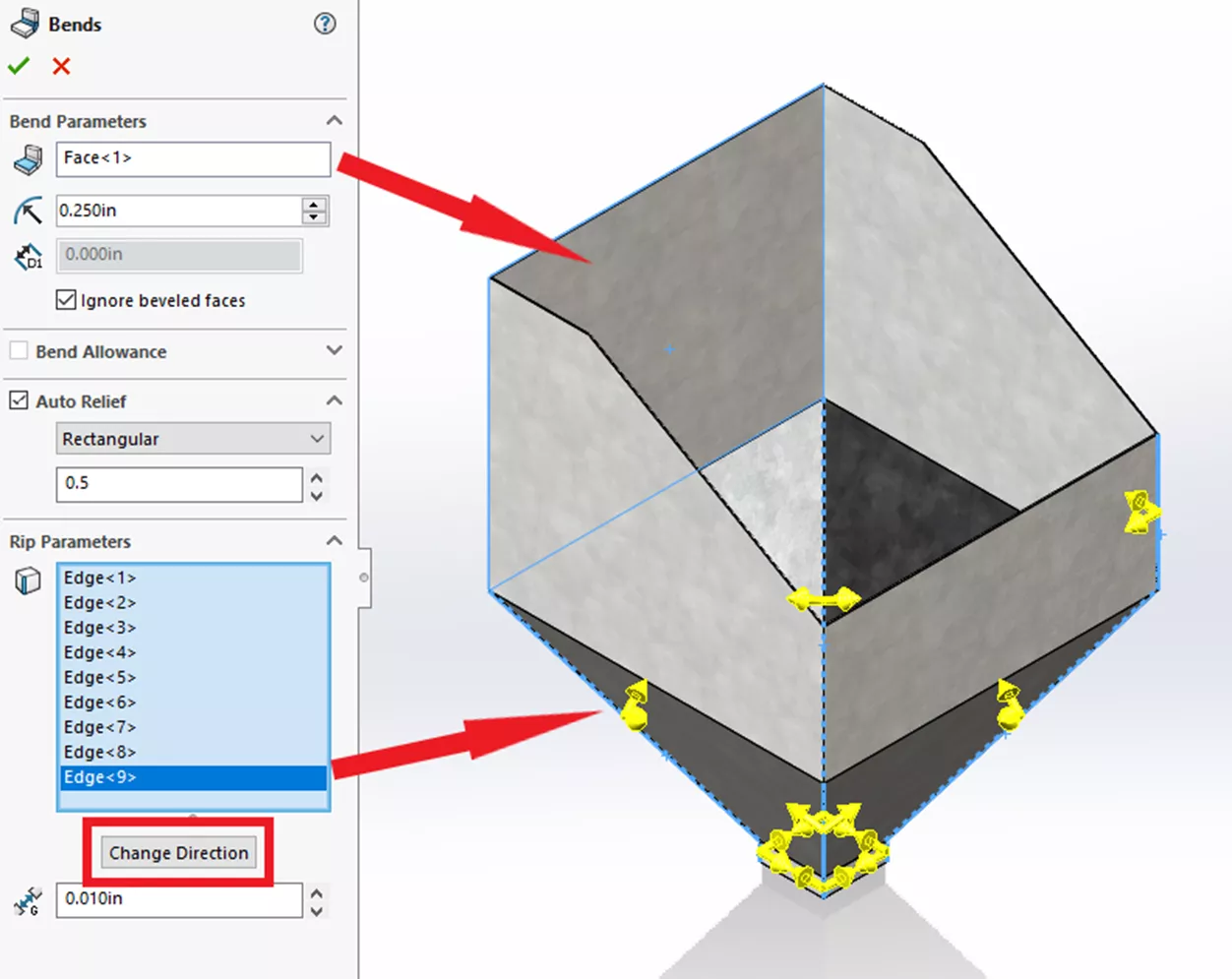
While you could use the Convert to Sheet Metal technique on this shelled hopper, let's use Insert Bends. With this method, instead of selecting the bends and having the ripped edges added automatically, you select the edges you want ripped, and the bends are added automatically.
In the Insert Bends PropertyManager, define the Fixed Face, Bend Radius, Bend Allowance, and Auto Relief (the sheet metal thickness is determined by the shell thickness).
Then, select edges to rip and define the rip gap size and direction, using the Change Direction button as needed. As shown below, the yellow arrows indicate the ripped direction (I've set mine to "both").
Slight Difference
Using the two techniques, I found just one slight difference: Insert Bends (left) created a rectangular relief cut, whereas Convert to Sheet Metal (right) created a triangular relief cut. Everything else was identical.
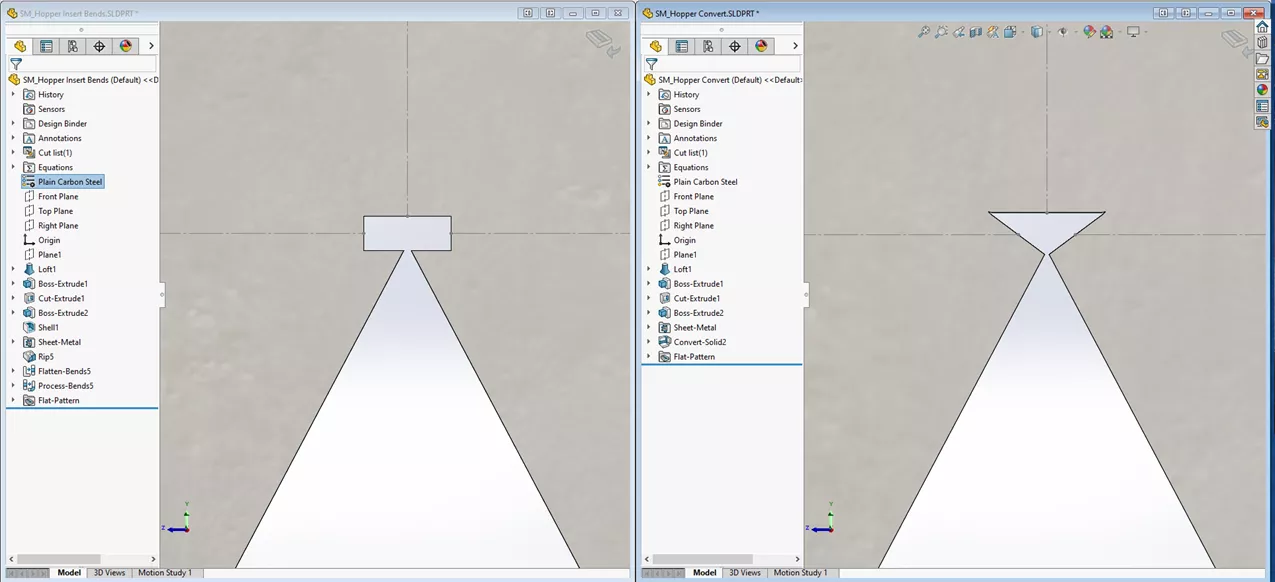
If you try these methods yourself and compare the results, I recommend being careful with your parameter values. In my original test, I went with a 0.1" rip gap in one technique, but left the default value in the other, which resulted in a slight difference in the length of the flat pattern bounding box.
One Defining Feature
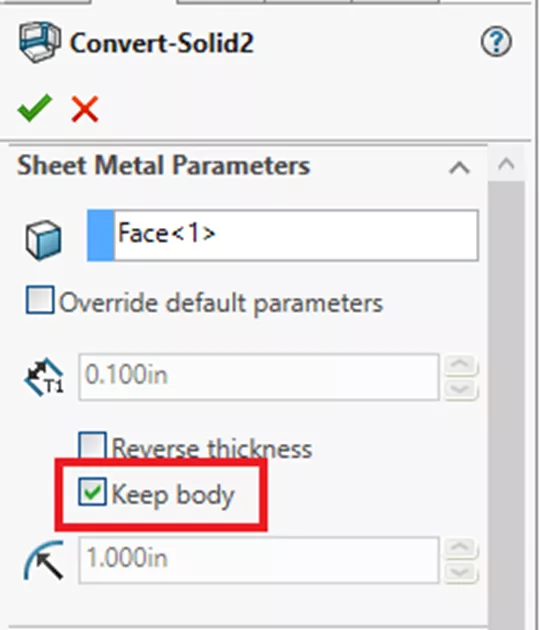
Either method offers a straightforward path to convert a solid body to a sheet metal part. For me, Convert to Sheet Metal offers one unique advantage: Keep Body. This option (found in the SOLIDWORKS Sheet Metal Parameters window of your Convert to Sheet Metal command) allows you to retain the original solid body after the feature.
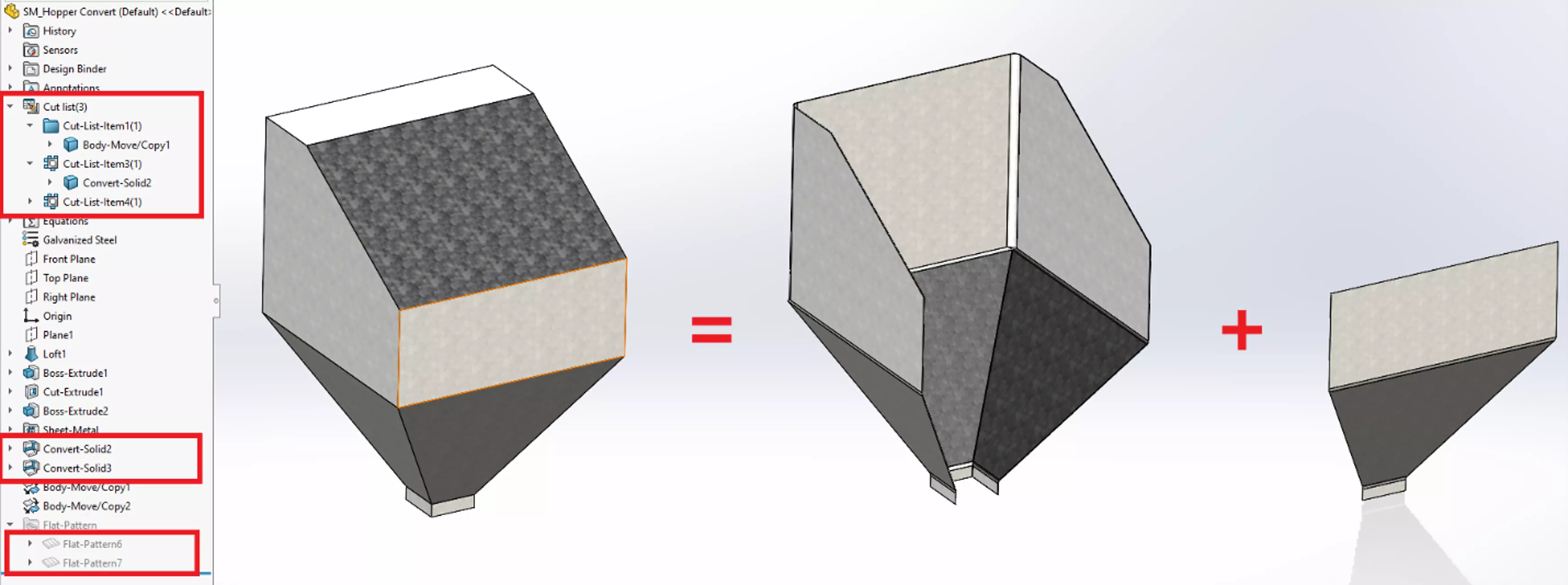
The benefit is the ability to make a multi-body sheet metal part. In the example below, what happens if I can't create the entire sheet metal hopper from a single 12' by 5' blank? I might have to create it from multiple pieces welded together. By reusing the original solid body, I can easily define that second sheet metal part.
Conclusion
So, whether you are new to sheet metal or a seasoned veteran, I hope you learned something about the two techniques for converting a standard SOLIDWORKS body to a sheet metal part. Check out more tutorials below. Additionally, check out the GoEngineer Community, where you can create forum posts, enter design contests, and answer questions from other SOLIDWORKS users.
SOLIDWORKS CAD Cheat Sheet
SHORTCUTS ⋅ MOUSE GESTURES ⋅ HOT KEYS
Our SOLIDWORKS CAD Cheat Sheet, featuring over 90 tips and tricks, will help speed up your process.

Learn More
Reusing Tab and Slot Parts in SOLIDWORKS Assemblies
Finding the Centerline Between Two Complex Curves in SOLIDWORKS
SOLIDWORKS Custom Property for Monitoring Surface Area
SOLIDWORKS Assembly Mirroring for In-Context Parts

About Ken LaVictor
Ken LaVictor is a Sr. Application Engineer based out of Pleasant Ridge, MI. He earned his BSME, as well as his Master's of Science degree in Systems Engineering. Since joining the VAR channel in 2004, Ken has earned his Elite AE, SOLIDWORK Expert, and Simulation Expert certifications. In addition to supporting sales, Ken also teaches the SOLIDWORKS and Simulation training courses, assists with technical support, and conducts Application Mentoring Sessions (AMS).
Get our wide array of technical resources delivered right to your inbox.
Unsubscribe at any time.