How the SOLIDWORKS Sketch Picture Scale Tool Can Affect Zoom to Fit

In SOLIDWORKS, using a Sketch Picture can be a helpful way to capture design intent; it allows you to trace your design over a reference image. The Enable Scale Tool option allows the image size to be adjusted to match a reference dimension, using a Scale Tool and numeric input. This article describes this process and how it affects SOLIDWORKS' Zoom to Fit view function.
Using the Scale Tool
Bitmap images used as Sketch Pictures rarely insert at the correct size and location, and must be adjusted. The Scale Tool provides an accurate way to scale and locate the image. In the example below, the Sketch Picture is larger than the bottle geometry we need (blue part); a typical scenario. Using the Scale Tool, I'll identify a portion of the image, then provide a dimension to resize it.
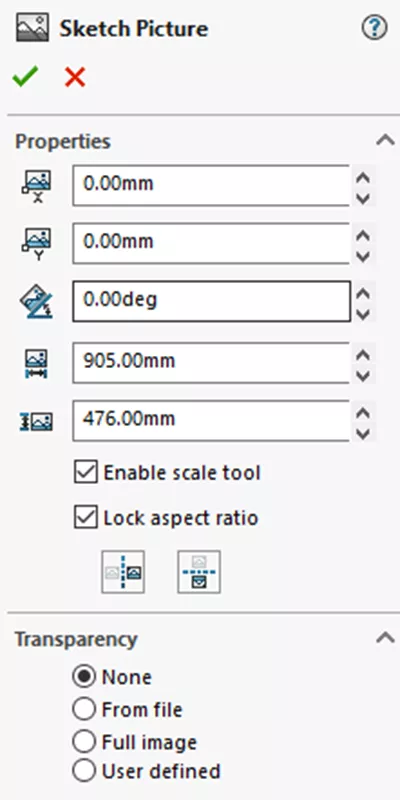
Once enabled, the Scale Tool appears as a blue line with magenta ends, as shown in Figure 1.
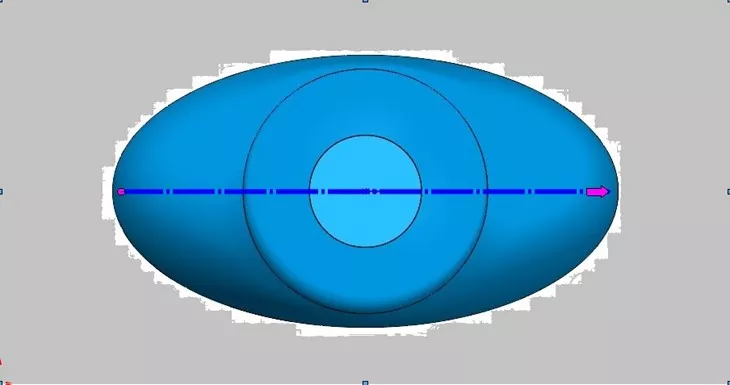
Figure 1
Using the Scale Tool is a 3-step process:
- Position the Scale Tool end point where you want to start (I've moved it to the bottom edge, representing the side of the bottle)
 .
. - Drag the Scale Tool's arrow end to the other end of the reference (the top edge of the bottle in this case)
 .
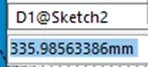
. - Set the value for that distance in the Modify window
 .
.
Scale Tool and Zoom to Fit
When the Scale Tool is used, it affects how the 'zoom to fit' function works, exactly like sketch geometry would. If you don't actually use the Scale Tool (e.g., because you manually scaled the image), but leave it enabled, it can cause unexpected results when zooming to fit. Below is an image file as imported:
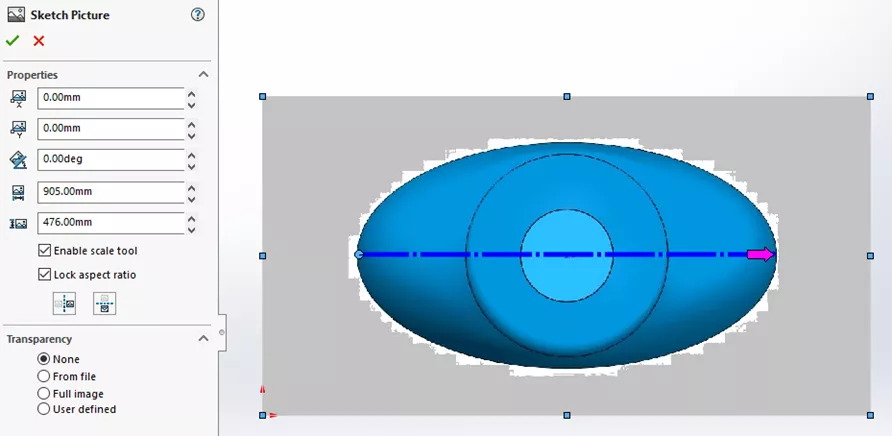
Figure 2
In Figure 3, the image has been manually shrunk, but the blue Scale Tool is still present, floating in its default location.
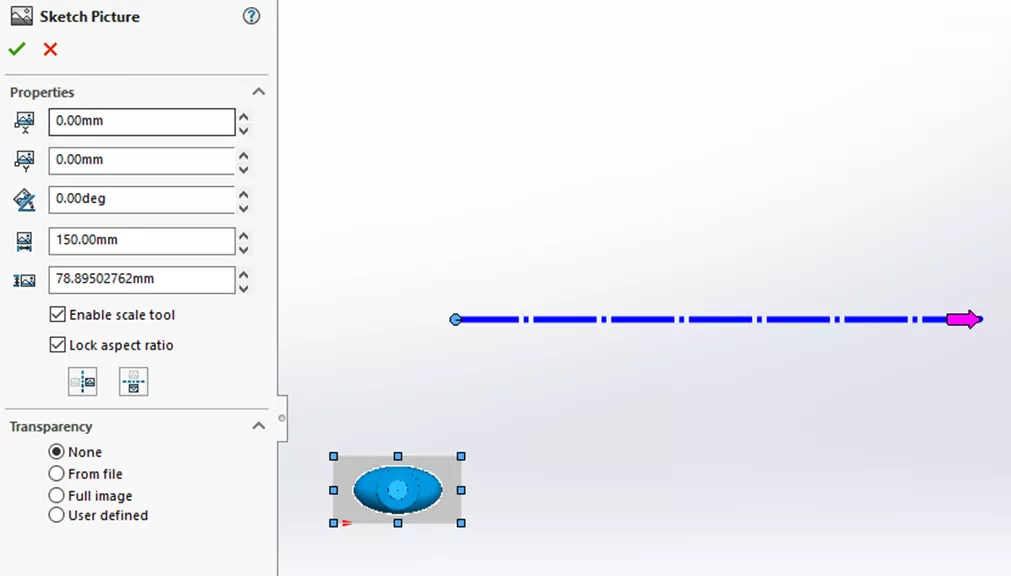
Figure 3
Exiting the sketch and pressing F (or double-clicking the middle mouse button) results in the following:
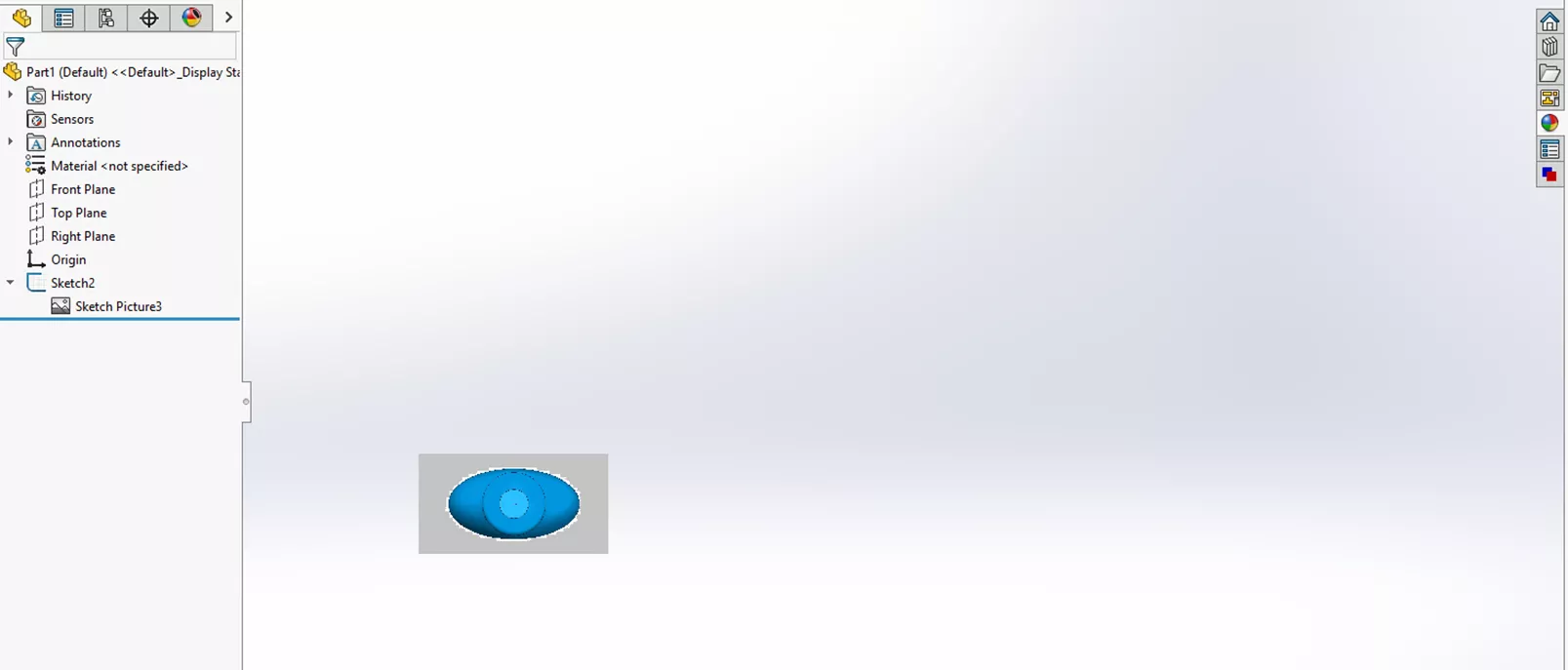
Figure 4
The view is zoomed to fit the image and the Scale Tool. This is the case even if the Sketch Picture is suppressed.
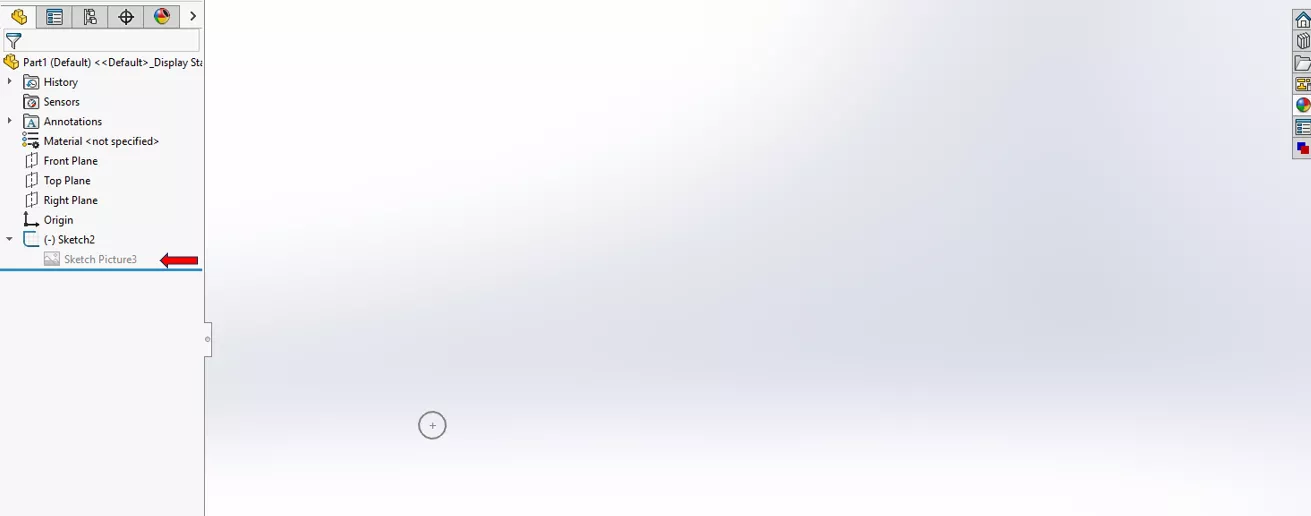
Figure 5
To fix this, edit the Sketch Picture and uncheck "Enable Scale Tool" in the Properties pane.
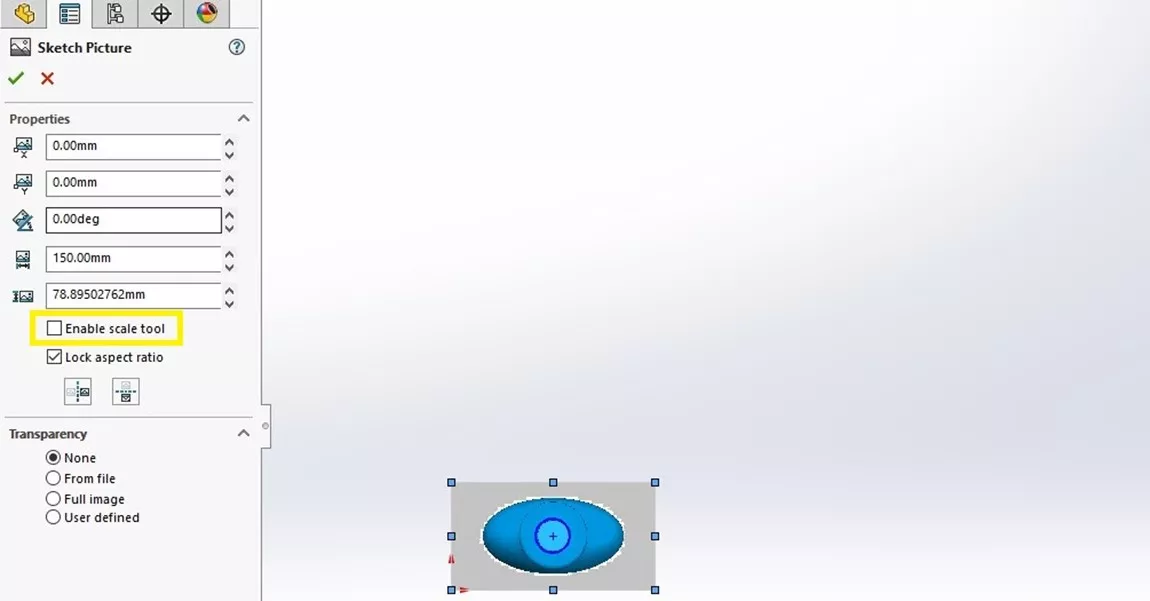
Figure 6
Now, Zoom to Fit works as expected.
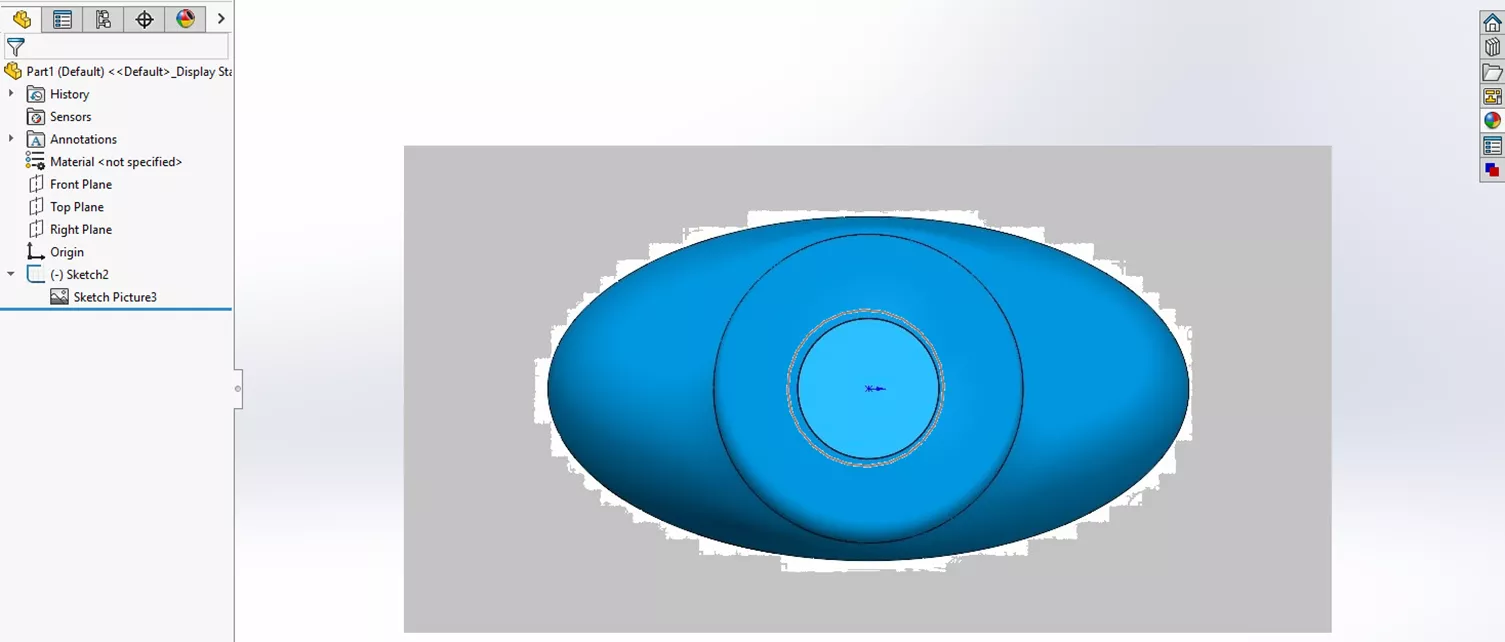
Figure 7
Cropped Image, Scale Tool Not Needed
Another way to use Sketch Pictures is to insert an image that's been pre-cropped. In Figure 8, the image has been cropped in an image editor to only include the needed geometry. Since the image size matches the reference, its width and height can be set directly in the Sketch Picture Properties pane. Since the Scale Tool is not needed, it can be safely disabled, so that Zoom to Fit is unaffected.
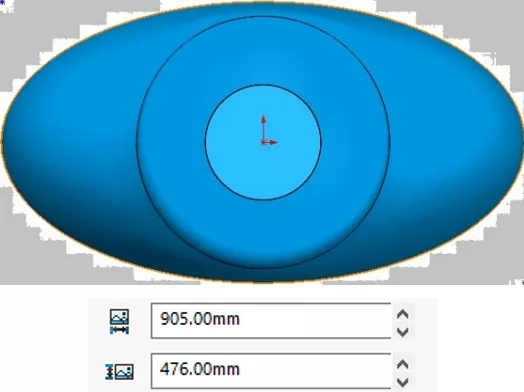
Figure 8
Summary
The Sketch Picture Scale Tool is a fantastic way to resize an image to the appropriate size to use as a reference for modeling. If the Scale Tool is enabled and larger than the image, it will define the Zoom to Fit (“F”) area. If you are unaware of this behavior, it can be difficult to find the cause of the zoom behavior. This is because the Scale Tool does not show up unless you are editing the picture (editing the sketch is not enough). Additionally, suppressing the picture in the FeatureManager Design Tree does not affect the Scale Tool.
I hope this tip will save you time and trouble in the future. Happy modeling!
Want to learn more? Check out more tutorials below. Additionally, check out the GoEngineer Community, where you can create forum posts, enter design contests, and answer questions from other SOLIDWORKS users.
SOLIDWORKS CAD Cheat Sheet
SHORTCUTS ⋅ MOUSE GESTURES ⋅ HOT KEYS
Our SOLIDWORKS CAD Cheat Sheet, featuring over 90 tips and tricks, will help speed up your process.

Related Articles
CAD Families, Physical Products, and Representations: What They Are & When to Use Them
SOLIDWORKS Convert to Sheet Metal vs Insert Bends
Reusing Tab and Slot Parts in SOLIDWORKS Assemblies
Finding the Centerline Between Two Complex Curves in SOLIDWORKS

About Chaz Stipkovic
Chaz Stipkovic is a Certified SOLIDWORKS Expert and Instructor based out of Pittsburgh, PA. With over 15 years of experience, including 9 years in technical support, Chaz has trained and supported thousands of customers to use SOLIDWORKS and DriveWorks to ensure a seamless and successful experience.
Get our wide array of technical resources delivered right to your inbox.
Unsubscribe at any time.