Why Your SOLIDWORKS Drawing Balloons Have Question Marks (?) or Asterisks (*)

Have you ever been working with a drawing in SOLIDWORKS and noticed the balloons showing a yellow question mark (?) or asterisk (*)? There are a few reasons for this, but this blog will cover the most common causes for why these appear in your BOM balloons.
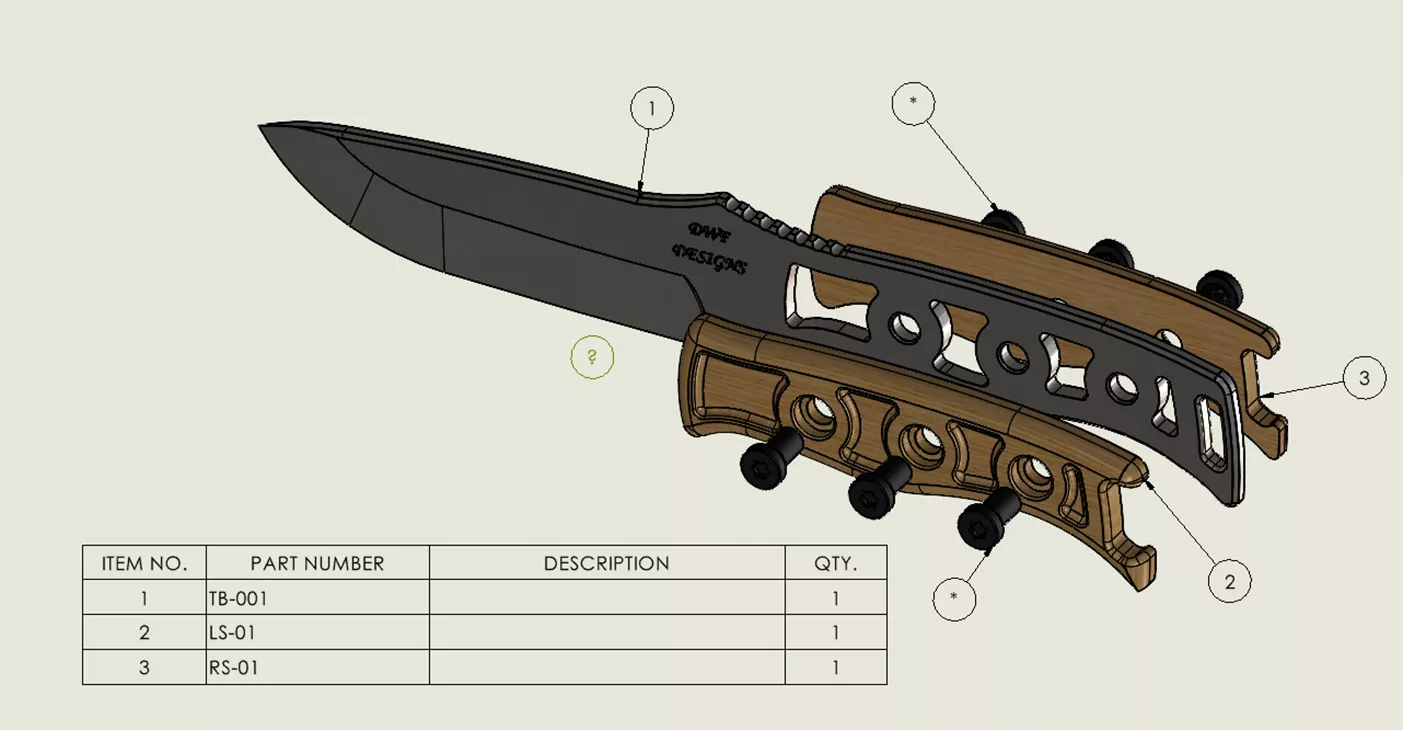
Why Is There a Question Mark (?) in My Balloon?
More often than not, a question mark "?" balloon means it is no longer connected to a part. Sometimes, the leader can become disconnected, and you will need to reconnect this leader so the balloon can become active again.
To do this, click on the "?" balloon to expand the options on the left, click More Properties, then select a leader style.
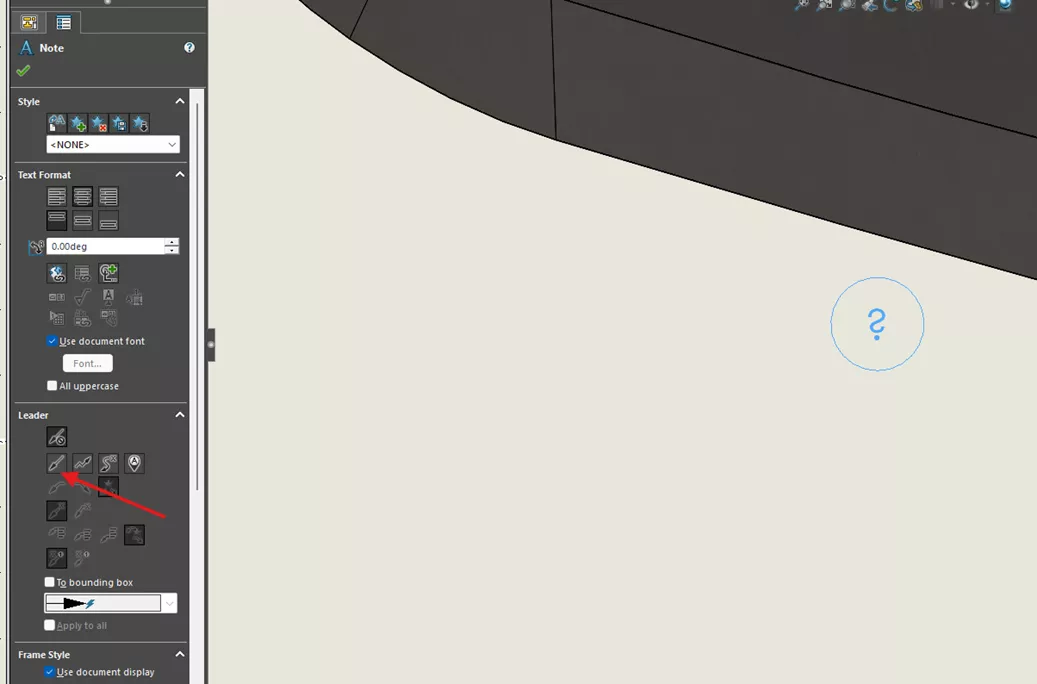
Click and drag the balloon around. You should now have a leader attached for connecting to the correct model component.
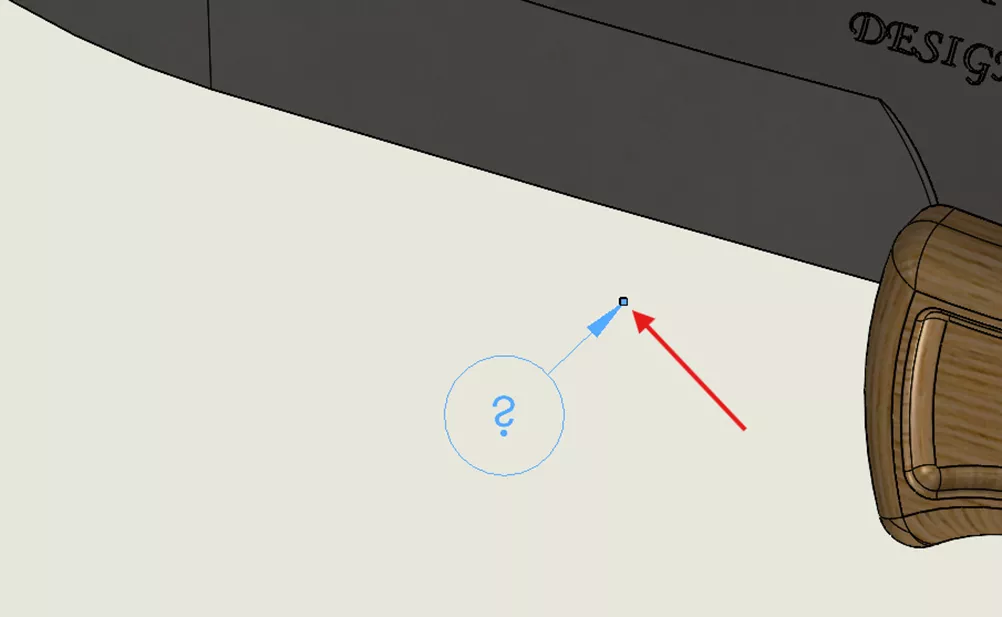
Click the endpoint of the balloon and connect it to a part geometry. You will notice that there will be two options for the end condition of the leader. Grabbing a proper edge will result in the arrow head, while dropping the leader onto a face will result in a circular end condition. Either one will still pull the correct BOM number, but I recommend the arrow end condition.
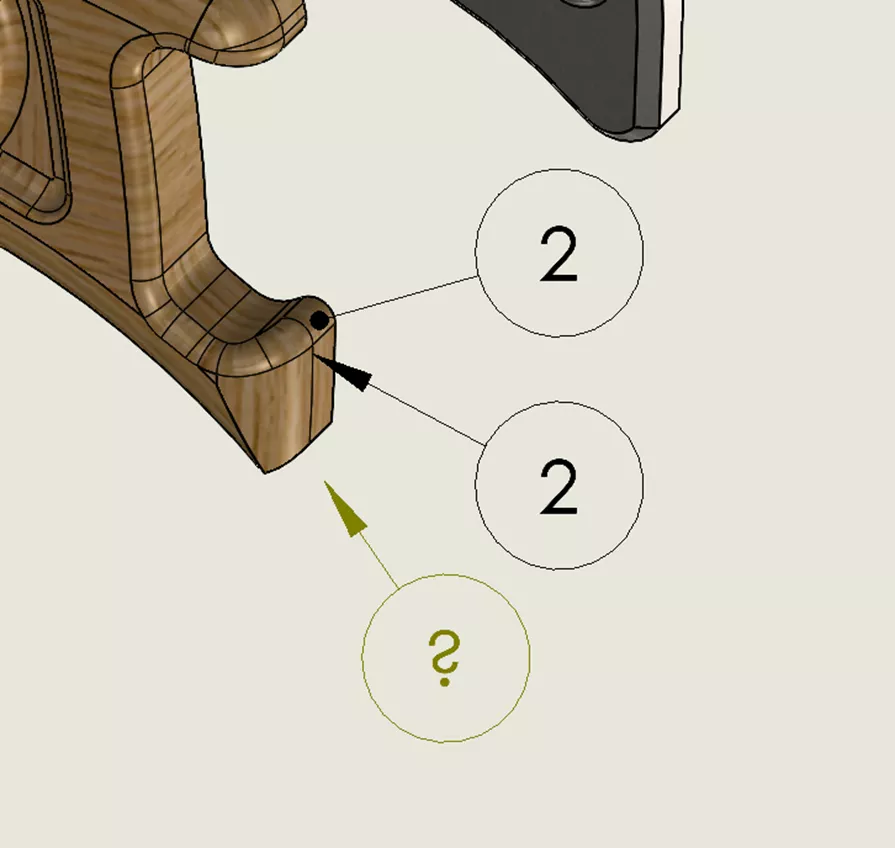
Now that you have the balloon connected to the part geometry, the question mark should go away.
Why Is There an Asterisk (*) in My Balloon?
When an asterisk "*" appears in a balloon, it's because the current configuration selected for the BOM does not match the drawing view that the balloons are placed on.
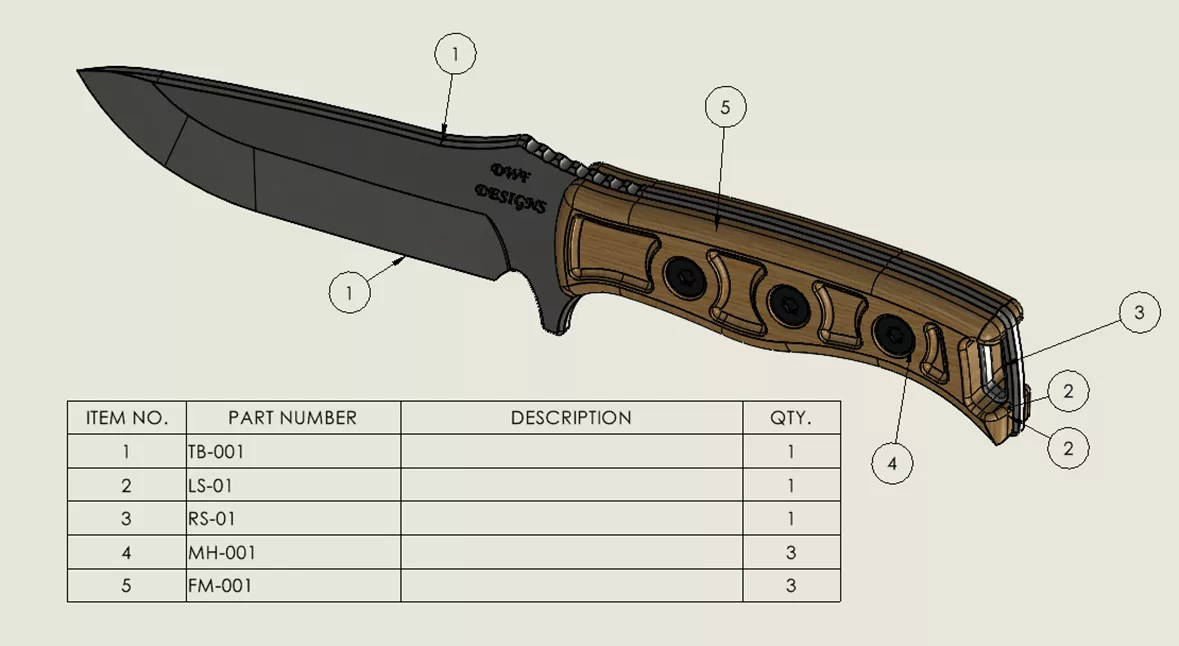
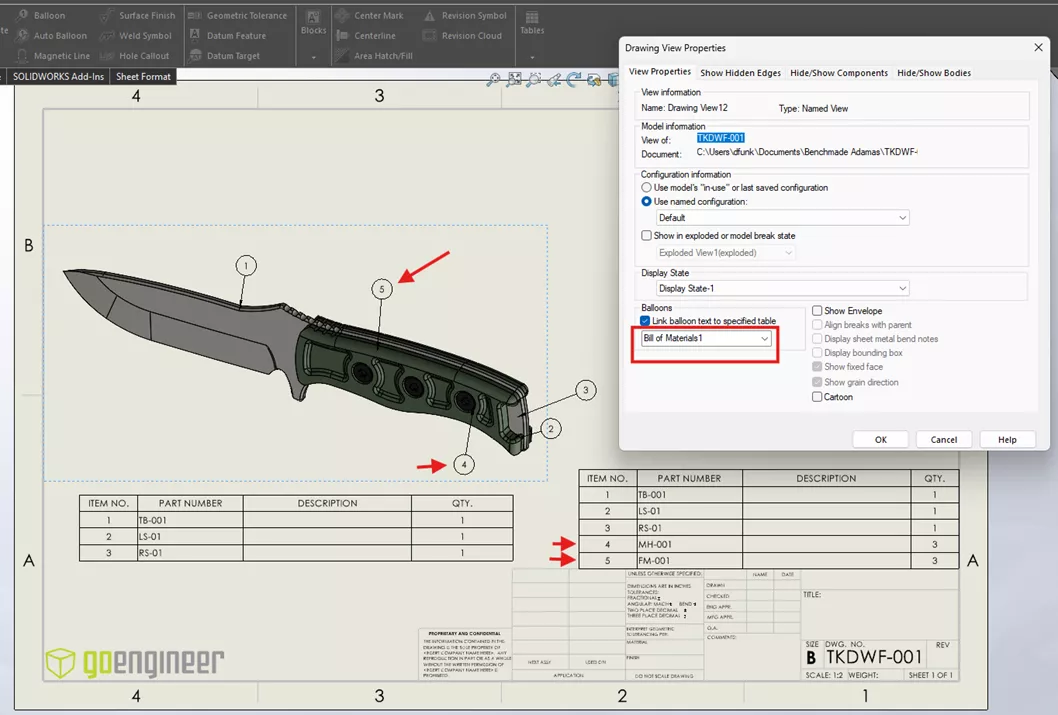
For instance, the image below currently has the BOM and the drawing view configurations matching.
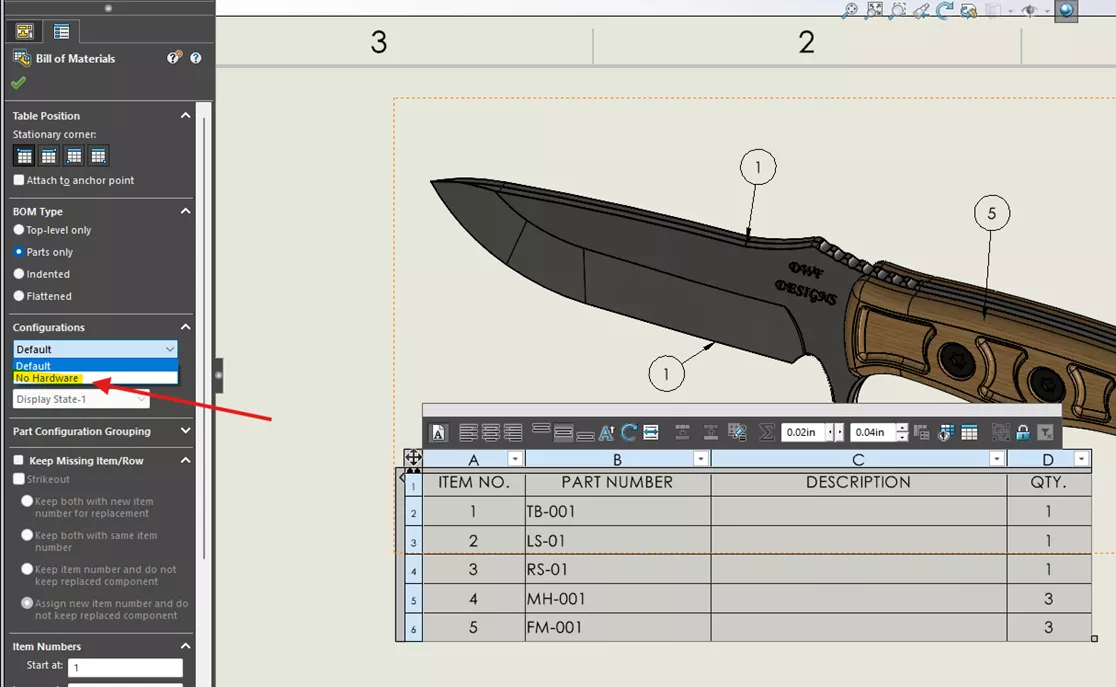
If I change the BOM configuration to the one I made with the hardware removed, notice what happens.
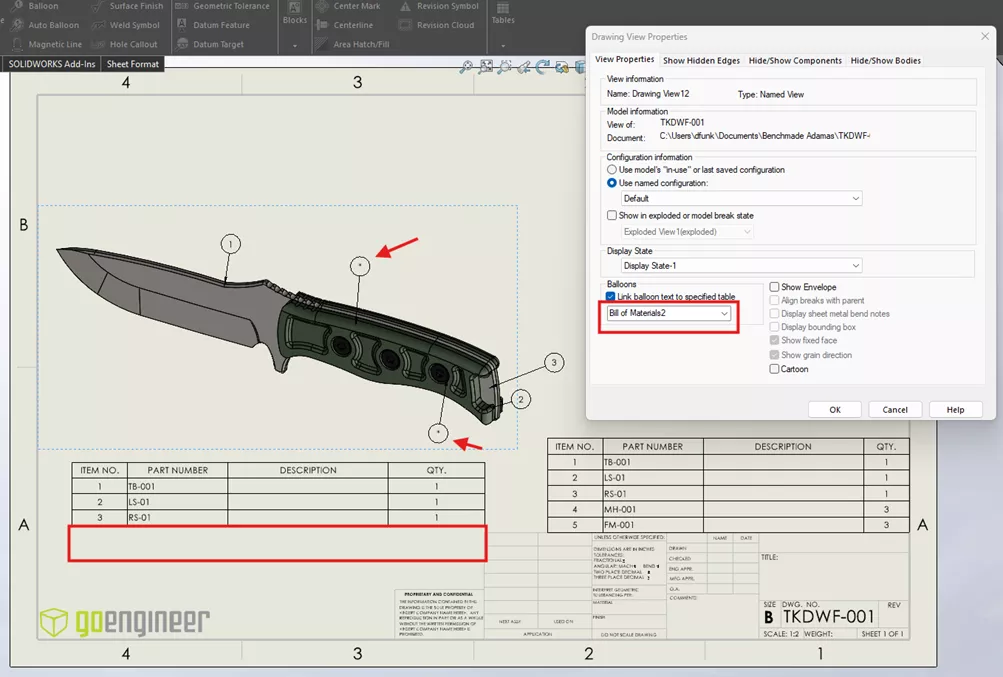
Both of the balloons that had been attached to the hardware now appear with an asterisk. This happens, despite the hardware being visible, because the balloons reference the BOM configuration, not the drawing view configuration.
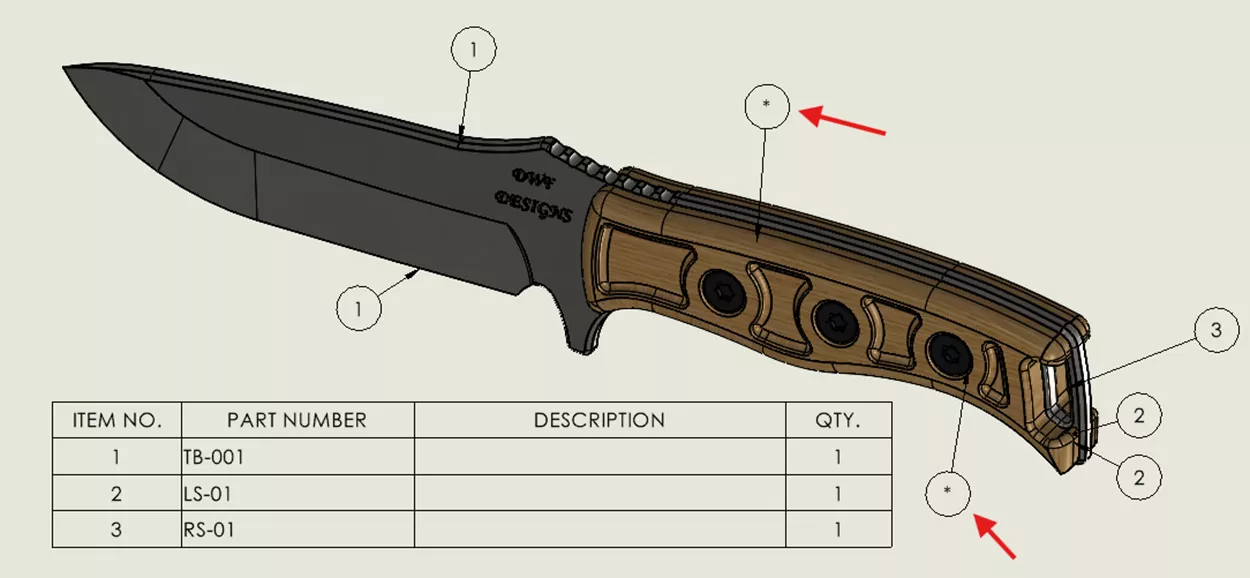
If I were to change the configuration of the drawing view to match the BOM, those balloons would disappear. So to ensure the asterisk is removed, always verify that the drawing view and the Bill of Materials use matching configurations.
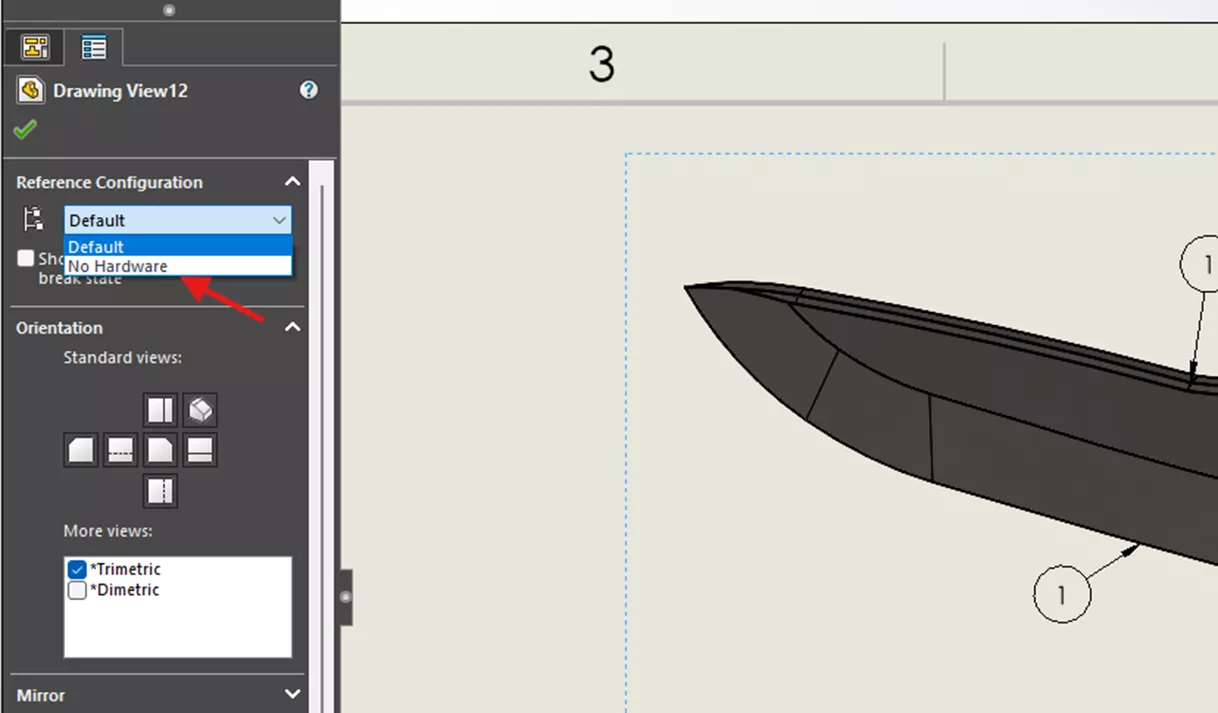
Another reason the “*” may appear is when the drawing view has the balloons pointing to a different table. For example, if I right-click on the drawing view and choose Properties, I can change which Bill of Materials that the view chooses to link the balloons to.
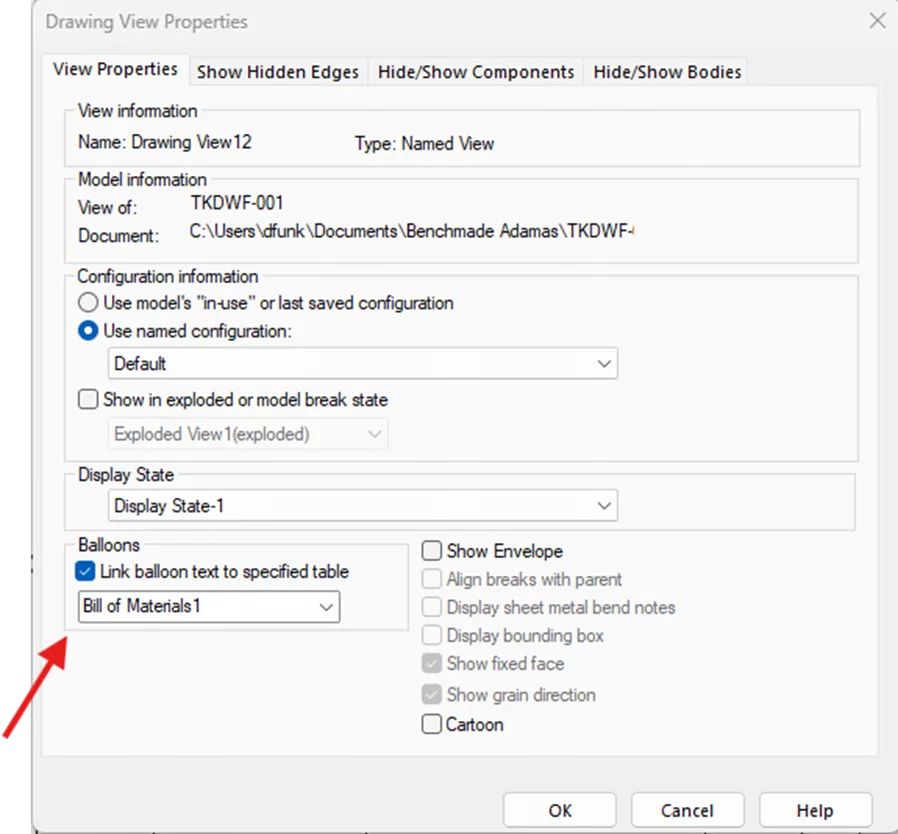
For instance, if I switch the Drawing View Properties to reference "Bill of Materials2" (which is a BOM I created with no hardware), I will again see an asterisk on those balloons that are pointing to hardware no longer appearing on the associated BOM.
Hopefully, these examples help solve the “?” and “*” issues when making your SOLIDWORKS drawings.
Want to learn more? Check out more tutorials below. Additionally, check out the GoEngineer Community, where you can create forum posts, enter design contests, and answer questions from other SOLIDWORKS users.
SOLIDWORKS CAD Cheat Sheet
SHORTCUTS ⋅ MOUSE GESTURES ⋅ HOT KEYS
Our SOLIDWORKS CAD Cheat Sheet, featuring over 90 tips and tricks, will help speed up your process.

More SOLIDWORKS Tutorials
How the SOLIDWORKS Sketch Picture Scale Tool Can Affect Zoom to Fit
SOLIDWORKS Convert to Sheet Metal vs Insert Bends
Reusing Tab and Slot Parts in SOLIDWORKS Assemblies
Finding the Centerline Between Two Complex Curves in SOLIDWORKS

About Dylan Funk
Dylan Funk is a Technical Support Engineer at GoEngineer.
Get our wide array of technical resources delivered right to your inbox.
Unsubscribe at any time.