Fix SOLIDWORKS PDM Error Opening Archive

Table of Contents
Sometimes, when attempting to Get latest version in SOLIDWORKS PDM, there is an Error Opening Archive error similar to the one below:
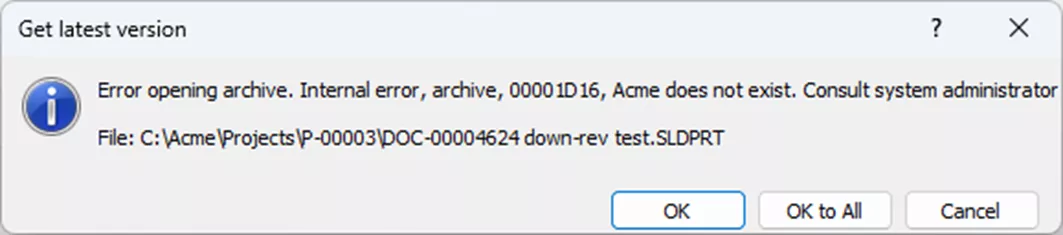
In this article, we’re going to explore the meaning of this error, reasons why it can happen, and what you can do to fix it.
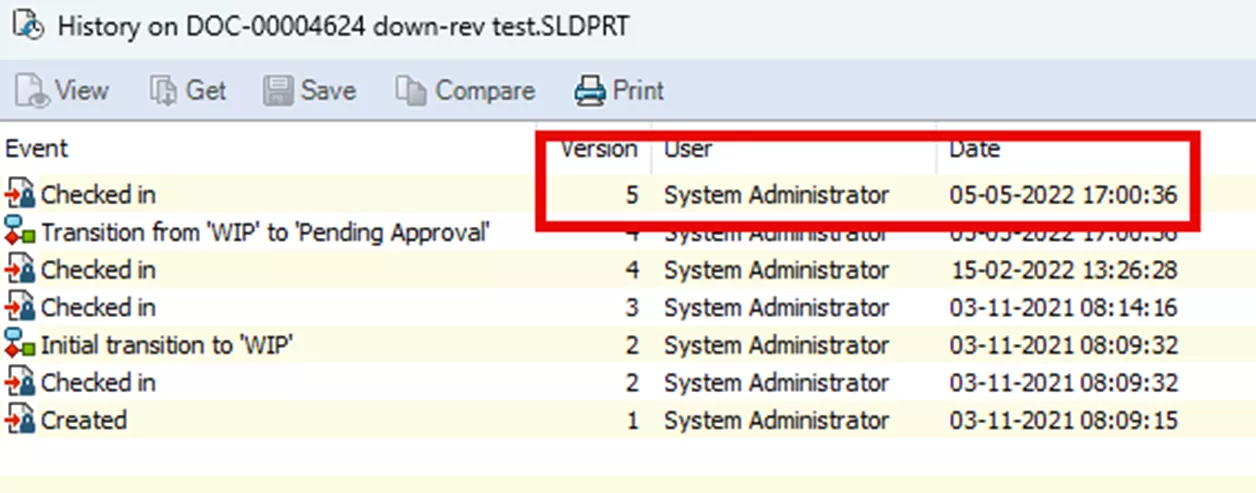
Let's start with an example: “DOC-00004624 down-rev test.sldprt”. Examining the history of this part, the latest version is 5, so PDM cannot retrieve version 5 from the archive. We can also see that “System Administrator” was the person who checked in version 5 (and it was checked in in 2022).
Why Does This Happen?
This issue generally occurs during check-ins or state changes, when new versions of files are created.
When a file is versioned, the following occurs:
- The vault’s database is updated to reflect this new version for the existing file (or adding a new entry if it’s the first time a file is being added).
- A copy of the file from the user’s machine is saved in the PDM archive on the server.
- The index.xml file in that file’s archive subfolder is updated to reflect the new version.
Unfortunately, this process is open-loop, meaning there’s no validation process in that moment to ensure all the parts completed successfully. For this reason, the database can end up thinking this version of the file exists in the archive, but the file is not actually accessible.
This can happen for a number of reasons, but these are the usual culprits we come across:
- The network connection between client and server was unstable during the check-in process (most common).
- Antivirus or security software prevented the file from being written or removed it afterwards.
- The account running the PDM archive service didn’t have proper access to the archive folder location and couldn’t write the file.
- The index.xml fails to update correctly or becomes corrupt/inaccessible.
Finding the File in the Archive
To determine the issue, someone with the appropriate access to the PDM server(s) will need to look into the archive for the missing file. These are the required steps to get to the proper location in the archive:
- Determine the hexadecimal document ID of the file with a missing version.
- Verify the location of the PDM archive on the server.
- Locate the archive folder that contains this file’s subfolder.
- Locate and open the file’s subfolder.
Find the Hexadecimal Document ID
Sometimes (as in the example at the beginning of this article), the hexadecimal document ID is part of the error message. When this is not the case, then we must determine the hexadecimal document ID from an SQL query.
Below is a SQL query that can be run in SQL Management Studio to determine the hexadecimal document ID of the problem file:
select DocumentID,CONVERT(varbinary(8),DocumentID) as hexID,Filename
from Documents
where Filename like ‘File name here%'
Note: Please loop in your IT or DBA to perform this query if you’re unsure how, as improper execution could damage your vault.
Locate the Archives
The default location for the archives is “C:\Program Files\SOLIDWORKS Corp\SOLIDWORKS PDM\Data\Vault Name”.
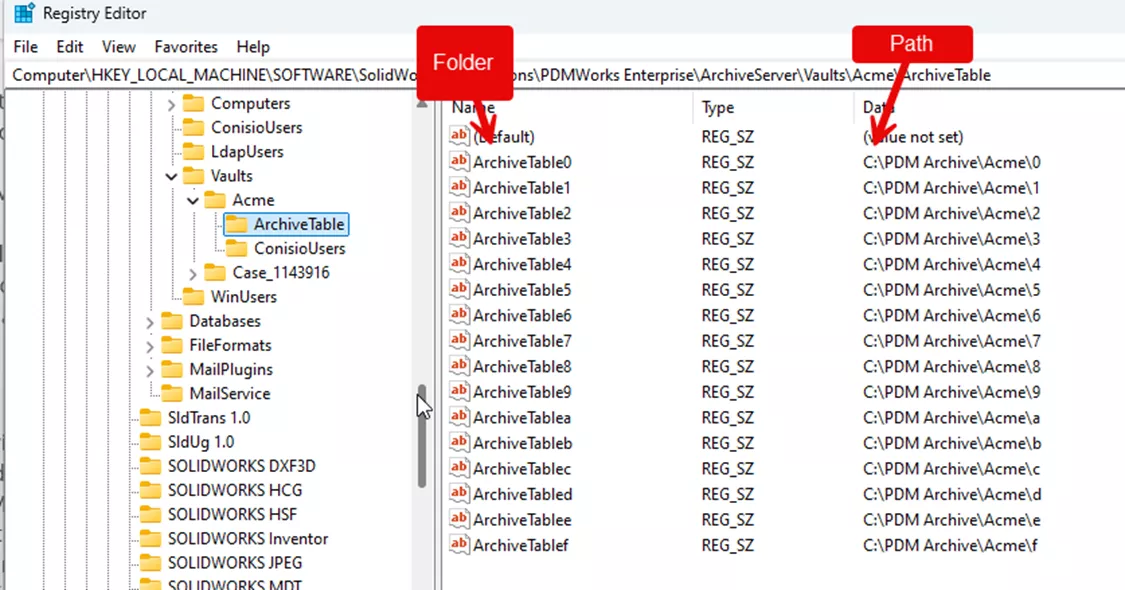
This can be changed at any point, however, so they may be located elsewhere. If you’re unsure where the archives are located, you can look in the Windows registry on the archive server at the key: “HKEY_LOCAL_MACHINE\SOFTWARE\SolidWorks\Applications\PDMWorks Enterprise\ArchiveServer\Vaults\[Your vault]\ArchiveTable”.
The left-hand column is the archive folder, and the right column is the path to that folder. Usually, they are all in the same location, but can be split up across drives. This is where PDM is placing your files server-side when they are checked in. This is also the location PDM pulls from when files are retrieved.
Find the File
There should be 16 archive folders in total, labelled 0-9 and a-f (0-15 in hexadecimal).
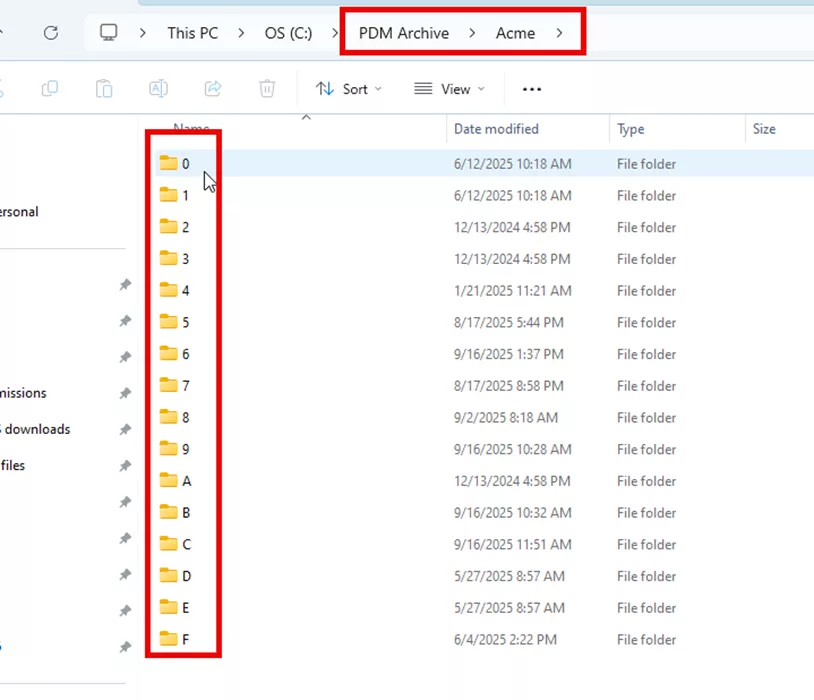
Each of the main 16 archive folders contains numerous subfolders, one for every file in the vault. These subfolders are named using the document ID (a unique ID stored in the SQL database for each file) converted to hexadecimal.
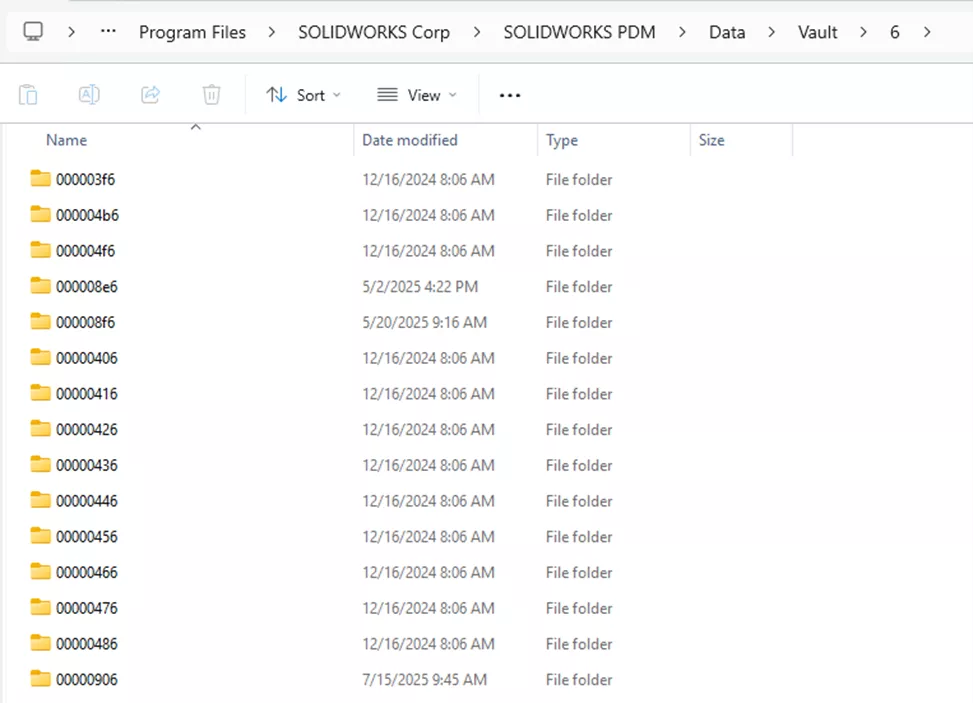
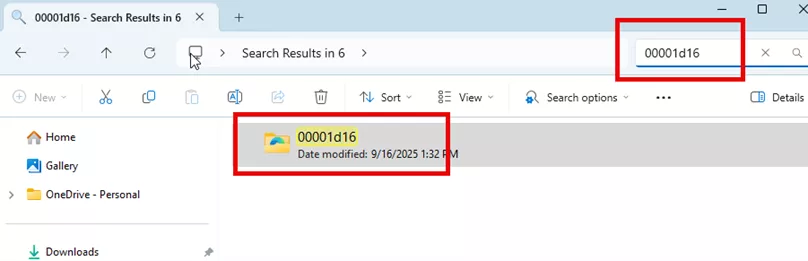
A file’s subfolder is kept in the archive folder that matches the right-most digit of its hexadecimal document ID. The hexadecimal document ID of the example file above is 00001D16. The last digit of its ID is 6; therefore, it will be saved in the “6” folder.
Since the file and folder names are in hexadecimal and Windows orders alphanumerically, it can be difficult to find the file’s subfolder by browsing to it. I have found it best to navigate to the parent folder and then do a Windows search for the folder name. Leading zeros are a must, so there are 8 characters in the search.
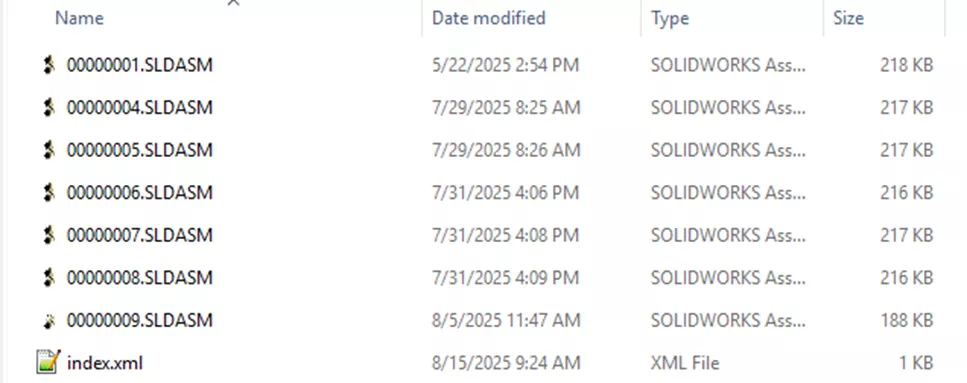
Inside of each subfolder is a copy of every version of that file. If there are 15 versions of a part, there could be up to 15 .sldprt files in its archive subfolder. Rather than using the file name (since you can’t have multiple copies of the same file name), they’re named based on their version number. This number is also converted to hexadecimal. The number of physical files may vary depending on whether the server has all versions (might not yet be replicated), versions are cold stored, versions are compressed, or versions do not differ from the previous version.
The folder should also include an index.xml file.
Determining the Cause
Once you’ve located the file’s subfolder in the archive, you can look at what’s there compared to what you expect to be there. With this info, you can narrow down what went wrong and how to fix it.
Missing Version
Once you get to your file’s subfolder, identify whether the physical copy actually exists. If it does, move to the next section about the index.xml file. More often, however, the file is missing completely.
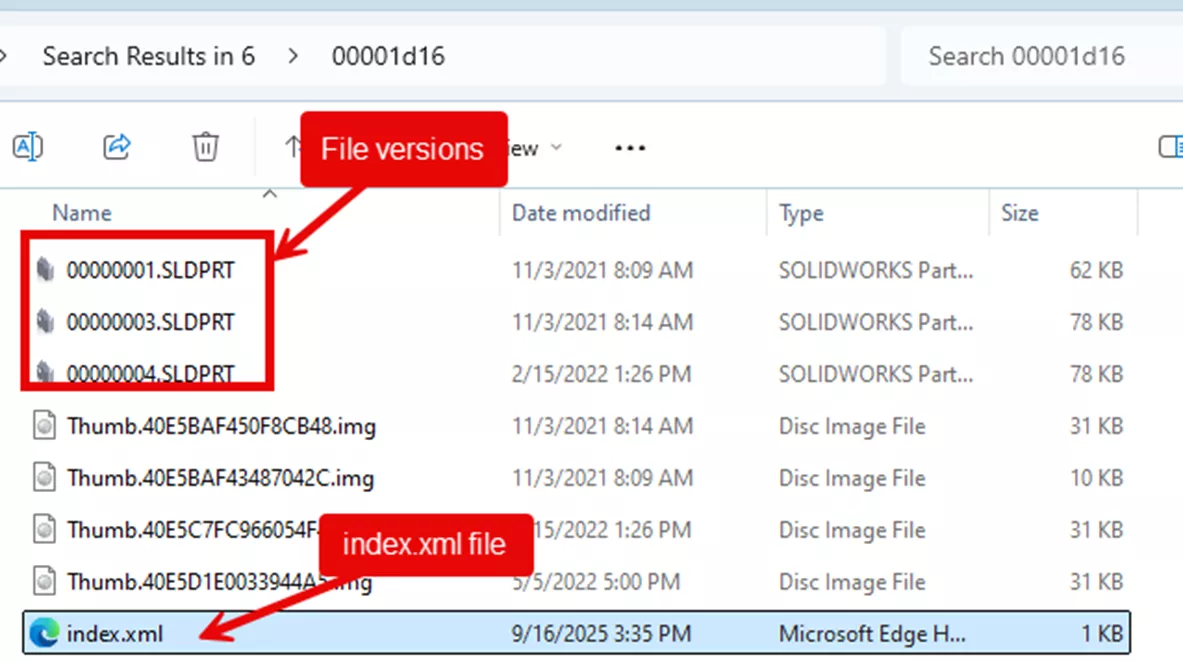
Note the file’s available physical versions. They keep the extension of the file, but are renamed to their version. So, file “00000001.SLDPRT” is version 1 of this part file.
Remember, the latest version in the vault view (and therefore what the database thinks is there) is version 5. So, when we attempt to interact with this file in any way that would require a physical version, we get the archive error. If the file is missing, move on to the “How do I fix it?” section below.
index.XML File Issues
Inside the file’s subfolder in the archive, there will also be an index.xml file. The archive server uses the index.xml file to recognize which physical file (version) to send to a requesting client computer (or other archive server in a replicated environment). If the index.xml file is missing or contains information that is not valid, you are likely to get this archive error.
Double-clicking the index.xml file should open the file in your default XML viewer. On most servers, this is going to be Edge, but any compatible program will work for our purposes (including Notepad and other word processors).
This is what the average index file looks like:
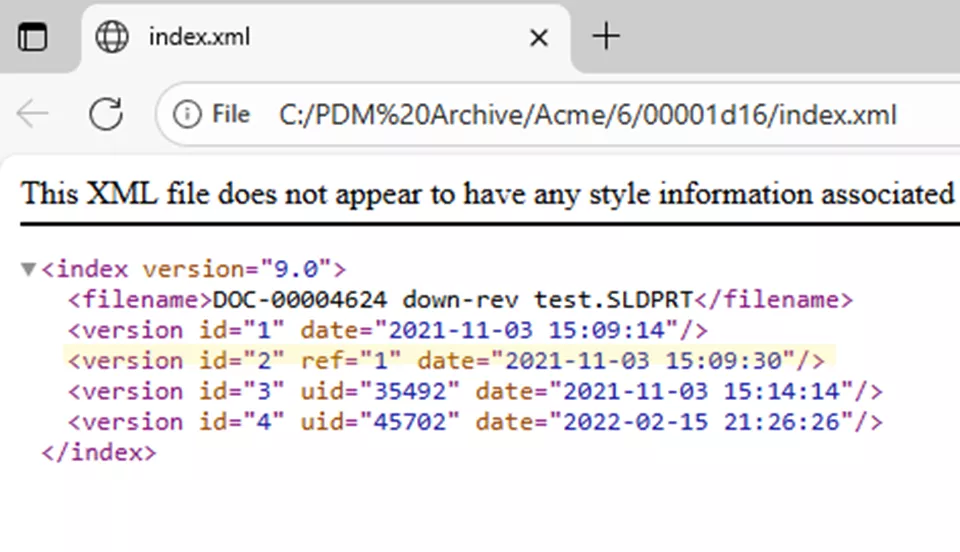
Even if the physical file is present, if the index file has issues (missing entirely, missing versions, has bad formatting/data, is blank, etc), the archive service will not be able to locate the correct file when a client requests it. If an index.xml file is missing entirely, you may be able to recreate it.
The basic structure of an index file is as follows:
Index Version <index version="9.0">
This is the version of the archive server that the file archive was most recently updated/created with. You can find the version number (FileVersion) in the archive server registry under:
HKEY_LOCAL_MACHINE\SOFTWARE\SolidWorks\Applications\PDMWorks Enterprise\ArchiveServer\Vaults\[VAULTNAME]
Version only changes if the archive structure is updated (it is not the same as the software version).
- Enterprise 2007 = 7.2
- Enterprise 2008 SP0-SP3 = 8.0
- Enterprise 2008 SP4 > present = 9.0
Filename <filename>Test.SLDPRT</filename>
The name of the file in the vault as it appeared when file archive was created. Note that the filename will not update if the file is renamed in the vault, so it will, in many cases, not match the real file other than the extension. It is not used for any archive operations.
Version <version id="1" />
Information about each version in the file archive. This tells the archive server if a version is real, referenced, compressed, or archived. Each physical version found in the folder must have a version entry for the archive server to be able to find it. Each version entry must be unique; the index file must not have any duplicate version values. The value corresponds to “RevNr” column in the database table “Revisions”.
Each version tag can contain the following operators:
UID uid="24"
This is a “Unique Version Identifier” (UID) for each version of files in the vault. As you create new versions for files, each version is given a unique UID from a running number. The index file must not have any duplicate UID values, nor should the same UID exist in a different file archive index file on the same archive server (on a replicated server, the same UID can exist in a matching file archive. The value corresponds to “VersionUID” in database table “Revisions”.
The UID is optional and is not required for each version entry. It will only populate if a manual “Get” has been done by a client machine other than the one that created that version.
Date date="2022-07-19 14:34:48"
This is a timestamp of a version in order to match the thumbnail image (img) with a version. The times are in UNC format. The date is optional and is not required for each version entry.
Status status=”archived”
This entry only shows if the version is cold stored (deleted or moved) using a cold store schema. No physical file should exist in the archive for this version. It may show other values, depending on what actions were taken.
Compression <compression algo=”zlib” postfix=”gz” size=”196096” />
This entry only shows if the version is compressed using the compression schedule. The physical file for this version should have .gz extension in archive.
Ref ref=”3”
This is a referenced version, meaning the version has same binary content as a previous version. It allows the archive server to store only unique copies of the file to save space. No physical file should exist in the archive for the version identified as a reference, but the version it references must exist as a physical file.
Changes to a file (e.g., open, save, update custom property, etc.) creates a new binary version when it’s checked in. Changes only to database data (data card variables not mapped to custom properties or state changes with no actions) creates a ref pointer to a previous version in index file instead when checked in.
Accessibility Issues
Though much less common, this can also happen if the service account for the PDM Archive server service is unable to access any of the 16 archive folders, subfolders, or files therein. This account needs full modify access to the archive location(s). It’s particularly worth checking this if your archives are hosted on a non-local drive or if you use an account other than the default.
If this is the case, large numbers of files are likely to be impacted by this error, as opposed to just a handful.
You can check the account in use by going to the Windows Services menu and finding the SOLIDWORKS PDM Archive Server.

How Do I Fix It?
After reviewing all the ways this can occur and how to identify the culprit, we can now discuss a few ways to fix the issue. Your options will depend on whether the file is missing physical copies or if the index.xml file is incorrect in some way.
Missing Version
There are two possible ways to resolve the missing file issue:
- Find the archive of the file on another server or a client machine that has a local version cached and copy it into this location. Be sure to rename the file according to the correct version.
- More often than not, the last person to version the file (check in/change state) is the one who has a local copy of the file, if one exists.
- Roll back the file to the last version that is in the archive.
- Before doing a rollback, see if the person who checked in the latest version still has that version cached on their computer. If they do, copy it outside of PDM so it is not overwritten.
- Once the file is rolled back, check it out again and overwrite the file in the vault with the saved file.
- If there is no local file, then roll back to the latest valid version you found in the archive.
When rolling back a file, NEVER roll back referenced files. ALWAYS roll back one file at a time (if multiple files must be rolled back).
Recreating/Repairing the index.xml
If the index.xml file is missing for some reason, it must be manually recreated in order to access the versions in the archive. It’s easiest to copy an index.xml file from another file archive and edit it to match the content of the faulty archive.
Note that if the vault is replicated, you can most likely find the corresponding index.xml file in the same hexadecimal ID subfolder on the replicated site. Also, check in recent backups of the file archive folder if the index.xml file can be restored from there.
Note that it is not normal if the index.xml file is missing. This is usually an indication of the archive server service having file access problems to create or update the index.xml file in the file archive. Or that the storage location is corrupt, running out of disk space, or some other process, such as an antivirus scanner preventing the creation of the file or even removing it.
Use a standard text editor (such as Notepad) when editing the XML file. Do not use an XML editor such as Word, as it may add XML formatting sections not recognized by the archive server.
We’ll use this file as an example to walk through the process. Note the expected number of versions and the versions shown in its archive subfolder.
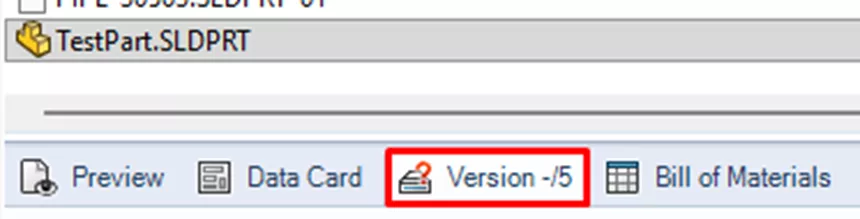
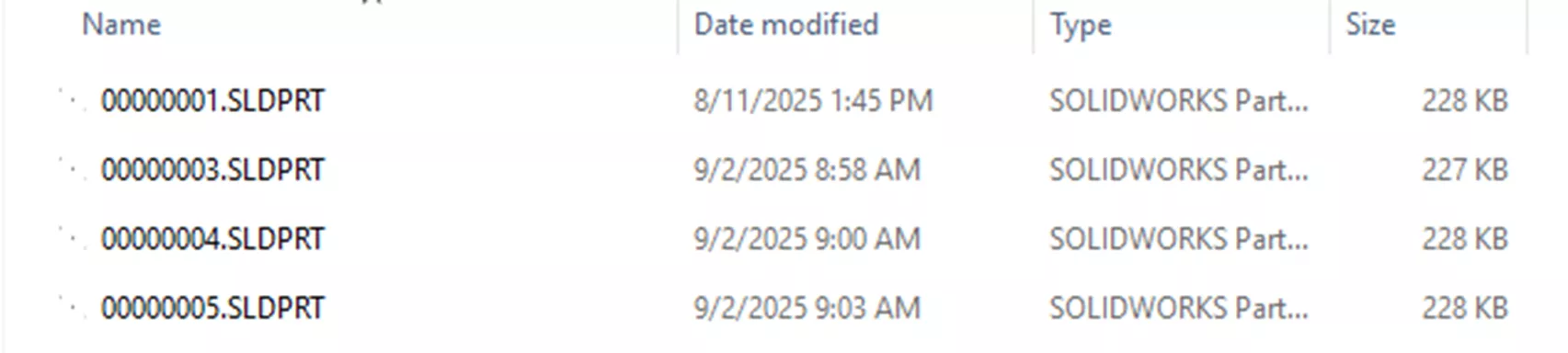
- Copy the index.xml file from one of the other file archives. Remove read-only flags on the file in order to edit it.
- Open the index.xml file in Notepad. Note that the formatting may show all tags without line breaks. We’ve added linebreaks to make it easier to read.
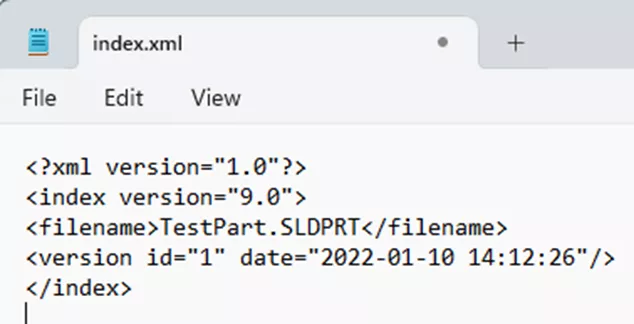
- Update the filename tag between > and < to reflect the correct name and extension.
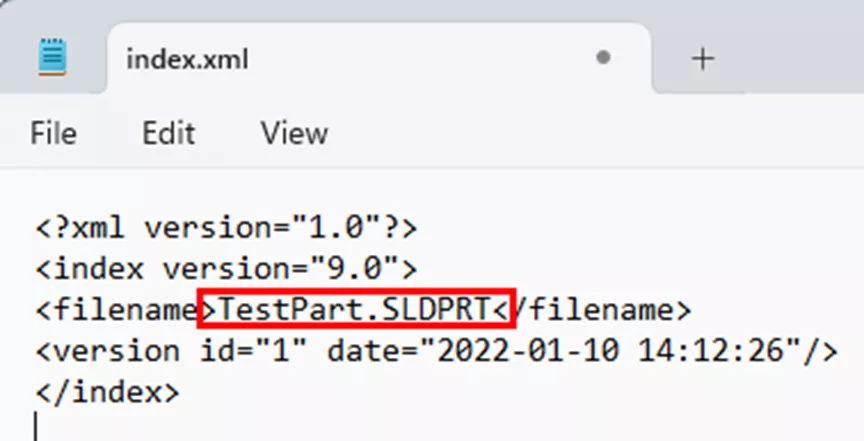
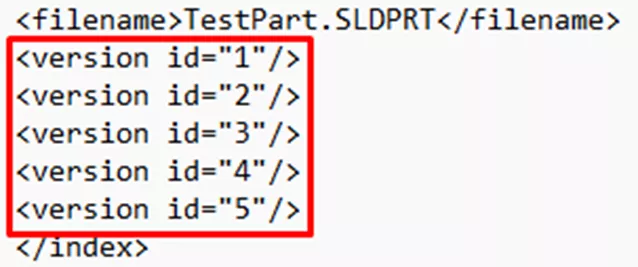
- Remove all UID, Ref, date, status, etc. tags, leaving only the version entries (<version id =”#”/>) for each row.

- Add one version entry for the total number of versions the file should have, even if the archive doesn’t have a physical copy of that version.
- Review the physical versions found in the file archive. Each physical version that is missing needs to have a Reference (Ref=) tag pointing to the last available physical version. In this example, there are no physical files for version 2 – so it’s most likely a referenced version (i.e., 2 references version 1 because version 2 is identical to 1). Add a ref=”version” tag where version is the earlier physical version.
- Note that you can also perform this operation if you have a missing file version in the archive and would prefer not to do a rollback for any reason.
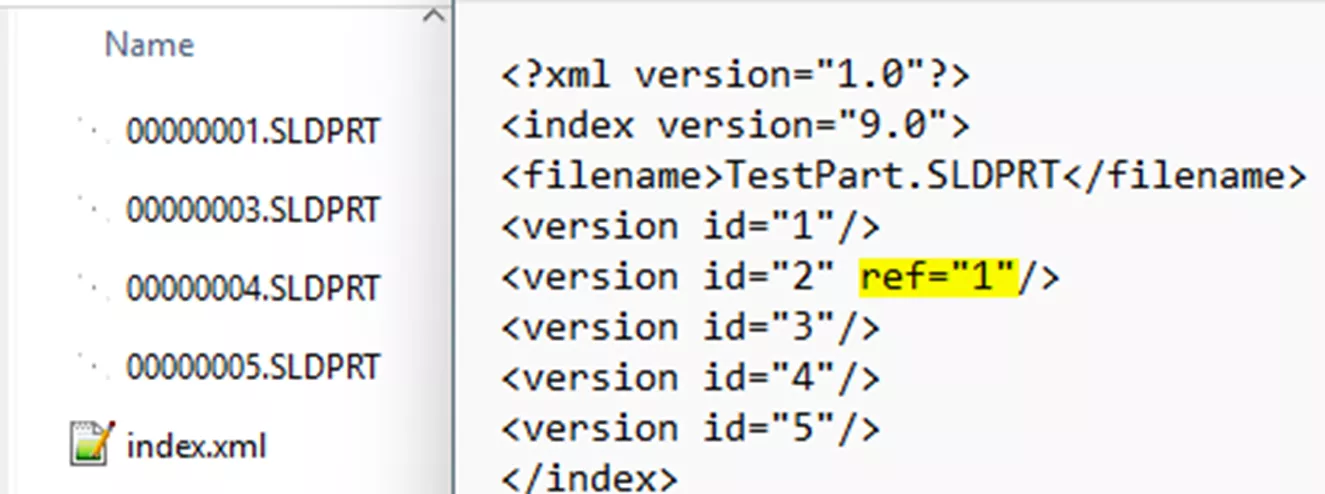
- Save and close the file. Ensure it’s still called “index” and the file type is “XML”. Once placed in the file’s subfolder, you should then be able to perform a “Get” and cache the file locally on a client.
Final Thoughts
This SOLIDWORKS PDM error is one we see relatively often from our customers. In most cases, it’s often one, two, or just a small handful of files that are affected, and minimal work is lost. If your situation differs from the ones described here, you have questions on any of these steps, or if you notice a large number of files are affected, you should reach out to your reseller for guidance. They should have tools to determine the extent of the damage done and the knowledge to help you plan the next steps.
If GoEngineer is your reseller, please contact our Support Team for assistance!
24 Tips to Master SOLIDWORKS PDM
SHORTCUTS ⋅ SEARCHING ⋅ PDM ADD-IN
24 of our expert tips to help you master using SOLIDWORKS PDM. Improve performance, find files faster, and work like a pro.
Related Articles
SOLIDWORKS PDM Attach Access: A Master Guide
SOLIDWORKS PDM XML Import and Export Rules
SOLIDWORKS PDM Vault Upgrade: Standard to Professional
Resolve SOLIDWORKS PDM Add-In Error

About Jim Ward
Jim Ward is a part of the GoEngineer SOLIDWORKS PDM Support team. He has a BSME from CSU, Chico. He worked in design for about 12 years then moved into a SOLIDWORKS support role. The last several years have been focused on SOLIDWORKS PDM Professional (formerly Enterprise PDM).
Get our wide array of technical resources delivered right to your inbox.
Unsubscribe at any time.