CAD Families, Physical Products, and Representations: What They Are & When to Use Them

When working in CAD environments like SOLIDWORKS or 3DEXPERIENCE, you may see terms like CAD Families, Physical Products, and Representations. These concepts are connected, and understanding how they work together can help engineers, designers, and manufacturers manage their data more effectively.
What Are CAD Families?
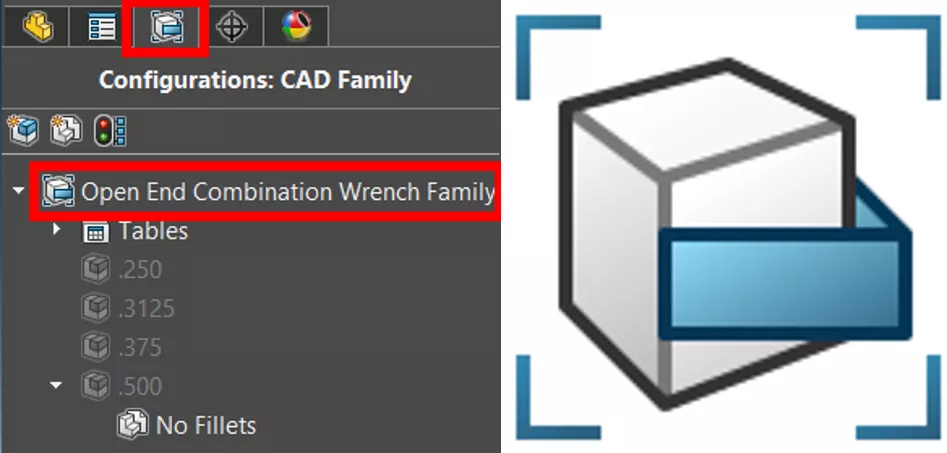
According to a Dassault Systèmes Help File, “CAD Family is the main object in 3DEXPERIENCE that can assist you to create different SOLIDWORKS configurations from one CAD Family. When you create a part or an assembly, you create a configuration of that object. You can also create another configuration having some unique features of that same object. The 3DEXPERIENCE platform displays all these configurations as physical products. Hence, all the physical products are linked to a CAD Family object from which they are generated.”
In other words, a CAD Family is a group of related CAD models, which can be a Part or Assembly that shares a common design intent but may be different in configuration, size or options.
For example, consider a family of open-end wrenches: 1/4, 5/16, 3/8, etc. Each variation is part of the same family because they share the same overall purpose and general geometry.
In SOLIDWORKS terms, this would translate to configurations or design tables, where one “master” model controls multiple variations.
In 3DEXPERIENCE, CAD Families help organize these variations, so you do not treat each instance as a completely separate design file.
The key benefit of CAD Families is that it lets you manage design intent once, while supporting multiple product variations.
What Are Physical Products?
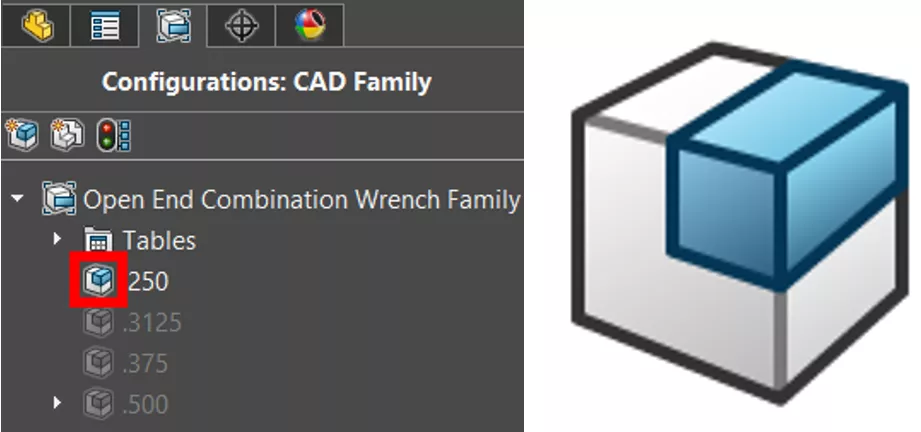
A Physical Product represents the real-world item you intend to manufacture, assemble, or sell.
For example, a specific open-end wrench from the wrench family would be “BigBrand” Combination Wrench: alloy steel, chrome, 1/2" head size, 7" overall Length, offset, rounded, part number CW-ASC127R. This is a physical product.
It is not just geometry; it also carries metadata, like part number, material, finish, and supplier information. In data management systems, the physical product links directly to manufacturing and the Bill of Materials.
The key benefit of a Physical Product is that it bridges the gap between CAD design and business processes.
What Are Representations?

According to this Dassault Systèmes Help File, “A representation is a child configuration of a physical product. A representation shares a part number with the parent physical product to represent a state of the physical product. For example, an exploded state. Representations are not saved to the 3DEXPERIENCE platform.”
How They Work Together
These three concepts form a data management ecosystem:
- CAD Families define the design rules and options for a group of parts or products.
- Physical Products specify which variant of that family is being used in the real world.
- Representations provide the right level of detail for the right task or display options.
Together, they ensure consistency, traceability, and efficiency across the Product Lifecycle Management (PLM).
How to Use the CAD Family Tab in SOLIDWORKS
The CAD Family tab in SOLIDWORKS is where you can view, create, and manage Physical Products (design variations/configurations) and Representations as part of a CAD Family. This feature is especially useful if you are working on the 3DEXPERIENCE platform or need to keep multiple part versions organized. The following steps explain how to activate the CAD Family tab and manage it.
Step 1: Turn on the CAD Family tab
- Log in to the 3DEXPERIENCE platform and launch SOLIDWORKS from there (this is the best practice for stability).
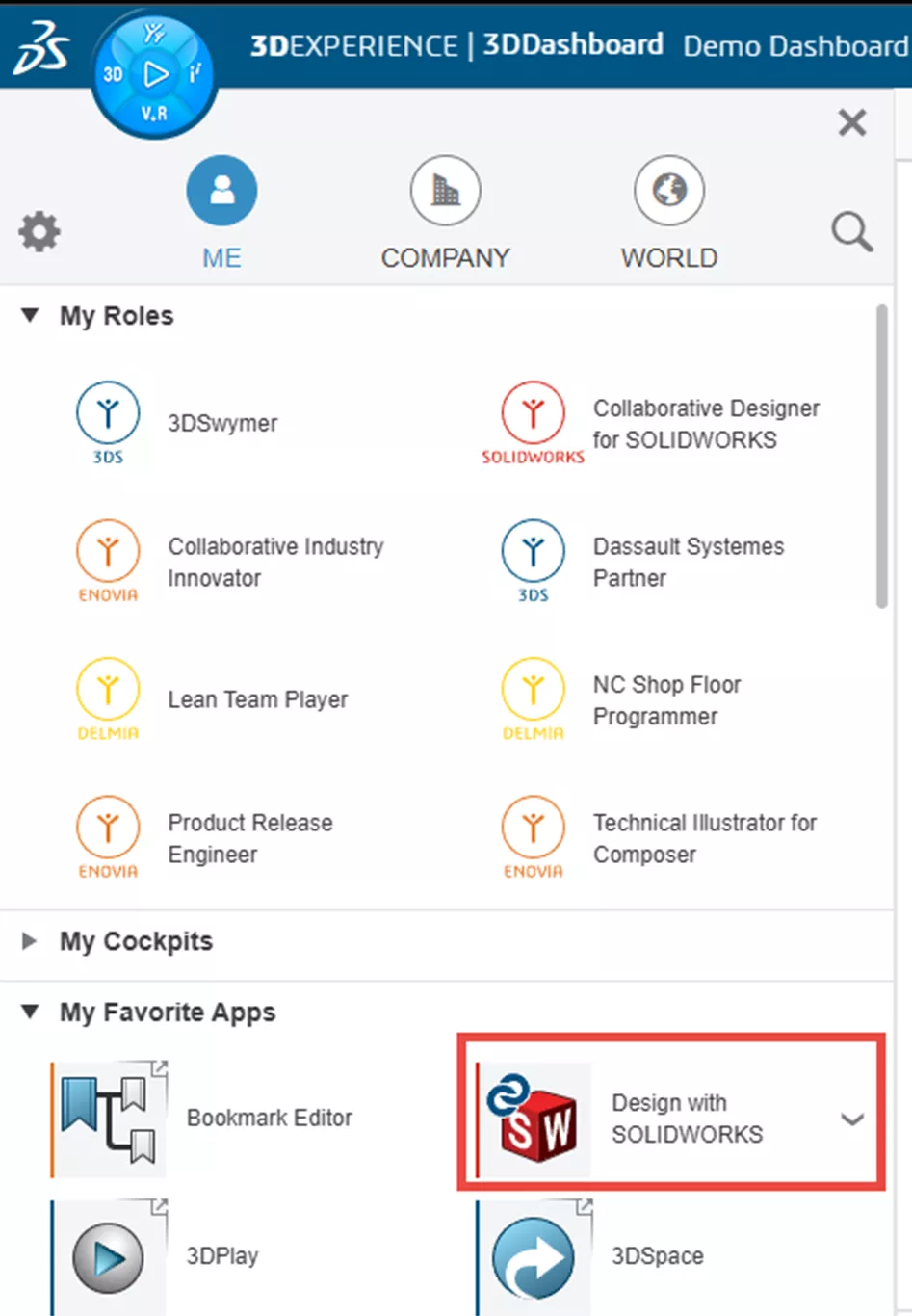
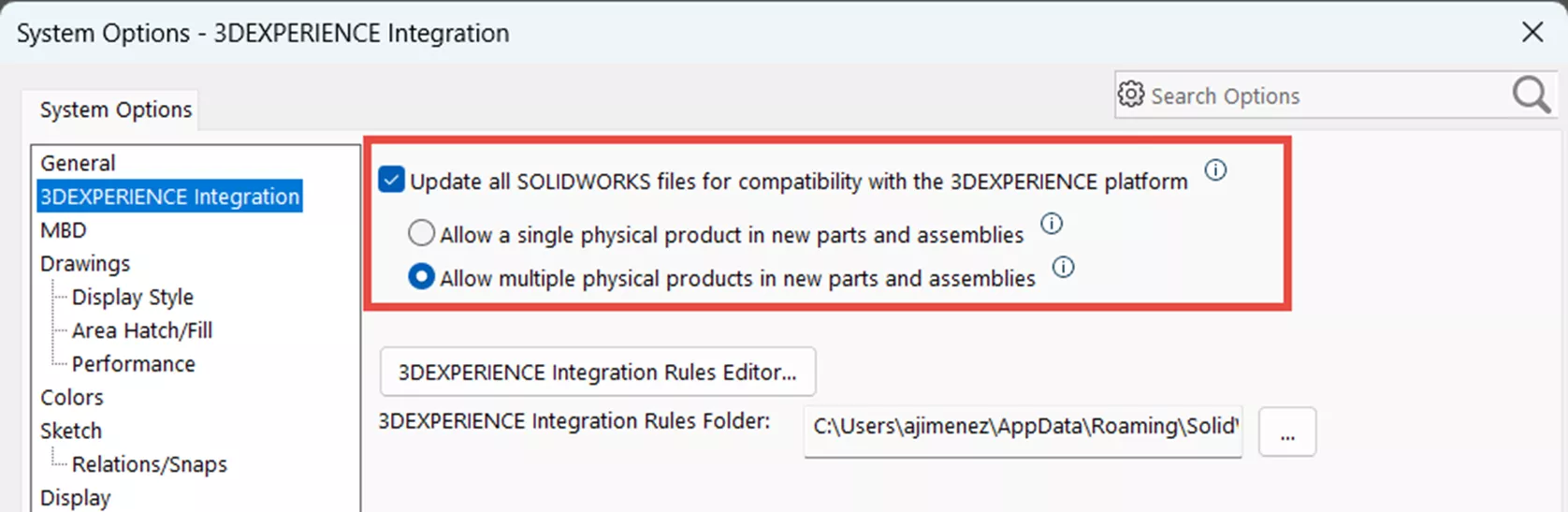
- From SOLIDWORKS, go to System Options > 3DEXPERIENCE Integration (no files should be open. If the option is grayed out, close out all files and try again). Enable Update all SOLIDWORKS files for compatibility with the 3DEXPERIENCE platform and select from the two options: Allow a single product or Allow multiple products.

Step 2: Create a CAD Family
- Create the new Part or Assembly that you want to use as a “master” design.
- Save it to the 3DEXPERIENCE platform (File > Save to 3DEXPERIENCE).
- In the CAD Family tab, you will have a “File Name” Family regardless of whether it is a Part or Assembly file.
Step 3: Add Physical Products to the CAD Family (Configurations)
- In the CAD Family tab, right-click on the existing Physical Product and select New Physical Product.
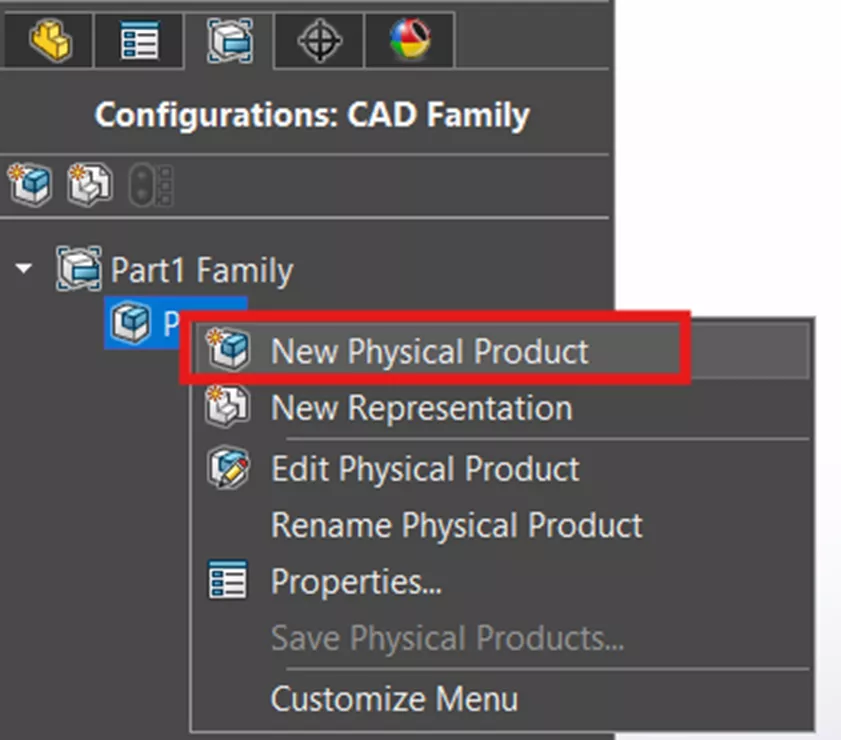
- Repeat the process to add as many Physical Products as needed.
Step 4: Add Representations to a CAD Family’s Physical Product
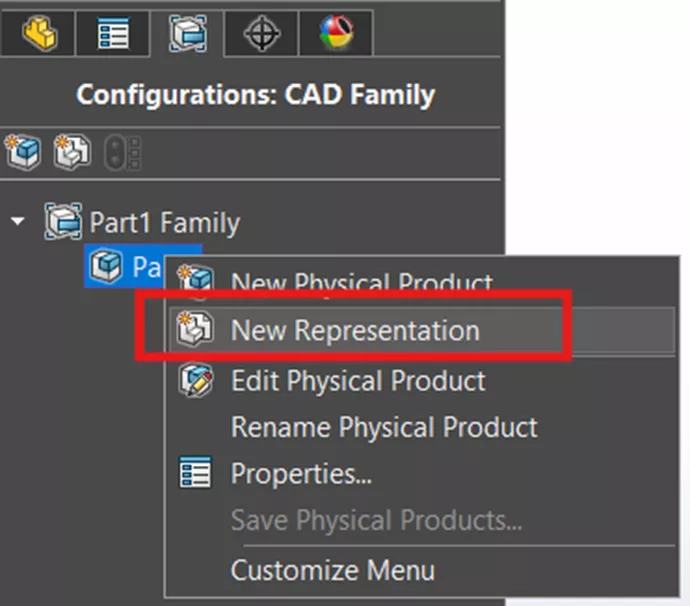
- Right-click on a Physical Product you wish to create a Representation of (Derived Configuration) and select New Representation.
Step 5: Manage and Use the Family
- Double-click a Physical Product or Representation to make it active.
- To delete a Physical Product or Representation, it must not be active. Right-click the desired Physical Product or Representation and select Delete.
- From the right-click menu, you can rename Physical Products and Representations.
- From the right-click menu, you can also modify the properties of a Physical Product or Representation.
- From the right-click menu, you can convert a Representation to a Physical Product or a Physical Product to a Representation.
Step 6: CAD Family to a Single Physical Product or Add CAD Family to a Physical Product
Depending on the option you enable in System Options > 3DEXPERIENCE Integration, you will either, by default, have a single Physical Product without a CAD Family or, as in the image below, a CAD Family with a default Physical Product and the capability to add additional Physical Products. However, you can add and remove CAD Families.
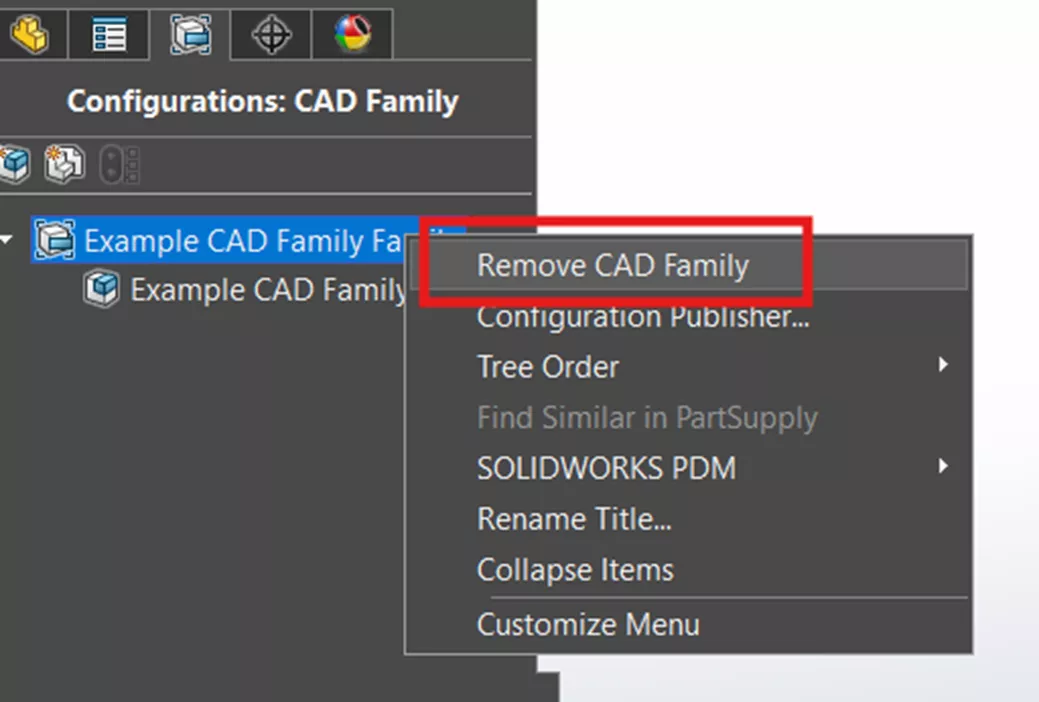
- If you have a CAD Family and wish to have a single Physical Product with or without Representations and without a CAD Family, you can delete the CAD Family by right-clicking the CAD Family and selecting Remove CAD Family.
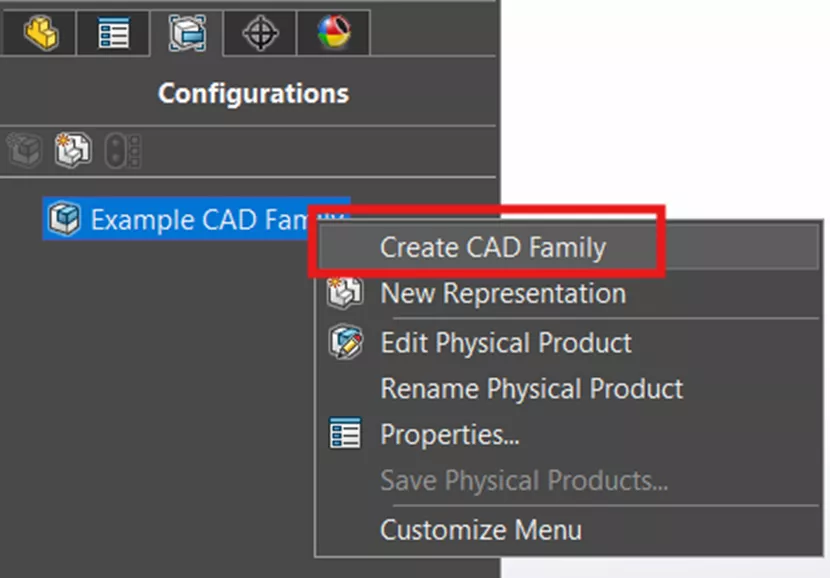
- If you wish to add a CAD Family, right-click the default Physical Product and select Create CAD Family.
Why it Matters
Understanding how CAD Families, Physical Products, and Representations work together ensures that:
- Engineers spend less time duplicating data.
- Companies maintain a single source of truth for every design.
- Teams downstream (e.g., management, manufacturing, quality control, purchasing, and assembly departments) get the exact data they need.
In a nutshell, CAD Families define the design space, Physical Products make it a reality, and Representations make it usable for everyone in the display necessary for their task. These tools get your designs to market faster by saving time, reducing errors, and helping your organization work efficiently.
Want to learn more? Check out more tutorials below. Additionally, check out the GoEngineer Community, where you can create forum posts, enter design contests, and answer questions from other SOLIDWORKS users.
SOLIDWORKS CAD Cheat Sheet
SHORTCUTS ⋅ MOUSE GESTURES ⋅ HOT KEYS
Our SOLIDWORKS CAD Cheat Sheet, featuring over 90 tips and tricks, will help speed up your process.

Related Articles
SOLIDWORKS Convert to Sheet Metal vs Insert Bends
Reusing Tab and Slot Parts in SOLIDWORKS Assemblies
Finding the Centerline Between Two Complex Curves in SOLIDWORKS
SOLIDWORKS Custom Property for Monitoring Surface Area

About Agustin Jimenez
Agustin Jimenez is an Application Engineer at GoEngineer based out of Fresno, California. He has a Bachelor’s degree in Electronics Engineering Technology from California State University, Long Beach and is a CSW-P certified in Weldments, Sheet Metal, and Mechanical Design.
Get our wide array of technical resources delivered right to your inbox.
Unsubscribe at any time.