Sharing Designs Using the 3DEXPERIENCE SOLIDWORKS Export as Package

Modern CAD projects often require seamless sharing of assemblies across organizations, whether for supplier input, customer review, or interdepartmental collaboration. The 3DEXPERIENCE platform’s Export as Package feature for SOLIDWORKS delivers a robust method to bundle and exchange complex assemblies, with powerful version and permissions controls that go far beyond conventional Pack and Go routines.
Say you need to share an assembly with a customer and include referenced documents, such as parts, drawings, or hardware. You could use the Pack and Go feature that comes with SOLIDWORKS, but how do you limit what the customer can change in the assembly? How do you reimport the changes that the customer made? Since this would be a new file to your system, you would have to add it to the assembly and remate it or use the Replace Component command. This creates headaches and time-consuming practices. The 3DEXPERIENCE Export as Package addresses these concerns. Let’s look at what the command offers.
What is the SOLIDWORKS Export as Package?
Export as Package creates a single “.SLDPKG” file that contains the assembly, referenced parts, and optionally, drawings. This approach ensures all files needed to reconstruct the project are included (even non-cached drawings that exist on the platform), making collaboration frictionless. The package additionally tracks lifecycle and revision management to ensure metadata remains intact.
Key Benefits:
- Granular Permissions – Users have the option to set files as “Read Only” or “Editable” for external collaborators.
- Easy File Sharing – Capability to save locally to a thumb drive, locally to share through email, or use 3DEXPERIENCE's 3DDrive for cloud-based link sharing.
- Reintegration into your SOLIDWORKS and PLM system – The package tracks files, allowing you to review external changes before saving to the same file that already exists in 3DEXPERIENCE. This allows you to seamlessly integrate changes made without remating.
Collaboration Using Packages
Initial Users' Perspective & Process to Export
- Open the Assembly inside SOLIDWORKS and connect to your 3DEXPERIENCE platform (MySession) in the right task pane.
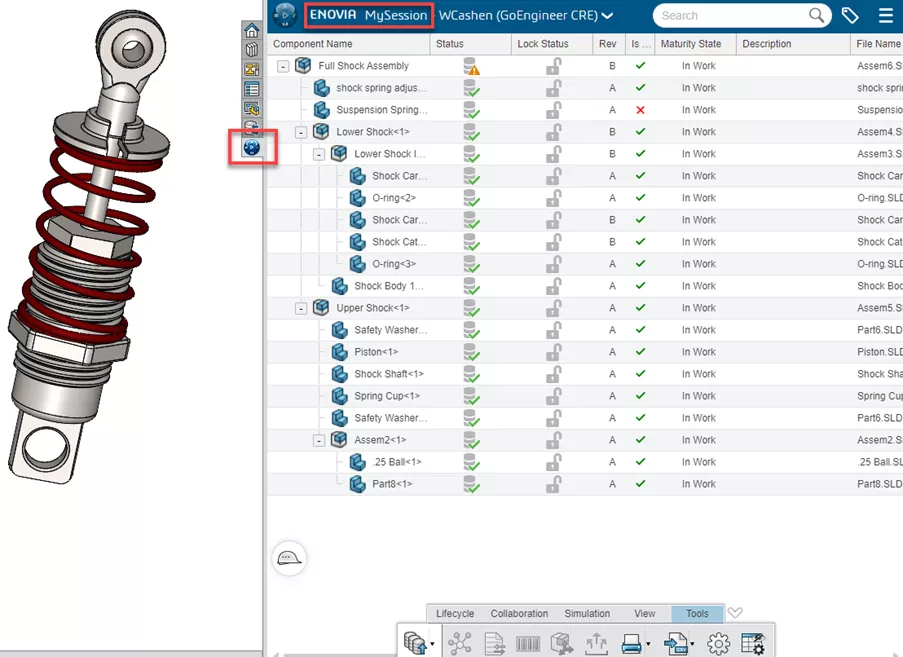
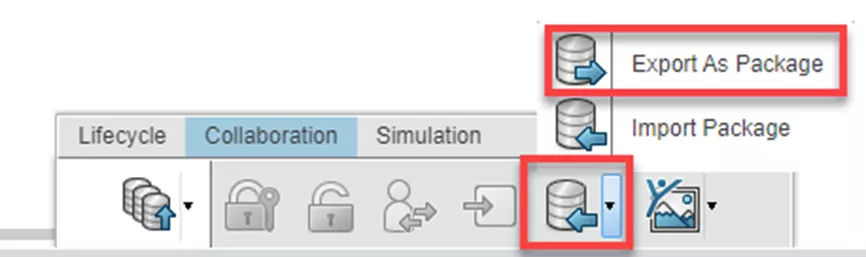
- Inside the same 3DEXPERIENCE tab, navigate to the Collaboration tab and select Export as Package.
- This opens the Unified X-CAD Design Exchange app inside the right task pane. Review and configure…
- Files to include (Parts, Assemblies, Drawings)
- Read/Write Permissions for each individual file
- Destination
- Package Name
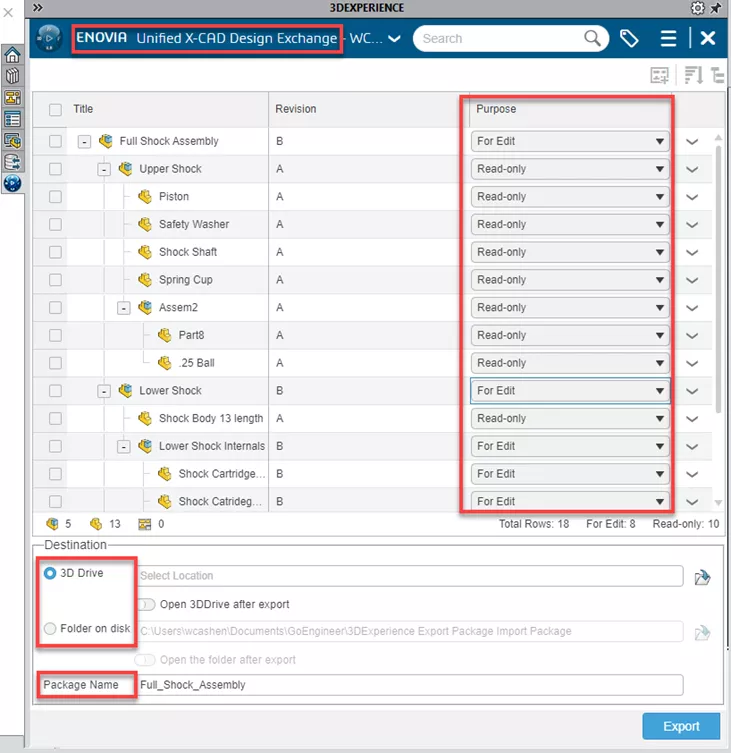
- Click Export and locate the .SLDPKG file locally or inside 3DDrive. (There’s an option when saving to directly open the save folder or the 3DDrive.)
- Share the package with the desired party.
External Users' Perspective & Process to Import and Make Changes
- Inside SOLIDWORKS, navigate to the right task pane, right-click on the 3DEXPERIENCE tab, and select Customize.
- Inside the window that popped up, turn on the tab called 3DEXPERIENCE Exchange. This tab will allow us to import the shared package into SOLIDWORKS. Things to note…
- If you do not see this as an option, you may need to download it from the SOLIDWORKS Free Downloads page.
- In the same location where the initial user exported the package, in the collaboration tab, you can import using the dropdown carrot.
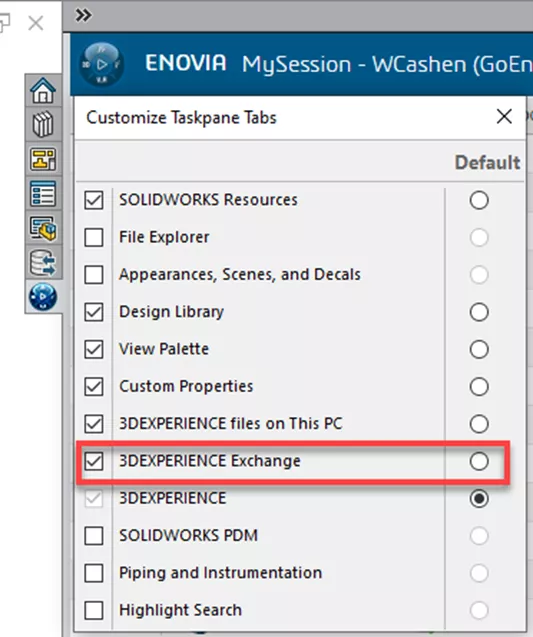
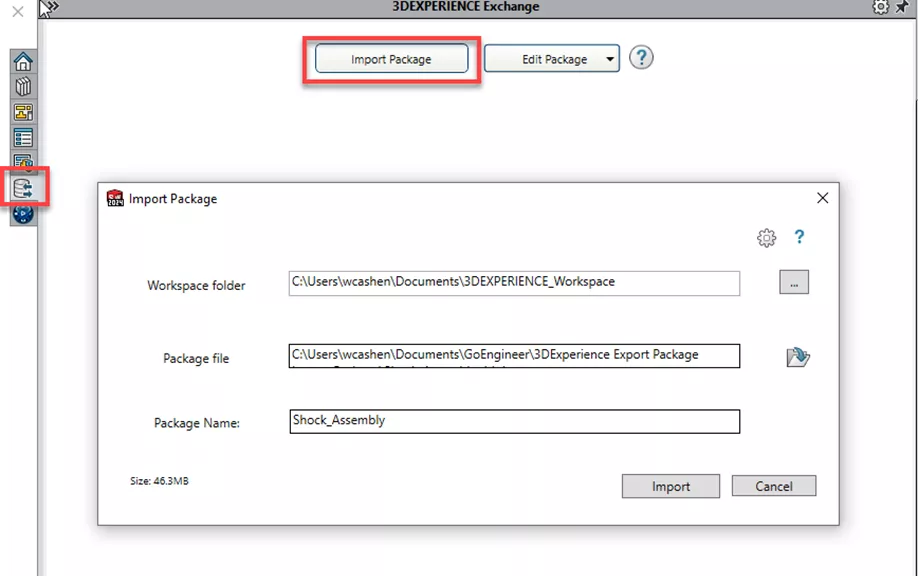
- Inside the 3DEXPERIENCE Exchange tab, click on Import Package. This will open a new window.
- Inside this window, the first line describes the cache/work location for the imported package. The second line is the imported file location; browse to find the shared package. Subsequently, the third line will read the Assembly Package Name. Once this looks correct, click Import.
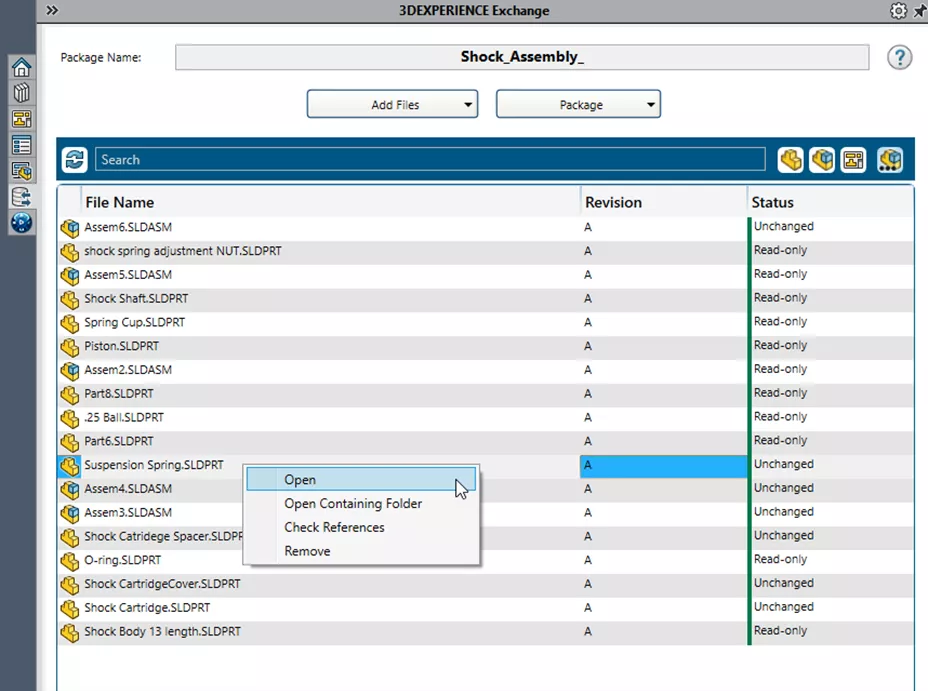
- The Exchange tab lists all the files included in the package with their respective Revision and Status (Read/Write Permissions).
- Right-clicking on a file will provide a list of options that are described here:
- Open – Open the selected File.
- Open Containing Folder – Opens the File Explorer Folder where the file is stored.
- Check References – Opens the Check for References dialogue box that finds references for the file and indicates the path.
- Remove – Removes files that you added to the package and deletes them from the workspace. (You can remove multiple with a Shift + select.)
- From here, you can make changes as required.
- After you’re done editing, navigate back to the Exchange tab and select the top menu option Package. A drop-down menu will appear with the following options:
- Close – Closes the active package.
- Rename – Highlights the Package Name Field for renaming capability.
- Export – Opens the export package dialog to send back a .SLDPKG file to the owner of the share.
- Delete – Deletes the entire package from your Workspace Folder.
- Select Export. This will open another window displaying whether a file has been modified. Click on Export again.
- Share back to the initial user.
Reimporting a Package & Saving
- Inside SOLIDWORKS, navigate to the 3DEXPERIENCE tab.
- At the bottom, select the Collaboration tab and find the dropdown menu for exporting/importing packages. Choose Import Package and locate the shared updated package.
- This will open the Unified X-CAD Design Exchange. Inside this window, it will display:
- Filename
- Revision
- 3DEXPERIENCE Status – Describes whether the file exists on the platform.
- Supplier Status – Describes whether the file is new to the package, unchanged, or modified.
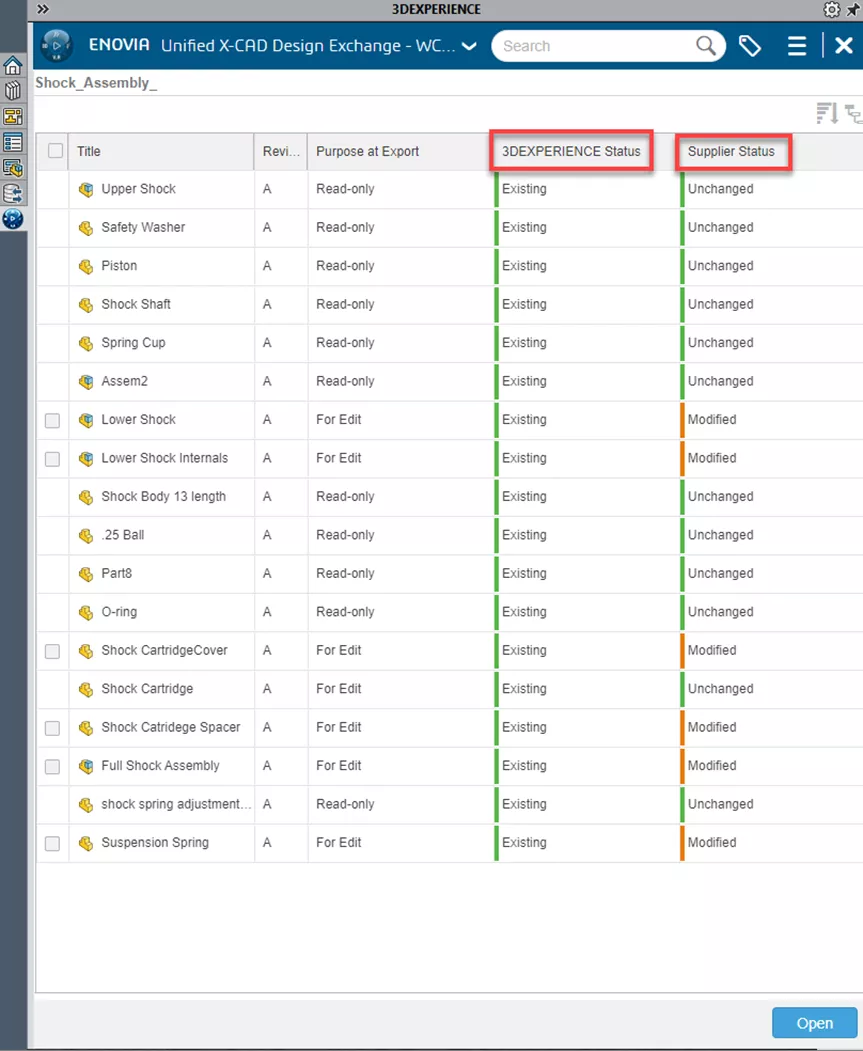
- Select Open at the bottom of the window.
- Inside the 3DEXPERIENCE tab in the task pane, drop down the top ENOVIA bar and select MySession. This will bring us back to the PLM view.

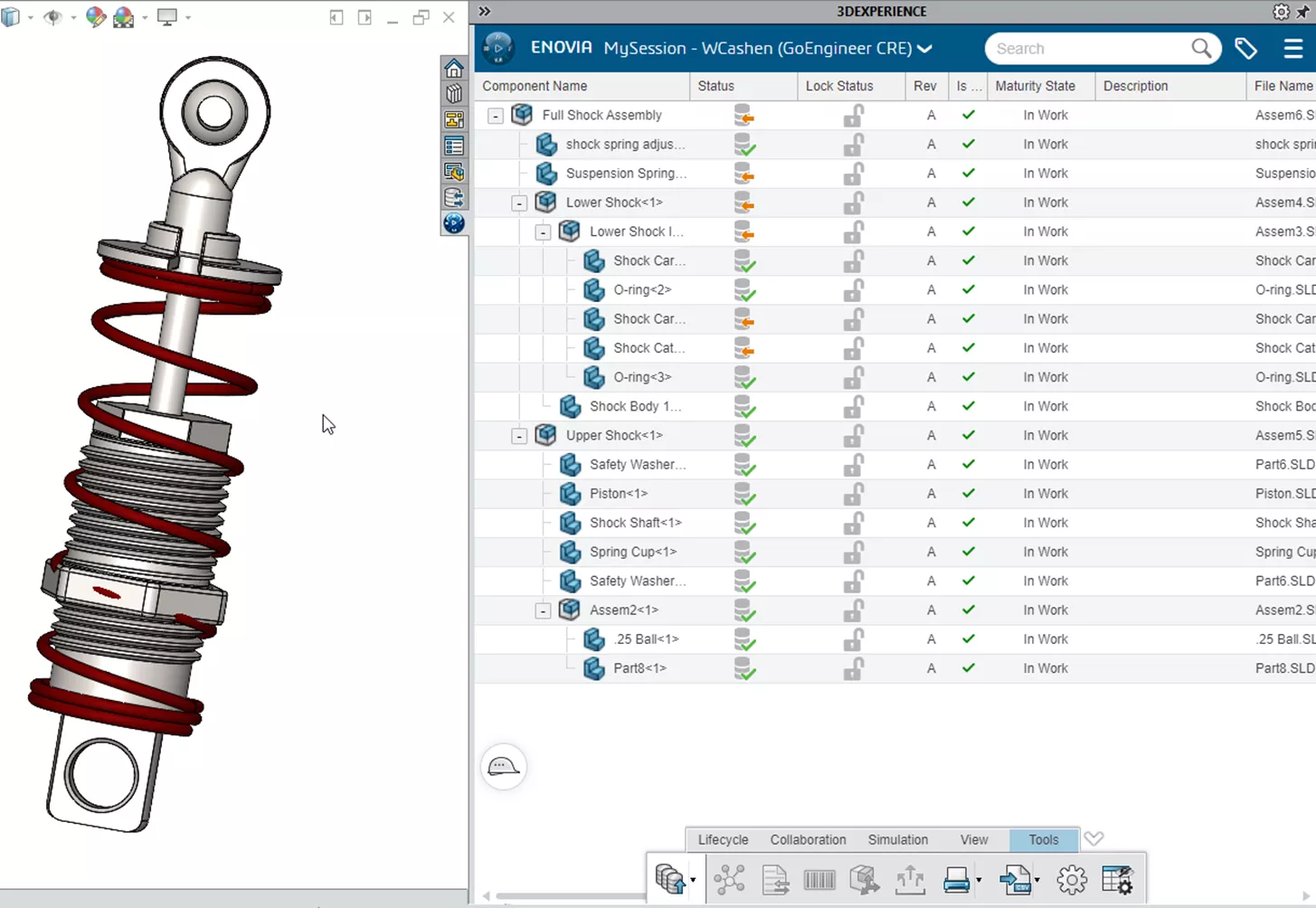
- In the status column, are stacked puck symbols with a green check or an orange outlined arrow. The green represents that it's saved and up to date. The orange indicates that a change to the file that exists in the package.
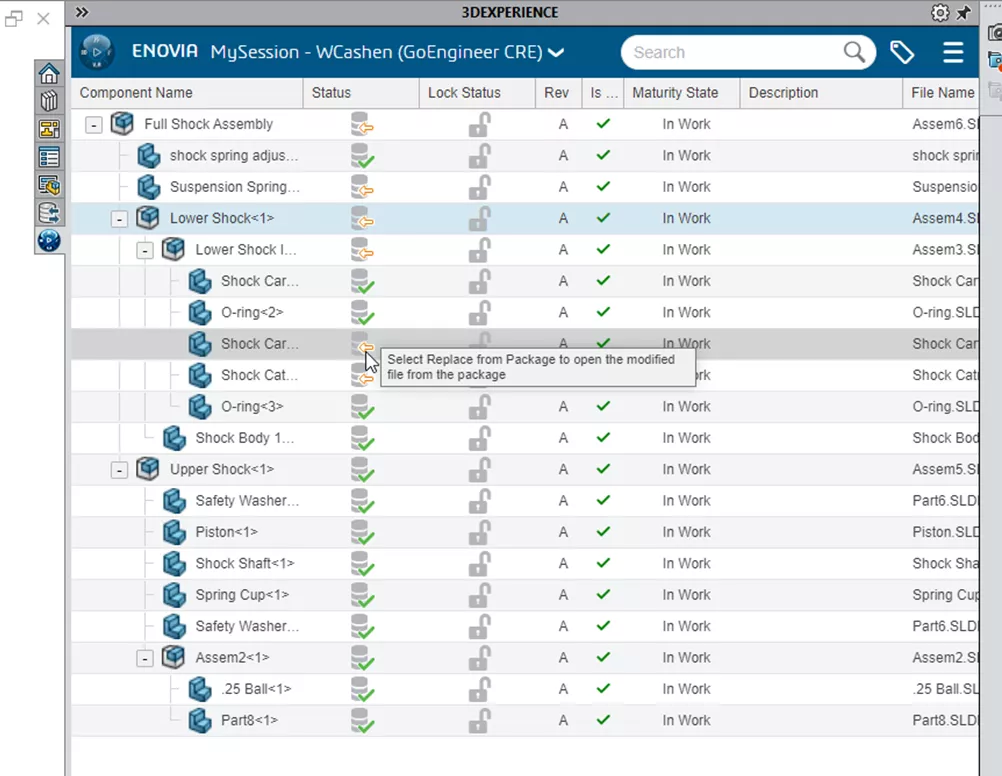
- To see the change inside the opened model, right-click the changed file in the MySession Pane. Inside the menu, click Replace from Package.
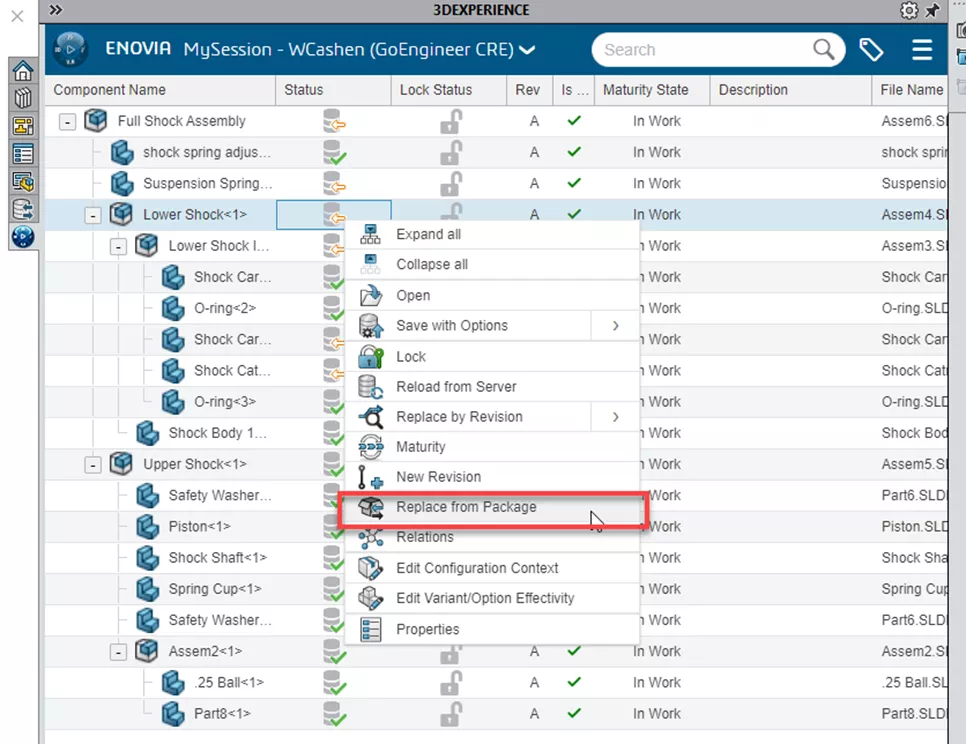
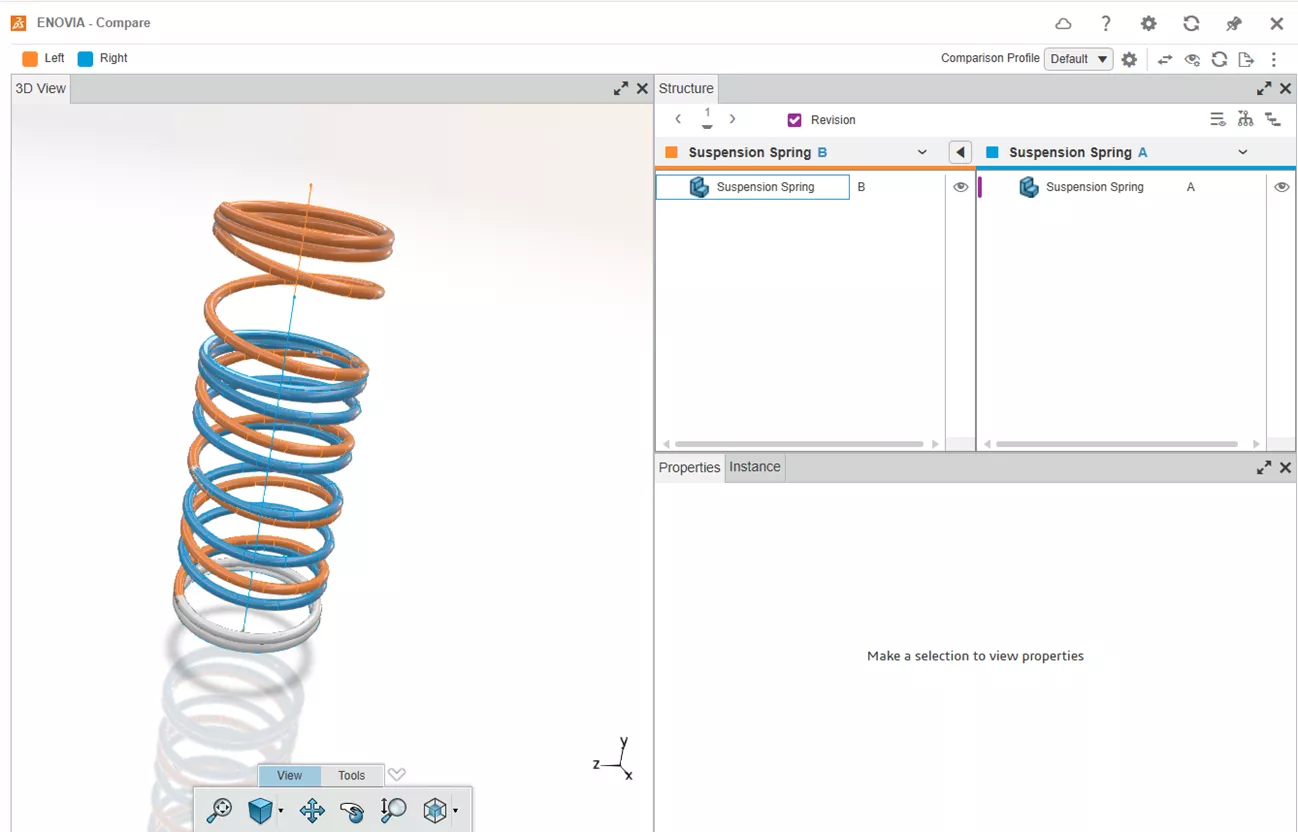
- Once it has been replaced and the model has been rebuilt, the orange arrow will switch from outlined to solid orange. You can choose to save and upload this to the platform, or if the changes do not fulfill requirements, you can reload the part from the server and revert the changes made.
- You're all set!
Wrapping Up Packages
With the Export as Package workflow, SOLIDWORKS and 3DEXPERIENCE users gain a powerful, controlled mechanism for collaborative design and review cycles. The process is highly configurable, transparent, and ideal for projects needing secure, traceable, multi-party interaction, supporting modern engineering workflows with ease.
Want to learn more? Check out more tips and tutorials listed below or on our 3DEXPERIENCE YouTube Channel. Additionally, join the GoEngineer Community, where you can create forum posts, design contests, and answer questions from other SOLIDWORKS and 3DEXPERIENCE platform users.
Related Articles
CAD Families, Physical Products, and Representations: What They Are & When to Use Them
Preventing 3DEXPERIENCE Lockouts
Show Only the Latest Revision in 3DEXPERIENCE Searches
SOLIDWORKS 2026 & 3DEXPERIENCE Collaboration - What's New

About Will Cashen
Will Cashen is a SOLIDWORKS Applications Engineer at GoEngineer.
Get our wide array of technical resources delivered right to your inbox.
Unsubscribe at any time.