SOLIDWORKS Custom Property for Monitoring Surface Area

In a previous blog post, Using Sensors to Monitor Surface Area, I had the idea of using SOLIDWORKS Sensors to track the surface area of certain exposed faces of a guide rail assembly. I would then use this surface area information to determine how much stain I would need to apply two coats to my guide rail. Furthermore, if my design dimensions changed, my surface area sensor would immediately update, and I could quickly (and more accurately) figure out the new amount of stain required. The process was as simple as using the Measure tool, selecting all exposed faces, and then using the Create Sensor option within the Measure tool window. This would then track my surface area.
Since that blog post, people have asked, "How can I do this, and include this information as a Custom Property?" This would make it easy to track the information from an external system. The problem is that these sensor results are not available for use as Custom Properties. There is an option for the SOLIDWORKS special property, SW-Surface Area, but this calculates the total surface area of the entire solid body. And, to make matters worse, the SW-Surface Area special property does not work for surface bodies. So that is why I set out to figure out how to get selected surface area results set up as a Custom Property.
Extracting Surfaces
After creating a configuration, the first step in this workaround is extracting all the faces from which you're trying to calculate the surface area. For this example, I’m looking to extract all the turquoise-colored faces of the motor below. I want to calculate the total surface area of all the surfaces that will get painted.
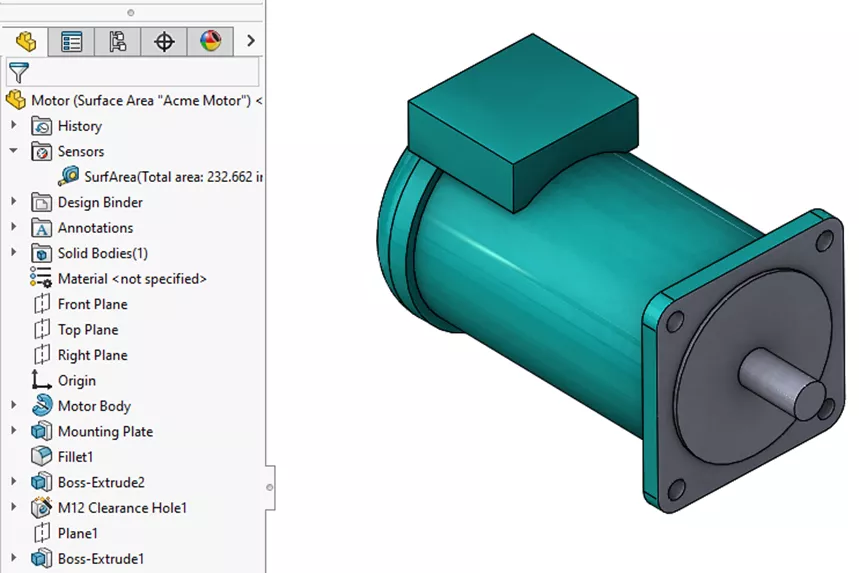
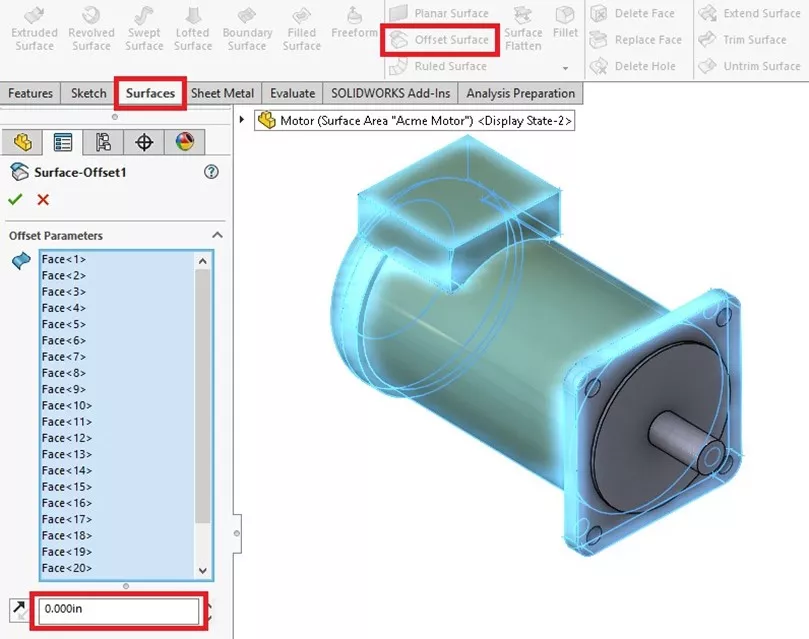
We can accomplish this using the Offset Surface command on the Surfaces tab/toolbar. In the PropertyManager, select the desired face. Here, after setting a 0.000 in. offset distance, I'll hit OK and get a single surface body that represents the area of the surfaces that I want painted.
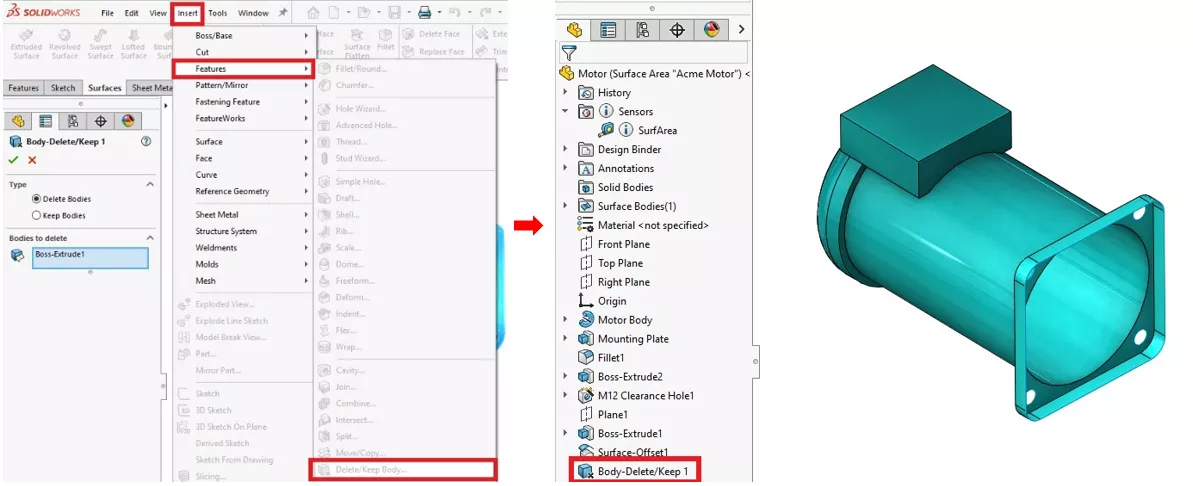
After creating the surface body, I then need to delete the solid body for this configuration. This is important because I don’t want it to interfere with my surface area calculation. The Delete/Keep Bodies feature, located under the Insert > Features pull-down menu, is used to accomplish this.
Calculating Surface Area
Once I have my surface body, I can use the Thicken feature on the Surfaces toolbar (to get back to a solid body). But the key is to make sure the thickness value is as small as possible. This is done so that the wall faces of the thickened body actually become negligible in the total surface area calculation.
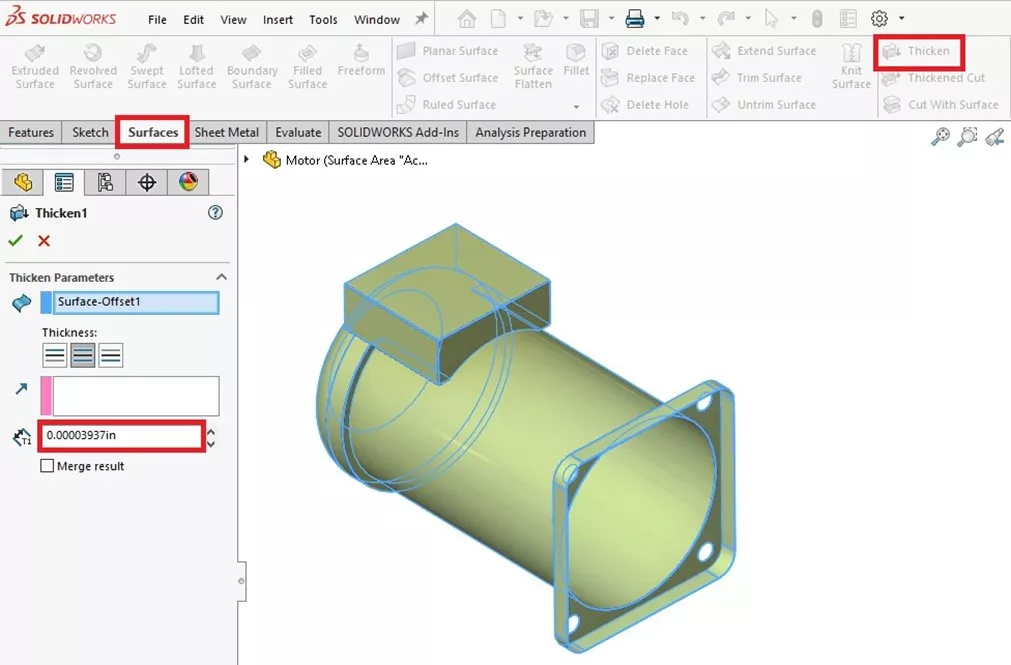
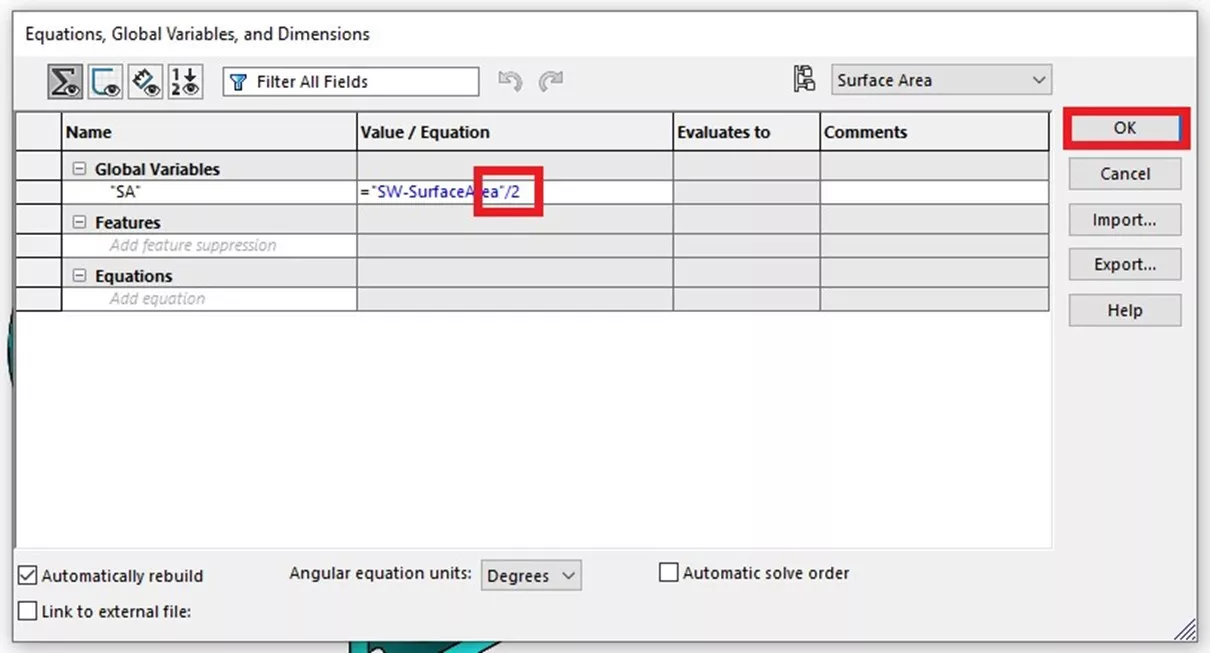
Now, to get the surface area of just the turquoise-colored faces as seen in my first image, I will set up an equation and take the total surface area of this newly created body and divide by two. With my wall thickness set so small, I can pretty much ignore the surface area of this thickened region. This area is negligible, and I have found that it only differs by about a thousandth of a square inch.
To create an equation, use the Equations editor found under the Tools pull-down menu. Here, I created a global variable called SA. In the Value/Expression column, I start the equation by selecting the SW-SurfaceArea property from the File Properties pull-down menu. This, again, is the total surface area of the whole solid body, including the inside and outside surface areas.
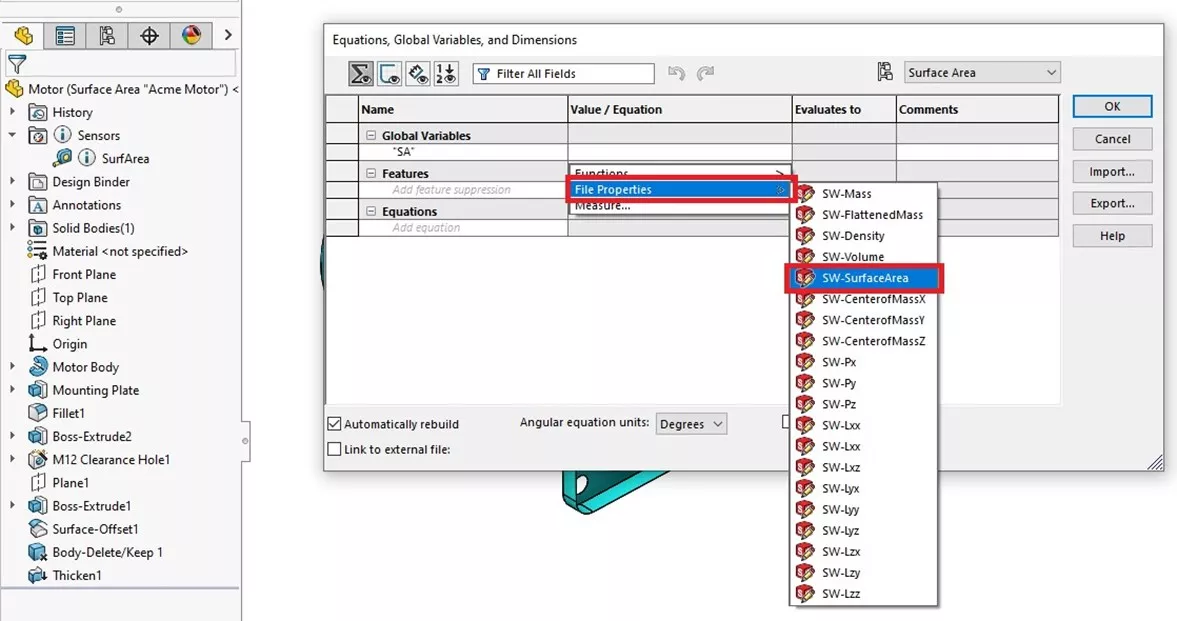
Next, I will complete the equation by typing / 2 and clicking OK. This will then evaluate to 232.663 in^2
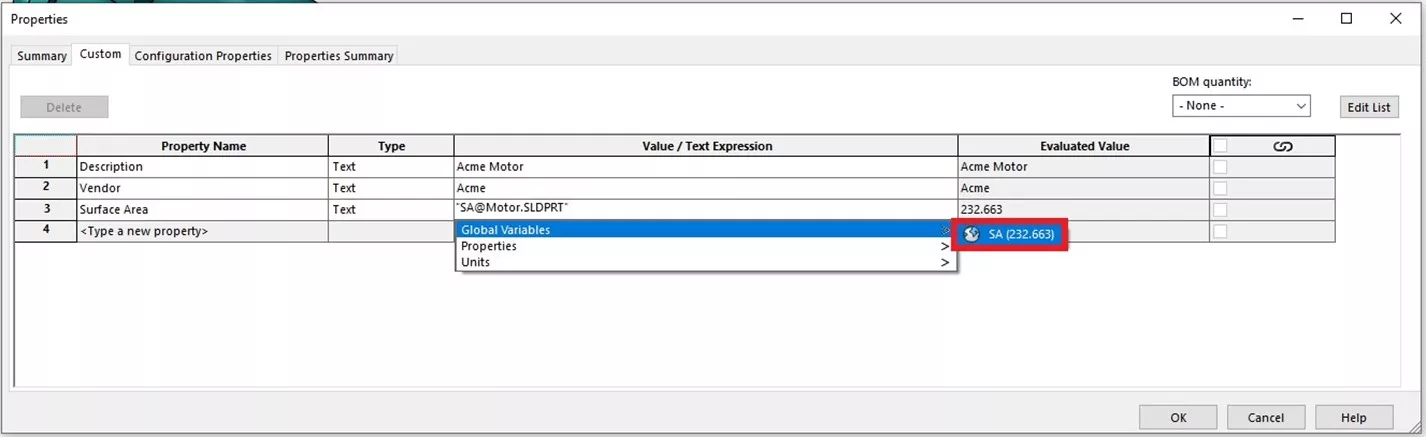
At this point, we now have a global variable that can be added to our Custom Properties, which can then be used in title blocks, Bill of Materials, or Data Cards within SOLIDWORKS PDM.
Conclusion
I now have the surface area of just the turquoise-colored faces, and can include that information in my Custom PropertyManager. The total coverage for one motor is approximately 232 in^2, and, upon multiplying that by the total number of motors, I can get the total amount of paint needed for this project. This workaround is also great for those looking to extract the surface area of one side of their sheet metal parts. This was another request I received that utilizes this same process.
So, if you are having any challenges of your own and you’d like help with a workaround, let us know, and one of our expert SOLIDWORKS Application Engineers will provide assistance. We’d be happy to help in one of GoEngineer’s Application Mentoring Sessions.
I hope you found this guide for creating a SOLIDWORKS Custom Property for monitoring surface area helpful. Check out more tutorials below. Additionally, check out the GoEngineer Community, where you can create forum posts, enter design contests, and answer questions from other SOLIDWORKS users.
SOLIDWORKS CAD Cheat Sheet
SHORTCUTS ⋅ MOUSE GESTURES ⋅ HOT KEYS
Our SOLIDWORKS CAD Cheat Sheet, featuring over 90 tips and tricks, will help speed up your process.

Related Articles
SOLIDWORKS Assembly Mirroring for In-Context Parts
Being Flexible with the SOLIDWORKS Flex Feature
Why Are My Centerlines Solid in SOLIDWORKS?
AI in SOLIDWORKS: What It Is (and What It Isn’t)
Change Slot Orientation Using SOLIDWORKS Hole Wizard Feature

About Ken LaVictor
Ken LaVictor is a Sr. Application Engineer based out of Pleasant Ridge, MI. He earned his BSME, as well as his Master's of Science degree in Systems Engineering. Since joining the VAR channel in 2004, Ken has earned his Elite AE, SOLIDWORK Expert, and Simulation Expert certifications. In addition to supporting sales, Ken also teaches the SOLIDWORKS and Simulation training courses, assists with technical support, and conducts Application Mentoring Sessions (AMS).
Get our wide array of technical resources delivered right to your inbox.
Unsubscribe at any time.