Using Symmetry in SOLIDWORKS Simulation Studies

Symmetry is a useful tool in SOLIDWORKS Simulation that has many benefits. Some of these include cutting down on the applied fixtures and loads in the study, which in turn cuts down on the used resources and allows the study to be solved in much faster run times. This also helps with improving study accuracy.
If you are working with models that can be created or designed using symmetry (like mirroring), the same applies to studies in Simulation. However, when involving simulation, it’s not just the geometry that is applied on the symmetric sides; the fixtures, restraints, loads, and material properties will also be applied.
For models that are axisymmetric, there are two options: the basic symmetry fixture and cyclic symmetry. You will only want to use basic symmetry if the applied loads are going to be acting radially (e.g., pressure inside a tank). If the loads are tangential, the cyclic symmetry tool will need to be used instead. In either case, the wedge cut will need to be an angle that is divisible by 360° (but don't use too small of a wedge, or it may result in a poor mesh quality).
Symmetry
Symmetry can be applied in many different simulation studies; however, it isn't recommended to use symmetry in Buckling or Frequency studies.
To reduce computation time, symmetry can be used about planes, simplifying the model down to half, quarter, or even eighths.
Here is an example of a model that I cut into a quarter using the Cut with Surface tool, using the Right and Top planes. This model could have even been cut again into eighths using the Front plane.
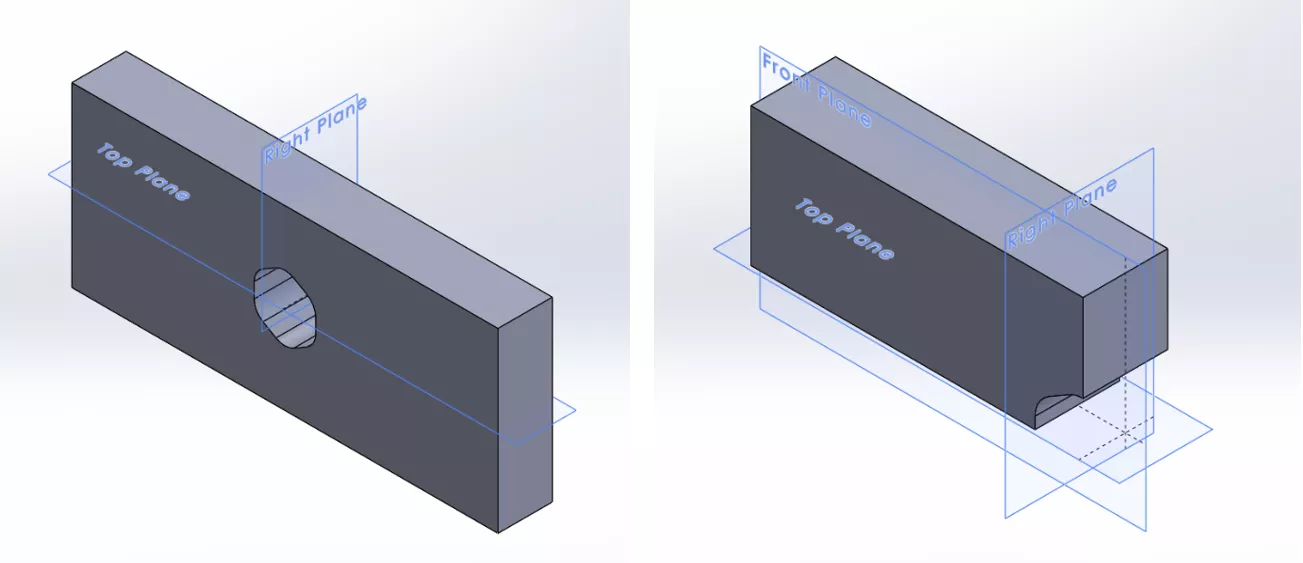
After getting the model into its proper sections, we can start on the study.
Before you add in the fixtures, loads, and restraints, remember that these will also apply to the other mirrored areas.
To apply symmetry to the study, right-click on Fixtures and select Advanced Fixtures. From here, choose Symmetry and select all the faces in the model where the symmetry occurs.
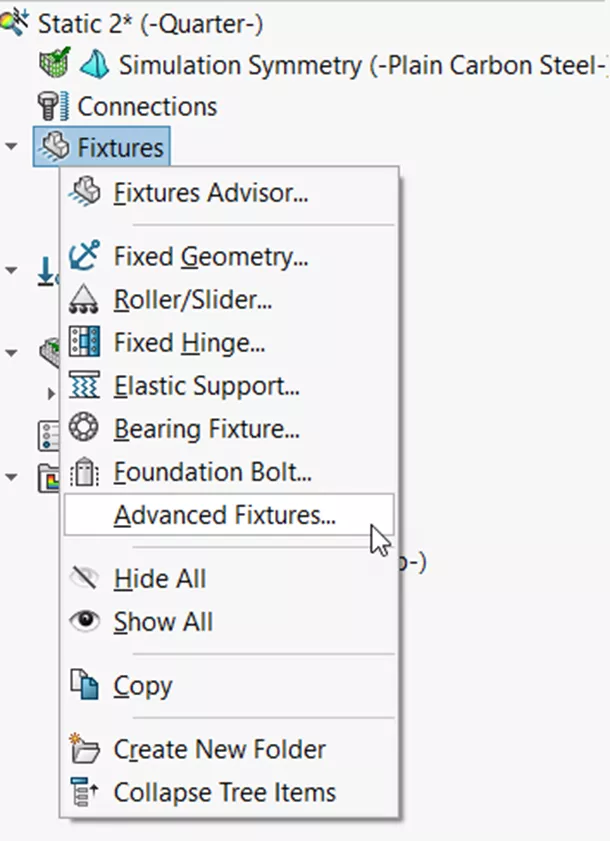
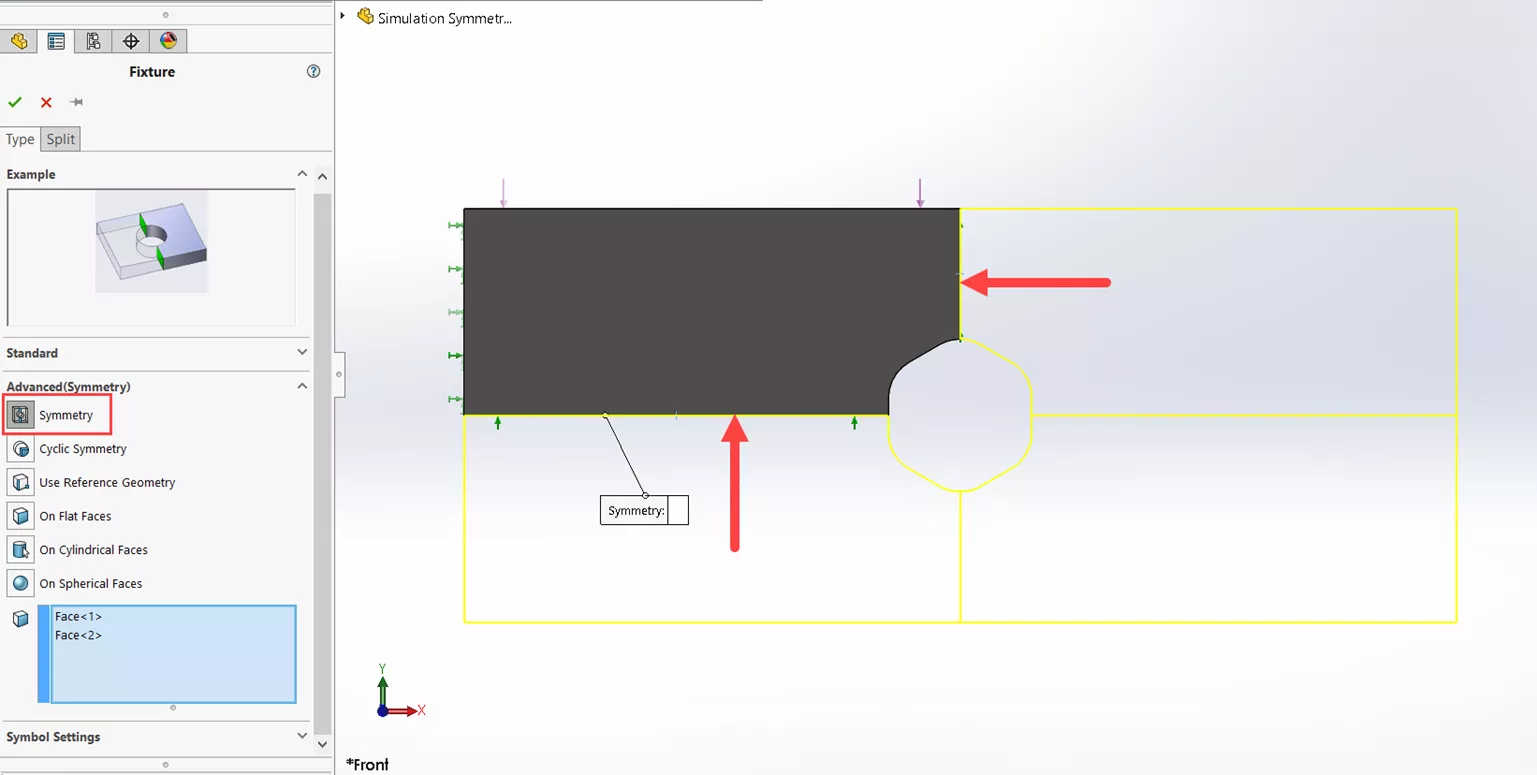
Once complete, the study can be meshed and ran.
Cyclic Symmetry
Cyclic Symmetry is used for axisymmetric models. Similarly to Symmetry, the fixtures, loads, and restraints must be the same for all the segments. Cyclic Symmetry can only be used for Static and Nonlinear studies.
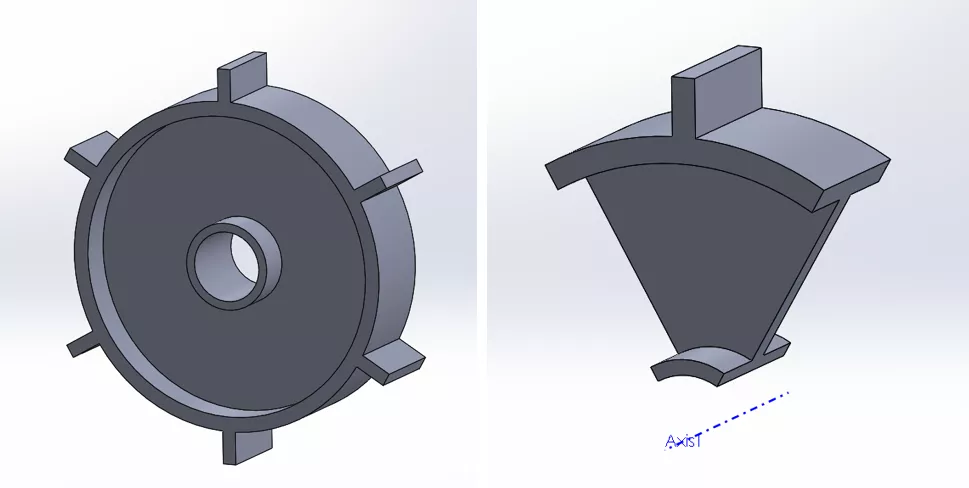
Here is an example of a model with 6 sections that are the same. I cut the part into a 60° section (360/6) and made sure to add a reference axis that can be used in the study.
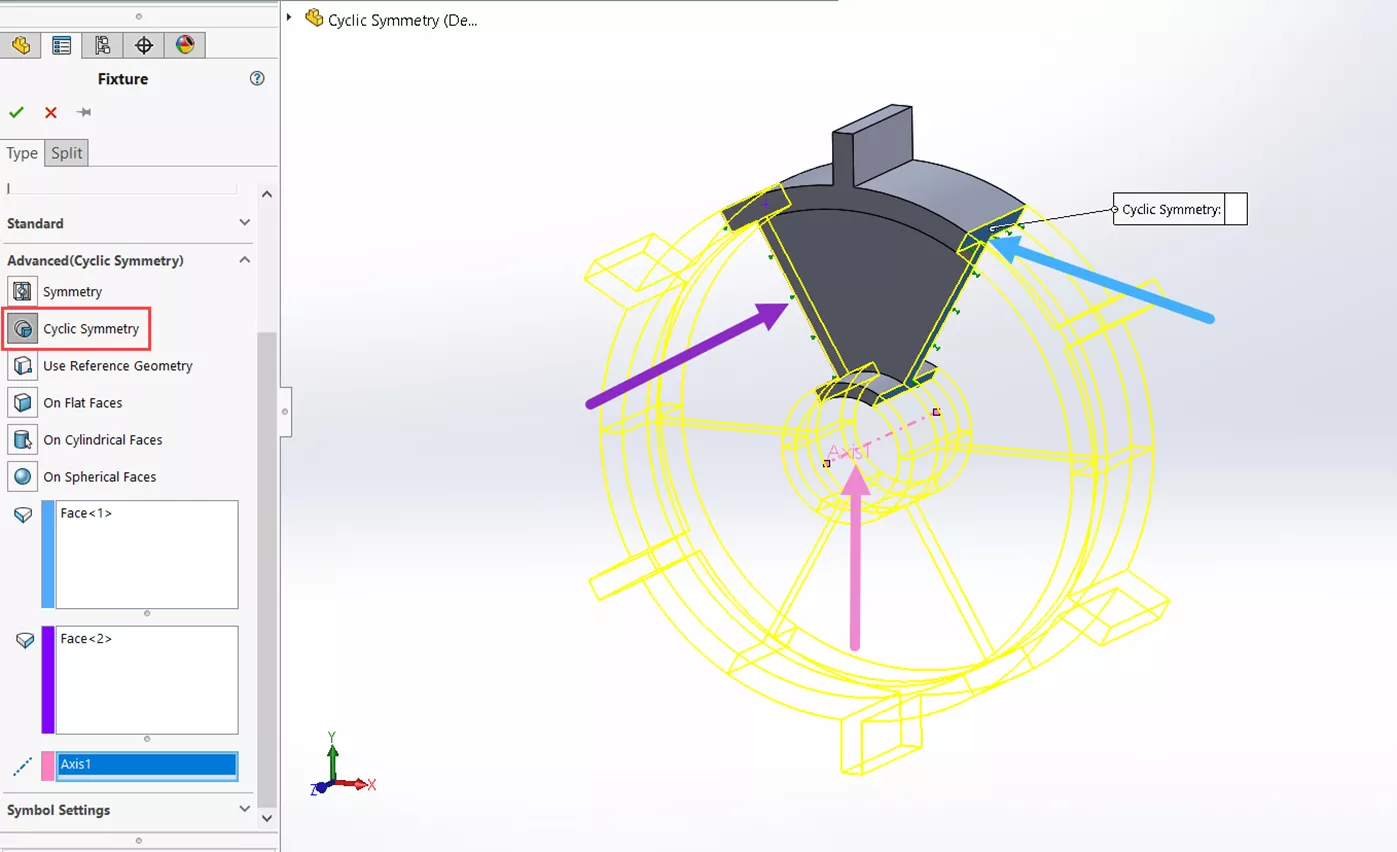
In the study, add the fixtures and loads. Cyclic Symmetry is also found in Fixtures > Advanced Fixtures. Three selections will need to be made for Cyclic Symmetry: a starting face, an ending face, and an axis.
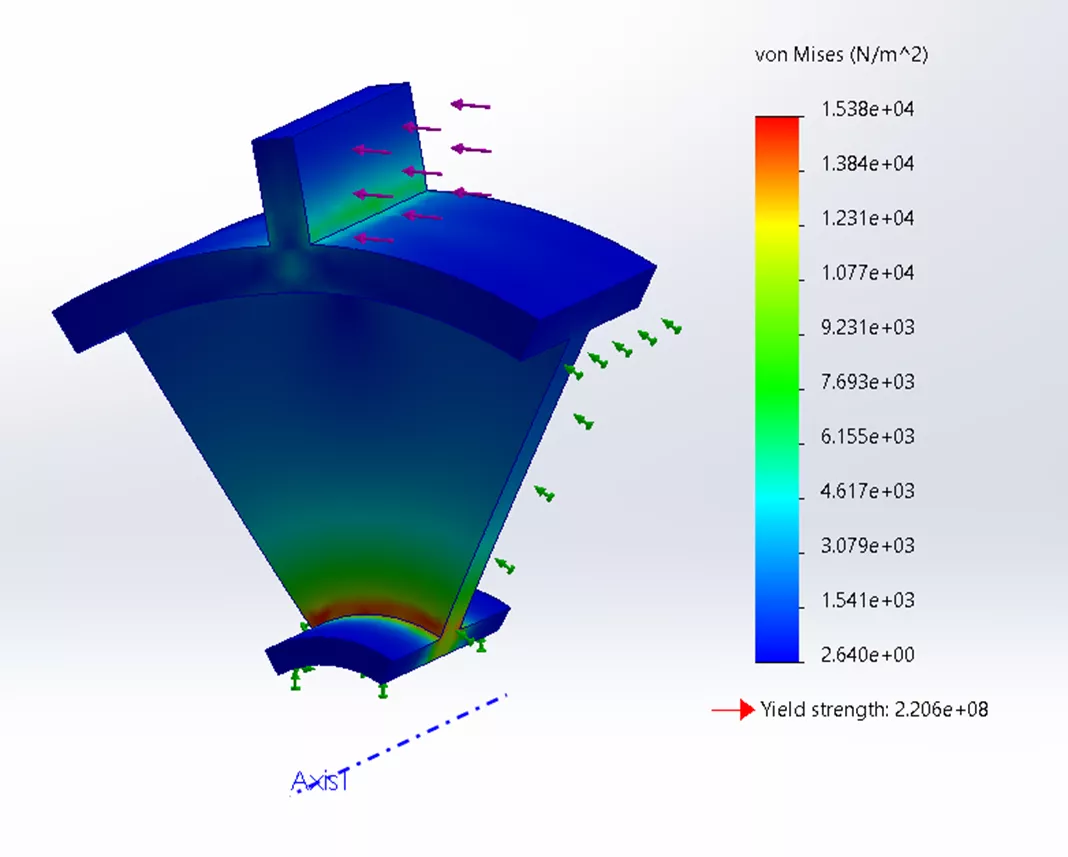
Once everything is set up, the study can now be meshed and ran.
Viewing Full Model Results
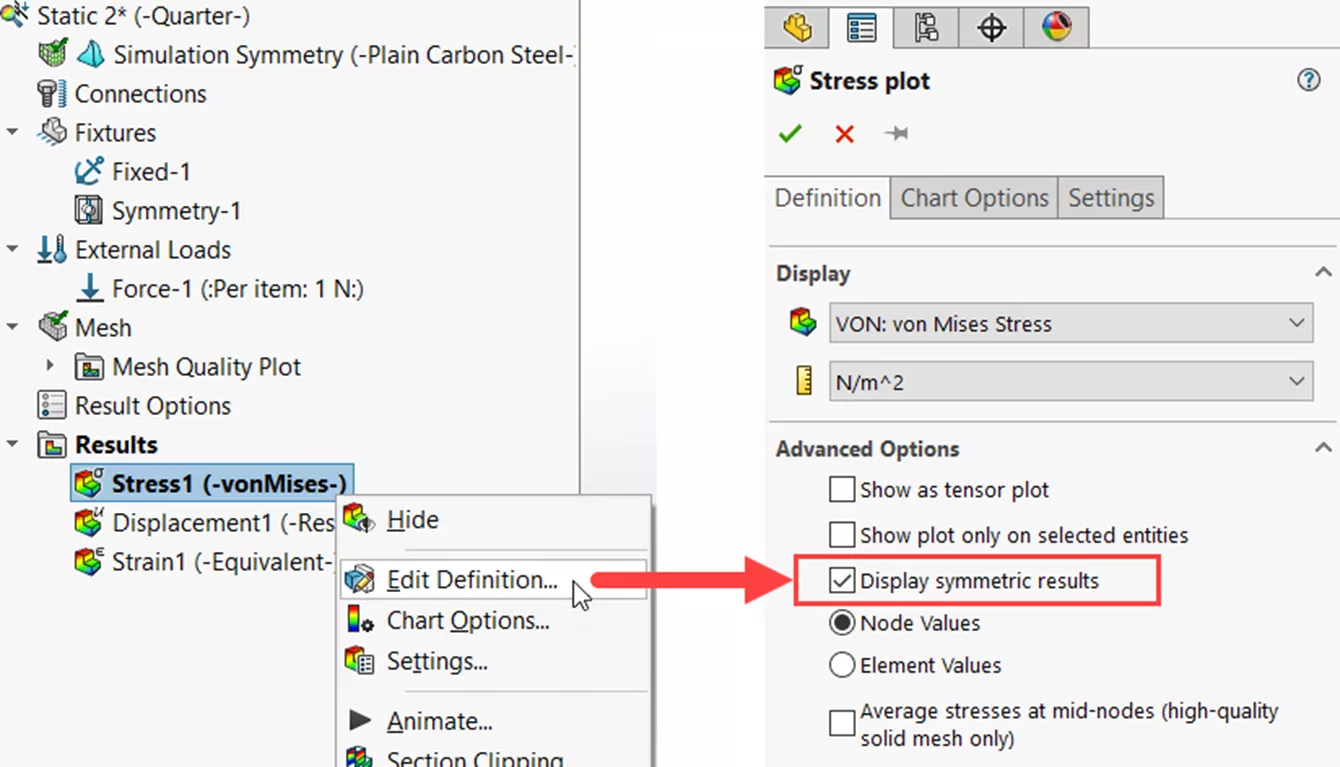
Once the study is ran and you can see results for the section that was run, there is a way to view what the results look like for the whole model. To do this, show which result you’d like to view, right-click, and select Edit Definition.
In the Definition tab under Advanced Options, check Display symmetric results. From here, you can analyze the results as you would any other study.
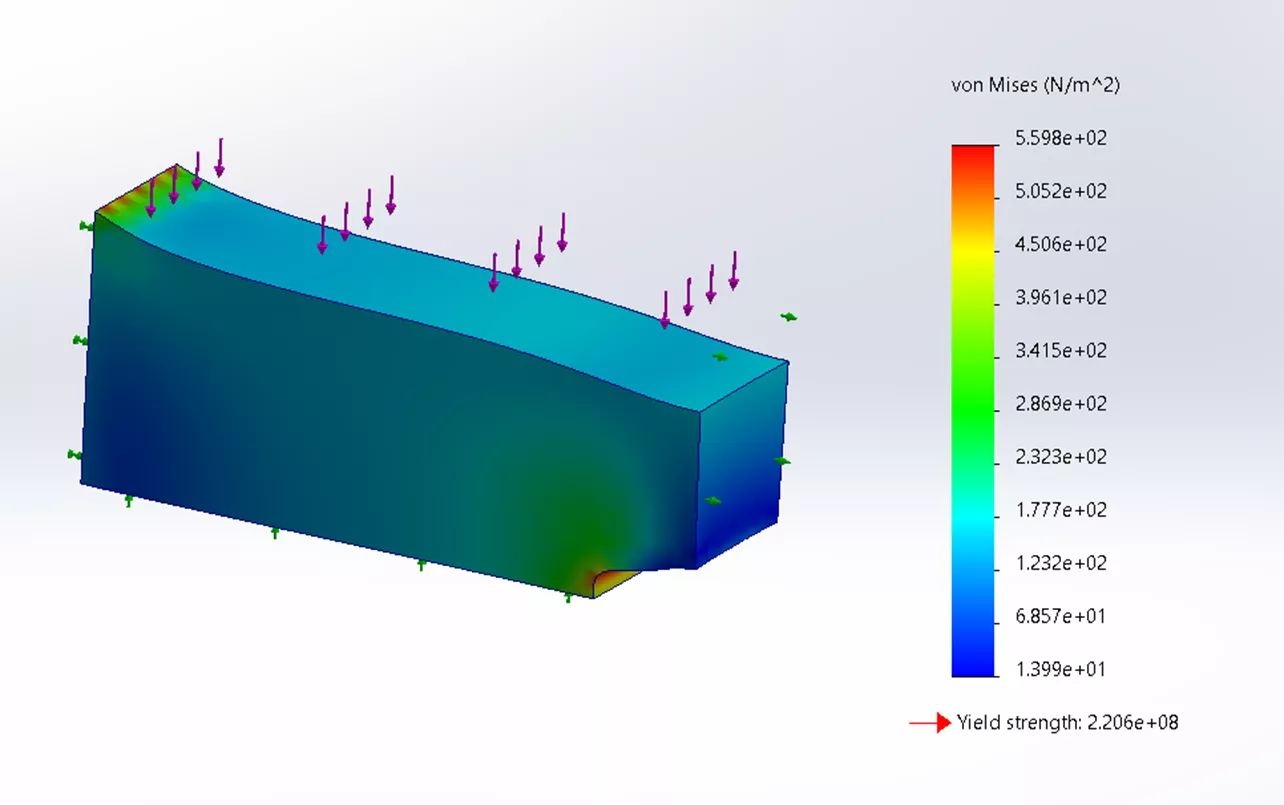
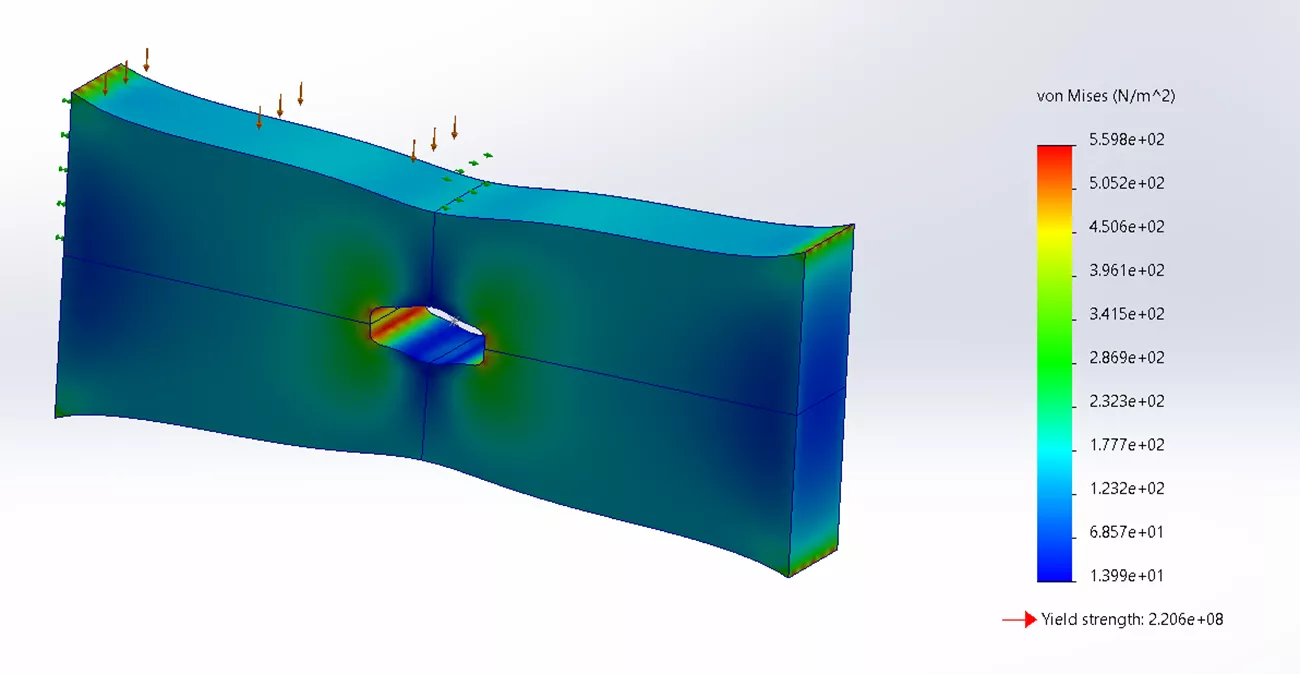
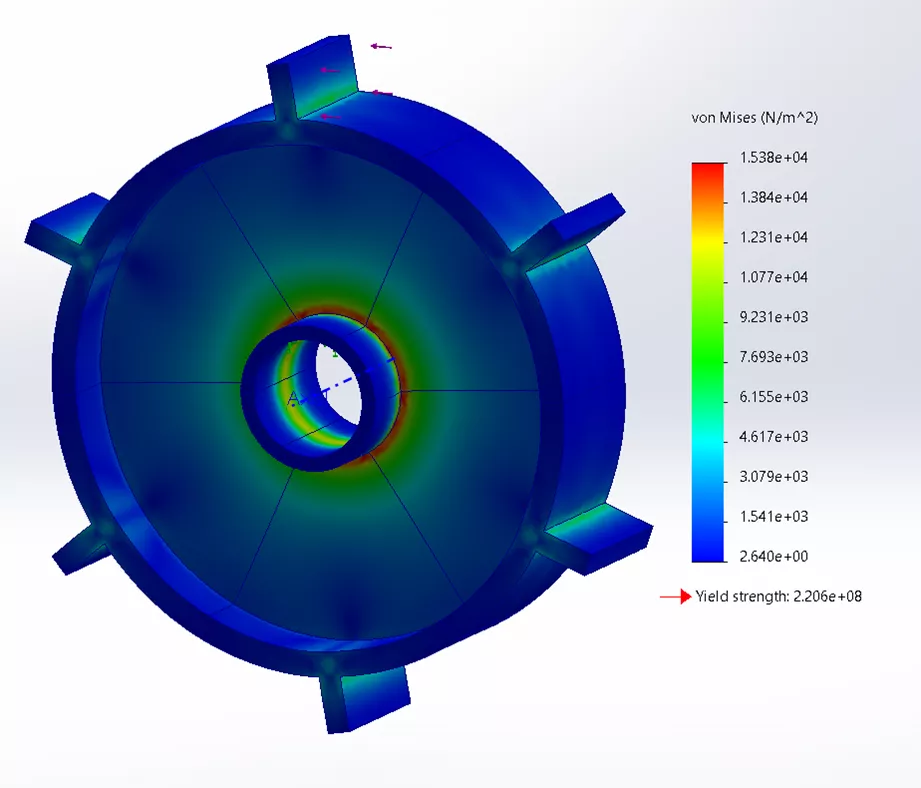
The images below display what the stress results are for the two symmetry examples discussed above.
Symmetry Example:
Cyclic Symmetry Example:
By applying the right symmetry techniques in SOLIDWORKS Simulation, you can optimize your simulations and achieve quicker, more reliable results. To deepen your understanding of this powerful tool, explore additional resources and tutorials below.
Related Articles
Color Accuracy in SOLIDWORKS Simulation Result Plots
SOLIDWORKS Impact from Beginning to End
SOLIDWORKS Thermal Stress From Beginning to End
SOLIDWORKS Simulation Degrees of Freedom and Fixtures

About Tashayla Openshaw
Tashayla Openshaw is a SOLIDWORKS Technical Support Engineer based out of our Headquarters in Salt Lake City, Utah. She earned her Bachelor’s degree in Mechanical Engineering from the University of Utah in 2018 and has been part of the GoEngineer family since February 2019.
Get our wide array of technical resources delivered right to your inbox.
Unsubscribe at any time.