Troubleshooting SOLIDWORKS PDM Notifications

If you use SOLIDWORKS PDM, you likely receive notifications, through the database or through email, about file activity in the vault. SOLIDWORKS PDM notifications are often a crucial part of document management and the lifecycle of a project. As such, it’s important that they work correctly. Among many other things, notifications are managed by the Database Server Service. Whether you’re using built-in notifications or SMTP, a healthy database service is the cornerstone of functional notifications.
Narrowing Down the Issue
Identifying error messages and reviewing the system functions can help identify where things might be going wrong. Here are a few places you can look.
Test notifications
- In the PDM Administration tool, log into the vault.
- Open the Mail System settings.
- Go to the SMTP Settings tab.
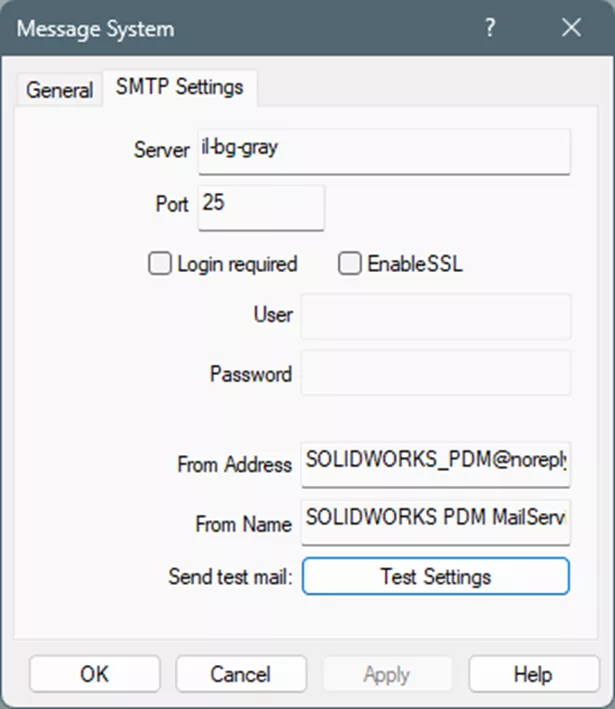
- Click the Test Settings button and enter an email to send a test notification to.
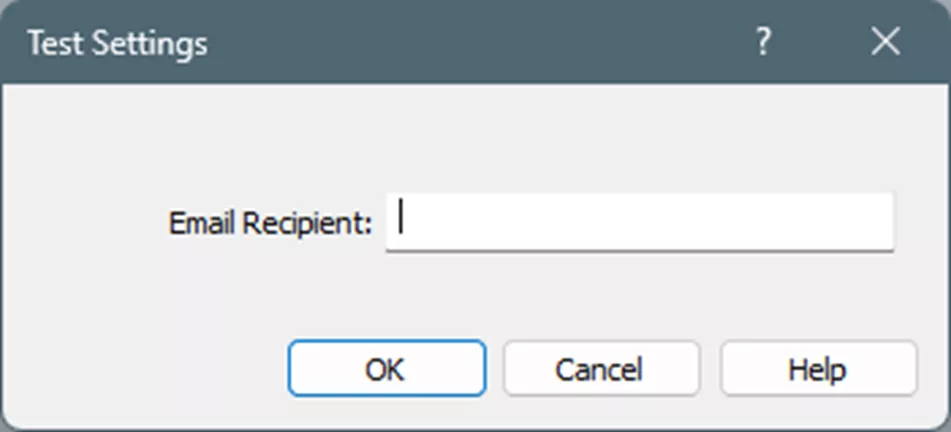
- If you receive a Server not found error, the server it’s referring to is actually the database server. You’ll want to review the configuration once more in the section above.
- If you receive an error with a number code reference (usually a three-digit number (like 504 or 502) followed by other numbers separated by periods – “504 5.7.4”), this usually indicates an error sent directly from the SMTP server as a response to PDM attempting to connect to it. This is almost always something your IT team will need to address, because it’s generally a sign of security, whitelisting, or configuration changes being needed on your SMTP server.
Check the Event Viewer for Errors
- Restart the SOLIDWORKS PDM Database Server service.
- Open the Windows Event Viewer application.
- Expand Windows and select Applications.
- Review and resolve any errors for the server applications found on the list.
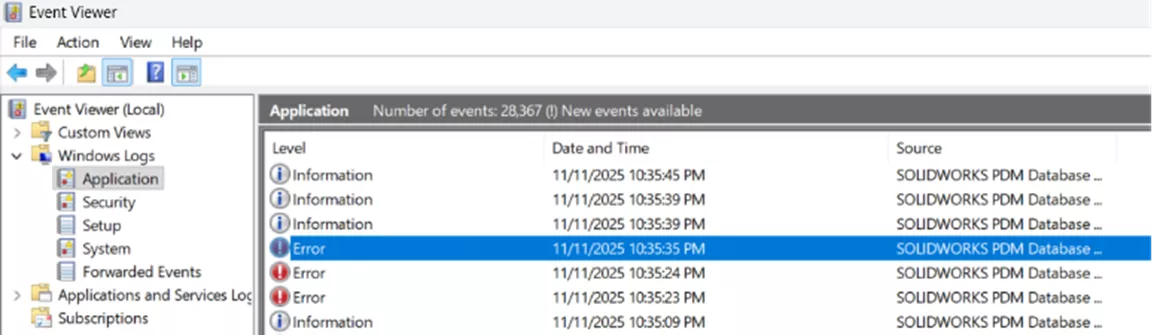
- Any errors found on this list are likely the cause of the service failing. Once you’ve addressed the issues called out by the errors, restart the Database and check for errors again.
- The most common error is "The owner SID on a per-user subscription doesn't exist." This is usually a sign that the database service or the registry is not configured correctly, and you should review your setup using the Configuration section below.
Review the DocumentActionInfo Table
When workflow notifications are triggered, they are generated and queued up in the database. They’re all housed in a table called dbo.DocumentActionInfo. Then the database service polls the table, and the message is sent to the SMTP server for delivery. Once a notification is sent to the SMTP server, it drops off the table.
Notifications are typically processed in batches of 100 items at a time, polled based on the polling interval (which defaults to 60 seconds). If things are working correctly, you should see the number of rows decrease. You can check whether notifications are generating at all, and whether they’re dropping off the table to identify where the fault in the process lies.
- Log into SQL Server Management Studio.
- From Object Explorer on the left, expand the database for the vault in question.
- Expand Tables and find dbo.DocumentActionInfo.
- Right-click the table and choose Select Top 1000 Rows.
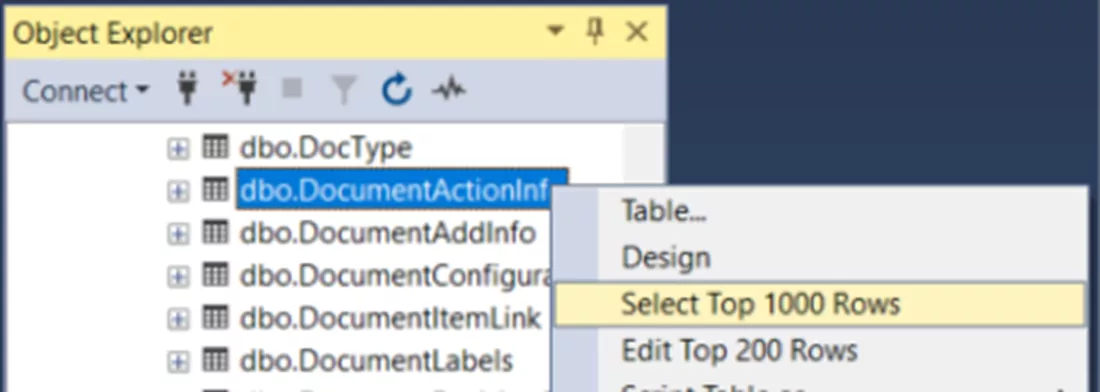
Once you’ve gotten access to the table, the best thing to do for testing is to trigger a workflow notification to see the process in action. This has to be a notification from the workflow (not the “test message” in admin or a “Notify…” message from the right-click menu in File Explorer). You also need the notification being generated to be addressed to someone other than the person triggering it (i.e., Admin cannot send a message to Admin). We usually recommend logging in as admin and generating a notification for your personal user in the vault.
We recommend having SSMS open while doing this because the process can move very quickly. Here’s how the process should go:
- Trigger a workflow notification.
- In SSMS, hit the Execute (green play button in the upper left) every 5-10 seconds to refresh the table as soon as the workflow transition containing the notification is triggered.
- The notification should populate into the DocumentActionInfo table within 10-15 seconds.
- If the notification populates into the table, it should then drop off within 30-60 seconds or so.
- If it drops off, it’s been sent to the SMTP server.
Here’s where this can go wrong:
- The notification doesn’t populate at all. If that happens, we recommend going through the configuration section below, as your Database Service is likely misconfigured or corrupt in some way.
- The notification comes in, but after a couple of minutes, it’s not dropping off. This is often due to an inability for the Database Service to communicate with SQL properly. That can be fixed by updating the ‘sa’ credentials in the Database Service Configuration tool or updating the MailServer registry. Both of these are explained in the configuration section below.
- The notification drops off the table, but the message doesn’t hit the user’s inbox. This indicates PDM is sending the message to the SMTP server, but the SMTP server is failing to deliver it to the user. You will need to work with your IT team to review the exchange logs on the server and identify why this might be. The issue is not on the PDM side. Once a notification is cleared from the DocumentActionInfo table, it has left the database completely, and there’s no further way to track it from PDM’s side.
When notifications aren’t sent out for a while, you can sometimes have several built-up entries in this table over time. If that number gets too high, the system can get “stuck” and notifications won’t send. Clearing out the prior notifications can help this. To do so, you’ll need to truncate the table.
Before doing this, be sure to take a backup of your database! You can find instructions for that here.
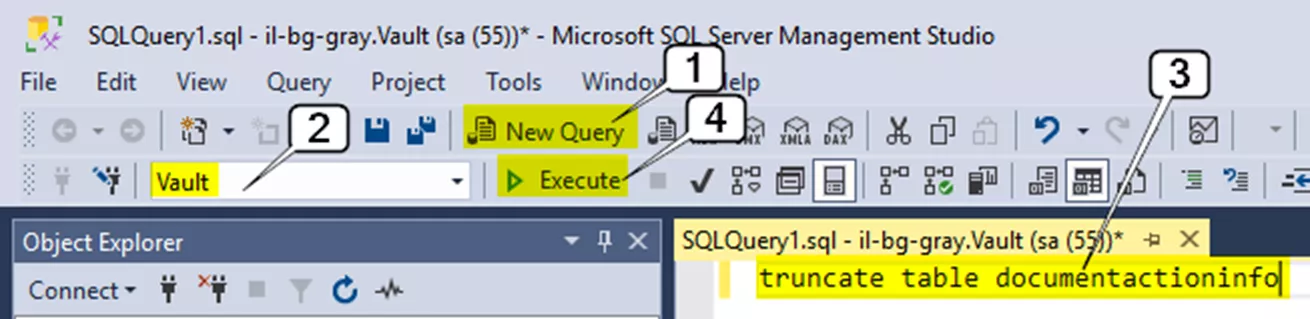
- Click New Query at the top of SSMS.
- Ensure the dropdown in the toolbar of SSMS is set to your vault’s database.
- Enter the following text in the query field: tuuncate table documentactioninfo
- Hit the Execute button.
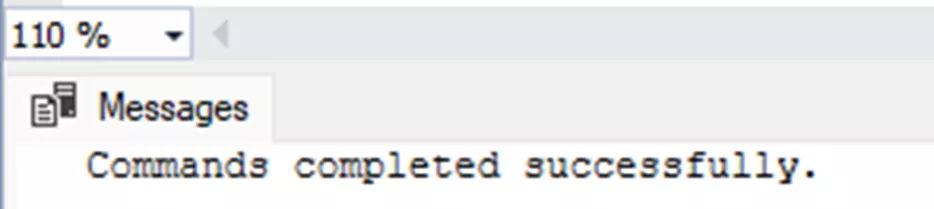
- You should receive a message in the results window saying it ran successfully.
Configuration
Most of the time, the notifications stop working because the system isn't configured properly. This is extremely common to see after an upgrade or changes to the PDM server/infrastructure. All of these troubleshooting steps will need to take place on the PDM server unless otherwise noted.
The Database Server Service
The database server service is a back-end component of the PDM server that powers a number of functions, including Notifications. If it’s not running or not on the right version, your notifications won’t send properly.
- Open the Windows Services application and look for the SOLIDWORKS PDM Database Server service.
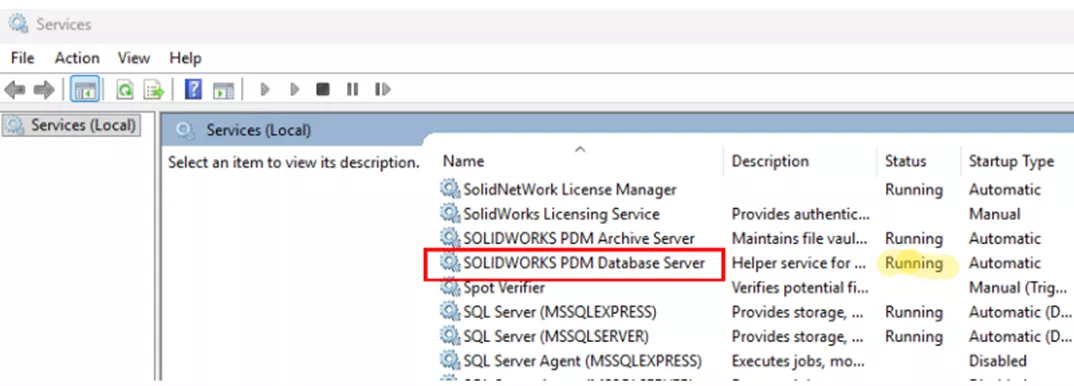
- If this service is not present, install it using the installation media for your version and service pack of PDM.
- If the service is present and not running, start it.
- Right-click the service > Properties. Take note of the Path to executable shown there.
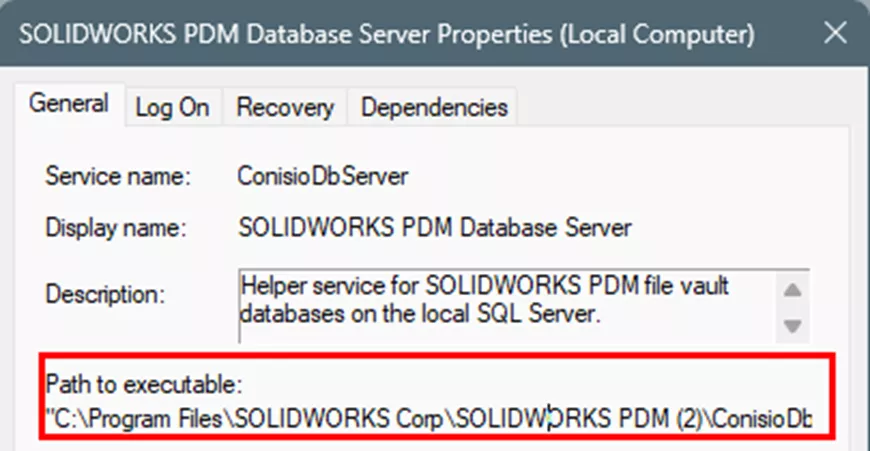
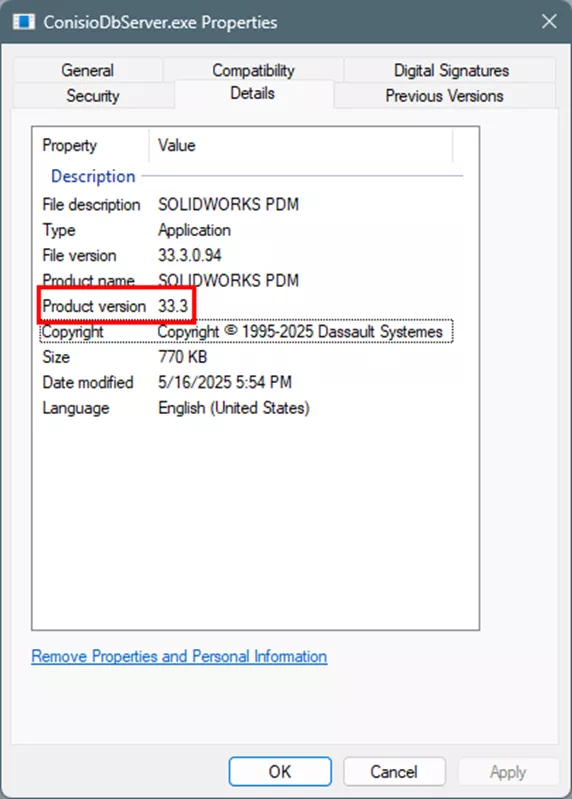
- In File Explorer, locate the Database Server Service executable (ConisioDbServer.exe) based on the path you found above.
- Right-click ConisioDbServer.exe > Properties. Go to the Details tab and locate the Product Version.
- Open the PDM Administration tool.
- Click the "?" button in the upper left to open the about information.
- Take note of the Build Number.
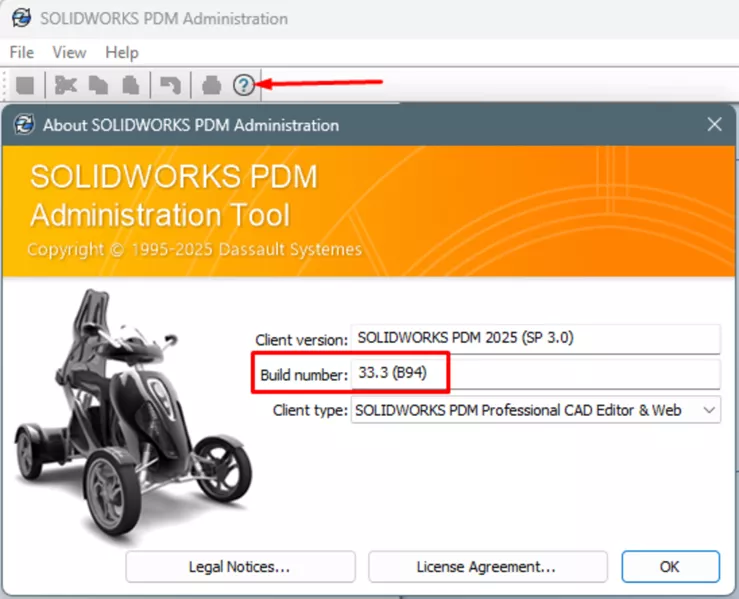
- In this example, the vault version is 33.3. The Database Service should also be 33.3. If these versions do not match, uninstall and reinstall the correct major year version of the SOLIDWORKS PDM Database Server product.
The ‘sa’ Password
SOLIDWORKS PDM uses a set of user credentials (usually the ‘sa’ user) to log into SQL and interface with it. If PDM doesn’t have the right credentials, it can interrupt functions in the vault. It’s always good to confirm the ‘sa’ password you have noted down is correct, and if so, to re-enter it in the Database Server Configuration tool.
- Open the SQL Server Management Studio (SSMS) on the SQL server for PDM.
- Log in as the ‘sa’ user.
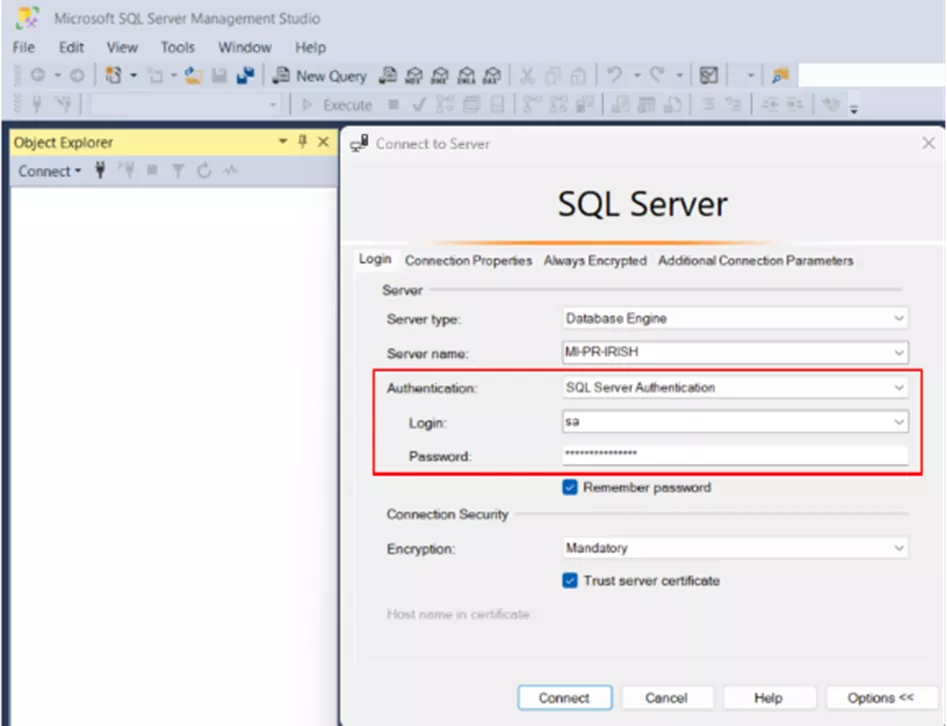
- In some cases, the ‘sa’ user password is wrong. If that’s the case, you’ll need to reset the password. You can find instructions for that in this guide: SOLIDWORKS PDM How to Reset the SQL ‘SA’ User Password.
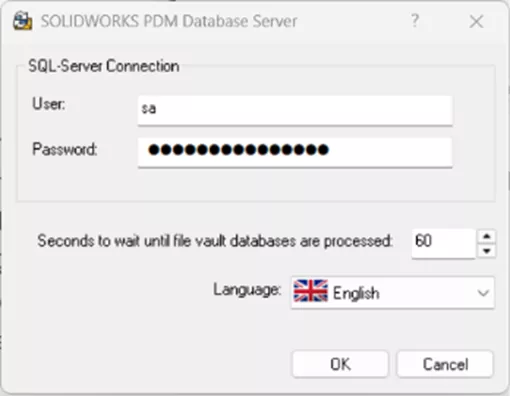
- Once you’ve confirmed that the password for the ‘sa’ login works to log into SSMS, you can re-enter it in the Database Server configuration tool.
- Open the Database Server Configuration tool. You can find it by searching ‘database’ from the Windows Start menu.
- Ensure you’ve confirmed the SQL ‘sa’ password by logging into SSMS with it, and then re-enter the same password here.
- Also, make sure that the wait time is not too high or low. This is the database polling time (the frequency PDM’s database service connects with the SQL database to grab new info), and the standard value is 60 seconds. It should not be lower than 30 seconds.
- Restart the SOLIDWORKS PDM Database Server service from the Windows Services menu.
MailService Registry
- Open the Microsoft Registry Editor.
- Navigate to this key: Computer\HKEY_LOCAL_MACHINE\SOFTWARE\SolidWorks\Applications\PDMWorks Enterprise\MailService.
- The Server needs to match the name found for the database in the SSMS exactly.
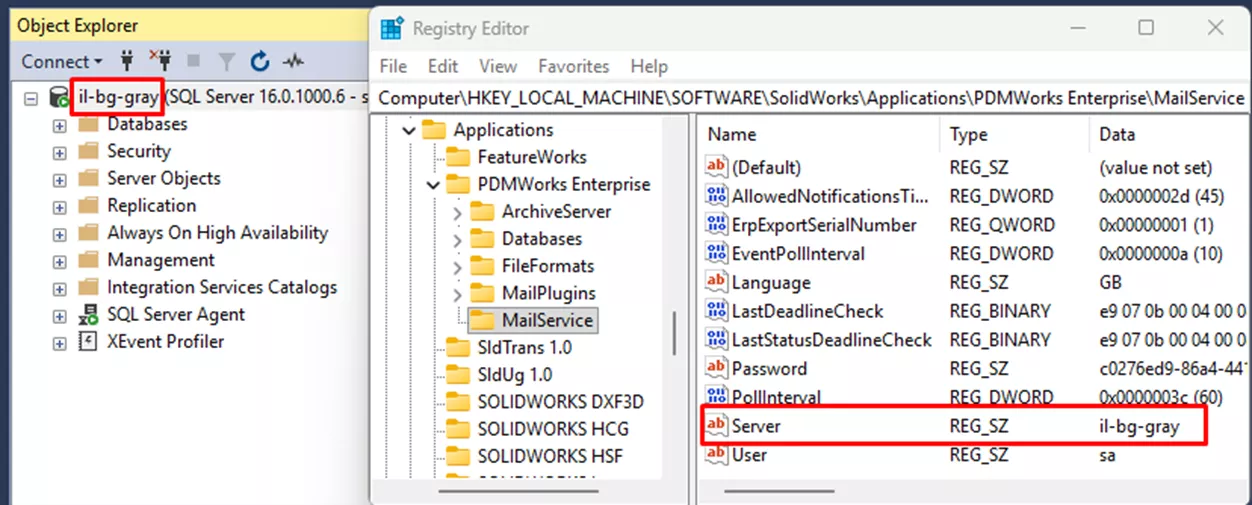
- An easy way to confirm that the correct hostname and instance are being used is to log into SQL Management Studio for the correct database and see what is listed in Object Explorer on the left.
- If no instance name is present after the server name, the PDM database is located on the default SQL instance and is just the server name. If PDM is using a named SQL instance, you’ll see the server name followed by a \ and the instance name, such as “PDMServer\SWPDM”.
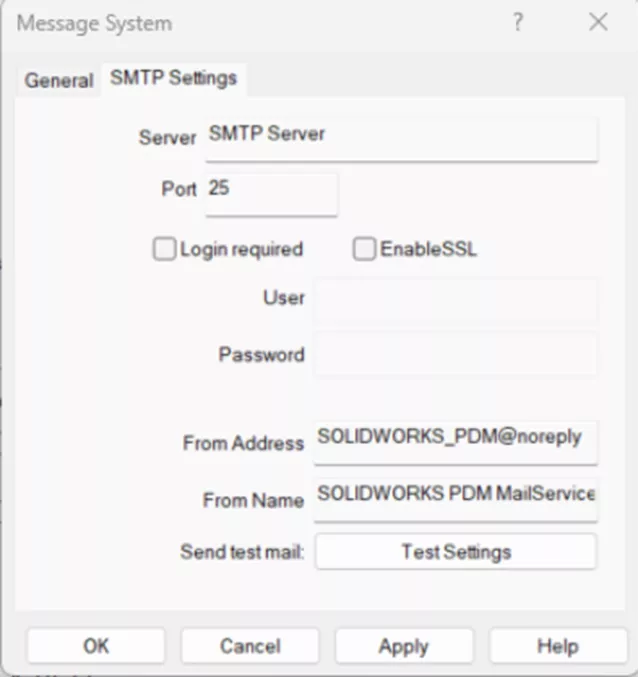
SMTP Settings
- In the PDM Administration tool, log into the vault.
- Open the Message System settings.
- On the SMTP Settings tab, ensure all the information is correct.
- If a login is required, be sure the username and password are correct.
If all else fails…
These steps will fix 90% of issues with the notifications, but sometimes you’ll go through every step and still have issues. If you still haven’t been able to figure out what is causing the issue, uninstalling and reinstalling the Database Server may resolve the issue.
- Open the Programs and Features application.
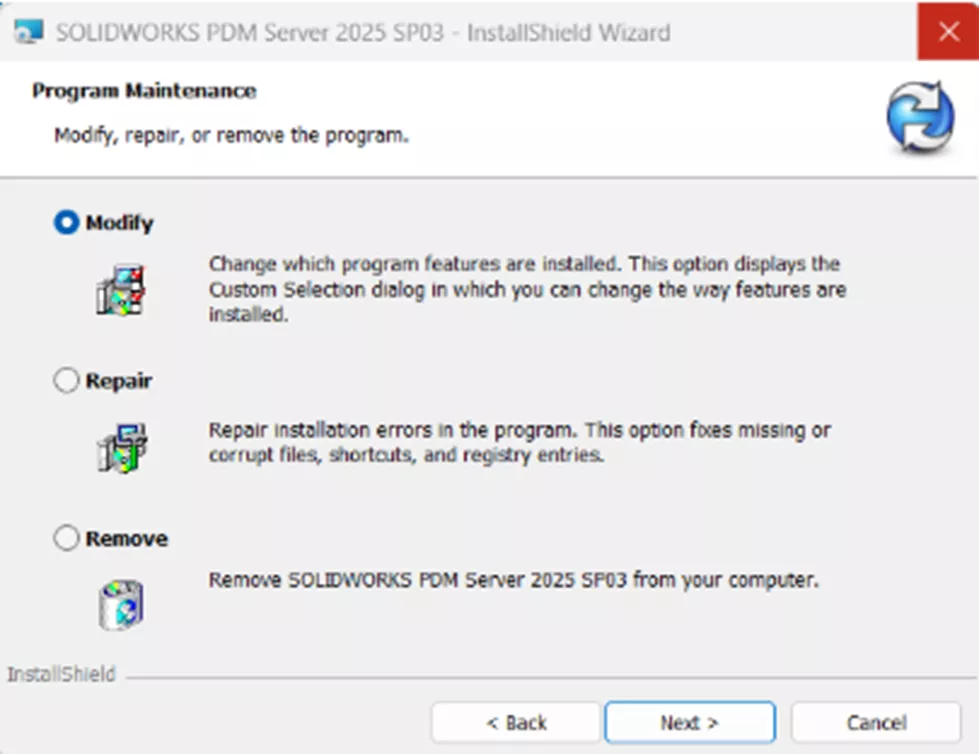
- Find the PDM Server installation, right-click, and choose Change.
- Choose to Modify the installation.
- Deselect the Database Server.
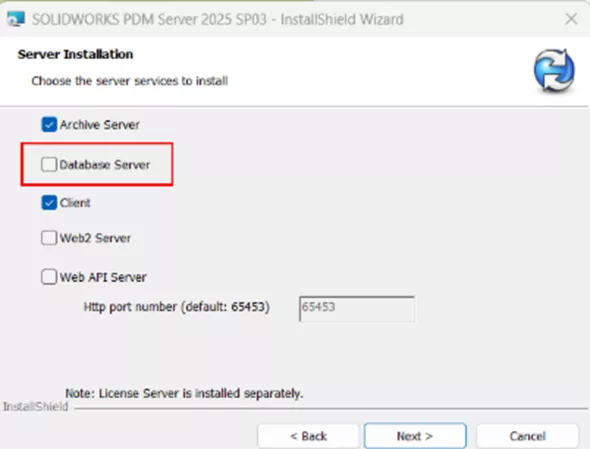
- Finish the Wizard to remove the product.
- Open the Registry Editor and delete this key: Computer\HKEY_LOCAL_MACHINE\SOFTWARE\SolidWorks\Applications\PDMWorks Enterprise\MailService
- Reinstall the Database Server by modifying the installation again.
Final Thoughts
As always, if you run into issues with SOLIDWORKS PDM notifications or have questions with this process, and if GoEngineer is your VAR, you can reach out to our Technical Support team for further assistance.
Want to learn more? Check out more SOLIDWORKS PDM tutorials below. Additionally, join our GoEngineer Community to participate in discussions, create forum posts, and answer questions from other SOLIDWORKS users.
24 Tips to Master SOLIDWORKS PDM
SHORTCUTS ⋅ SEARCHING ⋅ PDM ADD-IN
24 of our expert tips to help you master using SOLIDWORKS PDM. Improve performance, find files faster, and work like a pro.
Learn More About SOLIDWORKS PDM
Add the Released Version to the Face of the Drawing in SOLIDWORKS PDM
Fix SOLIDWORKS PDM Error Opening Archive
SOLIDWORKS PDM Attach Access: A Master Guide
SOLIDWORKS PDM XML Import and Export Rules

About Danielle Irish
Danielle Irish is a SOLIDWORKS PDM Support Engineer based out of metro Detroit. She has a degree from OCC in CAD Design and Engineering. Danielle has extensive experience in customer service as well as a 10 year adventure in Automotive Engineering. Danielle enjoys challenges and puzzles, and is an avid gamer and fiber artist.
Get our wide array of technical resources delivered right to your inbox.
Unsubscribe at any time.