Everything You Need to Know About the SOLIDWORKS Rx Tool

The SOLIDWORKS Rx tool is a robust diagnostic tool used by GoEngineer and SOLIDWORKS Tech Support teams. It helps to quickly record, log, and diagnose issues with the SOLIDWORKS suite of software.
Why Does Tech Support Ask for a SOLIDWORKS Rx File?
The purpose of collecting a SOLIDWORKS Rx file is to diagnose issues that may not seem readily apparent to the user, and sometimes even the Tech Support Engineer assigned to the issue at hand.
The files, which the SOLIDWORKS Rx tool obtains from a user’s workstation, include information ranging from the workstation’s System Information (.NFO) file, SOLIDWORKS Performance logs, and even a copy of the SOLIDWORKS registry keys from the machine of interest. This is not a comprehensive list, but please read on for more details.
The SOLIDWORKS Rx tool also allows us to quickly test two safe modes:
- Bypassing Tools/Options, from which we can point to the direction of something in the settings being an issue.
- Software OpenGL mode, which allows us to point to graphics card-related issues.
To learn more, read our article: SOLIDWORKS Rx Safe Modes.
When a member of the Tech Support team requests a SOLIDWORKS Rx collection, various tools can be utilized to quickly parse through the logs, ensuring a timely and thorough response to you as soon as possible.
“This seems like a big .zip file. What exactly is in it?”
If you haven’t recorded a Problem Capture, please refer to this guide to collect an on-screen recording of your SOLIDWORKS installation: How to make a SOLIDWORKS RX Problem Capture.
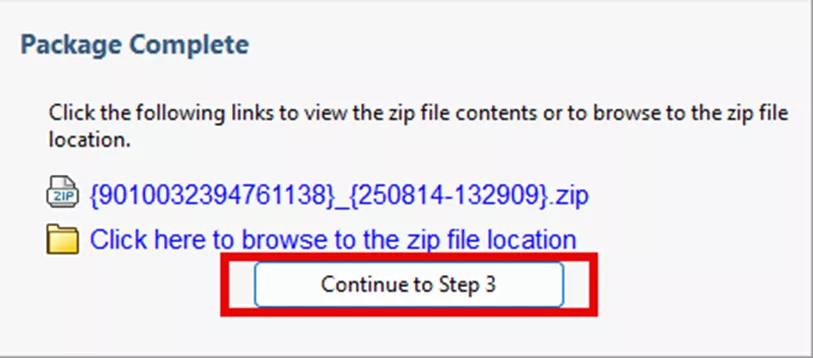
Once finished, you will be prompted with a screen of a long list of files. This may seem like a lot of information, so let's break it down:

#1. System Information
This is the Windows System Information log that is unique to your computer.
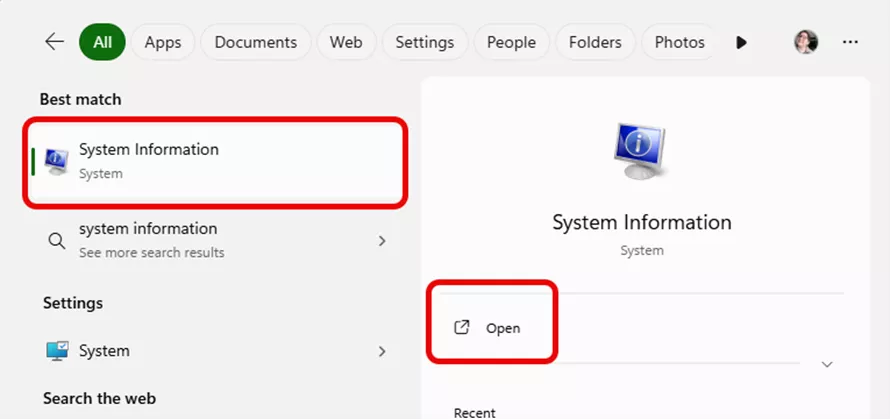
Your System Information file can also be found by typing “System Information” in your Windows Start Menu.
This information includes, but is not limited to:
- System manufacturer and computer model
- Graphics card information
- Information on installed applications
- Windows Error Reporting
- And much, much more.
#2. Application and System Event Logs
Copies of the Windows Application and System Event logs, respectively.
These logs are listed within the folder as EventLogApplication.evt and EventLogSystem.evt.
The Application Event log will contain information related to Windows Application events, like installations, errors, hangs, and crashes. This is usually the first log that Tech Support will start with when there are crashes or “hangs” (freezing) of the software.
The System Event log will contain more system-wide information, such as network and permissions issues.
#3. Crash Data (CXPA & CXPD folders)/Previous Performance Archive/Performance Log
Storage folders for SOLIDWORKS mini dump (.dmp) files.
The SOLIDWORKS software produces .dmp (mini dump) files, as well as a SOLIDWORKSPerformance.log file.
The .dmp files can be analyzed as discussed in this blog: How to Troubleshoot SOLIDWORKS Crashes.
The important distinction between CXPD and CXPA folders is that the CXPD folder contains fresh, new crash files if the crash is reproduced during the process of recording the Problem Capture. The CXPA folder contains archived mini dump and SOLIDWORKSPerformance.log files.
If and when the crash is not reproducible on the Problem Capture, GoEngineer and SOLIDWORKS Tech Support can use the “archived” CXPA folder to further troubleshoot.
#4. 3DEXPERIENCE Information
The 3DEXPERIENCE Information folder contains information as it pertains to the 3DEXPERIENCE products on your machine. There are a number of registry files pertaining to your 3DEXPERIENCE installation, which should be treated with care. Interaction with these files may risk corruption, damage, or removal of your settings. Please proceed with sincere attention.
There will be a DassaultSystemes folder contained within the 3DEXPERIENCE folder that includes a copy of logs from your system for debugging and troubleshooting.
The remainder of the files will be .reg files corresponding to the Current User and the Local Machine, licensing information, and install and application version information.
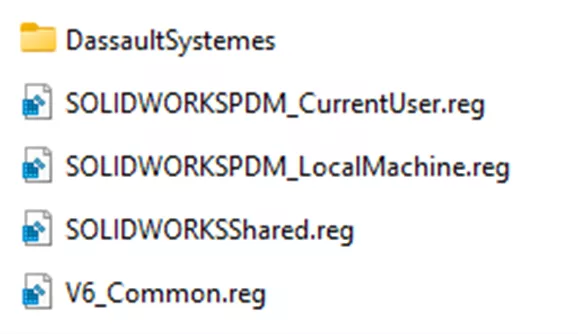
We won’t go further into these here, but these will be used by a Tech Support Engineer for diagnosing 3DEXPERIENCE issues.
#5. Video
Your SOLIDWORKS Rx file will also contain the Problem Capture video, recorded in the Problem Capture tab of the SOLIDWORKS Rx. This is titled ‘sldrx.wmv,’ a video file – Windows Media Video file type.
#6. SOLIDWORKS Rx Reports
ProblemReport.xml and DiagnosticsReport.xml
These two .xml-type files both list information regarding the user’s system from which the SOLIDWORKS Rx originated. A key distinction between these two files is that the ProblemReport.xml file contains the information entered in the Describe Problem step (Step 3) of the Problem Capture.
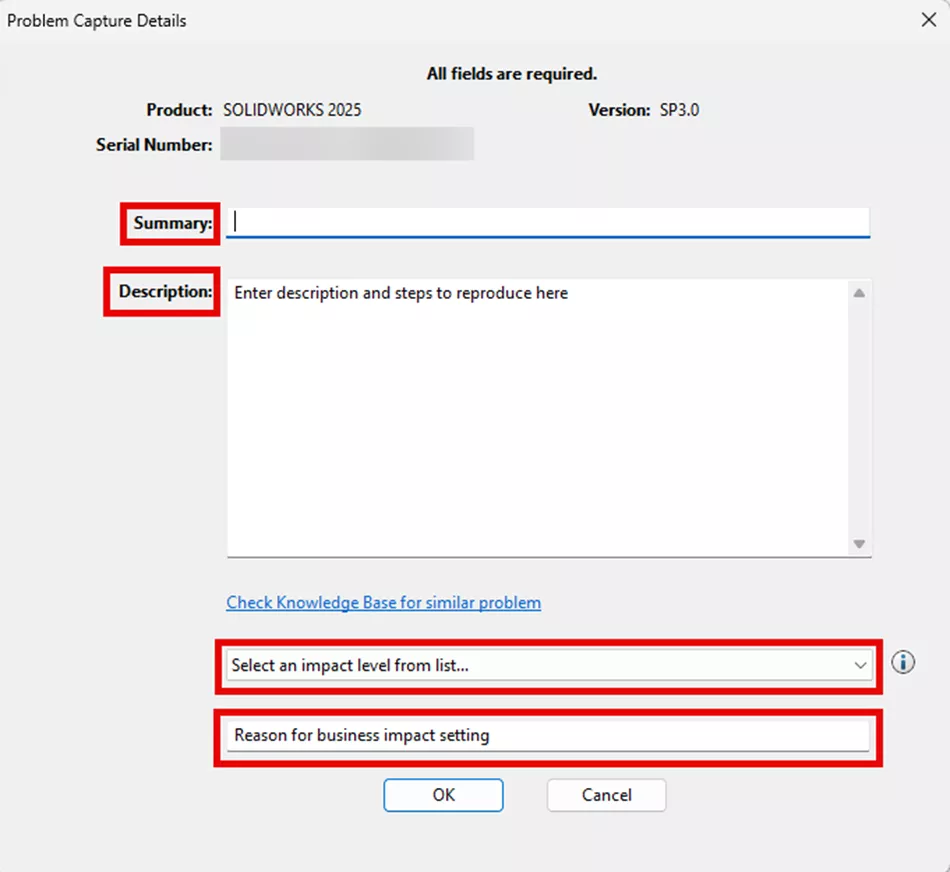
When filling out the above information, it's important that the summary is accurate and descriptive and that the Description field contains a numbered list of steps to reproduce the issue. Care and apt attention to detail of those steps that reproduce your issue will ensure that Technical Support Engineers have all the information needed to quickly and effectively diagnose your issue and arrive at a resolution. This may include a correction of a workflow, a Bug Report (BR), and a possible workaround.
The DiagnosticsReport.xml file contains the information contained within the Diagnostics tab of the SOLIDWORKS Rx program.

This information includes, but is not limited to: your system model, graphics card, graphics card driver version, as well as further system information. This information can also be found in the System Information (.NFO)/(.txt) file.
You can further check your Graphics Card and Driver. First, that the card is certified:
And secondly, that the driver is up to date with your version of SOLIDWORKS.
Make note that the Diagnostics tab also contains a “key” at the bottom, corresponding to the items in the tab:

If you have a mix of check marks and information icons in this tab, you’re all set. If not, please review those items to ensure that the errors and warnings are rectified. When in doubt, contact your Tech Support team.
#7. SOLIDWORKS Settings
SWcuReg.reg.txt, SWlmReg.reg.txt, COSMOS_CU.reg.txt, COSMOS_LM.reg.txt
SWcuReg.reg.txt, SWlmReg.reg.txt: These files are the registry keys corresponding to the SOLIDWORKS software on the computer from which the SOLIDWORKS Rx file originates. They correspond to the following respective keys:
HKCU\Software\SOLIDWORKS (HKEY_CURRENT_USER) and HKLM\Software\SOLIDWORKS (HKEY_LOCAL_MACHINE).
COSMOS_CU.reg.txt, COSMOS_LM.reg.txt: If SOLIDWORKS Simulation products are installed on your system, these will be included in the SOLIDWORKS Rx. These correspond to the following respective keys:
HKCU\Software\SRAC (HKEY_CURRENT_USER) and HKLM\Software\SRAC (HKEY_LOCAL_MACHINE).
In order to prevent these registry keys from inadvertently being imported into the supporter’s machine, the “.txt” is appended to the file – this makes it unrecognizable as a registry key.
Caution: Removal of the .txt from the SWcuReg.reg.txt, SWlmReg.reg.txt files will increase the risk of unintentional removal of SOLIDWORKS settings and harm to your machine. Please proceed with care and conscientiousness.
#8. SOLIDWORKS Journal
Very similar to the SOLIDWORKSPerformance.log file, which, in addition to some basic system information, the swxJRNL.swj files record any keystrokes, mouse clicks, and commands performed during the course of the SOLIDWORKS session.
#9. File Access Log
This is a tracking tool by SOLIDWORKS Rx that records the time and date of SOLIDWORKS files that were opened during the duration of the SOLIDWORKS Rx Problem Capture. This also indicates the file location of these opened files.
#10. Reliability Report
This is a report pulled from the Reliability tab of the SOLIDWORKS Rx:

This provides valuable information pulled from SOLIDWORKS about the length of time that SOLIDWORKS has been running and how SOLIDWORKS was closed, whether that be through a crash or normal exit of the program. It will also contain information pulled from the Windows Event logs, related to the function of SOLIDWORKS.
The final three sections of this article will explain the other tabs on the SOLIDWORKS Rx Tool: System Maintenance, Reliability, and Benchmark.
System Maintenance
The SOLIDWORKS Rx tool provides a utility called SOLIDWORKS System Maintenance, which can be run by clicking Start Maintenance in the top right-hand corner. If you haven’t completed it lately, your left-hand side will indicate a red circle with a white X, indicating Not Done.
If you’re suffering from performance issues, there may be some backed-up data or a collection of SOLIDWORKS temp logs that can routinely be cleared out. This SOLIDWORKS help page states that for “Preventive File Management, [to] periodically check and clean out the backup and temporary directory.”

Reliability
The Reliability tab allows the Tech Support Engineers working on a case, requiring more system-level information of SOLIDWORKS and the user’s machine environment, to narrow down the scope of certain events; perhaps there is a performance issue that is not fixed by preliminary troubleshooting methods.
Below is a great example, and we’ve added annotations here for further explanation.
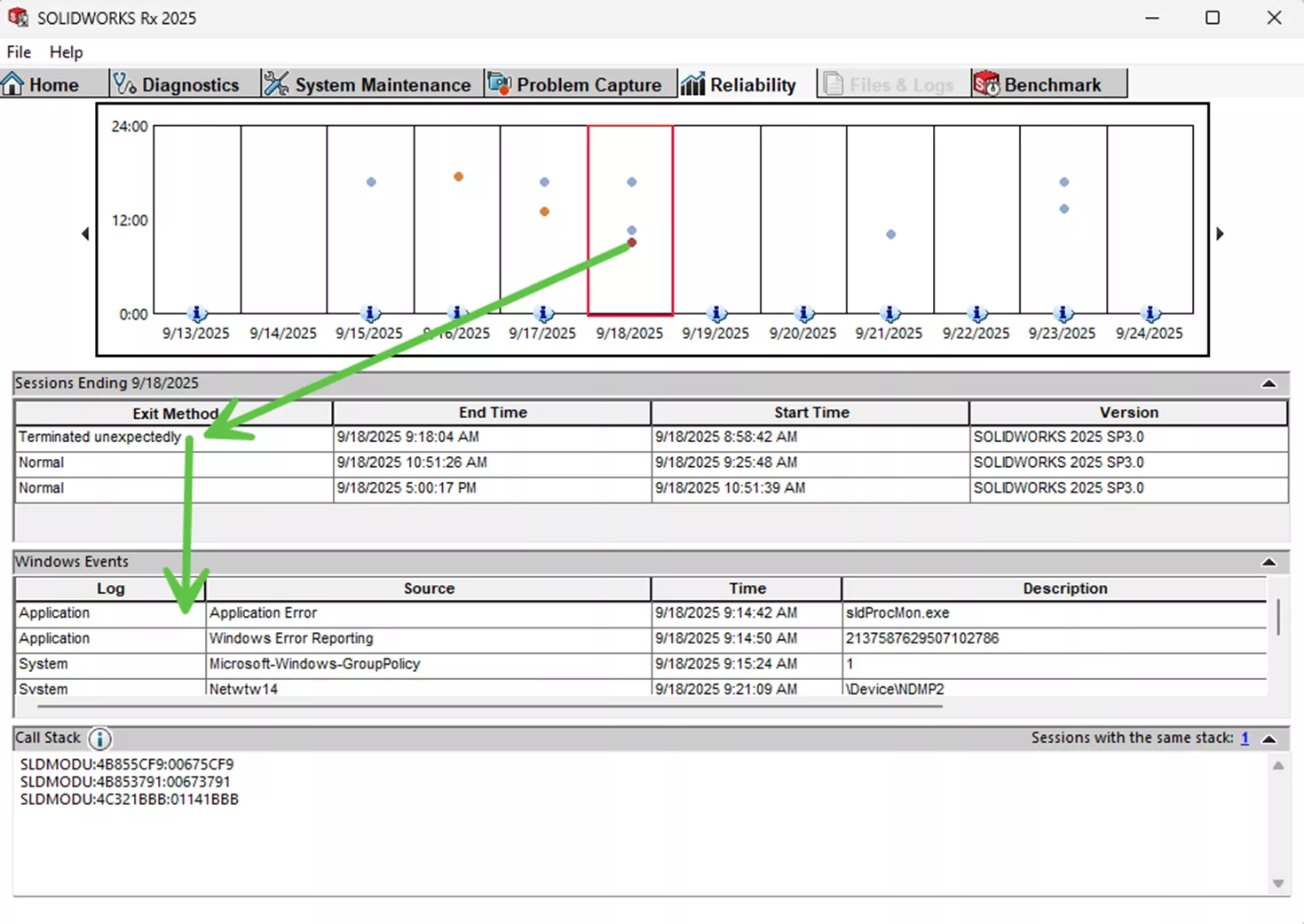
The red dot here on September 18, 2025, indicates that SOLIDWORKS terminated unexpectedly. Here, this was a crash. If we go down, we see that the faulting module: sldProcMon.exe for the Application Error. This information will also be displayed in the Event Viewer Application logs. The GoEngineer and SOLIDWORKS Tech Support Engineers will use this information to further gain an understanding of the crashing event.
Benchmark
Lastly, the SOLIDWORKS Rx Tool Benchmark tab.
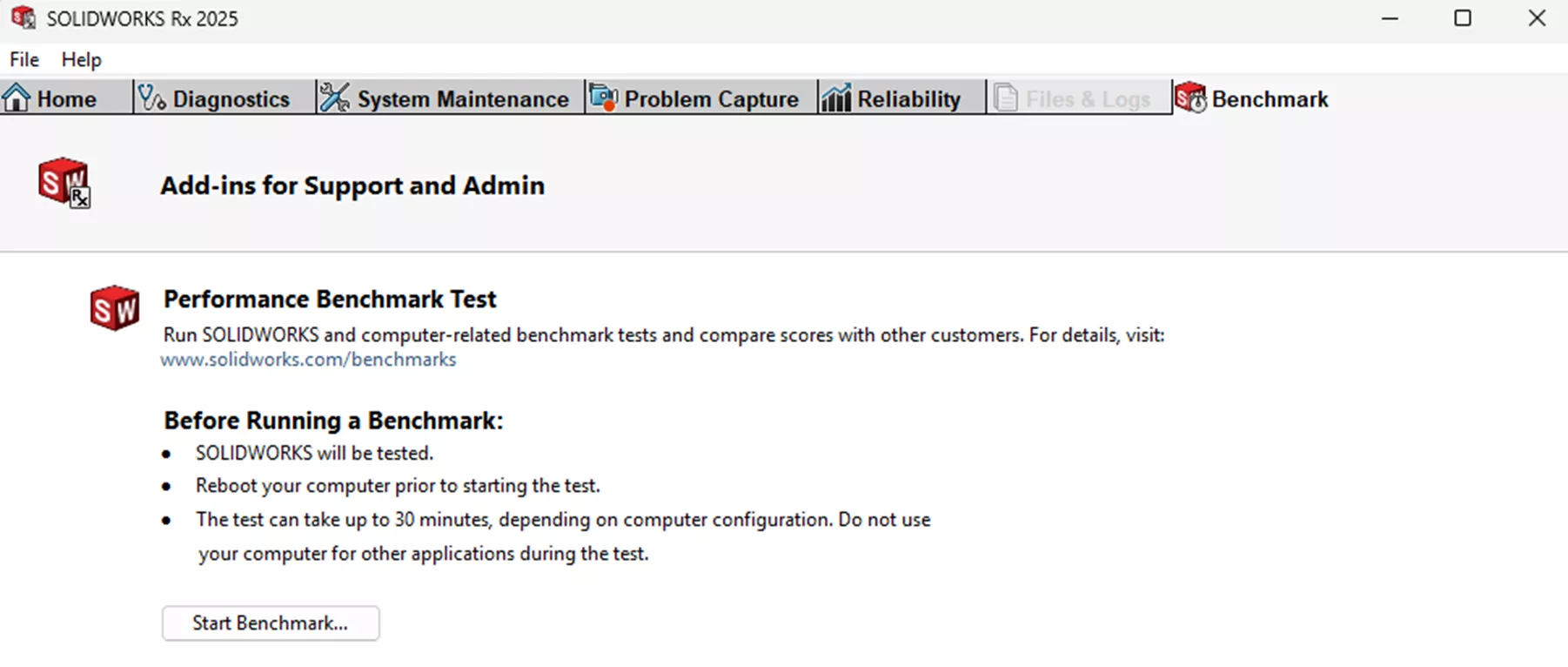
To learn more about the Performance Benchmark Test, visit this page: SOLIDWORKS Hardware Benchmarks.
Summary
If you encounter an issue in SOLIDWORKS, contact your Tech Support team.
If GoEngineer is your VAR, you can contact Tech Support in one of three ways:
- Email support@goengineer.com. If your Rx file is too large to send, please request a File Transfer Link in your initial correspondence, and we will provide you with one.
- Call 888.559.6167. Once connected, we will set up a File Transfer Link for you.
- Log in to the GoEngineer Customer Portal > Technical Support > Fill out and submit a ticket. Please be sure to include the SOLIDWORKS Rx file.
Want to learn more? Check out more tutorials below. Additionally, check out the GoEngineer Community, where you can create forum posts, enter design contests, and answer questions from other SOLIDWORKS users.
Related Articles
How the SOLIDWORKS Sketch Picture Scale Tool Can Affect Zoom to Fit
CAD Families, Physical Products, and Representations: What They Are & When to Use Them
SOLIDWORKS Convert to Sheet Metal vs Insert Bends
Reusing Tab and Slot Parts in SOLIDWORKS Assemblies
Finding the Centerline Between Two Complex Curves in SOLIDWORKS

About GoEngineer
GoEngineer delivers software, technology, and expertise that enable companies to unlock design innovation and deliver better products faster. With more than 40 years of experience and tens of thousands of customers in high tech, medical, machine design, energy and other industries, GoEngineer provides best-in-class design solutions from SOLIDWORKS CAD, Stratasys 3D printing, Creaform & Artec 3D scanning, CAMWorks, PLM, and more
Get our wide array of technical resources delivered right to your inbox.
Unsubscribe at any time.