SOLIDWORKS Settings Wizard Made Easy

Table of Contents
Have you ever needed to reinstall SOLIDWORKS or use SOLIDWORKS on another machine, but didn’t want to lose the customizations, shortcuts, and settings you’ve set? Or do you have an engineering team that you’d like to have all have the same settings? Luckily, SOLIDWORKS has a handy tool available just for that!
What is the SOLIDWORKS Settings Wizard?
The Settings Wizard is a tool that allows users to back up and save customizations they’ve made to their SOLIDWORKS environment, including System Options settings, custom toolbars, keyboard and mouse gesture shortcuts, etc. The tool can also be used to restore and reset SOLIDWORKS settings.
It can also be useful for companies that would like to share settings across an entire team. For example, if your company has shared specific file locations for things like templates, decals, libraries, macros, etc., that everyone should be using. You can set those paths in the File Locations section of the System Options, save the settings, then have everyone restore that settings file on their machines.
This tool is incredibly simple and easy to use. This guide provides a basic rundown of how to use this SOLIDWORKS tool.
Note: Depending on the SOLIDWORKS version, this tool has a different name. In SOLIDWORKS 2022 and older versions, this tool is called the Copy Settings Wizard. Starting in SOLIDWORKS 2023, it was renamed to the SOLIDWORKS Settings Wizard.
Getting Started
The Settings Wizard can be found in a few different places.
The first place is in SOLIDWORKS using the Task Pane.
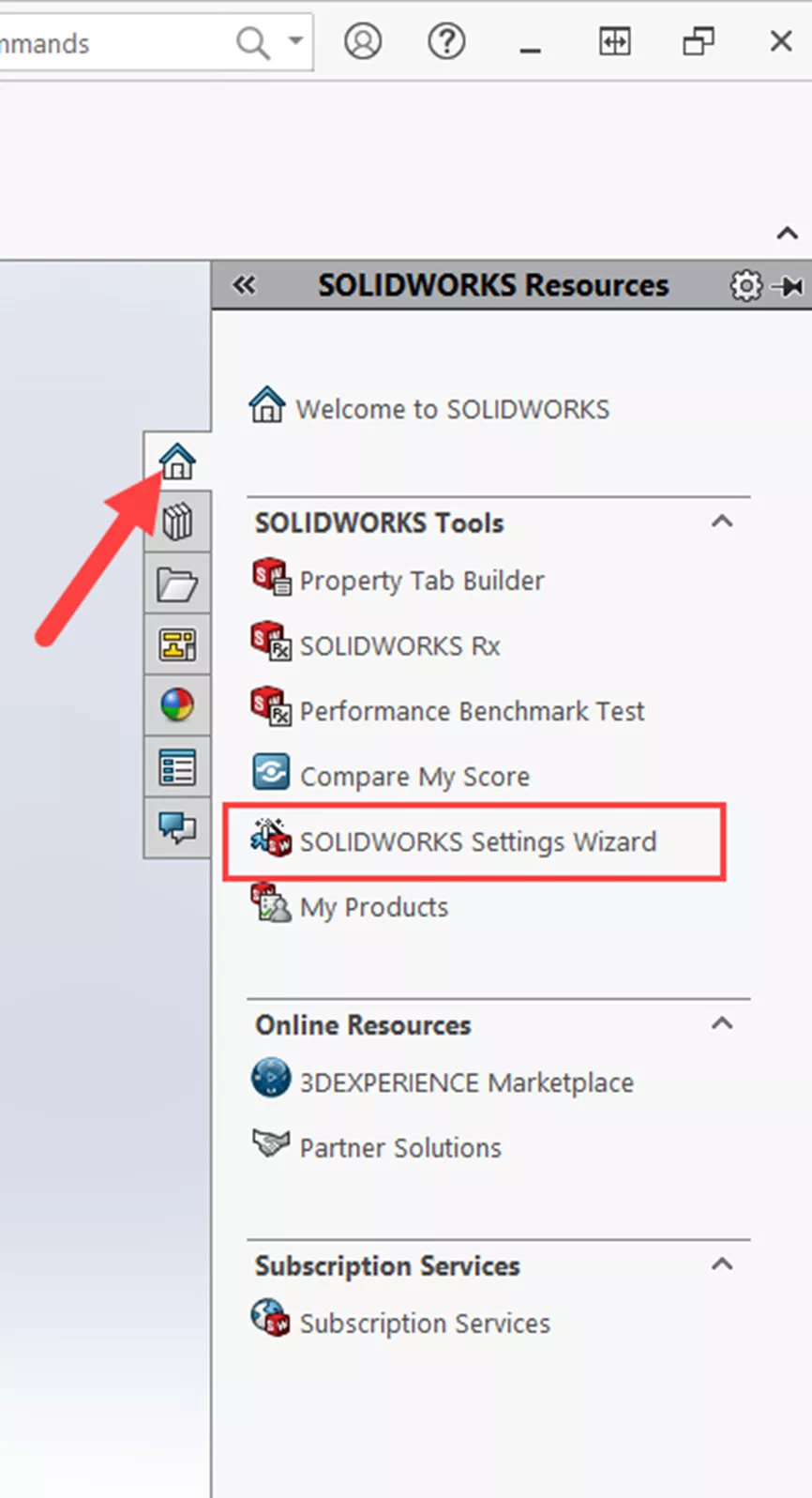
You can also access this from your Windows start menu under SOLIDWORKS Tools 20XX.
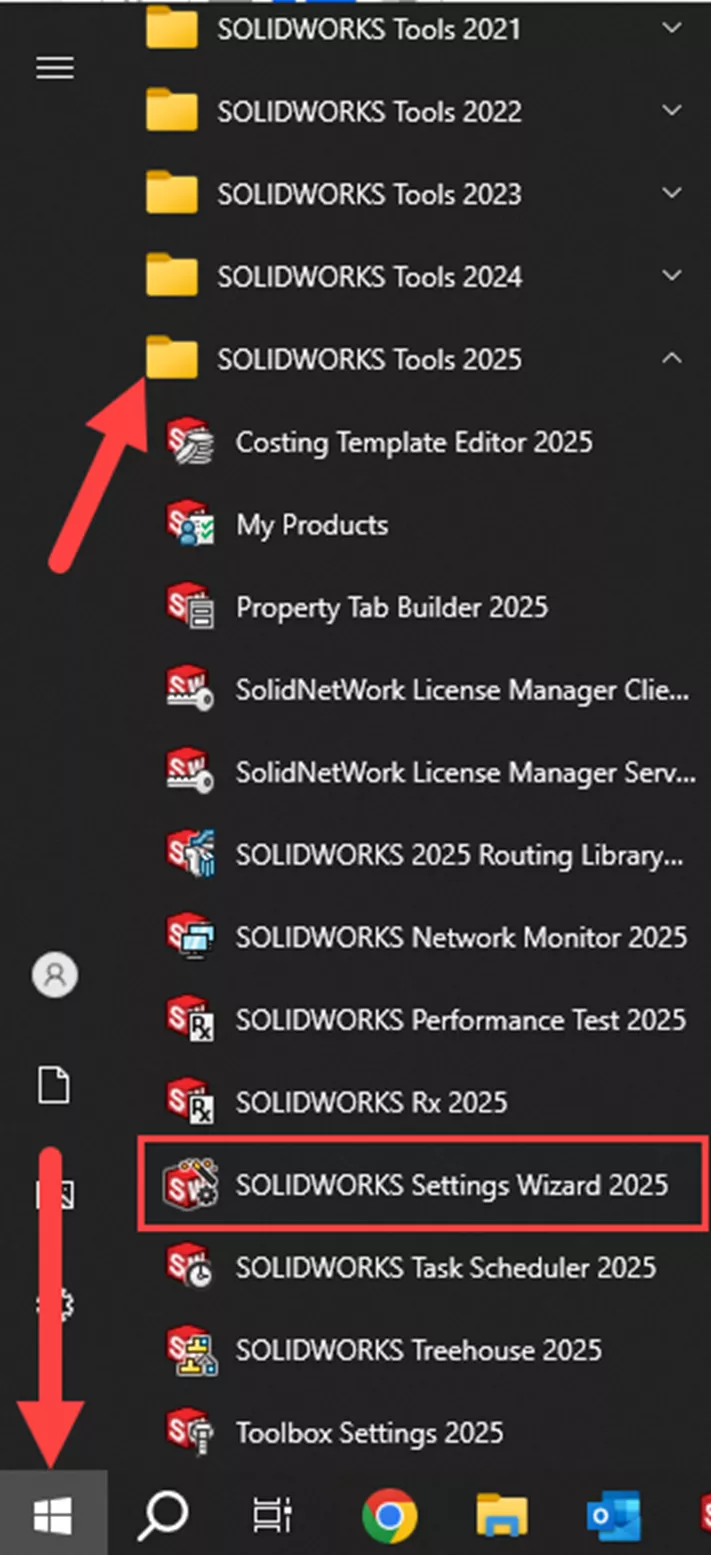
When you launch the Settings Wizard, you’ll be greeted by a simple window that will prompt you to select an option.
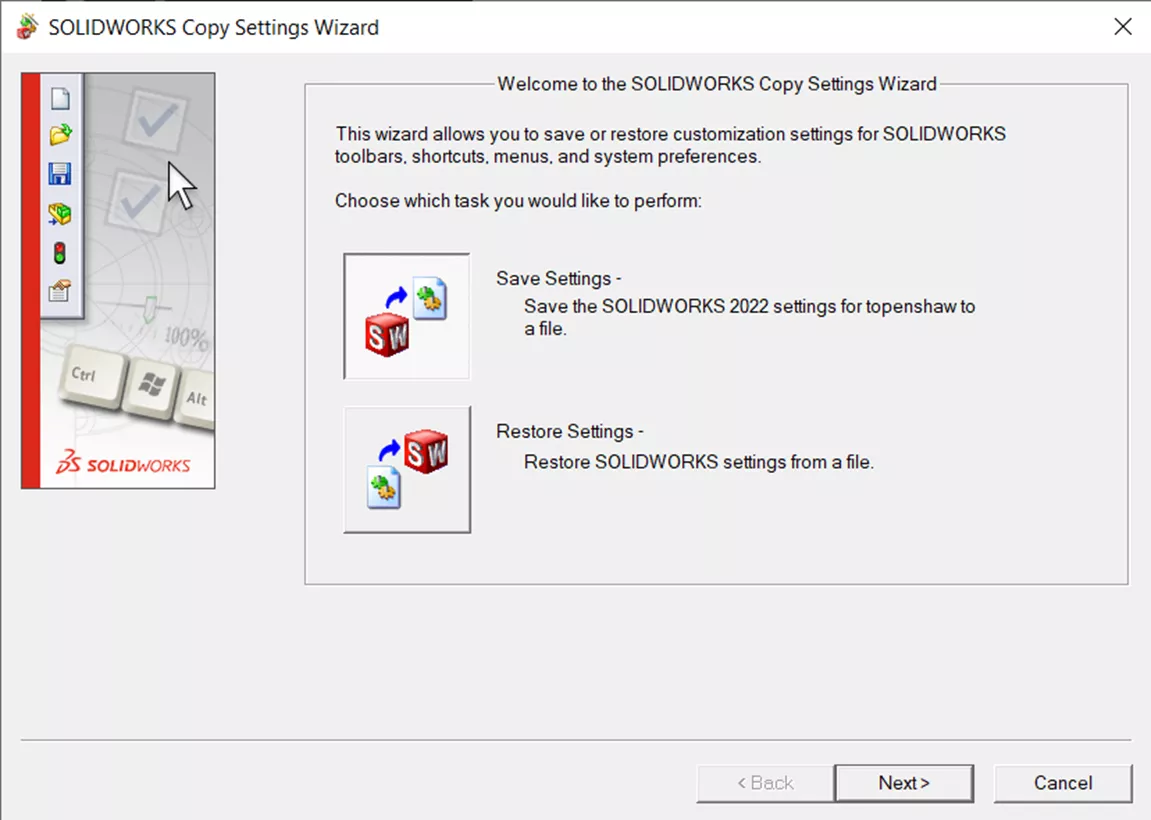
SOLIDWORKS 2022 and older, the Copy Settings Wizard has two options:
- The first option is to create a new save file containing your save data.
- The second option available is to restore a settings file into your SOLIDWORKS.
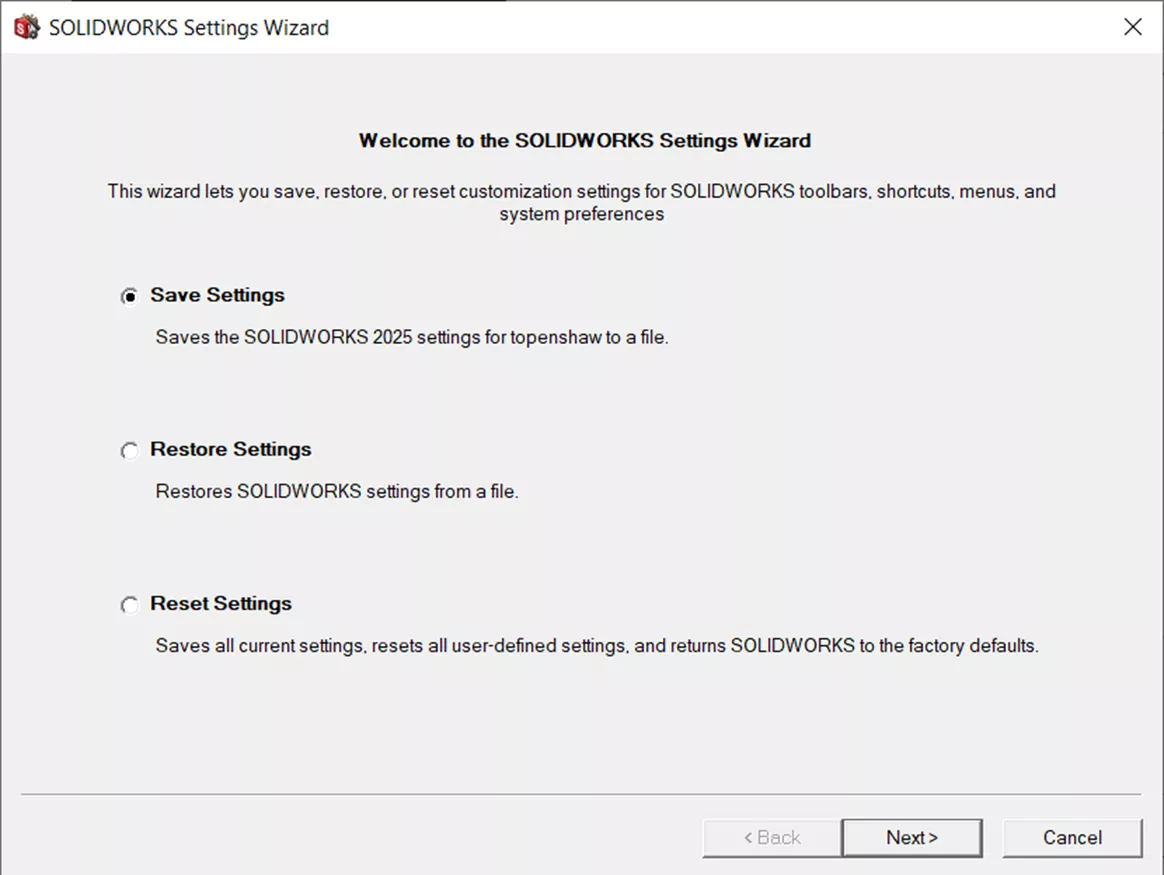
SOLIDWORKS 2023 and newer, the SOLIDWORKS Settings Wizard includes the same two options mentioned above, with an additional Reset Settings option.
Saving Settings
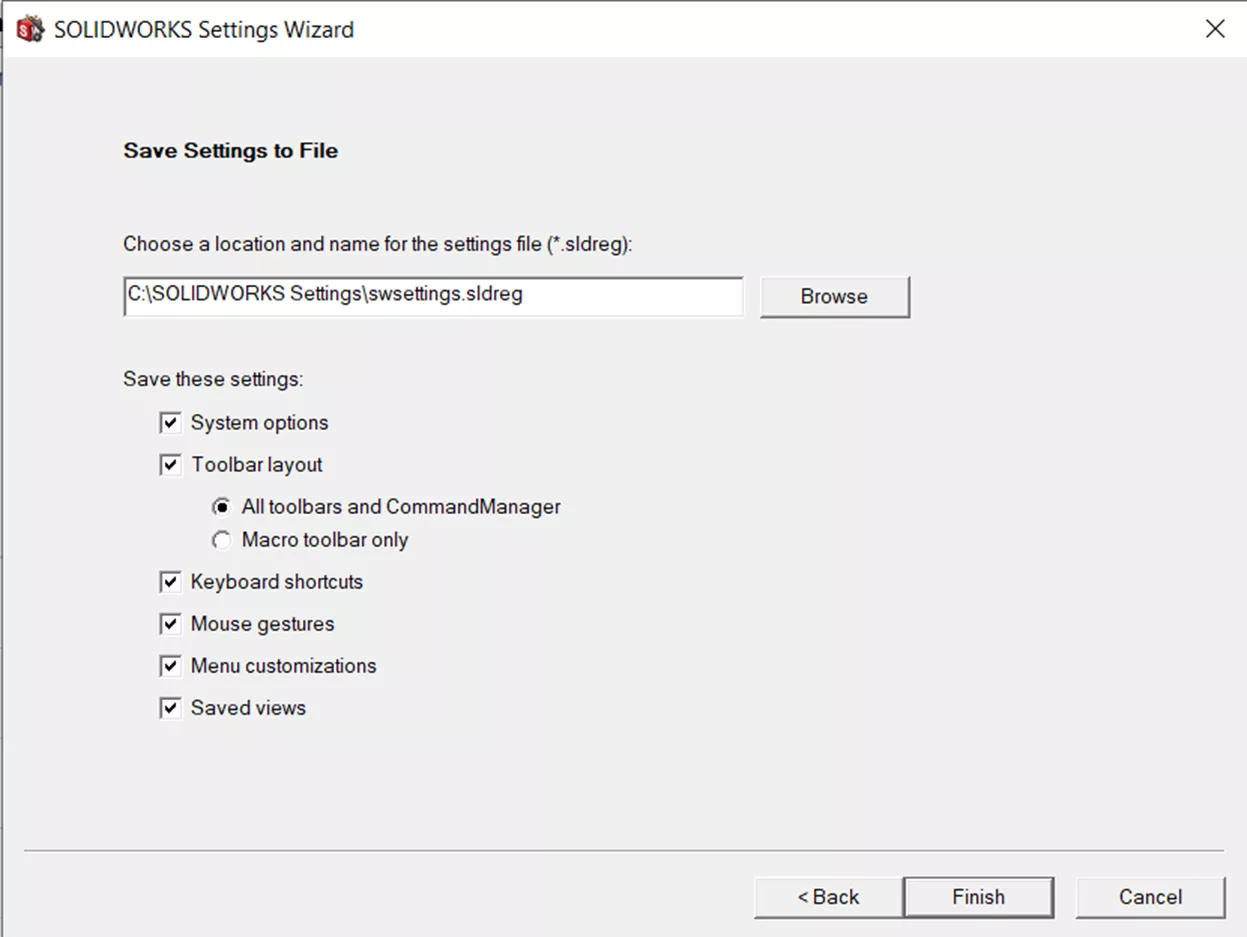
Each option listed in the program saves different information to your settings file. These are labeled in a way that is straightforward and easy to understand.
Below is the default. We recommended that you leave the default settings because during the restoration of this file, you can choose to ignore settings that were saved.
Restoring Settings
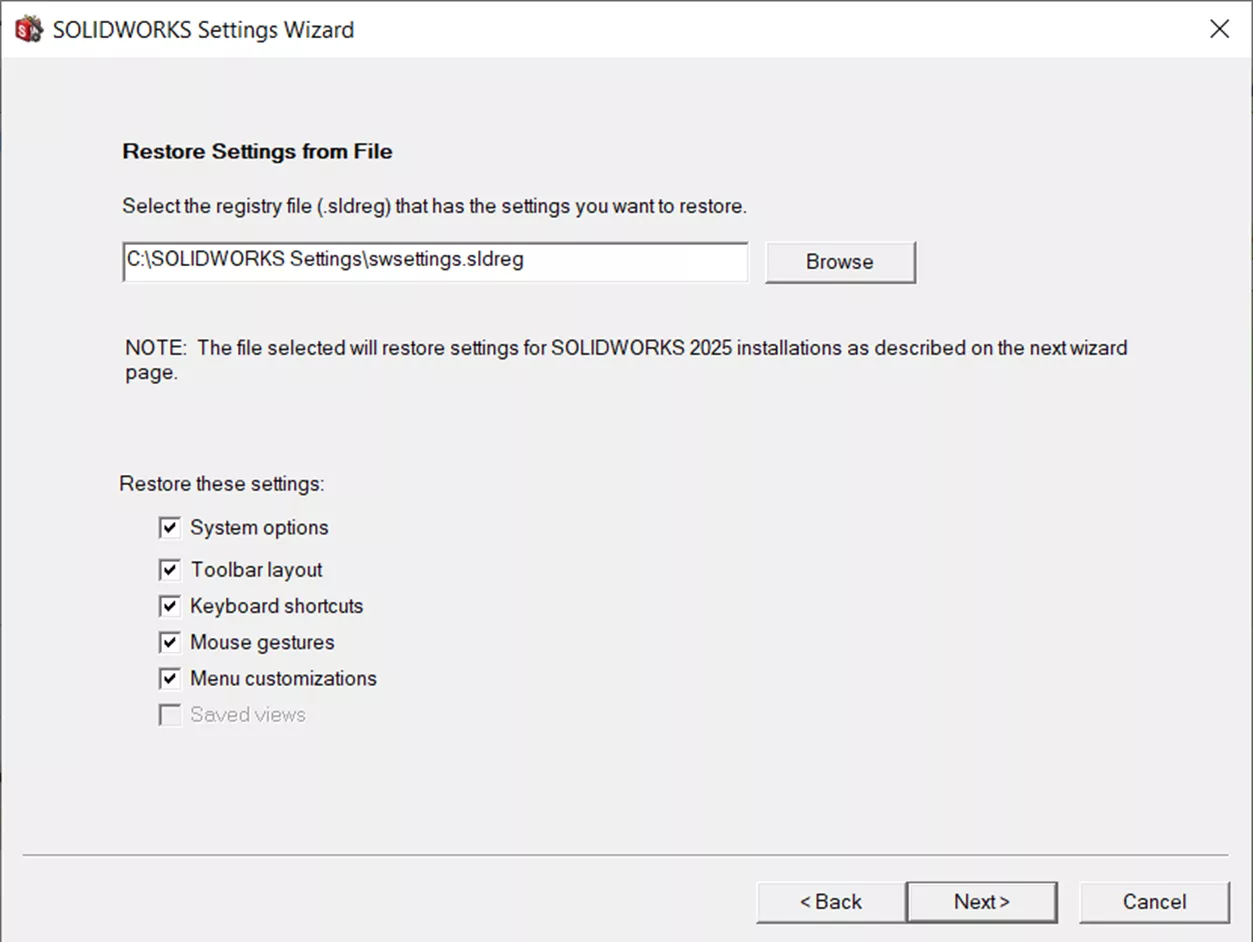
When you restore settings from a saved settings file, you’ll see a window very similar to the save window. I’ve included images of both windows (see above and below) so you can see the similarities and differences.
After selecting the settings you wish to import, hit Next. This will either allow you to finish or send you to a final window that will ask if you’re deploying this save file to only the local machine or deploying it across a network to multiple machines. If you select to deploy to multiple machines, the following window will list available machines on the network that the wizard can save settings to.
Note: When deploying across a network, this option only works for users who have never run SOLIDWORKS on the selected computer.
Resetting Settings
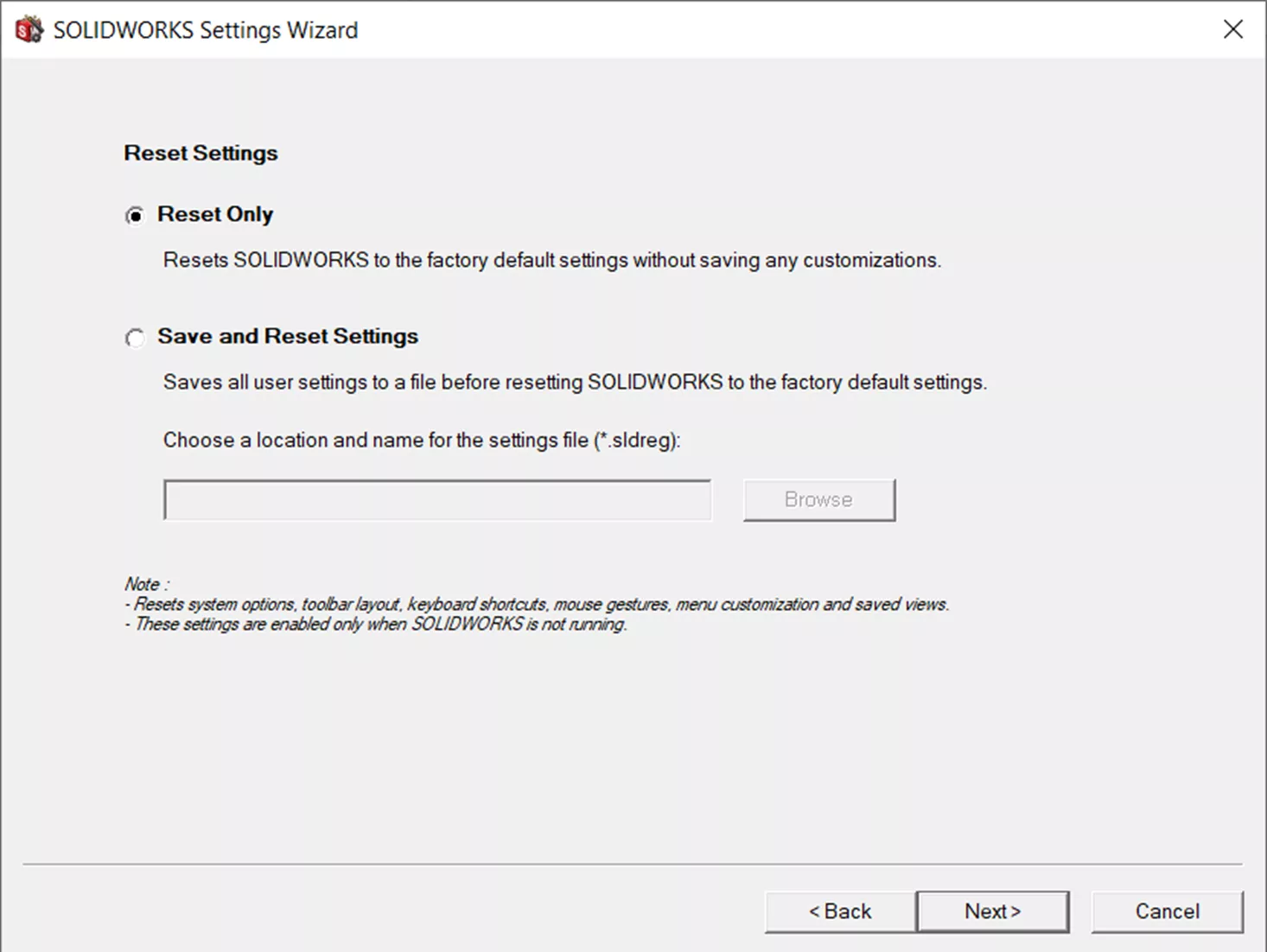
This selection was introduced in SOLIDWORKS 2023. There are two options: Reset Only will erase all current settings and reset to the SOLIDWORKS defaults. Save and Reset Settings will allow you to save out the current settings before resetting to the defaults.
Keep in mind - for this to complete, SOLIDWORKS must be closed.
Conclusion
The Settings Wizard can save users time by backing up important information about the SOLIDWORKS user interface, allowing users who upgrade or reinstall to be back up and running in a fraction of the time.
Want to learn more? Check out more tutorials below. Additionally, check out the GoEngineer Community, where you can create forum posts, enter design contests, and answer questions from other SOLIDWORKS users.
Editor's Note: This article was originally published in January 2017 and has been updated for accuracy and comprehensiveness.

SOLIDWORKS CAD Cheat Sheet
Our SOLIDWORKS CAD Cheat Sheet, featuring over 90 tips and tricks, will help speed up your process.
Related Articles
Sharing Designs Using the 3DEXPERIENCE SOLIDWORKS Export as Package
Everything You Need to Know About the SOLIDWORKS Rx Tool
CAD Families, Physical Products, and Representations: What They Are & When to Use Them
Setting Up SOLIDWORKS to Use High-Performance Graphics Cards
How the SOLIDWORKS Sketch Picture Scale Tool Can Affect Zoom to Fit

About Tashayla Openshaw
Tashayla Openshaw is a SOLIDWORKS Technical Support Engineer based out of our Headquarters in Salt Lake City, Utah. She earned her Bachelor’s degree in Mechanical Engineering from the University of Utah in 2018 and has been part of the GoEngineer family since February 2019.
Get our wide array of technical resources delivered right to your inbox.
Unsubscribe at any time.