Setting Up SOLIDWORKS to Use High-Performance Graphics Cards

To get the best graphics performance out of your computer when running SOLIDWORKS, it’s important to configure your system’s graphics settings. By default, Windows often assigns SOLIDWORKS to use the power-saving Intel integrated graphics rather than the high-performance GPU (such as NVIDIA or AMD). This can cause slower performance, lag, or display glitches.
To ensure SOLIDWORKS always uses your high-performance GPU in Windows settings, follow the steps below.
Steps to Configure Settings
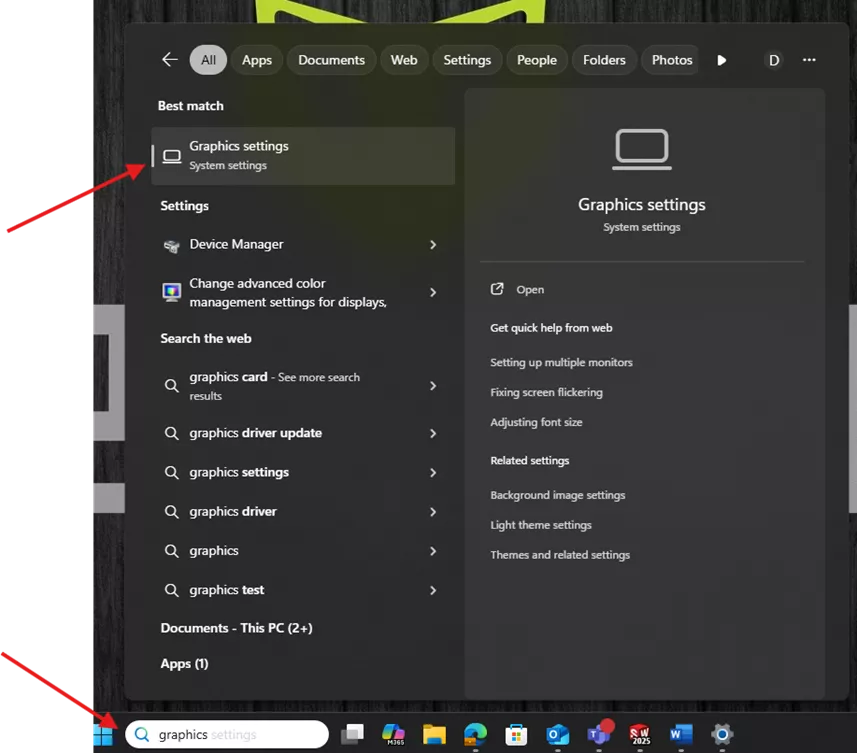
- In your Windows search bar at the bottom of your screen, type graphics and click the Graphics Settings tab.
- Now, click Add desktop app and locate the SOLIDWORKS application. For instance, mine was located at: C:\Program Files\SOLIDWORKS Corp\SOLIDWORKS, but this file location may be different on your machine. You can also search in the top right for SOLIDWORKS. This should then locate the SOLIDWORKS folder, and the application should be within it.


- Once the app is added, you will now see SOLIDWORKS listed below. Now, you can change the graphics settings. To do so, click the down arrow on the far-right side to expand the dropdown and show the settings for the GPU preference.

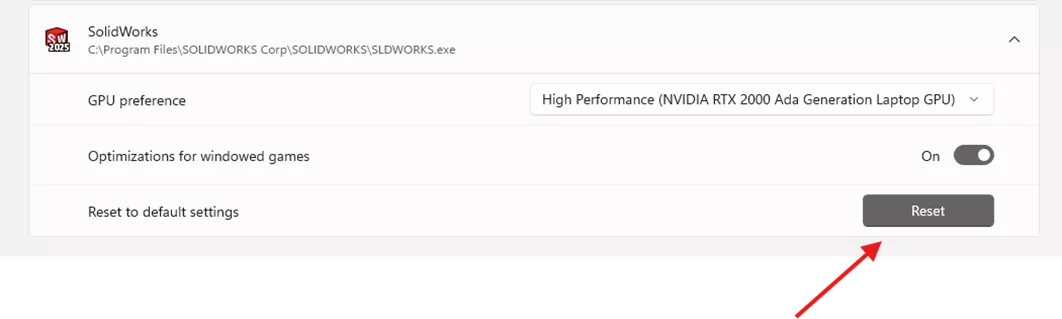
- Clicking the dropdown under GPU preference will provide three options to choose from. Let Windows decide, Power Savings Intel Graphics, or High-Performance GPU. To ensure you are getting the best graphics performance, select the High-Performance (NVIDIA RTX 2000 Ada Generation Laptop GPU for my machine.

- Now every time you restart your computer, this setting should always stay put, and SOLIDWORKS will default to using your High-Performance GPU. If you ever need to switch the graphics back to the default, it is very easy to do so by clicking the Reset button shown below.
I hope you found this quick tip for setting up SOLIDWORKS to use high-performance graphics cards helpful. Check out more tutorials below. Additionally, check out the GoEngineer Community, where you can create forum posts, enter design contests, and answer questions from other SOLIDWORKS users.
SOLIDWORKS CAD Cheat Sheet
SHORTCUTS ⋅ MOUSE GESTURES ⋅ HOT KEYS
Our SOLIDWORKS CAD Cheat Sheet, featuring over 90 tips and tricks, will help speed up your process.

Related Articles
SOLIDWORKS 2026 UI/UX, Performance & Imports - What's New
Being Flexible with the SOLIDWORKS Flex Feature
Using SOLIDWORKS Sensors to Monitor Surface Area
Why Are My Centerlines Solid in SOLIDWORKS?

About Dylan Funk
Dylan Funk is a Technical Support Engineer at GoEngineer.
Get our wide array of technical resources delivered right to your inbox.
Unsubscribe at any time.