SOLIDWORKS Rx Safe Modes

What are SOLIDWORKS Safe Modes
SOLIDWORKS Rx Safe Modes are diagnostic tools that can be used to help determine whether an issue stems from the graphics card/driver combo, or from the System Options.
Where to find SOLIDWORKS Rx Safe Modes
SOLIDWORKS Safe Modes are found in the SOLIDWORKS Rx tool.
Close your current session of SOLIDWORKS before proceeding.
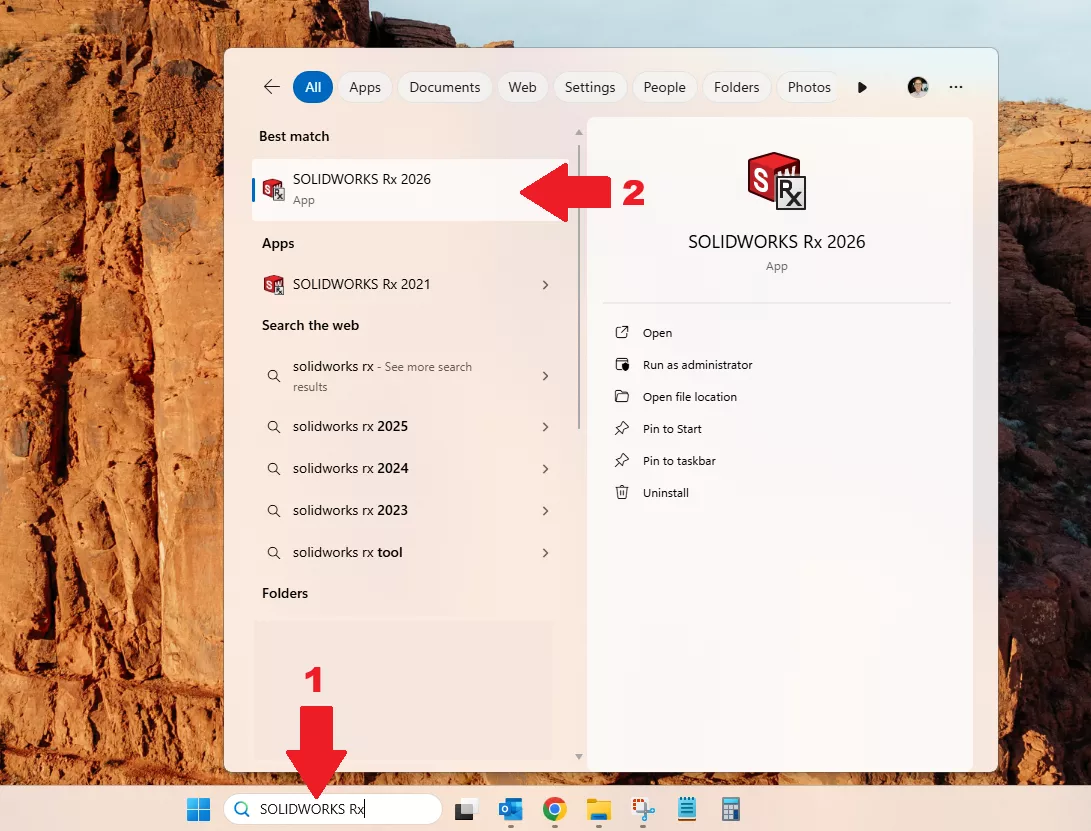
Search in your Windows taskbar for 'SOLIDWORKS Rx' and run the application from the results.
If multiple versions of SOLIDWORKS are installed, be sure to launch the correct Rx version.
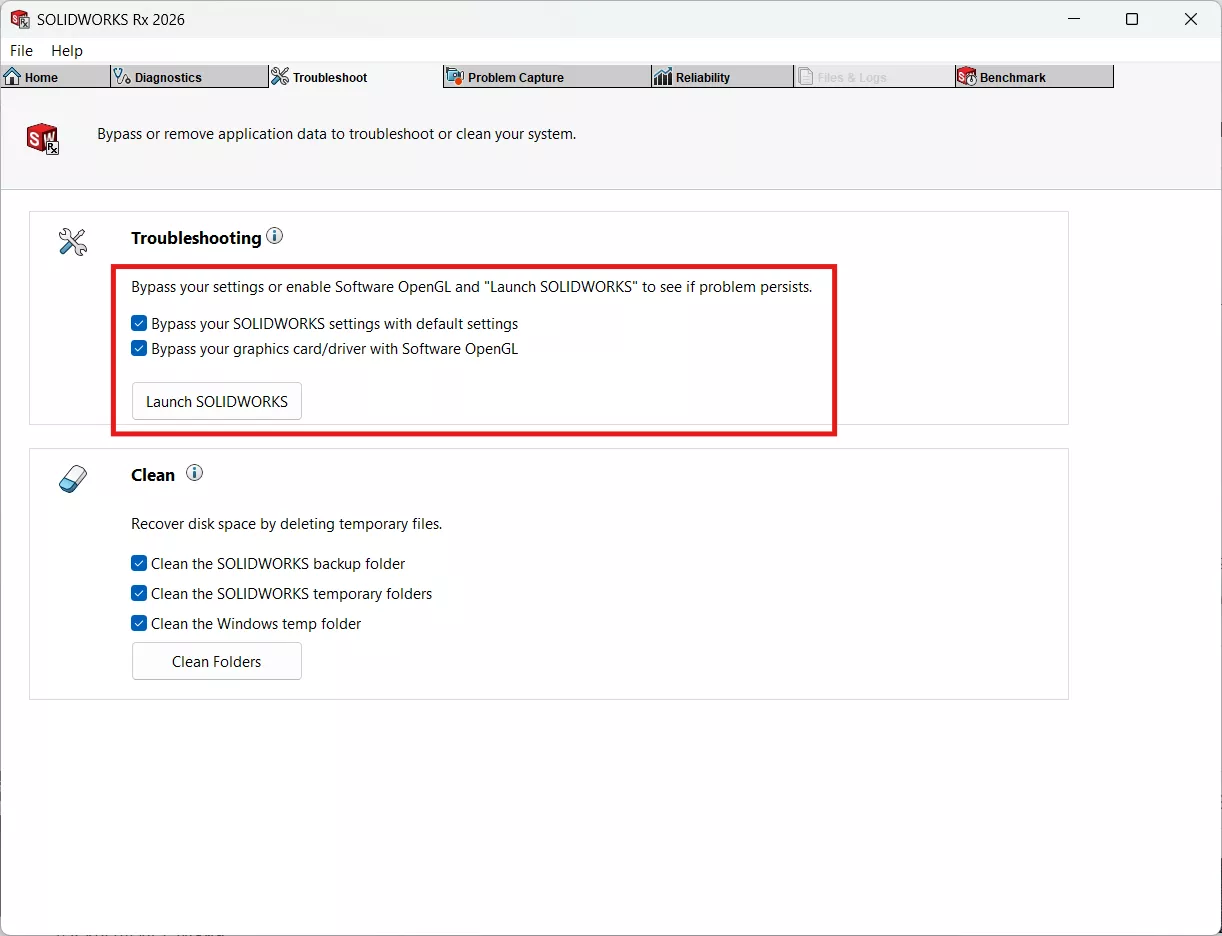
2026 and later versions:
Click the troubleshoot tab at the top of the Rx window. Select one or both modes and select the button 'Launch SOLIDWORKS'.
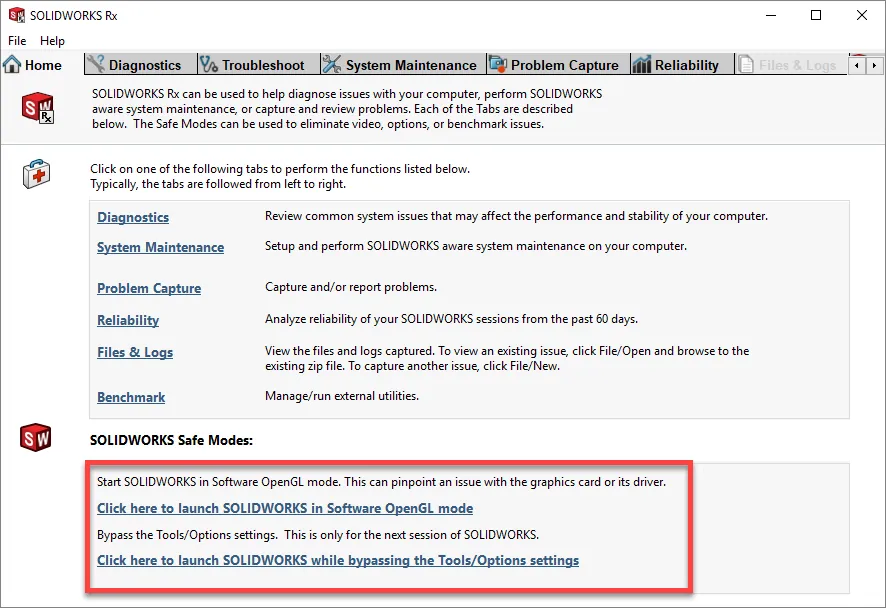
2025 and earlier versions:
SOLIDWORKS Safe Modes are found at the bottom of the SOLIDWORKS Rx Home page.
When to use SOLIDWORKS Rx Safe Modes
SOLIDWORKS Rx Safe Modes can be used when a user experiences graphical issues within their SOLIDWORKS interface, or when a user experiences abnormal behavior in the functionality of the interface’s operations.
How to use SOLIDWORKS Rx Safe Modes
There are two Safe Modes in SOLIDWORKS Rx.
- The first Safe Mode will launch SOLIDWORKS in Software OpenGL mode. This bypasses the computer’s graphics card by using the CPU to emulate a SOLIDWORKS certified graphics card/driver combo. This will help in determining whether or not the issue is related to the graphics card/driver. If the problem does not persist in Software OpenGL mode it is safe to say the graphics card may not be supported, or the driver may not be the correct certified version. Proceed to the diagnostic tab in SOLIDWORKS Rx to check the status of the graphics card and driver (see link below for detailed information).
- Checking your graphics card with SOLIDWORKS RX
- The second Safe Mode will launch SOLIDWORKS while bypassing the Tools/Options settings. If the issue goes away when running SOLIDWORKS in this Safe Mode, the problem may lie in the System Options settings. If the user has backed up their settings using the Copy Settings Wizard prior to when the problem started, then reimporting the settings may correct issue. If the problem cannot be corrected by reimporting the settings, then a repair of the SOLIDWORKS installation may be in order (see link below for detailed information).
- SOLIDWORKS Installation Repair
Editor's Note: This article was originally published in May 2020 and has been updated for accuracy and comprehensiveness.

About GoEngineer
GoEngineer delivers software, technology, and expertise that enable companies to unlock design innovation and deliver better products faster. With more than 40 years of experience and tens of thousands of customers in high tech, medical, machine design, energy and other industries, GoEngineer provides best-in-class design solutions from SOLIDWORKS CAD, Stratasys 3D printing, Creaform & Artec 3D scanning, CAMWorks, PLM, and more
Get our wide array of technical resources delivered right to your inbox.
Unsubscribe at any time.