Getting Started with CATIA V5: Workbenches & Toolbars

CATIA V5 is a powerful CAD platform used in various industries, from aerospace to automotive. But for beginners, the various tools and workbenches can feel overwhelming. One of the most effective ways to streamline your workflow is by customizing your environment. In this guide, we’ll walk you through the basics of customizing workbenches and navigating toolbars in CATIA V5, helping you focus on designing and avoid digging through menus.
CATIA V5 Workbenches
A workbench in CATIA is essentially a set of tools designed for specific tasks, like part design, assembly, or drafting. When you switch workbenches, you get a new set of commands relevant to that task.
How to Access a Workbench
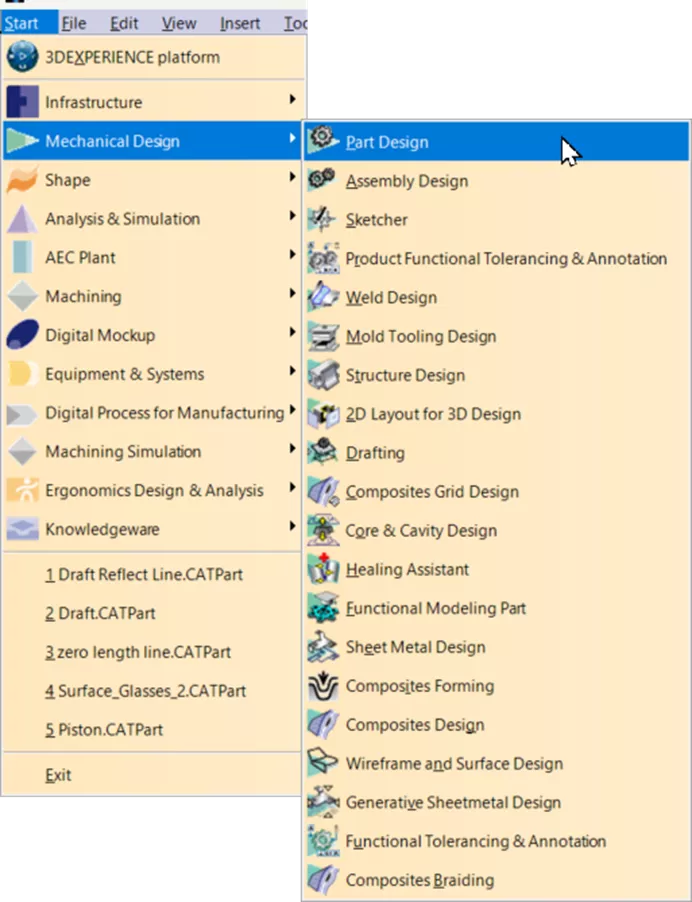
Go to the top menu and select Start.
Select a workbench from the drop-down list (e.g., Part Design, Generative Shape Design, etc.).
Create Favorites
To avoid searching through long lists of workbenches, you can customize the Start Menu with favorites.
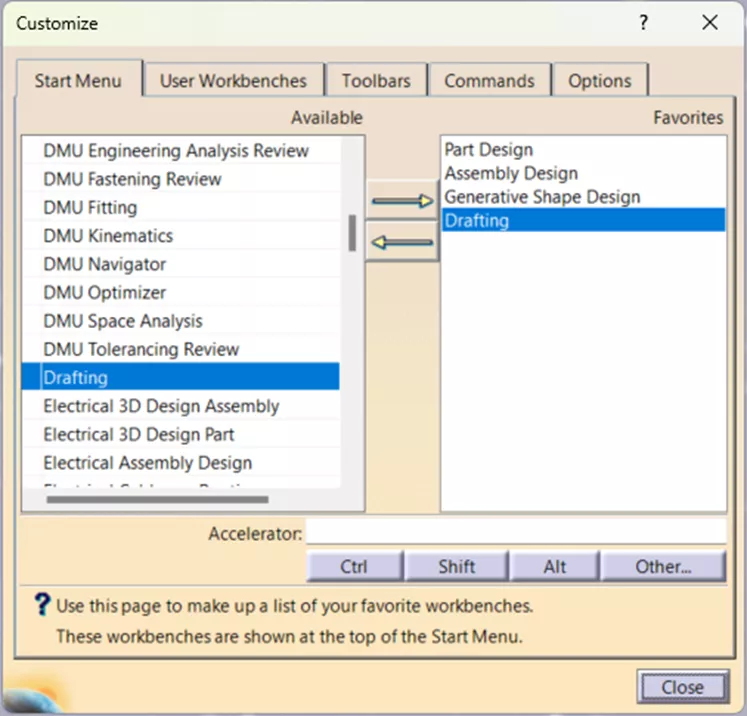
Go to Tools > Customize > Start Menu.
Use the right and left arrows between the Available and Favorite columns to add or remove workbenches.
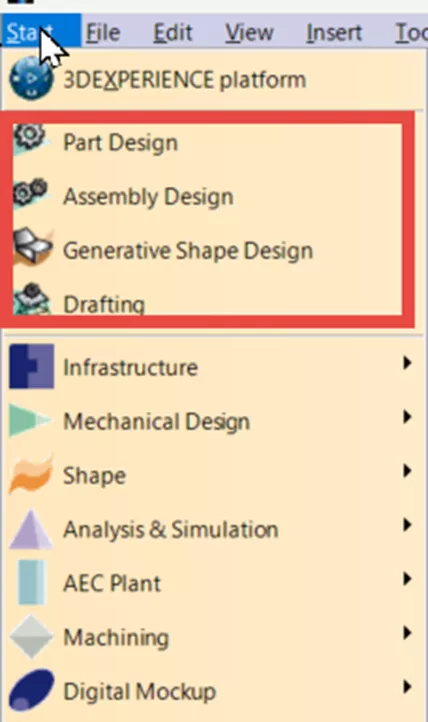
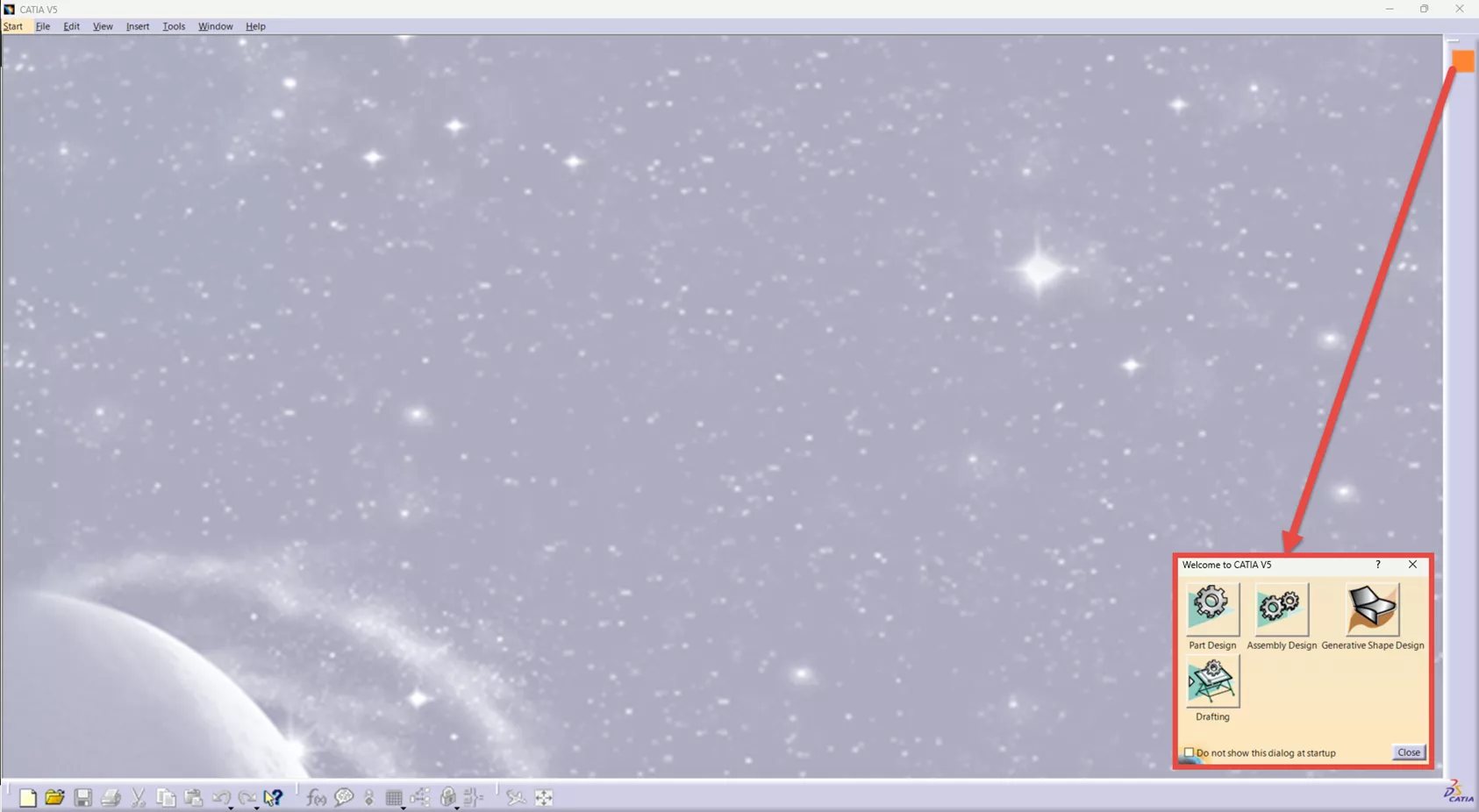
This will give you two quick ways to access your favorite workbenches:
- From the Start Menu.
- From the All General Options blue box in the upper-right corner of the CATIA window.
Customizing CATIA V5 Toolbars
Toolbars give quick access to commands, but they don’t always appear where you want them, and sometimes they’re hidden by default. Customizing your toolbars helps keep your workspace clean and efficient.
Show/Hide Toolbars
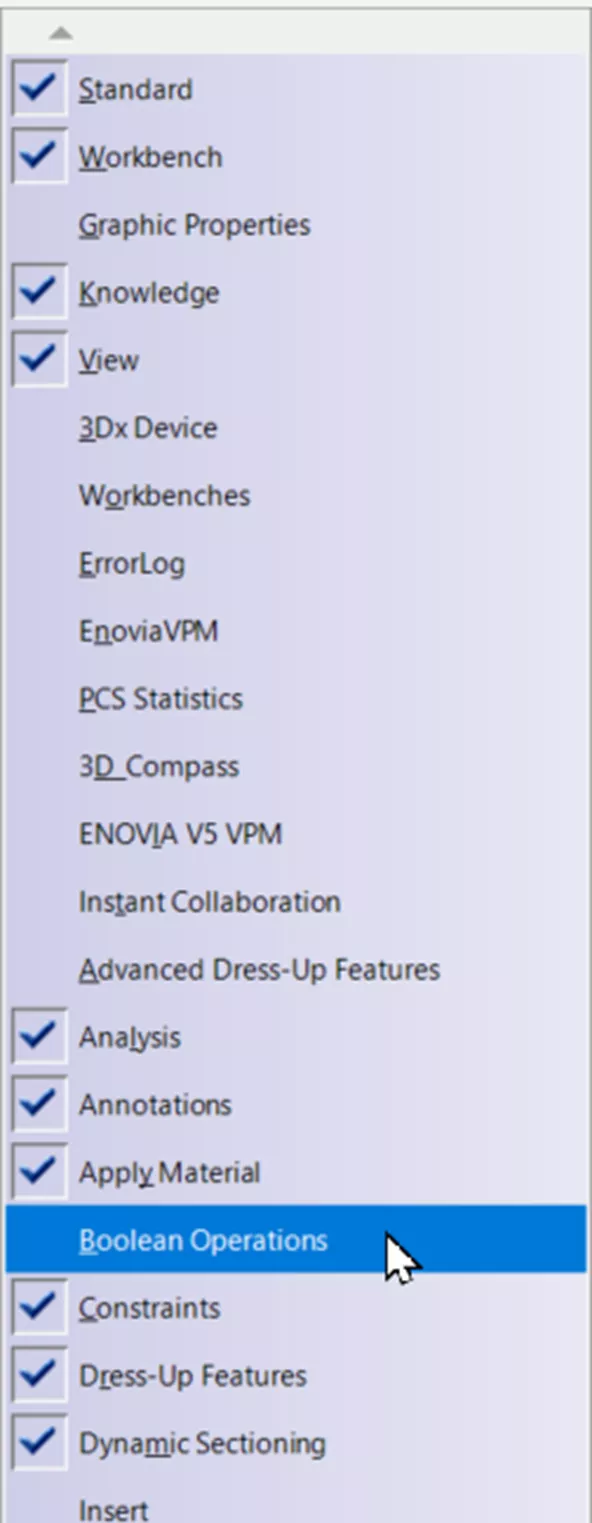
With a workbench open, right-click any empty space in the right-hand side toolbar area.
A list of available toolbars will appear. Click to check or uncheck any toolbar you want to show or hide.
Move Toolbars
Click and drag the horizontal line at the top left of each toolbar.
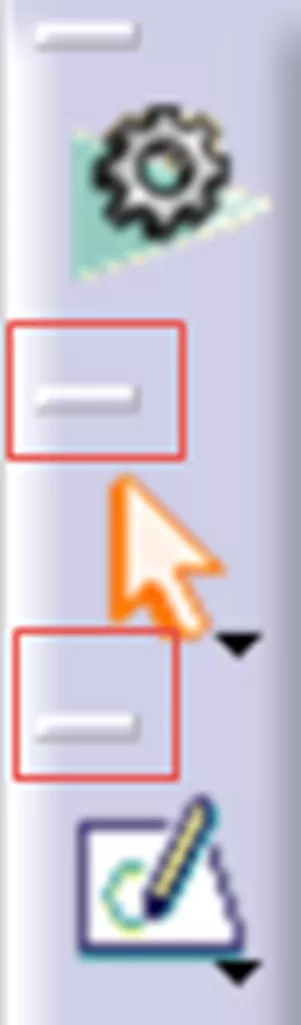
Move it to a new location (either docked or floating).
Tip: Hit SHIFT to make the toolbar horizontal.
Release to place it where you want.
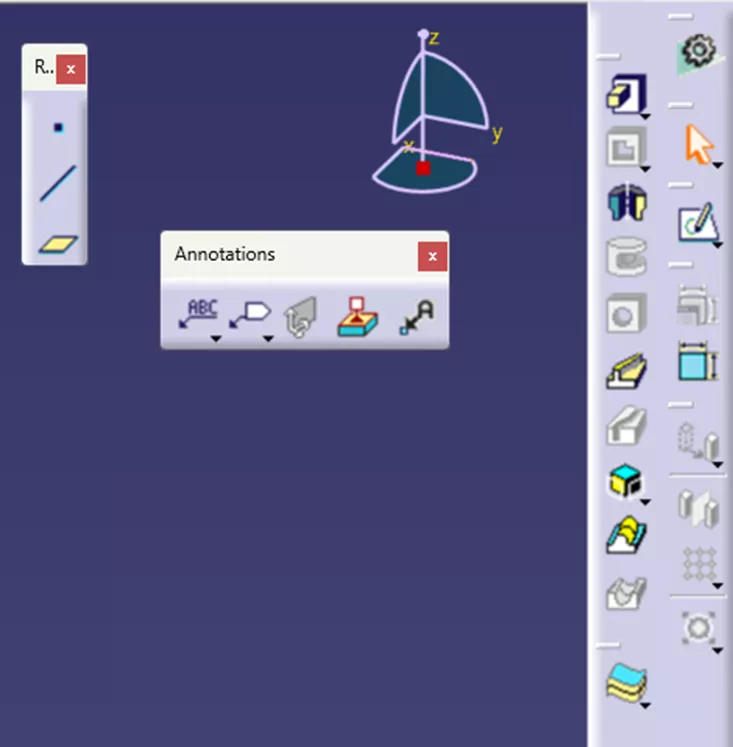
Docking toolbars to the left or right of others will stack the toolbars and make the toolbar wider.
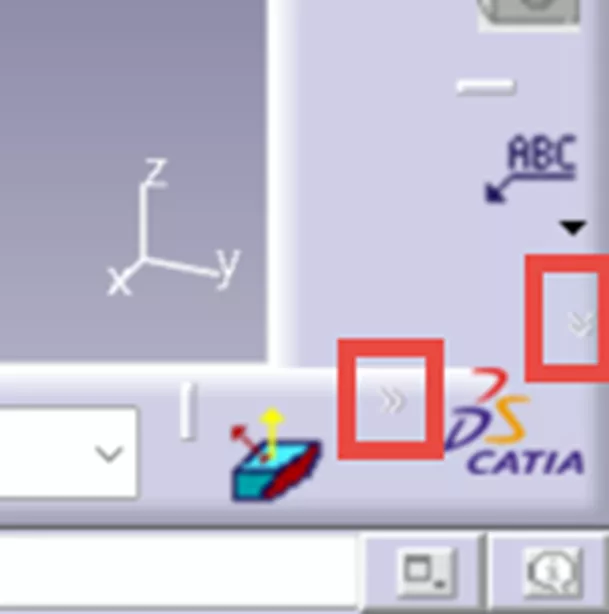
If you see double-chevron arrows in the bottom right of the window, it means some toolbars are hidden. Rearrange until everything you need is visible.
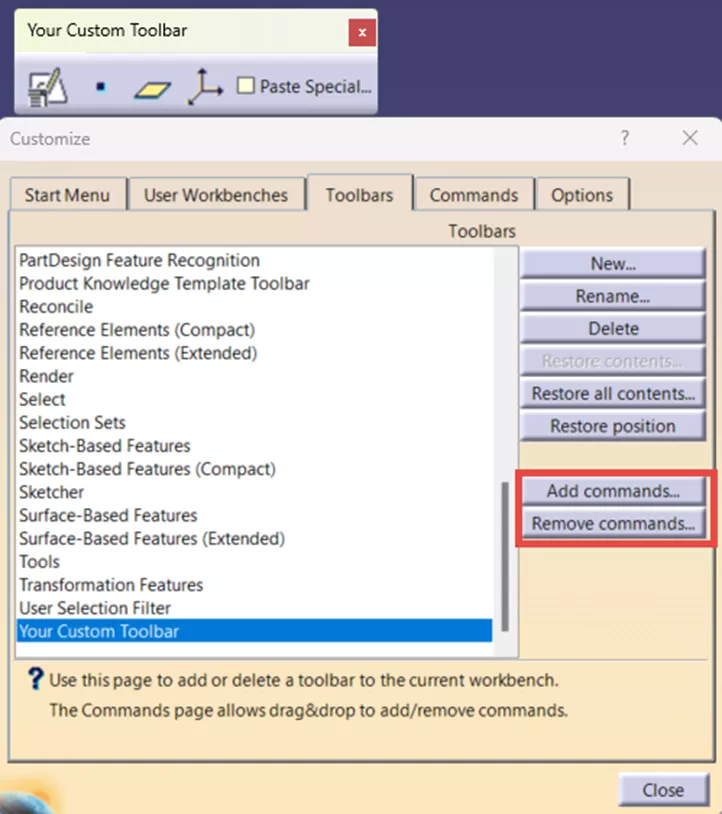
Create a Custom Toolbar
To create a custom toolbar in CATIA, go to Tools > Customize.
In the Toolbars tab, click New. Name your custom toolbar and click OK. Add or remove commands.
Create Command Hotkeys
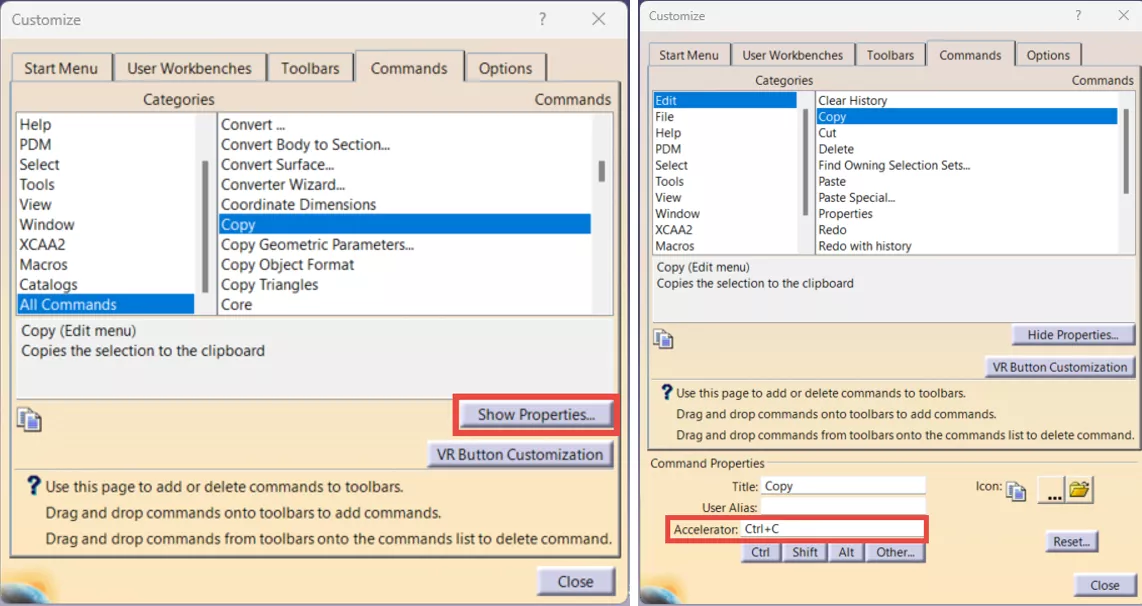
To create command hotkeys, go to Tools > Customize.
In the Commands tab, select All Commands from the Categories column.
Select a command from the right-hand Commands column, then click Show Properties. In the Accelerator section, type in your shortcut key.
Resetting Toolbars
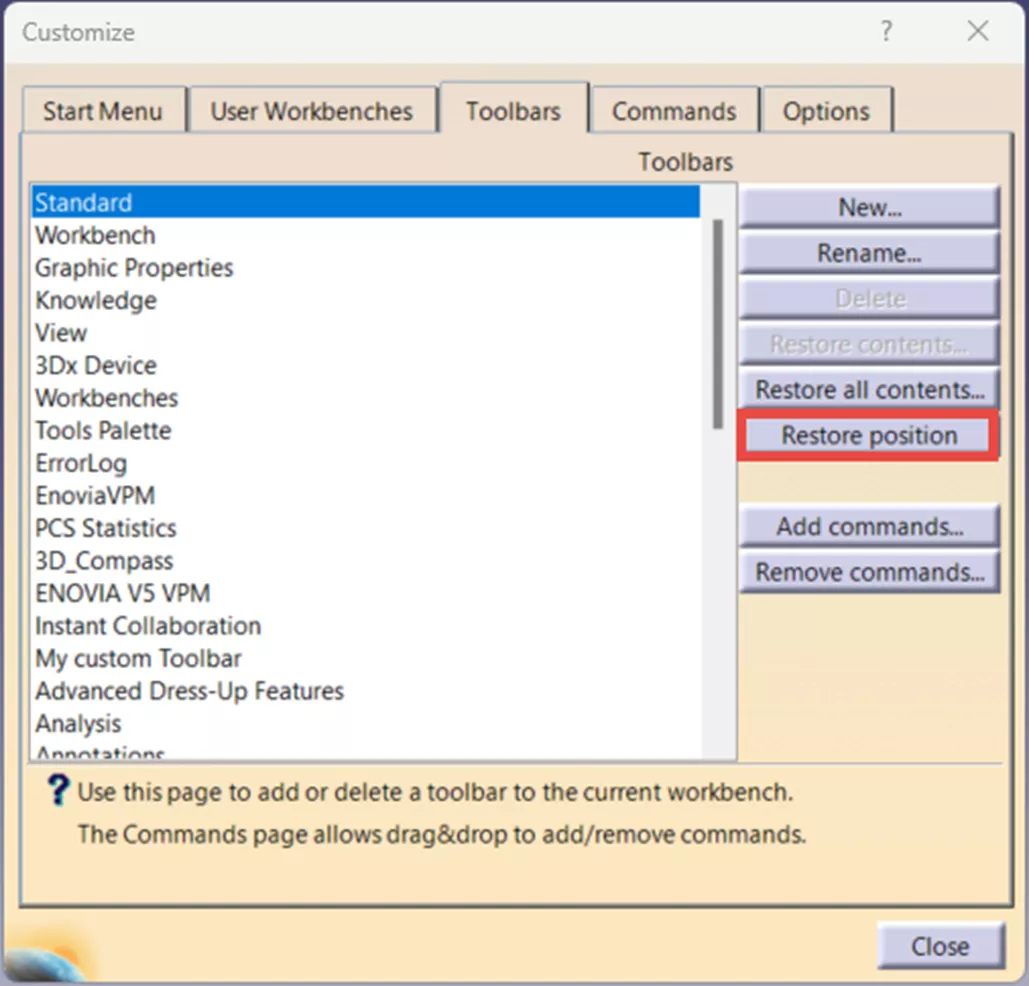
If you ever need to revert to the default toolbar layout, go to Tools > Customize > Toolbars tab > Restore Position.
By customizing your CATIA V5 workbenches and toolbars, you’ll be able to work more efficiently and reduce design bottlenecks. Whether you’re just starting or looking to optimize your setup, mastering these basics is a great step toward becoming a power user.
Related Articles
How to Check Out a CATIA License from Managed DSLS
Advantages of SysML V2 - Now Available in No Magic Cameo & CATIA Magic 2026
Manage High DPI Screen When Using CATIA V5 with Windows 11
Using CATIA STEP to Exchange 3D Models with PMI or Composites Data
CATIA V5 to 3DEXPERIENCE CATIA: Tips for a Successful Transition

About Agustin Jimenez
Agustin Jimenez is an Application Engineer at GoEngineer based out of Fresno, California. He has a Bachelor’s degree in Electronics Engineering Technology from California State University, Long Beach and is a CSW-P certified in Weldments, Sheet Metal, and Mechanical Design.
Get our wide array of technical resources delivered right to your inbox.
Unsubscribe at any time.