How to Check Out a CATIA License from Managed DSLS

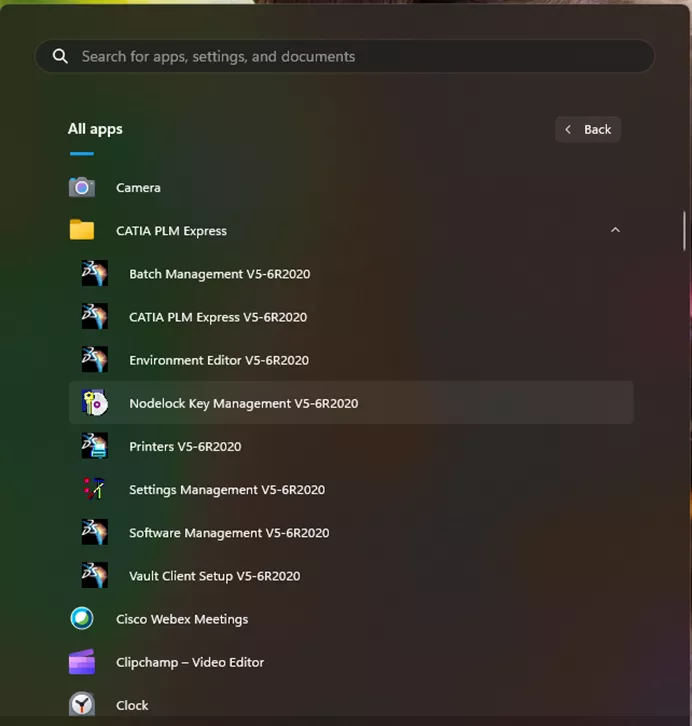
To check out a CATIA license from Managed DSLS, launch the Nodelock Key Management under the CATIA or CATIA PLM Express folder under the Apps list.
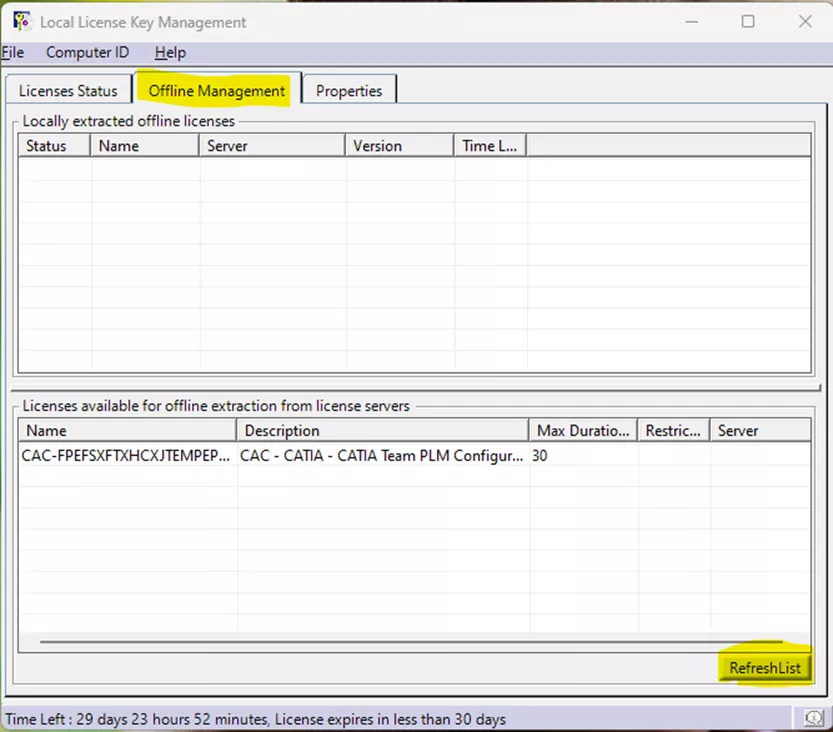
Go to the Offline Management tab of the Local License Key Management tool and hit the RefreshList button to show the available licenses.
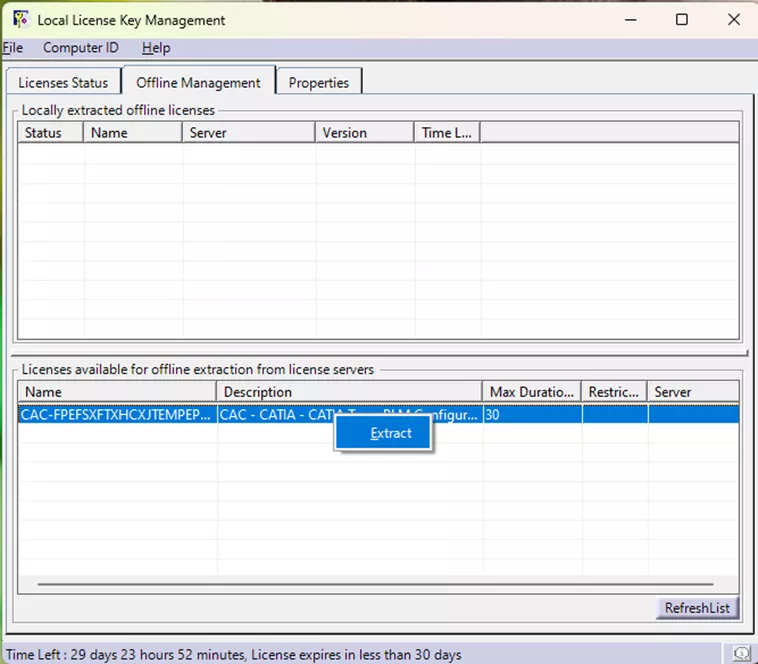
Right-click on the license you want to check out and select the Extract option.
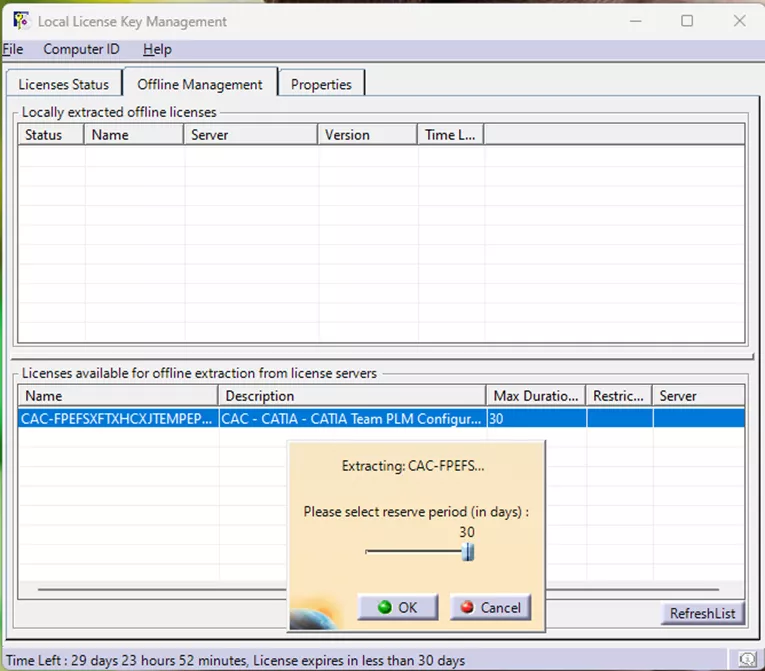
You can then select how long to check out the license for, up to 30 days.
Once extracted, you will see it listed in the locally extracted offline licenses area, meaning you have the license checked out. You can now use CATIA without an internet connection.
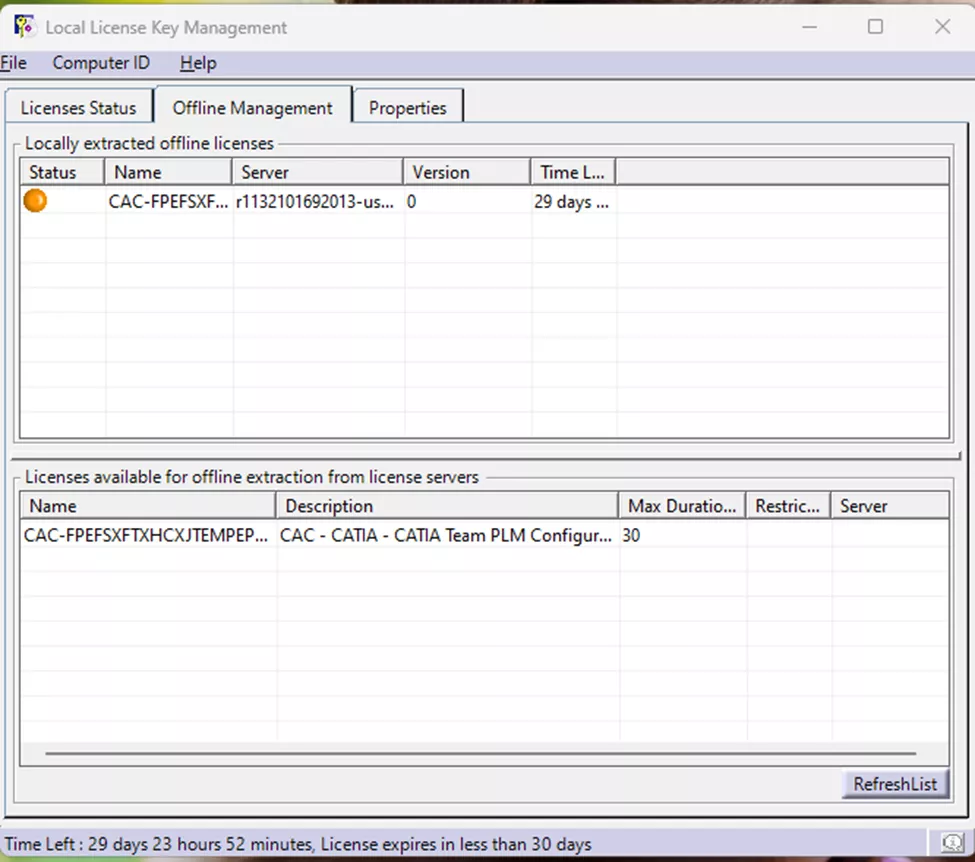
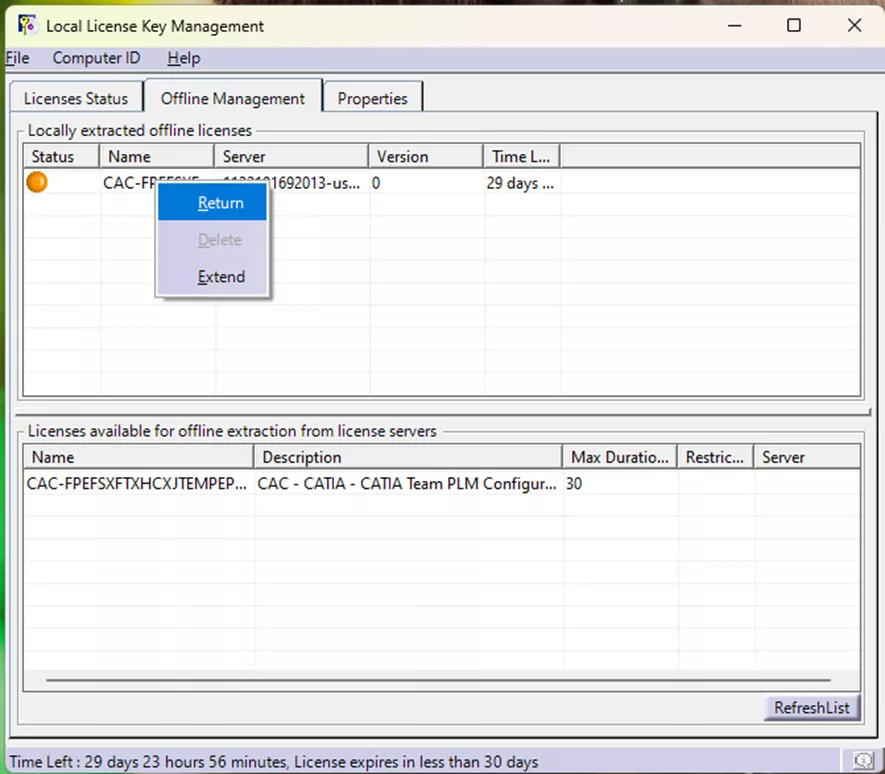
To return the license, you will need to be connected to the internet, go back to the Nodelock Key Management tool, right-click on the checked-out license, and select "Return".
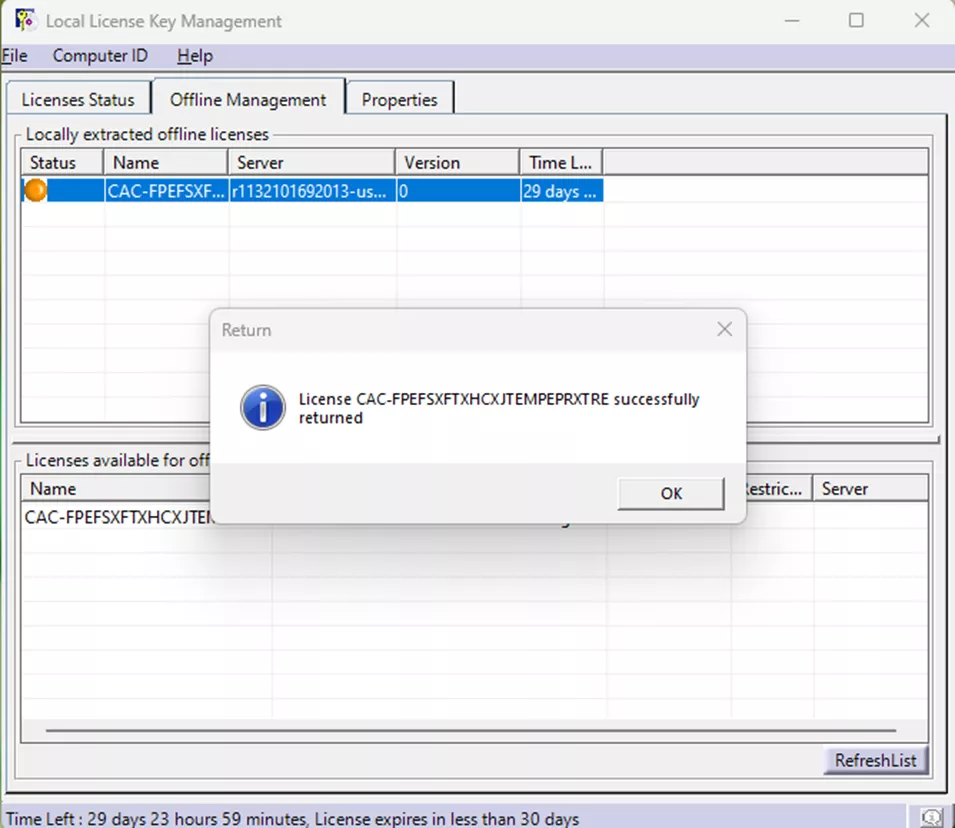
You will receive a question asking if you really want to return the license. After accepting, a confirmation will appear stating that the CATIA license has been returned.
Related Articles
Using CATIA STEP to Exchange 3D Models with PMI or Composites Data
CATIA V5 to 3DEXPERIENCE CATIA: Tips for a Successful Transition
5 CATIA V5 Modeling Tips for New Users
Easing the SOLIDWORKS to CATIA V5 Transition

About Joel Quizon
Joel Quizon is the CATIA Product Manager at GoEngineer. He earned his Mechanical Engineering degree from the University of Colorado, is a Certified SOLIDWORKS Mechanical Design Expert, and has over 30 years of experience in the CAD industry.
Get our wide array of technical resources delivered right to your inbox.
Unsubscribe at any time.