3 SWOOD Command Manager Reset Solutions

If your SWOOD Design or SWOOD CAM tabs aren’t appearing correctly in the Command Manager, or if items under Tools > SWOOD aren’t opening the dialogs they should, a reset may be required. In this article, we walk you through a series of solutions to help restore your SWOOD tools. Note: Start with Solution 1 and continue through the steps until your settings are fully recovered.
Note: Start with Solution 1 and continue through the steps until your settings are fully recovered.
Solution 1
With SOLIDWORKS open and SWOOD add-ins activated, choose Tools > SWOOD Design or SWOOD CAM > Settings.
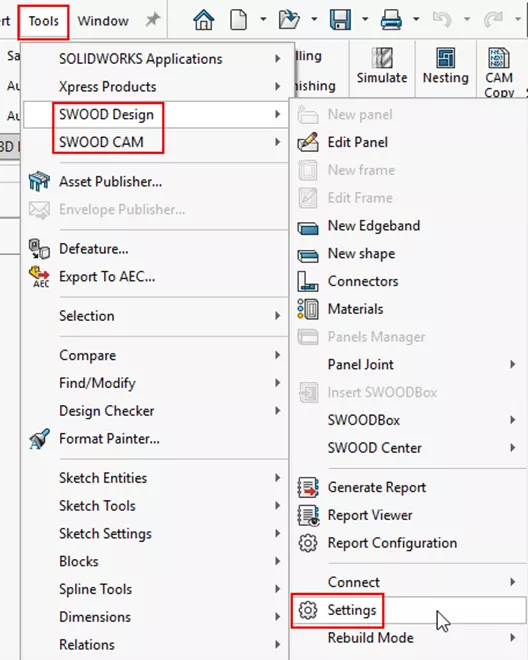
Click on the check box within the Interface Menu section called Reset command manager.
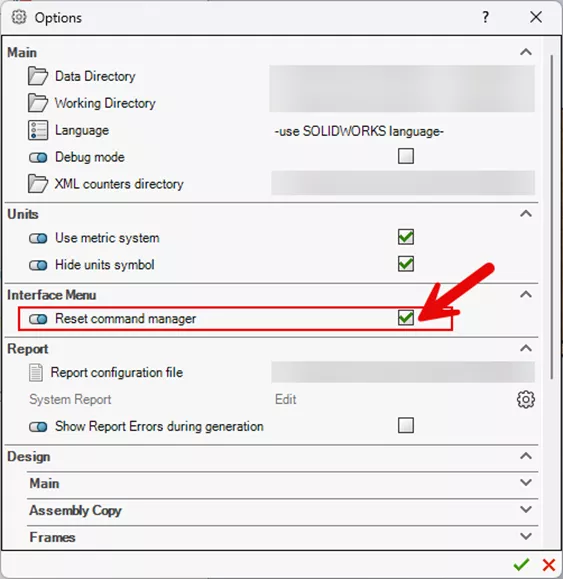
Choose the green check box, and you will be prompted to close and restart SOLIDWORKS.
Reopen SOLIDWORKS and check if this solved the issue. If it did not, continue to Solution 2.
Solution 2
Right-click on the CommandManager tabs and choose Customize.
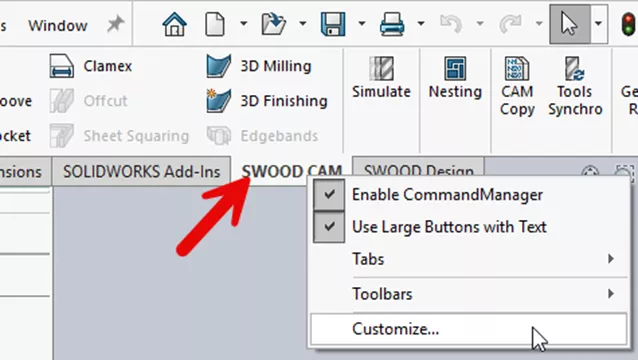
Above the window that opens, you will see all the CommandManager tabs available in your SOLIDWORKS software. Right-click on the SWOOD tabs and choose Delete.
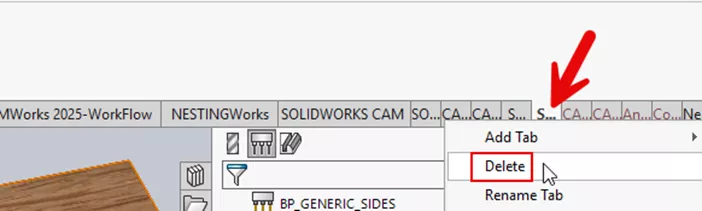
Tip: If you can’t see the full name of the tab, hover over it to find the SWOOD Design and/or SWOOD CAM tabs.
Choose OK to close the Customize window.
Close SOLIDWORKS and re-open it.
Check to see if this fixed the issue. If it did not, continue to Solution 3.
Solution 3
Close SOLIDWORKS.
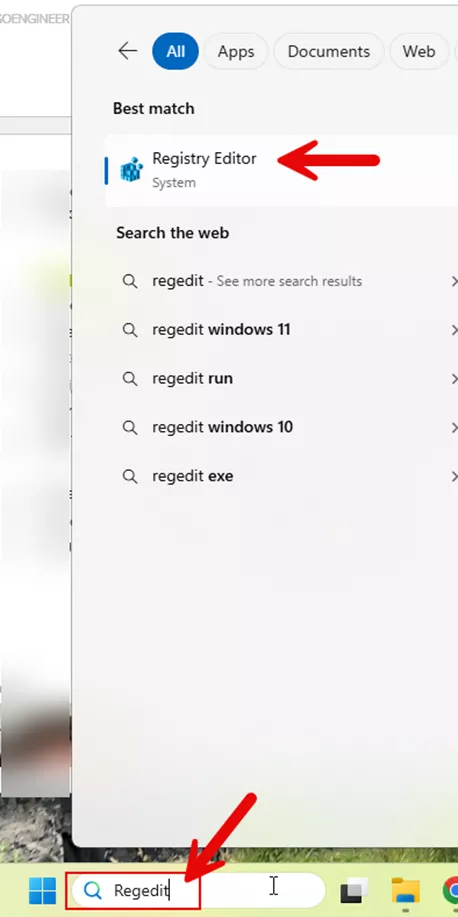
Type Regedit into your Windows search bar to open the Registry.
Note: Administrator Permissions are required to make changes here.
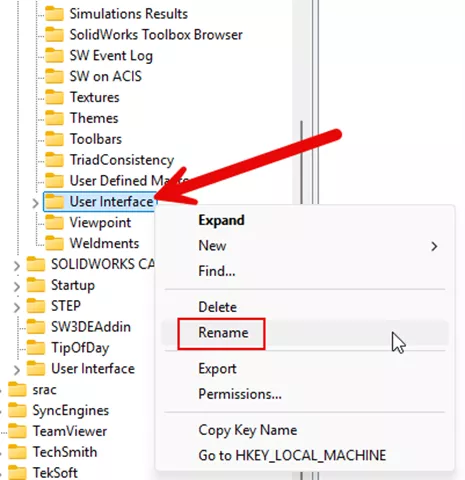
Navigate to: Computer\HKEY_CURRENT_USER\Software\SolidWorks\SOLIDWORKS 202X\User Interface.
Right-click on the User Interface item and select Rename from the menu.
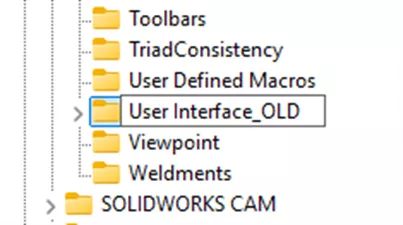
Rename to User Interface_OLD (or something similar).
Close the Registry Editor and reopen SOLIDWORKS.
All User interface settings should be reset to their original state.
Questions?
I hope you found this SWOOD Command Manager Reset guide helpful. If you have questions or need additional assistance, please contact us.
Related Articles
SWOOD Network License Activation Guide
SWOOD Reactivation for Network Licenses
SWOOD Reactivation for Standalone Licenses

About Lindsay Morrison
Lindsay Morrison is a Team Lead in the CAM department at GoEngineer, with over 15 years of industry experience. She holds a diploma in Mechanical Engineering – Design and Analysis from Conestoga College and is based in Toronto, ON, Canada. Outside of work, Lindsay enjoys golfing, reading, spending time by the water, and being with her friends and family.
Get our wide array of technical resources delivered right to your inbox.
Unsubscribe at any time.