CATIA V5 Drafting Tips

In CATIA V5 Drafting, the default settings and drawing actions are not always apparent. This article provides some tips for drafting settings and command options to reduce drawing modification time.
Dimension Manipulator Settings
Sometimes, CATIA dimensions must be moved, oriented, or modified to fit the drawing. This can be accomplished by right-clicking and entering properties to make modifications.
This repetitive process takes valuable time. Activating Dimension Manipulators adds interactive tools when creating or selecting dimensions, allowing for quick modifications.
There are several Dimension manipulators, including:
- Modify overrun: Controls extension line length beyond arrowhead.
- Modify blanking: Controls the gap between the extension line and reference element.
- Insert text before: Adds customized text (including symbols) before a dimension.
- Insert text after: Adds customized text (including symbols) after a dimension.
- Move value: Repositions dimension value.
- Move dimension line: Repositions the dimension line.
- Move dimension line secondary part: Repositions secondary dimension value.
- Move dimension leader: Repositions dimension leader.
By default, only the modify blanking and move dimension leader are set during modification. Checking these options will provide additional freedom to customize dimensions, helping clean up and organize complex drawings.
Navigate to Tools > Options > Mechanical Design > Drafting > Manipulators and turn on the desired dimension manipulators to improve your workflow.
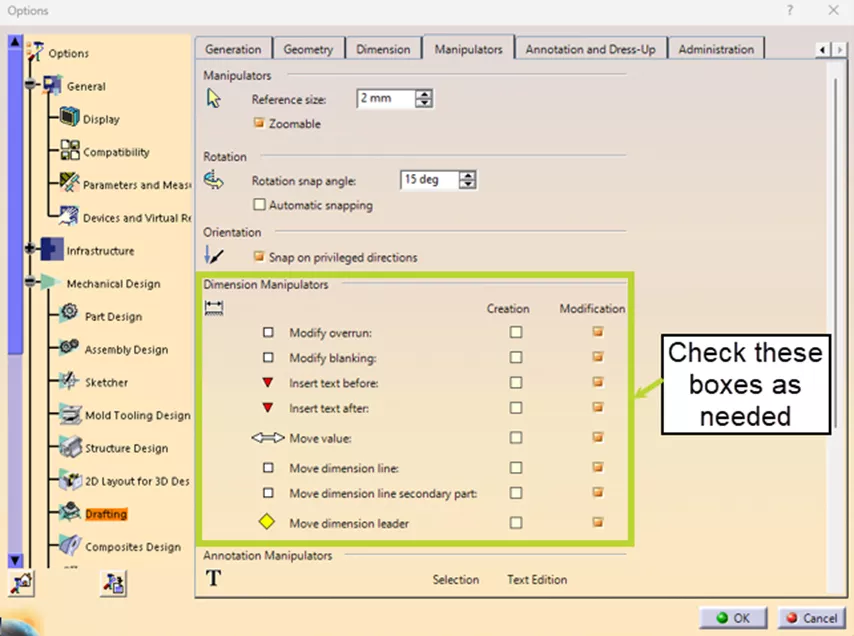
Figure 1: Dimension Manipulator Options
Changing Global Drawing Scale
When creating a drawing, the initial global drawing scale will be determined by the sheet settings. For example, in the standard A2 ISO style, you’ll notice the Global Scale is set as 1:1.
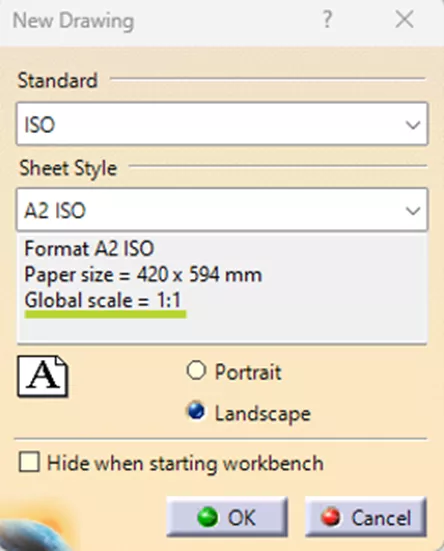
Figure 2: New Drawing Dialog Box
Changing the global scale can optimize drawing space usage by reducing the sheet blank space. To change the global scale, you must create the sheet and then right-click on the sheet in the specification tree. Entering the sheet properties, you can modify the scale for the entire drawing, and every view created will come in at the defined scale. This will also update your title block settings to reflect the scale change.
You can change the individual view scale by right-clicking on the view in the specification tree or the view frame. Click Properties and in the View tab, modify the scale as needed.
Section Line Creation Methods and Modification
There are several ways to create drawing section lines. The drafting workbench allows you to create sections by adding a section line to a view. After clicking the Offset Section View command, the status bar will show "click a starting point or axis", and a line can be generated from there.
You have created a section line, but then realized something needed to be included in the cut...and can’t figure out how to modify it. Instead of deleting and starting over, double-click the section line that you have created. This will activate the Edit/Replace toolbar, which includes options like Invert Profile Direction and Replace Profile commands.
Once you modify the section to your liking, exit the Edit/Replace toolbar and continue with your drawing updates.
The next method creates the section line in the part, making it easier to use and update. First, create a sketch of your section line.
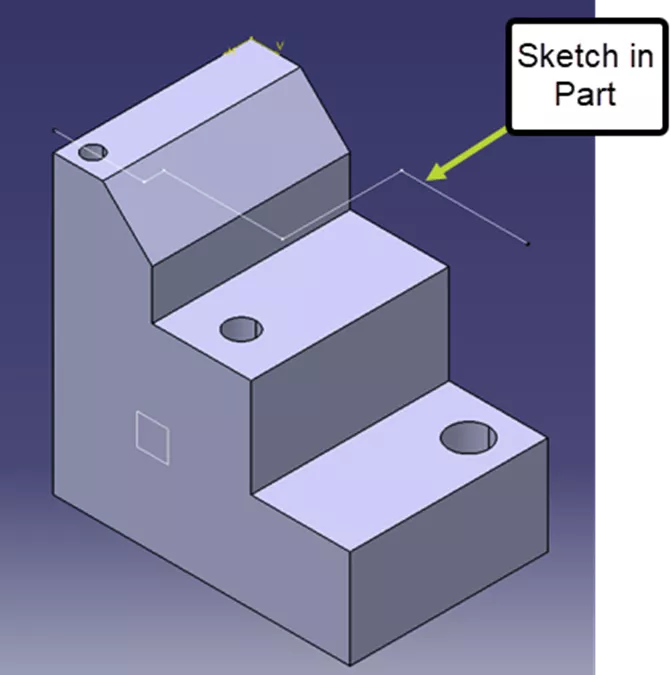
Figure 3: Section Sketch in Part
Then, when using the Section command, switch windows to the part and select the sketch line. If your sketch is constrained to the part, your sketch and section will automatically update with any changes.
Clicking Location within Cumulative and Stacked Dimensions
When creating cumulative or stacked dimensions, the value can vary depending on the geometry being dimensioned. When creating dimension systems, always click near, on, or nearest the point you want dimensioned. For example, dimensioning an angled line, clicking closest to the top of the line, CATIA will dimension to that endpoint. Clicking near the bottom of the line will result in the dimension snapping to the lower side of the line. A click in the wrong location can vary your result, and you'll end up with a dimension reroute or having to start the dimension again.
I hope you find these CATIA V5 tips useful and that drawings now become a less stressful endeavor. If you need more assistance or are interested in additional learning opportunities, GoEngineer offers CATIA training courses, including Advanced Drafting, providing a thorough understanding of the drafting workbench.
More CATIA Tips
Getting Started with CATIA V5: Workbenches & Toolbars
How to Check Out a CATIA License from Managed DSLS
Celebrating Fibonacci Day with Visual Scripting
Using CATIA STEP to Exchange 3D Models with PMI or Composites Data

About GoEngineer
GoEngineer delivers software, technology, and expertise that enable companies to unlock design innovation and deliver better products faster. With more than 40 years of experience and tens of thousands of customers in high tech, medical, machine design, energy and other industries, GoEngineer provides best-in-class design solutions from SOLIDWORKS CAD, Stratasys 3D printing, Creaform & Artec 3D scanning, CAMWorks, PLM, and more
Get our wide array of technical resources delivered right to your inbox.
Unsubscribe at any time.