Adding O-Ring Grooves to a SOLIDWORKS Part

Working in Tech Support allows me to test new SOLIDWORKS applications, exposing me to various tools and functions. One often underutilized function is the Toolbox Grooves.
O-rings are one of the most common pieces of hardware, used for pneumatic and hydraulic systems in a variety of applications spanning nearly every industry. Their versatility can create challenges though, often requiring tedious reference to charts and tables. In SOLIDWORKS, there are several automated ways to add an O-ring groove to a part, sorted here by application.
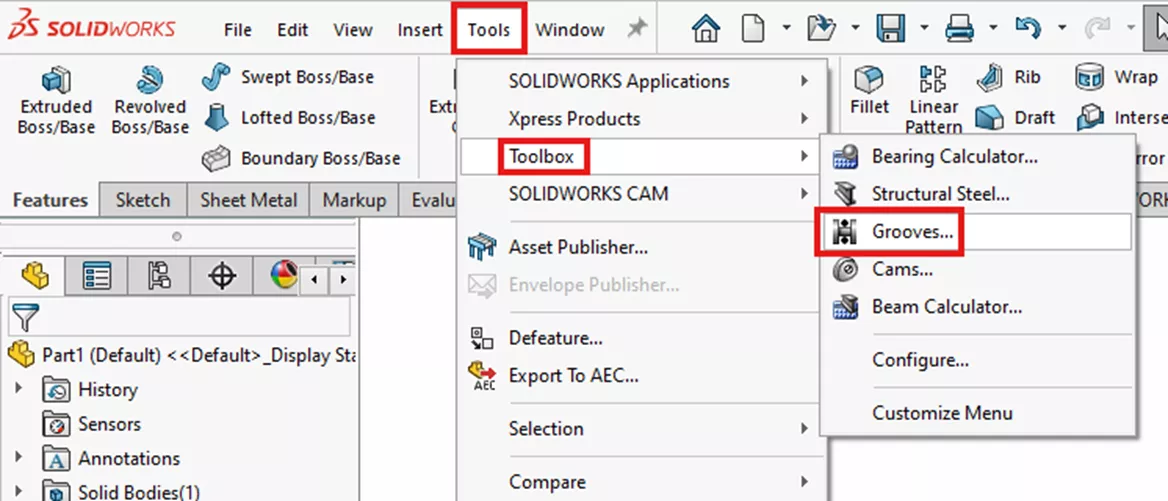
First, let's start by opening the Groove tool via Tools > Toolbox > Grooves...
This opens a dialog box with the standard (indicated below in red), application (blue), size (yellow), as well as a full description and illustration.
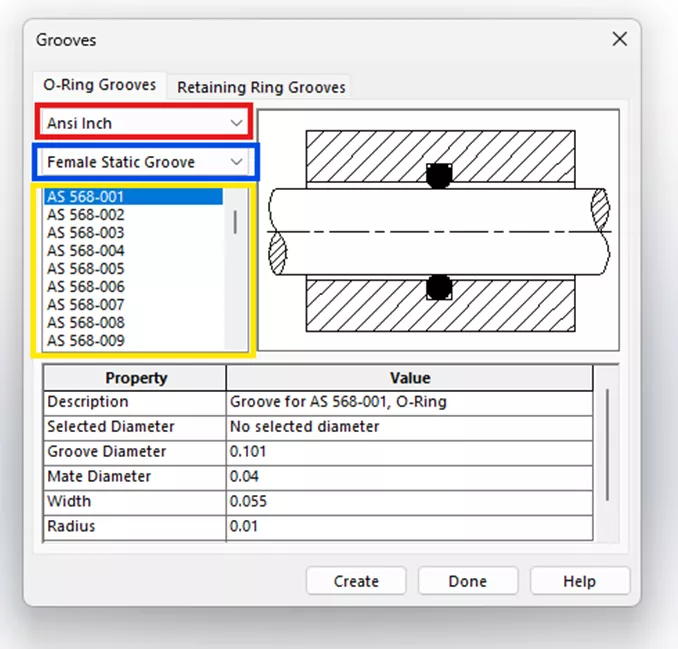
O-Ring Grooves
The tool includes 8 applications:
- Face static groove (gas)
- Face static groove (liquid)
- Female Static Groove
- Floating pneumatic groove
- Male static groove, Recip.
- Piston groove, Recip.
- Rod Groove
- Rotary Groove.
Each includes a number of groove profiles, as defined by the standard (e.g., Ansi Inch, Metric). The measurements are listed in the properties section at the bottom of the window. Adding a groove entails selecting the appropriate model face(s), then clicking Create. Pre-selecting the face will automatically filter the list for appropriate o-ring sizes.
Face Static Grooves
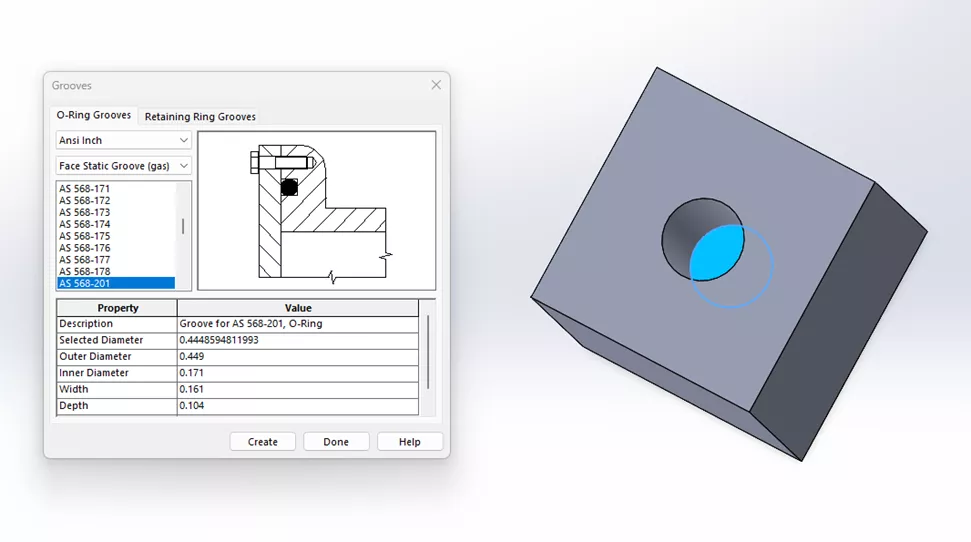
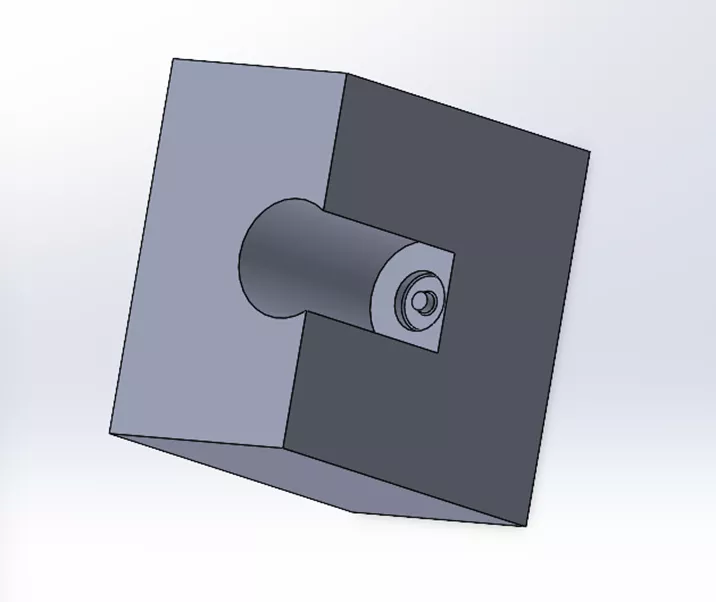
Select the planar bottom or end face of the hole along with the O-ring size to create a Face Static Groove. In the example below, I've selected the bottom face of a blind hole.
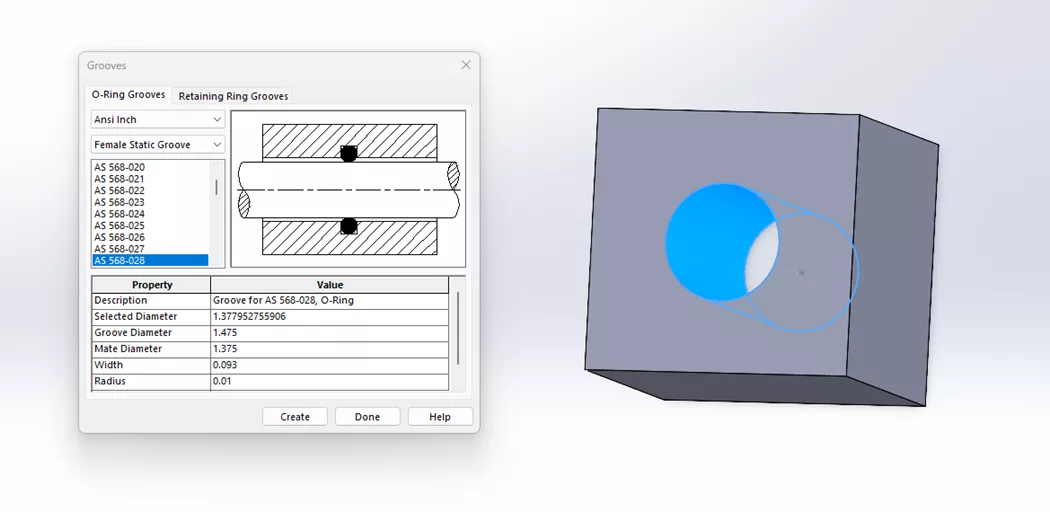
This process is the same for both gas and liquid static grooves.
Male Static Groove, Recip, Floating Pneumatic Groove, and Piston Groove, Recip.
The Male Static Groove, Recip. and Piston Groove, Recip are each applied to an exterior cylindrical face, as shown below.
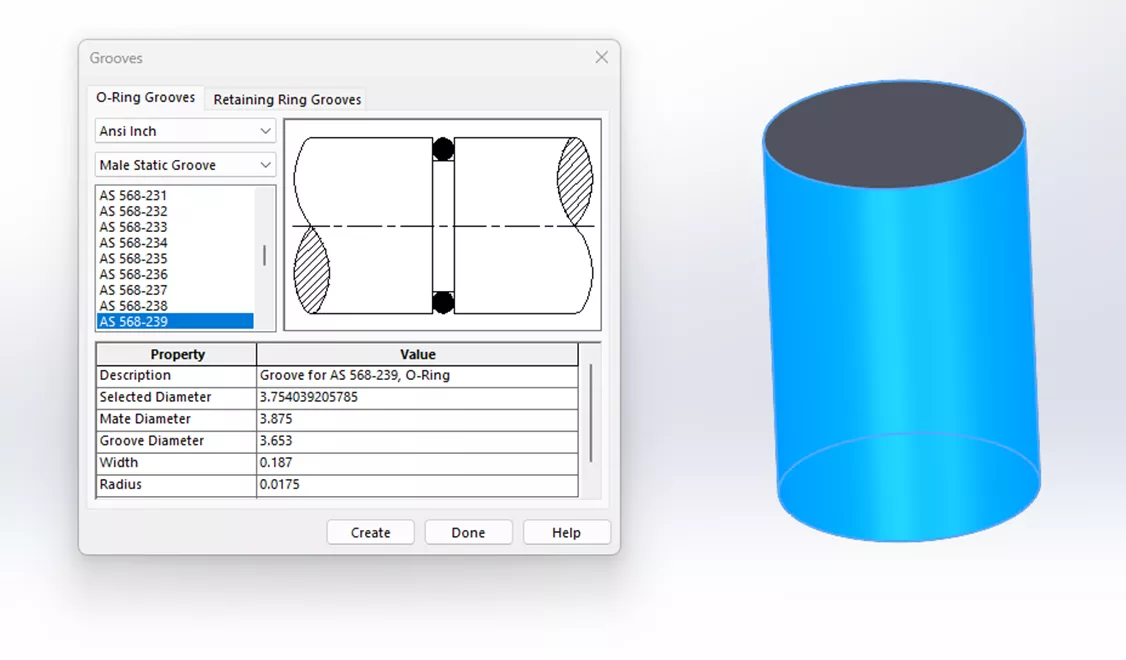
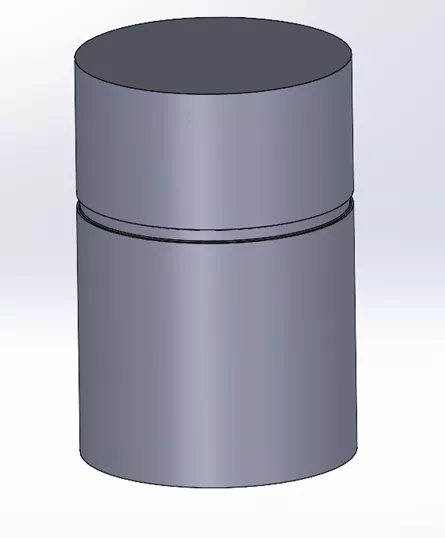
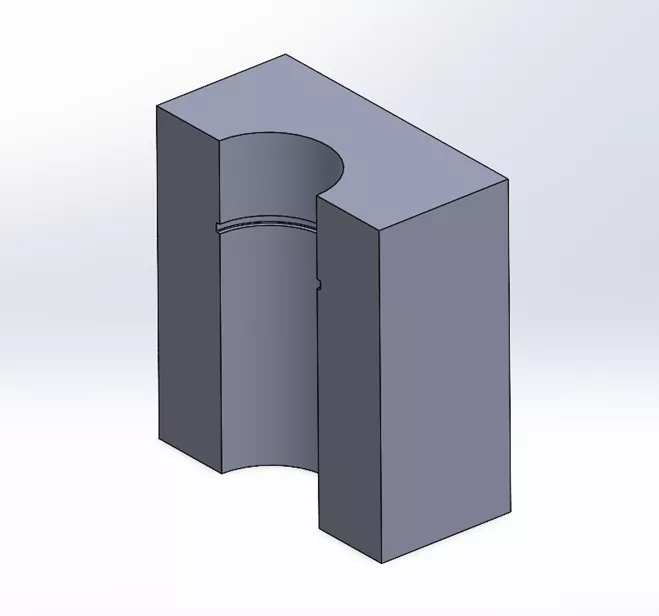
Female Static Groove, Recip., Rod Groove, and Rotary Groove
Female Static Groove, Recip., Rod Groove, and Rotary Grooves are all defined by an internal cylindrical face, as shown in the section view below.
Final Adjustments
Each Groove is added as a feature in the FeatureManager Design Tree. To adjust its position on the selected face, simply edit the Sketch.
I hope you found this quick tip on adding Toolbox Grooves to a SOLIDWORKS Part helpful. Check out more tutorials and tips below, or check out the GoEngineer Community, where you can create forum posts, enter design contests, and answer questions from other SOLIDWORKS users.
SOLIDWORKS CAD Cheat Sheet
SHORTCUTS ⋅ MOUSE GESTURES ⋅ HOT KEYS
Our SOLIDWORKS CAD Cheat Sheet, featuring over 90 tips and tricks, will help speed up your process.

Related Articles
Removing External References in SOLIDWORKS Files
Managing External References in SOLIDWORKS Assemblies
How to Repair Broken References in SOLIDWORKS
How to Use SOLIDWORKS Envelope Mode
Creating a Non-Circular Helix in SOLIDWORKS with Surfacing Commands

About Palmer Bubb
Palmer Bubb is a Technical Support Engineer and Certified SOLIDWORKS Expert (CSWE). Prior to joining the technical support team in 2021, Palmer designed retail fixtures for major retailers such as Lowes, Publix, Meijer, and Harbor Freight. He graduated from Northern Illinois University with a degree in Mechanical Engineering. Palmer enjoys weightlifting, local coffee shops, book stores, and live music.
Get our wide array of technical resources delivered right to your inbox.
Unsubscribe at any time.