Missing SOLIDWORKS Bend Lines in Flat Pattern DXF

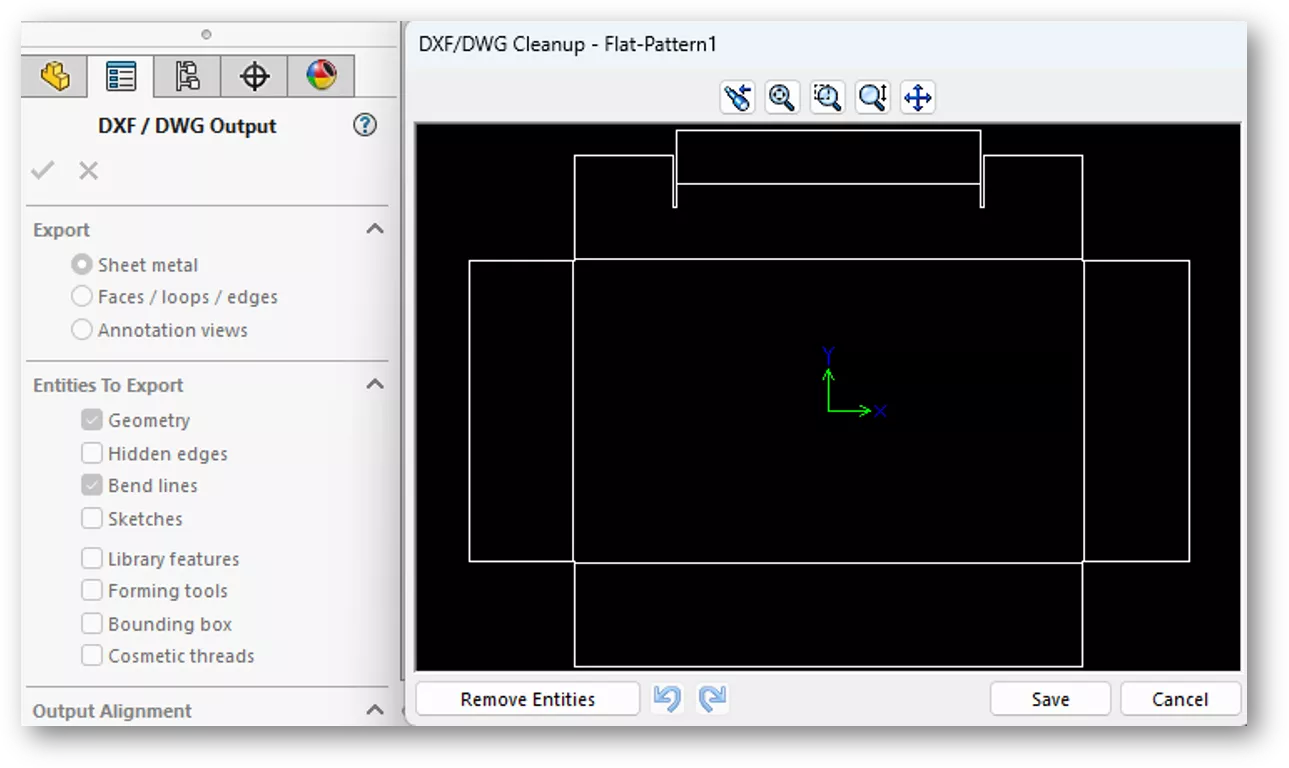
SOLIDWORKS relies on the settings in the default drawing template to control Flat Pattern DXF and DWG exports. If bend lines are not visible in the default drawing template, they will not be included in the exported DXF or DWG files (even if Bend Lines is checked in the DXF/DWG Output PropertyManager). This article explains how to verify that your drawing template options are configured correctly to achieve the best Flat Pattern results.
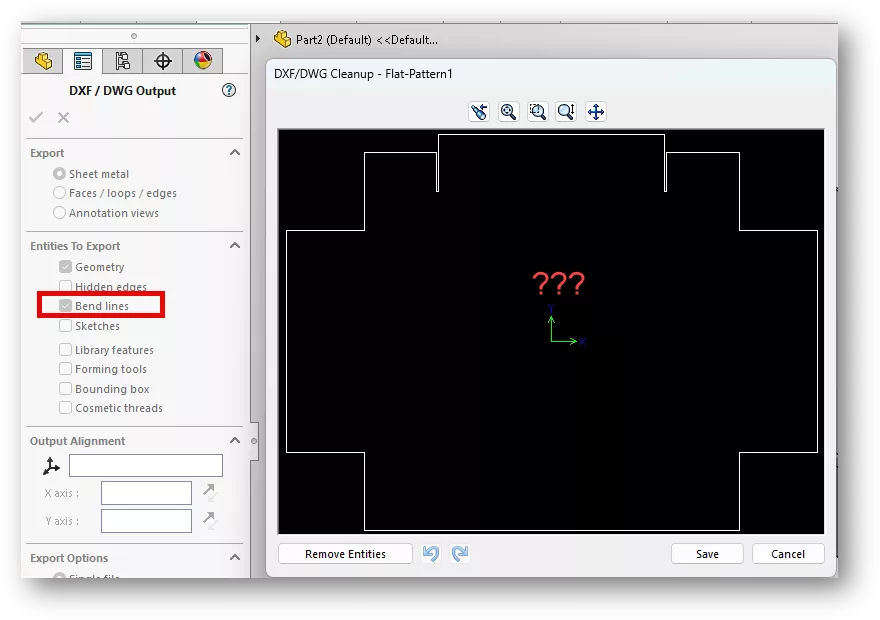
How to Change View Settings in the Default Drawing Template
In SOLIDWORKS, go to Tools > Options > System Options > Default Templates and verify which default template is being used for Drawings. This is the template being used when creating a flat pattern DXF. Next, we’ll cover the steps for updating this template.
Note: If "Prompt user to select document template" is checked, then you’ll update whichever template you normally choose for DXF export.
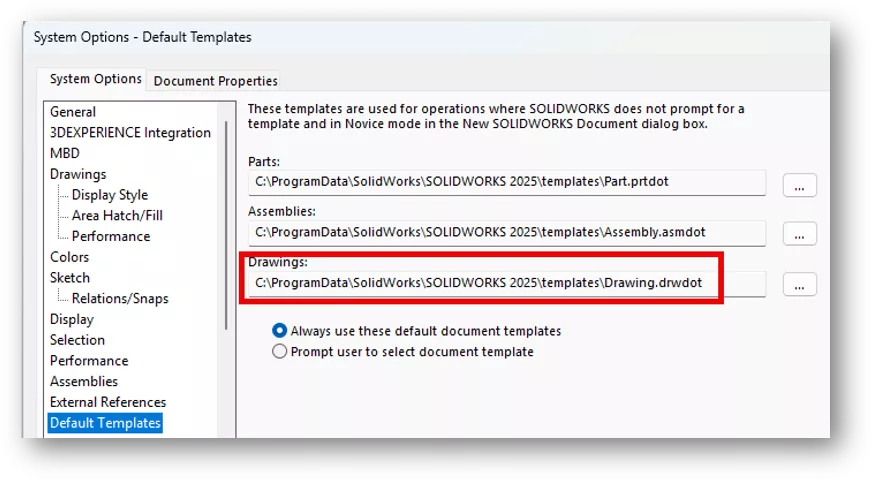
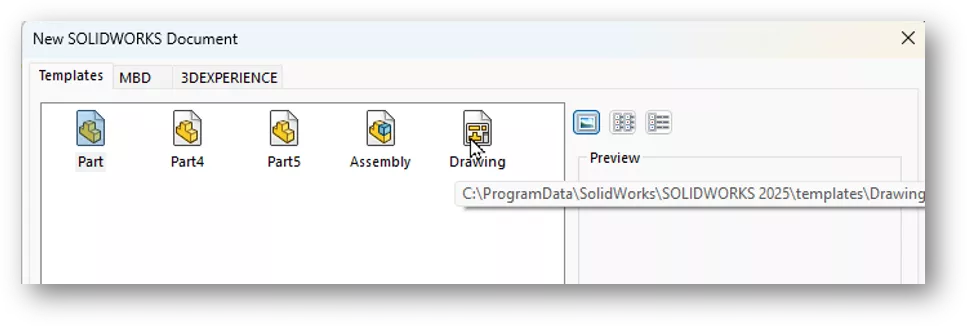
Next, go to File > New, select the template listed as the default template for drawings, and click Open.
Note: You can hover over the template to ensure it’s the same path listed above.
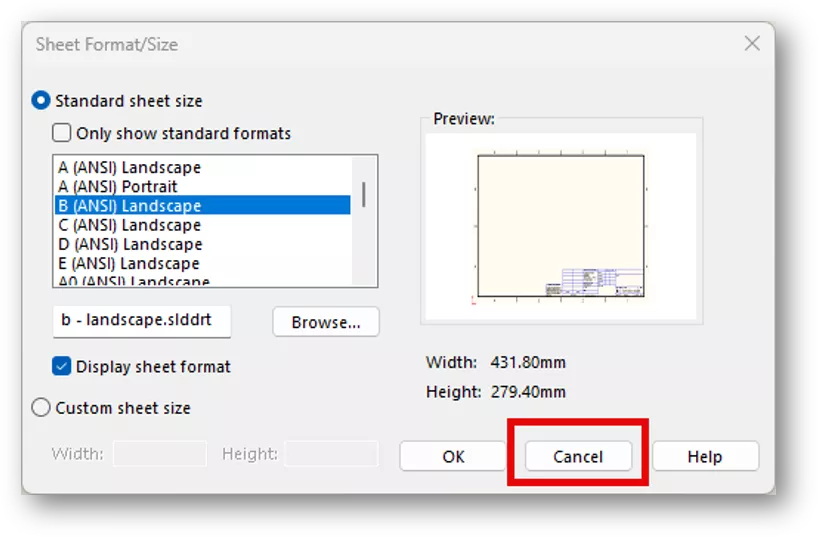
If you have it set to choose a sheet format on open, click Cancel to keep this functionality (we’ll be saving over this template shortly).
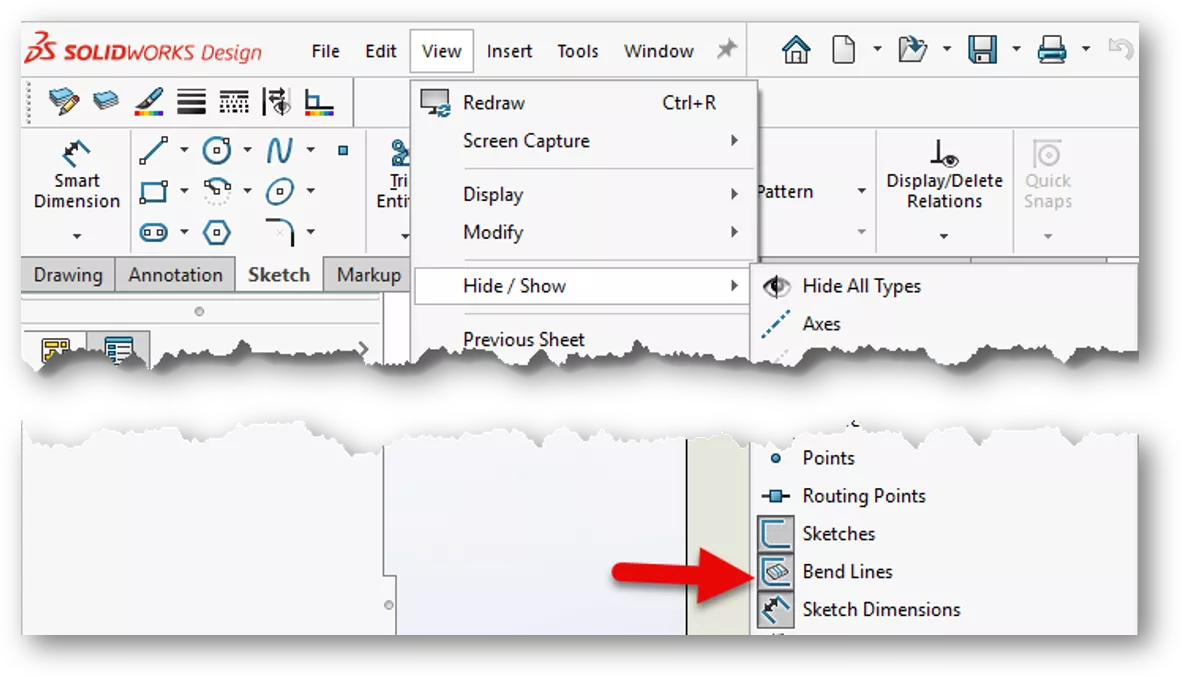
Once the template opens, if it prompts you to choose a model in the Model View PropertyManager, click the red X. Now go to View > Hide/Show and turn on Bend Lines.
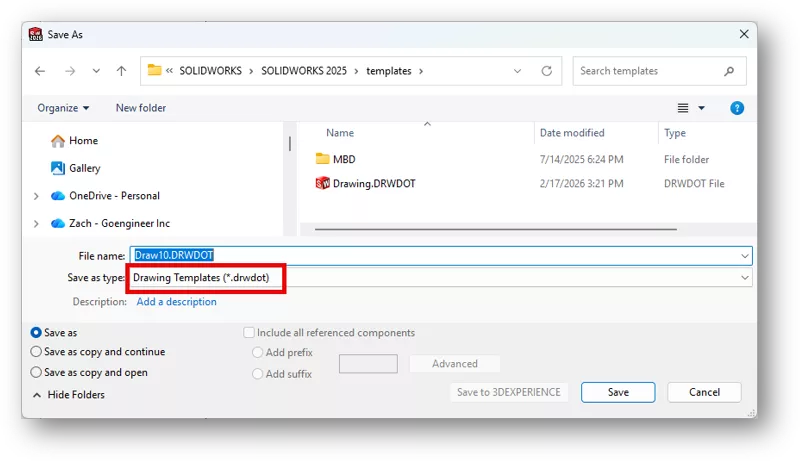
The next step is to save the template. Go to File > Save as, then change the save as type to Drawing Template (*drwdot). The save directory will change to the default template directory. We can save over the current default template or give the template a new name, then click Save.
Note: If you give the template a new name, you’ll need to update the default drawing template location in the first step.
The results are a DXF export that contains sheet metal bend lines. If you have any trouble with the process, please feel free to reach out to support for further guidance.
Want to learn more? Check out more tutorials and tips below, or check out the GoEngineer Community, where you can create forum posts, enter design contests, and answer questions from other SOLIDWORKS users.
SOLIDWORKS CAD Cheat Sheet
SHORTCUTS ⋅ MOUSE GESTURES ⋅ HOT KEYS
Our SOLIDWORKS CAD Cheat Sheet, featuring over 90 tips and tricks, will help speed up your process.

Related Articles
How to Reorder SOLIDWORKS Sheet Metal Bends
Using a DWG or DXF for SOLIDWORKS Drawing Borders
Exporting Curved Surfaces in SOLIDWORKS to a DWG/DXF in 2 Steps
Faster DWG Conversions Using the SOLIDWORKS 2D to 3D Toolbar

About Zach Brown
Zach Brown is a certified SOLIDWORKS Expert and a Technical Support Engineer. Prior to working at GoEngineer, he spent 15 years as a mechanical designer, CAD support tech, and instructor using SOLIDWORKS. His hobbies include playing guitar, riding motorcycles, and skiing.
Get our wide array of technical resources delivered right to your inbox.
Unsubscribe at any time.