What is CEF for SOLIDWORKS & How to Fix the Faulting Module libcef.dll?

This blog explains CEF for SOLIDWORKS, what it stands for, why you need it, and how to resolve it if it is faulty.
What is CEF?
The CEF (Chromium Embedded Framework) is a component installed by the SOLIDWORKS Installation Manager to show content for SOLIDWORKS Applications and the 3DEXPERIENCE platform. Without it, SOLIDWORKS will not run properly.
CEF is an open-source software framework for Chrome used by many other applications (e.g., Adobe, Spotify, Steam, Inventor, Microsoft Power BI, etc.)
Where is the CEF Installation Media?
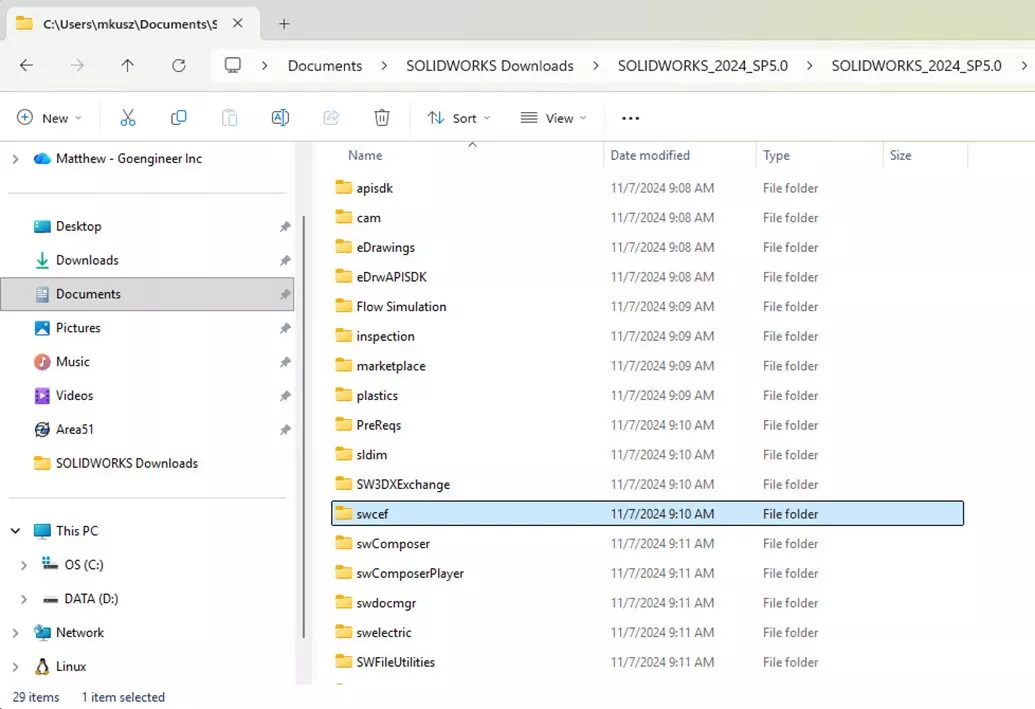
To access the CEF Installation Media, open a File Explorer Tab and locate the folder for your SOLIDWORKS installation media. It should read SOLIDWORKS 20XX.
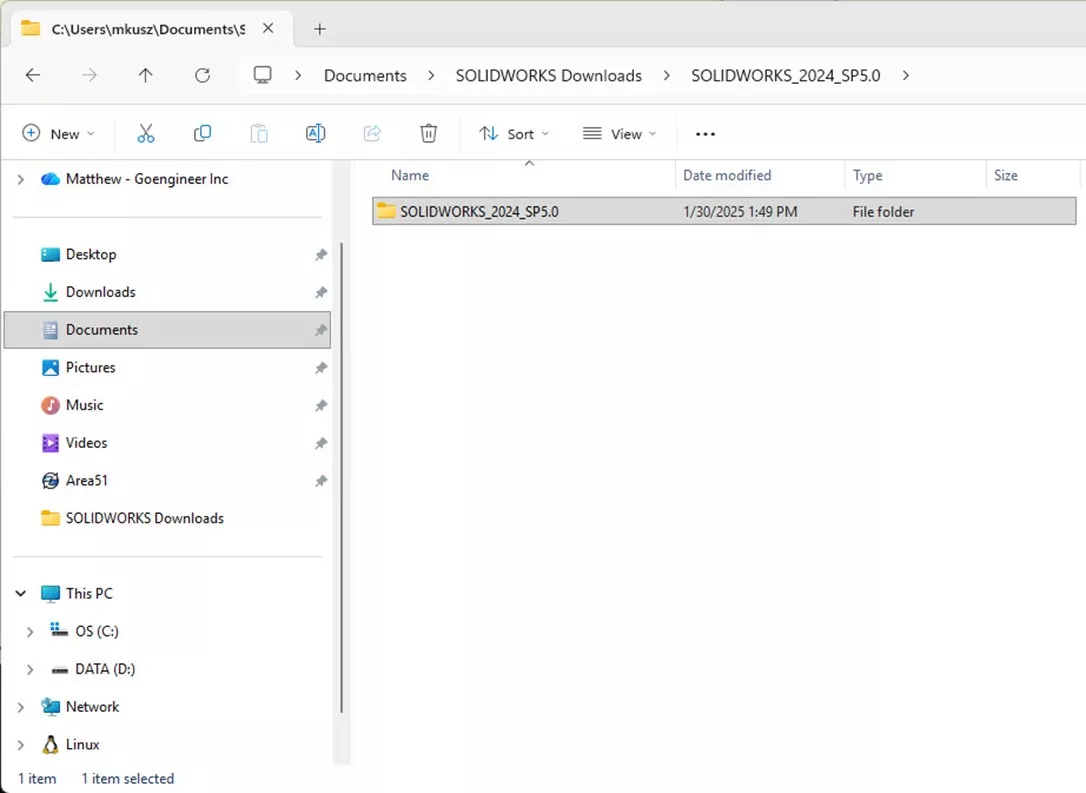
Navigate to the sub-folder swcef:
How Do I Install CEF?
Inside the swcef folder, you will find an installer named CEF for SOLIDWORKS Applications.msi:
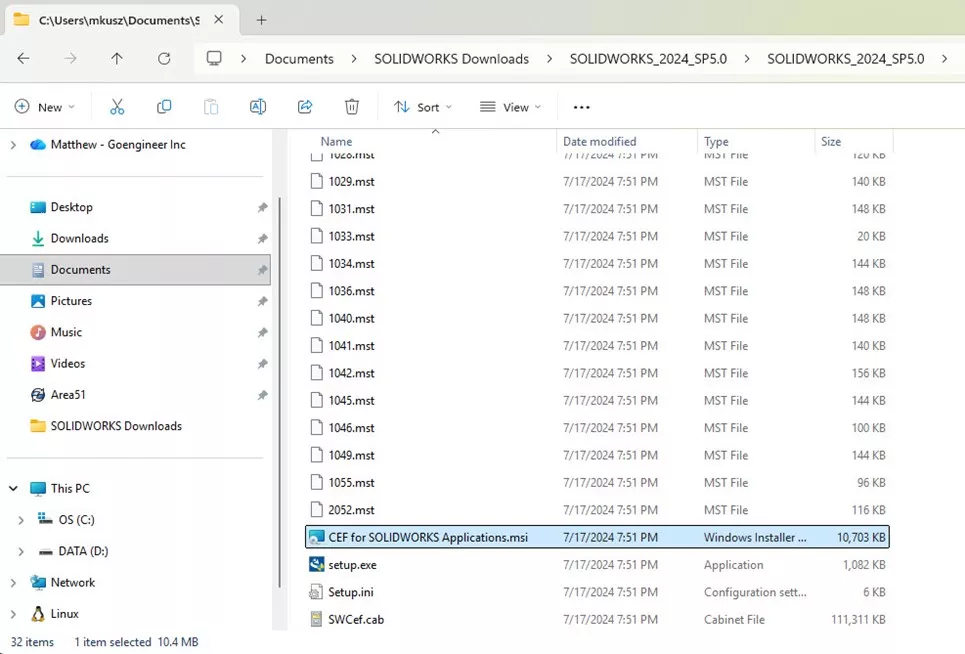
Double-click the installer, and the installation wizard will appear. Alternatively, right-click and show more options (in Windows 11) and run as Administrator.
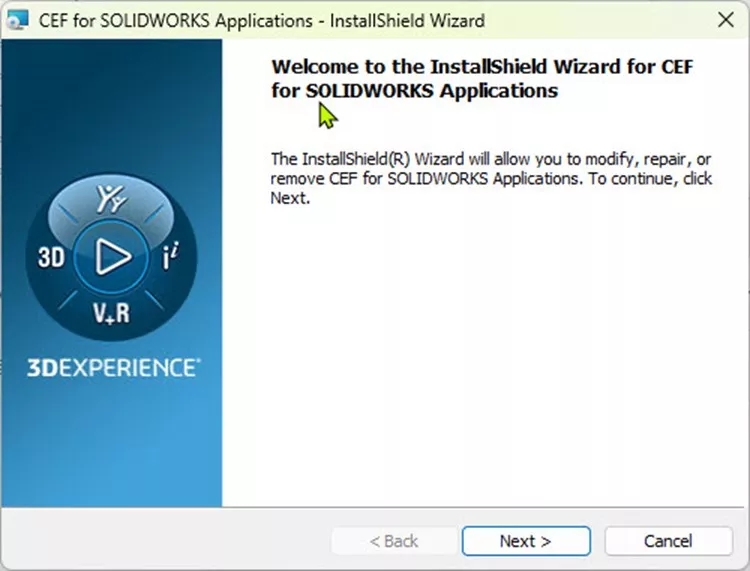
Click through Next and then Install.
You can confirm CEF has been installed by navigating to your Control Panel and reviewing the Programs and Features.
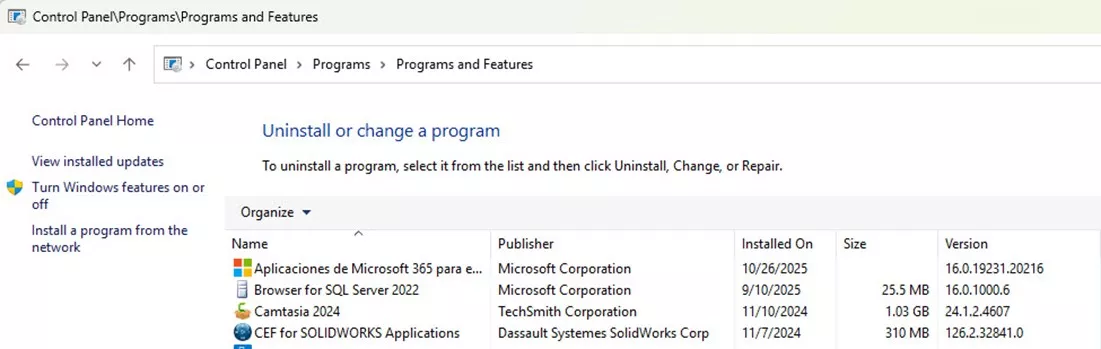
Once the program has finished, CEF will be installed.
How to Resolve the Faulting Module libcef.dll Error
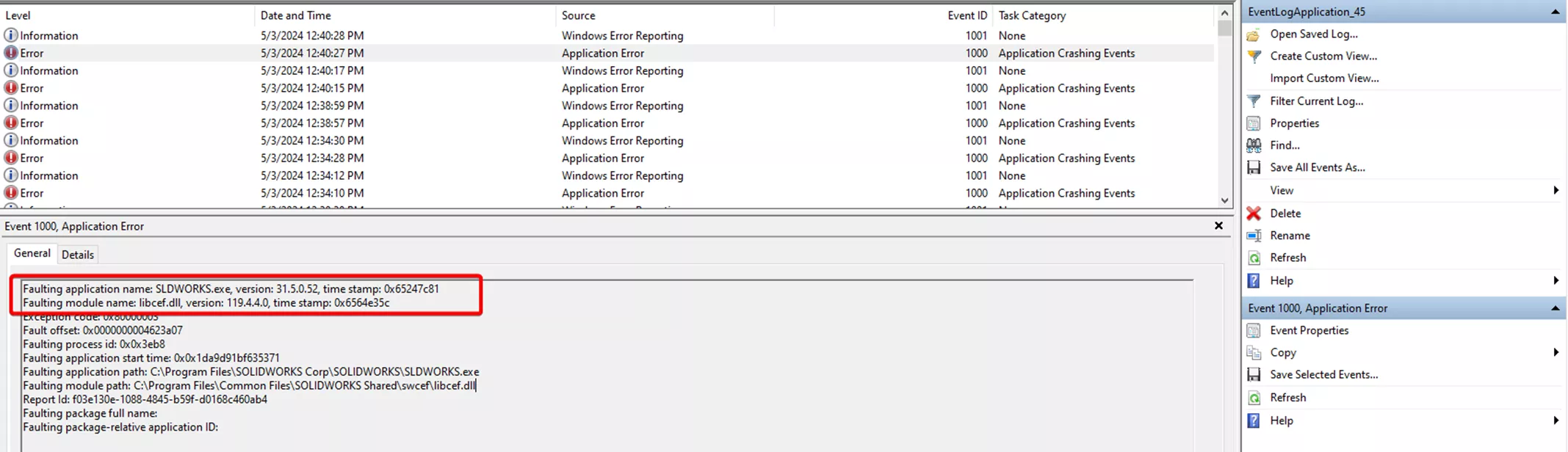
There are three ways we can resolve this:
Option one
- Uninstall CEF for SOLIDWORKS from the Windows Control Panel.
- Reboot your machine.
- Navigate to %temp% (this can be directly copied and pasted/typed into the path for Windows Explorer and press enter to reach) and delete the folder “swcefcache” after making a backup.
- Go to the full installation file set of SOLIDWORKS or the default location of where SOLIDWORKS downloads its installation files, C:\Users\<username>\Documents\SOLIDWORKS Downloads\SOLIDWORKS 20xx SPx, of the latest version of SOLIDWORKS installed.
- Open the folder swcef.
- Right-click on setup.exe and choose Run as Administrator.
- When finished, restart the machine.
- Test launching SOLIDWORKS.
Option two
You can try replacing the libcef.dll file with the file version 100.0.14.0 to resolve the issue. You can see which version the dll file is in by right-clicking on the file in File Explorer > Properties.
- Copy the libcef.dll file.from another users computer.
- Browse to C:\Program Files\Common Files\SOLIDWORKS Shared\swcef\
- Replace the libcef.dll in the folder with the one downloaded.
Option three
In this solution, we will let SOLIDWORKS reinstall the components it needs by renaming a folder that SOLIDWORKS will recreate with a repair.
- Browse to C:\Program Files\Common Files\SOLIDWORKS Shared\
- Rename the "swcef" folder to "swcef_old".
- Run a repair on SOLIDWORKS and reboot the PC.
These solutions should also work for the installation error: Product: ErrorCode:1714 Message: Error 1714. The older version of CEF for SOLIDWORKS Applications cannot be removed. Contact your technical support group.
Error Message When Installing Register_SWCEFComWrapper
If you experience issues installing, repairing, or modifying your SOLIDWORKS and see a message about Register_SWCEFComWrapper, check to see if you have Microsoft Visual C++ 2015-2022 Redistributable installed in your Control Panel > Programs and Features.
If you do, check your <SOLIDWORKS installation folder>\prereqs\ VCRedist17\ folder. You should see the two Microsoft Visual C++ 2015-2022 Redistributables.
If you do not, you can find them at Microsoft's help center.
From the Control Panel > Programs and Features, uninstall then reinstall these two prereqs.
Microsoft Visual C++ 2015-2022 Redistributable (x64)
Microsoft Visual C++ 2015-2022 Redistributable (x86)
Need Help?
If GoEngineer is your SOLIDWORKS Partner, contact the Technical Support team.
Want to learn more? Check out more tutorials below. Additionally, check out the GoEngineer Community, where you can create forum posts, enter design contests, and answer questions from other SOLIDWORKS users.
Related Articles
Everything You Need to Know About the SOLIDWORKS Rx Tool
Optimizing Graphics Card Setup for SOLIDWORKS
Stuck Borrowed SOLIDWORKS Network License
CAD Families, Physical Products, and Representations: What They Are & When to Use Them

About Matthew Kusz
Matthew Kusz is a Senior Technical Support Engineer at GoEngineer. When Matthew isn’t assisting customers with their engineering challenges, he spends his free time repairing antique watches/clocks, designing furniture, tending his aquariums and learning about bee keeping.
Get our wide array of technical resources delivered right to your inbox.
Unsubscribe at any time.