Optimizing Graphics Card Setup for SOLIDWORKS

Is your hardware living up to its potential? Learn how to optimize your graphics card settings to eliminate "low resource" warnings and achieve the seamless, lag-free SOLIDWORKS experience your complex assemblies require.
Note: It may be a good idea to involve your IT team in these steps, as many of them will require administrative computer permissions.
Checking Certified Graphics Cards and Drivers
First, ensure that your graphics card is certified for SOLIDWORKS. There is a difference between gaming cards (like the NVIDIA GeForce cards) and a certified workstation card (like the NVIDIA RTX cards).
If you do not have a certified card or are using a gaming card, it’s highly recommended to use a certified workstation card for SOLIDWORKS CAD modeling. Uncertified cards have not been tested; so, while they may work, we do not have any data on settings or drivers to use.
The second priority (if you have a certified workstation card) is to install the certified driver for the version of SOLIDWORKS you are using. This article walks through finding what driver is certified for your graphics card and SOLIDWORKS version.
If you aren’t able to find an exact match for your system and SOLIDWORKS version, we recommend:
- On the Hardware Certification page, only provide information for the Version and Graphics Card dropdowns.
- If the driver information is still not available, change the version to a previous version until you find your card and install that driver. Or vice versa, choose the version you are in and find the closest card to yours and install that recommended driver.
Computers with Integrated Graphics Cards
Another factor that affects most modern computers is that they can come with a low-powered integrated graphics card. Most of the time this will be an Intel graphics card; however, there are other integrated cards as well. Computers with an integrated card will often assign SOLIDWORKS graphics tests to that card, and can cause problems like graphic anomalies, slow performance, crashing, etc.
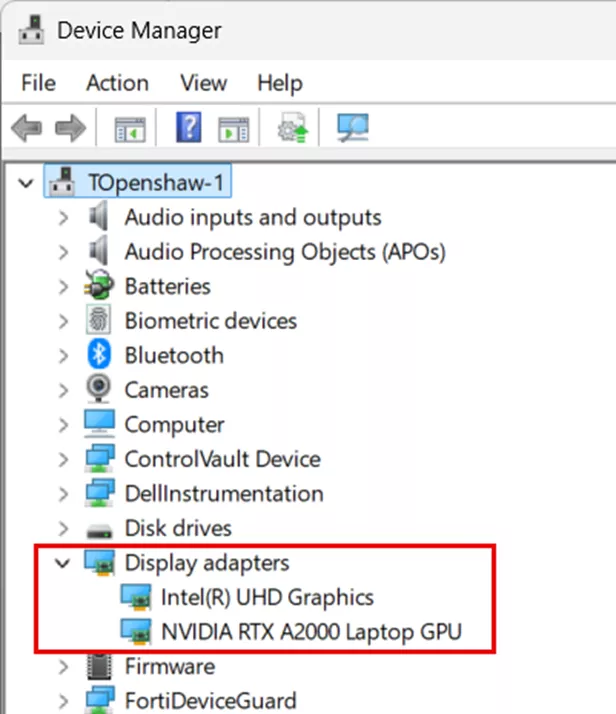
To check if your system has an integrated card, go into your computer’s Device Manager and expand Display Adapters. This will display what graphics cards are in your system. As you can see in the picture below, my computer has an integrated Intel card as well as a workstation card that is SOLIDWORKS certified.
Disabling the Intel Graphics Card
If your machine has an integrated card, the best option (if possible) is to disable it. It is highly recommended to contact IT to do this. It can be done in the computer's BIOS by turning off Switchable Graphics; this could also show up as NVIDIA Optimus, Hybrid Graphics, etc. They can also be disabled in the Device Manager by right-clicking on the card and selecting Disable Device. Once this is done, restart the computer.
Note: Disabling the integrated card could lead to issues with external monitors, mainly for laptops, but could affect desktops as well.
Bypassing the Integrated Graphics Card
If it’s not ideal for your machine to disable the integrated card, the other solution is to bypass the card. This can be done in both the Windows Graphics Settings and in the NVIDIA Control Panel (if you have an NVIDIA graphics card). It’s recommended to bypass the card in both locations to be thorough.
Note for Certified AMD Cards: The only way to bypass the integrated Intel card is to go through the Windows Graphics Settings.
Windows Graphics Settings
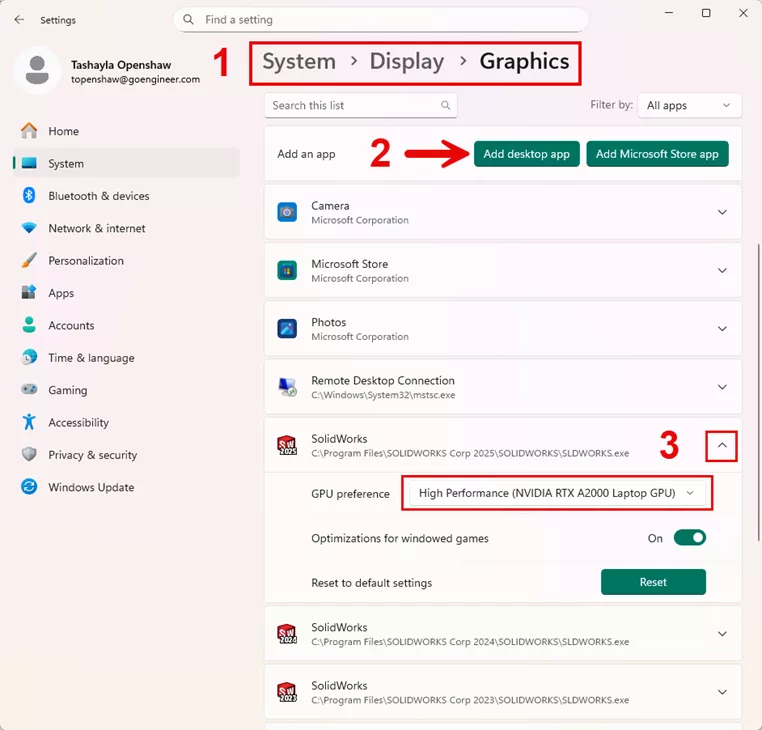
To access the Windows Graphics Settings, Windows search for Graphics Settings or go to the computer's Settings > System > Display > Graphics.
Once there, select Add desktop app, navigate to the SOLIDWORKS and/or other SOLIDWORKS program executables, then select Add to add them to the list of apps.
Here are the file locations for those program executables:
SOLIDWORKS:
C:\Program Files\SOLIDWORKS Corp\SOLIDWORKS\SLDWORKS.exe
Visualize:
C:\Program Files\SOLIDWORKS Corp 2025\SOLIDWORKS Visualize\SLDWORKSVisualize.exe
Inspection:
C:\Program Files\SOLIDWORKS Corp 2025\SOLIDWORKS Inspection\PDF\SOLIDWORKS Inspection.exe
Composer:
C:\Program Files\SOLIDWORKS Corp 2025\SOLIDWORKS Composer\bin\composer.exe
DraftSight:
C:\Program Files\Dassault Systemes\DraftSight\bin\DraftSight.exe
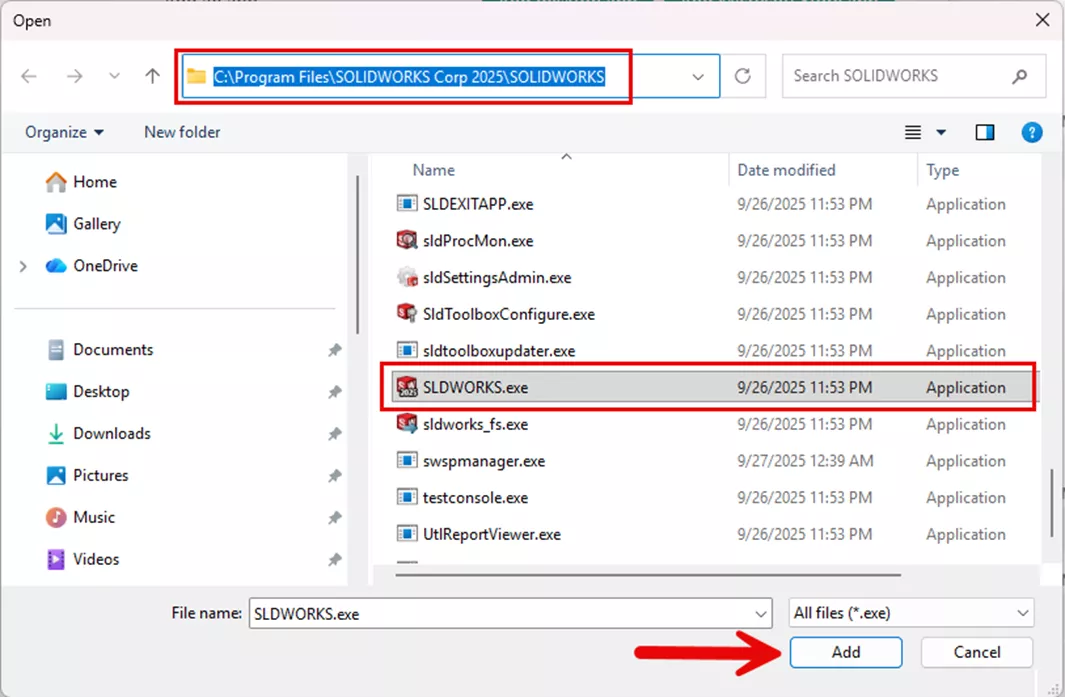
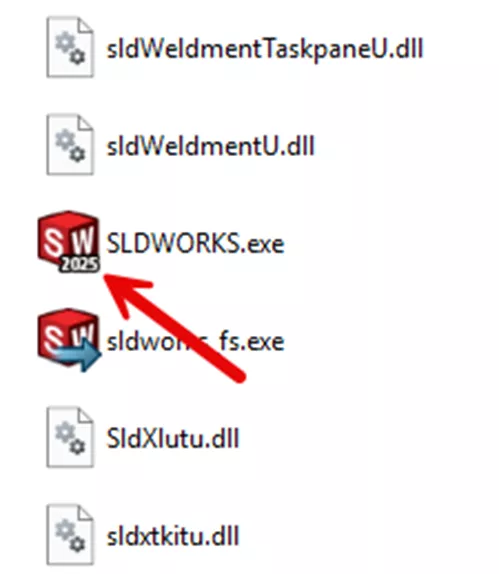
Note: If you have or have had multiple versions of SOLIDWORKS on your machine, you may see multiple SolidWorks Corp or SOLIDWORKS folders in your system. Make sure to add the correct executables for any/all of the versions you are using. You can tell which version it is by looking at the executable icon.
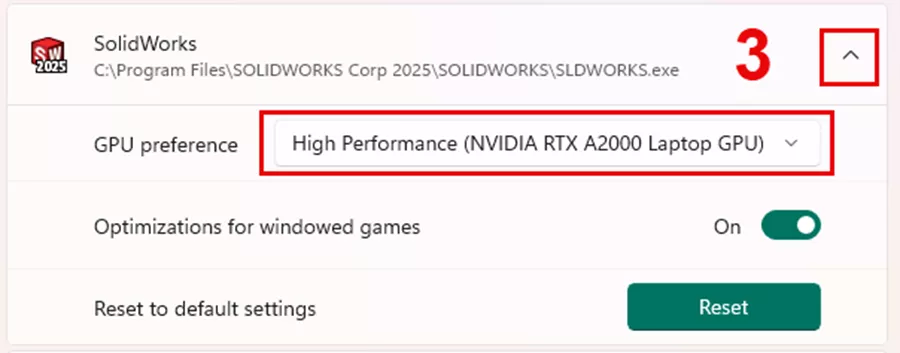
Now that it’s added to the list of apps, expand the options for SOLIDWORKS (and/or other added programs), then, for the GPU Preference, select the High Performance option.
NVIDIA Control Panel
If your certified graphics card is an NVIDIA card, the integrated card can also be bypassed in the NVIDIA Control Panel.
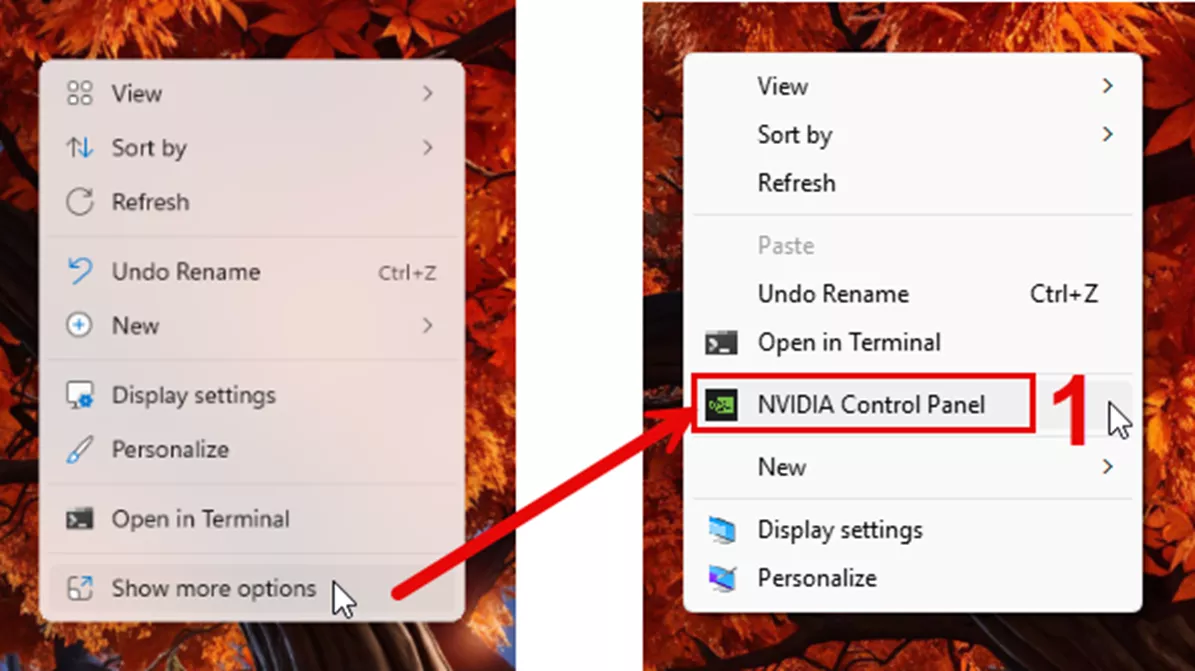
- To access the NVIDIA Control Panel, do a Windows search for it, or right-click on a blank space on your desktop, go to Show More Options, and select NVIDIA Control Panel.
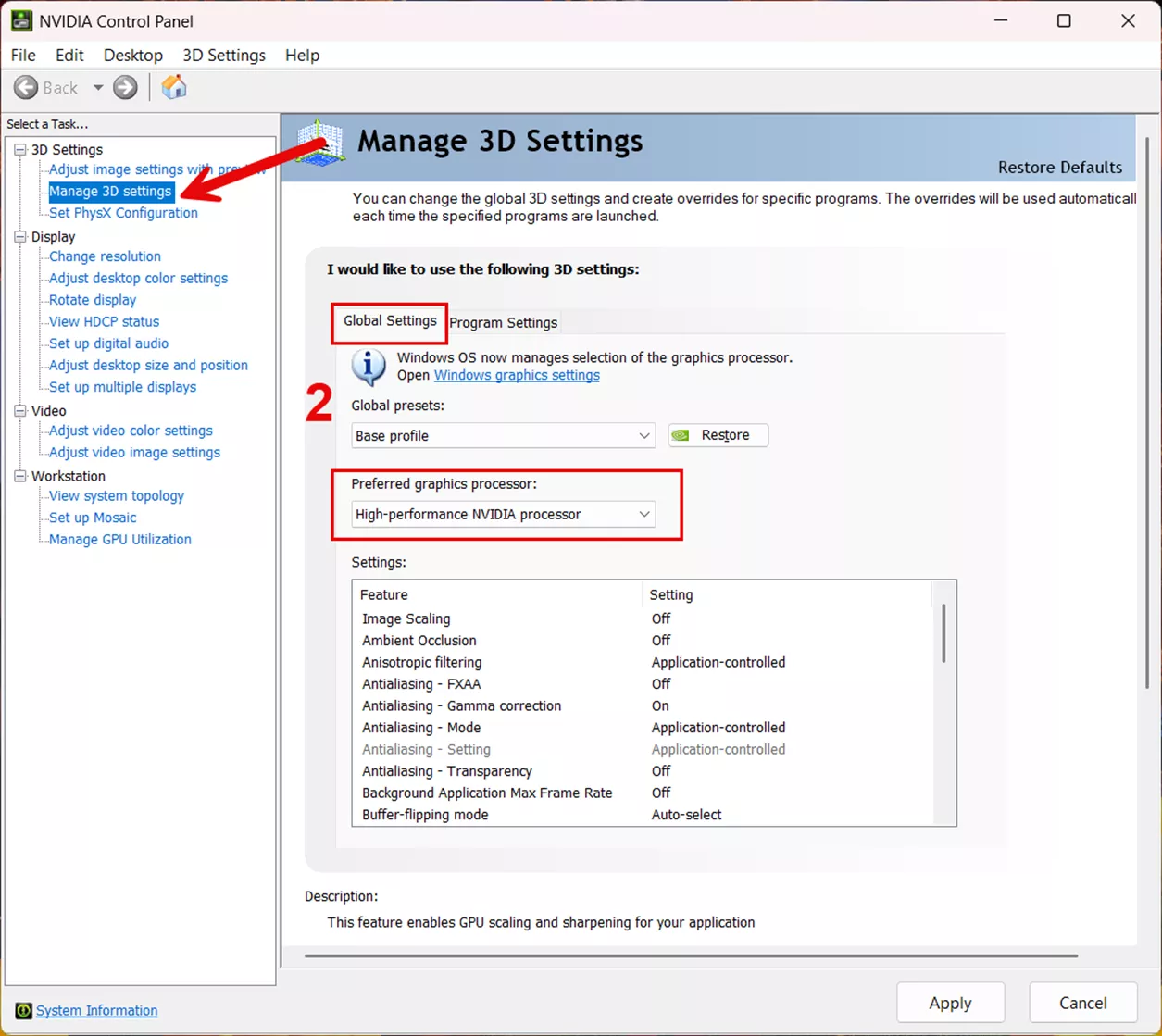
- Once in the NVIDIA Control Panel, select Manage 3D settings on the left and in the Global Settings tab under Preferred graphics processor, choose High-performance NVIDIA processor.
- You will also want to do this in the Program Settings tab. Under 1. Select a program to customize, select Dassault Systèmes SolidWorks, then for 2. Select the preferred graphics processor for this program, choose High-performance NVIDIA processor.
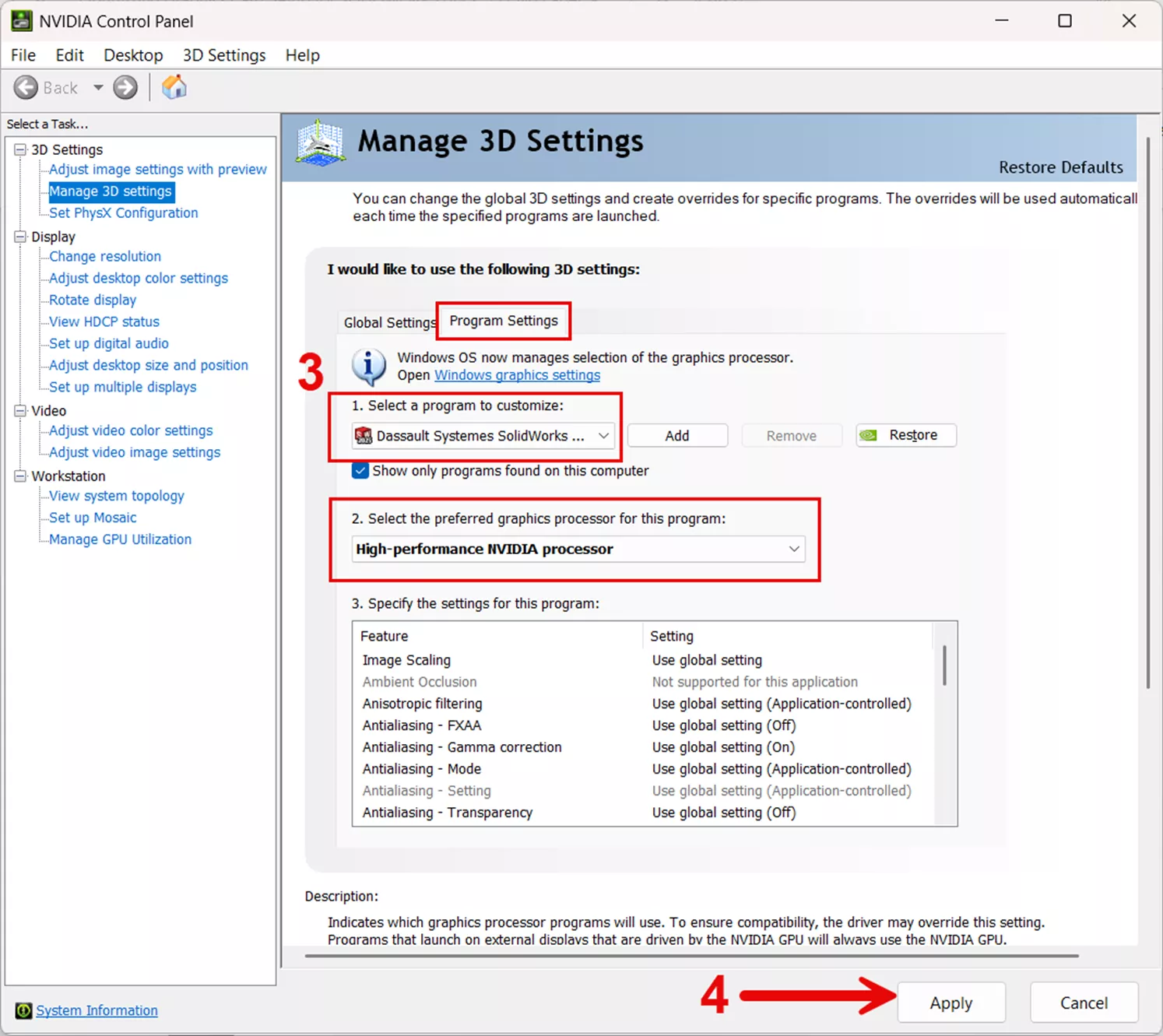
- Select Apply to save the changes.
Conclusion
Now that you have checked your graphics card(s), installed certified drivers, and either disabled or bypassed the integrated Intel graphics card, SOLIDWORKS should be optimized graphics card wise.
If you are still running into performance issues or receiving 'low resources' warnings, there are additional steps you can take to improve performance and address these warnings. This article walks through how to resolve the issue: Fix SOLIDWORKS System Resources Running Low.
I hope you found this quick tip for optimizing graphics card setup for SOLIDWORKS helpful. Check out more tutorials below. Additionally, check out the GoEngineer Community, where you can create forum posts, enter design contests, and answer questions from other SOLIDWORKS users.
Related Articles
Adding and Removing Search Paths in SOLIDWORKS
3DEXPERIENCE SOLIDWORKS Local Cache Management
Ballooning Subassemblies in a SOLIDWORKS Drawing
Why Your SOLIDWORKS Drawing Balloons Have Question Marks (?) or Asterisks (*)

About Tashayla Openshaw
Tashayla Openshaw is a SOLIDWORKS Technical Support Engineer based out of our Headquarters in Salt Lake City, Utah. She earned her Bachelor’s degree in Mechanical Engineering from the University of Utah in 2018 and has been part of the GoEngineer family since February 2019.
Get our wide array of technical resources delivered right to your inbox.
Unsubscribe at any time.