How to Optimize System Settings for SWOOD

During demanding SWOOD calculations, you may notice that the system's RAM (Random Access Memory) usage hits a ceiling and is not fully utilized. This bottleneck can significantly slow down processing and overall performance within the software. The following procedure helps resolve this by optimizing how Windows manages memory and graphical resources.
Increase Swap Memory Allocation (Virtual RAM)
The swap file, or paging file, is an area on your hard disk that Windows uses as virtual memory when physical RAM is full. Increasing its size can prevent slowdowns during memory-intensive tasks.
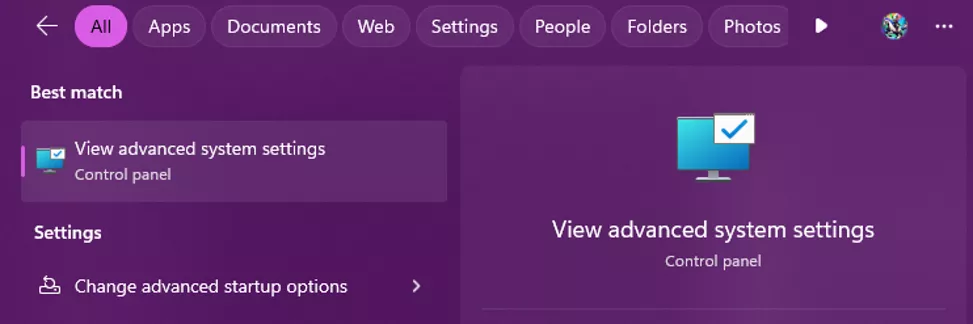
- Open the Advanced System Settings. You can find this by searching for View advanced system settings in the Windows Start Menu.
- In the System Properties window, go to the Advanced tab and click the Settings... button under the Performance section.
- In the Performance Options window, go to the Advanced tab and click the Change... button under the Virtual memory section.
- Uncheck the box for Automatically manage paging file size for all drives.
- Select your system drive (usually C:), choose the Custom size option, and set the Initial and Maximum sizes in megabytes (MB). A common recommendation is to set the Initial size to 1.5 times your physical RAM and the Maximum size to 3 times your physical RAM.
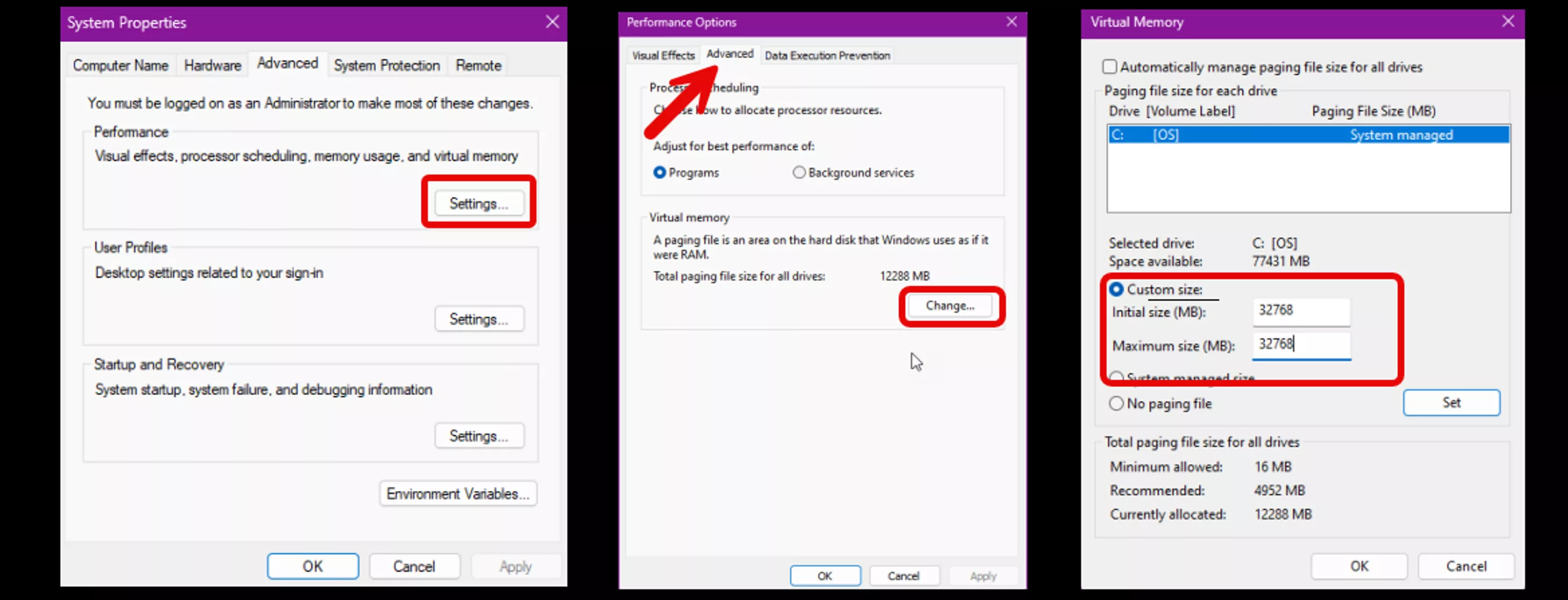
- Click Set, then click OK in all windows. You will be prompted to restart your computer for the changes to take effect.
Increase GDI Objects Limit
GDI (Graphics Device Interface) objects are used by Windows to draw user interface elements. Complex SOLIDWORKS assemblies can exceed the default limit per process, leading to graphical glitches or performance degradation.
Warning: Editing the Windows Registry can cause serious system instability if done incorrectly. Proceed with caution and only change the specified value.
- Open the Registry Editor by pressing Win + R, typing regedit, and clicking OK.
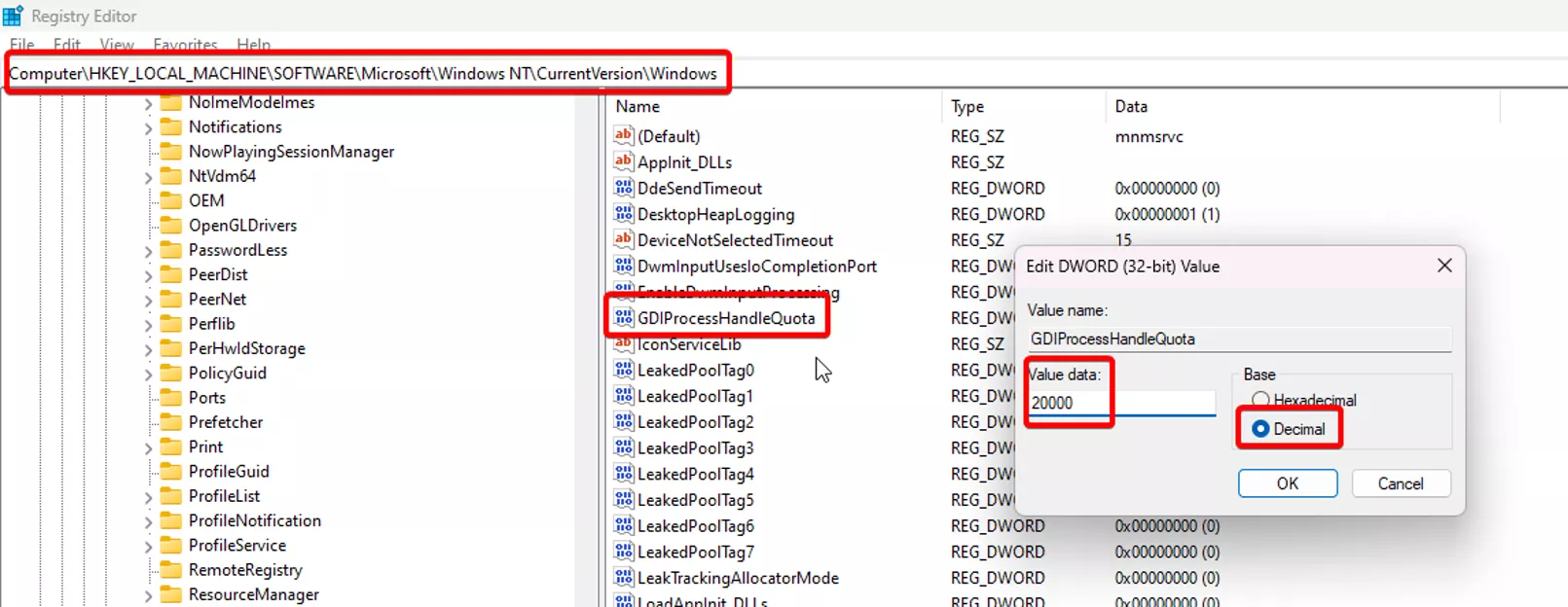
- In the Registry Editor, navigate to the following path: HKEY_LOCAL_MACHINE\SOFTWARE\Microsoft\Windows NT\CurrentVersion\Windows
- In the right-hand pane, find the key named GDIProcessHandleQuota.
- Double-click it, select the Decimal base, and change the value to 20000. The default value is 10000.
- Click OK and close the Registry Editor. A system restart is required for this change to take effect.
Questions?
I hope you found this guide for how to optimize system settings for SWOOD performance helpful. If GoEngineer is your SWOOD partner, please contact Technical Support for further assistance.
Related Articles
Cut Material Costs by 20% with SWOOD - Smarter Nesting for Cabinet Manufacturers
3 SWOOD Command Manager Reset Solutions
SWOOD Network License Activation Guide

About Krystal Petersen
Krystal Petersen is a SOLIDWORKS Technical Support Engineer based out of Auburn Hills, Michigan. Krystal studied Product Engineering at Oakland Community College and has earned her CSWA and CSWP Certifications. She joined the VAR channel in 2015 with DASI (now GoEngineer). Krystal is a huge fan of Star Wars and likes to spend her off time fishing and camping.
Get our wide array of technical resources delivered right to your inbox.
Unsubscribe at any time.