3Dconnexion SpaceMouse Not Working with SOLIDWORKS: Troubleshooting Tips

After a SOLIDWORKS or Windows update, your 3Dconnexion mouse may no longer respond or move inside SOLIDWORKS. This can happen even after trying various fixes, such as unplugging the mouse and then plugging it back in. Here are some tips to help fix this issue.
Resetting the 3Dconnexion Configuration in Windows
Follow these steps to reset your 3Dconnexion mouse so it can once again work with SOLIDWORKS:
- Stop the 3Dconnexion driver: Start > All Apps > 3Dconnexion > Stop 3DxWare.
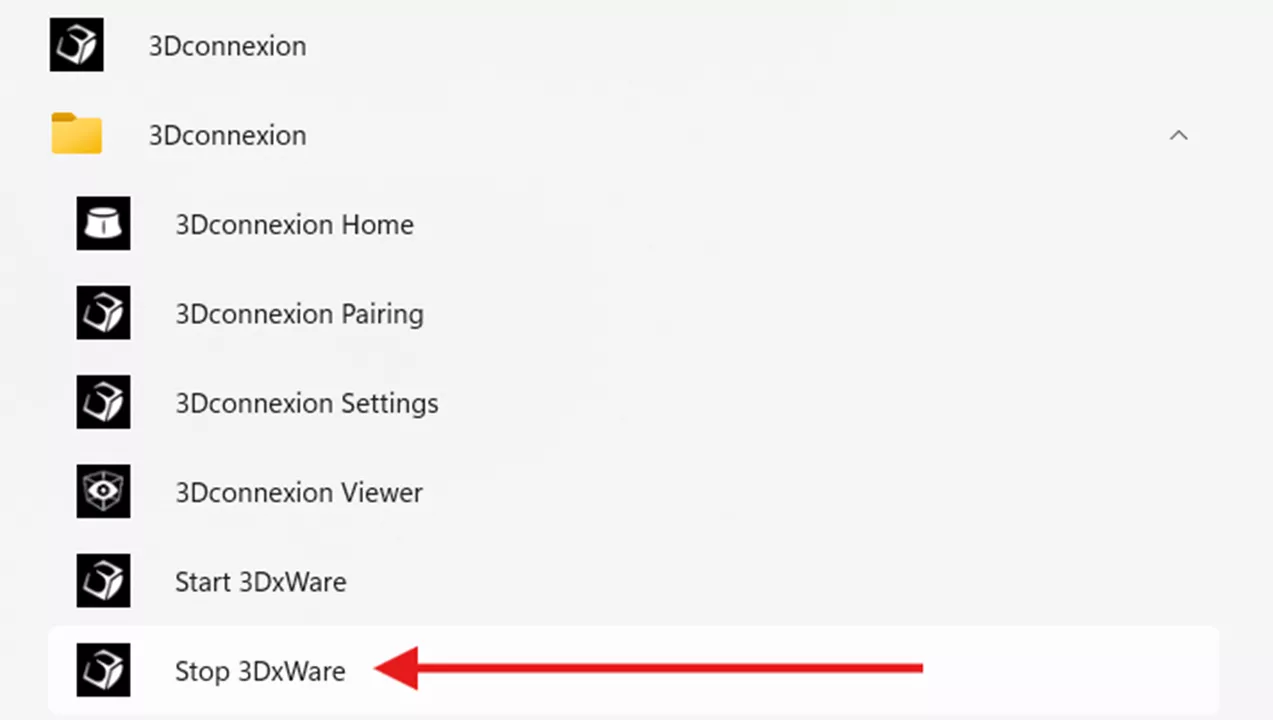
- Close your 3D application.
- Navigate to %APPDATA% (i.e., C:\Users\USERNAME\AppData\Roaming\)
- Rename the folder ‘3Dconnexion’ to ‘3Dconnexion.bak’.
- Navigate to %LOCALAPPDATA% (i.e., C:\Users\USERNAME\AppData\Local\)
- Rename the folder ‘3Dconnexion’ to ‘3Dconnexion.bak’.
- Restart the 3Dconnexion driver: Start > All Apps > 3Dconnexion > Start 3DxWare.
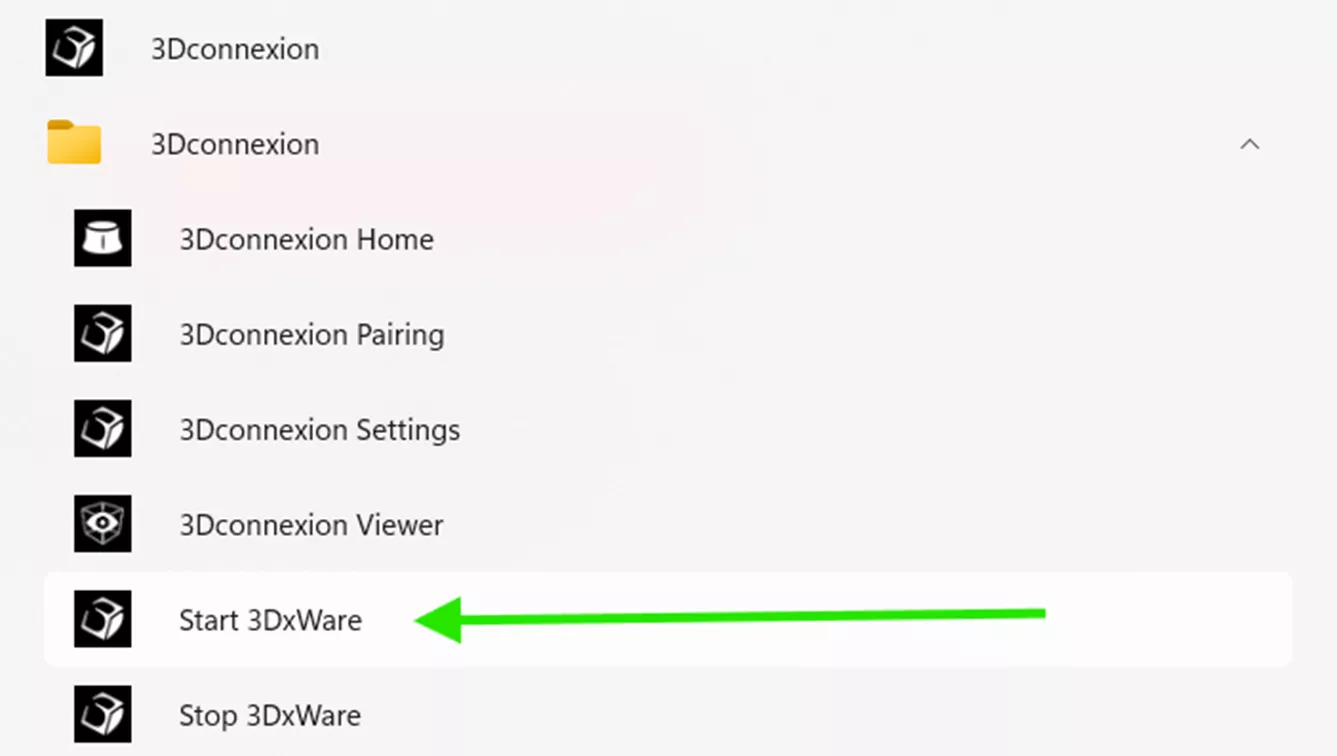
Once finished, relaunch SOLIDWORKS and verify the 3Dconnexion add-in is enabled. The 3Dconnexion mouse should be functional once again in SOLIDWORKS (along with any other applications compatible with the 3Dconnexion mouse).
Driver Reinstall for 3Dconnexion
If the above solution does not fix the 3Dconnexion and SOLIDWORKS issue, try uninstalling the 3Dconnexion add-in from the affected machine, downloading the newest driver from the 3Dconnexion website, and installing that driver as a replacement.
Downloads for the latest 3Dconnexion drivers can be found here: https://3dconnexion.com/us/drivers/
Clean Uninstall/Reinstall for 3Dconnexion
To do a clean uninstall and reinstall of the 3Dconnexion driver/software, follow the steps listed below. Before starting, first log in with full administrative privileges.
- Go to the 3Dconnexion website and download the latest driver. Save the driver in a local folder, such as Desktop.
- In Windows, go to Add or Remove Programs, and uninstall the current 3D mouse driver.
- If the 3Dconnexion folder exists under C:\Program Files\, rename the folder to 3Dconnexion_cleanup.
- In Windows File Explorer, browse to %APPDATA% (C:\Users\[Username]\AppData\Roaming) and rename the 3Dconnexion folder to 3Dconnexion_cleanup.
- In Windows File Explorer, browse to %LOCALAPPDATA% (C:\Users\[Username]\AppData\Local) and rename the 3Dconnexion folder to 3Dconnexion_cleanup.
- Open the Windows Registry Editor.
CAUTION: Incorrectly editing the registry can severely damage your operating system. The Technical Support team strongly suggests that you back up the registry data before making any changes to the registry. - Locate the following two registry keys: HKEY_CURRENT_USER\Software\3Dconnexion HKEY_LOCAL_MACHINE\Software\3Dconnexion
- Rename the 3Dconnexion part of these keys to 3Dconnexion_cleanup (For example: HKEY_CURRENT_USER\Software\3Dconnexion_cleanup)
- In Windows File Explorer, go to C:\Windows\System32\ and delete the spwini.dll and siappdll.dll files if they exist.
- Go to C:\Windows\SysWOW64\ and delete files with the same file names.
- Disconnect the mouse device, and then restart the computer.
- Install the latest driver that you downloaded in step 1.
- Reconnect the device and then open the 3Dconnexion Properties.
Need Further Troubleshooting?
In the off chance that the above suggestions do not resolve the issue with your 3Dconnexion mouse not working with SOLIDWORKS, reach out to the 3Dconnexion support team for further review.
Want to learn more? Check out more tutorials below. Additionally, check out the GoEngineer Community, where you can create forum posts, enter design contests, and answer questions from other SOLIDWORKS users.
SOLIDWORKS CAD Cheat Sheet
SHORTCUTS ⋅ MOUSE GESTURES ⋅ HOT KEYS
Our SOLIDWORKS CAD Cheat Sheet, featuring over 90 tips and tricks, will help speed up your process.

Latest Articles
Create Custom Wire Numbers in SOLIDWORKS Electrical 2D
SOLIDWORKS PDM – Create Local Host File Workaround as Temporary Solution
Stuck Borrowed SOLIDWORKS Network License
3DEXPERIENCE SOLIDWORKS Local Cache Management

About Nathan Marsh
Nathan Marsh is a Senior SOLIDWORKS Technical Support Engineer at GoEngineer.
Get our wide array of technical resources delivered right to your inbox.
Unsubscribe at any time.