3DEXPERIENCE SOLIDWORKS Local Cache Management

The 3DEXPERIENCE local cache is a folder that stores copies of files from the 3DEXPERIENCE platform on your computer for faster access, offline availability, and easy management. This folder is also referred to as a local work folder.
Where is the Local Cache?
Managing the local cache directly from Windows Explorer is not recommended; however, there are two default locations depending on what version of SOLIDWORKS is being used:
- For SOLIDWORKS desktop, using the 3DEXPERIENCE add-in, the local cache is in C:\3DEXPERIENCE.
- For SOLIDWORKS Connected, the local cache is in C:\Users\<username>\AppData\Local\DassaultSystemes\3DEXPERIENCE.
How to Access the Local Cache within SOLIDWORKS
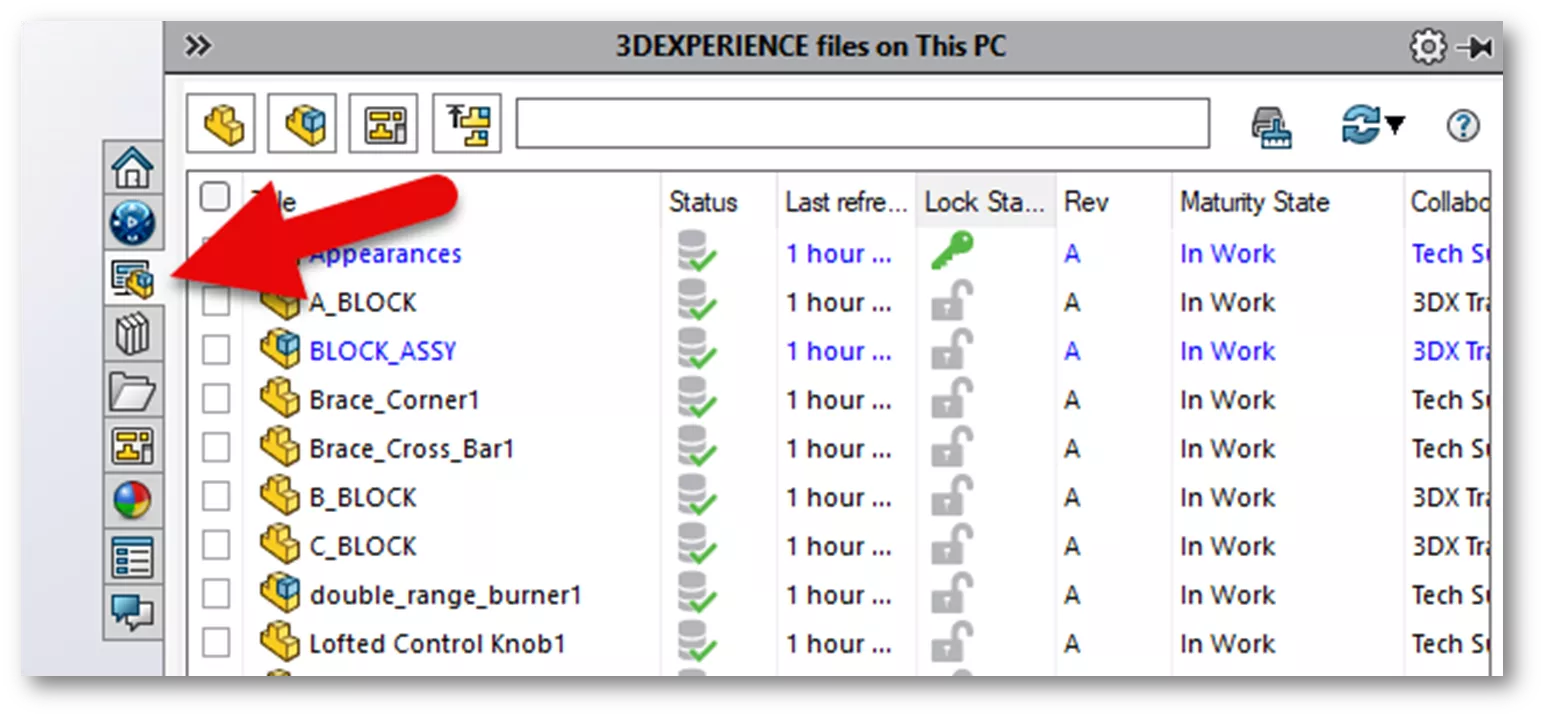
In both SOLIDWORKS and SOLIDWORKS Connected, turning on the 3DEXPERIENCE Files on This PC add-in adds a dedicated Task Pane tab for managing cached files. This tab displays a list of cached items along with important details (e.g., file status, lock state, and maturity level).
File Filters
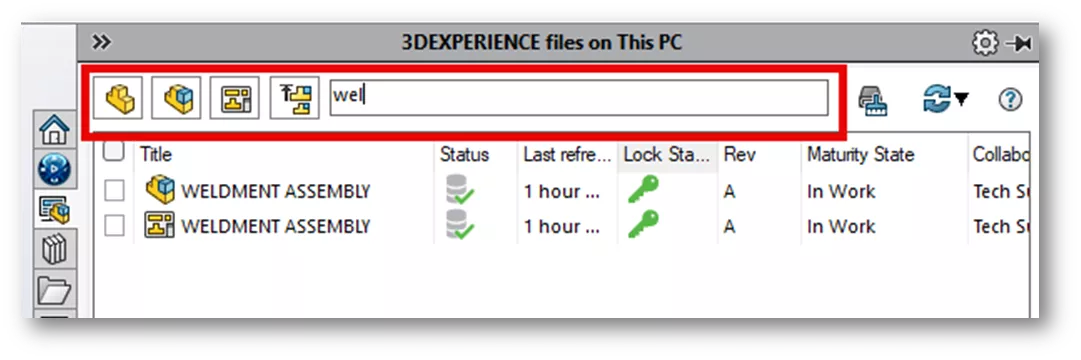
Within the local cache tab is a filter much like what is seen in the SOLIDWORKS File > Open dialog. You can filter parts, assemblies, drawings, and top-level assemblies. You can also type in the search field to quickly find a specific file title.
How to Refresh the View
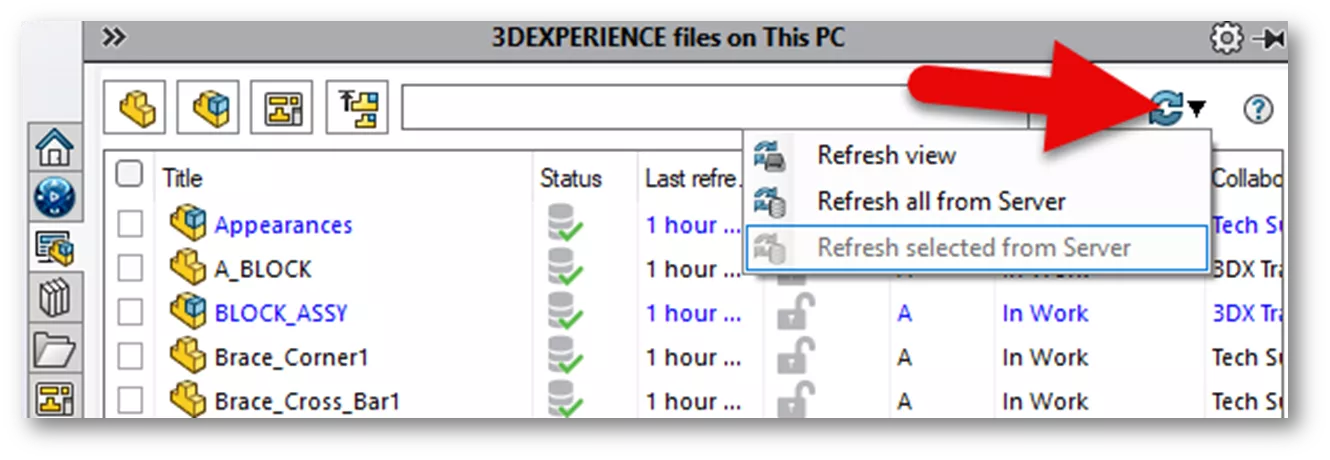
Using the refresh icon dropdown, you can refresh the view or refresh all from server. Refresh view will only refresh the display. So, if you add a file and it doesn’t show up, click Refresh view.
The Refresh all from Server option will redownload all files in the list from the 3DEXPERIENCE server (overwriting the local cache in the process).
File Status Icons
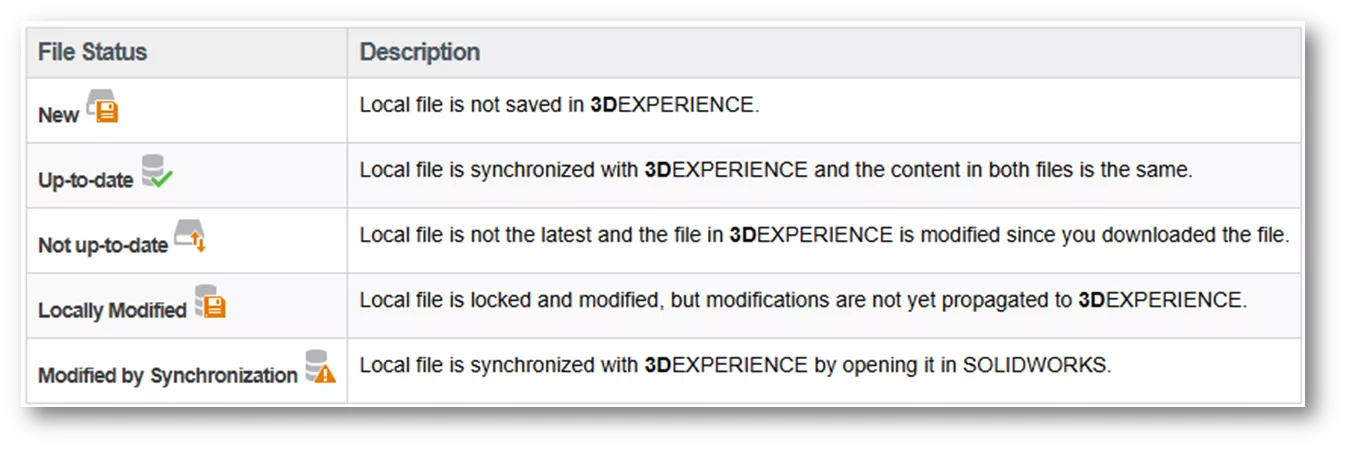
Details about the files are displayed in the form of columns, such as File name, Revision, Maturity state, Lock status, Collaborative space, etc. The Status column gives the status of the given revision of the file in the 3DEXPERIENCE platform. Below are the meanings of the different icons that can be found in the Status column.
How to Clear the Local Cache
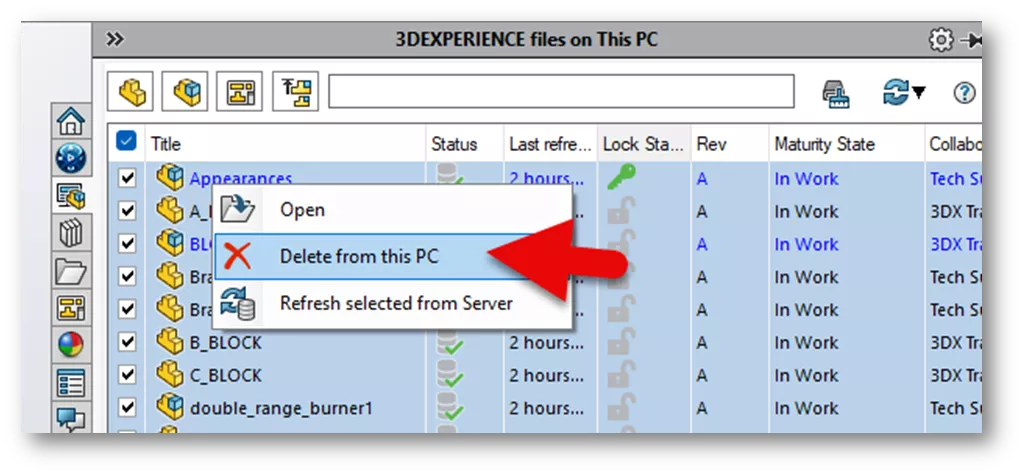
It’s good practice to periodically clear the local cache to prevent unnecessary disk space usage. Doing so also ensures that, when opening a file, the latest version is retrieved from the server. To clear the cache, you can either select individual files or use the checkbox on the top left to select all. Then, right-click and choose Delete from this PC to remove the files from the cache folder in Windows Explorer.
How to Purge Unused Files in the Local Cache
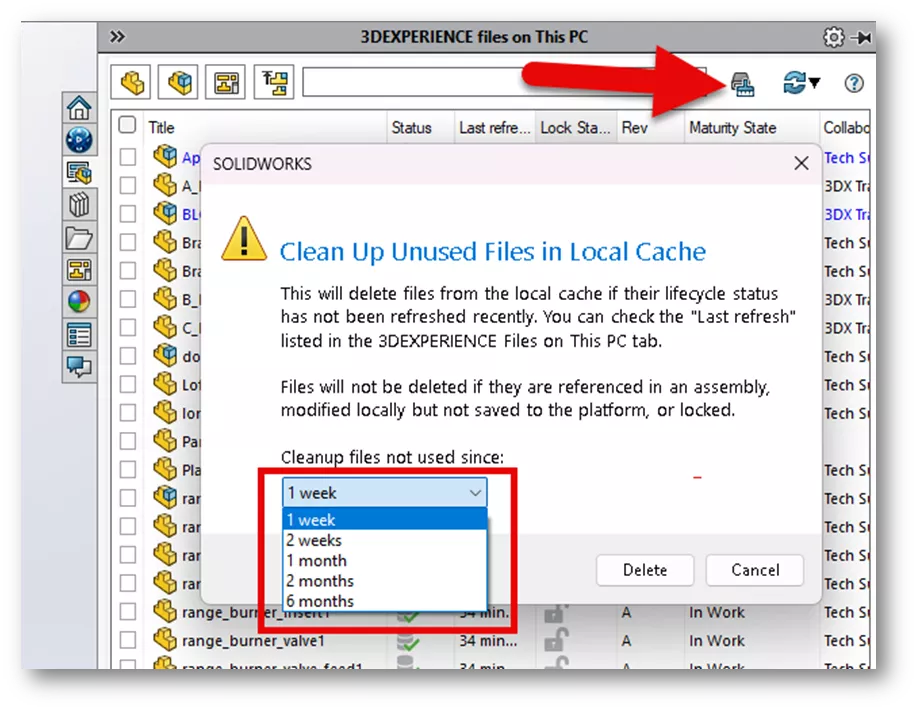
The Cleanup 3DEXPERIENC files on this PC command can automatically delete unchanged files from the cache after a set period. Files that are locked, locally modified, or referenced by a cached assembly are excluded from deletion.
Since only unchanged files are removed, any assembly that later requires those components will simply download fresh copies back into the cache. The timeframe is one week by default, but if bandwidth or internet speed is a concern and you have enough disk space, you may want to extend this period.
Want to learn more? Check out more tutorials below. Additionally, check out the GoEngineer Community, where you can create forum posts, enter design contests, and answer questions from other SOLIDWORKS users.
SOLIDWORKS CAD Cheat Sheet
SHORTCUTS ⋅ MOUSE GESTURES ⋅ HOT KEYS
Our SOLIDWORKS CAD Cheat Sheet, featuring over 90 tips and tricks, will help speed up your process.

Related Articles
Why Your SOLIDWORKS Drawing Balloons Have Question Marks (?) or Asterisks (*)
How the SOLIDWORKS Sketch Picture Scale Tool Can Affect Zoom to Fit
SOLIDWORKS Convert to Sheet Metal vs Insert Bends
Reusing Tab and Slot Parts in SOLIDWORKS Assemblies
Finding the Centerline Between Two Complex Curves in SOLIDWORKS

About Zach Brown
Zach Brown is a certified SOLIDWORKS Expert and a Technical Support Engineer. Prior to working at GoEngineer, he spent 15 years as a mechanical designer, CAD support tech, and instructor using SOLIDWORKS. His hobbies include playing guitar, riding motorcycles, and skiing.
Get our wide array of technical resources delivered right to your inbox.
Unsubscribe at any time.