Changing the 3DEXPERIENCE Maturity Graph Engineering Definition

If you've ever wondered why you can't move a part from Released to In Work in 3DEXPERIENCE, you're in the right place. The main reason for this is to prevent the accidental rollback of a released part to a different maturity state. In some cases, this can be a very important part of the process. Still, it should be limited to only one person (or a small group) within the organization who can move a part back to “In Work” where a revision is not necessary. This guide explains how to modify the maturity graph engineering definition and add transition rules.
Locating the Correct Area to Implement
To implement this change, you will need to ensure you have admin credentials and access to the Platform Manager Role within 3DEXPERIENCE.
- Click the compass in the top left and click on Platform Manager > Collaborative Spaces Control Center > Maturity Graph > Engineering Definition.
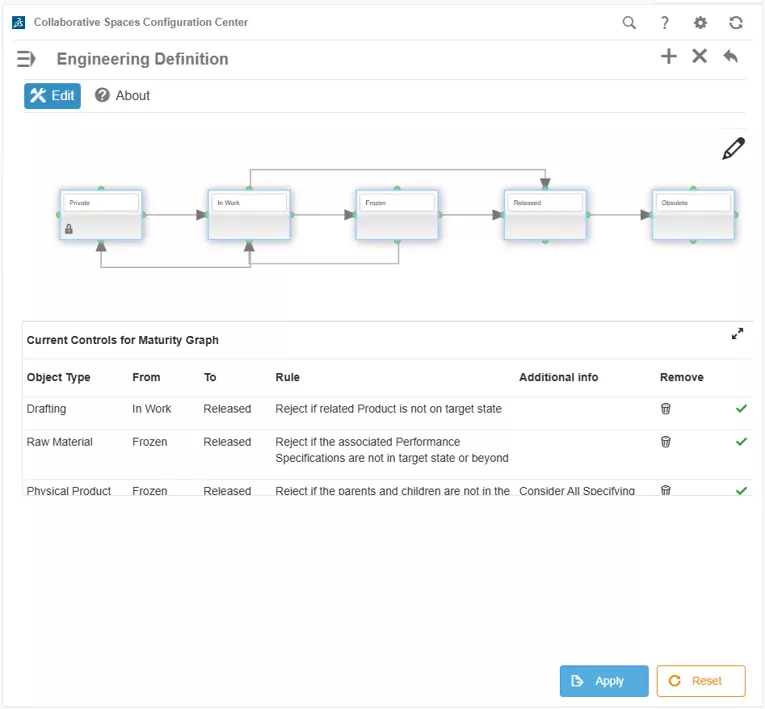
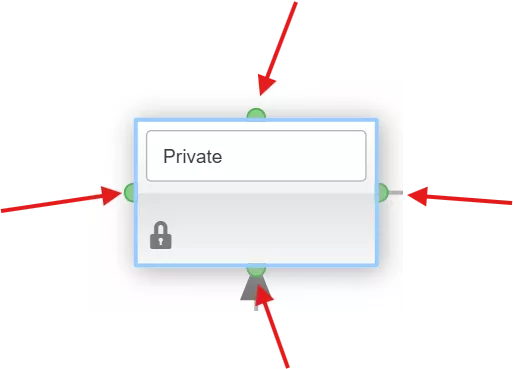
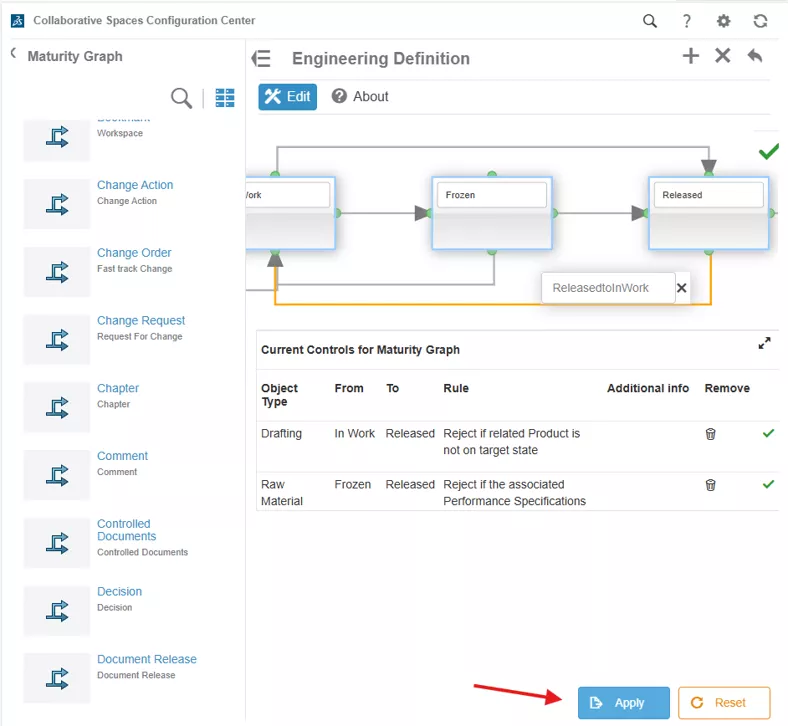
- The arrows show all the possible flows through the maturity state. We currently do not have one that will flow from Released to In Work. To add arrows, all you need to do is click the node in one of the four quadrants on each maturity state.
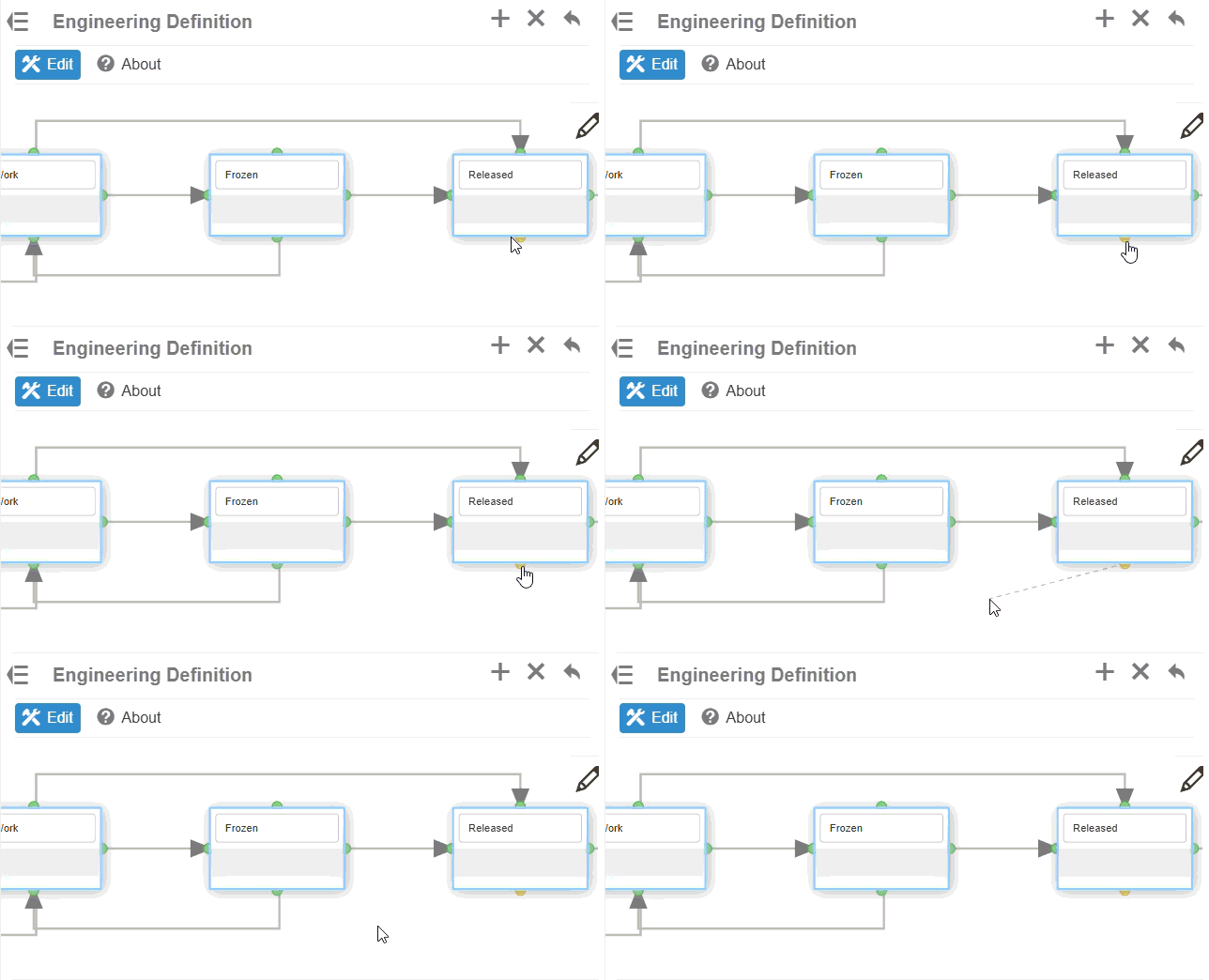
- If you click and hold a node while dragging, it will turn yellow, and you'll see a dashed line. This is how you can select the next node to add a transition line.
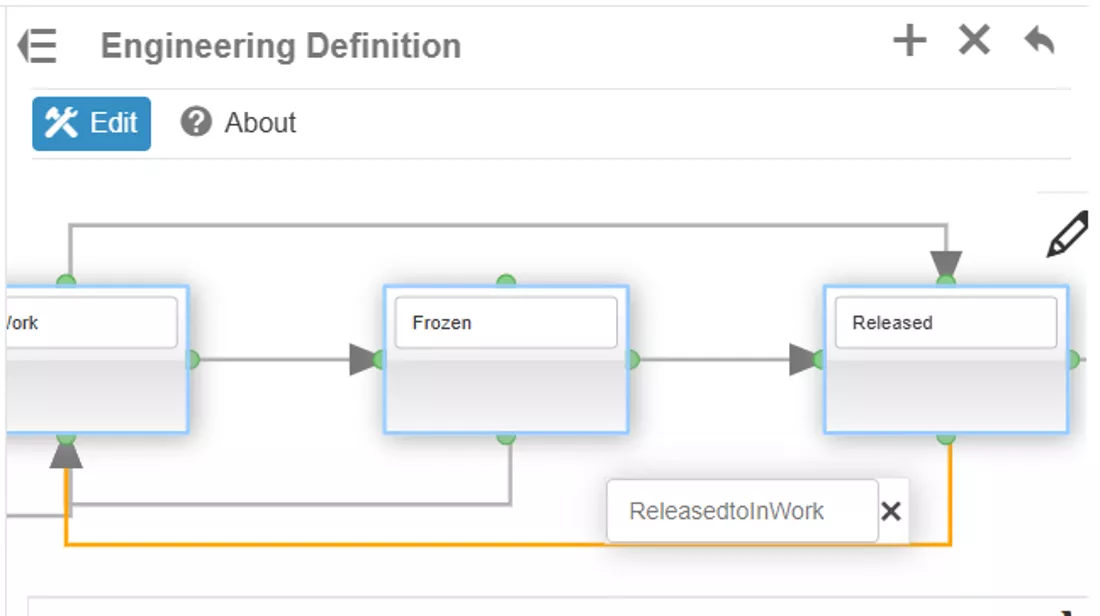
- Click Apply to approve this change to the engineering definition.
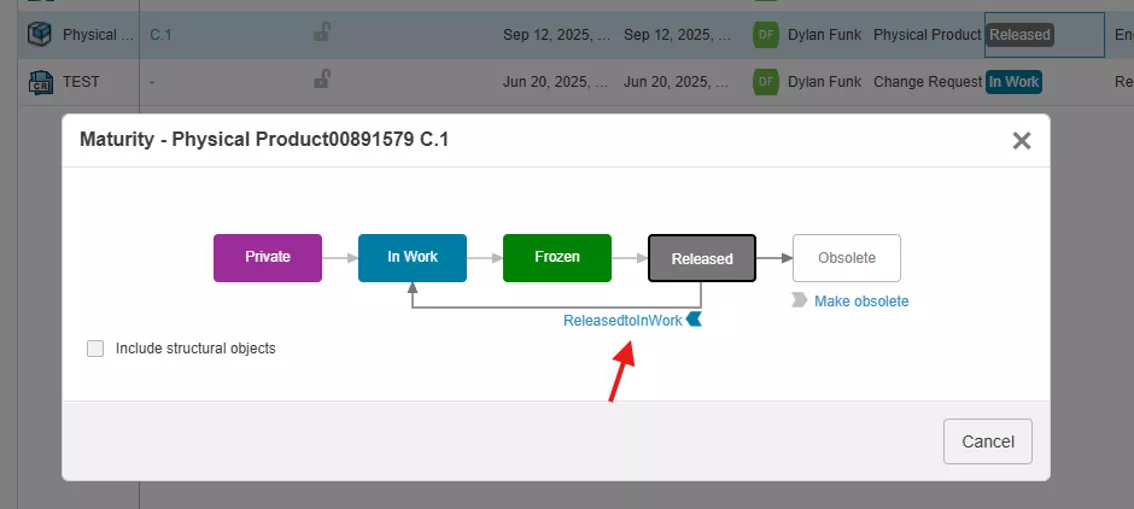
- Now we can check a released part and see whether the Maturity state includes an option to transition from Released to In Work.
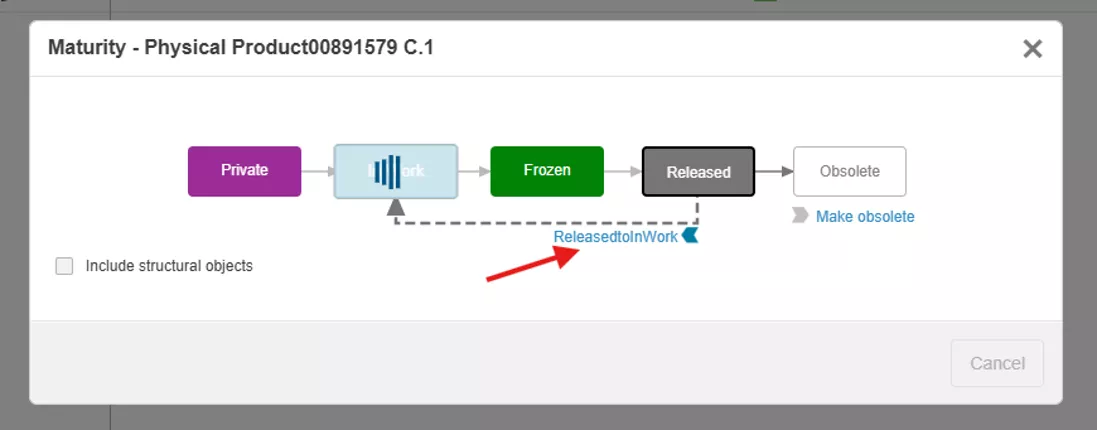
- Now, if we click ReleasedtoInWork, it will send the part back to the In Work maturity state.

- Currently, we have it set up where anyone can change the maturity state back to In Work. But if we want to limit that to a certain group of people on the platform, we can do this by adding a rule on the transition. To do this, click on the transition line you created and make sure it highlights yellow. Then hit the plus button.
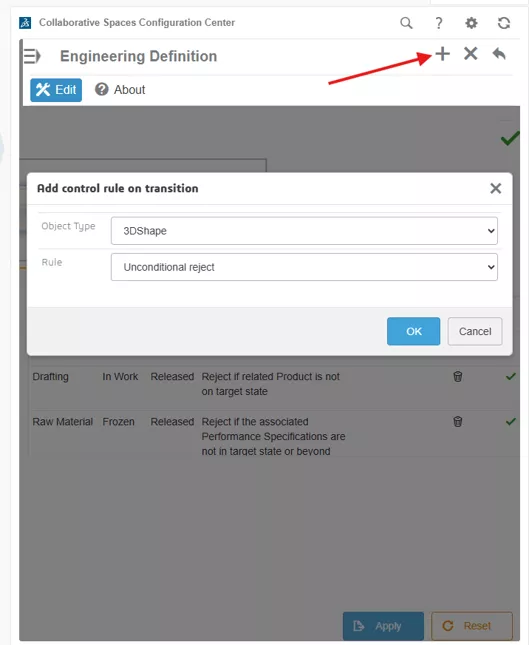
- There are many options to limit this transition and tailor it to what works for your business. But there is only one Leader on the platform, and the rest only have Author credentials. For only the leader to have this ability, choose Reject on Author. This will only allow the Leader the ability to move Physical Product from Released to In Work.
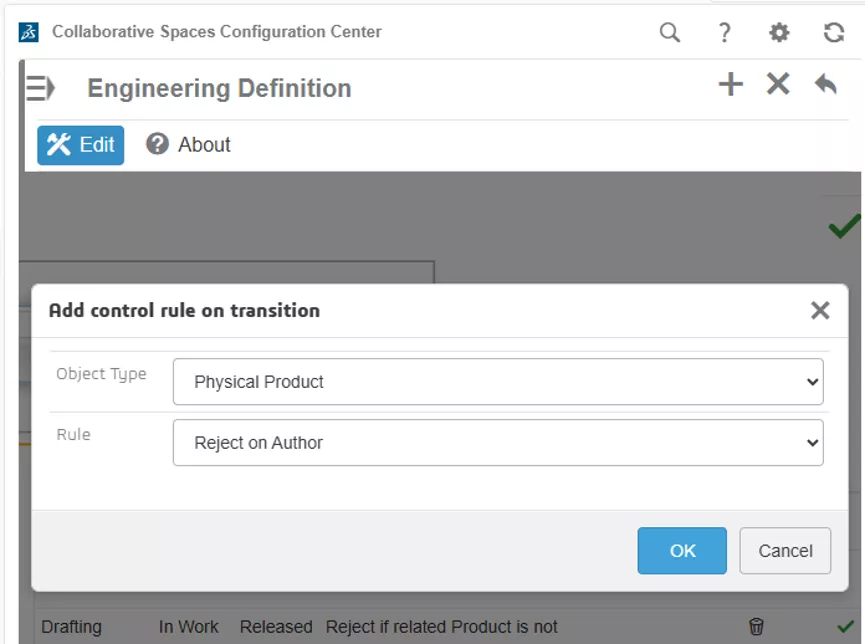
- Click OK and then hit Apply at the bottom again to show the change. Notice the transition rule is applied.
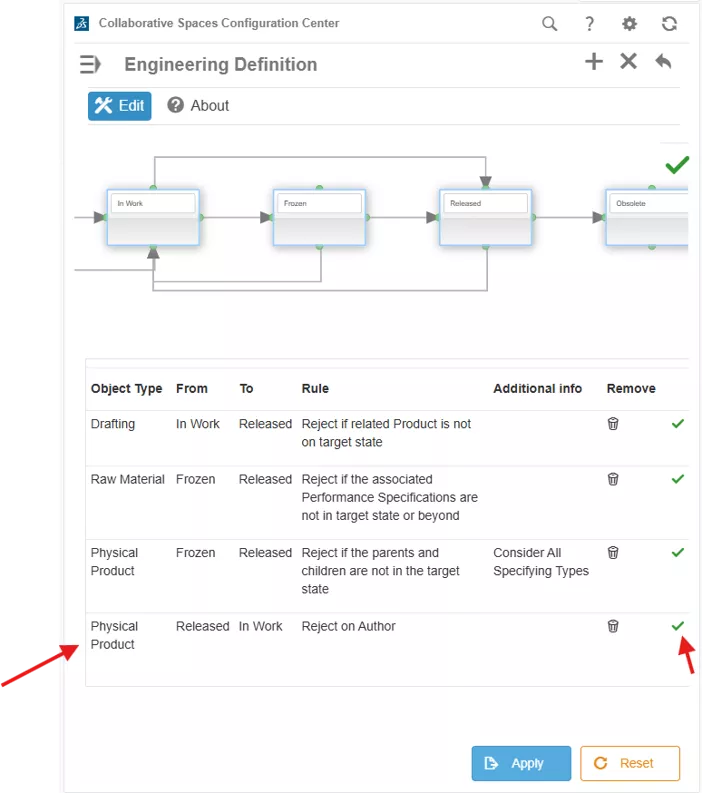
Hopefully, you find this blog useful for altering the maturity state transitions and can now tailor the 3DEXPERIENCE platform to work for your business.
Want to learn more? Check out more tips and tutorials listed below or on our 3DEXPERIENCE YouTube Channel. Additionally, join the GoEngineer Community, where you can create forum posts, design contests, and answer questions from other 3DEXPERIENCE users.
Related Articles
3DEXPERIENCE SOLIDWORKS Import/Export Package - Getting Started Guide
Benefits of 3DEXPERIENCE Duplicate Function
Change Your 3DEXPERIENCE Platform Name & Organization Title
How to Enable XYZ Distance Measurements in 3DPlay

About Dylan Funk
Dylan Funk is a Technical Support Engineer at GoEngineer.
Get our wide array of technical resources delivered right to your inbox.
Unsubscribe at any time.