How to Rename Groups in DriveWorks

Table of Contents
In DriveWorks, Groups are created as collections of projects. Projects are used to create specifications, and that is where the rules are created that alter the geometry of your generated CAD files, create your quote documents, etc. Some of the information that projects utilize is handled directly by the Group. The Group contains information such as which components have been captured for use in the projects, specifications created by the projects, etc. This article explains how to rename groups in DriveWorks.
Groups in DriveWorks come in two forms: individual and shared.
Individual Groups store their information in a file with the .drivegroup extension, and can only be accessed by one person at any given time. These groups are meant to only be used by one person.
Shared Groups, on the other hand, store all their information in a Microsoft SQL database (SQL Server Express is typically used to store these databases), and can be accessed by multiple machines at the same time. The DriveWorks Pro Server module facilitates managing these shared groups.
Note: If you plan to use DriveWorks Autopilot or Live, it is recommended to use a Shared Group to house your projects, so Autopilot or Live can be logged into the group as well as the Administrator and/or User modules.
Group-level features:
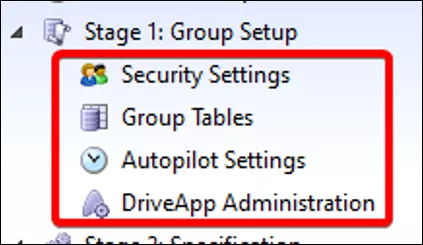
- Security Settings - where you can set up different users and user groups.
- Group Tables - similar to Simple Tables but are accessible by all the projects inside the Group.
- Autopilot Settings and DriveApp Administration
Group Upscale Tool
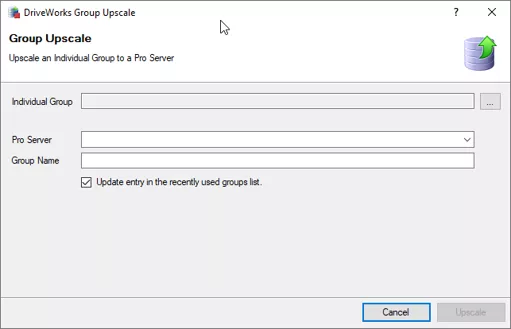
If you created an Individual Group, built out all your projects inside it, and are ready for other users to access it, then you can turn that group into a Shared Group using the Group Upscale tool. In this tool, simply supply the path to the individual group .drivegroup file. Then, provide the machine running DriveWorks Pro Server and supply a new Group Name (this can be the same as the Individual Group, if preferred). The Upscale tool then makes a Shared group which is a copy of the individual group.
Renaming a DriveWorks Group
Imagine you created a DriveWorks Group and later decide to rename it. Have no fear! Renaming a DriveWorks group is straightforward, whether it’s an Individual Group or Shared Group.
Renaming an Individual Group
Since the Individual Group is just a file, renaming it only requires renaming the drivegroup file itself. However, it is best to follow these steps to prevent issues:
- Make sure all DriveWorks and SOLIDWORKS applications are closed.
- Rename the drivegroup file in Windows Explorer.
- Launch DriveWorks Administrator and use the Open Group utility to log into the newly renamed group.
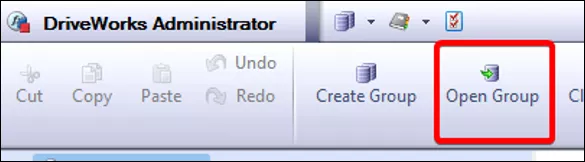
Note: The Recent list in Administrator and User does not automatically update, so you will see the old group name in that list, which is why you will need to open the group for the first time with the Open Group tool. After that, the new group name will show in the Recent list. See Resetting Recent List in Administrator/User below for how to remove the old entry from the "Recent" list.
Renaming a Shared Group
Renaming a Shared Group is a bit more involved than an Individual Group since there are multiple applications that all must interface together to allow users to connect to the group.
- Make sure all DriveWorks and SOLIDWORKS applications are closed.
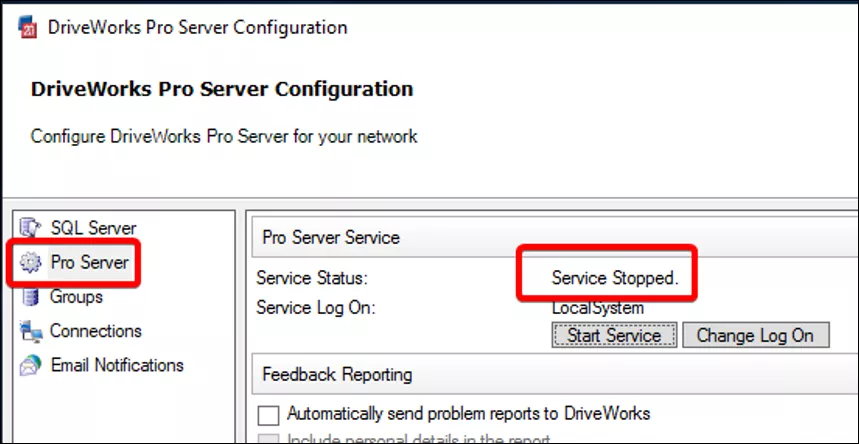
- Launch DriveWorks Pro Server, navigate to the Pro Server tab, and make sure the Pro Server service is not running.
- The DriveWorks Pro Server module will only be found on the one machine shown in the “Recent” list or when opening a Shared Group in the Open Group dialog.
- The DriveWorks Pro Server module will only be found on the one machine shown in the “Recent” list or when opening a Shared Group in the Open Group dialog.
- Open SQL Server Management Studio and connect to your SQL Instance containing your Shared Group Databases.
- SQL Server Management Studio can be downloaded here.
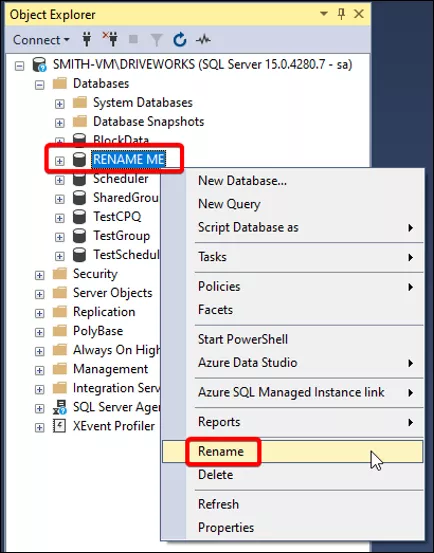
- Locate the database corresponding to the group you wish to rename, right-click on the database, and select Rename.
- Note: All changes made in SQL Server Management Studio are immediate.
- Note: All changes made in SQL Server Management Studio are immediate.
- Launch DriveWorks Pro Server and restart the Pro Server Service (under the Pro Server tab).
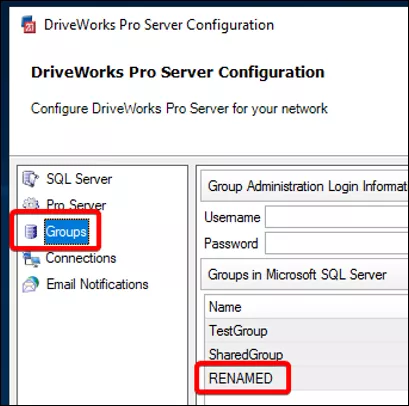
- In the Groups tab of Pro Server, verify the renamed group shows in that list.
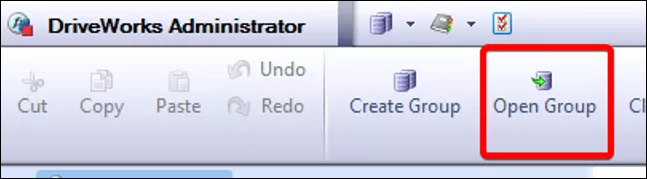
- Launch DriveWorks Administrator and use the Open Group dialog to log into the newly renamed group.
Note: The Recent list in Administrator and User does not automatically update, so you will see the old group name in that list, which is why you will need to open the group for the first time with the Open Group tool. After that, the new group name will show in the “Recent” list. See Resetting Recent list in Administrator/User below for how to remove the old entry from the recent list.
Resetting Recent List in Administrator/User
Since the Recent list in DriveWorks Administrator or User does not update automatically, you may have entries there that refer to old group names, or groups that no longer exist. We can remove individual entries from the list by right-clicking on the corresponding entry and choosing Remove from List.
If you want to clear all the entries in the Recent list, right-click on any item and choose Clear all. Doing this will clear all the Recent Lists, including:
- The DriveWorks Today window
- The Create/Open Group Wizard
- The Open/Create Project Wizard
Now, you don’t have to just put up with your misnamed DriveWorks Groups; you can rename them whether they are Individual Groups or Shared Groups.
Related Articles
DriveWorks Pro: Tracking Specifications Through SQL
Working with Office Files in DriveWorks
DriveWorks Data Management: Back Up Your Data
Control DriveWorks Model Generation Order
Compare DriveWorks Packages: Features in DriveWorksXpress, Solo & Pro

About GoEngineer
GoEngineer delivers software, technology, and expertise that enable companies to unlock design innovation and deliver better products faster. With more than 40 years of experience and tens of thousands of customers in high tech, medical, machine design, energy and other industries, GoEngineer provides best-in-class design solutions from SOLIDWORKS CAD, Stratasys 3D printing, Creaform & Artec 3D scanning, CAMWorks, PLM, and more
Get our wide array of technical resources delivered right to your inbox.
Unsubscribe at any time.