AI in SOLIDWORKS: What It Is (and What It Isn’t)

Table of ContentS
Artificial intelligence is rapidly becoming part of the engineering software landscape, but the term "AI" can describe very different technologies. For SOLIDWORKS users, the important questions surround what a feature can actually do, how it is delivered, and where engineering judgment still belongs.
Alongside built-in intelligence in familiar desktop workflows, SOLIDWORKS offers cloud-enabled Virtual Companions that can understand natural-language requests, bring relevant guidance into context, and assist with tasks ranging from imported-geometry conversion and drawing creation to assembly optimization and automation.
A quick note on scope: This article focuses specifically on modern AI capabilities in SOLIDWORKS. Longstanding automation features such as SOLIDWORKS Xperts, SmartMates, Smart Fasteners, and Smart Components are still valuable, but they solve a different class of problem. You can learn more about them here: Intelligence Before the AI Hype: How SOLIDWORKS Has Guided Design for Years
What’s New in SOLIDWORKs 2026 SP4/2026x FD04
FD04 builds on the unified LEO experience introduced in FD03, adding skills for manufacturing preparation, assembly editing, and design validation. It also expands existing drawing, modeling, and engineering-guidance workflows.
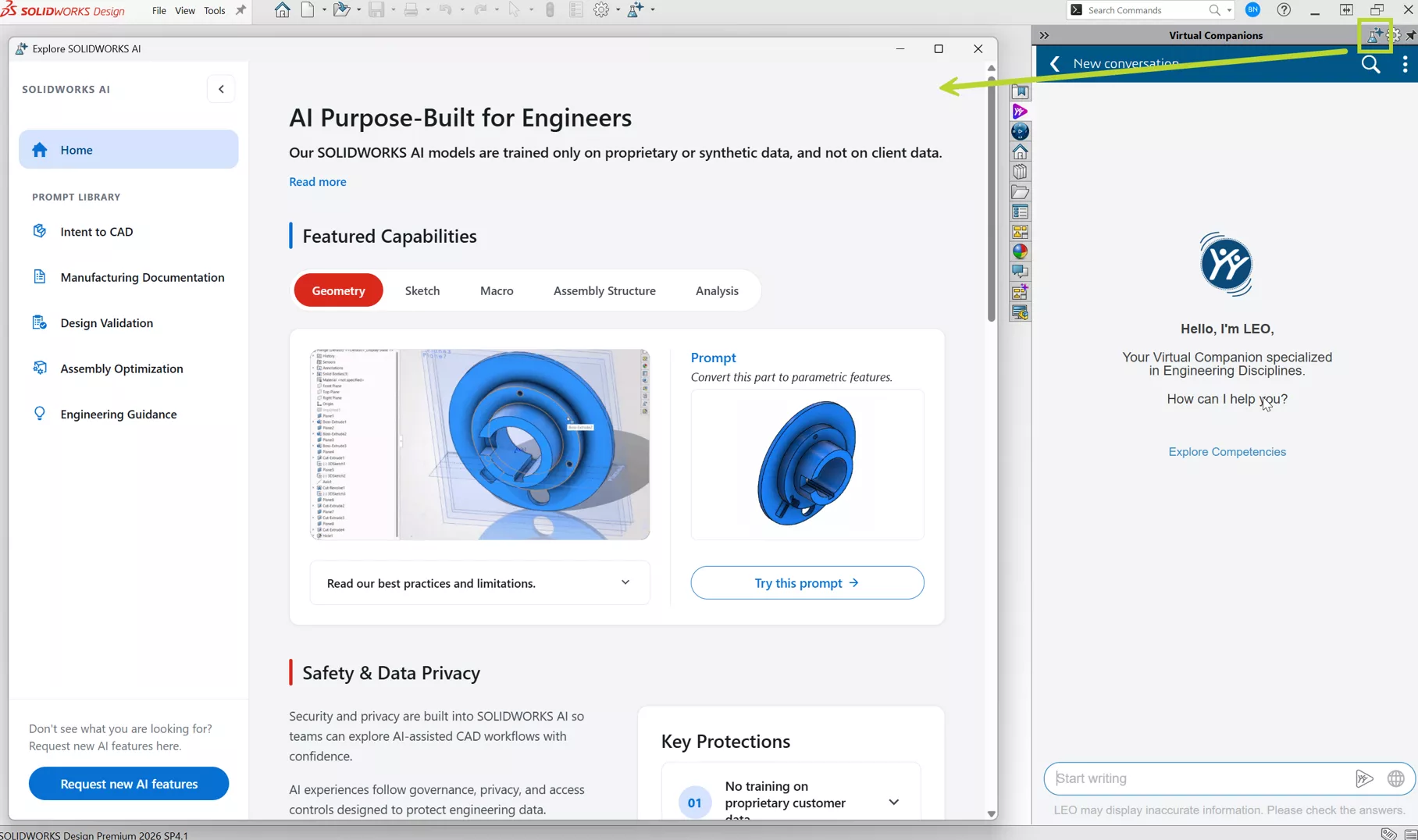
- Explore SOLIDWORKS AI brings skills, example prompts, FAQs, learning resources, and privacy guidance together in an updated prompt library accessible from SOLIDWORKS.
- Intent-to-CAD gains recognition of circular patterns and contextual draft during BREP-to-parametric conversions.
- Manufacturing documentation adds sheet-metal nesting with DXF export, more drawing-generation settings, and automatic starting-component selection for assembly instructions.
- Assembly workflows gain editable exploded views and aligned Hole Wizard hole creation, along with updated assembly-structure editing and performance analysis.
- Design validation expands with quality checks and sketch-error guidance.
- Engineering assistance adds pattern generation, Visualize rendering, and feature tree organization, with updates to natural-language selection, equations, surface-area reporting, and command guidance.
Important
The Virtual Companion skills discussed in this article are Early Access capabilities intended primarily for evaluation, testing, and feedback – not for production reliance. Individual skills may be limited in scope or in the inputs they currently support, may produce inconsistent results, and may change or be removed in a future release. Treat every output as a starting point, not a finished engineering deliverable.
The Truth About AI in CAD
AI in SOLIDWORKS is not a "magic design button" that turns a short prompt into a complete, production-ready product. Its value is more grounded: it can reduce repetitive work, shorten the search for commands and information, help diagnose problems, and create a useful first draft of certain design and documentation tasks.
The most useful way to think about it is as a co-pilot, not an auto-pilot. The engineer or designer remains responsible for design intent, calculations, validation, compliance, and approval. AI may help reach an answer faster, but responsibility for determining whether that answer is correct does not move to the software.
Assistive and Generative AI
Assistive AI is the broadest of these categories. It uses context, rules, recognition, or learned patterns to recommend an action, reduce repetitive selections, or guide a familiar workflow. It improves how an existing task is performed rather than creating an entirely new deliverable.
Generative AI creates new content, such as a drawing, macro, assembly structure, set of instructions, or reconstructed feature tree. These capabilities can eliminate more setup work, but their outputs also demand closer review.
SOLIDWORKS uses both approaches. That difference partly explains why some AI can run inside the desktop application with no cloud connection, while more conversational and generative workflows are delivered through cloud-enabled Virtual Companions.
Two Paths to AI in SOLIDWORKS
| Built-in Intelligence | Virtual Companion AI | |
| How it appears | Built into commands and workflows | Conversational interface with AURA or LEO |
| Where processing occurs | Runs from the local SOLIDWORKS installation | Uses Cloud Services through the 3DEXPERIENCE platform |
| Internet required | No | Yes |
| Cloud Services required | No | Yes |
| Tokens consumed | No | Yes |
| File storage | Local or managed data | Most skills can use local files; some PLM-aware skills require platform-stored data |
| Maturity | Released | Early Access; rapid change and inconsistent results are possible |
Because individual features are introduced and enhanced through SOLIDWORKS releases, staying current is the best way to receive the latest functionality.
Built-in Intelligence in SOLIDWORKS Design
Built-in intelligence appears directly within familiar SOLIDWORKS Design commands and workflows. These are primarily assistive capabilities: they use model context, geometry recognition, and learned patterns to recommend a next step, reduce repetitive selections, or guide a bounded repair task. Because they focus on specific tasks and can be handled locally, they do not require AURA or LEO, an internet connection, Cloud Services, or AI tokens.
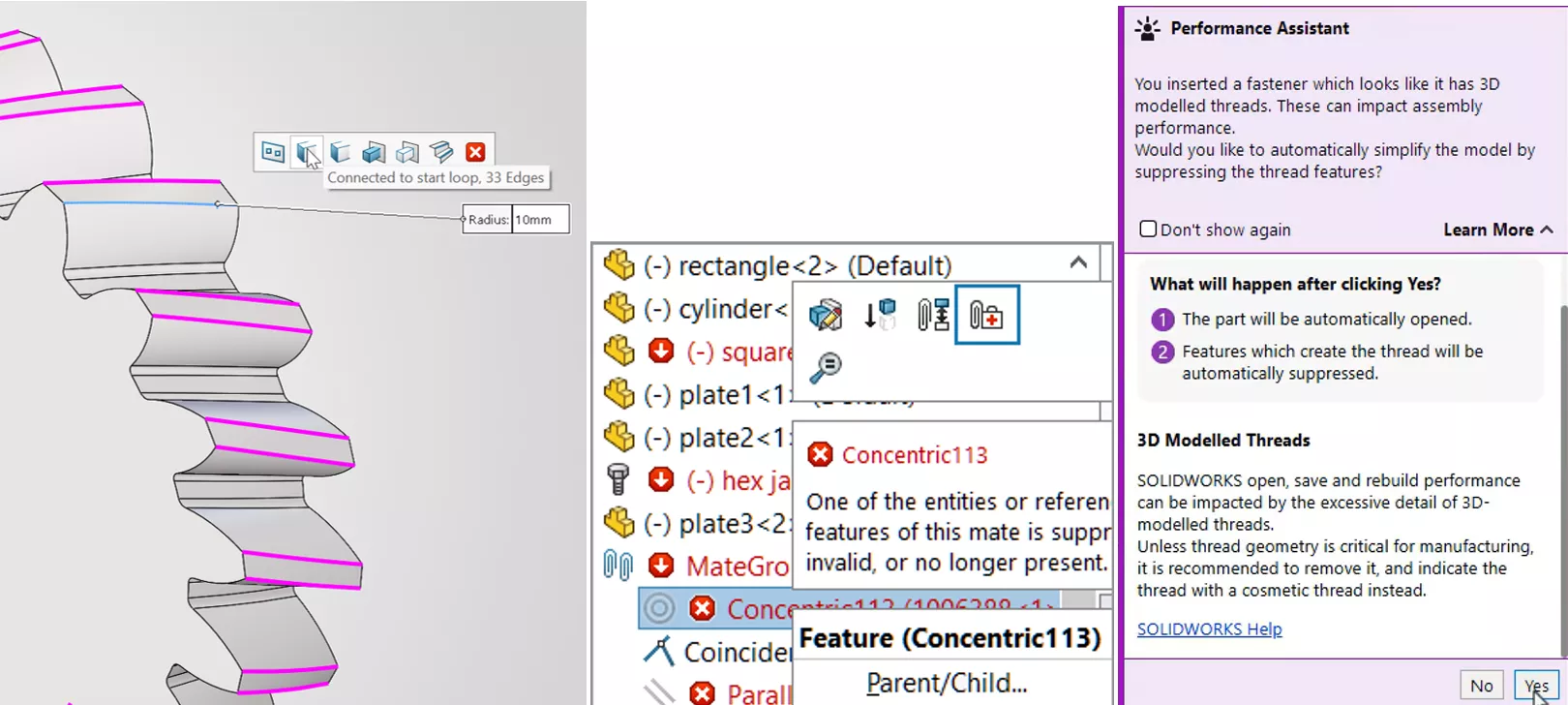
Repair Sketch Relations: Analyzes a sketch with relation problems and helps identify and repair the conflicts, reducing the trial and error normally required to isolate them.
Selection Accelerators: Predicts other edges that are likely to belong in the same selection set when creating features such as fillets and chamfers.
Command Predictor: Surfaces commands that are likely to be needed next, reducing trips through menus and Command Search.
Repair Missing Mate References: Uses assembly context to suggest replacements for lost mate references after components or referenced geometry change.
Fastener Recognition and Pattern Assistance: Recognizes fastener geometry for quick assembly mating, including non-Toolbox components and BREP geometry, and helps repeat fastener placement in logical locations.
Fastener Simplification: Uses geometry recognition to reduce unnecessary detail in modeled fasteners, helping large assemblies remain more responsive.
Pattern Driven Component Pattern: Uses a feature pattern already defined on a part to place matching component instances in an assembly, reducing repetitive component placement.
Driven Silhouette Part Defeature: Creates a simplified silhouette representation while retaining a link to the source model, allowing the simplified result to update as the source design changes.
Virtual Companions: SOLIDWORKS AI Assistants
Virtual Companions move beyond recommendations inside a single command. They provide a conversational layer through which users can state an objective in everyday language. The companion interprets the request, selects a specialized skill, asks for clarification when needed, and, in many workflows, takes action in the active SOLIDWORKS session.

AURA: The knowledge companion
AURA answers SOLIDWORKS questions using curated help, training, best practices, and online documentation, with sources that users can inspect. It is also available through 3DSwym when SOLIDWORKS Design is not open.
LEO: The engineering companion.
LEO works with the active part, assembly, or drawing to assist with mechanical-design tasks, from explaining a failure to generating or modifying content.
MARIE: The scientific companion.
MARIE is intended to add scientific and materials reasoning to engineering workflows. It is part of the broader Virtual Companion vision but is not currently available to SOLIDWORKS Design users.
What You Need to Access AURA and LEO
- SOLIDWORKS Design on the latest version/SP.
- An eligible SOLIDWORKS Design named-user license, or SOLIDWORKS Design with Cloud Services.
- Cloud Services activated and access to your company’s 3DEXPERIENCE platform.
- The required platform connector installed, up-to-date and running.
- An internet connection and an authenticated platform session inside SOLIDWORKS Design.
Your files do not always need to be in the cloud: Using a cloud-enabled companion does not automatically mean moving every SOLIDWORKS file to the cloud. Many AURA and LEO skills can work with documents opened from local storage. Some workflows require platform-stored data, including BREP-to-parametric conversion, PLM insights, and platform-based where-used analysis. That said, organizations already managing SOLIDWORKS data on the platform are positioned to gain more value as SOLIDWORKS AI matures because the cloud connection, managed relationships, and relevant data context are already in place.
Virtual Companion Skills by Engineering Workflow
The growing list of skills is easier to understand when organized around the engineering outcome each one supports.
Intent to CAD
BREP to Parametric: LEO can attempt to rebuild a single-body STEP or IGES model as an editable SOLIDWORKS part with parametric features. FD04 expands feature recognition to include circular patterns and contextual draft, making conversion a potentially valuable starting point when no native model is available. However, it does not recover the original feature tree or design intent. The result may include extra reference geometry, and current support is strongest for basic solid features rather than advanced surfacing, sheet metal, weldments, or other complex modeling techniques.
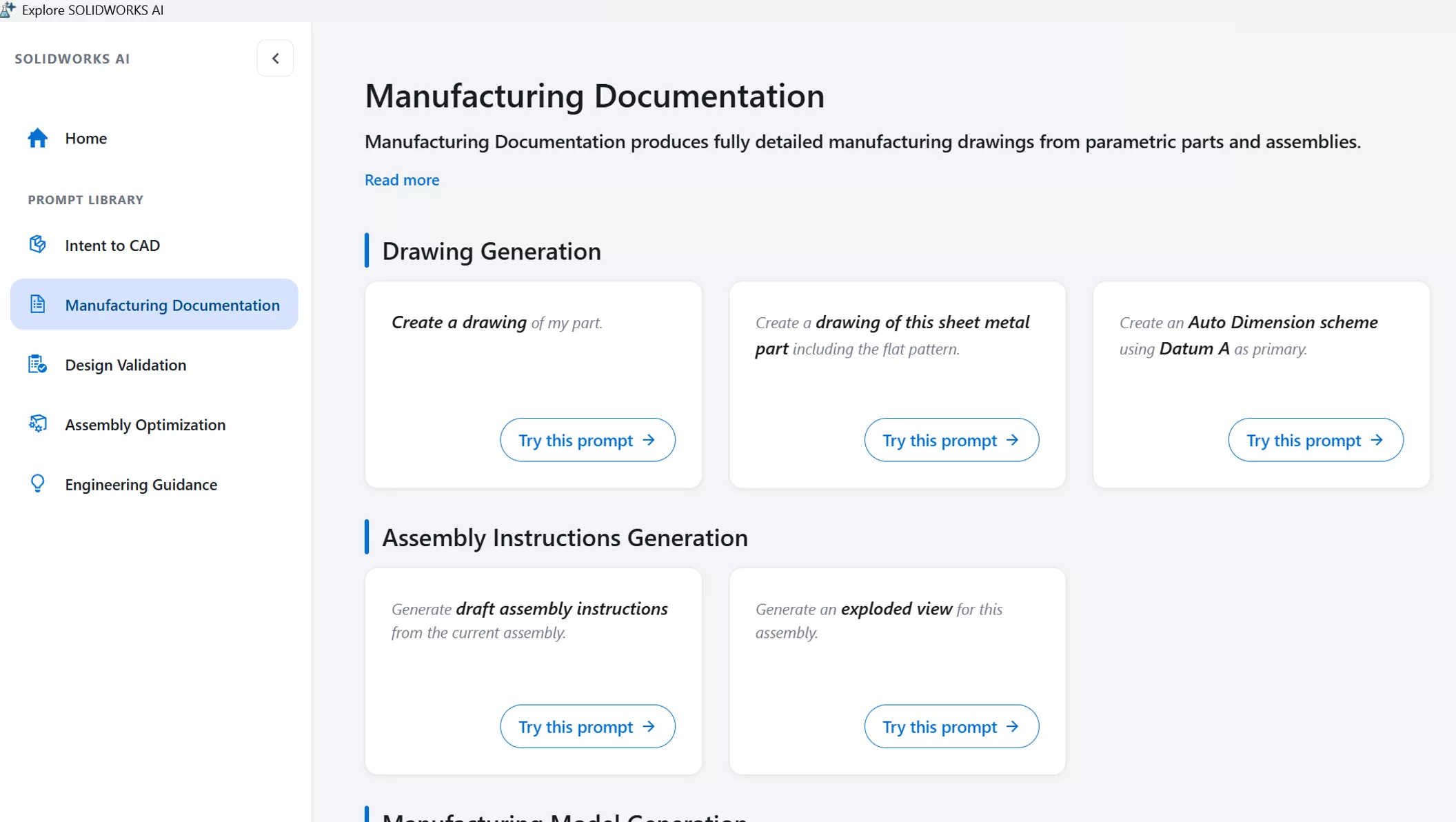
Manufacturing Documentation
Assembly Instruction Generation: LEO can turn an assembly into an initial sequence of written steps and visual snapshots for manufacturing, service, or training. The Early Access output is best treated as a first draft: it generally focuses on the top-level assembly and may not infer the correct sequence for subassemblies, hidden operations, or process knowledge that is not represented in the model.
AI Drawing Creation and Refinement: Tell LEO which views, scale, drawing style, sheet layout, and annotations you need, then continue refining the drawing conversationally. Existing capabilities include view creation and manipulation, annotation changes, flat-pattern views, bend tables, and print or export actions. FD04 adds PropertyManager controls for sheet size, dimensioning scheme, and tolerancing. Generated drawings still need to be checked against company, customer, and industry standards.
Sheet-Metal Material Utilization: LEO can arrange flat patterns into nested sheet layouts, using standard or custom sheet sizes and quantities. Adjust spacing, kerf, rotation, flipping, and nesting direction through natural language, preview the layout, and export it to DXF.
Design Validation
Assembly Risk Assessment: LEO can identify components affected by a proposed change within the active assembly, helping users assess the impact across other assemblies. The analysis depends on the relationships and metadata available in the managed environment.
Quality Checks: Ask LEO to review parts, assemblies, and drawings against supported checks configured on the 3DEXPERIENCE platform. Use the flagged items to guide review before release; engineering approval remains with the user.
Assembly Optimization
Assembly Structure Design: Describe the product hierarchy you have in mind, and LEO can propose an initial structure of assemblies and parts. You can refine that structure through conversation before LEO creates the empty SOLIDWORKS files. FD04 also adds manual editing of the proposed hierarchy, including drag-and-drop reordering, component deletion, and multi-selection. This accelerates project setup and naming, but it does not create the geometry or determine how the individual components should be designed.
Assembly Performance Analysis: LEO examines factors that affect open, save, graphics, and rebuild performance, then ranks the changes most likely to help. This turns a broad performance investigation into a more focused action list, while leaving the designer to decide which tradeoffs are appropriate.
Thread Simplification and AI-Guided SpeedPak Creation: Based on the findings from Assembly Performance Analysis, LEO can help act on two common optimization opportunities. It can identify some physically modeled swept threads and replace them with cosmetic thread representations across an assembly, removing unnecessary geometry. It can also recommend where SpeedPak configurations may have the greatest impact and help create them at the top level or within subassemblies. Not every thread type is currently supported.
Automatic Explode Views: Describe the direction and spacing you want, and LEO creates editable explode steps for the assembly.
Hole Creation: Use natural language to create and propagate aligned Hole Wizard holes across assembly components, based on an existing hole or specified hole requirements.
Engineering Guidance
What’s Wrong Analysis: From the familiar What's Wrong dialog, a user can ask LEO to explain why a part feature may have failed, suggest repair steps, and recommend ways to avoid the same issue.
Sketch Analysis and Repair Guidance: LEO can examine the active sketch and propose a path toward resolving under-defined, over-defined, or conflicting conditions with an understanding of what caused the problem.
Assembly Error Diagnosis: This skill extends root-cause guidance to model, mate, and component failures in assemblies. This remains one of the less mature experiences, so it should complement rather than replace the established assembly diagnostic tools.
SOLIDWORKS Knowledge and Best Practices: Ask AURA how a command works, how to approach a modeling problem, or where to find a setting. Because the response cites its sources, users can move from a quick answer to the underlying SOLIDWORKS guidance when more detail is needed.
Macro Generation: Describe a repetitive workflow, and LEO can generate a VBA macro, open it in the editor, and revise it through conversation. This lowers the barrier to automating small tasks, but it does not remove the risks of generated code. Review the macro and test it on non-production data before using it more broadly.
Natural-Language Selection: Describe the faces, features, bodies, or components you want selected instead of picking them individually. FD04 expands selection across parts, assemblies, drawings, and sketches.
Equation Assistant and Design Parameterization: Create or edit global variables and equations in natural language, with assistance resolving syntax and formula errors.
Surface-Area Reporting: Ask for the area of an entire part, selected faces or bodies, or geometry grouped by color, visibility, or feature type. This can speed up paint, coating, and surface-treatment estimates, provided the user confirms that the intended geometry was included.
Material Appearance Manager: Find, highlight, and change model appearances through natural language. It is important to distinguish visual appearance from the engineering material assigned for physical properties.
Scale Assist and Expert Guidance: LEO can guide scaling operations and provide recommendations informed by the active model.
Integrated Command Guidance: Get step-by-step guidance on SOLIDWORKS features, mates, evaluation tools, and drawing methods.
Pattern Generation: Describe the feature pattern, layout, and spacing you need, or ask LEO to suggest pattern limits and spacing.
Image Generation with SOLIDWORKS Visualize: Ask LEO to create a rendering of the current model and specify settings such as resolution and denoising. The SOLIDWORKS Visualize add-in must be enabled.
Assisted Feature Tree Organization: Ask LEO to identify unused or non-contributing features for cleanup and organize features into folders, such as groups for reference geometry or fillets.
PLM Model Insights: For platform-managed data, LEO can answer questions about configurations, tasks, revisions, approvals, and change history without requiring the user to navigate several PLM views. The available insight depends on the quality of the managed data and the capabilities in the current release.
Important Considerations Before You Begin
Access and Packaging
Built-in intelligence arrives as part of supported SOLIDWORKS Design releases and does not require Cloud Services. AURA and LEO access is currently included for SOLIDWORKS Design connected to the 3DEXPERIENCE platform. Customers on older offers without 3DEXPERIENCE platform access may need to update their entitlement before using the Virtual Companions.
Token-Based Consumption
Eligible users can open AURA and LEO through their SOLIDWORKS entitlement, but using their skills consumes Blue Tokens. Blue Tokens belong to a shared company-level pool on the 3DEXPERIENCE platform rather than to individual users. Consumption varies by skill and complexity of the work performed.
- Eligible commercial customers receive an initial one-time allocation of Blue Tokens to experiment with Virtual Companions. Additional token packs are available for purchase.
- Consumption can vary substantially. A knowledge question or model insight may use relatively few Blue Tokens, while drawing generation or BREP reconstruction can use considerably more.
- Rates and values may change as the commercial model and the skills mature.
Security and Connectivity
Built-in intelligence runs without a cloud connection; Virtual Companions require an internet connection and communicate through the 3DEXPERIENCE platform. Customer data is not used to train the AI models and customer intellectual property remains isolated. Organizations should nevertheless evaluate the workflow against their own data-classification rules, regulations, and approved-cloud policies. Dassault Systèmes provides additional security, privacy, compliance, and trusted-AI information in its Trust Center.
Early Access Usage and Maturity
AURA and LEO’s AI skills are in Early Access with varying levels of maturity, performance, and consistency. This means a capability that works impressively on one model may struggle with another. A skill may misunderstand the prompt, act on the wrong object, lose context during a longer conversation, or produce an output that needs considerable cleanup. If a conversation drifts, starting a new chat with a narrower, more explicit request can be more effective than continuing to correct the same thread.
A successful response only confirms that the system produced an output; it does not confirm that the output is correct. Review macros before execution, inspect reconstructed feature trees, confirm drawing standards, and use established SOLIDWORKS diagnostic tools alongside AI guidance.
Training and Adoption
Natural-language interaction makes the tools approachable, but productive use still requires practice and process. Teams should begin with low-risk tasks whose results are easy to verify, capture prompts and workflows that perform well, and define review expectations before using AI-generated output in customer deliverables or production work.
GoEngineer can help teams understand SOLIDWORKS AI through Application Mentoring Sessions and personalized guidance.
Do Not Confuse This with AI in SOLIDWORKS xDesign
The browser-based SOLIDWORKS xDesign family has a separate (but similar) set of Design Assistant capabilities, including sketch, selection, and mate helpers as well as generative workflows. Although many use cases are similar, these are xDesign capabilities and should not be confused with the built-in intelligence or Virtual Companion skills available in desktop SOLIDWORKS Design.
The Future of AI in SOLIDWORKS
The direction is clear: Dassault Systèmes is working toward AI that can support more connected portions of the engineering workflow – not simply answer questions or execute isolated commands.
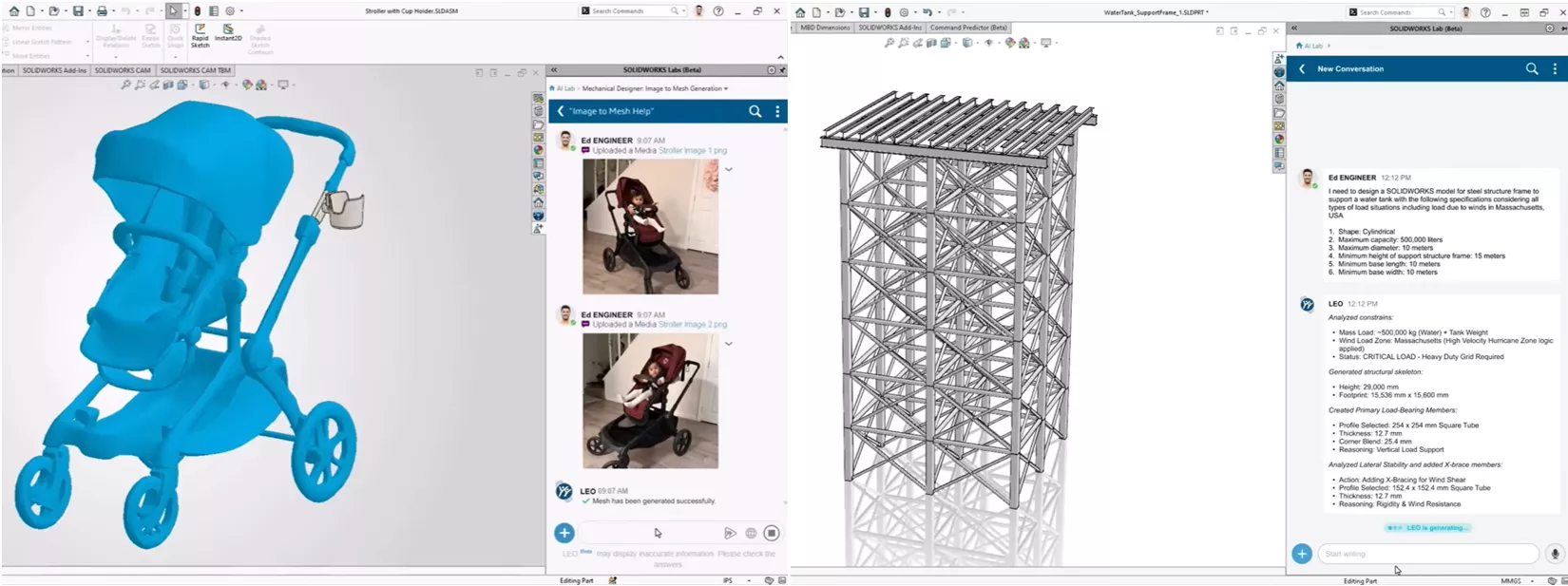
Intent-to-CAD capabilities are expected to accept a wider range of starting points, including specifications, images, sketches, drawings, meshes, and scan data. The goal is to help engineers translate existing information and early concepts into usable CAD geometry with less manual setup and remodeling.
Once a design takes shape, additional capabilities could assist with manufacturing documentation, including Model-Based Definition (MBD) and Product Manufacturing Information (PMI). This would extend AI assistance beyond model creation and into the information required to communicate how a product should be assembled and manufactured.
Beyond quality checks and sketch guidance, the longer-term design validation direction includes broader engineering advice and expanded comparison tools. These capabilities could help identify potential issues earlier in development while keeping engineering decisions and approvals in the hands of the user.
For assemblies, the focus expands to mate repair and automation, part search and reuse, and component replacement. Together, these capabilities could make complex assemblies easier to build, troubleshoot, maintain, and update.
Engineering guidance is expected to evolve toward “vibeCADing” – a more conversational approach to creating and modifying designs. Deeper PLM actions and knowledge grounded in customer-specific information could help AI companions coordinate related tasks across more of product development.
Roadmap reminder: Roadmap items are directional, not commitments. Scope, timing, access requirements, token consumption, and even whether a capability is ultimately released may change.
Greater autonomy does not make engineering responsibility disappear. Domain knowledge, creativity, and accountability remain essential. The strongest future for AI in CAD is one in which the software removes low-value effort and brings the right information forward, while the engineer remains in control of intent and validation.
How to Start Exploring AI in SOLIDWORKS
- Update to the latest SOLIDWORKS Design version/SP.
Confirm that Cloud Services is activated and the required connector is installed and up-to-date. - Sign in to your company’s 3DEXPERIENCE platform from SOLIDWORKS Design.
- Open the Virtual Companions tab in the Task Pane and begin with AURA guidance or a simple, verifiable LEO task. Use Explore SOLIDWORKS AI to browse skills and example prompts.
- Review the result, refine the prompt, and keep normal engineering validation in the loop.
- For a step-by-step walkthrough of access, setup, and first use, see the AI Virtual Companions.
AI in SOLIDWORKS is most compelling when it gives time back to designers and engineers. Less time spent on setup, searching, troubleshooting, and repetitive documentation means more time for design decisions, tradeoffs, and problem-solving that create real engineering value.
Want to learn more about AI in SOLIDWORKS or any SOLIDWORKS-related solutions? Contact GoEngineer for more information, to schedule a demo, or to book training.
Editor's Note: This article was originally published in October 2025 and has been updated for SOLIDWORKS 2026 SP4 / 2026x FD04 updates.
Related Articles
SOLIDWORKS Materials in Multibody Parts
How to Reorder SOLIDWORKS Sheet Metal Bends
How to Reorder SOLIDWORKS Sheet Metal Bends
KeyShot SOLIDWORKS Add-In Installation & Setup

About Baily Nemerofsky
Baily Nemerofsky is GoEngineer’s AI Solutions and Adoption Manager, a Certified SOLIDWORKS Professional, and a mechanical engineering graduate of Queen’s University. He is based in Toronto, Canada.
Get our wide array of technical resources delivered right to your inbox.
Unsubscribe at any time.