Failed to Obtain License for SOLIDWORKS Visualize

Have you ever seen the “Failed to obtain license for SOLIDWORKS Visualize” error even after a recent use of the license? In this blog, we’ll review how to fix this if it’s happening to you.
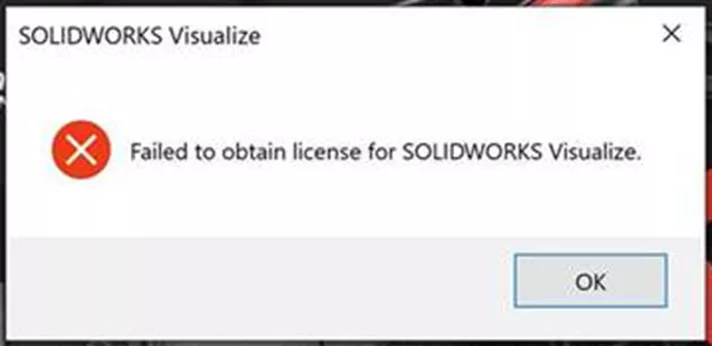
What causes this error?
Generally, you will run into this when you start SOLIDWORKS. There are two reasons for this, and we’ll talk through both. They are:
- SOLIDWORKS License Manager was recently refreshed. This may happen around your maintenance renewal date.
- Your maintenance lapsed for some reason or another.
SOLIDWORKS Visualize Standard or Composer, depending on the SOLIDWORKS version loaded, is free if you are on active maintenance, meaning you pay maintenance annually. SOLIDWORKS calls it a “term license”. If you do not pay maintenance, you will lose access to Visualize Standard.
How to Reactivate a Network SOLIDWORKS Visualize License
If you’re on active maintenance and use network licensing, follow these steps to reactivate your network license and start rendering again.
On the server that manages the SOLIDWORKS licenses, open the SolidNetWork License Manager Server. Next, pick the Server Administration tab and stop the license server. Select Modify… and then Activate/Reactivate…
Select Next, and if you see a checkbox for A firewall is in use on this server, then select the checkbox and click Next. On the next screen, if multiple serial numbers are listed, then select Select All and pick to activate Automatically over the internet. Enter an email address and Select Next. After the list of Currently activated products is displayed, click Finish.
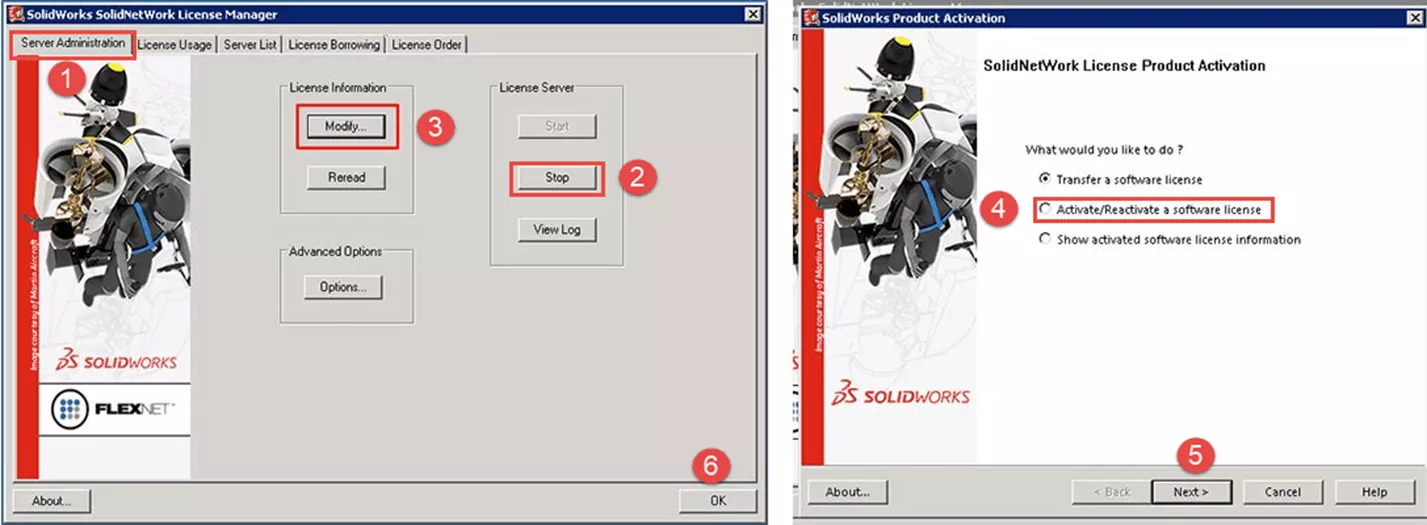
The license should be reactivated, so go ahead and retest to see if the message appears again.
How to Reactivate a Standalone SOLIDWORKS Visualize License
If you run into a SOLIDWORKS Visualize licensing error and use an individual license, the process is slightly different.
From within SOLIDWORKS, go to the Help tab and select Activate Licenses. Next, pick the license you want to activate (Visualize in this case) or just Select All. Select Automatically over the Internet and then Next to finish activating the license.
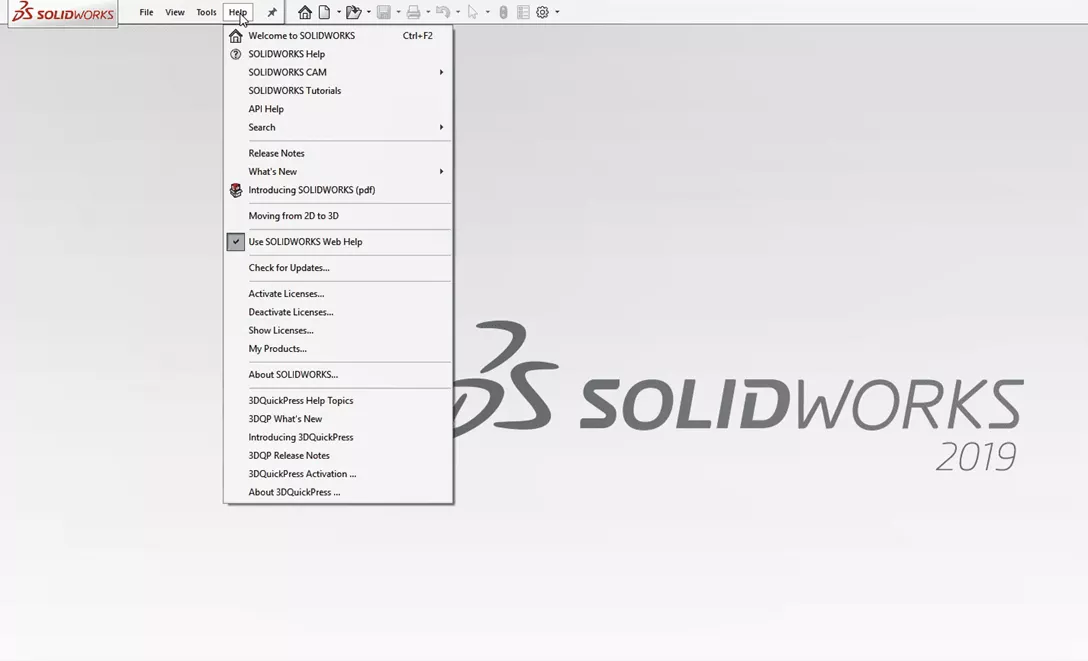
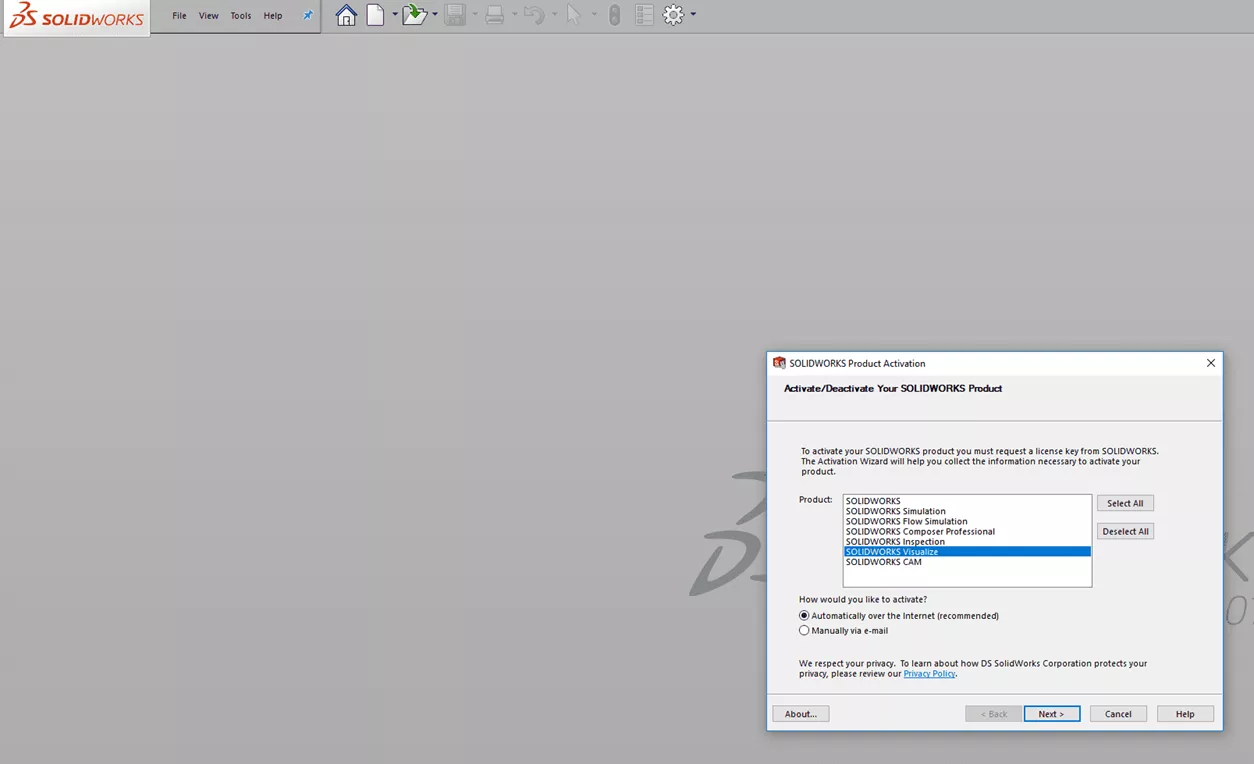
If the Failed to obtain license for SOLIDWORKS Visualize error message still appears on a client machine after a serial number has been reactivated on the server, then the next viable action item is to check to see if the license subscription might not have been updated.
If GoEngineer is your SOLIDWORKS partner and you wish to inquire about the subscription status of a license, then please feel free to reach out to us via support@goengineer.com or 888-559-6167.
Editor's Note: This article was originally published in July 2019 and has been updated for accuracy and comprehensiveness.
Related Articles
Create Engraved Lettering in SOLIDWORKS Visualize
SOLIDWORKS Visualize 2026 - What's New
SOLIDWORKS Visualize Appearances: DSPBR Base Parameter Group Explained
SOLIDWORKS Visualize Viewport Size and Resolution Settings
How to Create a Sunlight Environment in SOLIDWORKS Visualize

About Jonathan Sauerbrey
Jonathan is a Sr. SOLIDWORKS Support Engineer at GoEngineer
Get our wide array of technical resources delivered right to your inbox.
Unsubscribe at any time.