How to Completely Reset SOLIDWORKS Visualize

If SOLIDWORKS Visualize isn’t behaving as expected, it might be time for a factory reset. Over time, custom interface changes, corrupted user settings, or incompatible updates can cause Visualize to act unpredictably. Restoring the interface to its default state can often resolve these issues quickly, giving you a clean slate and helping you get back to creating high-quality renderings without unnecessary frustration.
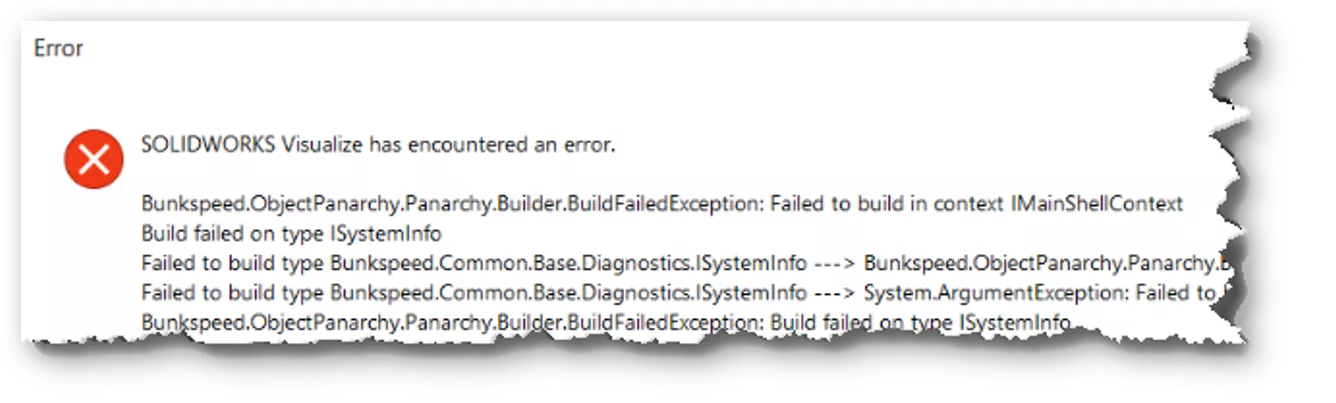
To reset the SOLIDWORKS Visualize interface, browse to the following folders and rename them. Note: Make sure Visualize is closed before attempting this.
- C:\Users\UserName\My Documents\SOLIDWORKS Visualize Content
- C:\Users\UserName\AppData\Local\Dassault_Systèmes\SLDWORKSVisualize.exe(Computer specific ID code) *Every computer will have a different folder name it should look something like this*
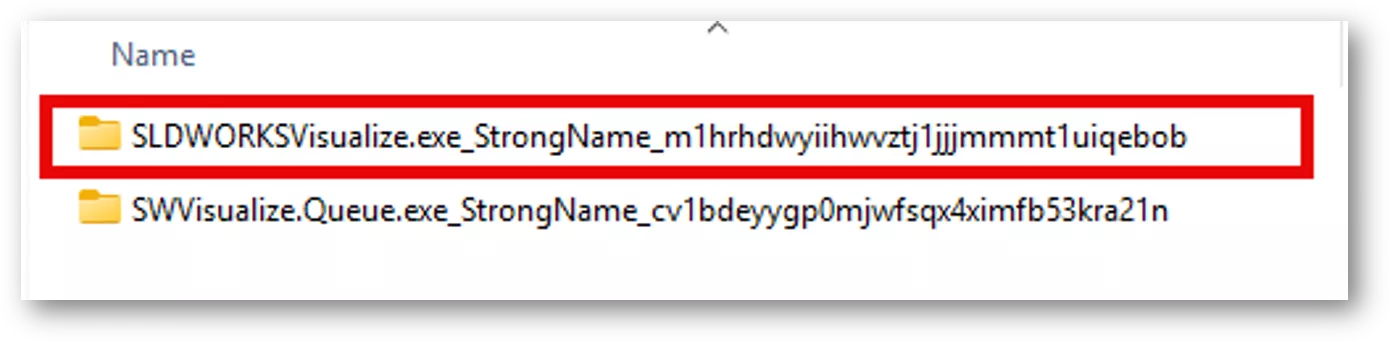
- C:\Users\UserName\AppData\Local\SolidWorks\SOLIDWORKS Visualize 20XX
- C:\ProgramData\SOLIDWORKS\SOLIDWORKS Visualize 20XX
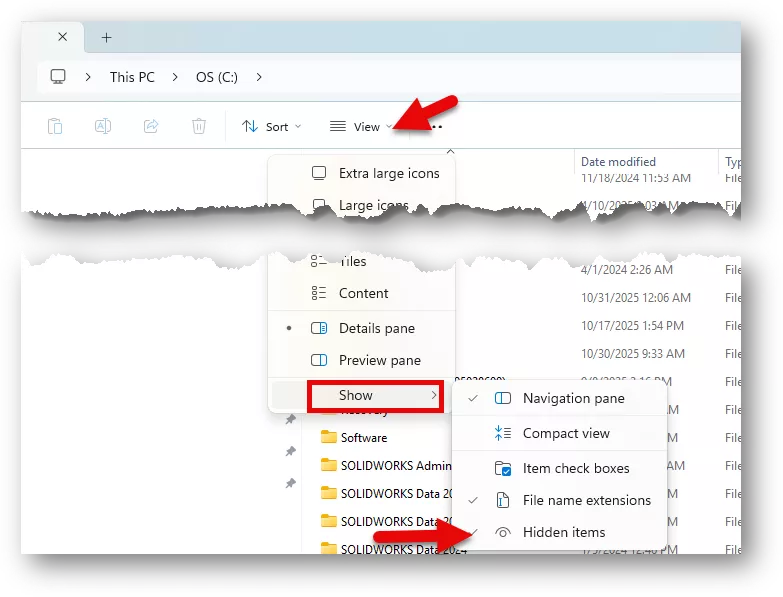
The AppData and ProgramData folders are hidden by default in Windows Explorer. To show the folders, in Windows Explorer, click View > Show > Hidden Items.
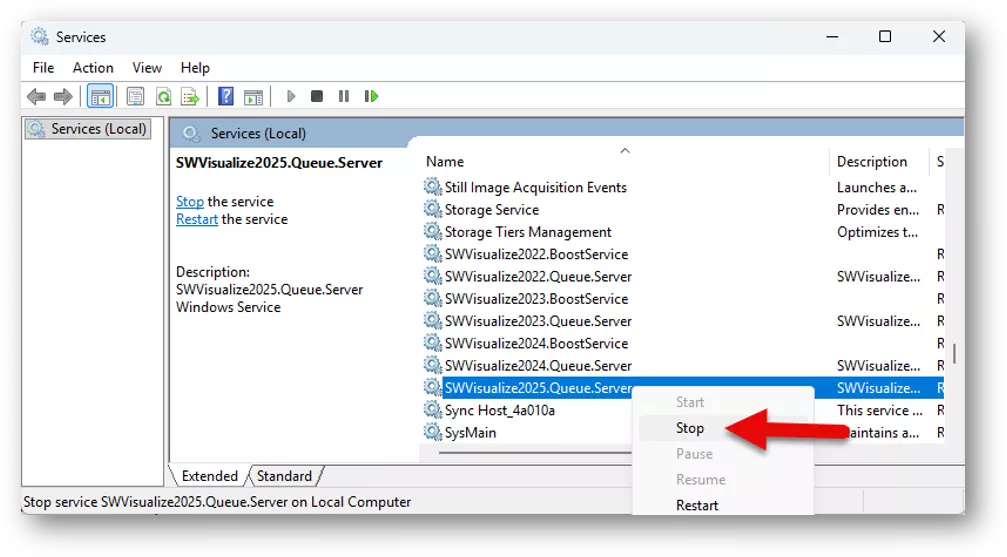
If you get an error message that says Folder In Use when attempting to rename the C:\ProgramData\SOLIDWORKS\SOLIDWORKS Visualize 20XX folder, you will need to stop the SOLIDWORKS Visualize Queue and Boost services (if available). This is because there are log files in the %PROGRAMDATA% folder that are written when the Queue and Boost services are running. To turn these off, follow these steps:
- Click the Windows Start button and type 'services', then open the Services app (or right-click Windows Task Bar> Task Manager > click Services).
- Find the SOLIDWORKS Visualize Queue and Boost services (if available). These are called:
- SWVisualize[Year].BoostService
- SWVisualize[Year].Queue.Server
- Right-click the service > Stop.
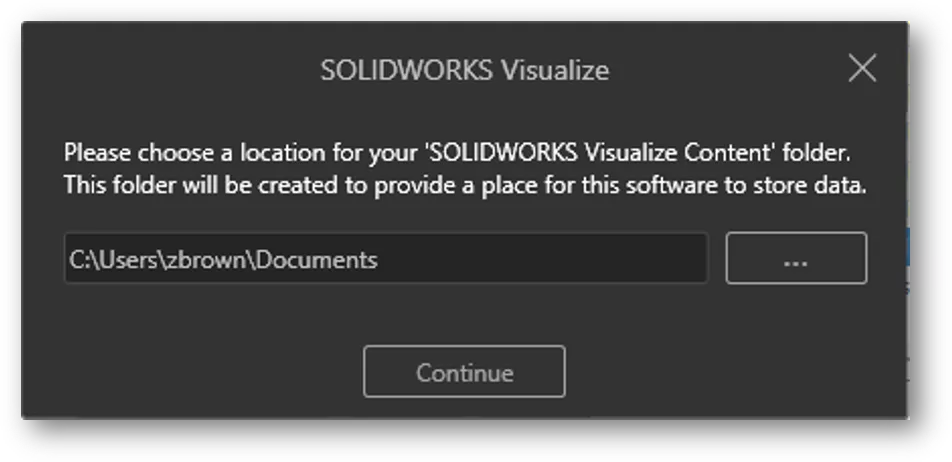
After the folders have been renamed, it is okay to open SOLIDWORKS Visualize. Upon opening Visualize, the software will prompt you to choose a place for the new Visualize Content folder. This is because this folder was renamed in the previous step. This will conclude the reset of the Visualize interface.
If the reset does not resolve the issues with the software, we suggest contacting your local SOLIDWORKS technical support team for continued diagnostics.
Want to learn more? Check out more tips and tricks from our team below. Additionally, join the GoEngineer Community to participate in conversations, create forum posts, and answer questions from other SOLIDWORKS users.
Related Articles
Failed to Obtain License for SOLIDWORKS Visualize
SOLIDWORKS Visualize 2026 - What's New
SOLIDWORKS Visualize Appearances: DSPBR Base Parameter Group Explained
Installing and Configuring SOLIDWORKS Visualize

About Zach Brown
Zach Brown is a certified SOLIDWORKS Expert and a Technical Support Engineer. Prior to working at GoEngineer, he spent 15 years as a mechanical designer, CAD support tech, and instructor using SOLIDWORKS. His hobbies include playing guitar, riding motorcycles, and skiing.
Get our wide array of technical resources delivered right to your inbox.
Unsubscribe at any time.