How to Create a SWOOD Rx

Generating a SWOOD Rx enables you to capture system information, logs, and other SWOOD data for fast, accurate troubleshooting. This guide walks you through the steps so you can send a complete support package in minutes.
Where is the SWOOD Rx Located?
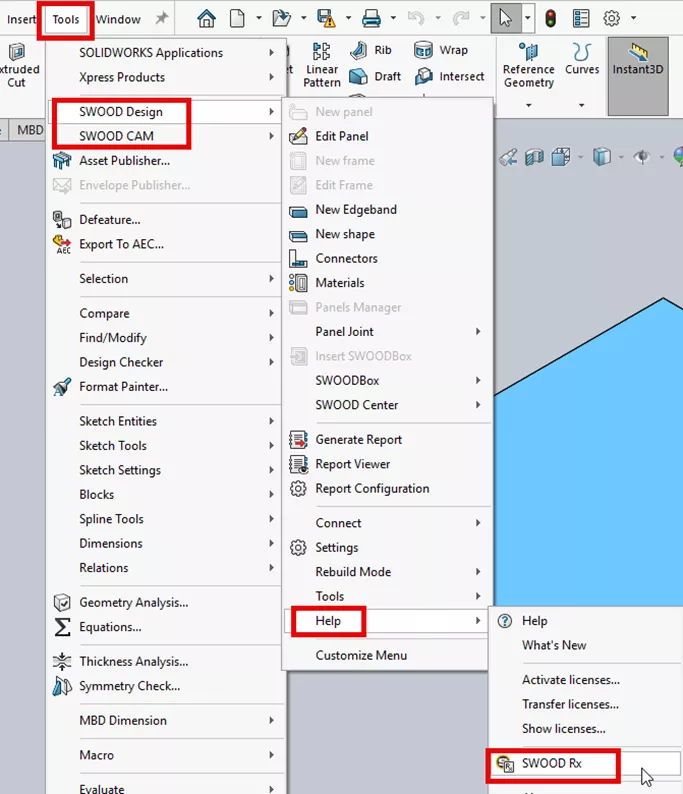
Navigate to Tools > SWOOD CAM/SWOOD Design > Help > SWOOD Rx.
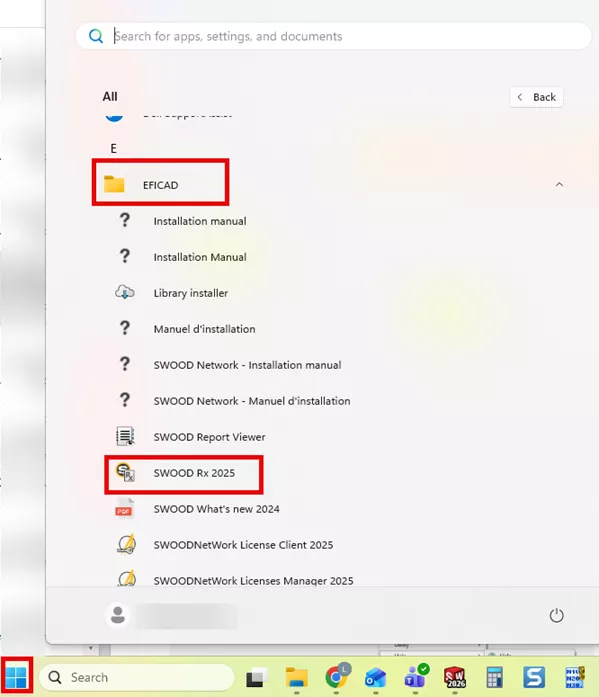
The SWOOD Rx tool is also located in the Windows Start menu. Navigate to the Eficad folder, or type SWOOD Rx in the search bar.
How to Gather the Correct Data
- If you have a SOLIDWORKS part or assembly file open in SOLIDWORKS, you have the option to select the Active document. This will select the part or assembly file that you have open on your screen to package up in the SWOOD Rx.
- The second option is Other SOLIDWORKS file, which will allow you to choose the file from a folder you browse to on your computer.

- Enter your Company Name.
- Select the data that you would like support with (e.g., if you are having issues with a toolpath or a machining feature) and select the machining options shown below.
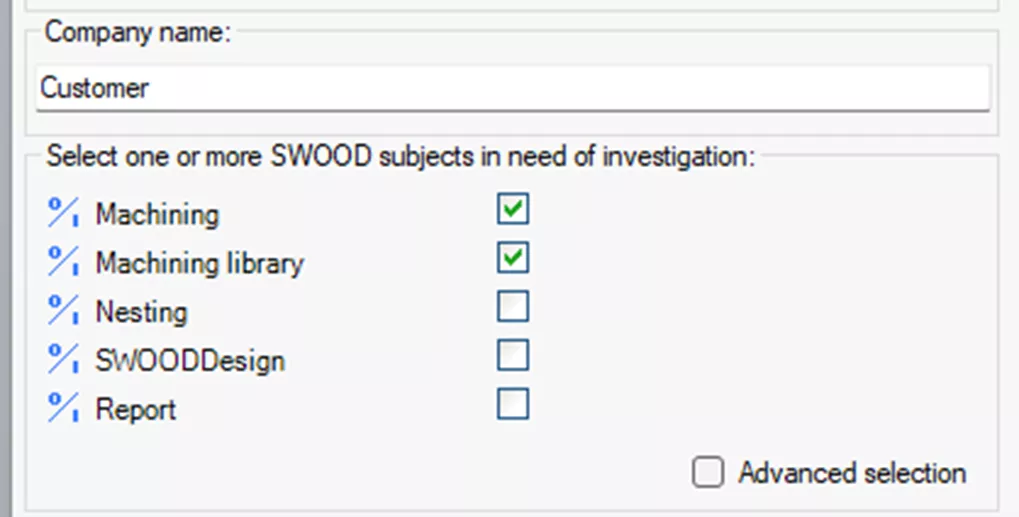
- Alternatively, there is a checkbox for advanced selection, which will allow you to check off all the items from the SWOOD data folder that you want to send with your files.
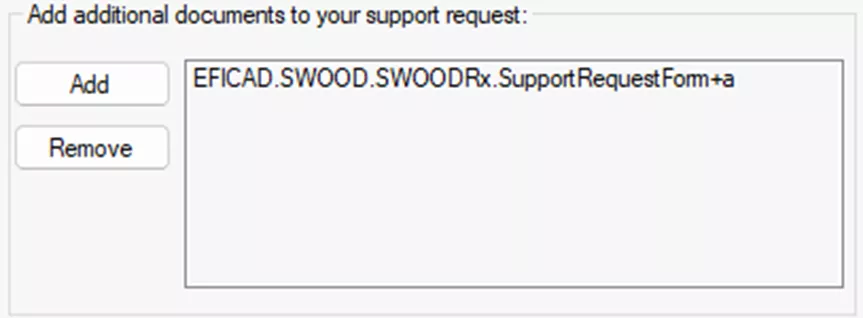
- If you have any additional documents (image, pdf, etc.), you can add the files in the Add additional documents section by selecting the Add button.
- Type in a short description of your issue and choose Browse to select the folder you want the zipped SWOOD Rx to be saved to.
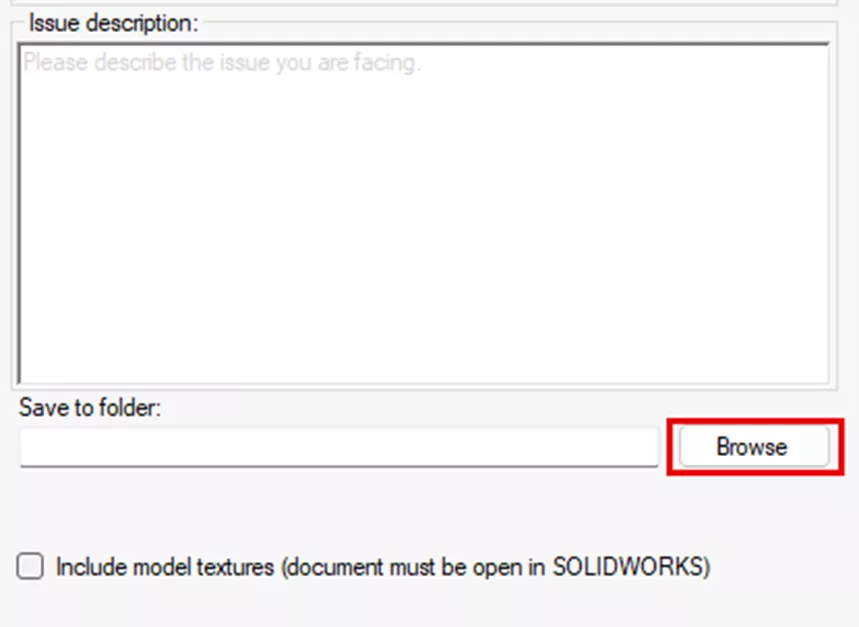
- Select the Save button in the lower right-hand corner of the window to save the zipped SWOOD Rx folder.
- Reach out to your GoEngineer support contact for a link to upload the SWOOD RX file if you do not have a means to send the file yourself.
Questions?
I hope you found this SWOOD Rx guide helpful. If you have questions or need additional assistance, please contact us.
Related Articles
SWOOD Network License Activation Guide
SWOOD Reactivation for Network Licenses
SWOOD Reactivation for Standalone Licenses
What's New in CAM 2026: SOLIDWORKS, CAMWorks, & More

About Lindsay Morrison
Lindsay Morrison is a Team Lead in the CAM department at GoEngineer, with over 15 years of industry experience. She holds a diploma in Mechanical Engineering – Design and Analysis from Conestoga College and is based in Toronto, ON, Canada. Outside of work, Lindsay enjoys golfing, reading, spending time by the water, and being with her friends and family.
Get our wide array of technical resources delivered right to your inbox.
Unsubscribe at any time.