Intro to SOLIDWORKS Sketch Blocks

Blocks are useful when shapes/groups of sketch entities need to be reused in the same SOLIDWORKS model (or in different models). This avoids the need to copy sketch entities and ensures that the relations remain intact. A library can even be established with frequently used Sketch Blocks. Blocks can be created from a single entity or multiple entities. Let’s go over the steps to create a block in SOLIDWORKS so you can use it in your next design.
Create a Block from Scratch
- Create a sketch.
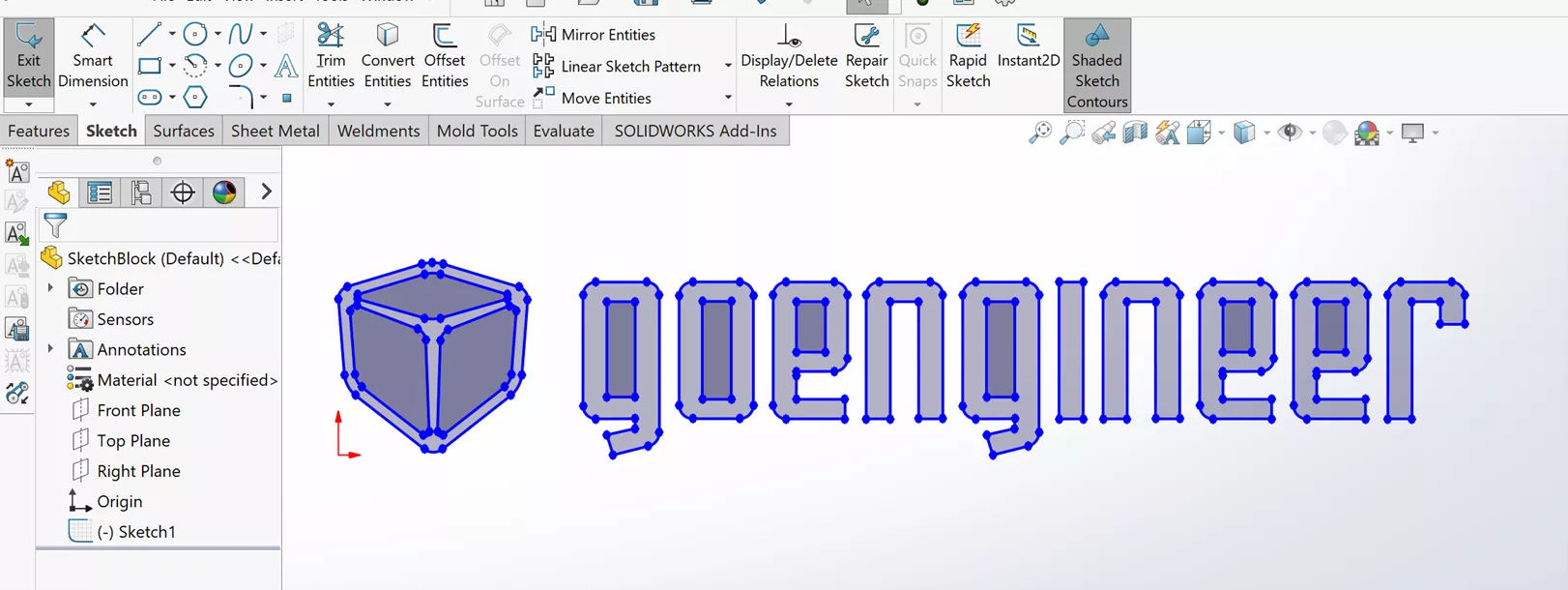
- Click Make Block
 (Blocks toolbar) or go to Tools > Block > Make.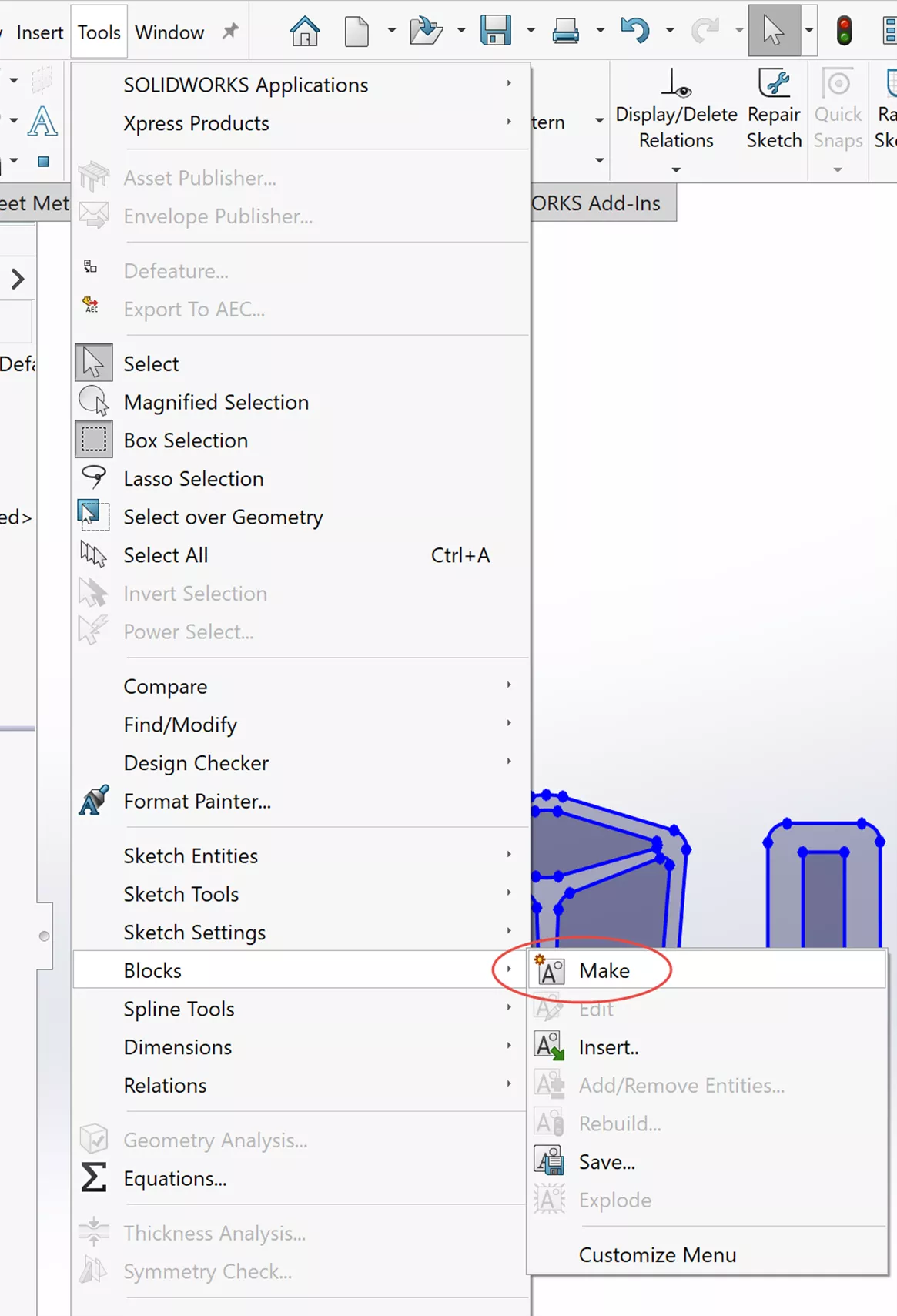
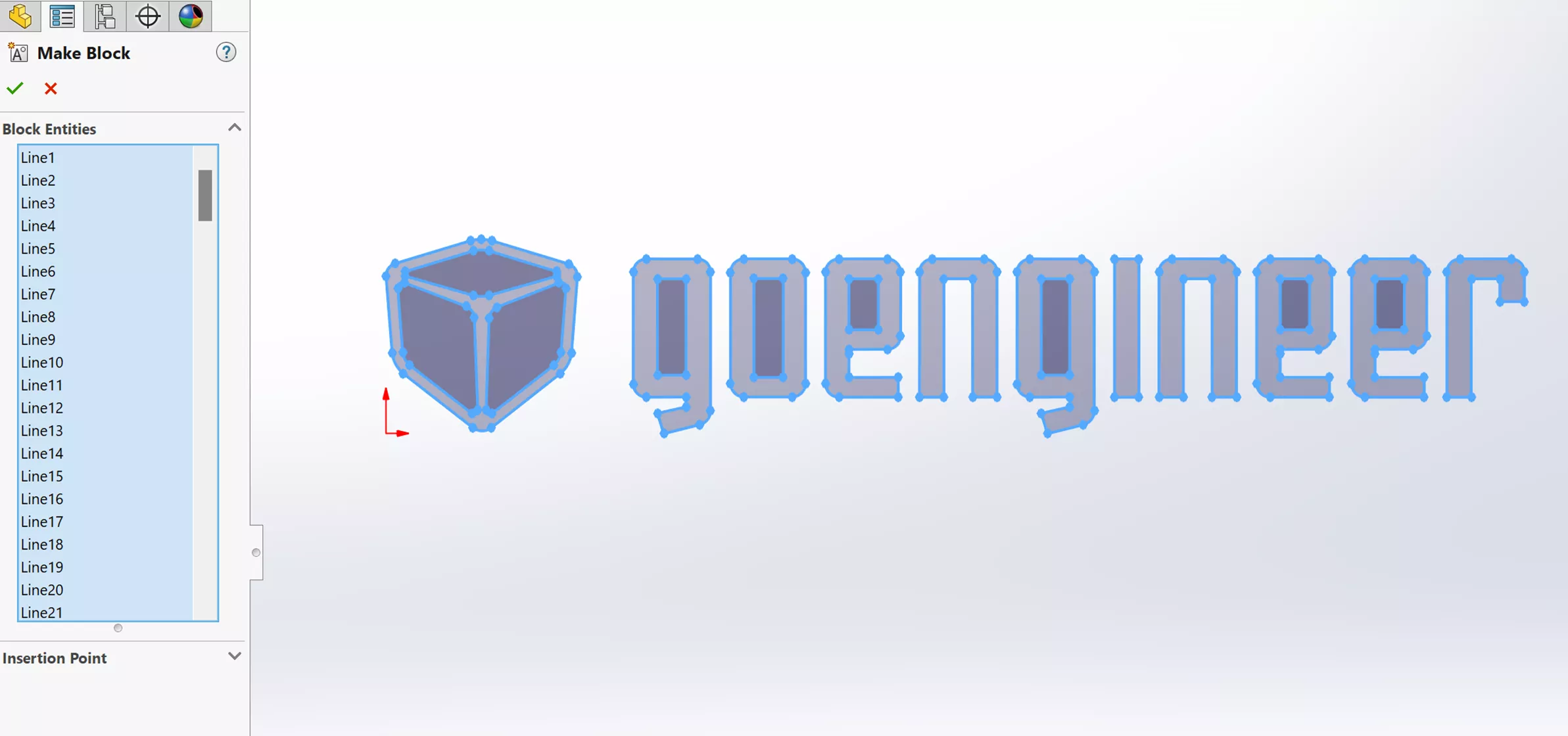
- Select the sketch entities that you want to add to the block. They will appear in the Block Entities field. Optionally, you can box-select to select all the sketch entities you need.
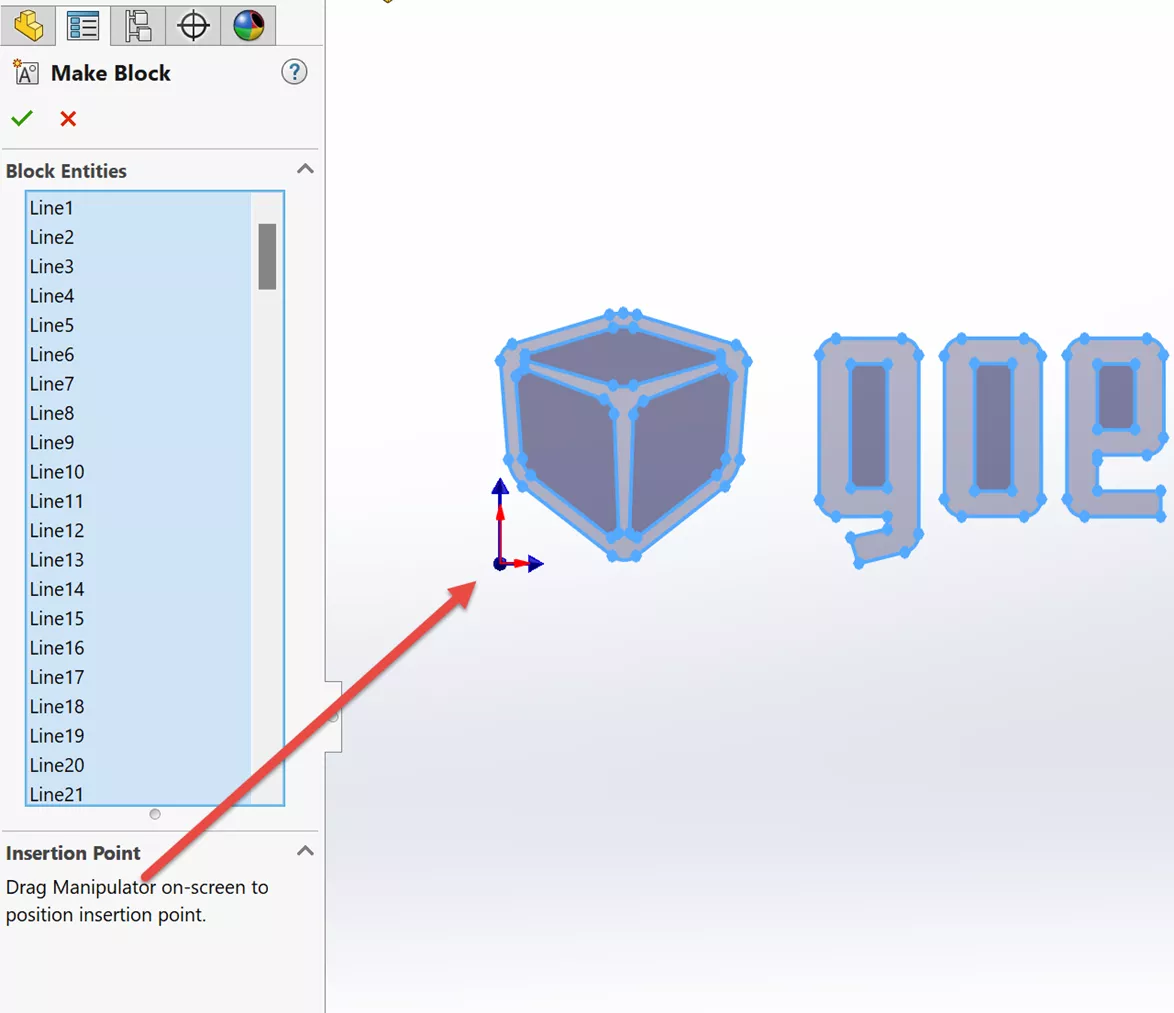
- The Insertion Point will be positioned at the lower-left of the selected entities. Or, you can drag the manipulator to position it somewhere else.
- Click the green check mark.
Note: To easily access the various block commands, the Block Toolbar can be added to the user interface by right-clicking a CommandManager tab and checking Toolbars > Blocks.
Once the block is created, the new block appears absorbed/under the sketch in the FeatureManager Design Tree.
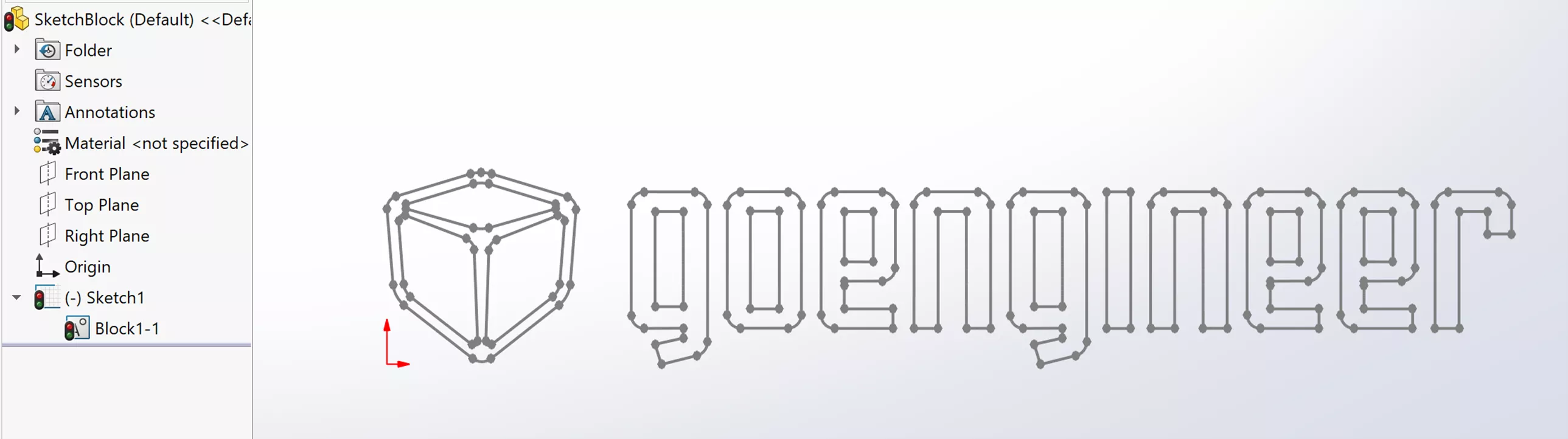
When you create a block, the dimensions and relations that make up the sketch entities are all saved internally to the block. This means that the entities making up the block are essentially grouped together and will all move in sync.
To reuse this newly created block, one final step is required: The block needs to be saved. To save this block, right-click on the block and click Save Block, or select on the block and click Save Block from the Blocks Toolbar.
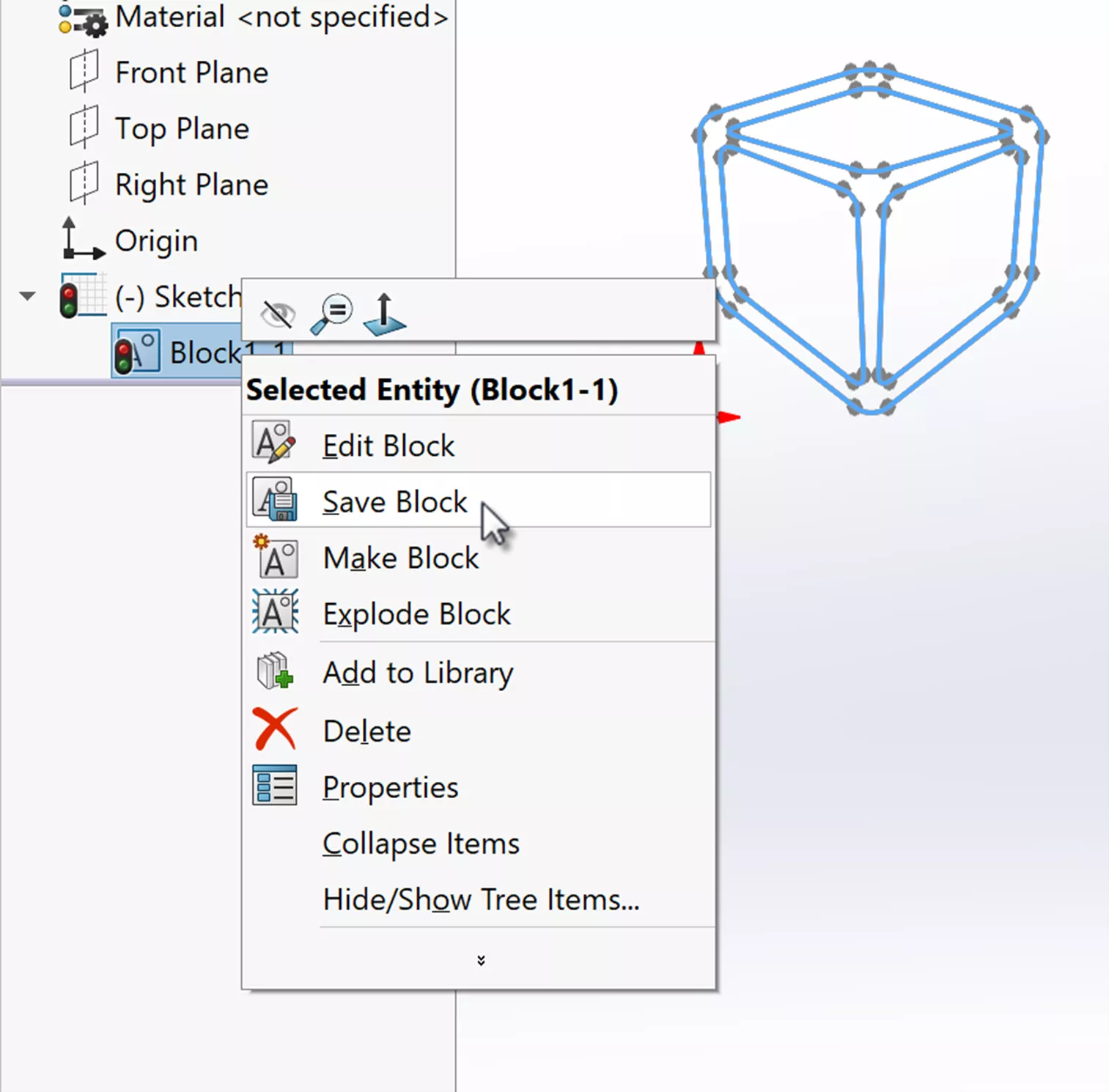
You can copy and paste this block to reuse it within this sketch or others within the same document, but to use it in another document, it must be saved first. Select or right-click the block and click Save Block in the Block Toolbar or Context Menu (shown below).
Save the block with an easily identifiable name and in a preferred location. It's good practice to create a “Blocks” folder so that blocks that are reused can be easily located. Blocks are saved with the file format *.SLDBLK.
Now that the block has been saved, it can be added to a sketch via the Insert Block command (in the Blocks toolbar) while in Edit Sketch mode.
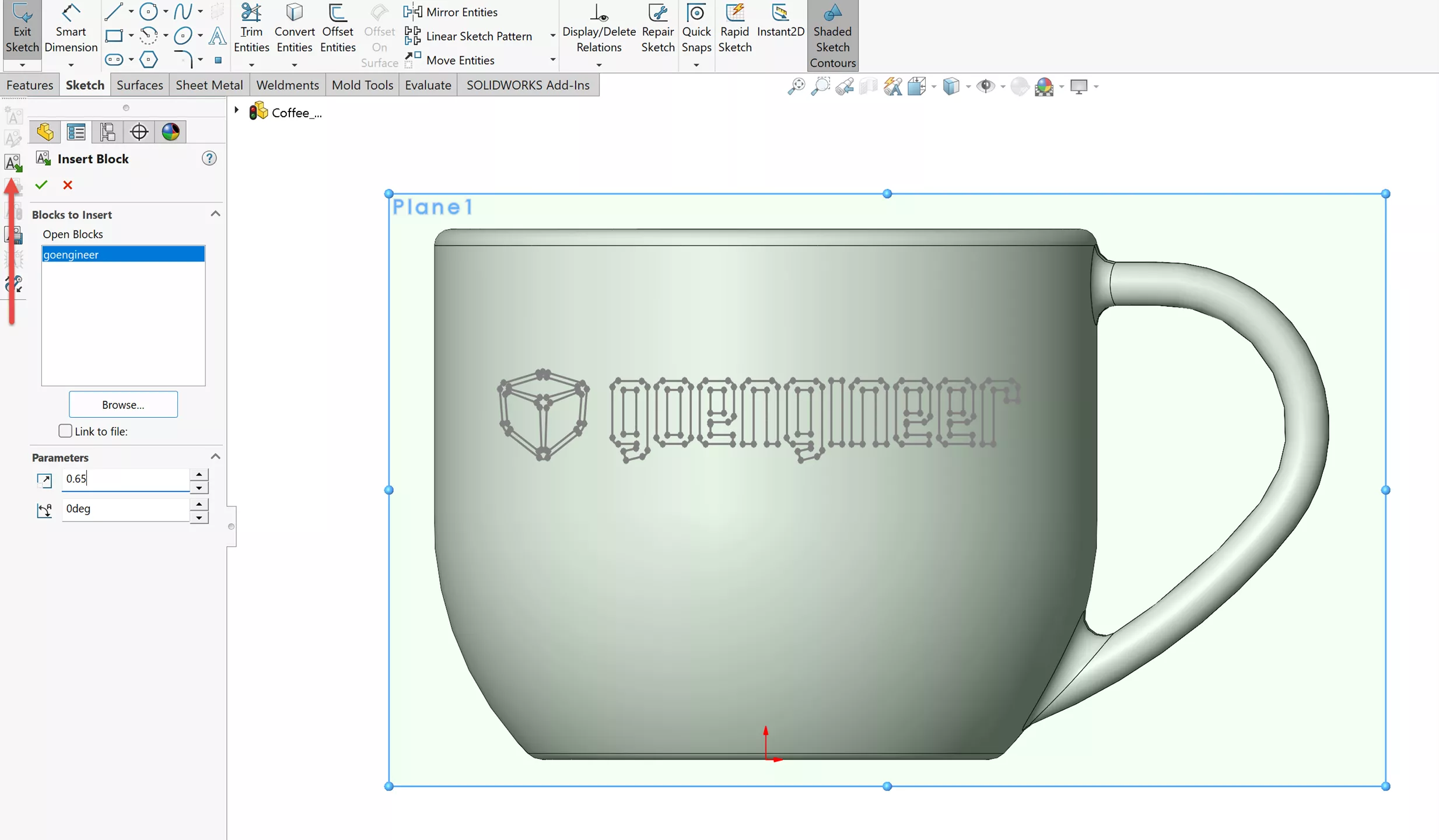
Browse to the recently saved block and click Open. The block will be previewed in the graphics area as you adjust the Block Scale and Block Angle parameters as necessary.
You can add additional instances of the block by left-clicking in the graphics area. The block insertion point will be positioned wherever you click.
If any changes need to be made to this Sketch Block, use Edit Block (right-click menu or Blocks toolbar) to adjust sketch geometry, relations, and dimensions. Or, Explode Block can be used to turn it from a block back to editable sketch entities (which are no longer grouped as a block).
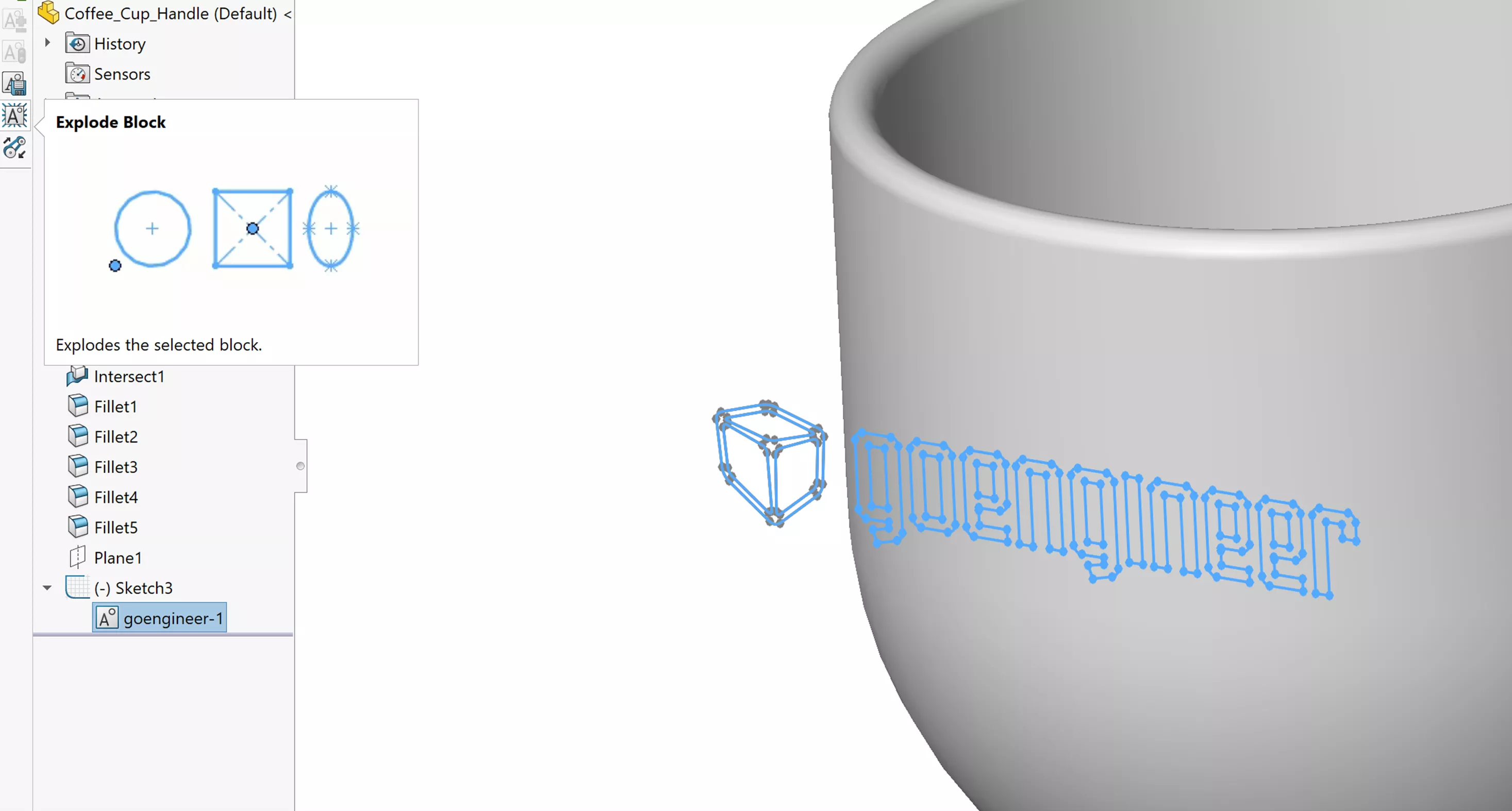
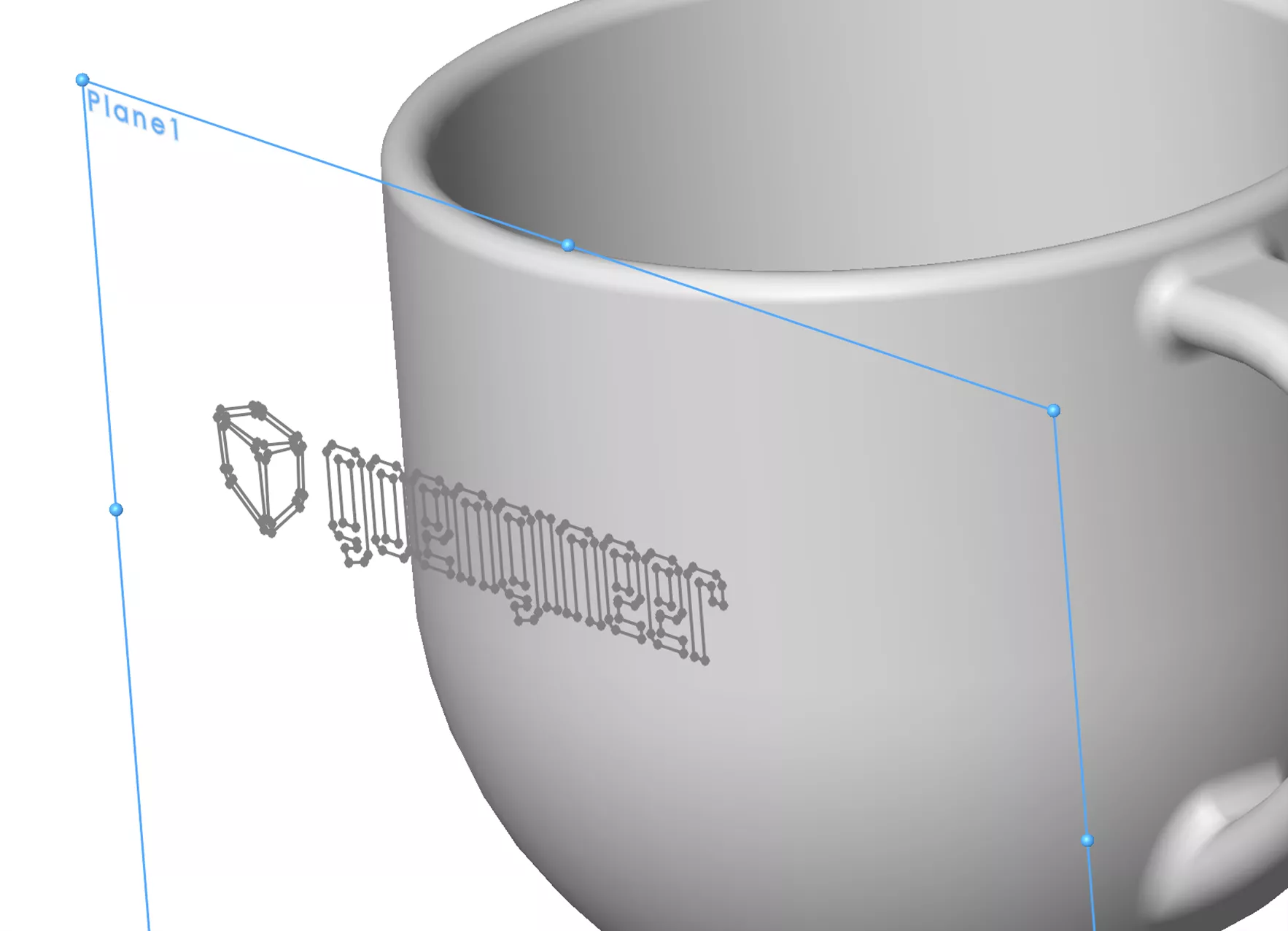
Sketch Blocks can be used as you would any other sketch geometry. Below, I've used the Sketch Block to define a Spline Line Wrap to finish this mug model.

Blocks let you group commonly used sketch entities into a single, reusable file. This makes them an easy way to reuse geometry across multiple files or sketches. By saving your blocks into a common folder, you allow anyone to access standard sketch geometry and add it to their models with minimal effort.
SOLIDWORKS CAD Cheat Sheet
SHORTCUTS ⋅ MOUSE GESTURES ⋅ HOT KEYS
Our SOLIDWORKS CAD Cheat Sheet, featuring over 90 tips and tricks, will help speed up your process.

I hope you found this Intro to SOLIDWORKS Sketch Blocks helpful. Check out more tutorials and tips below, or check out the GoEngineer Community, where you can create forum posts, enter design contests, and answer questions from other SOLIDWORKS users.
Related Articles
Ultimate Guide to SOLIDWORKS Blocks: Toolbar Options, Block Creation, Walkthrough, and More
Adding O-Ring Grooves to a SOLIDWORKS Part
Mastering SOLIDWORKS Bill of Materials Equations

About Nathan Marsh
Nathan Marsh is a Senior SOLIDWORKS Technical Support Engineer at GoEngineer.
Get our wide array of technical resources delivered right to your inbox.
Unsubscribe at any time.