Modeling Conveyor Belts with Cleats in SOLIDWORKS

While it is quite simple to model a smooth conveyor belt, patterning cleats or ribs on the belt can be challenging without knowing a few tips and tricks.
In this article, I'll use SOLIDWORKS Curve Driven Pattern and Fit Spline tools to add a cleat (rib) feature along the surface of a smooth conveyor belt. The steps below include some modeling tips related to Curve Driven Patterns.
Create a Sketch for a Smooth Conveyor Belt
First, I've created the sketch below using lines and arcs as construction geometry on the Front Plane. Note how it is fully defined with one sketch entity anchored to the origin, and the rest is held in place with dimensions and sketch relations. The origin location is important and will also be leveraged when the cleat sketch is created.
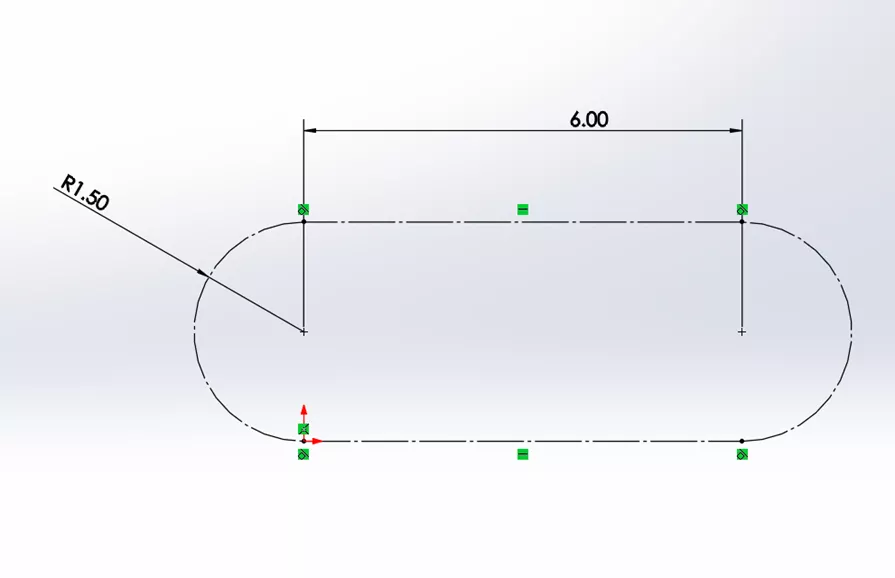
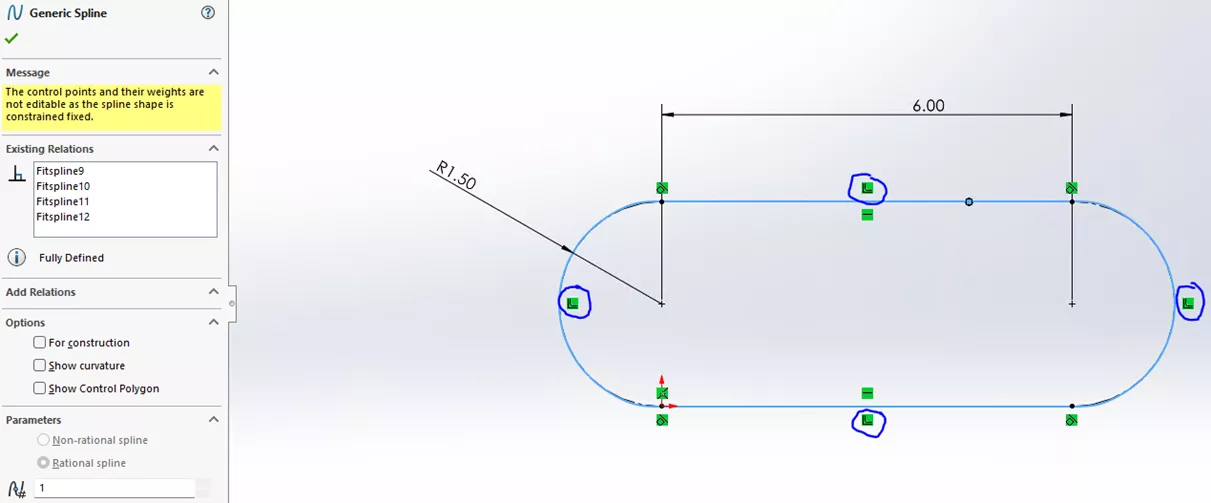
Next, we want to create a single curve over the top of this construction geometry using the Fit Spline command. Why? The single curve is critical to making the Curve Driven Pattern work. If the faces of the smooth belt are separated by each sketch segment, the pattern tool will not propagate across the separate faces.
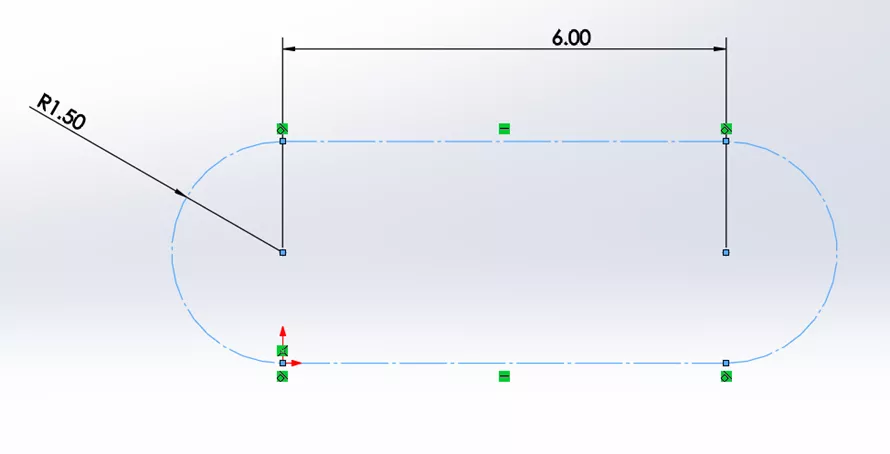
So, to create that single curve, select the loop of construction lines.
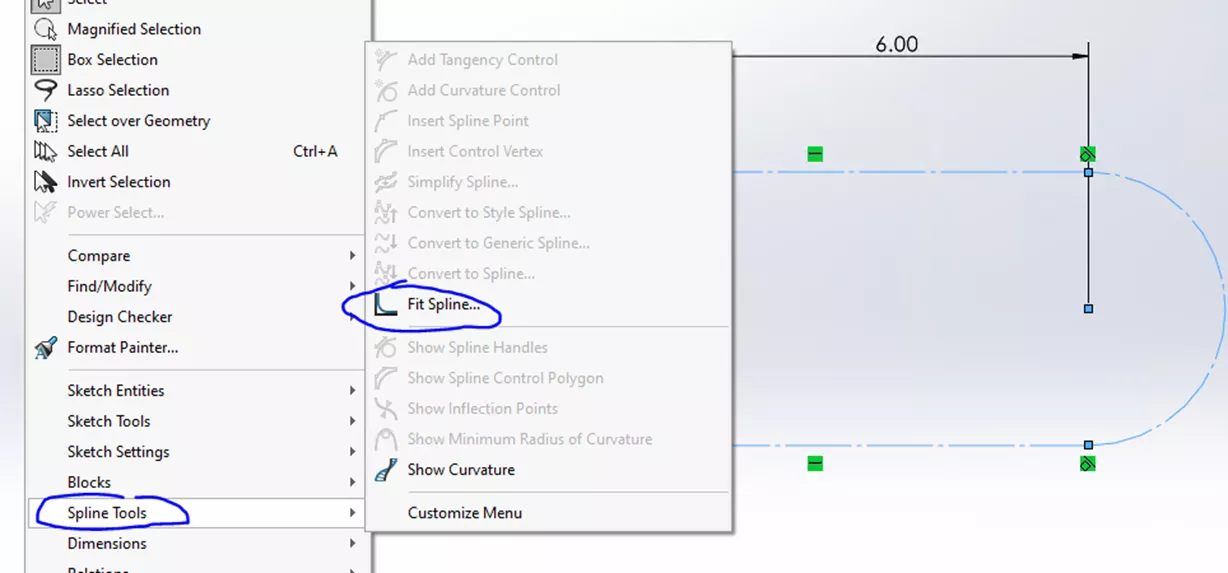
Go to Tools > Spline Tools > Fit Spline.
Keep the default settings as they are.
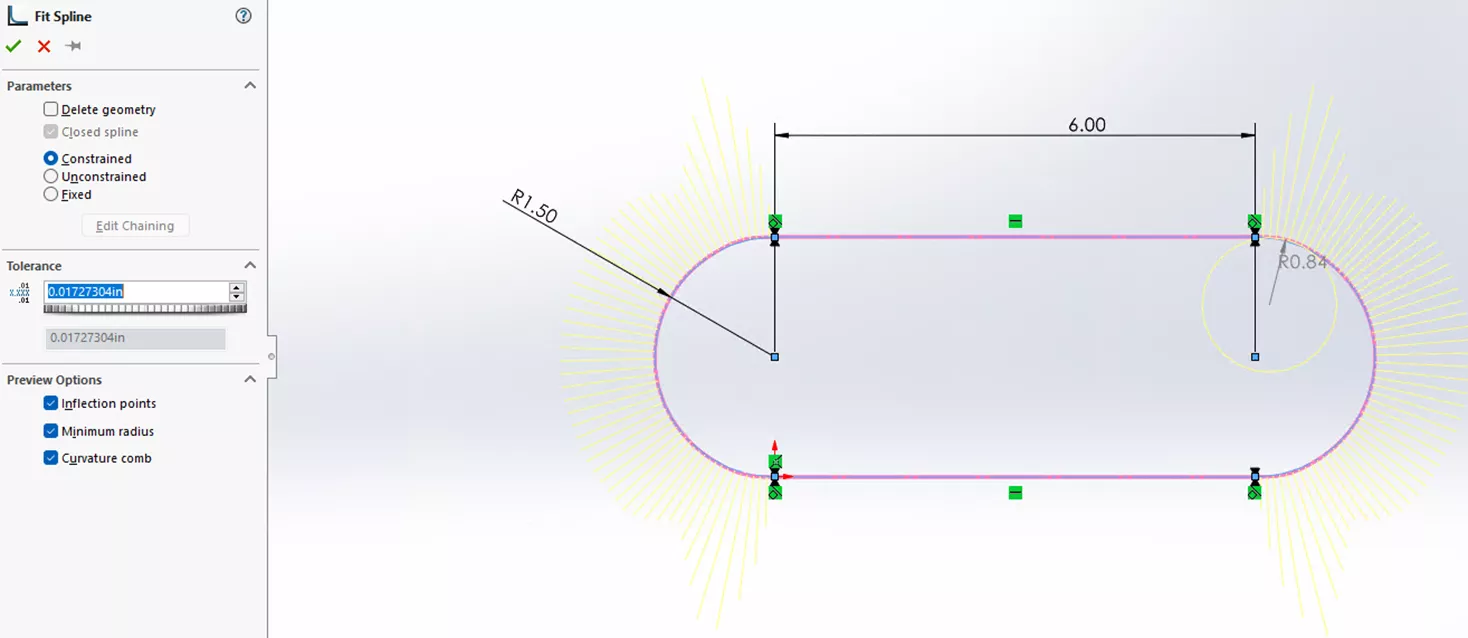
The screenshot below shows the spline as a single selected entity, and there are new fit spline sketch relations (circled).
Create the Sketch for the First Cleat Instance
Next, open a new sketch on the Top Plane and create construction geometry constrained to the origin.
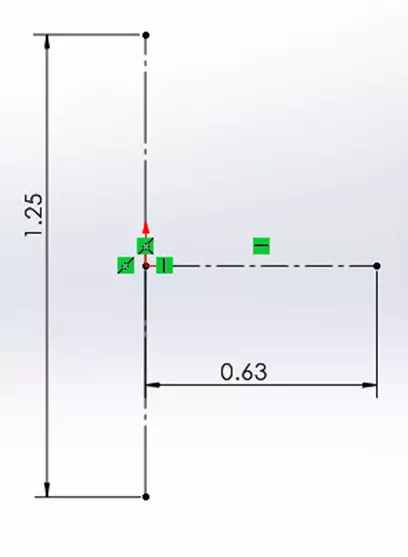
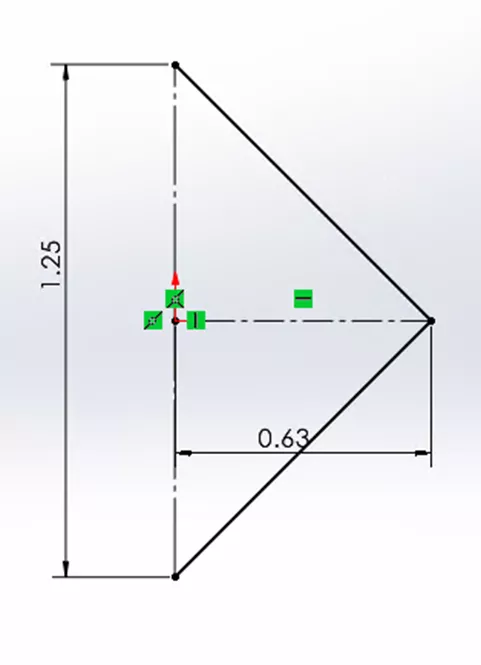
In the same sketch, add additional sketch lines to connect the endpoints of the construction lines, to define the thin feature for the extrusion of the cleat/rib. Then, exit the sketch.
Create a Base Extrusion for the Smooth Belt
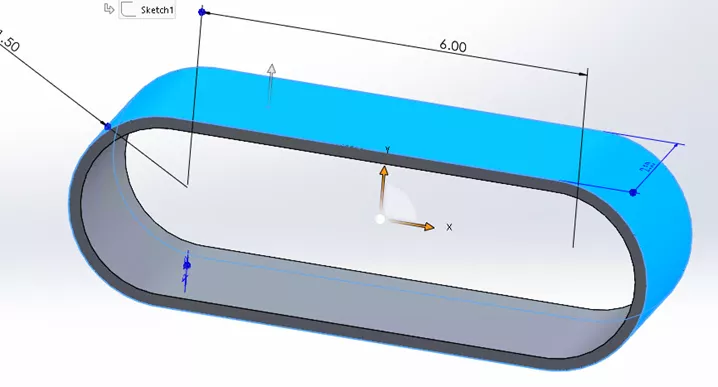
Select the first sketch with the fit spline and launch the Boss-Extrude command.
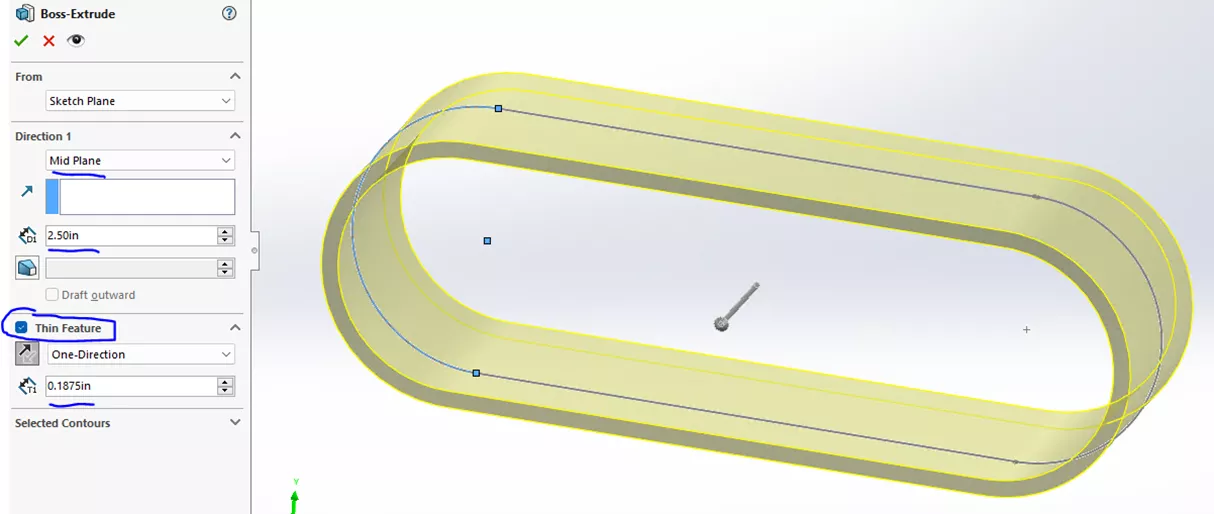
Apply the following inputs:
- Direction 1 = Mid Plane
- D1 extrude distance 2.5 inches
- Check the box for Thin Feature
- Adjust the direction of the thin feature to go toward the inside of the sketch
- Thickness of the thin feature = 0.1875 inches
The result of this extrusion is a single selectable face on the outside of the belt.
Create a Thin Feature Extrusion to Generate the Cleat Geometry
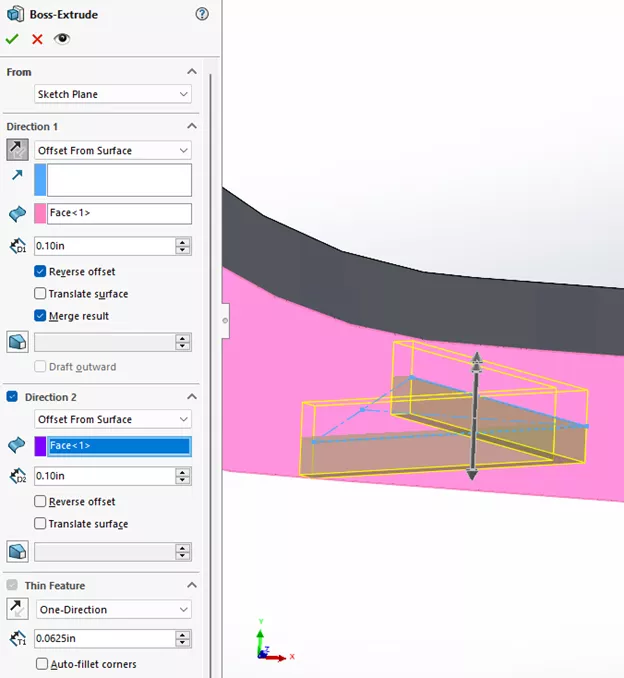
Choose the second sketch with the V-shaped geometry on the Top Plane and select the Boss-Extruded command. Extrude in both directions using the Offset From Surface options. This allows the cleat geometry to follow the curved ends of the belt, and the cleats are also embedded in the original belt geometry, allowing for a clean merged result.
- Direction 1: Offset from surface (selecting face 1),
- depth 0.10 inches
- Reverse Offset
- Merge Results
- Direction 2: Offset From Surface (selecting face 1),
- depth 0.10 inches
- Thin feature thickness: 0.0625 inches
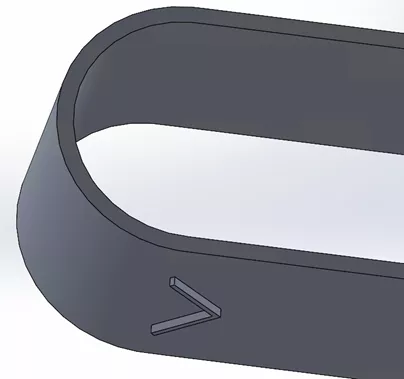
The resulting geometry is shown below.
Pattern the Cleat Around the Perimeter of the Belt
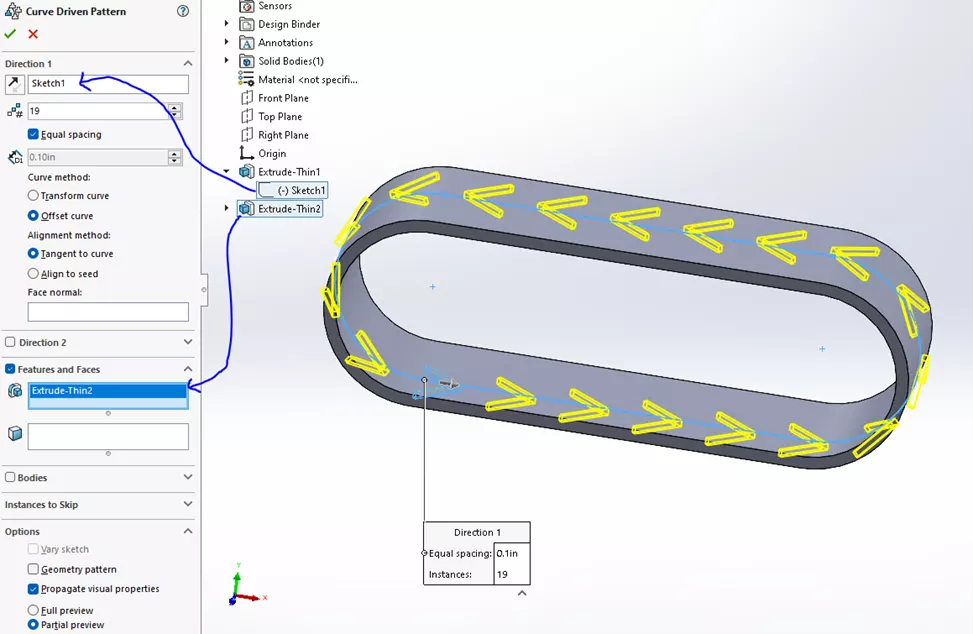
Use the Curve Driven Pattern to create the remaining cleat instances.
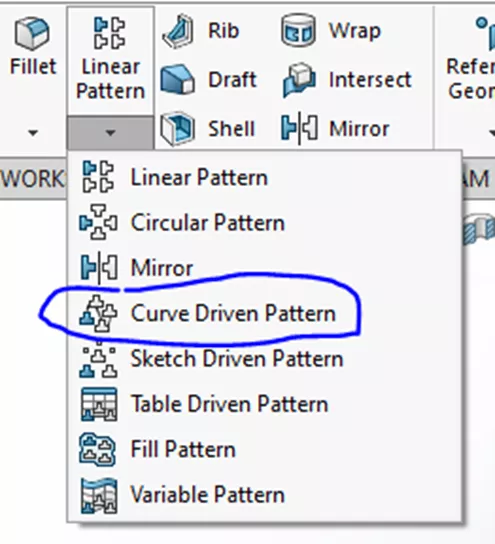
Within the dialog, make the following selections
- Direction: Select the original spline sketch
- Instances: 19
- Equal spacing
- Curve method: Offset curve
- Alignment method: Tangent to curve
- Features and Faces to pattern: Choose the Extrude-Thin feature of the cleat
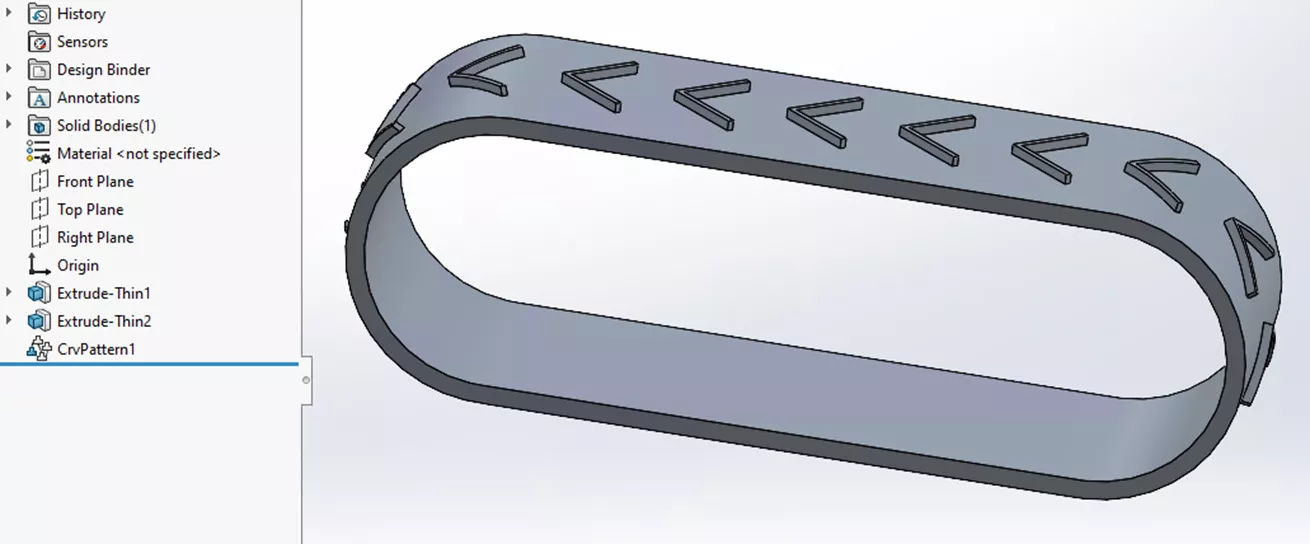
The final result is shown below.
Bonus: Edit the Cleat Sketch to Create Different Patterns
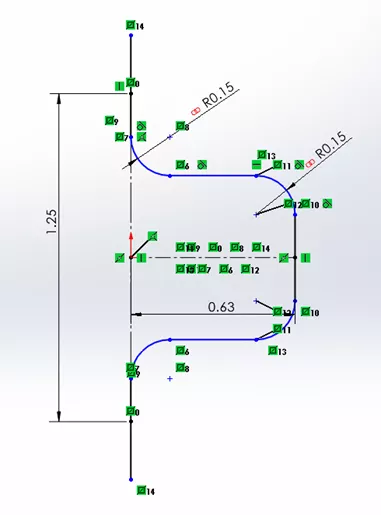
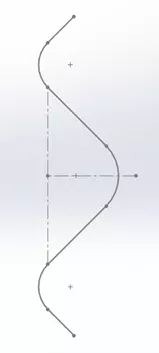
If we make some geometric changes to the cleat sketch, we can get unique shapes to pattern on the belt. Notice how the original construction geometry is maintained, but the sketch lines are edited.
This results in a belt pattern as shown below.
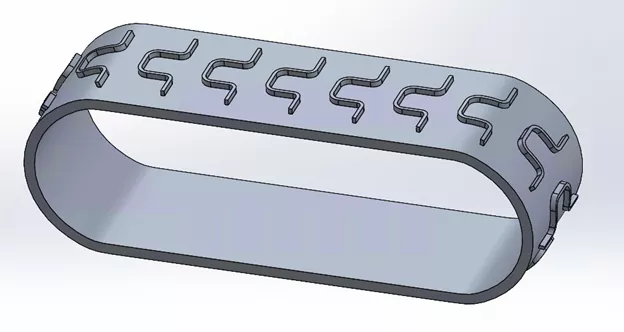
Another example is shown below, demonstrating the flexibility of this technique.
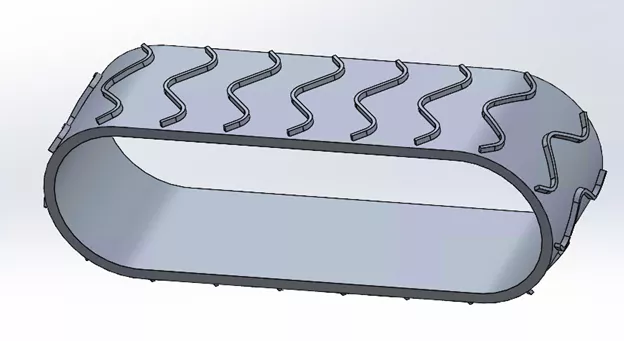
Whether modeling conveyor systems for a workcell, vehicle track treads, or timing belts, these techniques of using a Sketch Driven Pattern to make an array of features along a Fit Spline come in handy for a variety of applications.
Want to learn more? Check out more tutorials and tips below, or check out the GoEngineer Community, where you can create forum posts, enter design contests, and answer questions from other SOLIDWORKS users.
SOLIDWORKS CAD Cheat Sheet
SHORTCUTS ⋅ MOUSE GESTURES ⋅ HOT KEYS
Our SOLIDWORKS CAD Cheat Sheet, featuring over 90 tips and tricks, will help speed up your process.

Related Articles
5 Advanced SOLIDWORKS Patterning Techniques to Supercharge Your Workflow
Intro to SOLIDWORKS Sketch Blocks
Create J-Slots in SOLIDWORKS on Cylindrical Parts
SOLIDWORKS Chain Component Pattern Tutorial

About Matt Haywood
Matt Haywood has a Bachelor of Science in Mechanical Engineering from Western Michigan University. As a Senior Support Engineer, Matt enjoys working with customers to resolve SOLIDWORKS technical issues and teaching SOLIDWORKS training classes.
Get our wide array of technical resources delivered right to your inbox.
Unsubscribe at any time.