Removing or Deleting a Local Vault View in SOLIDWORKS PDM

Before beginning, it is important to note that one of the more widely encountered issues for deleting a vault view in SOLIDWORKS PDM is the error Attached: Missing information, which effectively means the vault view has been attached at some point (perhaps the computer was imaged from another user’s machine or was another user’s machine and the vault view happened to carry over incomplete information). This is generally encountered when trying to set up the vault view for a user and looks something like this:
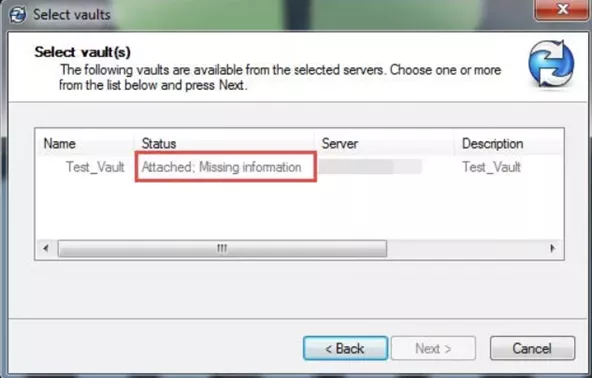
Otherwise, there are a number of other reasons you may find yourself trying to remove an old vault view, but they largely reduce to “Something strange is happening with my vault view.” It may be due to an issue logging in, or an error message popping up repeatedly, or simply “GoEngineer asked me to for troubleshooting purposes”. Regardless of the reason, the process we’ve outlined below should help.
Things to consider before deleting:
- Never change Windows Registry values without first consulting with your IT personnel.
- Only purge the Windows Registry values outlined in this document.
- You will need to be logged into the client workstation with a user that has Local Windows Administrative permissions to the machine to update the registry (or have launched the registry as a user with admin rights).
- Make sure that all files are checked in from the local vault view.
Note: If users do not check in these files, any work in the local copy will be lost. These files will be shown as checked out in the new local view, but the data from the local copy will not exist, so it will not be possible to recover those changes.
Deleting the Vault View Normally
Under normal circumstances, you should be able to delete a vault view with just a couple of clicks. This removes the folder and associated registry keys in one go.
Standard Vault View Removal
- Go to the vault view in your Windows Explorer folder.
- Right-click the vault view.
- Select Delete File Vault View.
- Note: Windows 11 may require you to select Show More Options.
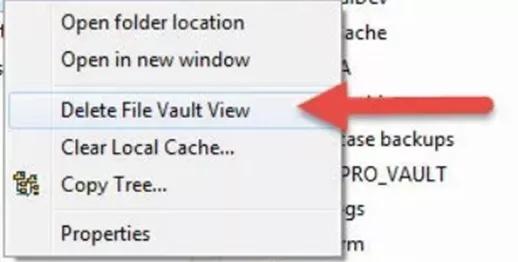
- Note: Windows 11 may require you to select Show More Options.
- A warning message will appear asking if you want to leave the local contents as normal files or delete every file the folder contains from the local machine.
Note: At some point in this process, you may also receive a login screen for the vault view you are deleting. Rather than attempt to log in, click the X in the top right-hand corner, and “OK” on the message that appears after (the one about disabling automatic login, etc.).
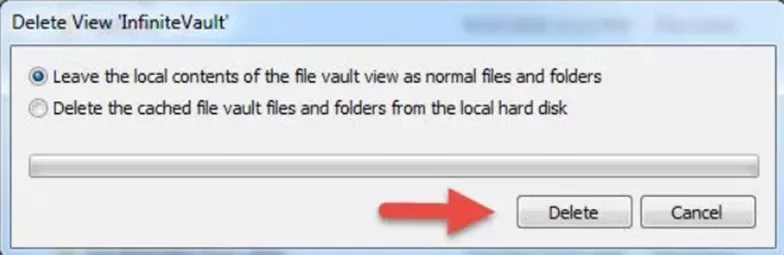
These steps should have removed the vault view, but if you still see leftover files or run into any errors, keep reading to proceed with Manual Vault View Deletion.
Manually Deleting the Vault View
Whether the vault view was deleted properly with the steps above or not, it is a good idea now to check your work by verifying that the registry keys that deal with the vault view have been removed. Please note that these steps will delete certain keys. If you are not comfortable doing this, contact your IT group.
Deleting the Vault Registry Keys
- Open the Windows Registry as an administrator.
- Click the Start button (Windows icon).
- Type “regedit”.
- Right-click “regedit.exe”.
- Select Run as Administrator.
- Delete the following registry keys, if present, by right-clicking them from the left-hand menu and selecting Delete.
- HKEY_LOCAL_MACHINE\SOFTWARE\SolidWorks\Applications\PDMWorks Enterprise\Databases\[VAULT_NAME]
- HKEY_LOCAL_MACHINE\SOFTWARE\Wow6432Node\SolidWorks\Applications\PDMWorks Enterprise\Databases\[VAULT_NAME]
- HKEY_CURRENT_USER\Software\SolidWorks\Applications\PDMWorks Enterprise\Vaults\[VAULT_NAME]
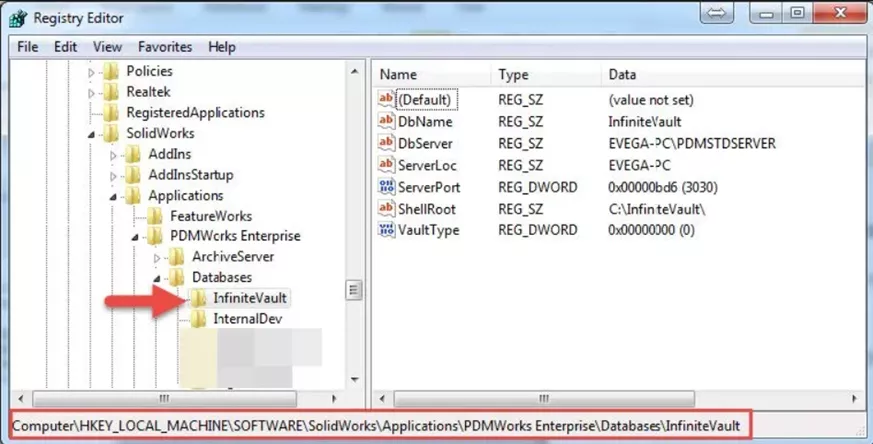
Note: Through this whole process, if in doubt, make sure you check the path of the registry screen (show in highlighted in red at the bottom of the above screenshot (though sometimes the path is at the top)) to make sure you are viewing and deleting the right key at all times.
Deleting the Vault Folder
At this point, if you were previously unable to delete the vault view folder, you may be able to go back and attempt the process again, starting from step 1 in Deleting the Vault View/Folder. If that has not worked and the vault view remains, please try the steps below.
- Open a command prompt as Administrator.
- Click the Start button.
- Type CMD.
- Right-click CMD
- Select Run as Administrator.
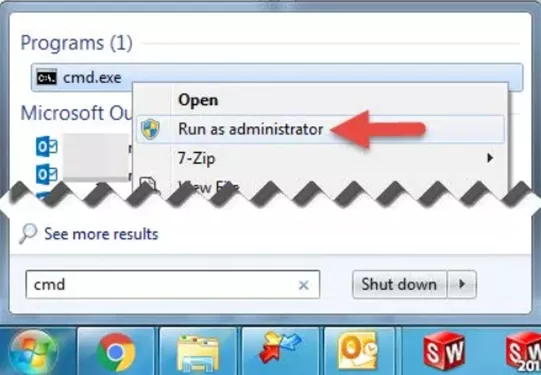
- In the command prompt, type:
- RD “C:\path_to_vault_view” /s and type “y” to accept.
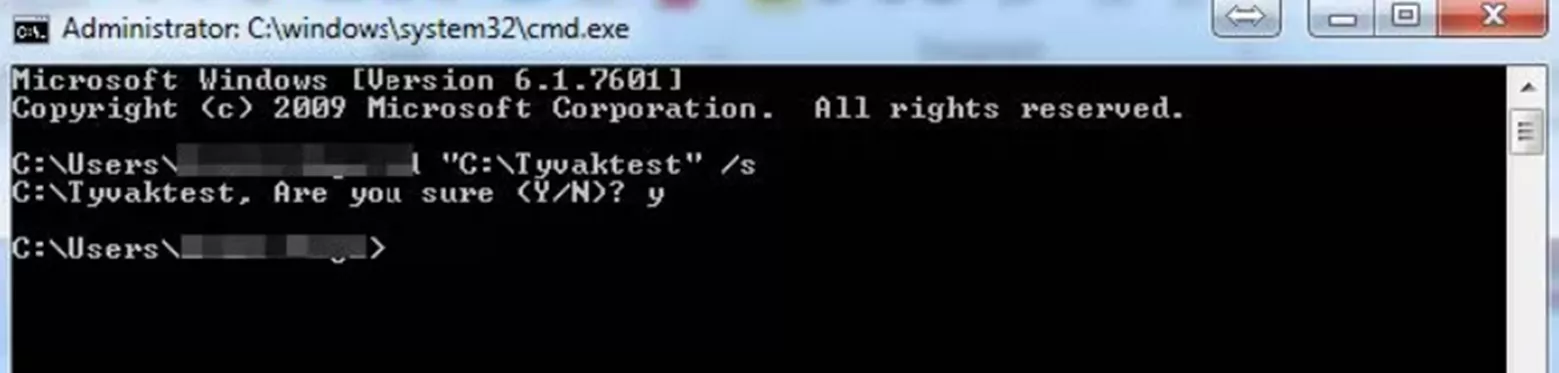
- RD “C:\path_to_vault_view” /s and type “y” to accept.
- If this should fail to remove the folder, you can also remove the attributes from the folder:
- In the command line, go into the folder itself.
- Type “cd c:\Path_to_vault_view” and hit enter.
- Type “cd c:\Path_to_vault_view” and hit enter.
- You can now delete the desktop.ini file (type DEL Desktop.ini).
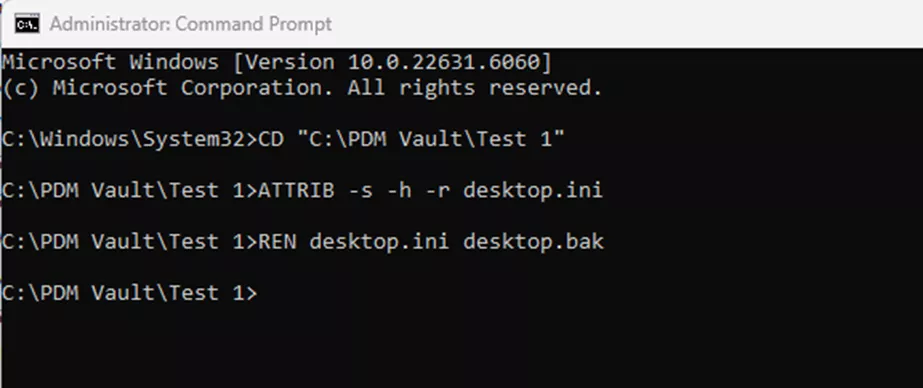
- Exit the command prompt, close any Windows Explorer windows, and reopen Explorer.
- You can now delete the leftover file vault view folder (now a local yellow folder).
Final Steps
With the registry keys removed or verified as not being present, and the vault view folder gone, you may be able to go back to attach the vault view again. Once done, you can run the View Setup tool once more to try creating a vault view.
However, it is entirely possible that after following all these steps, when you go to attach the vault view again, you will receive the same dreaded error: Attached; Missing Information.
If this happens, there is likely one optional step that can be performed that is not suggested for all scenarios (the fewer registry key edits to be done, the better).
After deleting any of the leftover keys discussed above, it may be necessary to go to the HKEY_USERS section of the registry to begin checking for the keys we discussed there. The HKEY_USERS section contains the registry hives for each Windows profile that has ever logged into that computer. They may contain leftover vault view keys that are impacting your ability to create a vault view under your current profile.
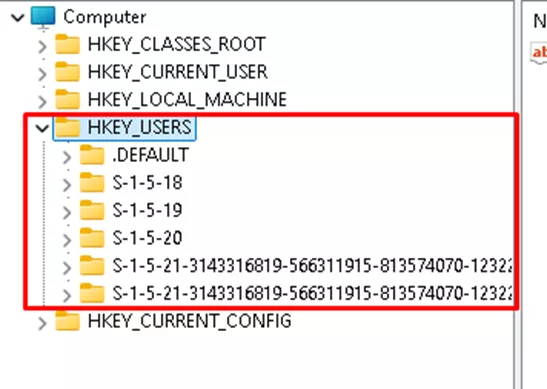
These folders will mostly behave like the “HKEY_CURRENT_USER” folder with a few exceptions. Simply finding the same “Software/SOLIDWORKS” folders will provide some of the same key options we were looking for under “HKEY_CURRENT_USER”, but instead, it would be HKEY_USERS followed by the various Windows profile SIDs (the S-1-5-18, S-1-5-19, etc.) These will vary between computers.
So the path would be: HKEY_USERS\[Windows SID]\Software\Solidworks\Applications\PDMWorks Enterprise\Vaults\[VAULT_NAME]
You will need to comb through these to find the keys, and you may not find the relevant key in all of them – just remove the ones you do find.
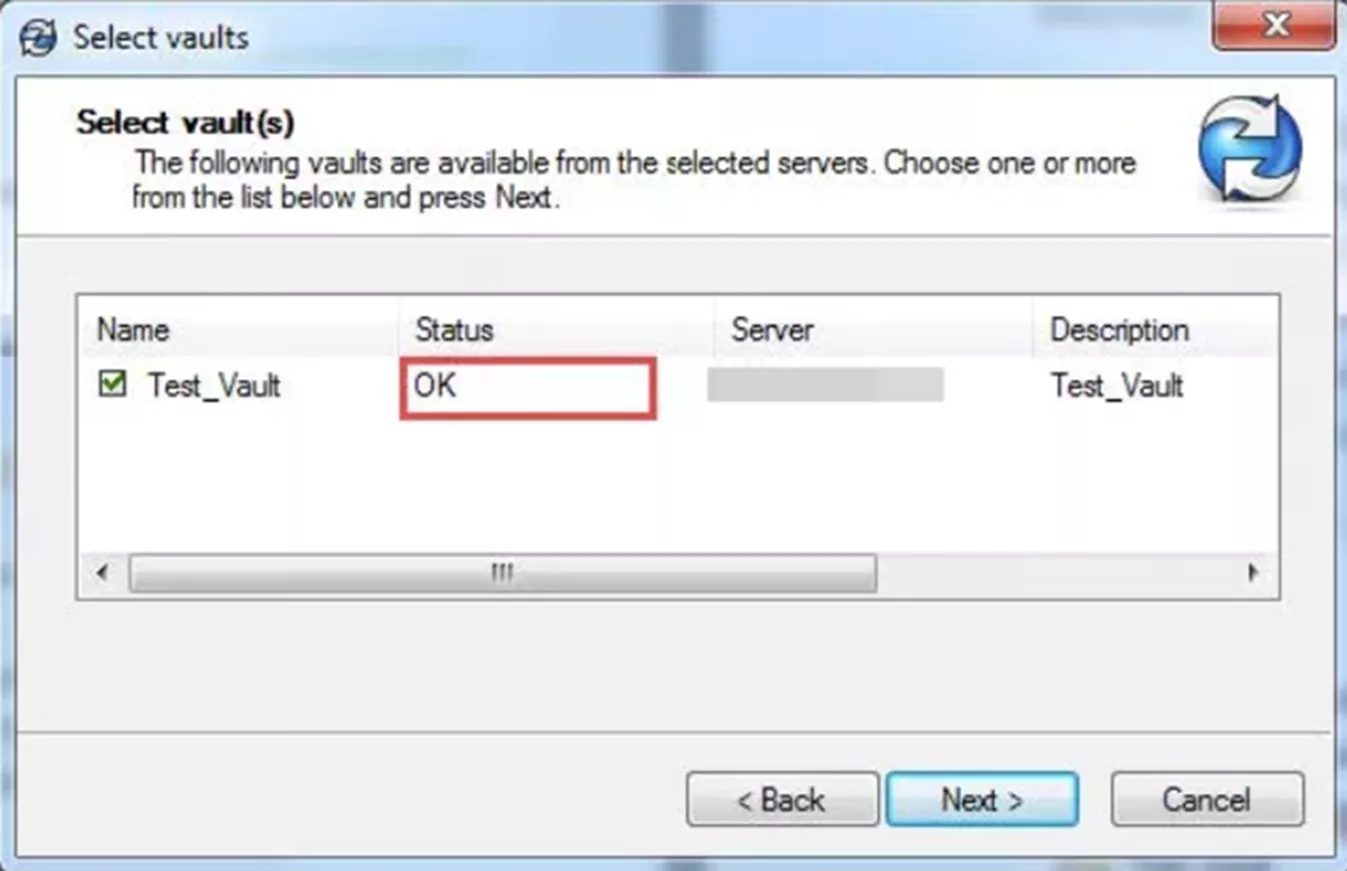
When done, try running the View Setup tool one final time, and you should be seeing the “OK” status if everything went as expected.
I hope you found this guide for removing or deleting local vault view in SOLIDWORKS PDM helpful. If any assistance is needed during this process, consult with your IT department, or (if GoEngineer is your VAR) please reach out to our Technical Support team for additional help.
24 Tips to Master SOLIDWORKS PDM
SHORTCUTS ⋅ SEARCHING ⋅ PDM ADD-IN
24 of our expert tips to help you master using SOLIDWORKS PDM. Improve performance, find files faster, and work like a pro.
Editor's Note: This article was originally published in September 2015 and has been updated for accuracy and comprehensiveness.
Related Articles
SOLIDWORKS PDM – Create Local Host File Workaround as Temporary Solution
Troubleshooting SOLIDWORKS PDM Notifications
Add the Released Version to the Face of the Drawing in SOLIDWORKS PDM
Fix SOLIDWORKS PDM Error Opening Archive
About Joe McWhorter
Joe McWhorter is a SOLIDWORKS Technical Support Engineer at GoEngineer.
Get our wide array of technical resources delivered right to your inbox.
Unsubscribe at any time.