SOLIDWORKS PDM File History View Errors

What Causes View in Explorer to Fail?
The View option in the History dialog of a file in PDM is often used when reviewing files to look at older versions of the file without fully opening it in SOLIDWORKS.
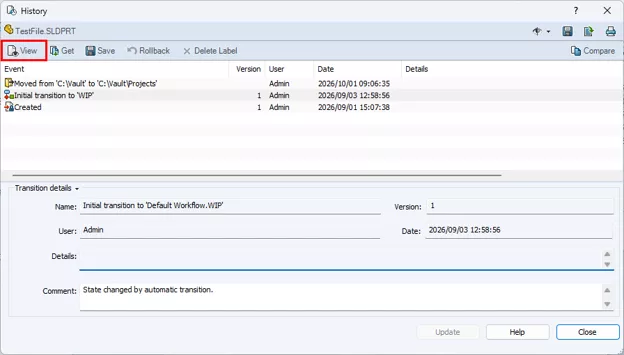
However, you may see a pop-up stating "Error executing viewer" when you try to do so. This is often caused by an incorrect Viewer path in a User's settings. In the SOLIDWORKS PDM admin tool, you can define which program to launch by file type when you click the "View" button in History. If that path is incorrect, or if the file it's looking for doesn't actually exist, you can run into issues.
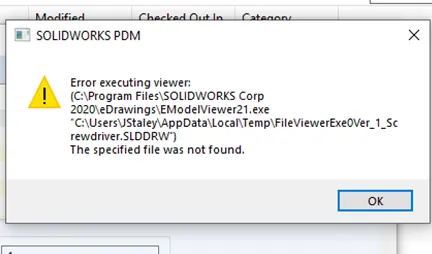
Thankfully, this is an easy fix that you can do right from the PDM Administration tool.
How to Fix the Viewer Path
From the Local Workstation
To fix this, you will need PDM Administrator rights, or help from someone who has them. This issue often affects more than one user, so it's good to check other users who might run into the same issue simultaneously.
These settings must be set per-user, not at the group level. PDM doesn't store settings in the Group, so applying them there can cause unexpected changes we want to avoid.
First, locate the actual EModelViewer.exe file that the system uses to launch eDrawings on the machine where this error occurred. The default location is usually: "C:\Program Files\SOLIDWORKS Corp\eDrawings\EModelViewer.exe"
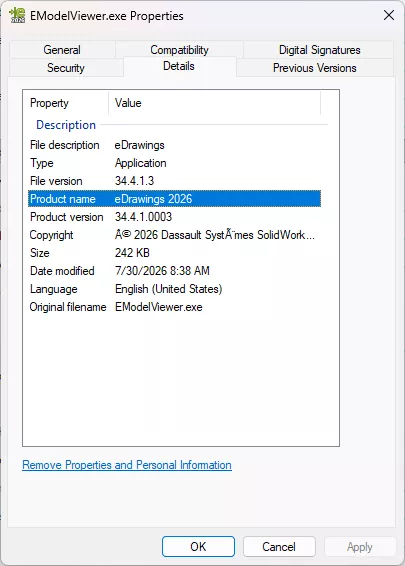
You’ll want to attach to the viewer that is the same major release version as your installed PDM client. When you browse to find the EModelView.exe, the icon should list what year is installed.

You can also right-click the file > Properties to confirm what version is listed under the Details tab.
From the Administration Tool
The admin user will now need to log into the PDM Administration Tool. Then, locate and expand Users and Groups Management > Users.
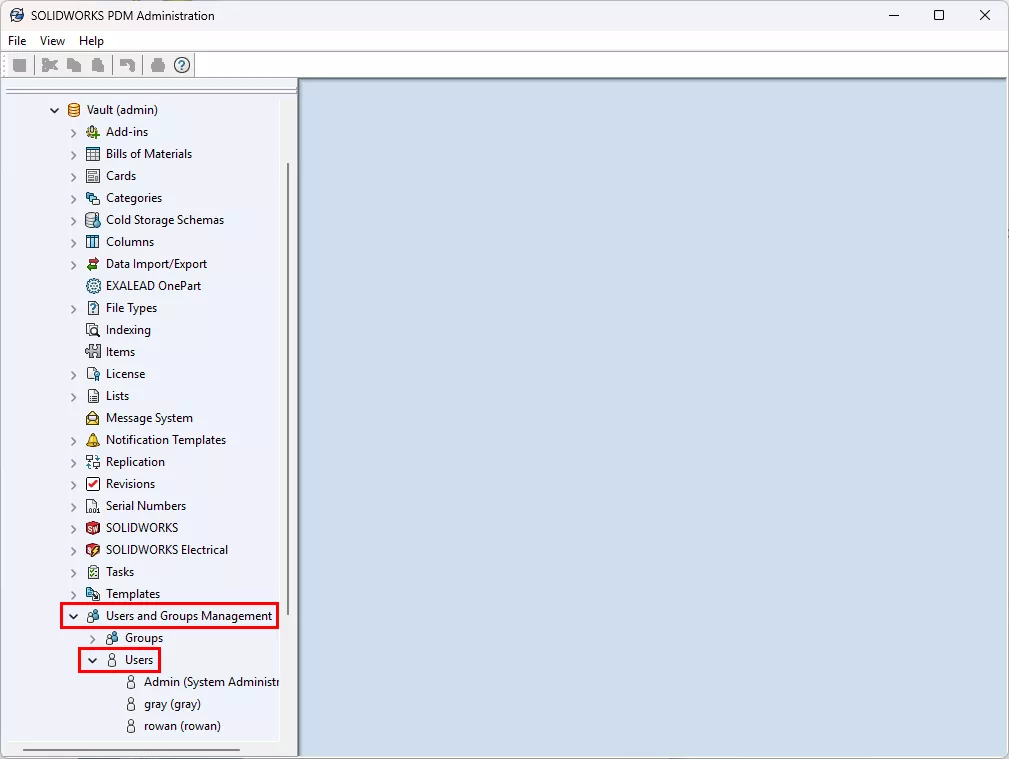
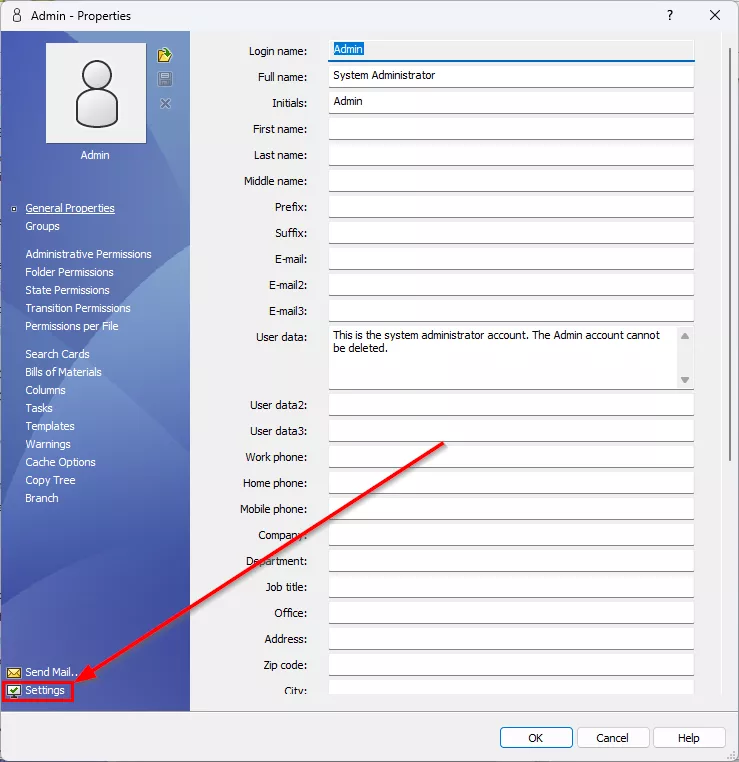
Double-click the desired user to open their properties and then click Settings from the bottom left.
Click Viewers to view the currently set viewer paths according to each file type. Oftentimes, the default is to have one viewer specifically for CAD files, and one for everything else.
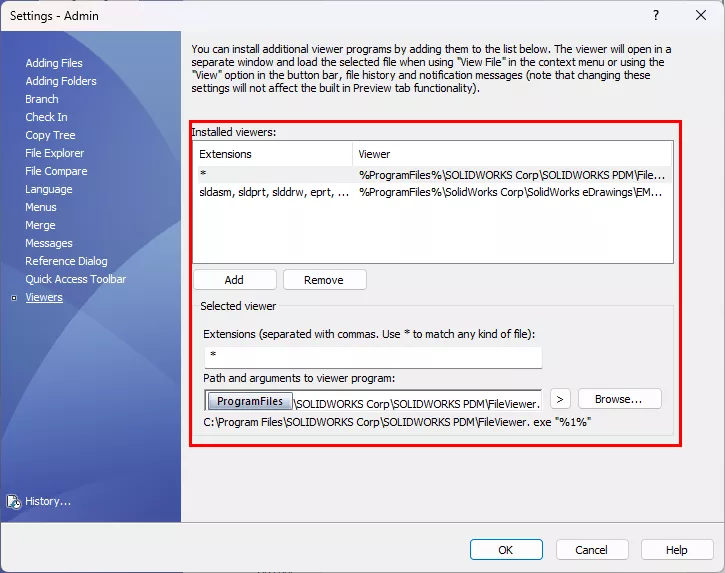
Note: This does not affect the preview tab! It only affects the viewer launched from the "View" button in File Explorer, or from PDM Notifications.
This is where you'll need the path you confirmed for the EModelViewer.exe file earlier. It's best to use eDrawings for CAD files, and the built in PDM FileViewer for other file types.
If the entry is incorrect, you can update the configuration to the proper path. If there's no entry at all, you can simply click "Add" to create a new one using these settings:
For SOLIDWORKS Files
Extensions: sldasm, sldprt, slddrw, eprt, easm, edrw, dwg, dxf, 3dxml, stl, prt, xpr, asm, prtdot, asmdot, drwdot.
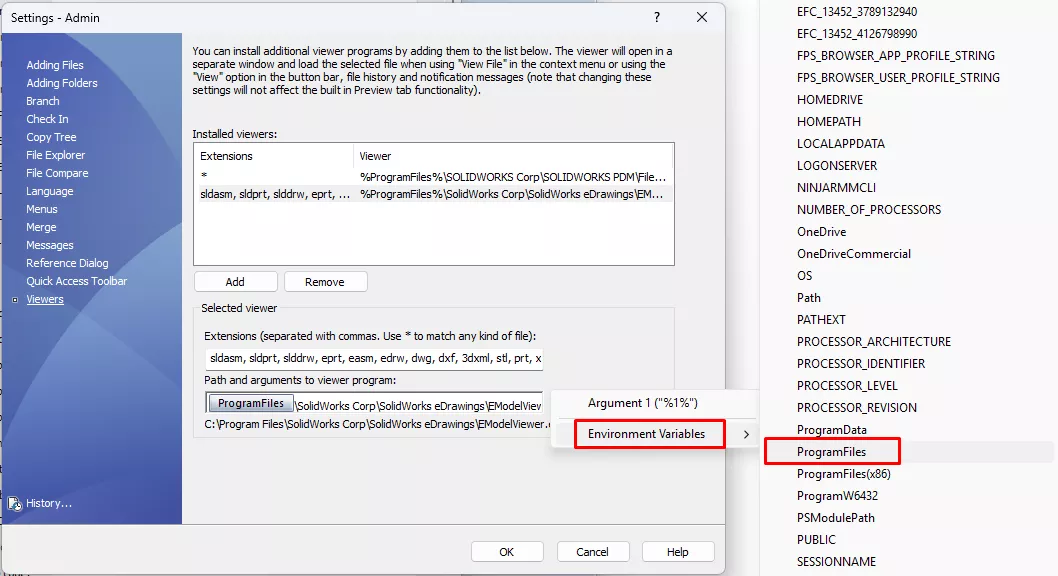
Rather than using the static drive letter and folder path to Program Files (if that's where your executable is), instead you can use the > button to create a dynamic path to that folder.
Then add a backslach (\) and enter the path to the file you found earlier (whatever folder comes after Program Files - do not include the path up to and including Program Files).
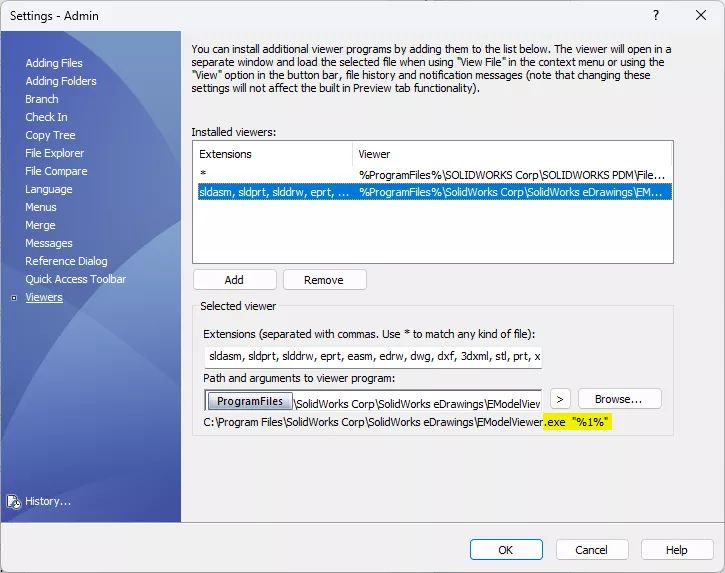
Path and Argument: [Dynamic Program Files]\SOLIDWORKS Corp\eDrawings\EModelViewer.exe "%1%"
It's very important to note the formatting after the executable path. You need a space, followed by the argument the software uses to launch the program. The exact spacing and all special characters are very important or it will not work: "%1%"
For All Other Files
Extensions: * (This is used to capture all other files not associated with a specific extension)
Path and Argument: C:\Program Files\SOLIDWORKS Corp\SOLIDWORKS PDM\FileViewer.exe "%1%"
The same argument logic applies here. Ensure you don't leave out a space after the .exe, and don't add any additional spaces inside or after the argument.
When done, click OK to commit the changes. This should allow the user to successfully View from a file's History. You can now repeat these steps for any other users.
I hope you found this SOLIDWORKS PDM tutorial helpful. Check out more tips and tricks below.
24 Tips to Master SOLIDWORKS PDM
SHORTCUTS ⋅ SEARCHING ⋅ PDM ADD-IN
24 of our expert tips to help you master using SOLIDWORKS PDM. Improve performance, find files faster, and work like a pro.
Editor's Note: This article was originally published in March 2021 and has been updated by our Technical Team for accuracy and comprehensiveness.
Related SOLIDWORKS PDM Articles
The PDM Administrator Experience
Changing SOLIDWORKS PDM License Types
Copying PDM Client Windows Registry in SOLIDWORKS PDM
Feature Feud: SOLIDWORKS PDM Rollback VS. Checking in a Previous Version

About Rowan Gray
Rowan Gray is a Technical Support Manager at GoEngineer and CPPA/CPAP with a specialty in SOLIDWORKS PDM and related data/lifecycle management. They have been with GoEngineer since 2020, and have a strong IT background that helps them more fully support customers with whatever issues may arise in their PDM environment. In their free time, they enjoy playing video games, D&D, multimedia crafting, and spoiling their pets.
Get our wide array of technical resources delivered right to your inbox.
Unsubscribe at any time.