Stuck Borrowed SOLIDWORKS Network License

There are a couple of ways for a SOLIDWORKS client to use a network license. The most common way is to just launch SOLIDWORKS, which will automatically pull a license from the server. The other option is to borrow a license. This allows access to SOLIDWORKS for up to 30 days, while the client computer won't have a connection to the server. When borrowing a license, it may become stuck on either the client machine or the server. This article covers what to do if it does.
Note: Borrowing and returning the license should be done on the same network. Using a VPN or a remote desktop session is not advised, as this is known to cause issues (including getting the license stuck).
License Stuck on Client Machine
If a license becomes stuck on the client side, a couple of errors typically appear on the SolidNetwork License Manager Client.
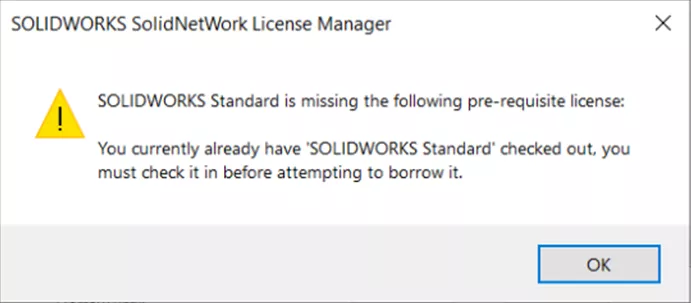
“SOLIDWORKS Standard is missing the following pre-requisite license: You currently already have 'SOLIDWORKS Standard' checked out, you must check it in before attempting to borrow it.”
This error occurs if you have SOLIDWORKS open. It is best to close SOLIDWORKS before attempting to borrow a license.
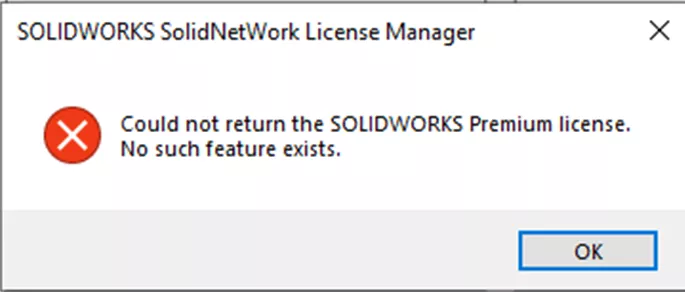
“Could not return the SOLIDWORKS license. No such feature exists”.
This happens when trying to return the license.
Resolving the Issue
If either of these errors persists, make sure to close SOLIDWORKS before attempting to unstick the license with any of these solutions.
The first method is to rename a folder in the Registry Editor. To do this, open the Registry Editor and navigate to:
HKEY_CURRENT_USER\Software\FLEXlm License Manager\Borrow
Right-click on the Borrow folder, select Rename, and then rename it to Borrow_old. If there are any stuck licenses on the machine, this should purge them.
If that doesn’t work, try changing the date on the client computer to 31 days in the future to trigger an automatic return. Then reset the date to normal.
License Stuck on Server
If the license doesn’t appear to be stuck on the client machine and the options above don’t work, the license is likely stuck on the server side.
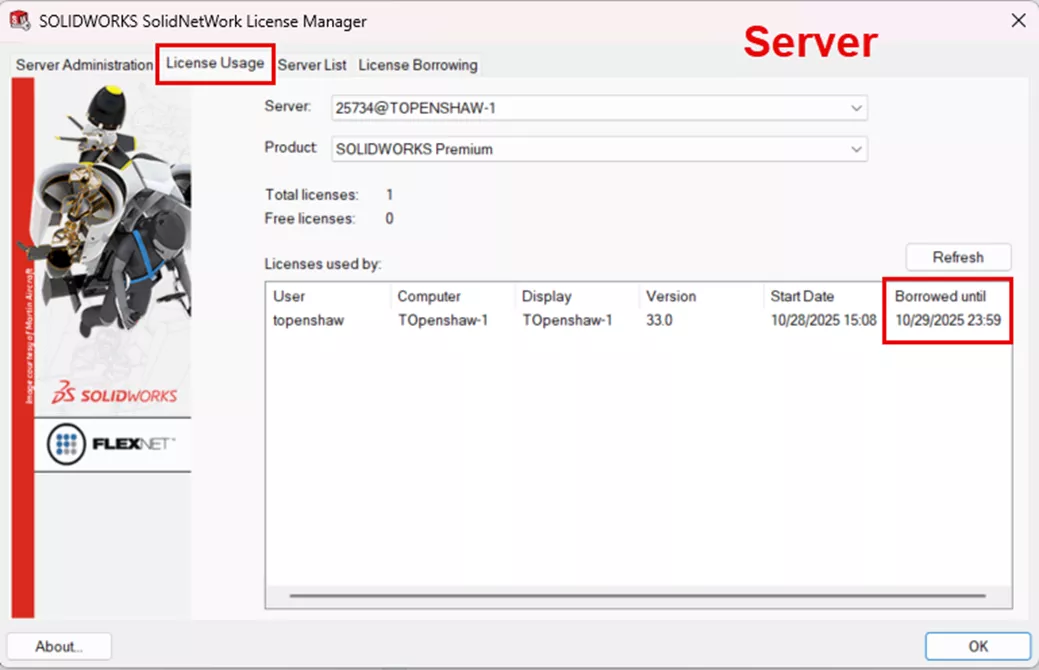
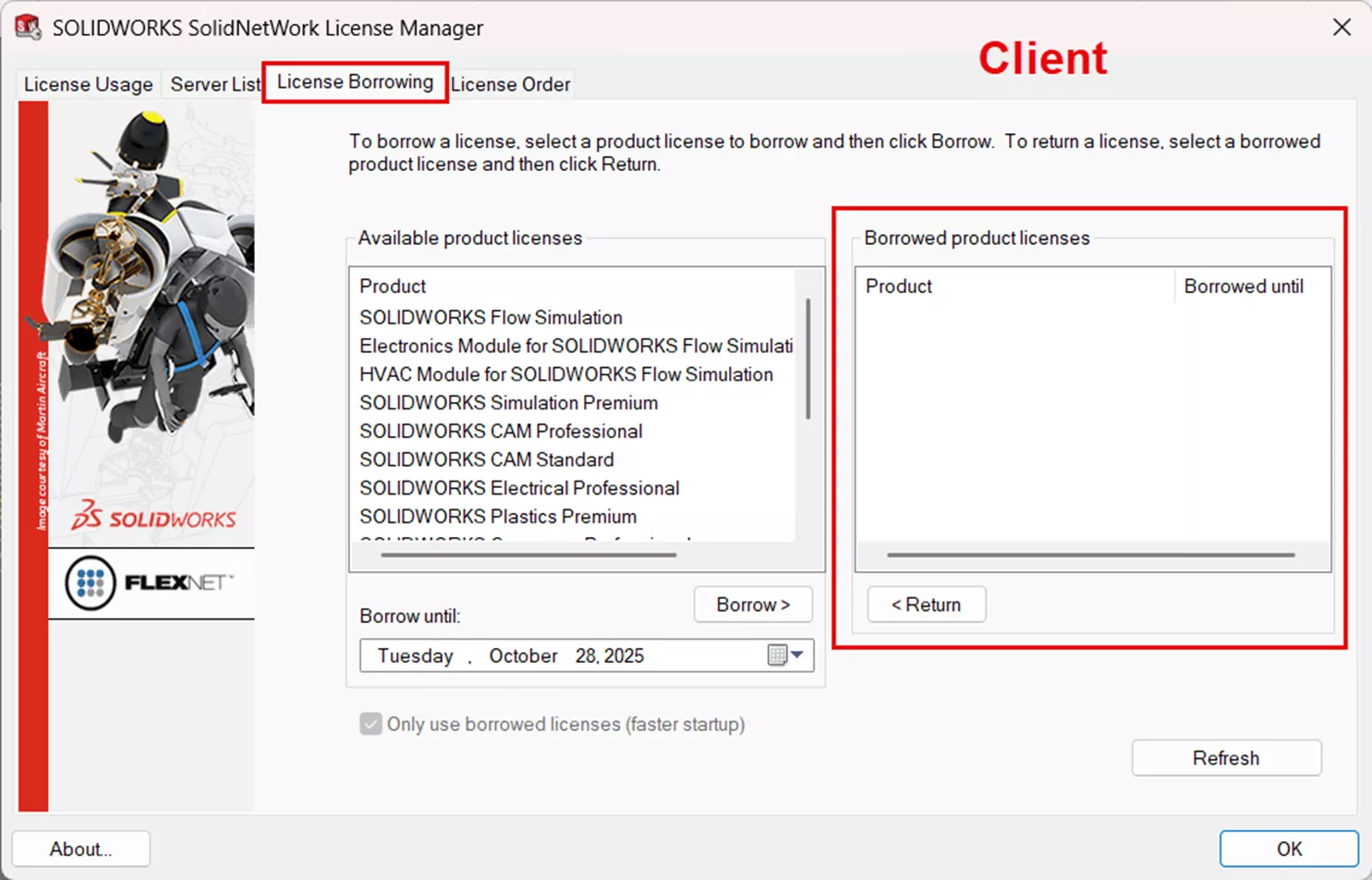
Start by checking the License Usage tab in the SolidNetWork License Manager. This will show which user borrowed the license and when it's borrowed until. If the License Borrowing tab on the client machine does not show the same information, it's definitely stuck on the server.
Resolving the Issue
To resolve this, the best thing to do is reactivate all the licenses on the server machine, following the instructions here: How to Reactivate Your SolidNetWork License Manager.
Keep in mind that reactivating the licenses will return all licenses that users have currently borrowed.
If none of the above solutions resolve the issue, contact your Tech Support team for assistance!
Related Articles
3DEXPERIENCE SOLIDWORKS Local Cache Management
Troubleshooting SOLIDWORKS PDM Notifications
Why Your SOLIDWORKS Drawing Balloons Have Question Marks (?) or Asterisks (*)

About Tashayla Openshaw
Tashayla Openshaw is a SOLIDWORKS Technical Support Engineer based out of our Headquarters in Salt Lake City, Utah. She earned her Bachelor’s degree in Mechanical Engineering from the University of Utah in 2018 and has been part of the GoEngineer family since February 2019.
Get our wide array of technical resources delivered right to your inbox.
Unsubscribe at any time.