Create and Use Revision Tables in SOLIDWORKS

In SOLIDWORKS, revision tables are used to track changes to drawing documents.
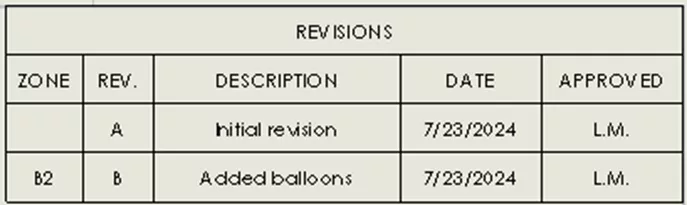
Figure 1: SOLIDWORKS revision table with two revisions
To create one, select the Revision Table button in the Table toolbar or in the Table dropdown in the Annotations tab of the CommandManager, or go to Insert > Tables > Revision Table.
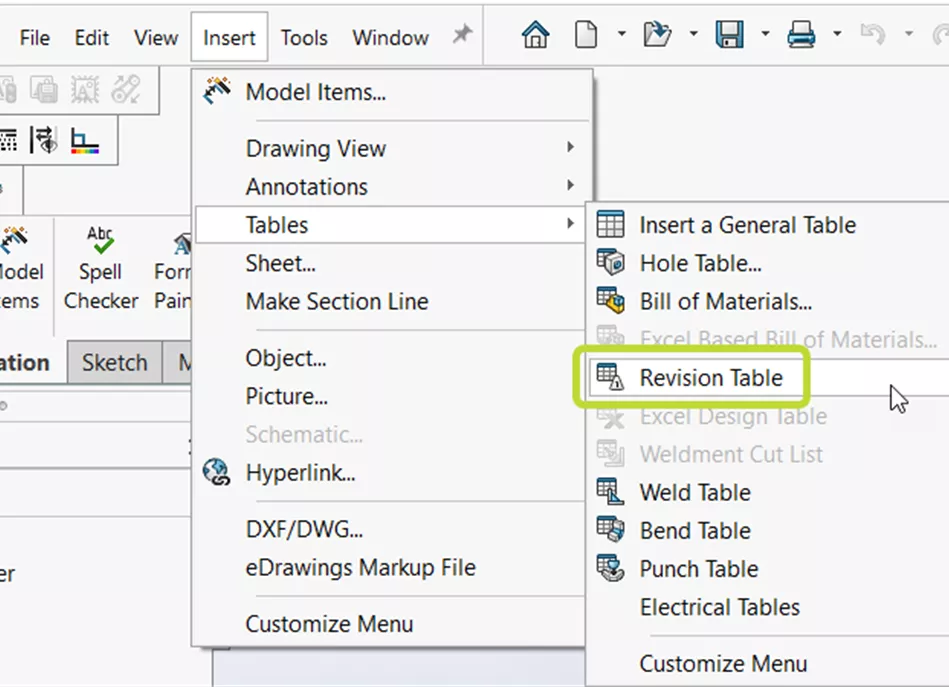
Figure 2: Insert > Tables > Revision Table
The Revision Table PropertyManager will appear in the Management Panel. Here, you can specify options for which table template will be used, what shape the border of your revision symbols will be, and whether, when you add a revision, the Revision Symbol tool will activate automatically. Click the green checkmark to generate the Revision Table.
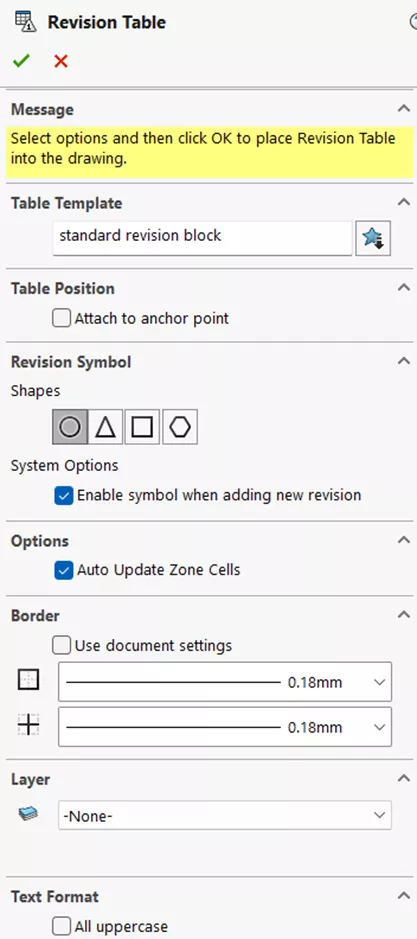
Figure 3: SOLIDWORKS Revision Table PropertyManager
In the default revision table template, there are five columns: ZONE, REV., DESCRIPTION, DATE, and APPROVED.
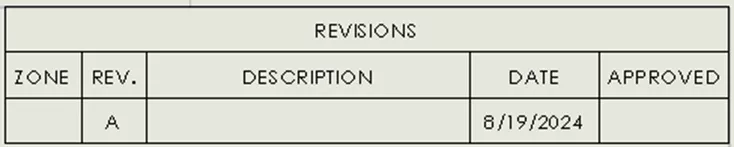
Figure 4: Default revision table immediately after adding the first revision
To add a revision, hover over the table and click the Add Revision button. You can also right-click anywhere on the revision table and select Revisions > Add Revision in the right-click menu.
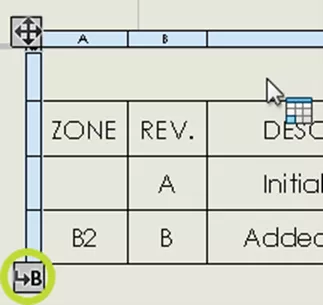
Figure 5: Add Revision button
DESCRIPTION and APPROVED are not linked to any properties. Instead, you'll need to manually enter their values by double-clicking in those columns' cells. The intent is that, when a new revision is created, the engineer editing the drawing will write a description of what changed and who approved it.
The REV. and DATE columns populate automatically when a new revision is added. DATE is the date the revision was added, and REV. is the revision. Based on the settings in Document Properties > Drafting Standard > Tables > Revision, revision table tags can either be letters or numbers. It is not possible to create a custom numbering or lettering scheme for your revisions.
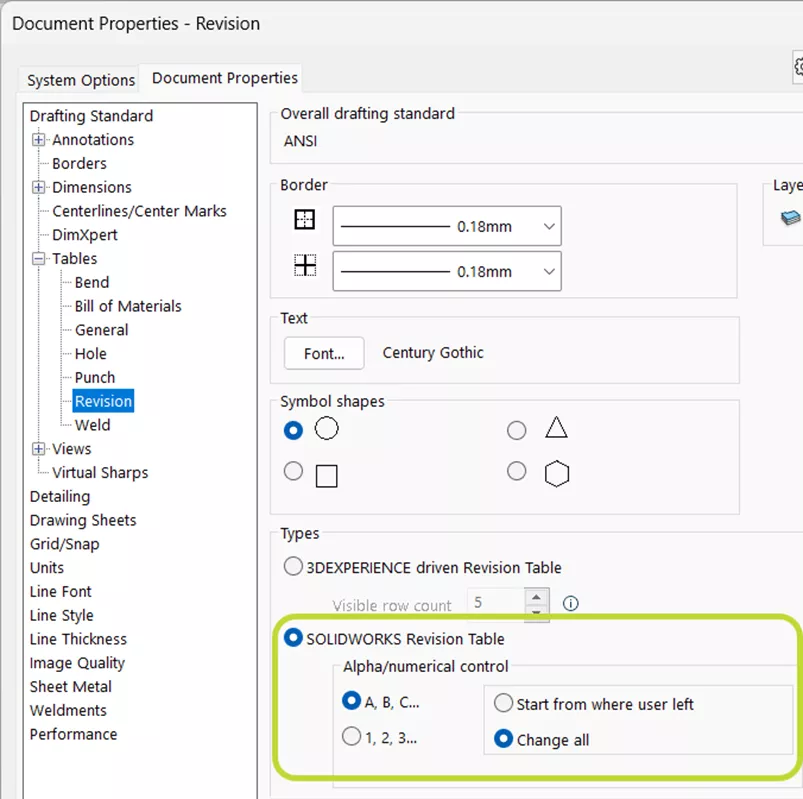
Figure 6: Revision numbering scheme setting
When the first revision is added to a revision table, it creates a custom property named "Revision" at the drawing level.
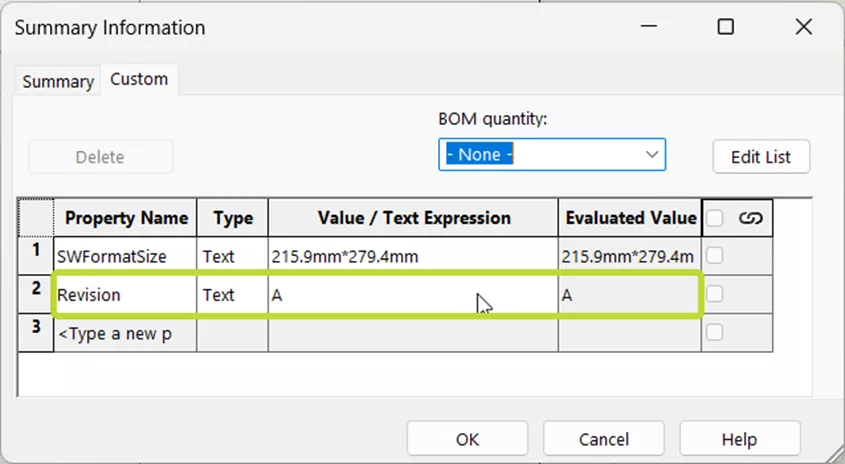
Figure 7: Revision numbering scheme setting
The value of this custom property has a one-way link to the revision table; adding a revision will update the custom property, but manually changing the value of the custom property in the File Properties dialog does not affect the revision table.
You can double-click a cell in the REV. column to change the revision. This will update the custom property and any revision symbols linked to that revision. However, when another revision is added, the numbering will proceed as if the change did not occur. For example, if you change what was, by default, revision A to revision D, the next revision you add will be B, not E.
ZONE is another unique kind of column for SOLIDWORKS. When you add a revision symbol to your drawing, the zone cell for that revision row updates with information about where you placed it. The zone(s) displayed update when revision symbols are moved, added, or deleted. The zone is based on your drawing's border, which can be edited using the Automatic Border tool. Because of this active link to the location(s) of revision symbols, it is best practice not to make any manual edits to zone cells.
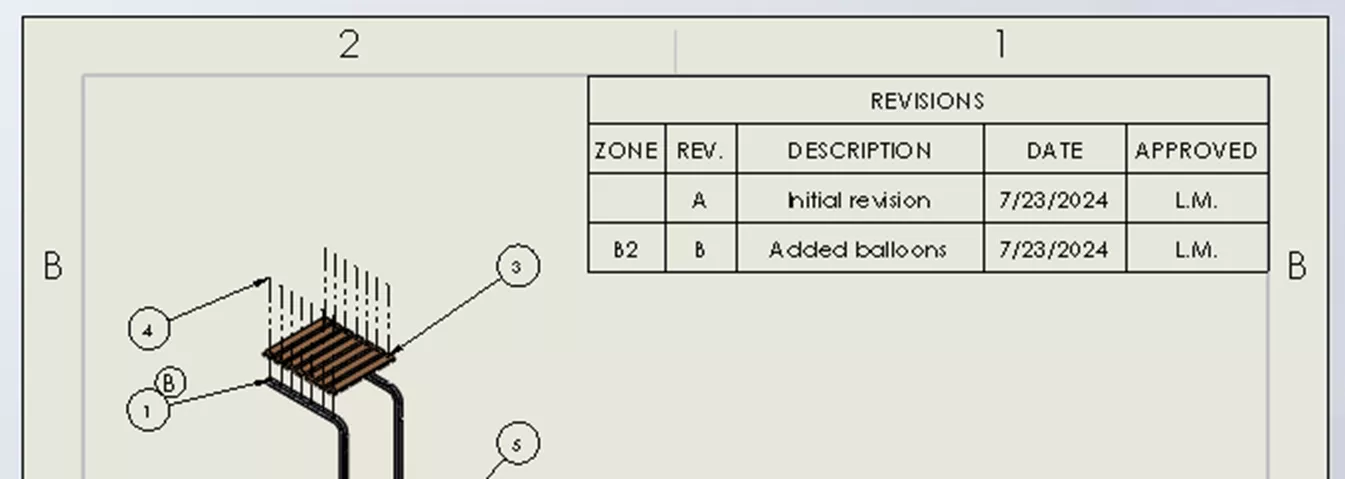
Figure 8: Revision table and drawing view with revision symbol
In the Figure 8 example, in revision B of the drawing, balloons were added to an exploded drawing view. A revision symbol was placed by those balloons to indicate the change. Because the location of that symbol is in the B2 zone, the zone cell in the revision B row automatically updated with the text “B2”.
Extra columns can be added in the same way that columns are added to other SOLIDWORKS tables - by right-clicking anywhere on it, and selecting Insert > Column Right or Column Left.
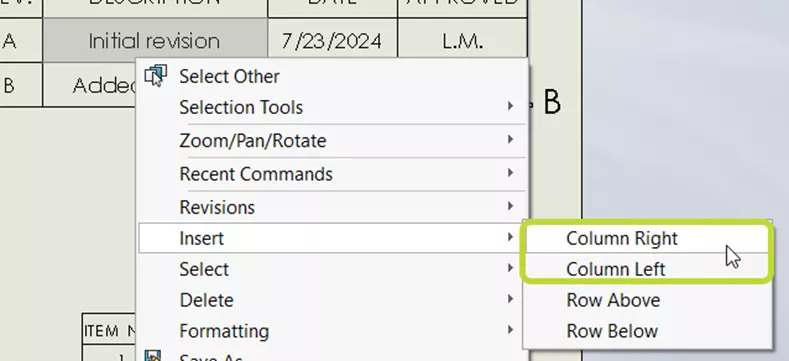
Figure 9: Insert Column Right and Column Left options
Click and drag column headers to change their position. To change the column type, left-click the column header. This activates the Column PropertyManager.
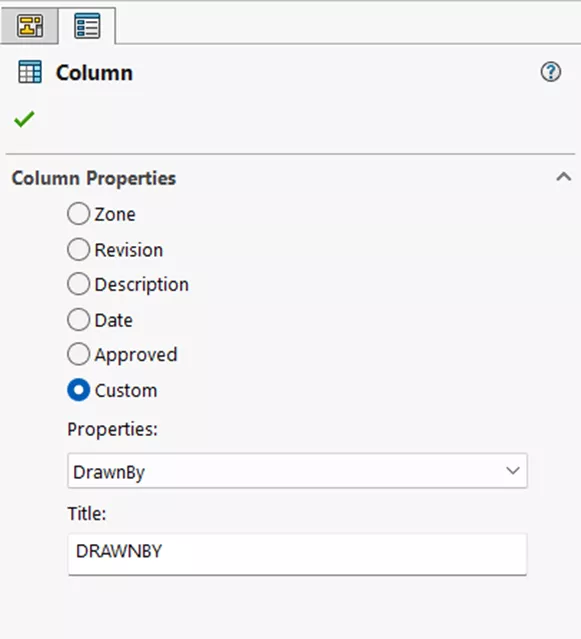
Figure 10: Column PropertyManager with Custom selected
In it are radio buttons for the default columns: Zone, Revision, Description, Date, and Approved. Plus Custom. Though a Properties dropdown does appear when you select Custom, Custom revision table columns do not link to custom properties either at the model or drawing level. The Properties dropdown only sets a default Title for the column, which can be edited using the Title text box under it.
If you want to create a custom revision table template, you can do so by right-clicking on a revision table and selecting Save As. This article, SOLIDWORKS Table Templates, walks through editing tables and creating custom templates in detail.
Revision Symbols
Revision symbols are notes with borders that are linked to the REV. column of the revision table. They are not controlled by the drawing-level custom property called “Revision”. What shape the revision symbol borders are by default is controlled by the buttons under Shapes in the Revision Symbol section of the Revision Table PropertyManager (see Figure 1). The border shape can also be changed in the Border section of the Revision Symbol PropertyManager. Notably, there are more options here than the four available in the Revision Table PropertyManager.
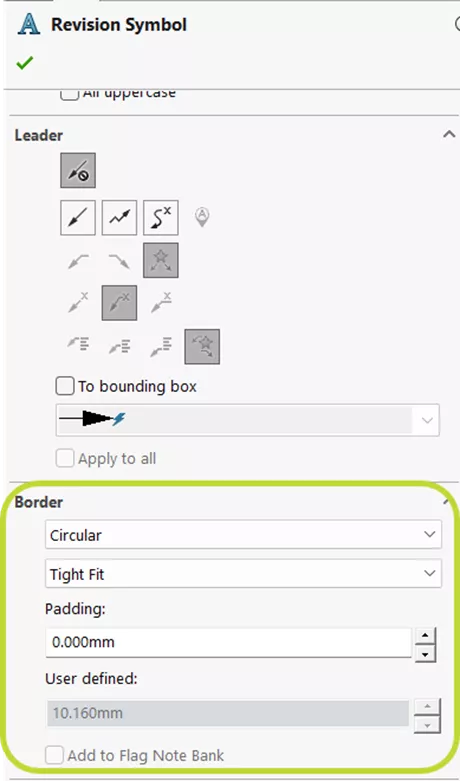
Figure 11: Border section of Revision Symbol PropertyManager
To insert revision symbols, right-click on the revision table in the row of the revision you want to add a symbol for and select Revision > Add Symbol.
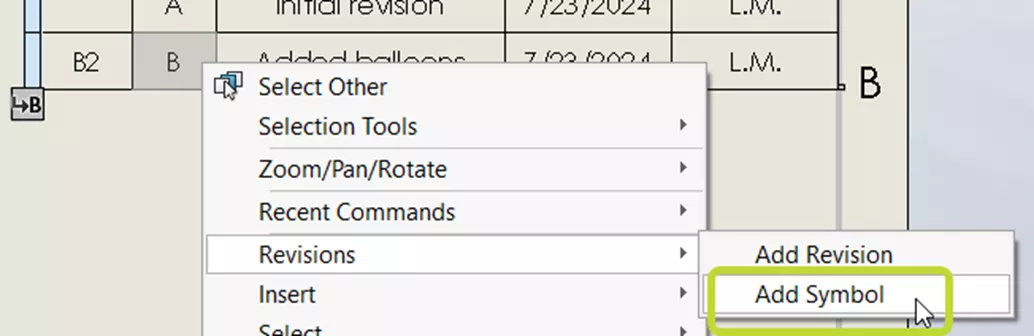
Figure 12: Add Symbol option in the revision table right-click menu
Once the Revision Symbol PropertyManager is active, click in the graphics area to place revision symbols. Leaders will be included automatically if you click on model geometry. The Revision Symbol tool will stay active until you click the green checkmark or red X in the Revision Symbol PropertyManager, allowing you to place multiple revision symbols on your drawing at once.
To set the Revision Symbol tool to activate anytime a new revision is added, go to Tools > Options > System Options > Drawings and check the box for Enable symbol when adding new revision. If this option is unchecked, when a new revision is added, the Description cell in the new revision's row will activate automatically instead.
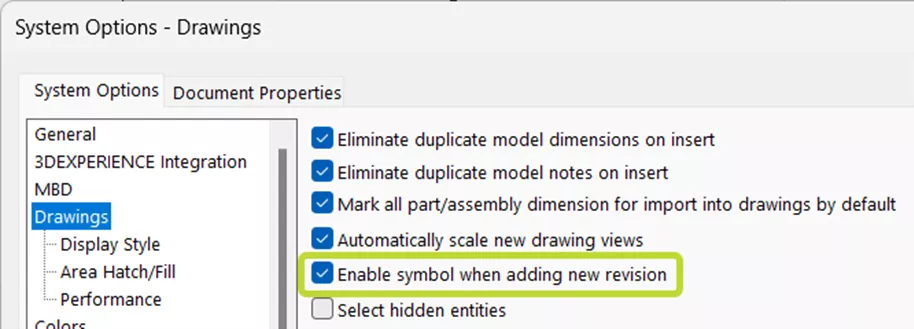
Figure 13: Enable symbol when adding new revision checkbox in System Options > Drawings
Revision Tables for Multi-sheet Drawings
There are three styles to choose from for how SOLIDWORKS deals with revision tables in drawings with multiple sheets. These options can be found in Tools > Options > Document Properties > Tables > Revision.
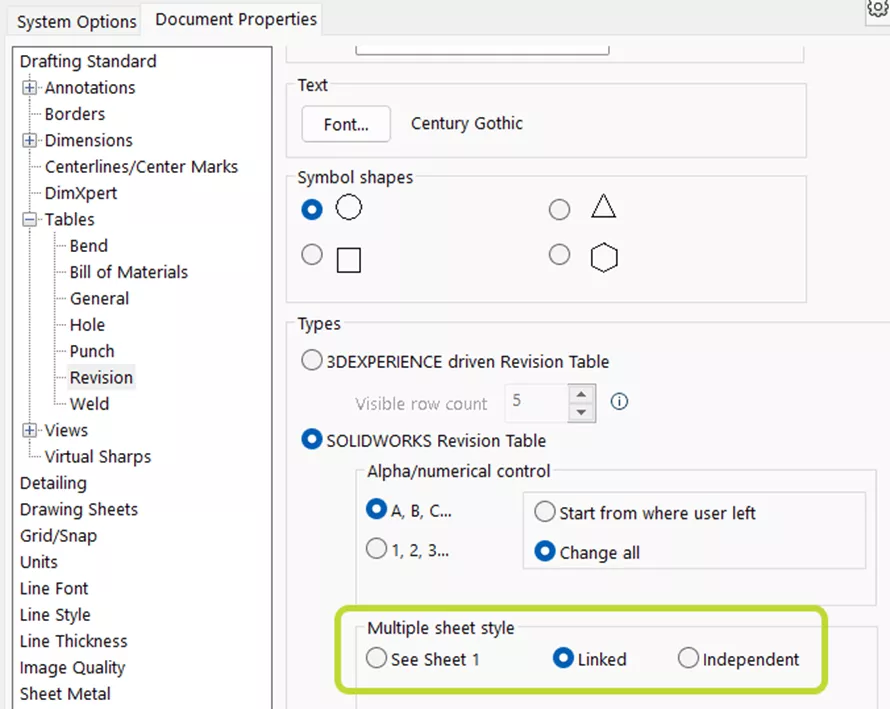
Figure 14: Multiple sheet style options
The first, See Sheet 1, makes it so that when a revision table is inserted on a subsequent sheet, its description is “See Sheet1” and all other values are a dash.

Figure 15: Revision table with See Sheet 1 multiple sheet style
The Linked option links all revision tables so they are the same on every sheet. Changes you make to any revision table on any sheet affect all of them. The Independent style allows you to have revision tables on different drawing sheets that are independent of one another. If this style is selected, instead of just having one custom property called “Revision”, you’ll instead have multiple, each named “Revision-SheetX” where “X” is the sheet number.
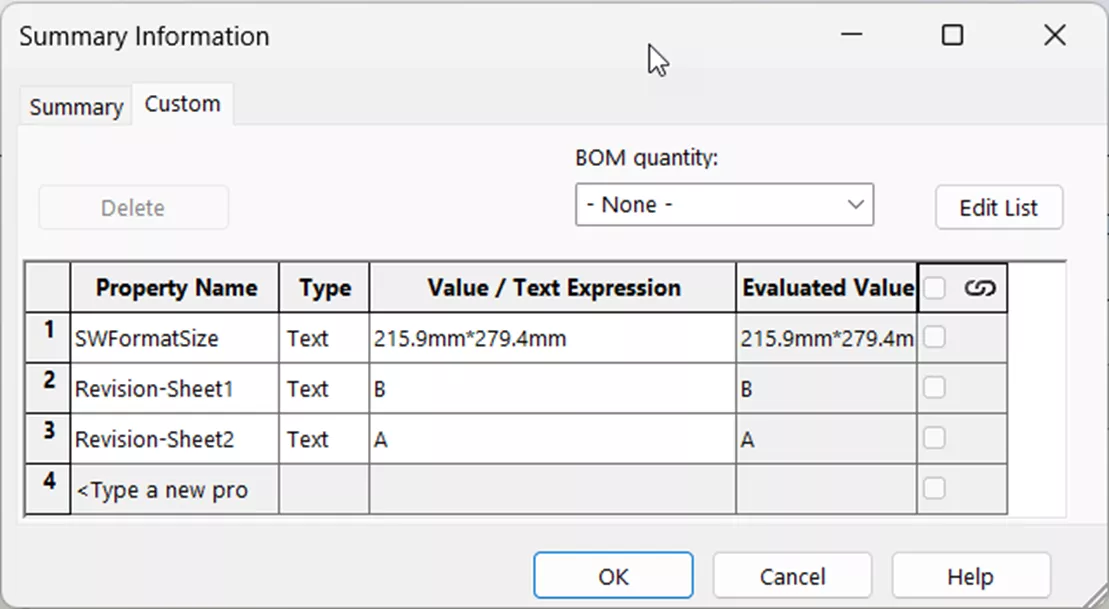
Figure 16: Revision-Sheet1 and Revision-Sheet2 custom properties
PDM-Controlled Revision Table
If you're using SOLIDWORKS PDM to store and manage your files, it's possible to have PDM drive your revision tables. This makes the revision table columns bidirectional with the PDM properties to which they're linked (Revision, Description, Date, and Approved). The table can be updated via a data card or a workflow. For more information, see this article: SOLIDWORKS PDM Creating PDM Revision Table.
3DEXPERIENCE-Controlled Revision Table
If your drawing file is saved to the 3DEXPERIENCE platform, starting in 2023 FD01, it's possible to have 3DEXPERIENCE drive its revision table. Like PDM-driven revision tables, this has the benefit of saving you the work of manually adding revisions to the table when a revision is added to the drawing in 3DEXPERIENCE. To toggle this on, in a drawing, go to Tools > Options > Document Properties > Drafting Standard > Tables > Revision. In the Types section, select the radio button for 3DEXPERIENCE-driven Revision Table.
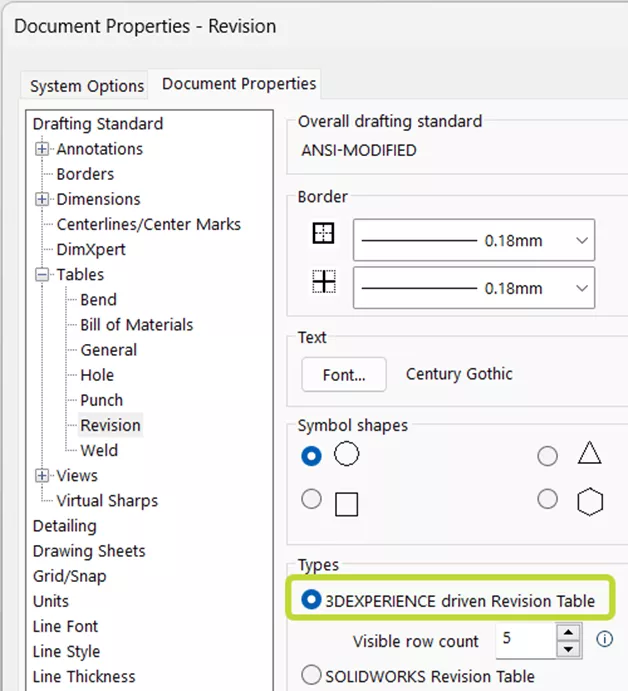
Figure 17: 3DEXPERIENCE driven Revision Table option in Document Properties
Here, you can also select the maximum number of visible rows in the revision table; if the number of revisions is greater than this value, older ones will be removed. Because these are Document Properties, they are file-specific, and their initial values in a new drawing are determined by the drawing template selected. You will need to update your drawing template to set new drawings to have 3DEXPERIENCE drive revision tables by default.
With this option enabled, when you create a new revision of a drawing file in 3DEXPERIENCE, a new revision row is automatically added to existing revision tables. New revision tables you create will include all drawing revisions.
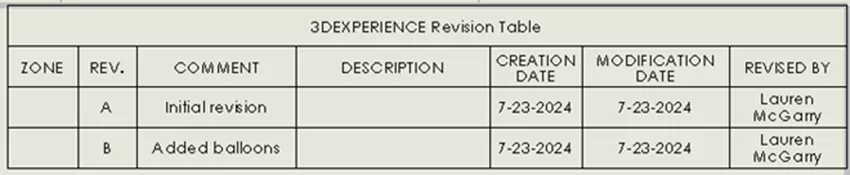
Figure 18: Default 3DEXPERIENCE driven Revision Table
The default 3DEXPERIENCE revision table template, standard 3DEXPERIENCE revision block.sldrevtbt, includes columns for ZONE, REV., COMMENT, DESCRIPTION, CREATION DATE, MODIFICATION DATE, and REVISED BY. These do not link to the same variables as the default SOLIDWORKS revision table template. The default 3DEXPERIENCE revision table template is selected automatically when you go to create a new revision table with the option for 3DEXPERIENCE driven Revision Table selected in the Document Properties.
The COMMENT column displays whatever Revision Comment was entered when the new revision was added, and DESCRIPTION shows the description. You can change the revision comment and description by opening the drawing, right-clicking it in the MySession 3DEXPERIENCE task pane tab, and selecting Properties.
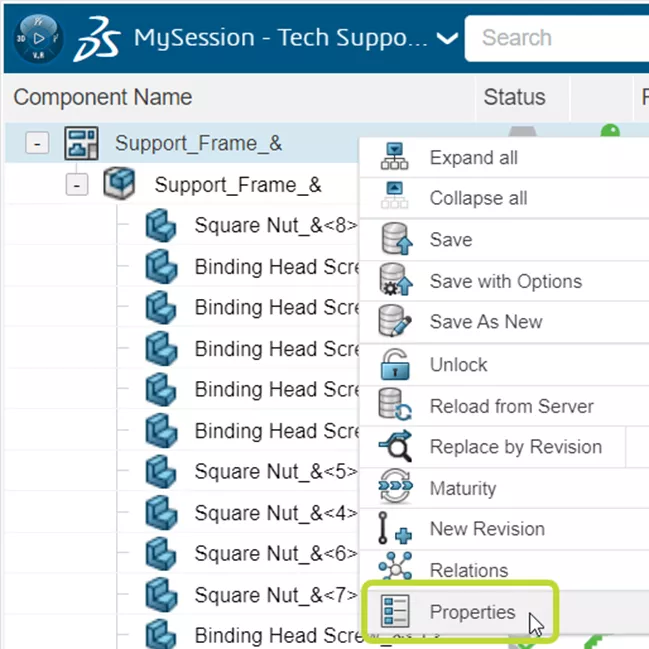
Figure 19: Properties option in MySession right-click menu
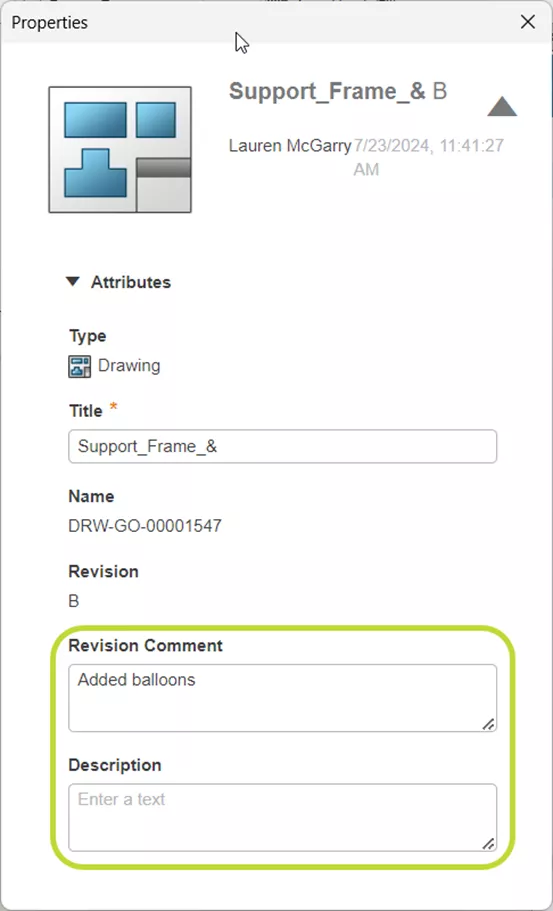
Figure 20: Properties popup for drawing file
The Collaborative Lifecycle app can also be used to modify the revision comment and description of any revision.
To add revision symbols to the drawing, right-click on the revision cell for which you want to add a symbol and select Revisions > Add Symbol, the same way you would in a default, manual SOLIDWORKS revision table.
In conclusion, understanding and effectively utilizing revision tables in SOLIDWORKS is essential for maintaining accurate documentation of changes in drawing projects. By leveraging the features available, such as automatic updates and customizable templates, users can streamline their workflow and ensure clear communication of revisions.
To learn more about SOLIDWORKS or tools in the 3DEXPERIENCE platform, check out the articles listed below. Additionally, visit the GoEngineer Community, where you can create forum posts, enter design contests, and answer questions from other SOLIDWORKS users.
SOLIDWORKS CAD Cheat Sheet
SHORTCUTS ⋅ MOUSE GESTURES ⋅ HOT KEYS
Our SOLIDWORKS CAD Cheat Sheet, featuring over 90 tips and tricks, will help speed up your process.

Related Articles
How to Enable XYZ Distance Measurements in 3DPlay
5 Advanced SOLIDWORKS Patterning Techniques to Supercharge Your Workflow
AI in SOLIDWORKS: What It Is (and What It Isn’t)
How to Change Units of Measure in 3DPlay

About Lauren McGarry
Lauren McGarry is a Certified SOLIDWORKS Expert based out of San Diego, California. She earned her Bachelor of Science degree from Case Western Reserve University and has been with GoEngineer as a Technical Support Engineer since 2016.
Get our wide array of technical resources delivered right to your inbox.
Unsubscribe at any time.