Exchanging Data Between SOLIDWORKS and CATIA V5

Table of Contents
SOLIDWORKS and CATIA V5 are both powerful and versatile tools. However, because they are separate Dassault Systèmes products, there are misconceptions about their compatibility. This article will shed some light on the similarities and differences in functionality and capabilities. Both tools can work together by exchanging data in a neutral file format such as STEP or IGES. However, there are limitations to this method of data exchange as there may be some loss of information during the data exchange process.
Good to know: In either direction, imported models can be changed with direct editing tools or by adding new features, and the tools below help you rebuild features such as sheet metal.
Moving SOLIDWORKS files into CATIA V5
To bring SOLIDWORKS models into CATIA V5, export them from SOLIDWORKS as STEP or IGES, then open the file in CATIA. The model arrives as geometry that you can edit using direct editing tools and/or by adding new features, but not make parametric changes, as feature history is lost in translation.
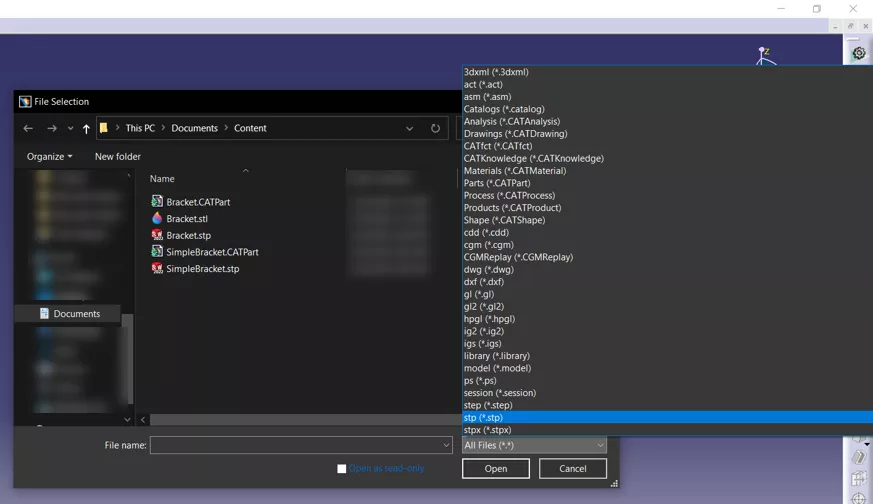
File types CATIA V5 can open
STEP
A STEP file opens in CATIA V5 as a CATProduct when it carries an assembly structure, and as a CATPart otherwise. Solid bodies come in as solids; surface bodies as surfaces. CATIA can also write a report of the STEP validation properties each time you import one, which is a handy way to verify the import.
To add or rebuild features, start with CATIA’s measuring tools and 3D projection tools, such as Intersect 3D Elements.
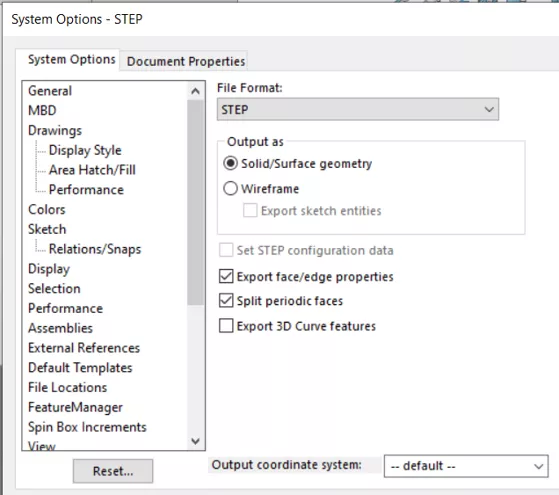
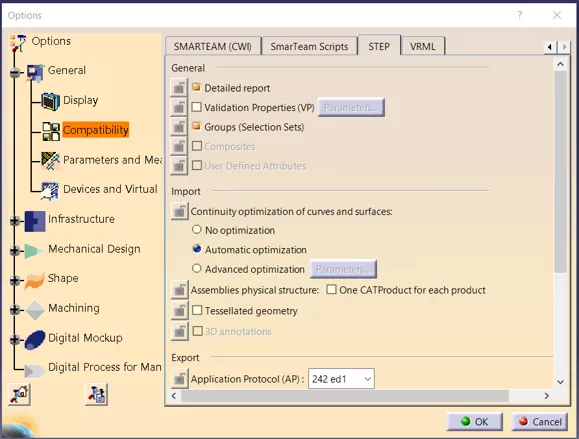
STEP settings in SOLIDWORKS (left) and CATIA V5 (right)
IGES
An IGES file opens as surfaces and wireframe in a geometrical set. Healing and joining those surfaces turns them into a solid.
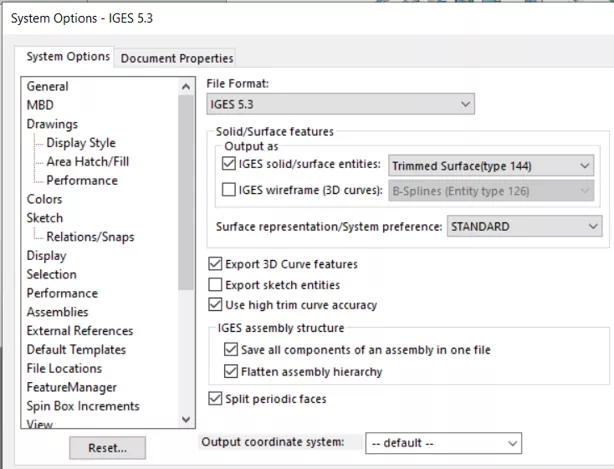
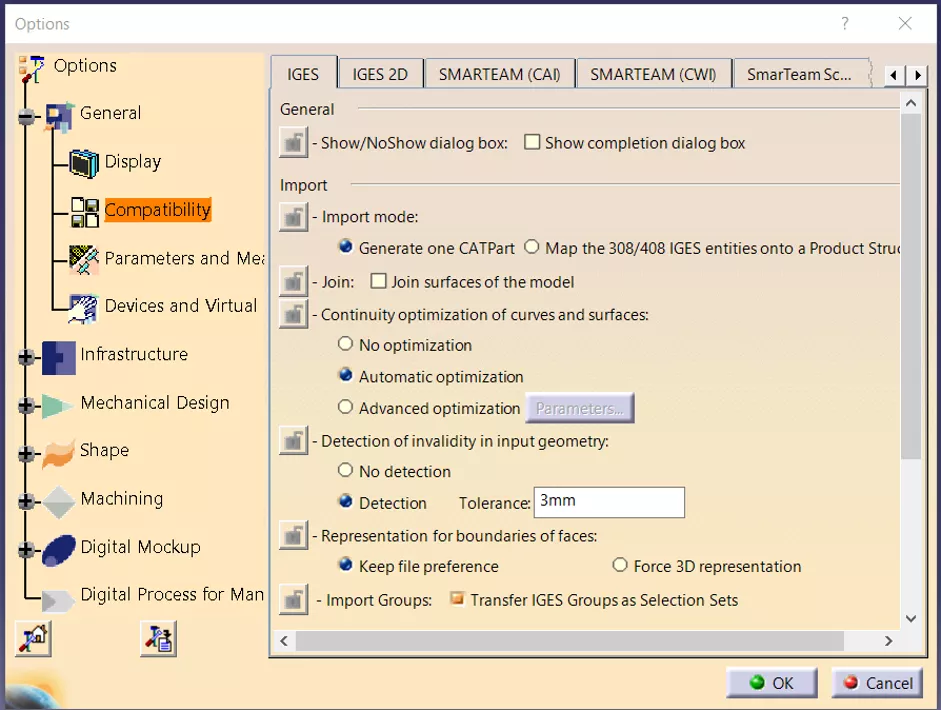
IGES settings in SOLIDWORKS (left) and CATIA V5 (right)
DXF and DWG drawings
CATIA V5 opens DXF and DWG files as CATDrawings you can edit directly. After import, it’s worth a quick review of layers and annotation styles.
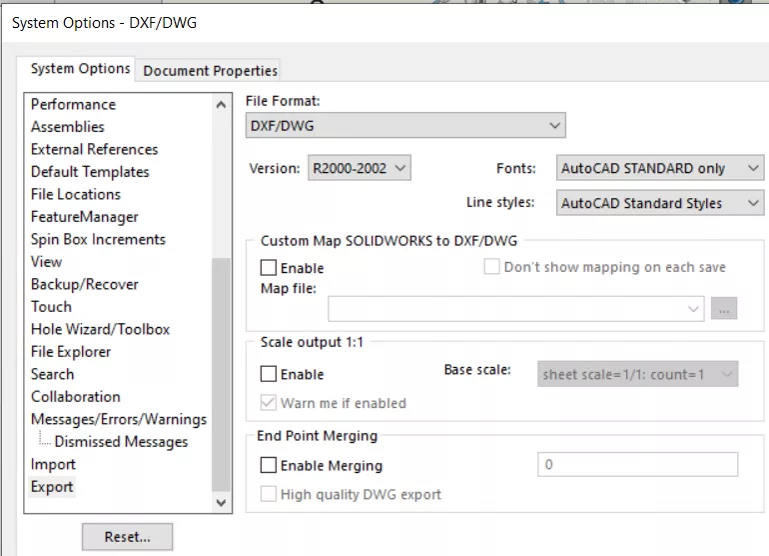
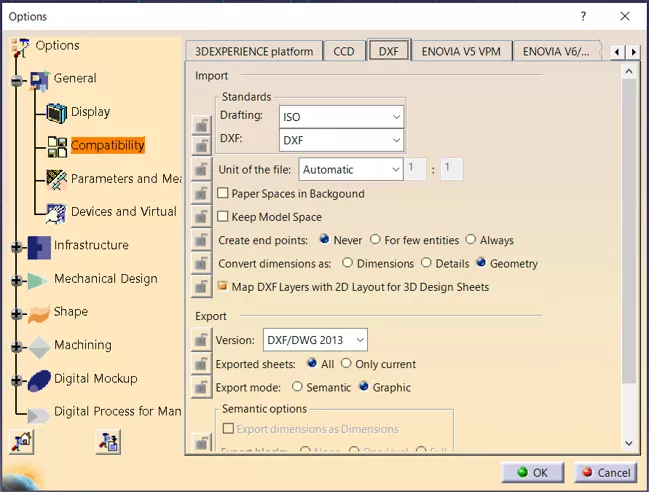
DXF settings in SOLIDWORKS (left) and CATIA V5 (right)
Sheet metal
CATIA V5’s Recognize tool converts an imported solid into a sheet metal part by identifying its walls and bends, so you can keep working with native CATIA sheet metal features.
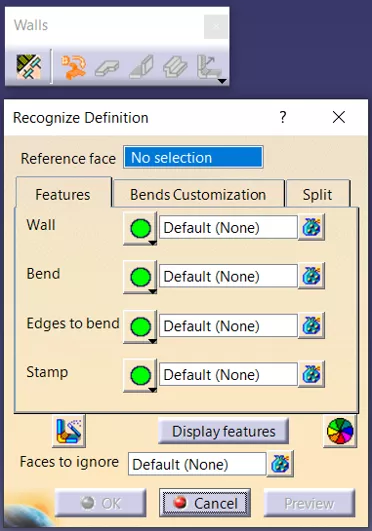
The Recognize dialog for sheet metal parts in CATIA V5
Moving CATIA V5 files into SOLIDWORKS
Every version of SOLIDWORKS can import IGES and STEP files, but SOLIDWORKS Premium opens native CATIA V5 parts and assemblies (.CATPart and .CATProduct) directly. Either way, the model comes in as solid/surface bodies you can edit with direct editing tools or by adding new features.
Native CATIA V5 files open via 3D Interconnect, which maintains a link to the original CATIA file. When the CATIA model is updated, you can refresh the SOLIDWORKS part to match, or break the link for an independent copy.
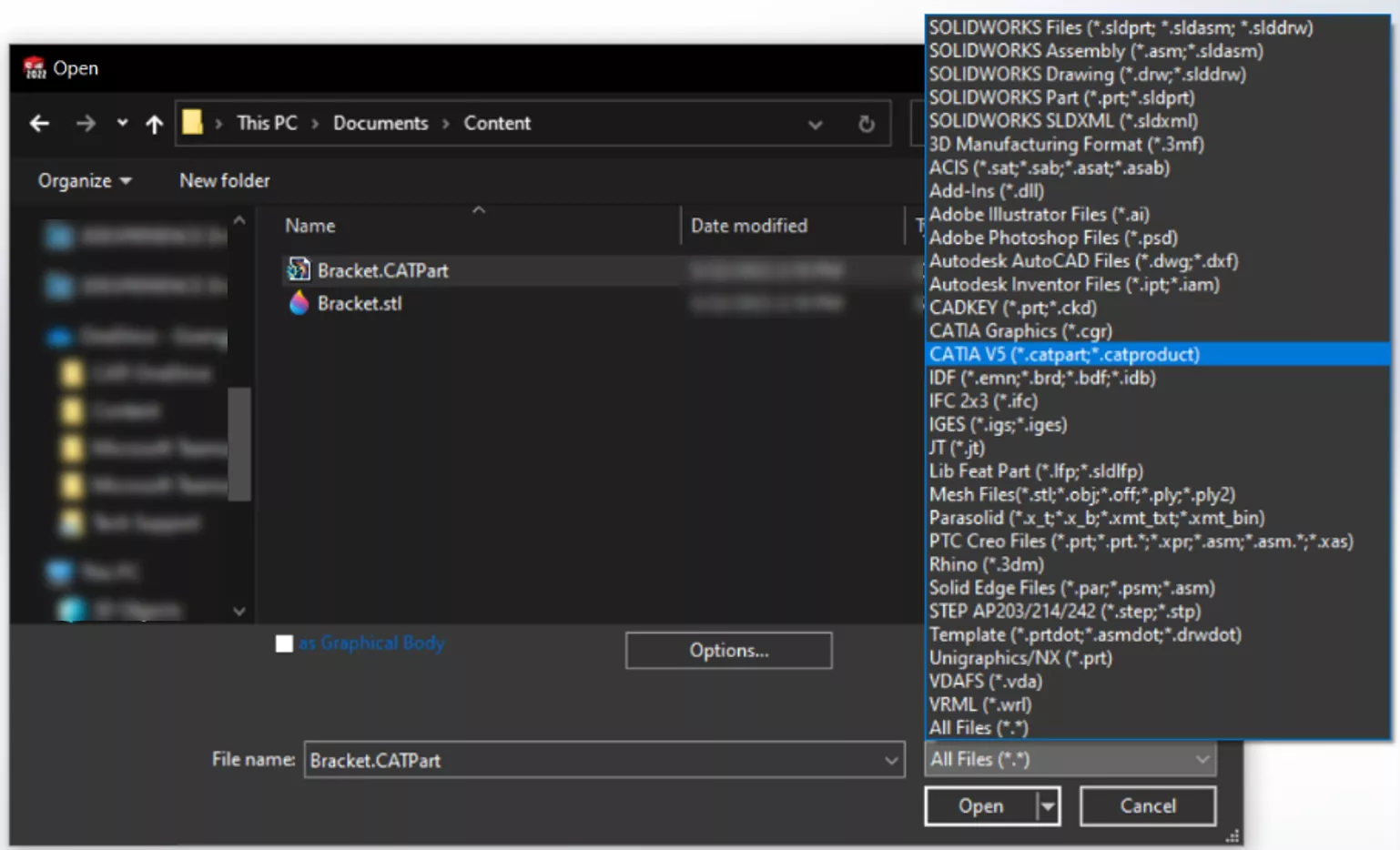
File types SOLIDWORKS can open
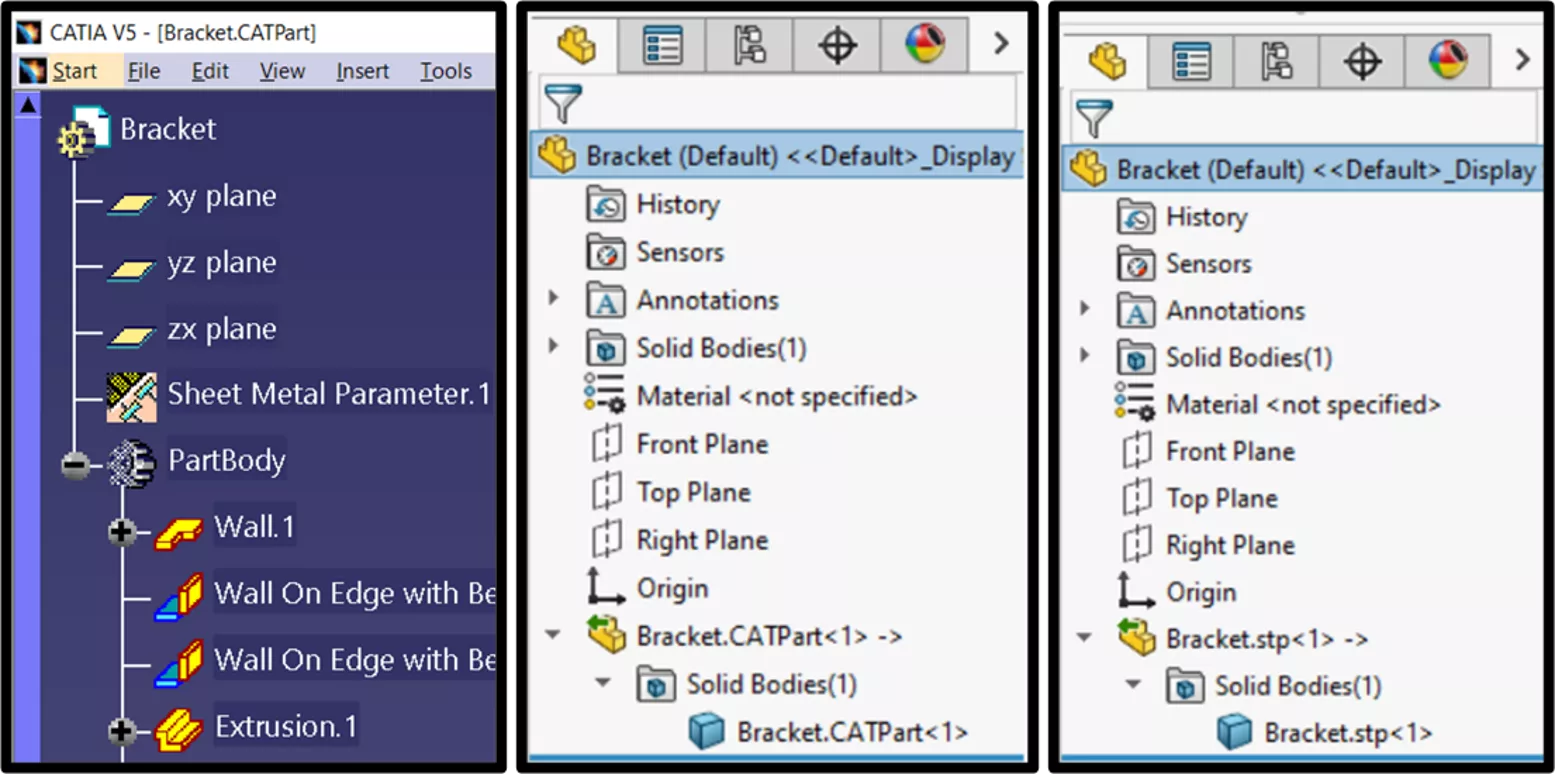
A CATIA V5 part’s feature tree in CATIA (left), opened natively in SOLIDWORKS (middle), and imported from STEP (right)
Exporting STEP from CATIA V5
An SXT or ST1 add-on license gives you more control over how CATIA V5 writes STEP files, including exporting 3D annotations and choosing the STEP Application Protocol (AP).
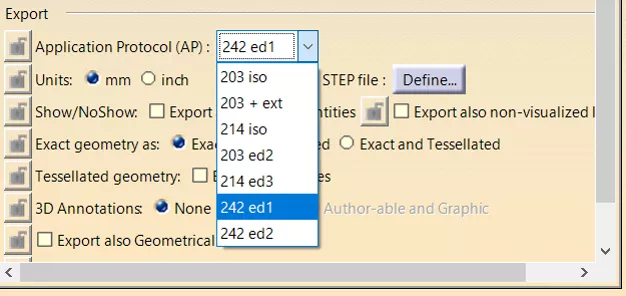
STEP export settings in CATIA V5
Drawings
CATIA V5 exports drawings as DWG or DXF, mapping CATDrawing elements to 2D DXF elements as it goes. Elements set to No Show aren’t included, so be sure to show any geometry you want in the export first.
Sheet metal
SOLIDWORKS’ Convert to Sheet Metal tool identifies bends and walls on an imported solid and applies sheet metal features. It works with both STEP and IGES imports and native CATPart files.
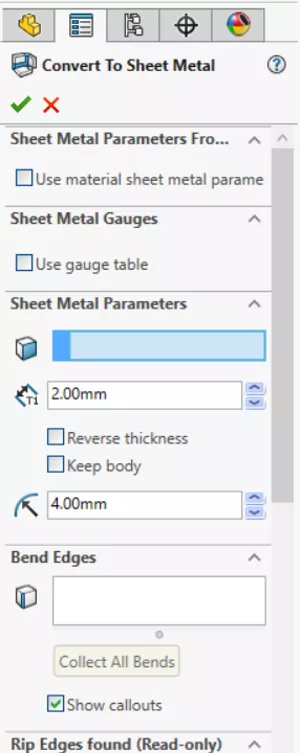
Convert to Sheet Metal options in SOLIDWORKS
Quick reference
| Format | Direction | Arrives as | Editing |
|---|---|---|---|
| STEP | Both | Part or assembly | As bodies |
| IGES | Both | Surfaces and wireframe; heal and join for a solid | As bodies, after healing |
| .CATPart / .CATProduct | CATIA V5 to SOLIDWORKS Premium | Part or assembly | As bodies; can update from the CATIA file |
| DXF / DWG | Both | 2D drawing; review layers and annotations | As 2D drawing |
The bottom line
SOLIDWORKS and CATIA V5 exchange data reliably through STEP, IGES and DXF/DWG, (and through native files with SOLIDWORKS Premium). Picking the right format for each job, and knowing which tools rebuild features, keeps projects moving smoothly between the two.
Related articles
Getting Started with CATIA V5: Workbenches & Toolbars
How to Check Out a CATIA License from Managed DSLS
Manage High DPI Screen When Using CATIA V5 with Windows 11
Using CATIA STEP to Exchange 3D Models with PMI or Composites Data

About GoEngineer
GoEngineer delivers software, technology, and expertise that enable companies to unlock design innovation and deliver better products faster. With more than 40 years of experience and tens of thousands of customers in high tech, medical, machine design, energy and other industries, GoEngineer provides best-in-class design solutions from SOLIDWORKS CAD, Stratasys 3D printing, Creaform & Artec 3D scanning, CAMWorks, PLM, and more
Get our wide array of technical resources delivered right to your inbox.
Unsubscribe at any time.